DevGuard
Entro DevGuard is a Visual Studio Code extension that scans your code for exposed secrets — API keys, tokens, credentials, private keys — and surfaces them as diagnostics directly in the editor.
What it does
-
Scans as you work. Files are scanned on open, on save, and as you type. Untitled buffers (e.g. paste-and-check via
Ctrl+N/Cmd+N) are scanned too. -
Highlights findings inline. Detected secrets show up as red diagnostics with hover details and quick-fix actions.
-
Workspace-wide audits. A single command scans every file in your workspace, with a progress notification and cancellation.
-
Stores your API key securely. The key lives in VS Code's
SecretStorage
Installation
You need Visual Studio Code 1.85 or later and a paid subscription to the SailPoint Entro platform.
From the Visual Studio Code Marketplace
-
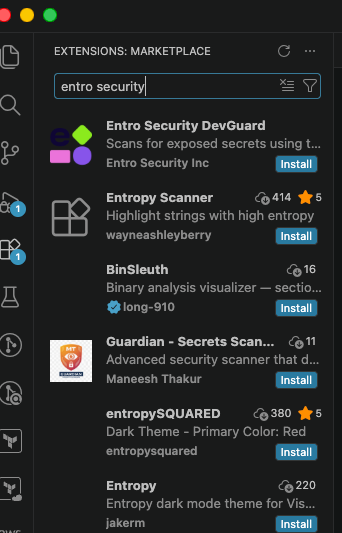
Open the Extensions view in VS Code (
Cmd+Shift+Xon macOS,Ctrl+Shift+Xon Windows/Linux). -
Search for "Entro DevGuard".
-
Click Install on the result published by Entro Inc.
From a VSIX file
If your organization distributes the extension as a .vsix file:
You can also install through the UI: Extensions → … menu → Install from VSIX….
Getting started
1. Set your API key
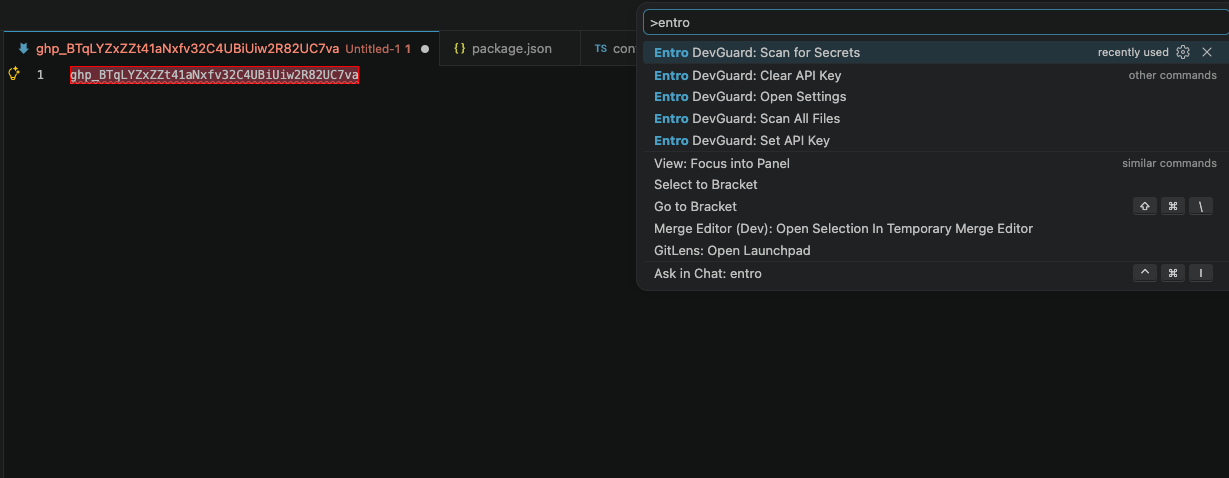
Open the Command Palette (Cmd+Shift+P / Ctrl+Shift+P) and run Entro DevGuard: Set API Key. Paste the key from your SailPoint Entro dashboard and press Enter.
The key is stored in VS Code's SecretStorage and never written to settings.json. If you previously set entro.apiKey in settings, DevGuard migrates it to SecretStorage automatically on first run and clears the plaintext value.
To replace or remove the key later, run Entro DevGuard: Set API Key or Entro DevGuard: Clear API Key.
2. Run your first scan
Open any file. DevGuard scans it automatically on open. To trigger a scan explicitly, run Entro DevGuard: Scan for Secrets on the active document.
Detected secrets are highlighted in red. Hover over the highlight to see the secret type, the source ("Entro"), and quick-fix actions:
The same finding also appears in the Problems panel.
3. Scan your whole workspace
Run Entro DevGuard: Scan All Files to audit every file. DevGuard:
-
Skips
.git,node_modules, build outputs (dist,out,build,.next,target, etc.), binaries, lockfiles, and*.min.{js,css}. -
Scans up to 5 files in parallel.
-
Shows a progress notification you can cancel at any time.
Commands
| Command | What it does |
|---|---|
| Entro DevGuard: Set API Key | Store or replace your API key in SecretStorage. |
| Entro DevGuard: Clear API Key | Remove the stored API key. |
| Entro DevGuard: Scan for Secrets | Scan the active document. |
| Entro DevGuard: Scan All Files | Scan every file in the workspace (with progress and cancellation). |
| Entro DevGuard: Open Settings | Jump to the DevGuard section in VS Code settings. |
The status bar
DevGuard adds an item to the right side of the status bar that reflects what the scanner is doing:
| State | Display | Click action |
|---|---|---|
| Active, no findings | 🛡 Entro |
Open settings |
| Scanning | ⟳ Entro |
— |
| Findings in workspace | ⚠ Entro: N |
Open the Problems panel |
| API key missing | 🛡 Entro: set key |
Run Set API Key |
| API key rejected | 🔑 Entro |
Run Set API Key |
| Other error | ⛔ Entro |
Hover for details |
Settings
All DevGuard settings live under Settings → Extensions → Entro DevGuard. The most useful ones:
| Setting | Default | Description |
|---|---|---|
entro.scanOnType |
true |
Scan the active document as you type. Turn off to scan only on open/save and explicit commands. |
entro.advanced.scanGeneric |
true |
Detect generic, non-pattern-based secrets in addition to known credential formats. |
entro.advanced.redactSecrets |
false |
Ask the API to redact the secret value in its response. Useful in compliance-sensitive environments, but DevGuard cannot then highlight the exact characters in the editor (only the line). |
entro.advanced.apiDomain |
api.entro.security |
API host for SailPoint Entro. Must be entro.security or a subdomain. |
entro.advanced.maxFileSizeBytes |
1048576 (1 MiB) |
Skip files larger than this. Hard ceiling: 2621440 (2.5 MiB) — files above the ceiling cannot be scanned regardless of configuration. |
entro.advanced.requestTimeoutSeconds |
15 |
Per-request timeout for calls to the SailPoint Entro API. |
entro.advanced.maxRetries |
2 |
Retry attempts for timeouts, transient network errors, and HTTP 502/503/504. Maximum 5. |
Note
Why the hard 2.5 MiB ceiling? Very large files balloon API request size, response time, and editor responsiveness.
Troubleshooting
Nothing happens after I paste a secret
Open the Entro output channel (View → Output, then select Entro in the dropdown). The log will tell you whether:
-
the scanner was triggered at all,
-
the API was called and what it returned, and
-
any results were dropped (line out of range, value not findable in the line).
A typical successful scan logs something like:
Scanning untitled:Untitled-1 (3 line(s), 312 bytes). Preview: ghp_… AKIA… sk-…
Entro API ok: totalCount=3 results=3 requestId=…
Scan complete for untitled:Untitled-1: 3 secret(s).
If Entro API ok: results= is lower than the number of secrets you expect, the issue is on the server side — either the secret types aren't enabled for your account or the API didn't recognize them. If results= matches, but the editor shows fewer highlights, DevGuard dropped some; check the per-result drop: lines in the log for the reason.
"API key was rejected" toast
Your stored key is no longer valid or has insufficient permissions. Run Entro DevGuard: Set API Key and paste a fresh key from your SailPoint Entro dashboard.
The Output channel says "Skipping … N bytes exceeds limit"
The file is larger than entro.advanced.maxFileSizeBytes. Raise the setting (up to the 2.5 MiB ceiling) or split the file.
Requests keep timing out
Bump entro.advanced.requestTimeoutSeconds and/or entro.advanced.maxRetries. The client retries on timeouts and transient errors automatically; each retry is logged with its delay.
I want to disable on-type scanning
Set entro.scanOnType to false. DevGuard will still scan on open, on save, and when you run the Scan for Secrets command.
Privacy & security
-
What's sent to the API: the contents of the file being scanned, the configured
scanGenericandredactSecretsflags, and your API key in theAuthorizationheader. -
Where it's sent: only to the configured
entro.advanced.apiDomain(must beentro.securityor a subdomain). -
Your API key: stored in VS Code's
SecretStorage, never written tosettings.jsonor to logs. It is read into memory only at request time. -
Cancellation: when you keep typing during a scan, the older request is cancelled — its response (and any associated retry waits) is discarded.