Okta Troubleshooting and Validation
Validation Steps After Connection
Confirm Connection Status
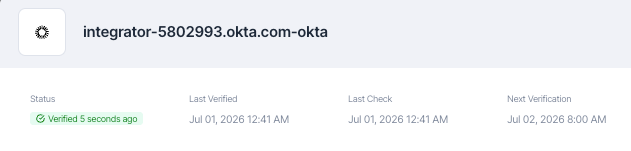
Go to Management > Accounts & Integrations and confirm the Okta integration status displays Verified.

Check Last Sync
Review the Last Verified Timestamp to confirm recent activity.
Review NHI Inventory
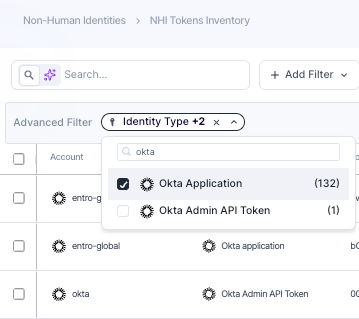
Go to NHI Inventory and filter by Okta. Confirm that applications, client credentials, and role assignments are visible.
Common Issues
| Issue | Cause | Resolution |
|---|---|---|
| 401 Unauthorized | Invalid Client ID or public key mismatch | Re-copy the public key from SailPoint Entro and re-paste it into the Okta app |
| 403 Forbidden | Missing API scopes or insufficient admin role | Verify all six scopes are granted and Super Administrator is assigned |
| Missing API grant data | Read-Only or custom role assigned instead of Super Admin | Switch to Super Administrator for full NHI visibility |
| Missing audit logs | Report Administrator role not assigned | Assign Report Administrator alongside the custom or Super Admin role |
| Connection timeout | Firewall blocking outbound traffic | Verify connector health and allow outbound HTTPS (port 443) to Okta |
| Partial user data | Incorrect resource set scope | Ensure the Entro Resource Set includes All Users and All Applications |
FAQ
Do I need Super Administrator permissions?
To list API grant permissions per Okta app - which is required for full NHI visibility - a Super Administrator role is required. This is the only built-in Okta role with access to this data. Refer to Okta's documentation for a full comparison of built-in admin roles.
What visibility is lost when using a Read-Only Administrator?
SailPoint Entro will not have visibility into API grant permissions per Okta app. This means NHI coverage for Okta applications will be incomplete.
Can I use a custom role instead of Super Administrator?
Yes - refer to Okta Custom SailPoint Entro Role for the full setup. When using a custom role, you must also assign the Report Administrator built-in role to enable audit log collection.
Does SailPoint Entro perform any write actions in Okta?
No. All SailPoint Entro operations in Okta are strictly read-only. SailPoint Entro never modifies, creates, or deletes any data in your Okta organization.