Azure Continuous Onboarding
This section explains how to enable continuous onboarding of Azure Subscriptions and Key Vaults using an Azure Function App and Management Groups. This configuration allows SailPoint Entro to automatically detect and onboard new resources without manual intervention.
The setup leverages Microsoft Azure Functions (serverless runtime) to periodically invoke SailPoint Entro's onboarding API through a managed identity.
Navigation Path
Management → Accounts & Integrations → Add New Account (top right) → Microsoft Ecosystem
Requirements
Before proceeding, ensure that:
-
You have Global Administrator or Owner permissions in your Azure tenant.
-
Azure Function App, Storage Account, and Management Group creation is permitted.
-
Ability to set roles in desired Management Groups or Subscriptions
To enable continuous onboarding:
-
Verify Access to the Tenant Root Group
-
In the Azure Portal, go to Management Groups.
-
Locate and open Tenant Root Group.
-
Select Access control (IAM).
-
Ensure your account has permissions to add role assignments at this level.
-
-
Azure Function App Creation
-
Navigate to Function App → Create.
-
Under Hosting, choose the Flex Consumption Plan (or other desired plan suitable for your environment).
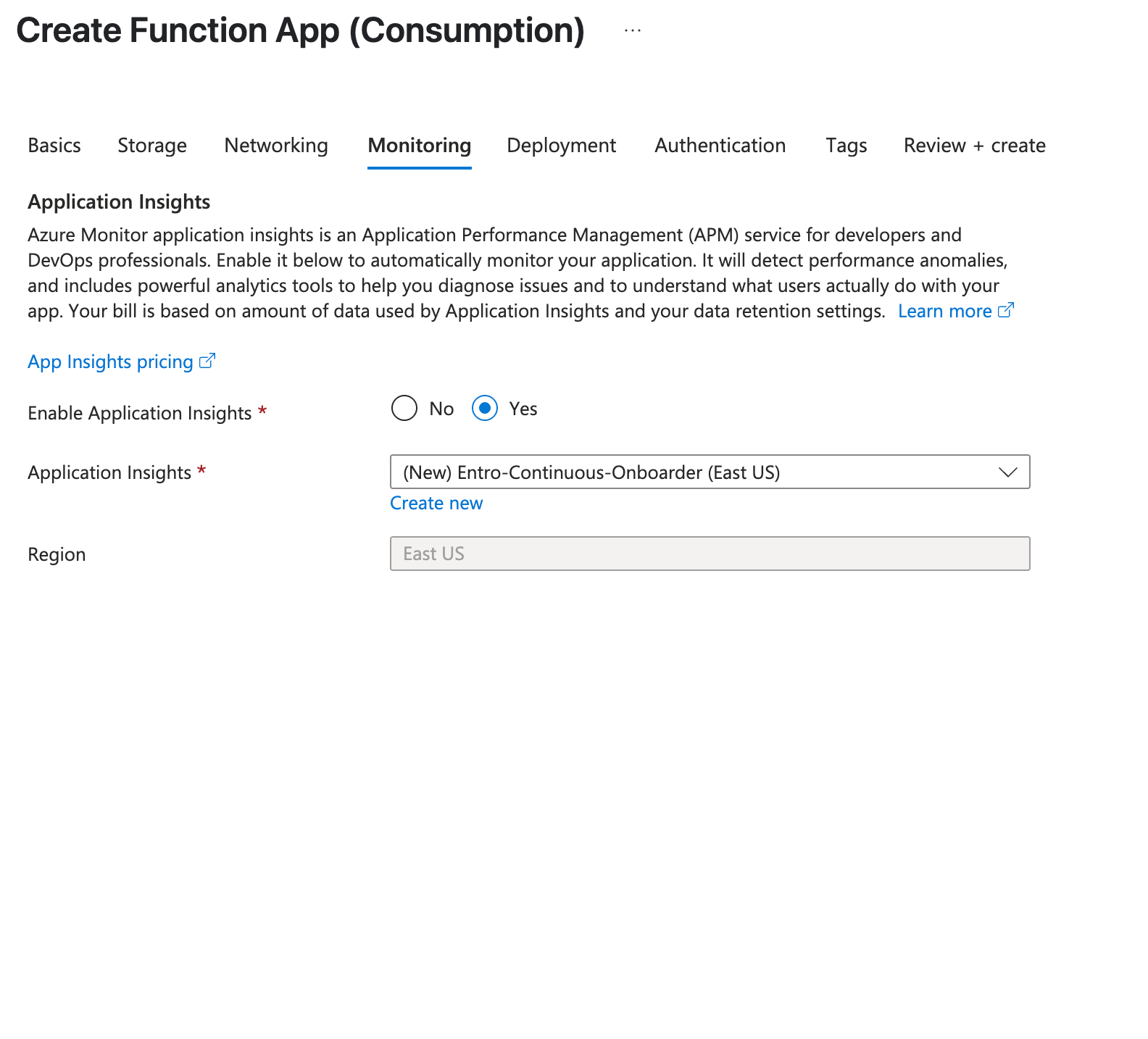
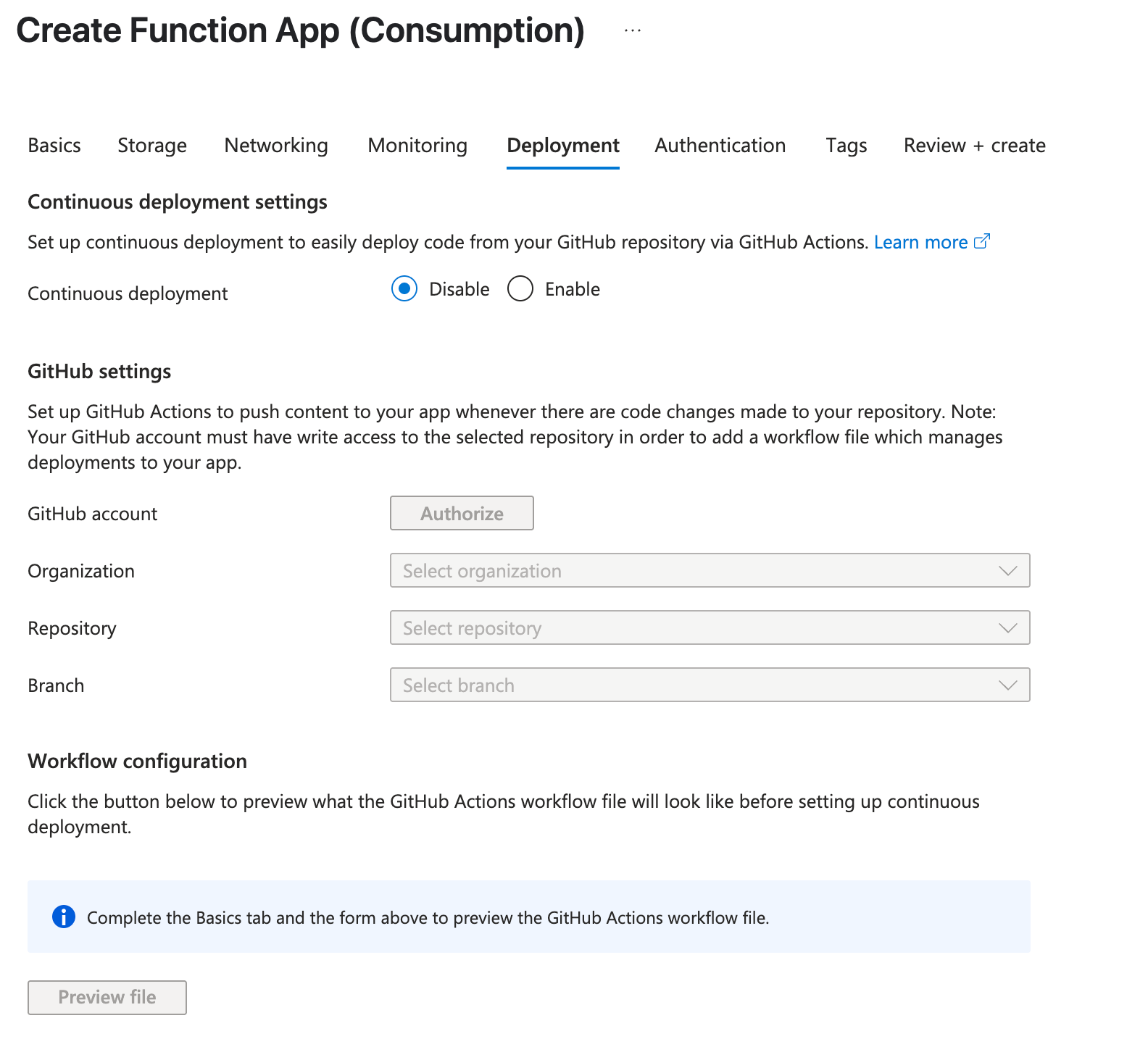
-
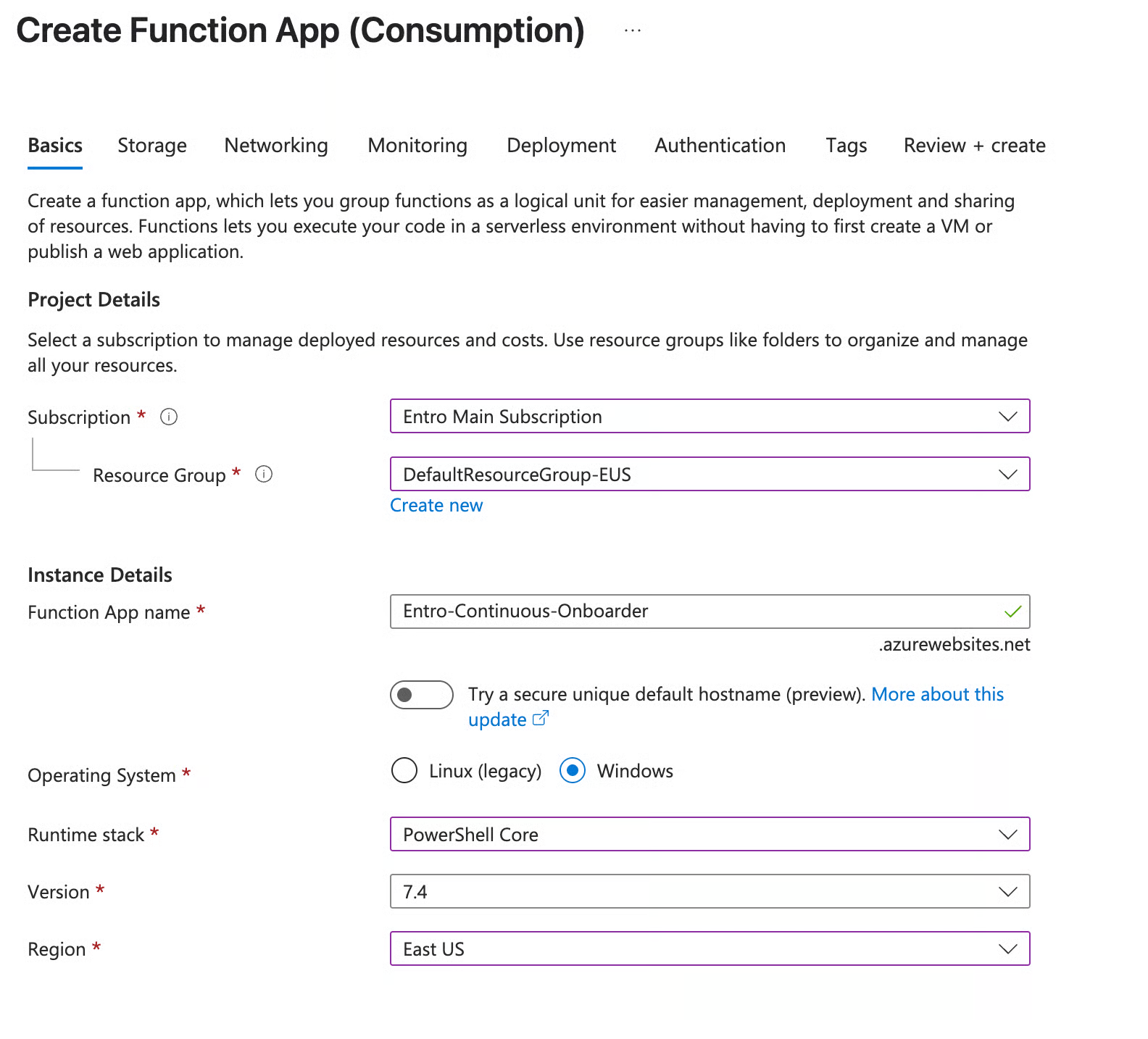
Basics tab
-
Set Subscription and Resource Group where this Function App will live
-
Give App a name such as "EntroContinuousOnboarding"
-
Select desired Azure region
-
Runtime stack set to PowerShell
-
Version is set most current version available
-
Rest of settings are left as default
-
-
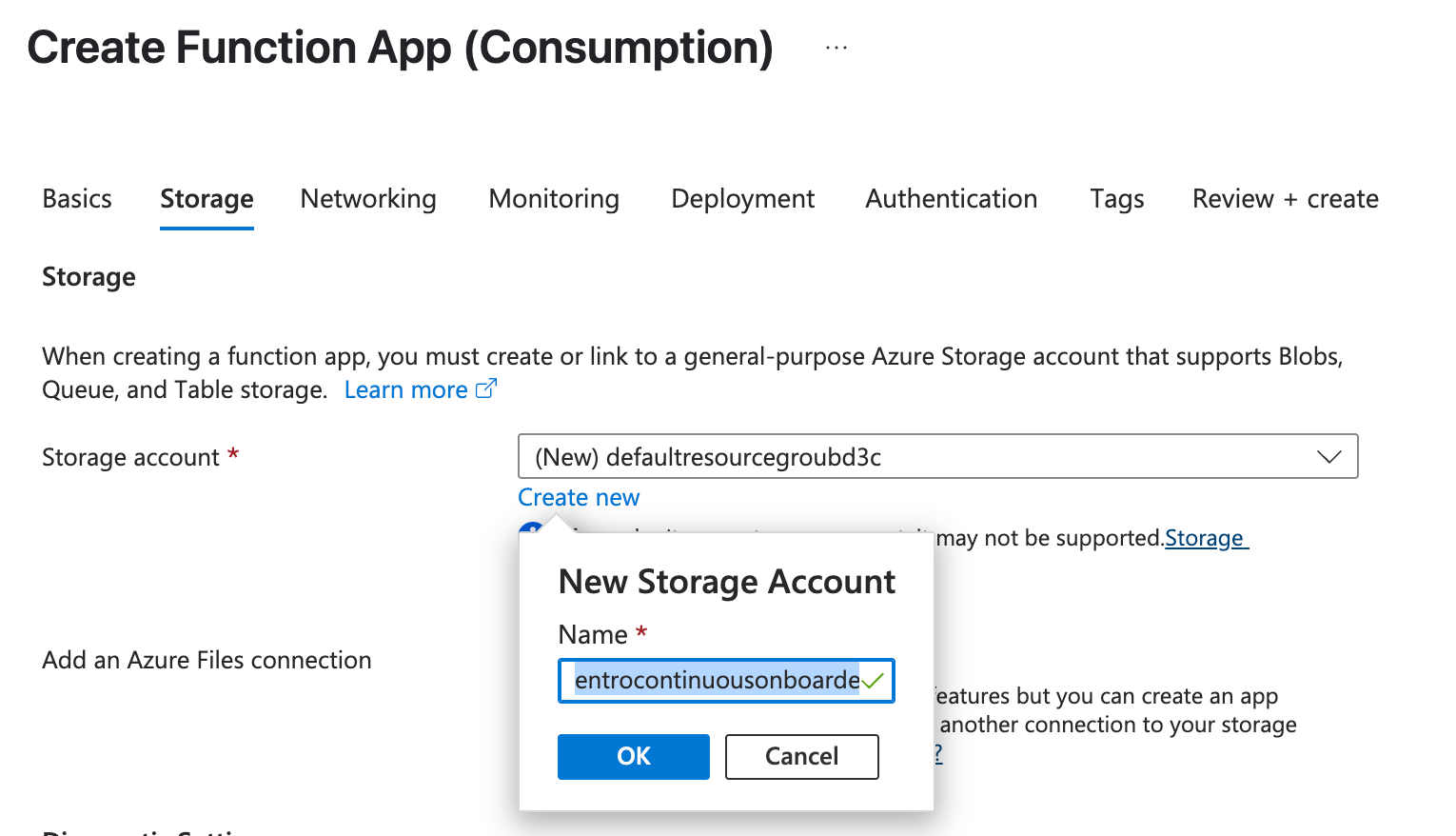
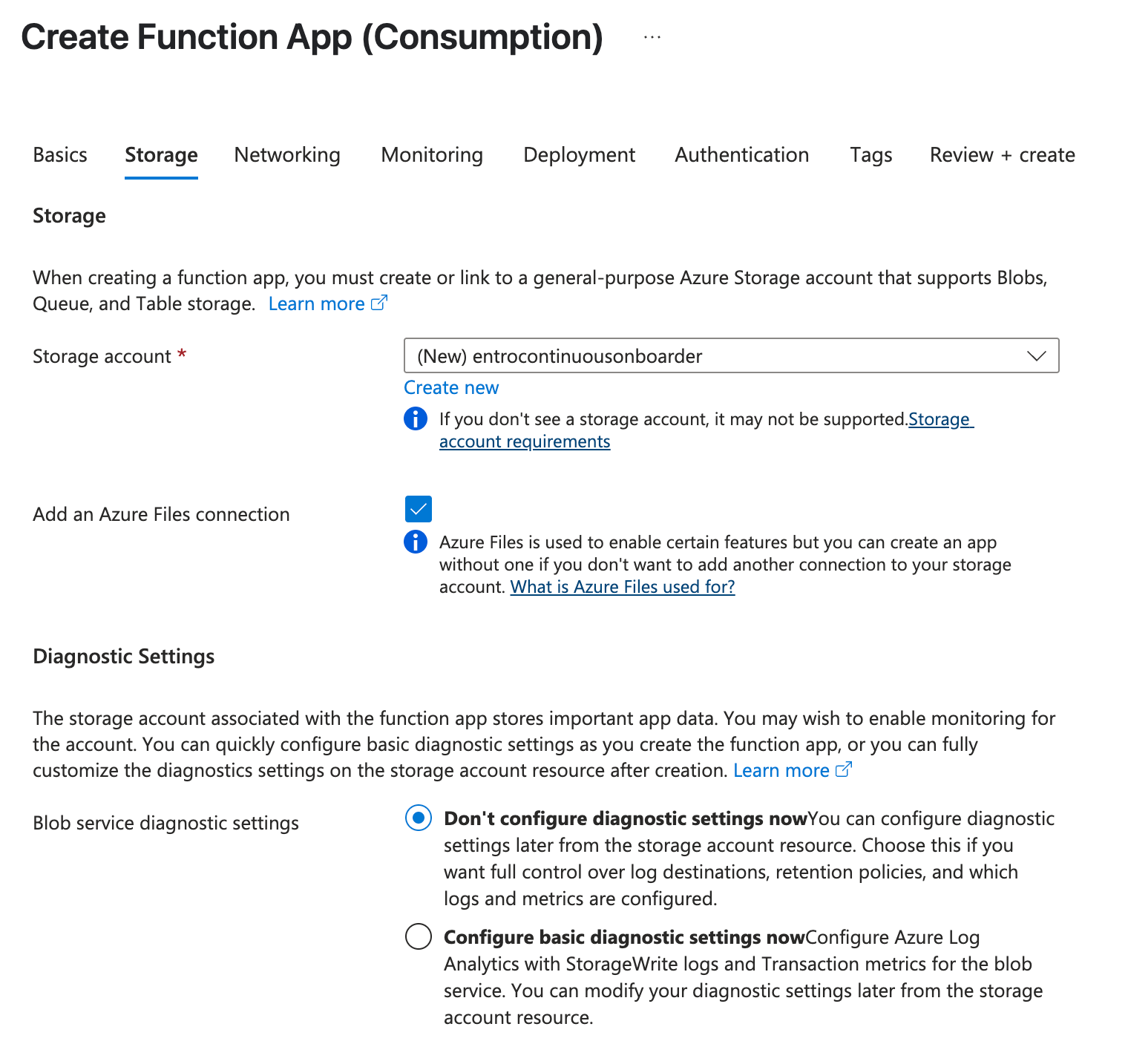
Storage tab
- Select appropriate storage account
-
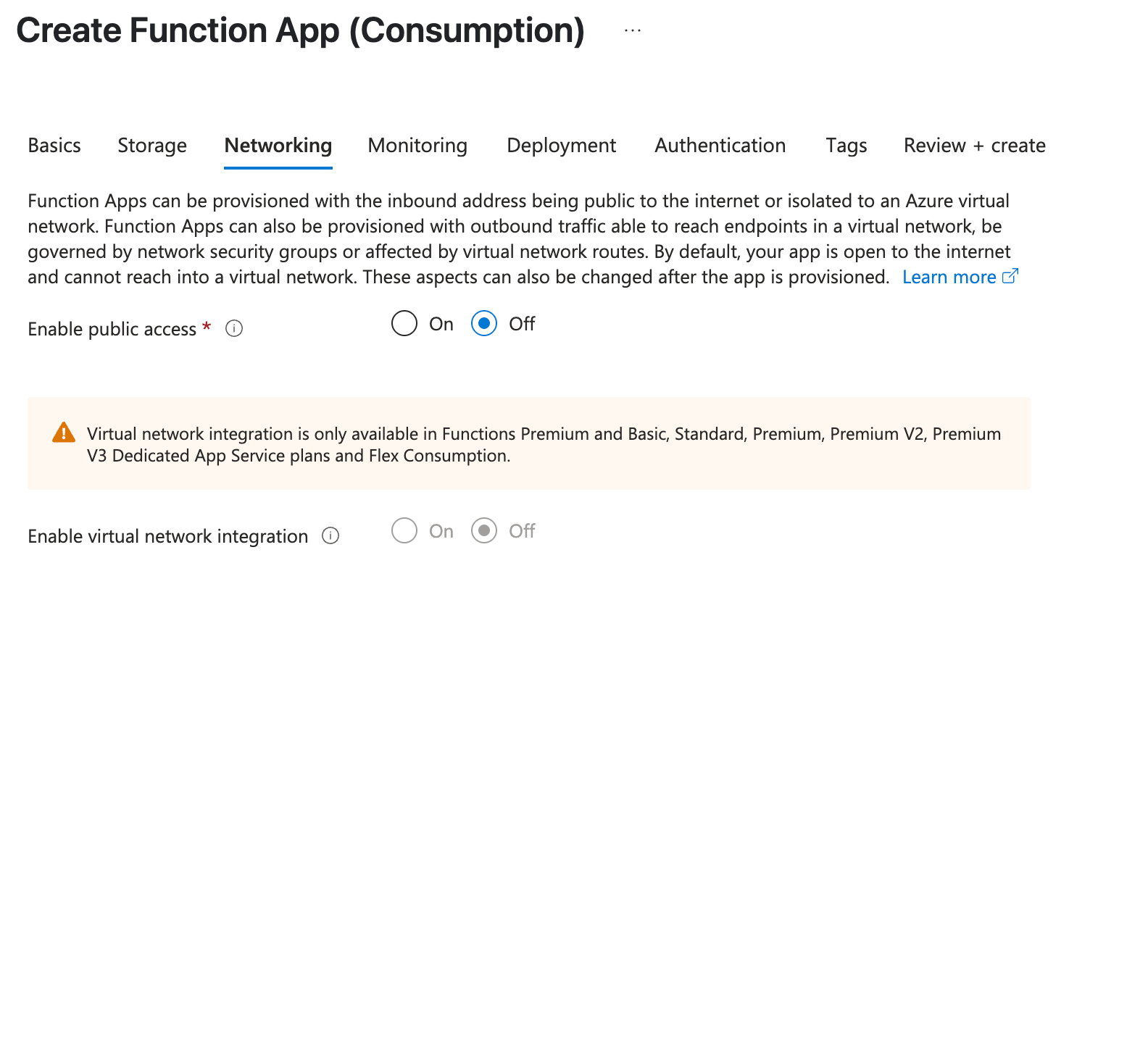
Networking tab
- Disable "Enable public access" setting
-
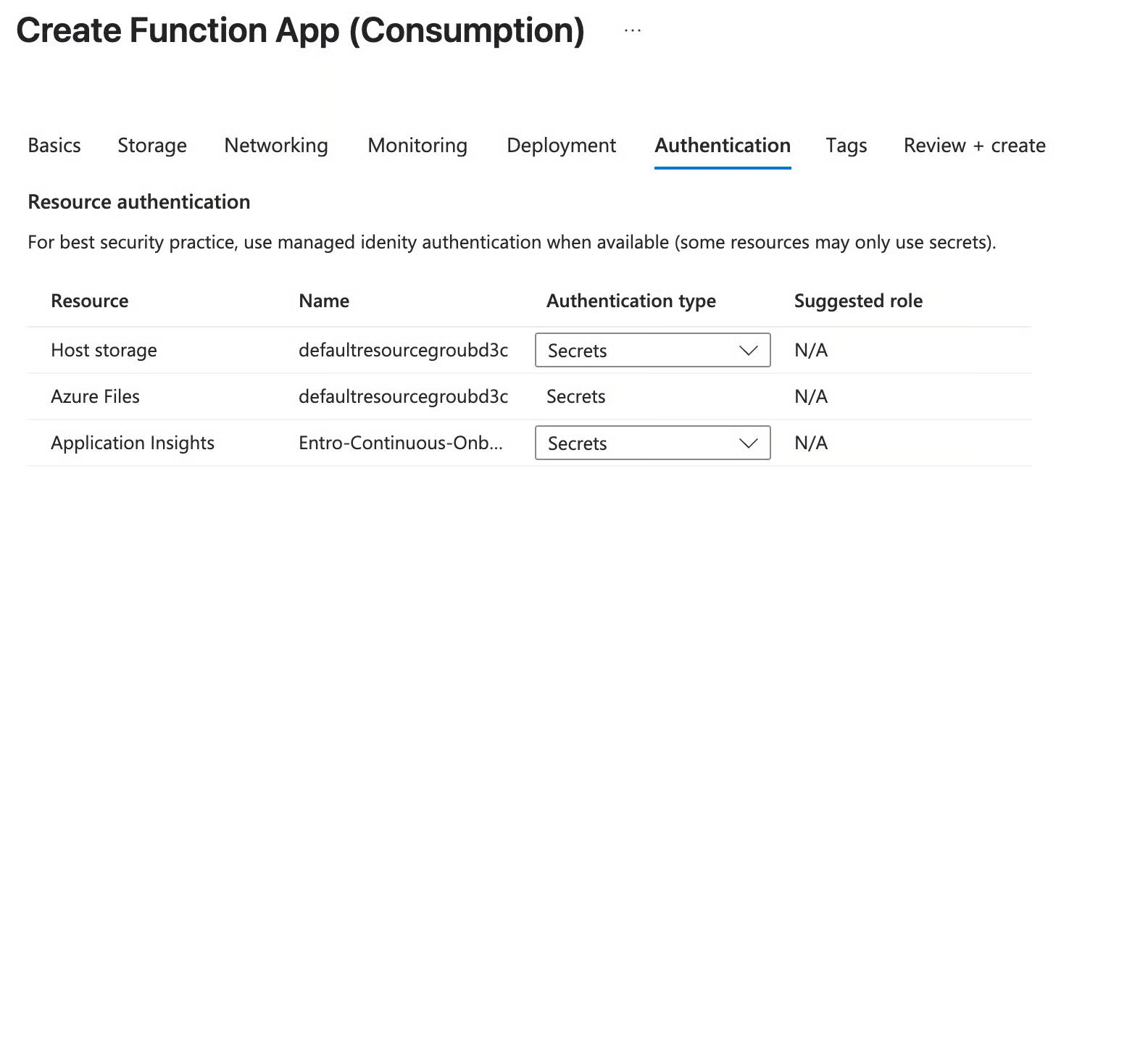
Authentication tab
-
Change Resource authentication to "Managed identity" for all resource types
-
Note Managed Identity that is assigned (we will need this later)
-
-
Select Review + Create to finalize the creation and wait for Function App to be deployed
-
Head over to the Function App created and Create in Azure Portal
-
-
Add Environment Variables
- Under Settings > Environment variables, add the following required environment variables
Name Example Value Purpose ENTRO_APP_REG_IDe05ddb08-838f-46d3-ad0e-e2c52b6074ae Application (client) ID of the Entro App Registration ENTRO_LAW_RESOURCE_ID/subscriptions/c7a3020e-9a40-33be-9014-9dbd1c35d241/resourceGroups/EntroSecurityRG/providers/Microsoft.OperationalInsights/workspaces/EntroSecurityLogAnalytics Resource ID of the Log Analytics Workspace where Key Vault activity logs will be stored. Found in Settings > Properties page of the chosen workspace's details page. - The following are optional environment variables to help tune the Function App for the environment
Name Example Value Purpose SUBSCRIPTIONS_TO_EXCLUDEDefault Value: EmptyList of comma separated Subscription IDs. Example: "fa6448db-ey49-4118-8231-13aac72c3f89", etc.Subscriptions that will be excluded from processing. SUBSCRIPTIONS_EXACT_LISTDefault Value: EmptyList of comma separated Subscription IDs. Example: "fa6448db-ey49-4118-8231-13aac72c3f89", etc.DRY_RUNDefault Value: false To enable, set value to true. When set to true the script will not perform any actions on Key Vaults, but will log all actions that would have happened. SUBS_PARALLEL_PROCESSING_COUNTDefault Value: 5 Number of concurrent Key Vault settings processing routines to run. This feature speeds up script speed and can be tuned up to 10 parallel processing threads when evaluating and setting Key Vault properties. VAULT_CONFIG_SKIP_INTERVAL_HOURSDefault Value: 23 Number of hours to wait before evaluating the same Key Vaults by the script again. -
Add the Function Code
-
In the Function App, open Development > Deployment Center.
-
Select Source as Manual Deployment (Push) > Publish files (new) in the dropdown box
-
Download the following zip file and select it for upload into the Function App
-
-
Grant Func App Identity Permissions
It is recommended to perform the following Role Assignment steps at the highest management group level as possible (Tenant Root Group or high level Management Group)
Management Group Assignment
-
Go to Management Groups
-
Choose the appropriate Management Group or Subscription
-
Go to Access Control (IAM) and select + Add > Add role assignment.
-
Search for and select the role Key Vault Contributor
-
Select the Members tab, assign access to: Managed Identity
-
Select + Select Members, then find the Managed identity noted in step 2 (User-assigned managed identity), then select Select
-
Select Review + Assign
-
Repeat the adding of Role Assignment steps and this time chose the role User Access Administrator to assign to our Function App's managed identity
-
-
Validate Continuous Onboarding
-
In SailPoint Entro, navigate to Management → Accounts & Integrations → Microsoft Ecosystem (Azure).
-
Confirm that:
-
New subscriptions are auto-detected.
-
Key Vaults are continuously discovered and onboarded.
-
-
Review logs in Azure Monitor or Log Analytics for confirmation of scheduled executions.
CLI Verification Example:
Expected result: Includes
EntroContinuousOnboarderor equivalent diagnostic entry. -