Custom Detections
Custom Detection Rules allow you to expand beyond built-in detectors by defining your own specific patterns to find sensitive data unique to your organization.
Creating a Custom Detection Rule
Navigate to Settings > Custom Detection Rules to begin.
The creation process is a simple two-step flow: 1. Rule Setup and 2. Validate Pattern.
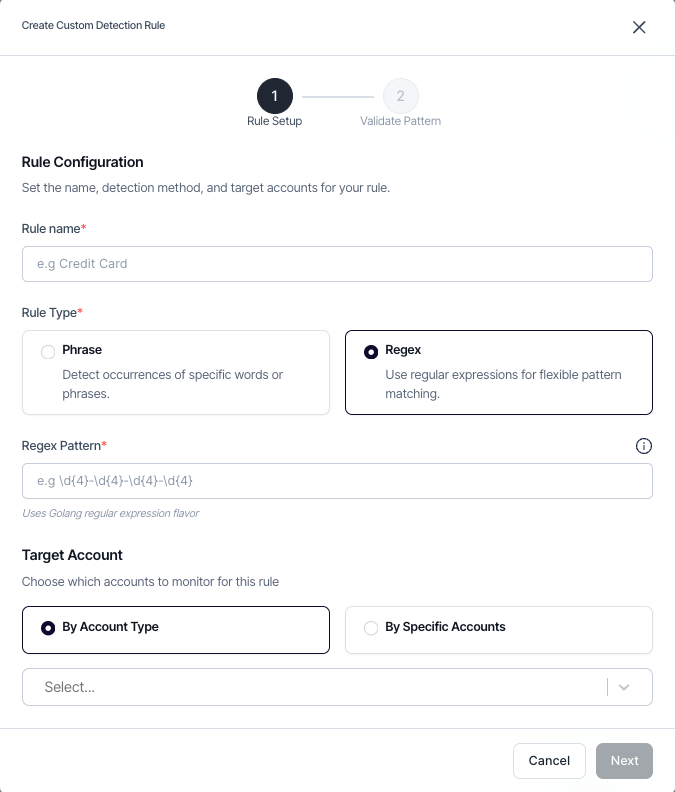
Step 1: Rule Setup
In this step, you will define the core components of your rule. All fields are mandatory.
Rule Name
Provide a clear, descriptive name for your rule. This name will appear in detected findings.
Detection Method
Choose one of the two methods for finding matches:
-
DLP Phrase: For detecting specific words or phrases. This is a direct text match.
-
Regex: For advanced pattern matching using regular expressions. This allows you to find complex or variable data, like formatted ID numbers.
Note: Our system uses the Go (Golang) regular expression flavor.
Pattern
Based on your chosen method, enter the text or regex pattern you want to detect.
-
For DLP Phrase: Enter the exact text to match (e.g.,
credit card number). -
For Regex: Enter the regular expression pattern (e.g.,
key-\d{5}-[A-Z]{3}).
Target Account (Scope)
Define where the rule should be applied. You can select multiple accounts or account types.
-
By Account Type: Apply the rule broadly to all connected accounts of a certain type (e.g., all GitHub repositories, all Slack workspaces).
-
By Specific Accounts: Apply the rule to one or more specific, hand-picked accounts.
After configuring these details, click Next to proceed to the validation step.
Step 2: Validate Pattern
Before creating the rule, it is crucial to verify that your pattern detects the correct data without generating unwanted noise.
-
Review Your Pattern: The DLP phrase or regex you configured is displayed at the top.
-
Provide Sample Data: In the "Test Input" text box, paste a sample of data that contains examples of what you want—and do not want—to detect.
-
Check the Results: The validator will instantly scan your sample data and highlight all matches in real-time. A "Matches Found" count will confirm if your pattern is working as expected.
This step allows you to fine-tune your pattern for accuracy, ensuring it is neither too broad nor too narrow before you save it.
Once you are satisfied with the results, click Create Rule.
Caution
To ensure high performance and accurate results, the system automatically blocks the creation of rules using overly generic regex patterns. For more details, please see the blacklist at the end of this document.
Rule Approval Process
To ensure optimal performance, each new custom rule is submitted for a brief review by the SailPoint Entro team after creation. The rule will become active across your environment once it is approved.
Managing Findings and Automation
The rule is automatically included in all future scans of the selected accounts.
All findings will be automatically added to Generic Exposed tab in the inventory. The secret type will be labeled as Custom Regex or DLP Custom Pattern.
Enable Actions Based on Detection Rules
Here, you can create policies to automatically manage findings from your custom rules. For example, you can configure a rule so that any finding matching your "Customer PII" pattern is automatically promoted from "Generic Exposed" to "Exposed," ensuring it gets immediate attention.
Regex Blacklist
To maintain system performance and prevent an excessive number of false positives, the following overly generic regex patterns are not permitted:
      '.*',              // Matches everything
      '.+',              // Matches any non-empty string
      '\\w+',            // Matches any word
      '\\d+',            // Matches any number
      '\\S+',            // Matches any non-whitespace
      '[a-zA-Z]+',       // Matches any letters
      '[a-z]+',          // Matches any lowercase letters
      '[A-Z]+',          // Matches any uppercase letters
      '[0-9]+',          // Matches any digits
      '.{1,4}',          // Matches 1-4 of any character
      '.{1,5}',          // Matches 1-5 of any character
      '.{1,10}',         // Matches 1-10 of any character
      '\\w{1,4}',        // Matches 1-4 word characters
      '\\w{1,5}',        // Matches 1-5 word characters
      '\\w{1,10}',       // Matches 1-10 word characters
      '\\d{1,4}',        // Matches 1-4 digits
      '\\d{1,5}',        // Matches 1-5 digits
      '\\d{1,10}',       // Matches 1-10 digits
      '[a-zA-Z]{1,4}',   // Matches 1-4 letters
      '[a-zA-Z]{1,5}',   // Matches 1-5 letters
      '[a-zA-Z]{1,10}',  // Matches 1-10 letters
      '[a-z]{1,4}',      // Matches 1-4 lowercase letters
      '[a-z]{1,5}',      // Matches 1-5 lowercase letters
      '[a-z]{1,10}',     // Matches 1-10 lowercase letters
      '[A-Z]{1,4}',      // Matches 1-4 uppercase letters
      '[A-Z]{1,5}',      // Matches 1-5 uppercase letters
      '[A-Z]{1,10}',     // Matches 1-10 uppercase letters
      '[0-9]{1,4}',      // Matches 1-4 digits
      '[0-9]{1,5}',      // Matches 1-5 digits
      '[0-9]{1,10}',     // Matches 1-10 digits
      '\\s+',            // Matches any whitespace
      '\\S*',            // Matches any non-whitespace (0 or more)
      '\\w*',            // Matches any word characters (0 or more)
      '\\d*',            // Matches any digits (0 or more)
      '[a-zA-Z]*',       // Matches any letters (0 or more)
      '[a-z]*',          // Matches any lowercase letters (0 or more)
      '[A-Z]*',          // Matches any uppercase letters (0 or more)
      '[0-9]*',          // Matches any digits (0 or more)
      '.',               // Matches any single character
      '.?',              // Matches any single character (optional)
      '\\w',             // Matches any single word character
      '\\d',             // Matches any single digit
      '\\S',             // Matches any single non-whitespace
      '[a-zA-Z]',        // Matches any single letter
      '[a-z]',           // Matches any single lowercase letter
      '[A-Z]',           // Matches any single uppercase letter
      '[0-9]',           // Matches any single digit
      // Common overly permissive patterns
      '.*\\w+.*',        // Any word surrounded by anything
      '.*\\d+.*',        // Any number surrounded by anything
      '.+\\w+.+',        // Any word with something before and after
      '.+\\d+.+',        // Any number with something before and after