Azure DevOps PAT
An Azure DevOps Personal Access Token (PAT) enables secure authentication to Azure DevOps, allowing users to access and manage resources such as repositories, pipelines, and work items.
To achieve fluent rotation, follow these steps:
-
Identify - use the data on SailPoint Entro's platform to find out the relevant Azure DevOps personal access token
-
Locate - In the Azure DevOps portal find the Relevant Personal access token
-
Rotation - Once the potential impact of this Personal access Token has been addressed, rotate it following the steps below.
Identify and locate the relevant DevOps PAT
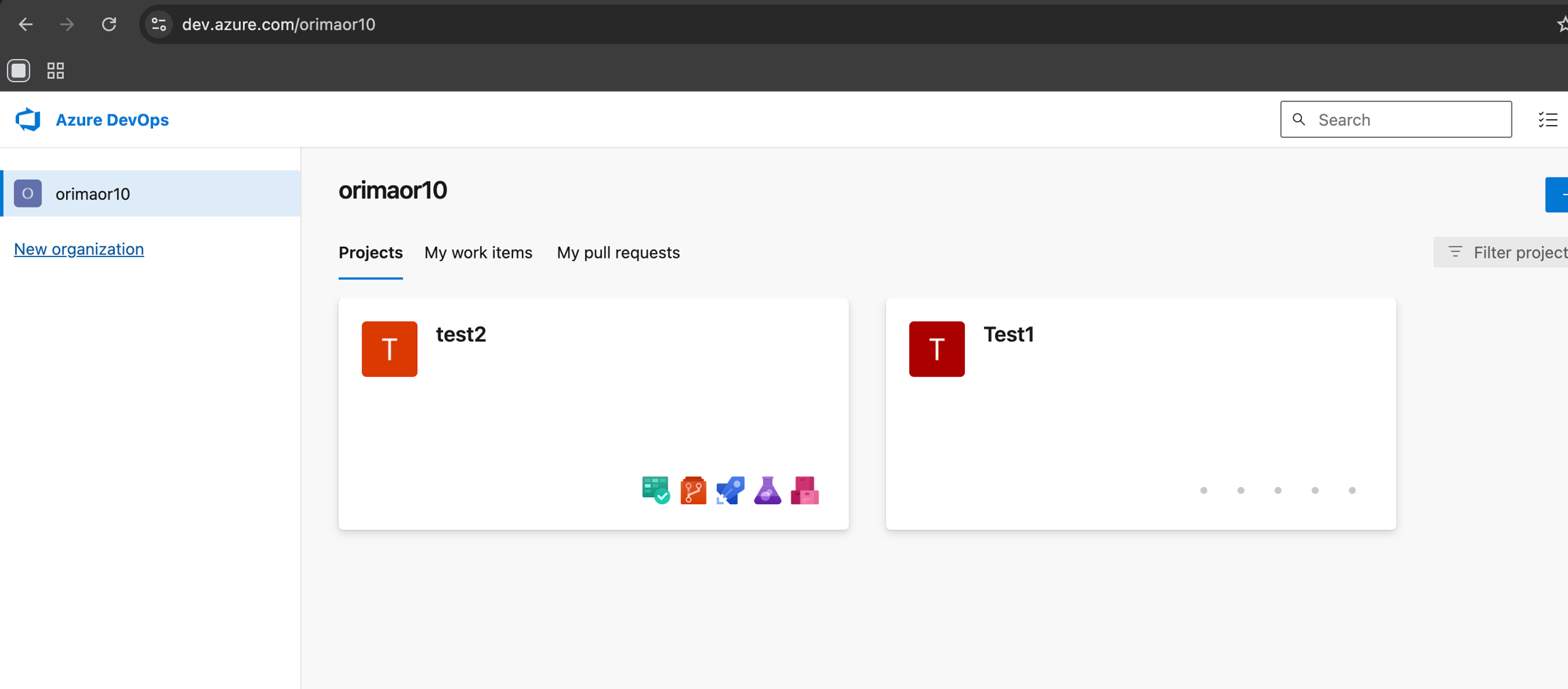
To rotate Azure DevOps Access Keys, first log in to the relevant Account of that Azure DevOps. SailPoint Entro enriches valid Azure DevOps PATs with URL pointers to the relevant account.
-
Login into the relevant Azure DevOps
-
On SailPoint Entro, navigate into the relevant DevOps PATs, you can find it on the validation tab and view all the relevant account the PAT allow access to.
-
click on the Exposurer link will point for the location with the full secret value
Managing Azure DevOps PATs
To identify and rotate Azure DevOps PATs, instruct the token owner or an admin to rotate it from the management panel.
-
Organization admin List and manage all tokens for the entire organization
-
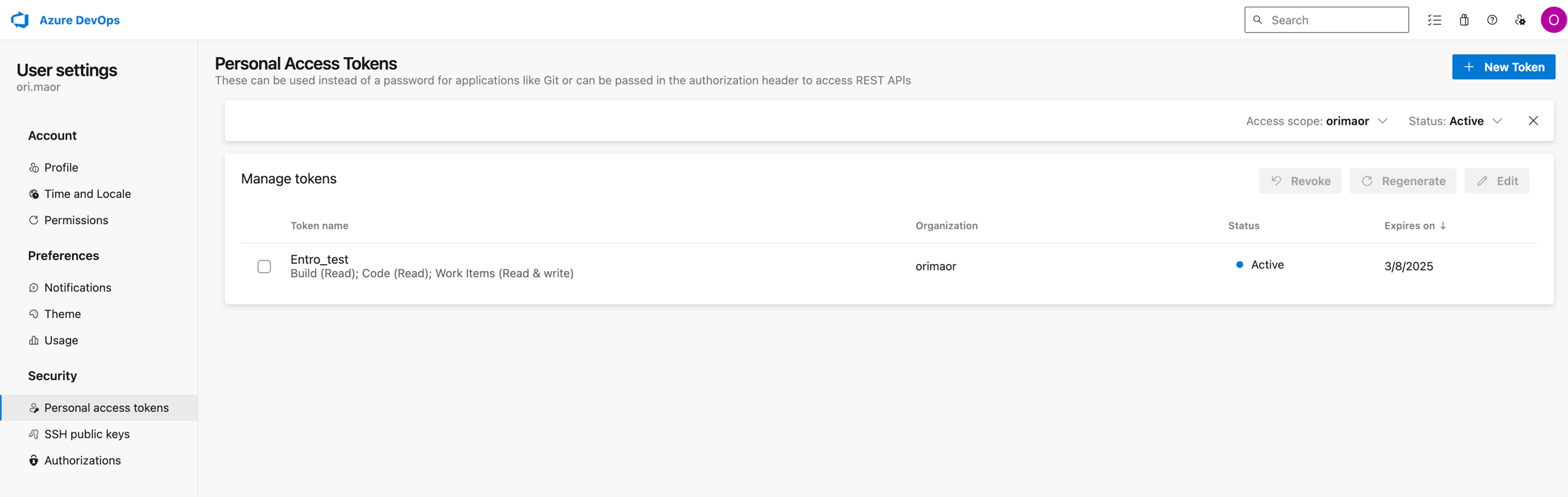
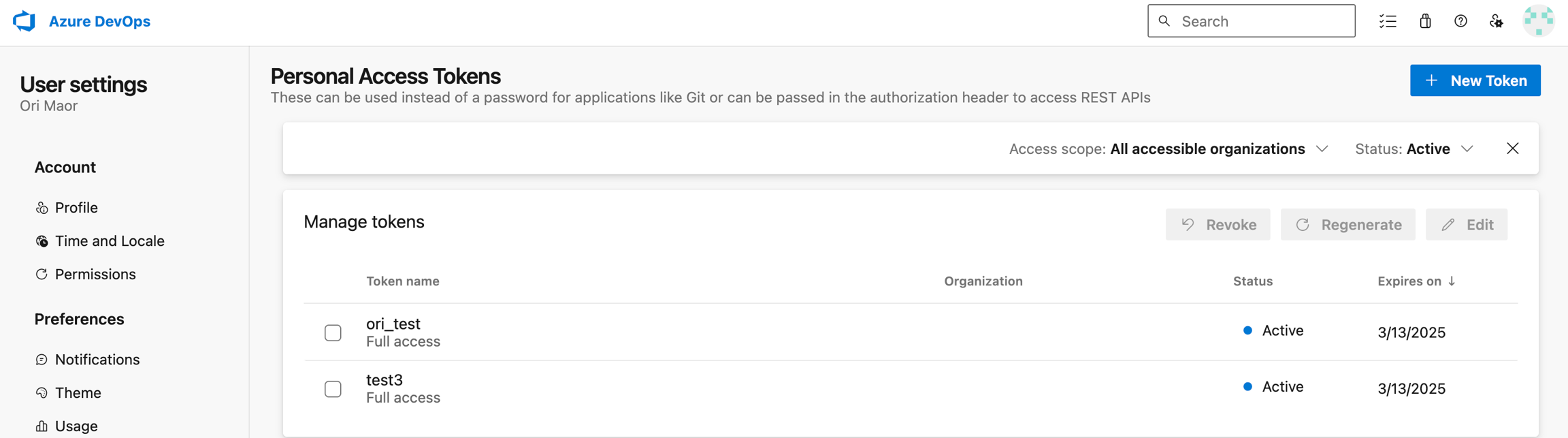
Token owner List and manage personal owned tokens To navigate to the Azure DevOps PAT configuration section, select "User settings" in the user toolbar on the right, as shown below:
- User settings page, identify the relevant PAT -
- Organization setting page
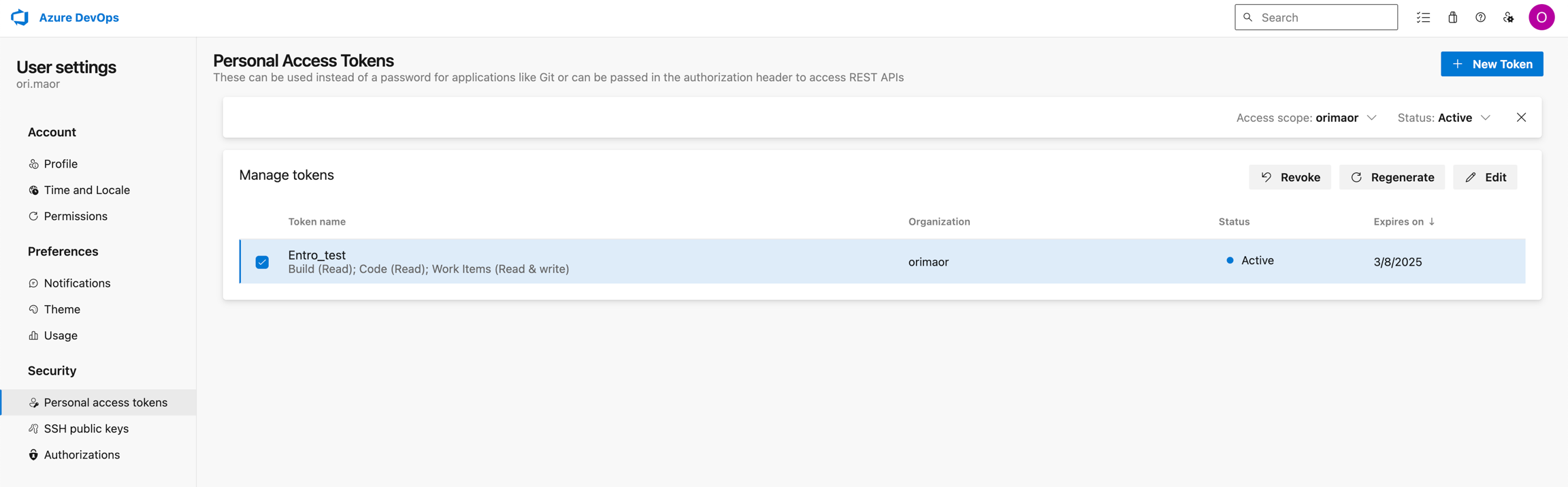
- Select the relevant personal access token
Create & Revoke an API Token (option 1)
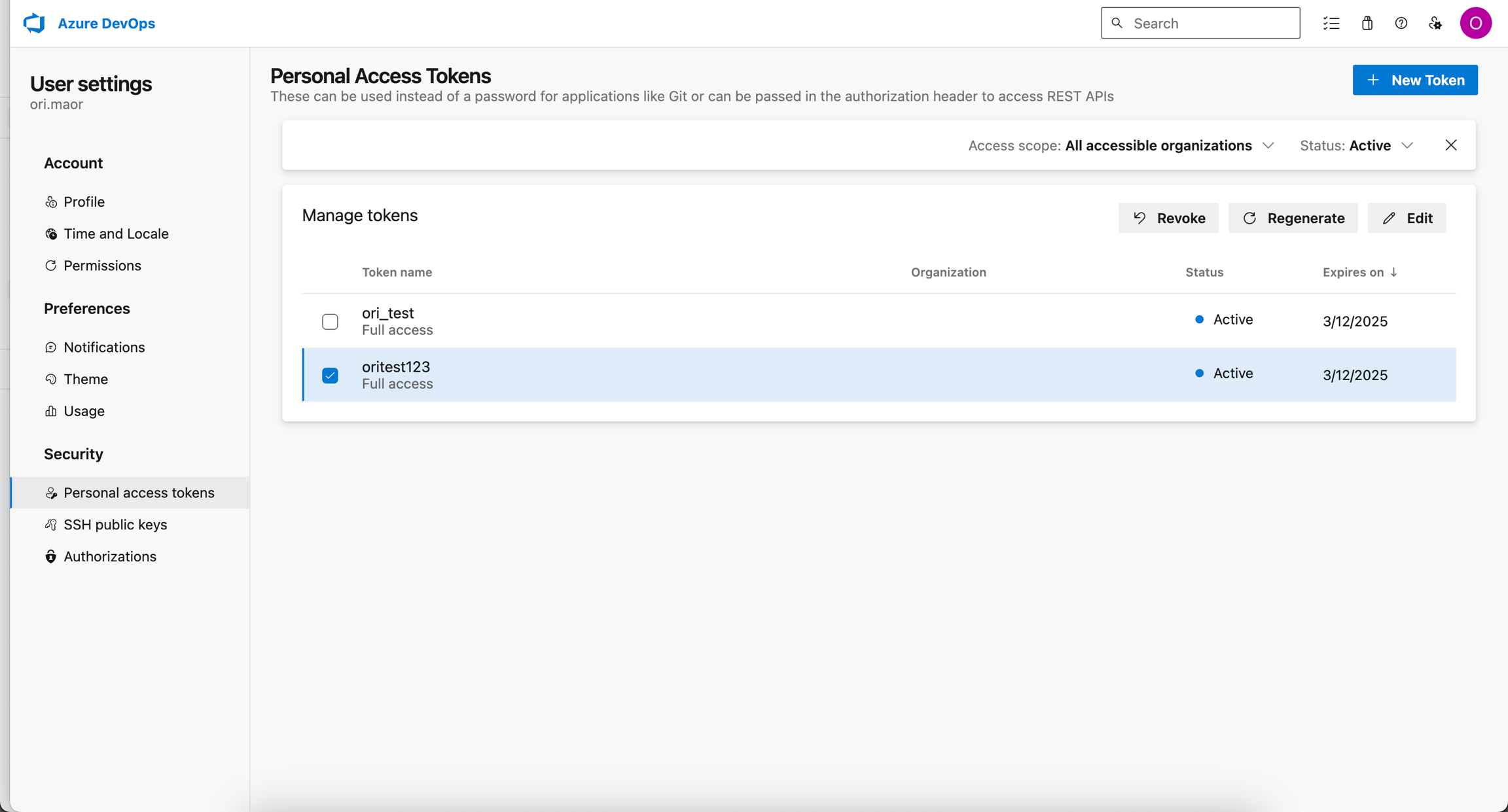
- To create a new Azure DevOps PAT, select New Token.
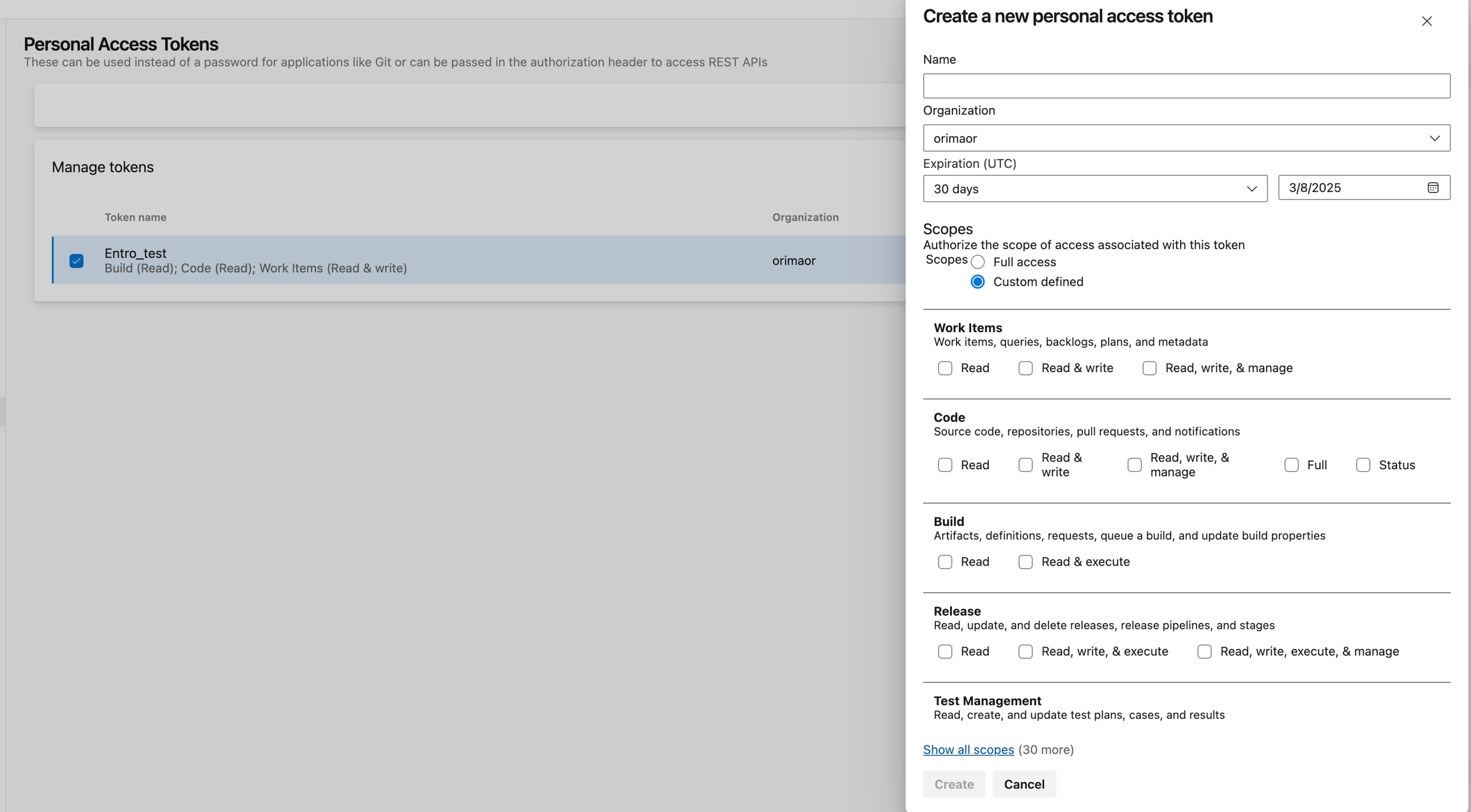
- After naming the API token, the console will generate it and provide the opportunity to view or copy the API token. Copy and store the token securely, as there will not be another chance to view it later
Revoke a token
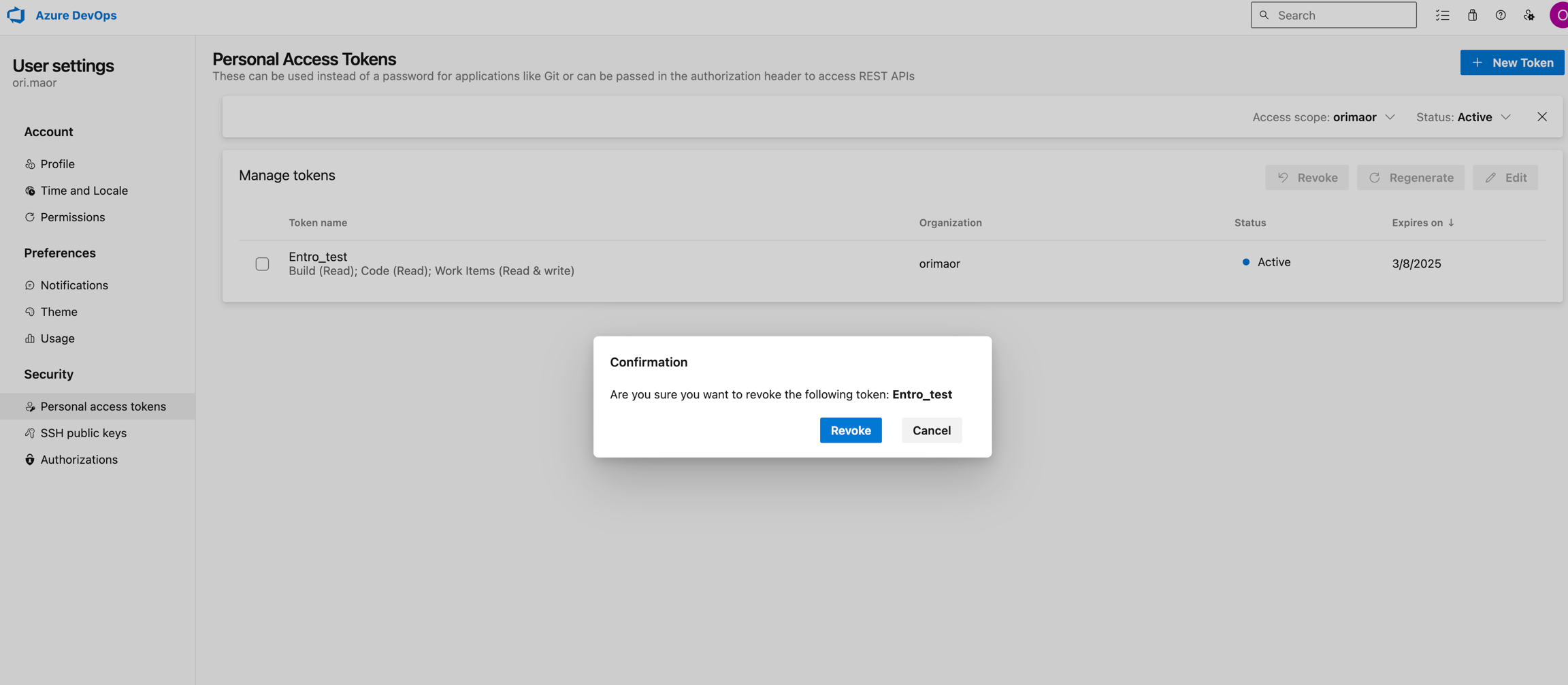
- To revoke a token, select the Revoke action and mark the token you would like to revoke. Confirm the revocation by selecting Revoke when prompted. This action will delete the token.
Regenerate Token (Token Owner)
-
This action will regenerate a new token with identical permissions to those associated with the specified token.
-
To regenerate a token, select the "regenerate" action and mark the token you would like to rotate.
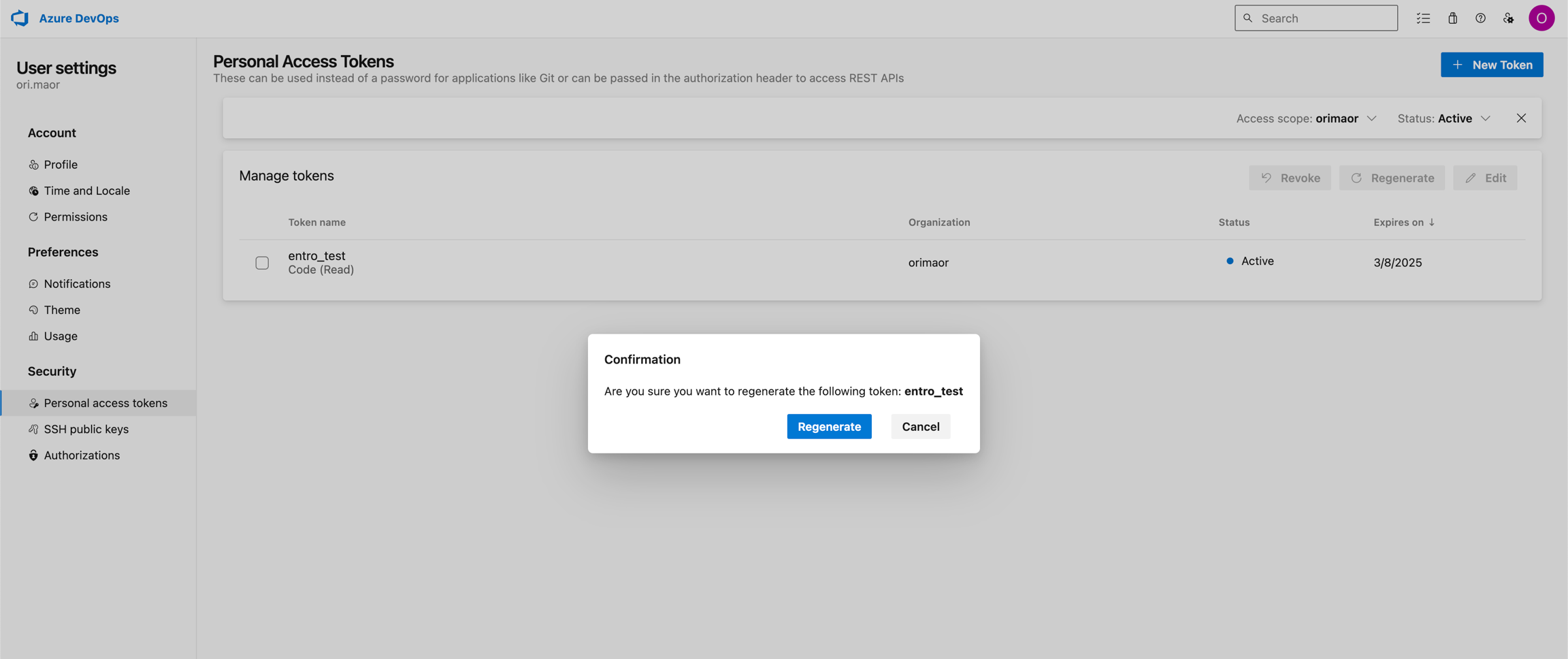
- When regenerate the token, the console will generate it and provide the opportunity to view or copy the API token. Copy and store the token securely, as there will not be another chance to view it later
Note
Clicking Regenerate will revoke the existing key in addition to creating a new one.