Bitbucket Data Center (Workload Identity Federation)
The Bitbucket Data Center (Workload Identity Federation) integration connects SailPoint Entro to your on-premises Bitbucket Server or Data Center instance for continuous secret scanning.
This method uses a federated authentication token (HTTP Auth token) instead of an App Password or API token, ensuring secure, scoped, and revocable access for self-hosted Bitbucket environments.
Prerequisites
-
Ensure your Bitbucket Data Center instance is reachable from SailPoint Entro's deployed connector.
-
Confirm that outbound HTTPS traffic to your Bitbucket domain (for example,
https://bitbucket.organization.com:7990) is allowed. -
If the instance is behind a firewall, allowlist your SailPoint Entro connector IP or internal routing path.
Configuration Steps
-
Generate a Bitbucket HTTP Auth Token
-
Sign in to your Bitbucket Data Center as an admin user.
-
Go to Administration > Access Management > Personal Access Tokens.
-
Select Create personal access token.
-
Assign the following read-only scopes:
Category Permission Projects Read Repositories Read Pull requests Read Webhooks Read Users Read -
Select Create and copy the generated token (for example:
BBDC-XXXXXXXXXXXXXXXXXXXXXXXXXXXXXXXXXXXXXXXX). -
Store it securely - it will be entered in the SailPoint Entro form.
-
-
Complete SailPoint Entro Onboarding Form
-
In the SailPoint Entro Platform, go to Management > Accounts & Integrations > Add new account > BitBucket.
-
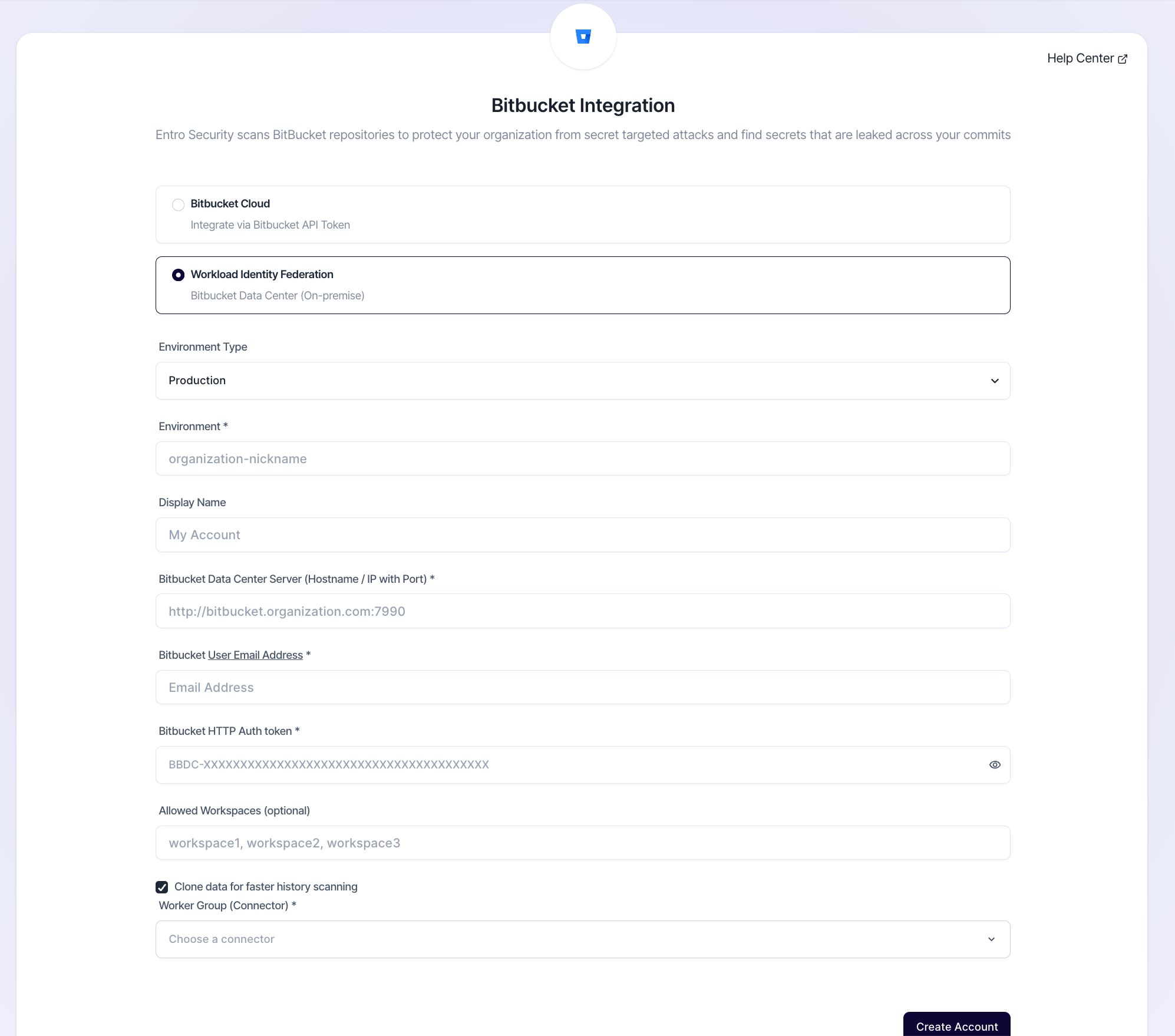
Choose Workload Identity Federation (Bitbucket Data Center).
-
Fill in the connection form with the following fields:
-
Environment Type - choose the relevant environment for the integrated account.
-
Environment - the name you wish to give to that specific account.
-
Bitbucket Data Center Server (Hostname / IP) - for example:
http://bitbucket.organization.com:7990 -
BitBucket Username - enter the user email address.
-
BitBucket HTTP Auth Token - enter the token generated in the previous step.
-
Allowed workspaces (optional) - if you wish to scan specific workspaces and not the full account.
-
Worker Group - choose the connector you wish to use for this integration.
-
-
-
Verify Integration
Once connected, SailPoint Entro will validate your credentials and start the initial repository synchronization.
-
Go to Integrations > Bitbucket in the SailPoint Entro Dashboard.
-
Confirm that the integration status is Active.
-
Verify that repositories are listed and scanning is in progress.
-
Check the Last Verified timestamp.
-
Your Bitbucket integration is now active.