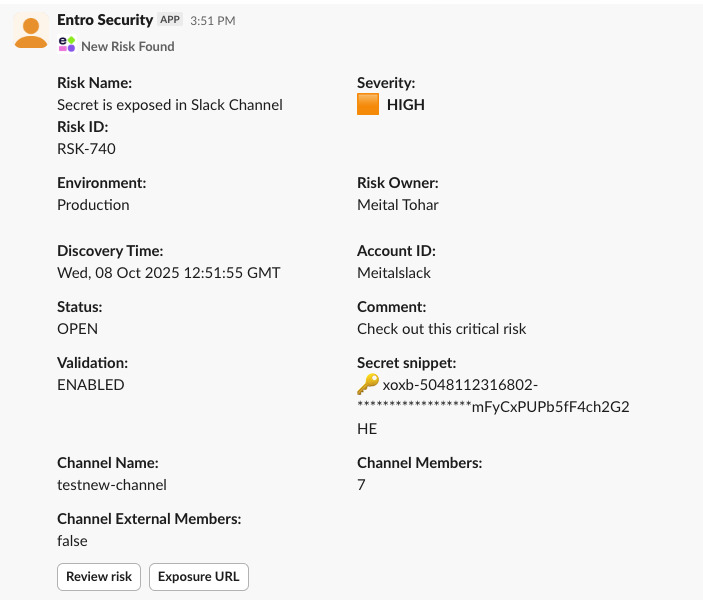
Alerts
The Alerts page allows you to define automated alerting rules that notify your team about new risks and exposures. You can customize which alerts are sent, their severity level, and the delivery method (Slack, Webhook, or Email).
Creating an Alert Rule
Navigate to Settings > Alerts Configuration to begin.
Step 1: Configure Conditions
In this step, you define the criteria that determine when an alert will be triggered. Each condition filters the alerts to ensure only relevant events are sent.
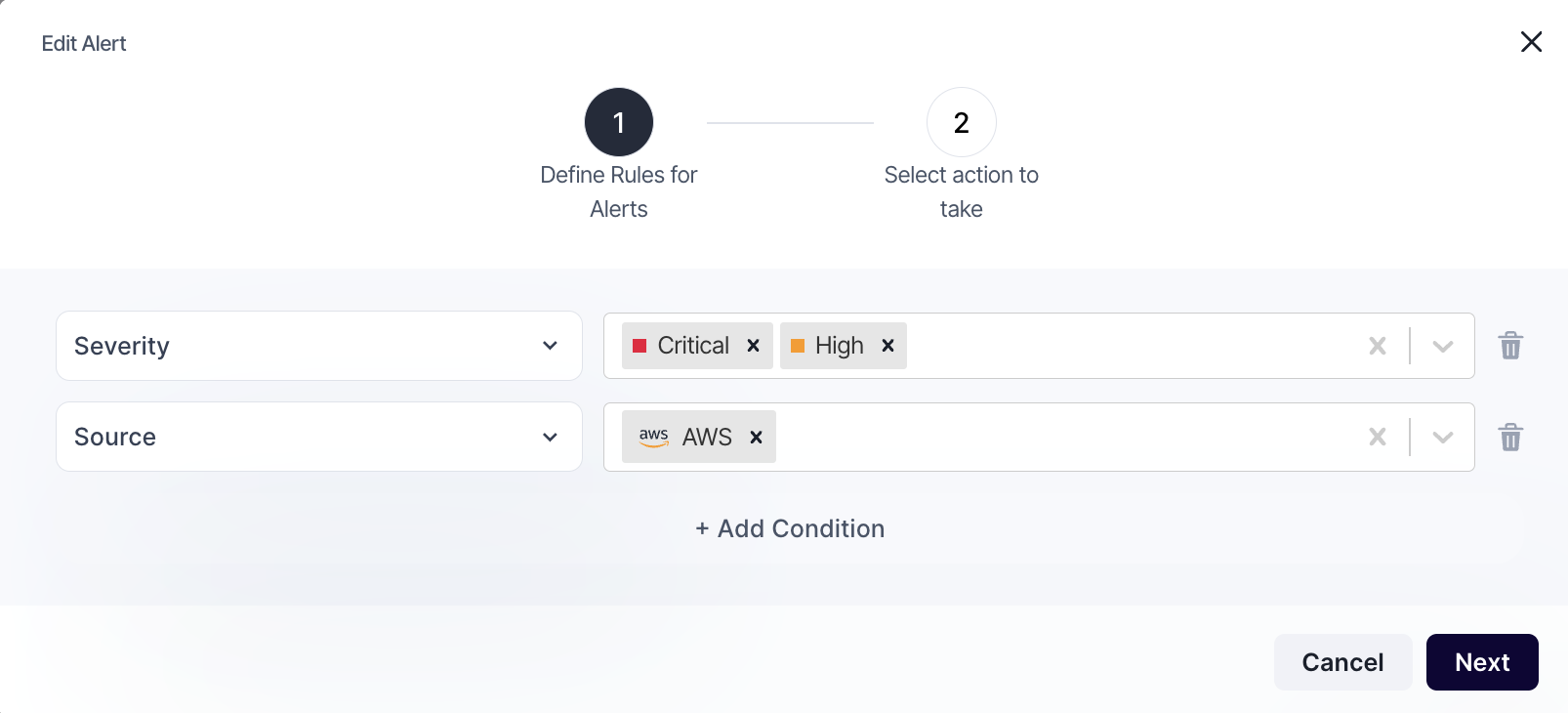
You can add one or more conditions by clicking “+ Add Condition” Available condition types include:
-
Severity Choose which severity levels should trigger the alert (multiple severity levels can be selected).
-
Risk Name Filter alerts by a specific risk name or keyword pattern. Useful for monitoring particular types of risks across environments.
-
Category Narrow down alerts by risk category (e.g., “Secret exposed in GitHub,” “Previously inactive token is active again”).
-
Source Define the type of source where the risk originated (e.g., GitHub, AWS, Slack).
-
Account Select the specific integrated accounts to monitor.
-
Secret Type Limit alerts to a specific secret classification (e.g., GitHub API token, AWS secret key)
-
Account Tags Filter alerts based on predefined account tags, allowing broader control across grouped environments.
Note
Each rule can include multiple conditions. When all defined conditions are met, an alert will be triggered automatically. Once finished, click Next to proceed to the action configuration step.
Step 2: Select Action to Take
In this step, you define how and where alerts are delivered once the rule conditions are met.
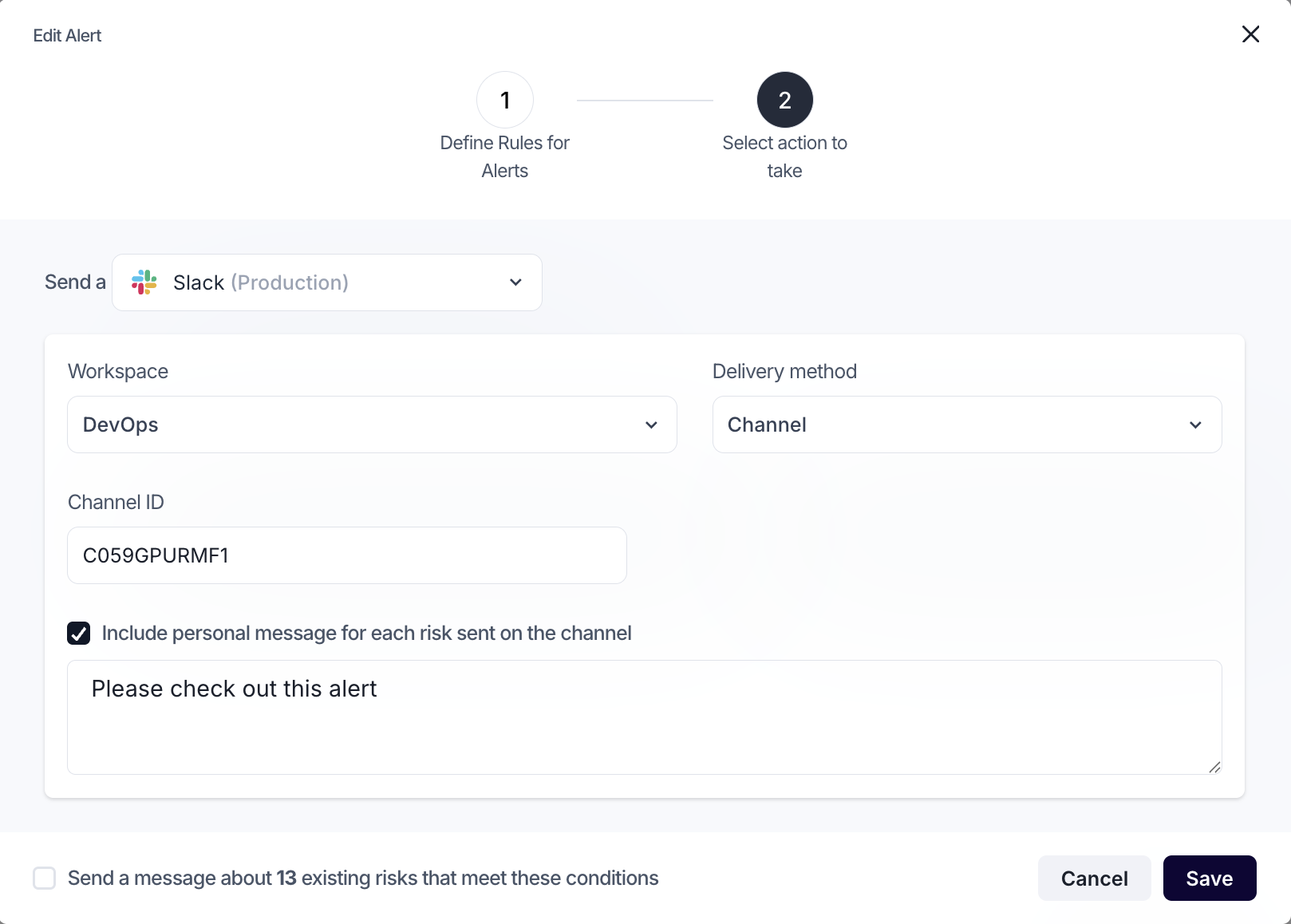
Available Delivery Methods
-
Slack Send alerts directly to your organization’s Slack workspace.
-
Choose between Channel or Direct Message delivery.
-
Specify the workspace and target channel or user.
-
Optionally include a custom message for each alert (e.g., “Check out this critical risk”).
-
-
Webhook Send alerts to any external service that supports incoming webhooks.
-
Provide the Webhook URL where notifications should be sent.
-
Ideal for integrating with ticketing systems, monitoring tools, or custom workflows.
-
-
Email Deliver alerts to one or more email recipients.
-
Enter recipient email address
-
Emails include key risk details such as severity, account, and description.
-
Optional: Send Existing Alerts
Before saving, you can choose to send messages about existing risks that meet the new rule conditions. This is designed to ensure teams are immediately aware of any current issues matching the rule.
When all settings are complete, click Save to activate the rule.
Click Save to activate your new alert rule.
Once the rule is active, whenever all configured conditions are met, the selected delivery method (Slack, Webhook, or Email) will automatically be triggered with a detailed alert.
Each alert includes essential information about the detected risk — such as severity, environment, account, and discovery details — enabling teams to respond quickly and effectively.