JIT MCP for Agentic AI
Generate temporary cloud and SaaS tokens programmatically via an MCP server, under the same JIT policy engine.
Overview
The JIT MCP Server is a Model Context Protocol (MCP) endpoint that allows AI agents — such as Claude Desktop, Cursor, Windsurf, and other MCP-compatible clients — to programmatically request, manage, and retrieve temporary cloud credentials through the JIT Access Platform.
Instead of navigating the Portal UI, developers can ask their AI assistant to create a JIT request, and the agent handles the entire flow: discovering available configurations, selecting the right permissions, submitting the request, and retrieving the credentials once approved.
MCP Server Setup
Server URL
The MCP server is available at:
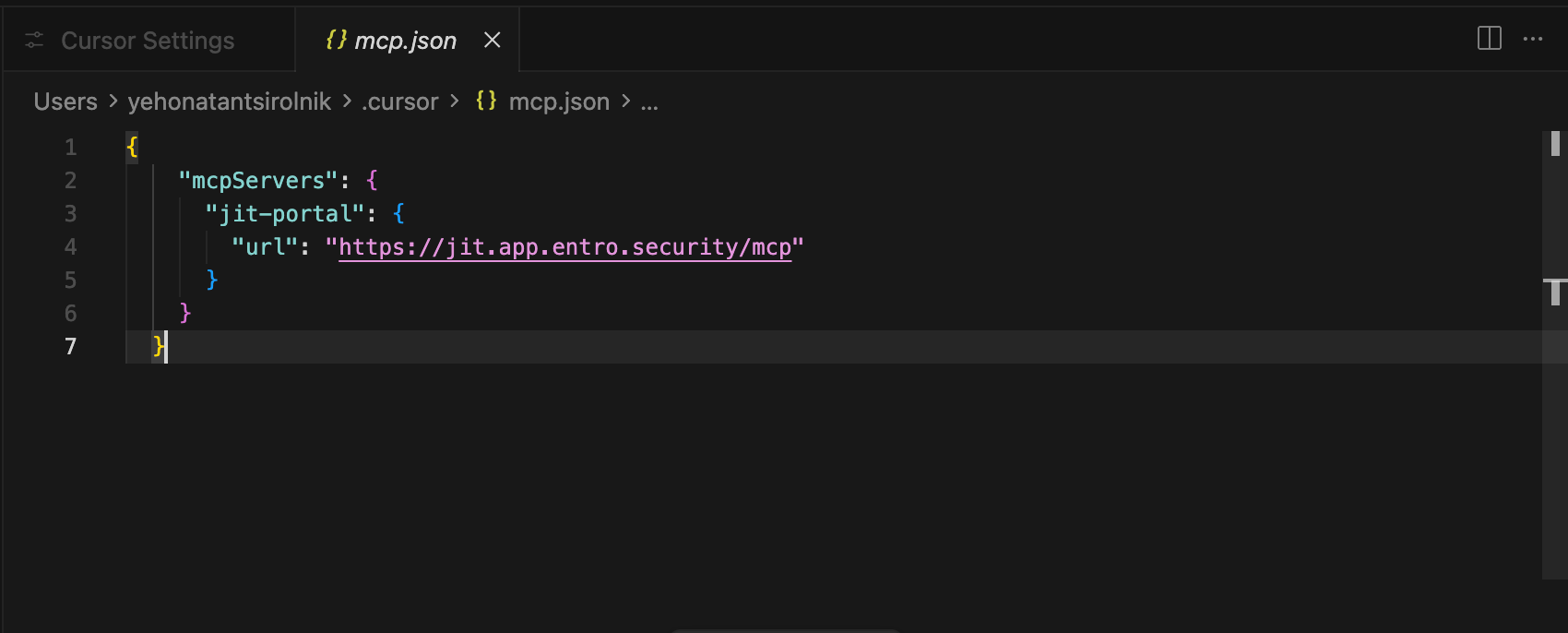
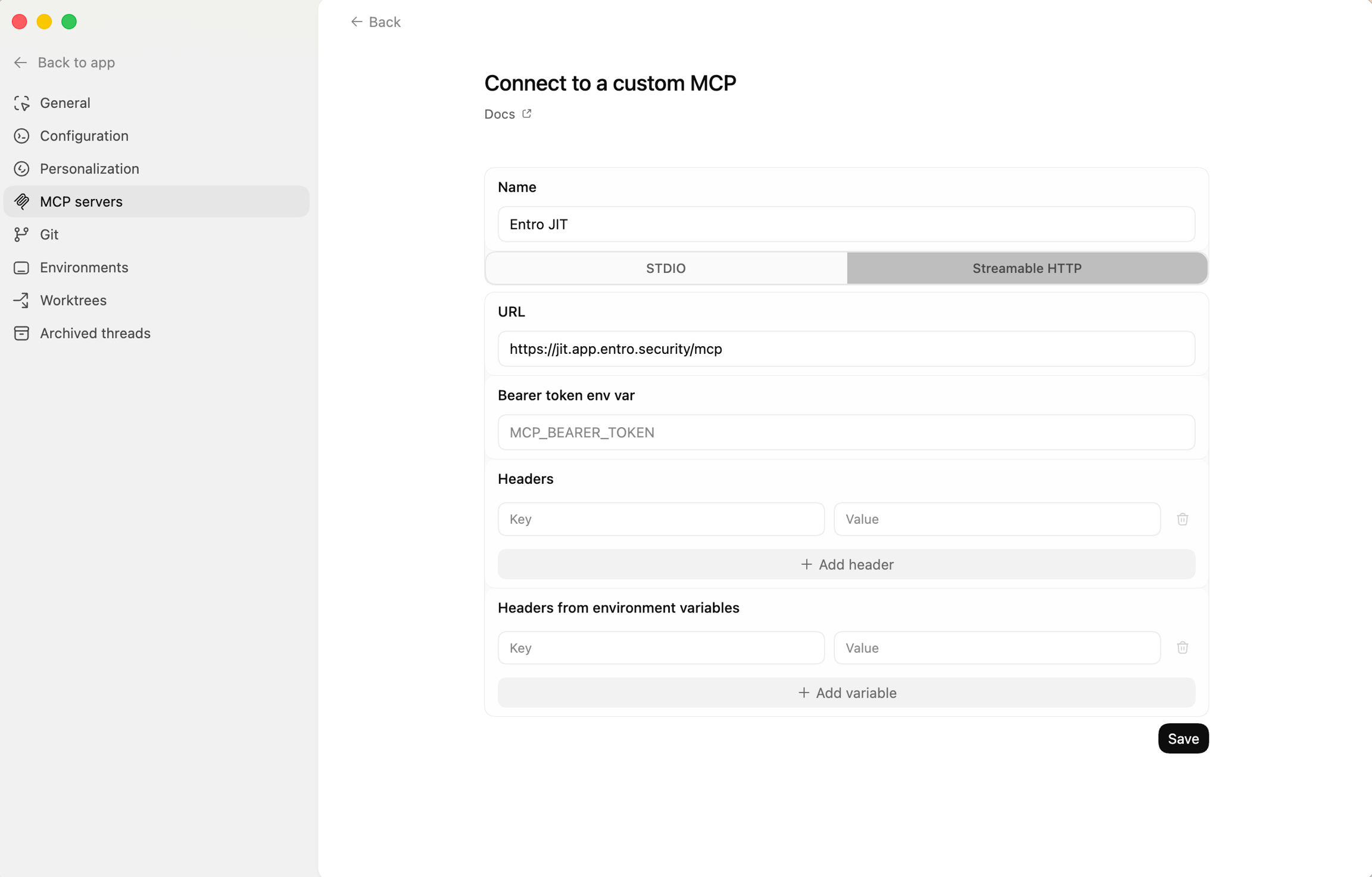
https://jit.app.entro.security/mcp
Authentication
The MCP server uses OAuth for authentication. Upon trying to authenticate you will be redirected to a SailPoint Entro login page where you will be able to log in with your SailPoint Entro platform credentials.
General Instructions
SailPoint Entro's JIT Portal MCP is located https://jit.app.entro.security/mcp
Refer to your AI agent's MCP configuration to connect. The agent will discover all available tools automatically via the MCP protocol.
Agentic Access
Cursor
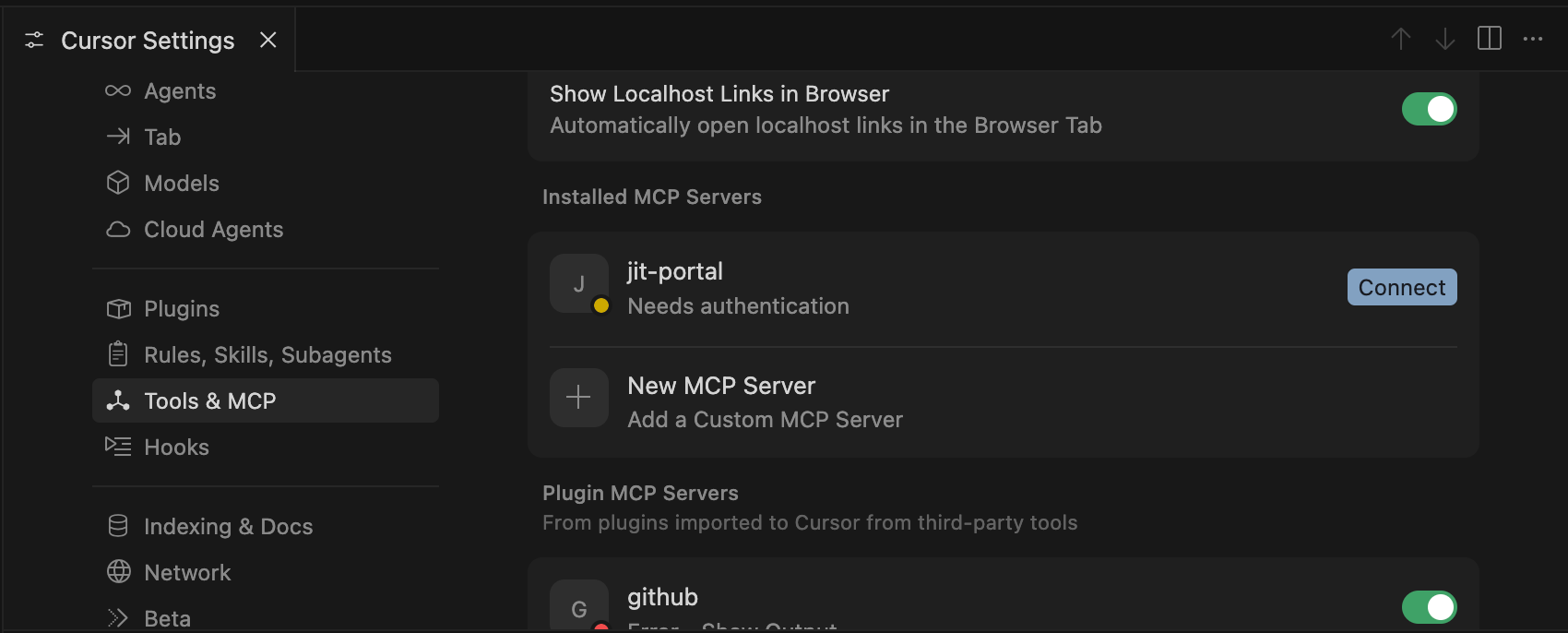
Go to Settings > Cursor Settings > Tools & MCP > New MCP Server.
After adding the server click on the Connect button as can be seen below.
OpenAI Codex
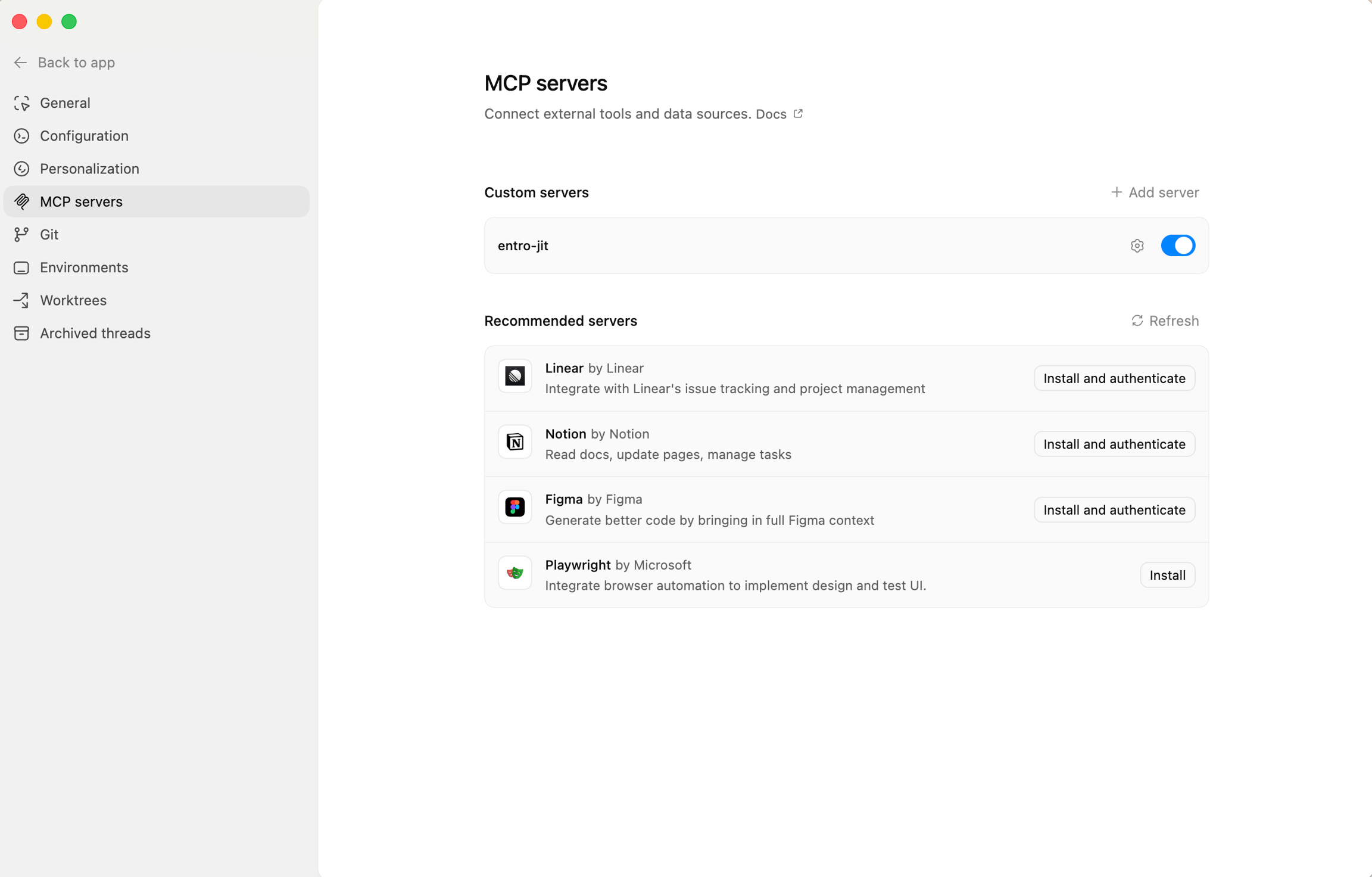
Select Settings in the bottom left corner and follow these steps. Authentication is required as well.
Google Gemini
gemini mcp add -t http jit-portal https://jit.app.entro.security/mcp # Add Entro JIT MCP
gemini # Open the Gemini Agent
/mcp auth jit-portal # Authenticate to the JIT Portal
Note
Google's Gemini has many open tracked issues and therefore the MCP might not work with it
OpenCode
opencode mcp add # Will guide you through the mcp installation process
opencode mcp auth <name> # To authenticate
Claude Code
Claude Code MCP Setup and Usage Example
To add the SailPoint Entro JIT MCP you can simply run the following command -
claude mcp add jit-portal --transport http https://jit.app.entro.security/mcp # Add Entro JIT
claude # Start Claude Code agent
/mcp # in claude to access and authenticate the Entro JIT
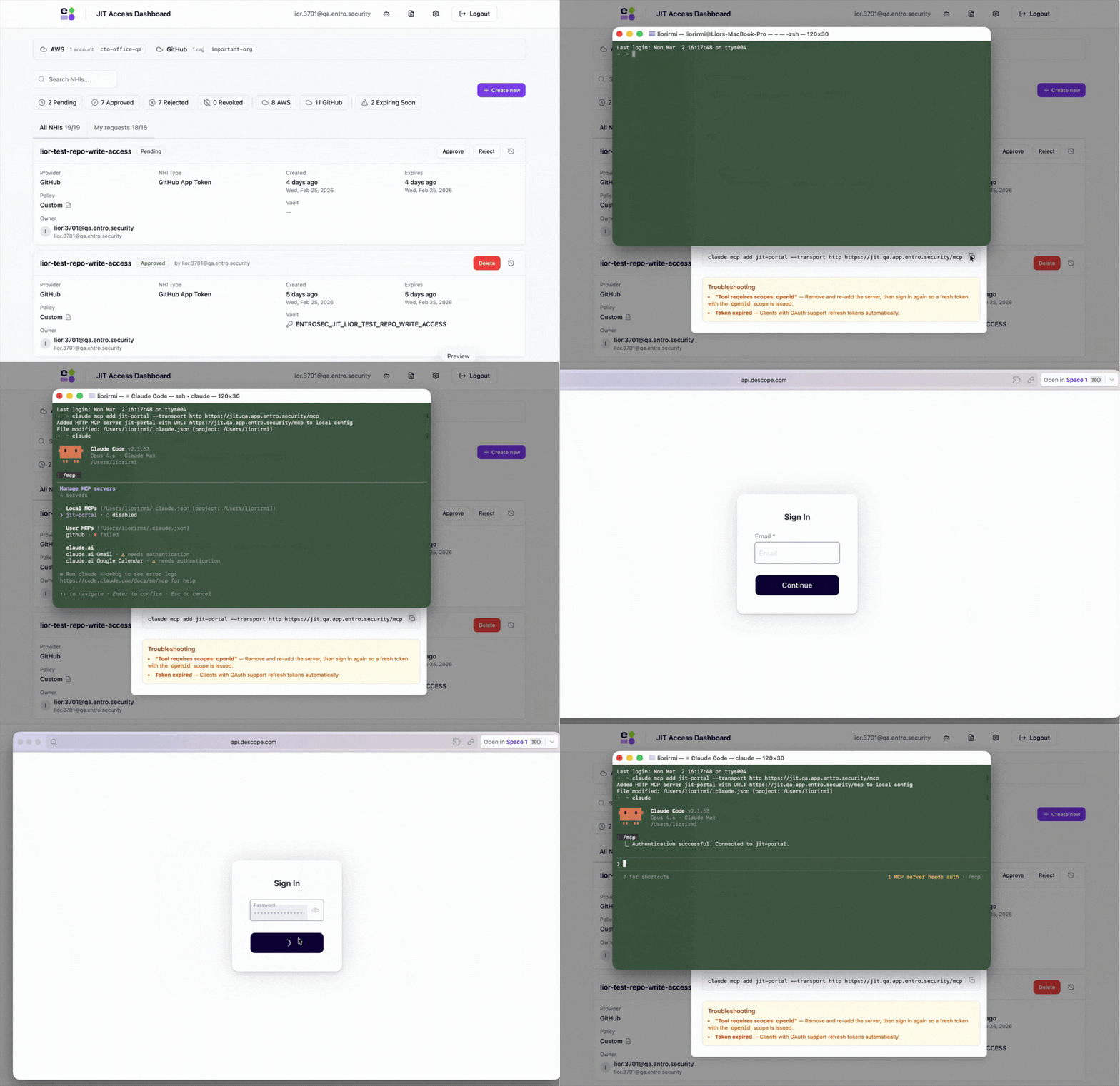
As shown above, you can authenticate to the JIT MCP server with your SailPoint Entro credentials.
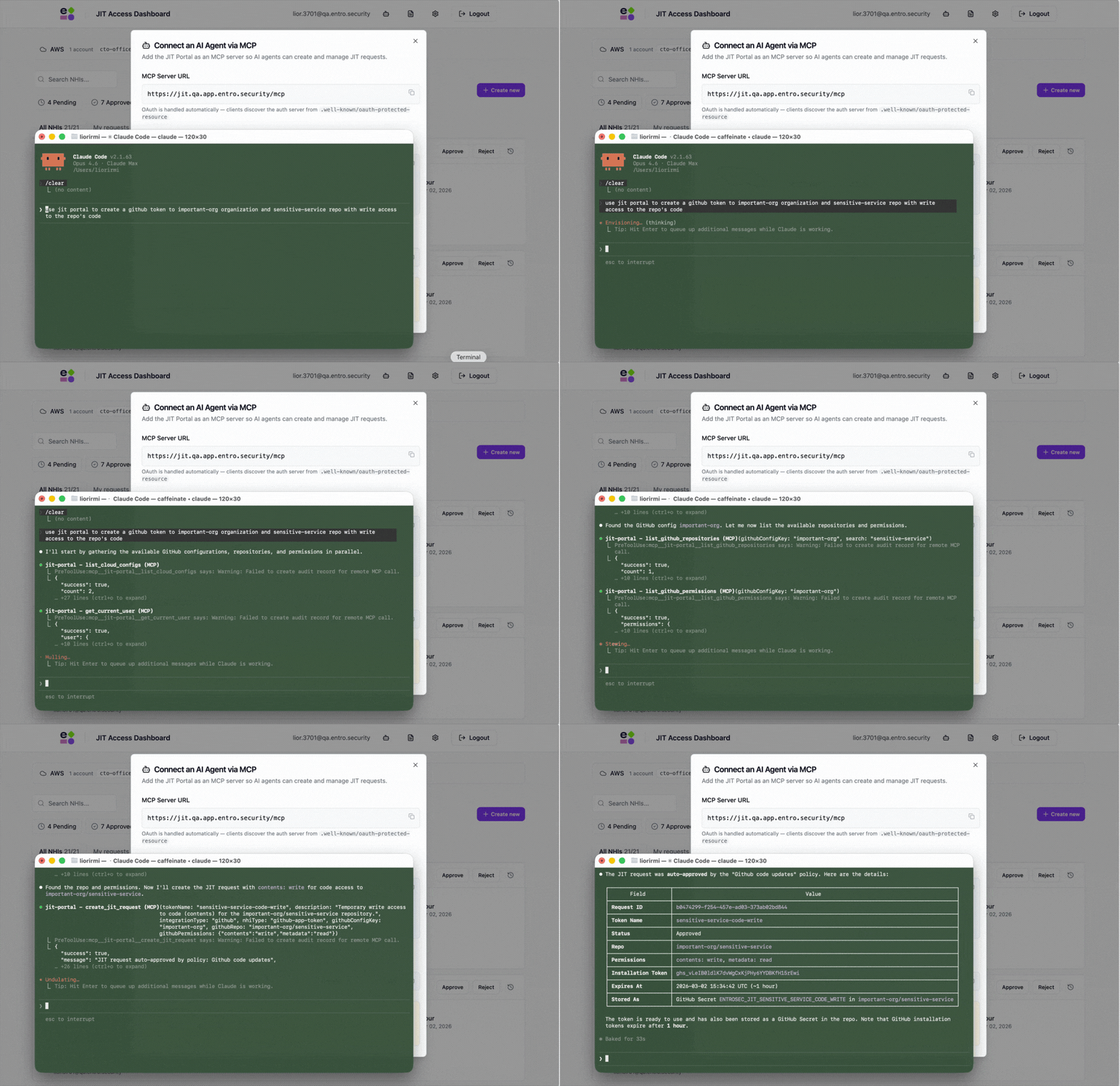
After MCP setup and authentication, you can create new JIT requests with your Claude CLI:
Claude Desktop
Add the following to your Claude Desktop MCP configuration (claude_desktop_config.json):
Claude Desktop will handle the OAuth authentication flow automatically - you'll be prompted to log in on first use.
Available Tools (19 Total)
JIT Requests (8 tools)
**list_jit_requests**
List all JIT access requests. Can filter by status.
Parameters:
-
status(optional) — pending, approved, rejected, revoked, expired, or all -
limit(optional) — Max results, 1-100 (default: 50)
**get_jit_request_details**
Get detailed information about a specific JIT access request.
Parameters:
requestId(required) — UUID of the JIT request
**get_approved_request_credentials**
Retrieve credentials from vault for an approved request. Supports Azure Key Vault and AWS Secrets Manager. GitHub tokens cannot be retrieved (they are write-only GitHub Actions secrets). Only the request initiator or a tenant admin can call this.
Parameters:
requestId(required) — UUID of the approved JIT request
**get_jit_statistics**
Get statistics about JIT requests — counts by status, breakdown by integration type, and recent activity.
Parameters: None
**search_jit_requests**
Advanced search with filters and pagination.
Parameters:
-
search(optional) — Text to match against token name, description, or owner -
status(optional) — pending, approved, rejected, revoked -
integrationType(optional) — aws, azure, or GitHub -
expiringSoon(optional) — Only show requests expiring within 7 days -
page(optional) — Page number (default: 1) -
limit(optional) — Results per page, 1-100 (default: 20) -
sortBy(optional) —created_at,expires_at,token_name -
sortOrder(optional) — asc or desc (default: desc)
**create_jit_request**
Create a new JIT access request for temporary Azure, AWS, or GitHub credentials. Automation policies (auto-approve / auto-decline) are evaluated automatically on creation.
Parameters:
-
tokenName(required) — Descriptive name for this access token -
nhiType(required) — app-registration, service-principal, managed-identity, iam-user, iam-role, or github-app-token -
description(optional) — Why this access is needed -
integrationType(optional) — azure, aws, or GitHub (default: azure) -
azureTenantKey(optional) — Label of the Azure tenant configuration -
awsConfigKey(optional) — Label of the AWS account configuration -
githubConfigKey(optional) — Label of the GitHub App configuration -
githubRepo(optional) — Target repository in owner/repo format -
githubPermissions(optional) — Permission scopes, e.g. { "contents": "write", "issues": "read" } -
azurePermissions(optional) — Object with rbacRole, customRbacRole, and/or graphScopes -
awsPermissions(optional) — Object with managedPolicy or customPolicy -
expiryDays(optional) — Days until expiry, 1-30 (default: 7). IAM Role sessions max 12 hours. GitHub tokens always 1 hour. -
storageType(optional) — aws-secrets-manager, azure-key-vault, or github-secrets -
azureKeyVaultUri(optional) — Azure Key Vault URI -
awsRegion(optional) — AWS region for Secrets Manager -
secretPrefix(optional) — Prefix for secret name in vault
**rotate_jit_credentials**
Rotate credentials for an approved request. Creates new credentials and stores them as a new vault version (old version preserved). GitHub tokens cannot be rotated.
Parameters:
requestId(required) — UUID of the approved JIT request
**retry_azure_consent**
Retry granting admin consent for Microsoft Graph API permissions on an approved Azure app registration. Use when consent could not be granted at approval time.
Parameters:
requestId(required) — UUID of the approved Azure JIT request
Discovery (6 tools)
**list_azure_roles**
List available Azure built-in roles for a tenant configuration. Use to find the role name to pass as rbacRole when creating a request.
Parameters:
-
azureTenantKey(required) — Label of the Azure tenant configuration -
search(optional) — Filter roles by name or description
**list_azure_key_vaults**
List Azure Key Vaults accessible for a tenant configuration.
Parameters:
azureTenantKey(required) — Label of the Azure tenant configuration
**list_aws_iam_policies**
List AWS managed IAM policies for an account configuration. Use to find the policy ARN to pass as managedPolicy when creating a request.
Parameters:
-
awsConfigKey(required) — Label of the AWS account configuration -
search(optional) — Filter policies by name
**list_github_repositories**
List repositories accessible to a GitHub App installation. Returns repos in owner/repo format.
Parameters:
-
githubConfigKey(required) — Label of the GitHub App configuration -
search(optional) — Filter repositories by name
**list_github_permissions**
List permission scopes granted to a GitHub App installation. Returns key-value pairs like { "contents": "write", "issues": "read" }.
Parameters:
githubConfigKey(required) — Label of the GitHub App configuration
**list_storage_options**
List available vault/storage options — supported storage types, AWS regions, and Azure Key Vaults per tenant.
Parameters: None
Cloud Configs (2 tools)
**list_cloud_configs**
List all configured cloud provider accounts (Azure tenants, AWS accounts, GitHub Apps) available for JIT requests.
Parameters: None
**list_azure_tenants**
Backward-compatible alias for list_cloud_configs.
Parameters: None
Automation (1 tool)
**list_automation_policies**
List all JIT automation policies — both auto-approve and auto-decline rules, with their conditions and priorities.
Parameters: None
User (2 tools)
**get_current_user**
Get information about the currently authenticated user.
Parameters: None
**get_tenant_info**
Get information about the current tenant. Admins also receive the list of tenant users.
Parameters: None
Example Request Flows
Azure: Create an App Registration with Contributor Role
Step 1 — Discover available Azure tenants:
Step 2 — Find the right RBAC role:
list_azure_roles { azureTenantKey: "contoso-prod", search: "Contributor" }
Returns: [{ roleName: "Contributor", roleId: "b24988ac-..." }, ...]
Step 3 — Find a Key Vault for storage:
list_azure_key_vaults { azureTenantKey: "contoso-prod" }
Returns: [{ name: "my-vault", uri: "https://my-vault.vault.azure.net" }]
Step 4 — Create the request:
create_jit_request {
  tokenName: "deploy-pipeline",
  description: "CI/CD deployment access",
  integrationType: "azure",
  nhiType: "app-registration",
  azureTenantKey: "contoso-prod",
  azurePermissions: { rbacRole: "Contributor" },
  expiryDays: 7,
  storageType: "azure-key-vault",
  azureKeyVaultUri: "https://my-vault.vault.azure.net"
}
Returns: { id: "abc-123", status: "approved" } if auto-approved, or { status: "pending" } if awaiting manual approval
Step 5 — Retrieve credentials (once approved):
get_approved_request_credentials { requestId: "abc-123" }
Returns: { clientId: "...", clientSecret: "...", tenantId: "..." }
AWS: Create an IAM Role with Read-Only S3 Access
Step 1 — Discover available AWS accounts:
Step 2 — Find the right IAM policy:
list_aws_iam_policies { awsConfigKey: "aws-staging", search: "S3ReadOnly" }
Returns: [{ policyName: "AmazonS3ReadOnlyAccess", arn: "arn:aws:iam::aws:policy/AmazonS3ReadOnlyAccess" }]
Step 3 — Create the request:
create_jit_request {
  tokenName: "s3-data-reader",
  description: "Read access to S3 for data pipeline",
  integrationType: "aws",
  nhiType: "iam-role",
  awsConfigKey: "aws-staging",
  awsPermissions: { managedPolicy: "arn:aws:iam::aws:policy/AmazonS3ReadOnlyAccess" },
  expiryDays: 1,
  storageType: "aws-secrets-manager",
  awsRegion: "us-east-1"
}
Returns: { id: "def-456", status: "approved" }
Step 4 — Retrieve credentials:
get_approved_request_credentials { requestId: "def-456" }
Returns: { awsAccessKeyId: "AKIA...", awsSecretAccessKey: "...", awsSessionToken: "...", expiryDate: "..." }
GitHub: Create a Token with Write Access to a Repository
Step 1 — Discover available GitHub Apps:
Step 2 — Find the target repository:
list_github_repositories { githubConfigKey: "github-org-app", search: "backend" }
Returns: [{ fullName: "my-org/backend-service" }, ...]
Step 3 — Check available permissions:
list_github_permissions { githubConfigKey: "github-org-app" }
Returns: { "contents": "write", "issues": "write", "pull_requests": "write", "actions": "read" }
Step 4 — Create the request:
create_jit_request {
  tokenName: "release-bot",
  description: "Push release tags",
  integrationType: "github",
  nhiType: "github-app-token",
  githubConfigKey: "github-org-app",
  githubRepo: "my-org/backend-service",
  githubPermissions: { "contents": "write" }
}
Returns: { id: "ghi-789", status: "approved" }
Note
GitHub tokens are stored as GitHub Actions secrets in the target repository. They cannot be retrieved via the API — they are write-only.
Monitoring and Management
Search for expiring requests:
Rotate credentials before expiry:
Get platform statistics:
View automation policies:
Notes and Limitations
-
GitHub tokens are write-only: After creation, GitHub installation tokens are stored as GitHub Actions secrets and cannot be retrieved via the API. Use them directly in GitHub Actions workflows.
-
GitHub tokens cannot be rotated: GitHub installation tokens have a fixed
~1 hourlifetime. Create a new JIT request instead. -
IAM Role sessions max 12 hours: AWS STS AssumeRole has a maximum session duration of 12 hours. The expiryDays parameter will be capped accordingly.
-
Credentials shown once: When a request is auto-approved via MCP, the credentials are returned to the caller in the response. For manually-approved requests, poll
get_jit_request_detailsuntil status is "approved", then callget_approved_request_credentials. -
All tools require authentication: The MCP server uses Descope OAuth — your AI agent must complete the authentication flow before calling any tools.