JIT GitHub Onboarding
Onboarding your GitHub organization to SailPoint Entro's JIT Portal requires creating and installing a GitHub App.
The GitHub App will be used to generate short-lived installation tokens, scoped to the permissions you choose.
You will need three values to complete onboarding:
-
App ID
-
Private key (PEM)
-
Installation ID
Step 1: Create a GitHub App
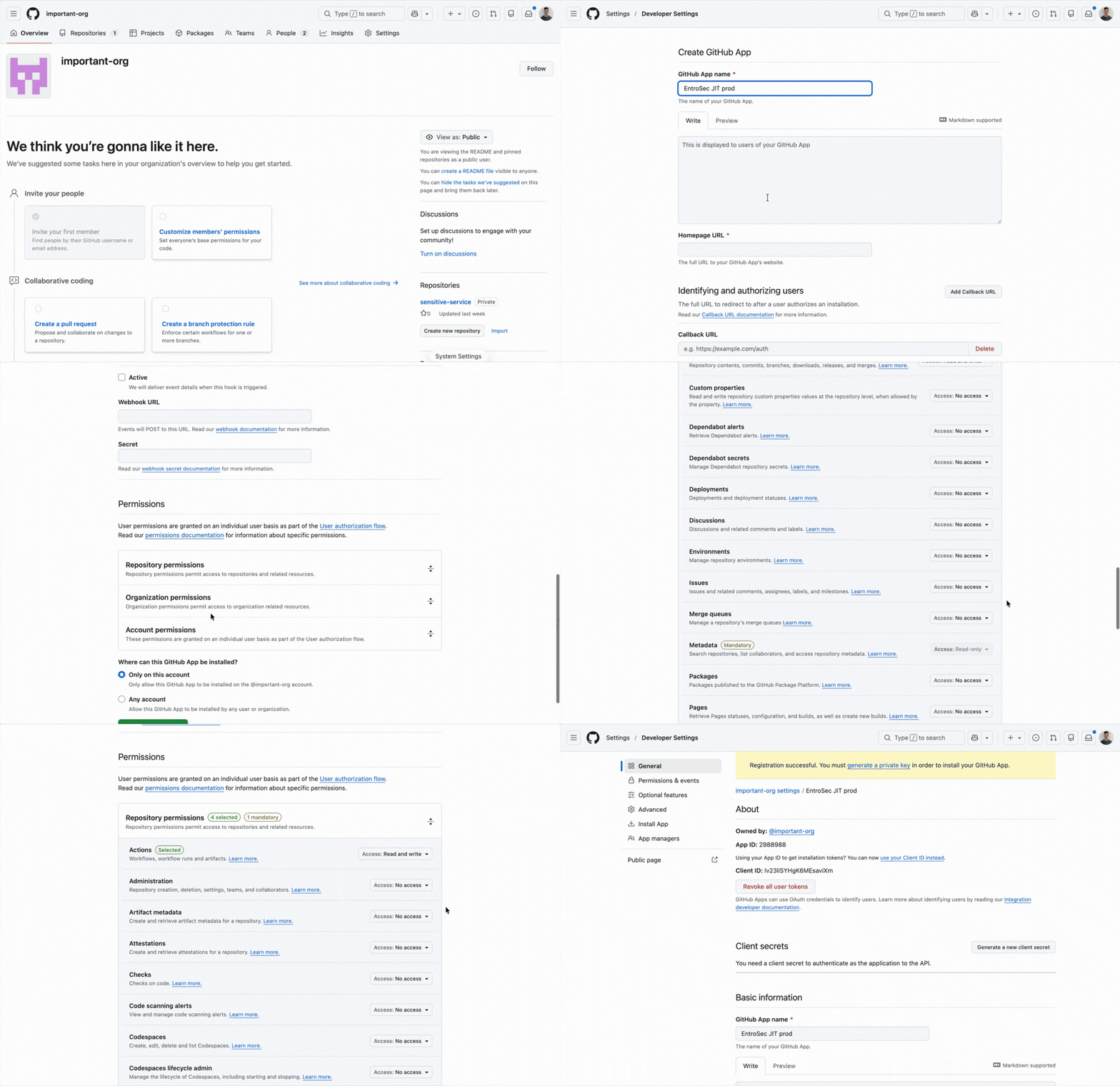
Head over to your GitHub organization → Settings → Developer settings → GitHub Apps → New GitHub App.
- Set a name (example:
EntroSec JIT - {YOUR_ORGANIZTION'S_NAME}). - Set a homepage URL.
- Under Webhook, uncheck Active.
- Under Permissions, grant the permissions you want to issue tokens for (example: Contents, Actions, Pull requests).
- Click Create GitHub App.
-
Copy the App ID from the app's General settings page.
Warning
Keep permissions tight. The GitHub App permissions you select here define the max permissions JIT can request later.
Step 2: Generate a Private Key
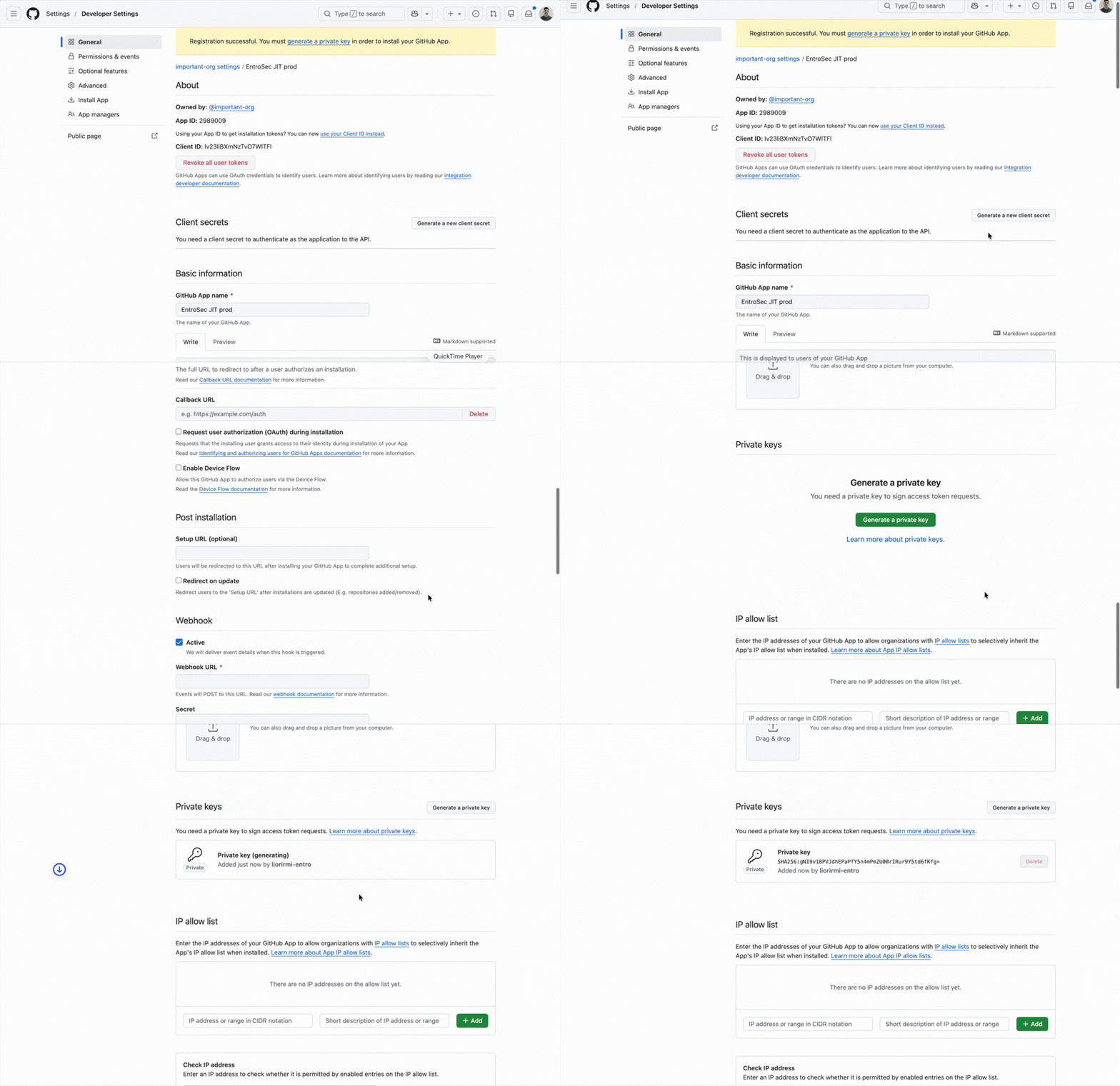
On the same GitHub App settings page, scroll to Private keys.
- Click Generate a private key.
- A
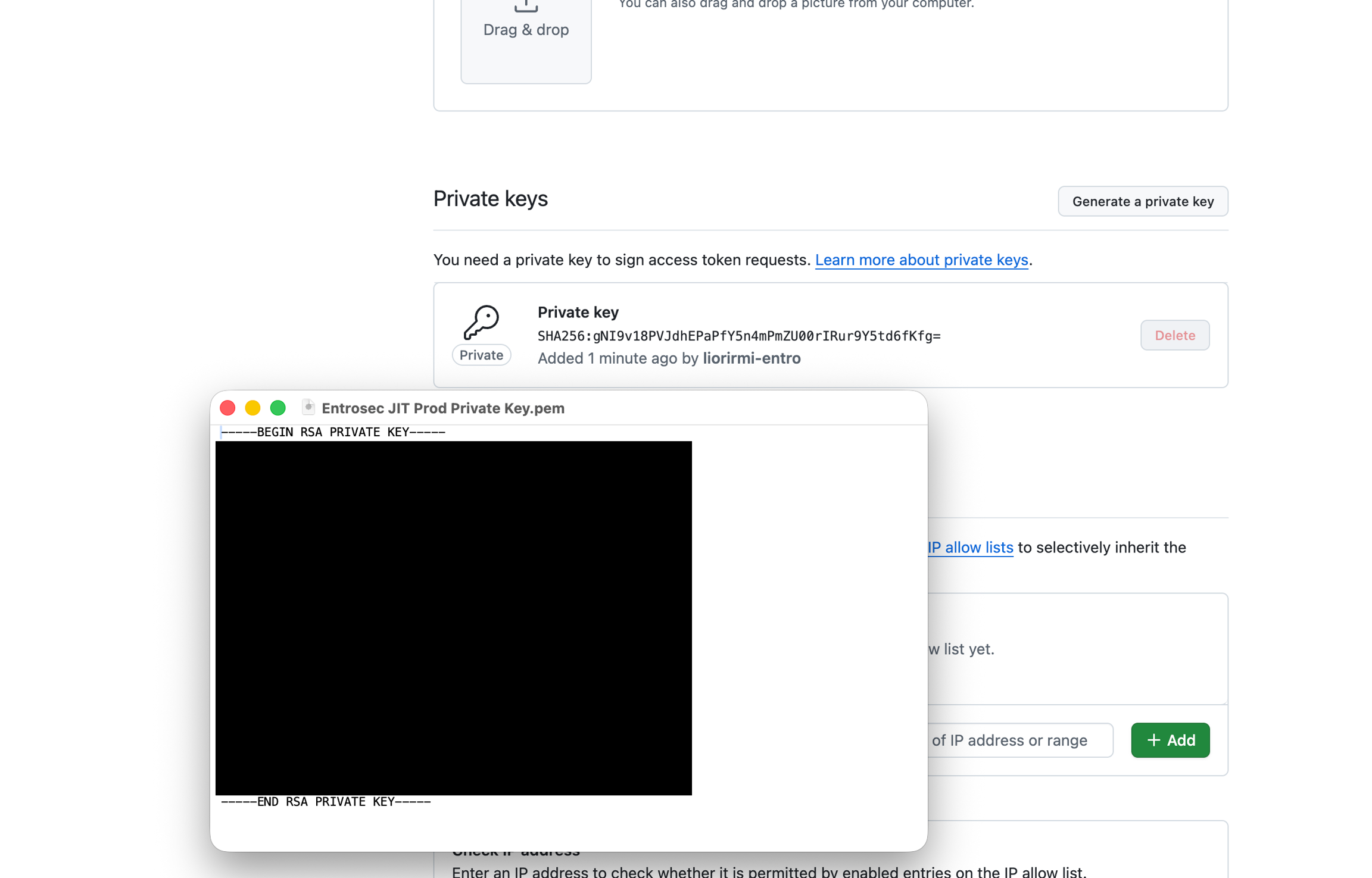
.pemfile will download. -
Open the file and copy its full contents.
You will paste the PEM contents into the portal.
Step 3: Install the App on Your Organization
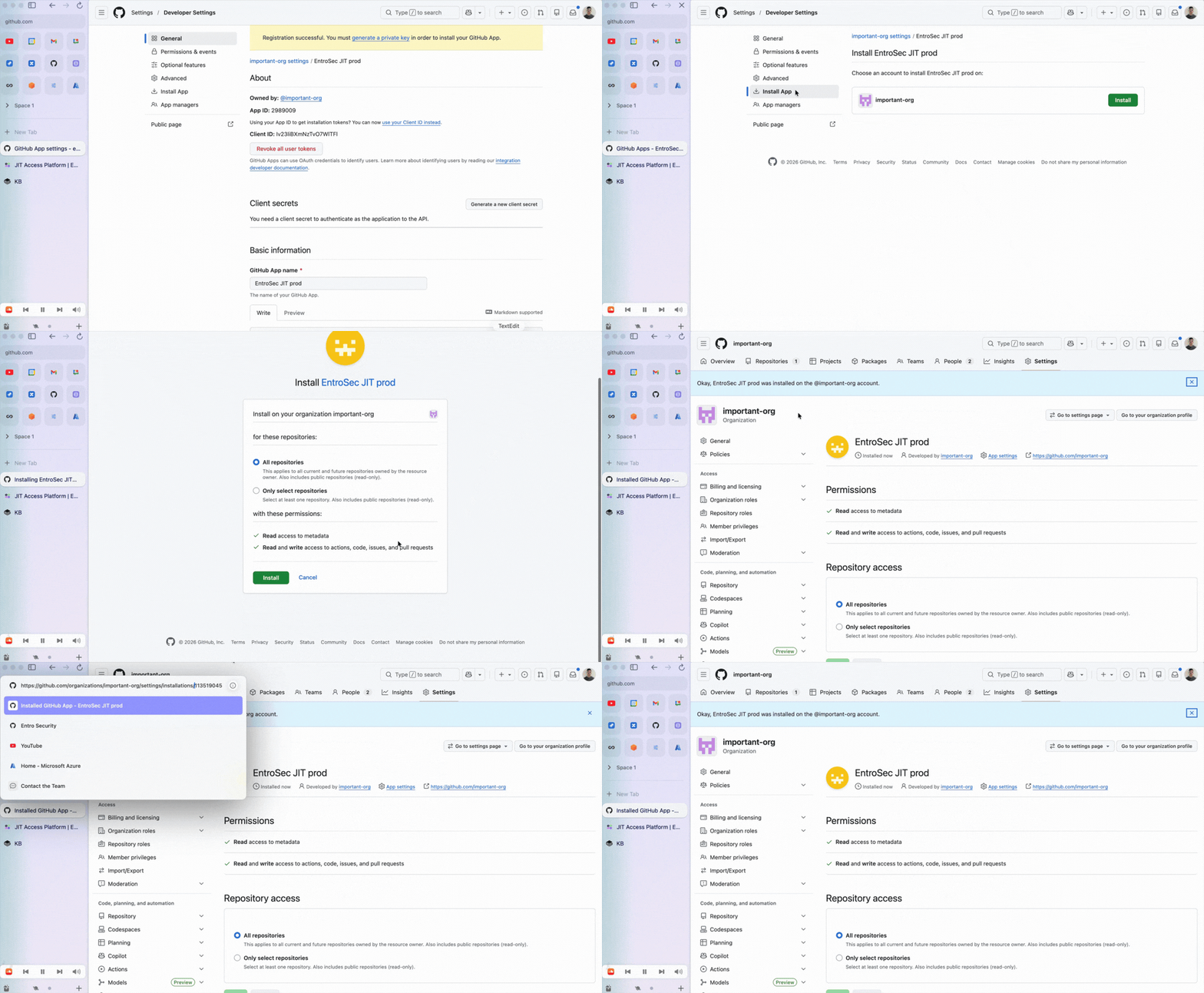
On the GitHub App page, go to Install App in the left sidebar.
- Click Install next to your organization.
- Choose All repositories or select specific ones.
- Copy the Installation ID from the URL.
Format:
github.com/organizations/YOUR_ORG/settings/installations/INSTALLATION_ID
Step 4: Enter Credentials in the Portal
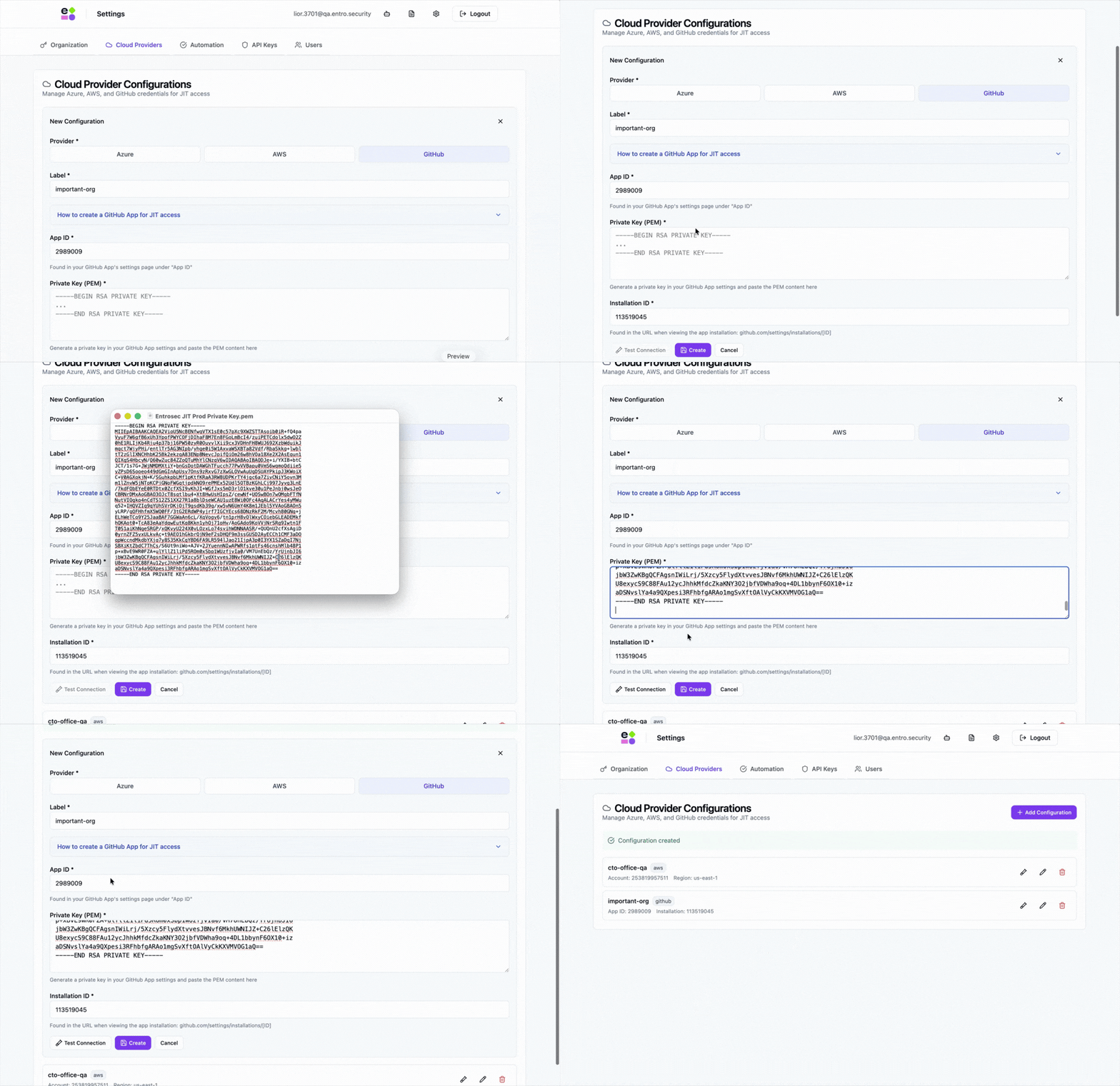
Once you have the App ID, Private Key, and Installation ID, head over to the SailPoint Entro JIT portal and onboard using the created credentials.
- SailPoint Entro JIT Portal → Settings → Cloud Providers → Add GitHub.
-
Fill in:
-
Label
-
App ID
-
Installation ID
-
Private key (full PEM contents)
-
-
Click Test Connection to verify.
-
Click Create.
That's it! You have now onboarded your GitHub account to the JIT Access Platform, and can use it to create requests for GitHub Installation App Tokens.