JIT Azure Onboarding
Onboarding your Azure to SailPoint Entro's JIT Portal requires the creation of an Azure App Registration.
The App Registration will have the privileges to -
- Create a new App Registration
- Generate Client ID and Secrets pairs
- Assign and consent permissions
-
Store and retrieve said credentials in dedicated Azure Key Vaults
Head over to your Azure tenant and navigate to App Registration creation.
Give the new App Registration a descriptive name, such as SailPoint Entro-JIT; In the "Supported account types" make sure to select "Single tenant".
Once created, head over to the app's "API Permissions" tab and assign the following Graph permissions -
-
Application.ReadWrite.All- Create and manage JIT app registrations -
AppRoleAssignment.ReadWrite.All- Grant admin consent to JIT apps Graph permissions
Once selected, make sure to Consent the permissions for the apps.
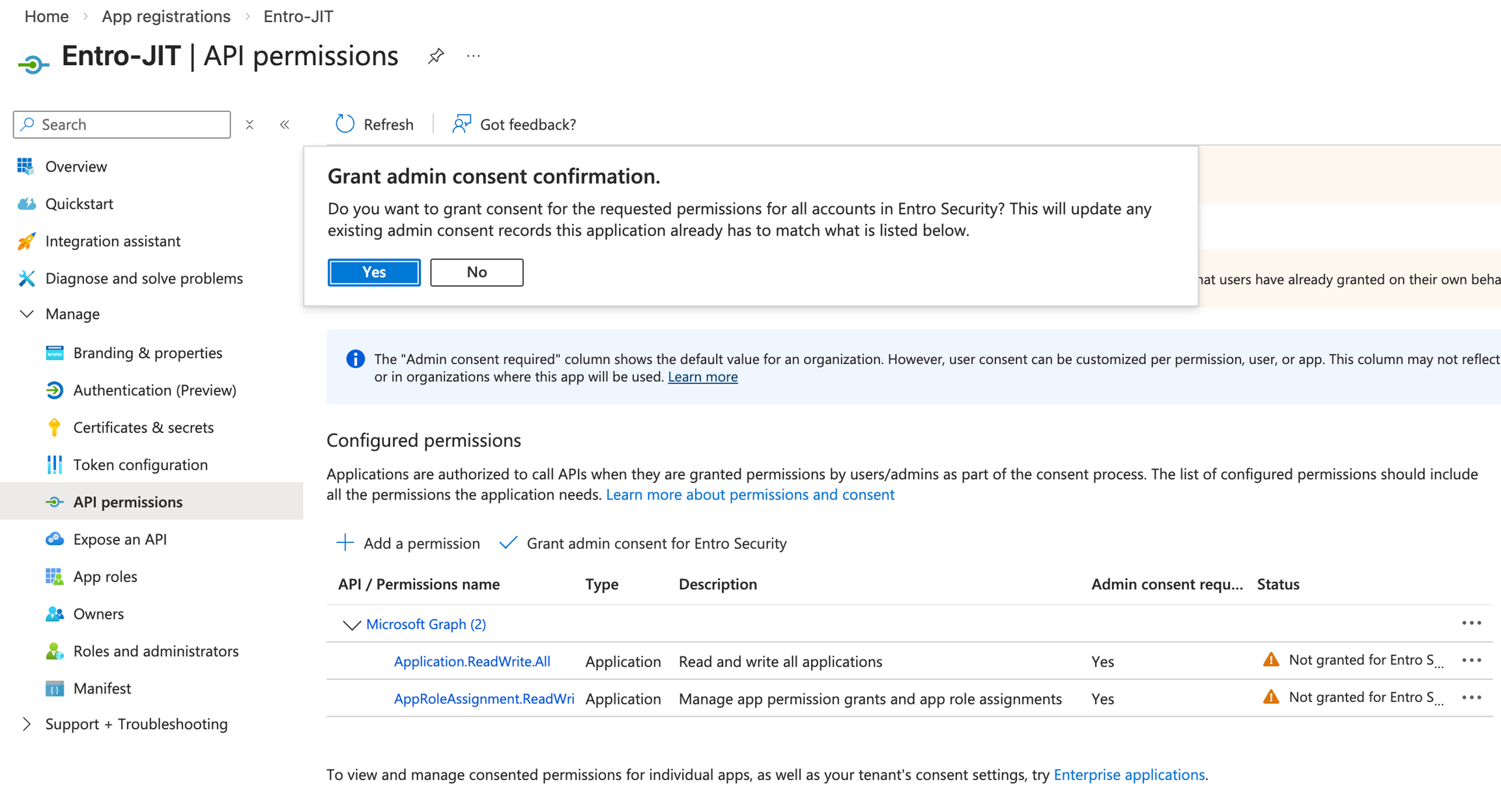
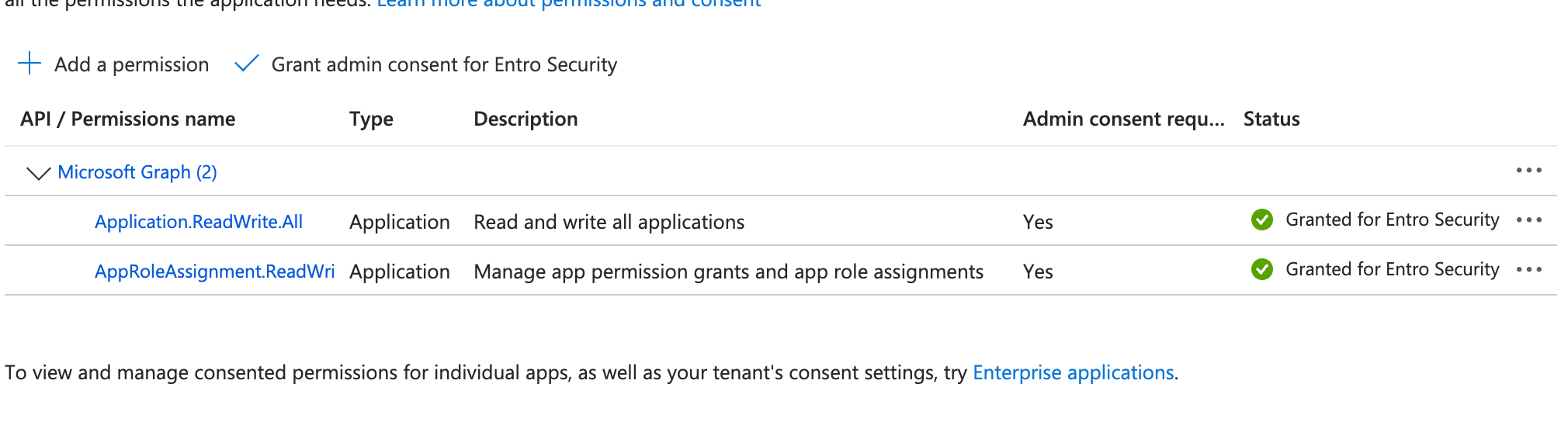
Once granted, the Status column's icon will change to a green checkmark.
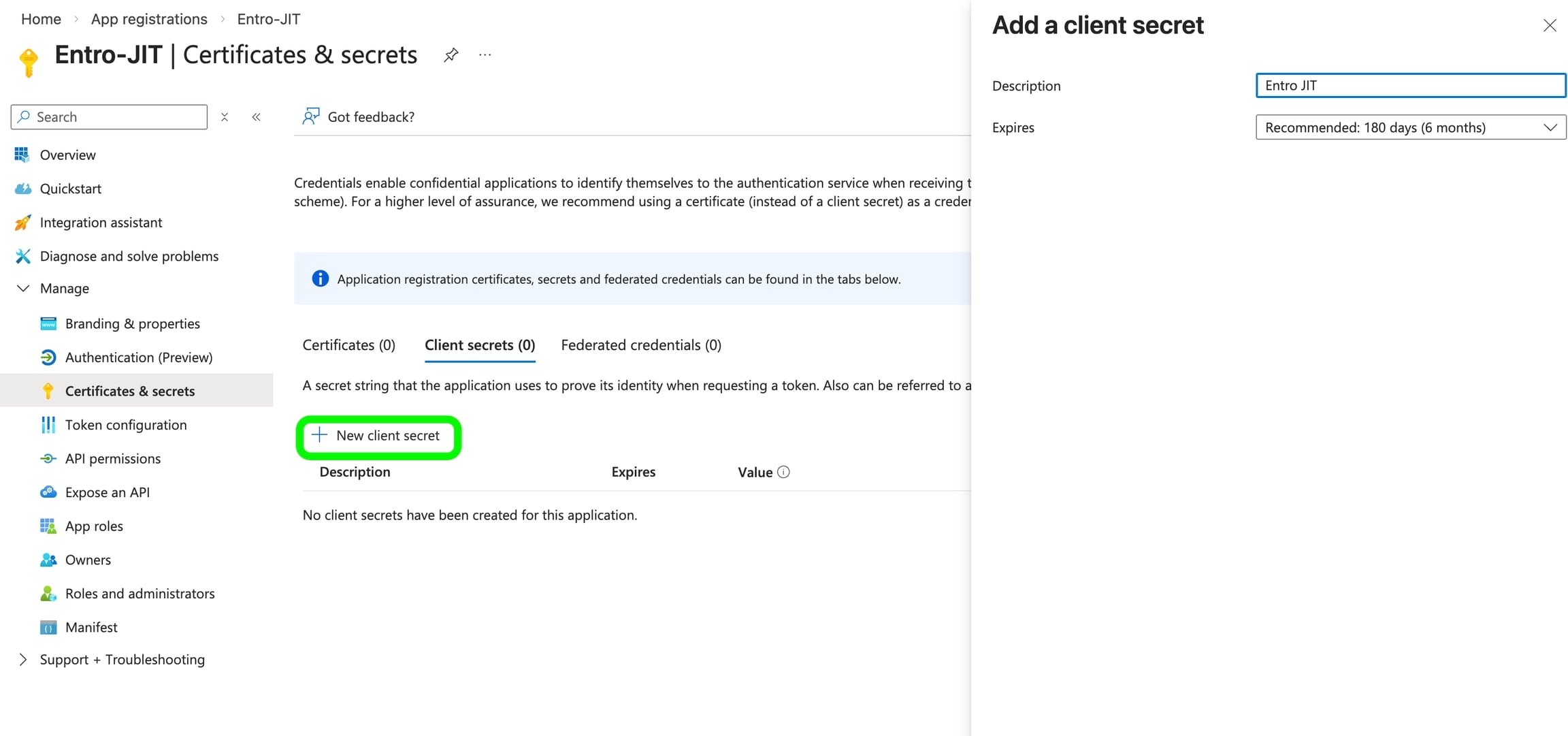
After consent is granted, generate a secret pair and save it for later. You will need it to onboard the application.
Next assign the desired RBAC roles on the selected resources which you would like to be accessible via the JIT platform.
-
Key Vault Secrets Officer - For Key Vault access. Can be given over a subscription or over specific key vaults.
-
User Access Administrator or Role Based Access Control Administrator - To assign Azure RBAC roles or custom policies to App Registration
Warning
The roles above are highly privileged - scope access to relevant resources only.
As mentioned above, these roles are highly privileged and if compromised pose a serious risk.
Make sure access is scoped to relevant resources; for example, specific Key Vaults or monitored Azure subscriptions.
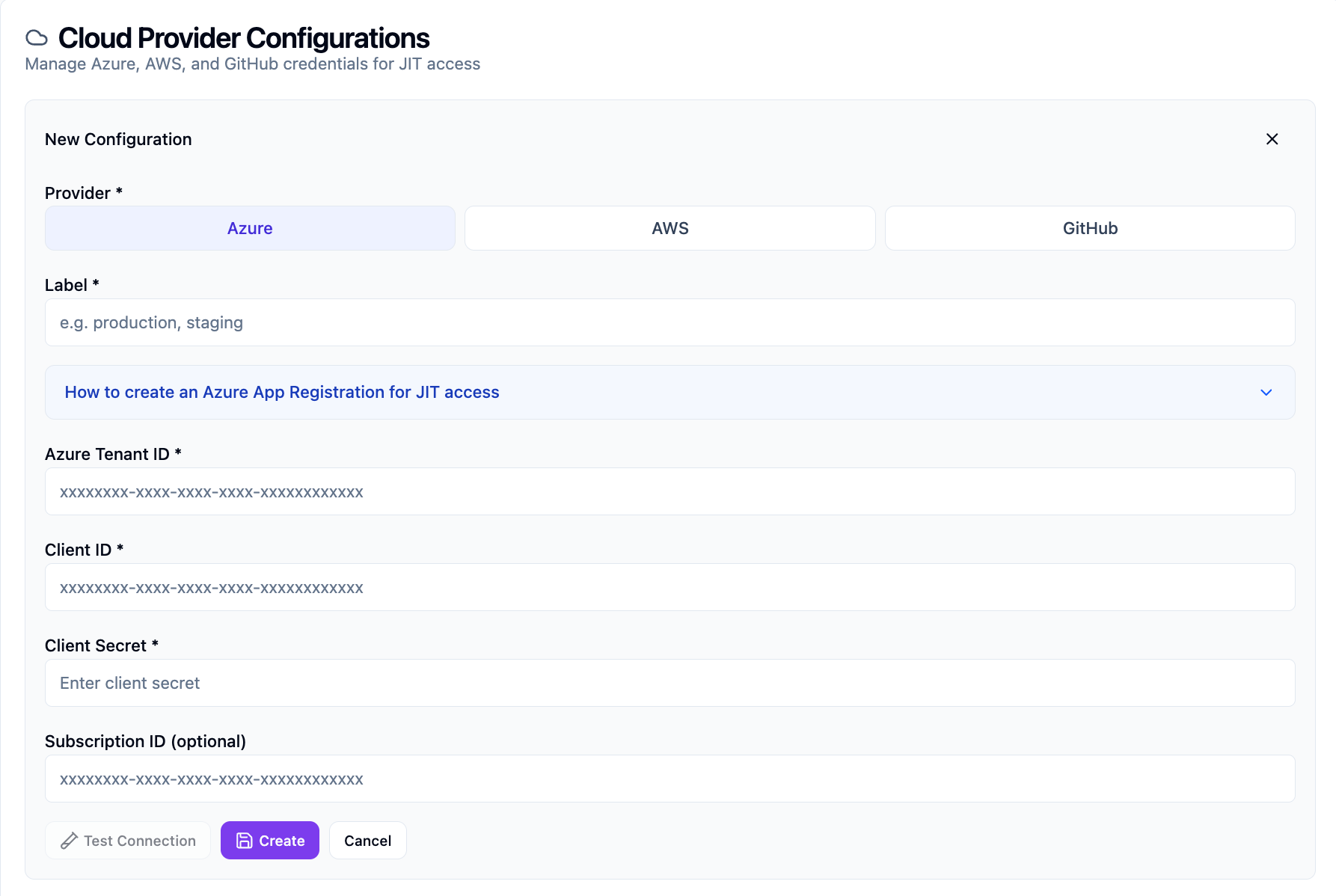
When these roles are assigned to the SailPoint Entro JIT app registration over the desired scopes, go to the SailPoint Entro JIT portal and onboard using the created credentials.
-