Slack Private App Onboarding
Follow the Slack Private App steps below if your organization uses standard Slack workspaces. Using a manifest is the fastest way to create your Slack app, as it pre-configures all the necessary settings, scopes, and event subscriptions automatically.
Configuration Steps
Part 1: Create Slack Private App
-
Create a new app
-
As an admin, sign in to the Slack settings console.
-
Go to https://api.slack.com/apps and select Create New App.
-
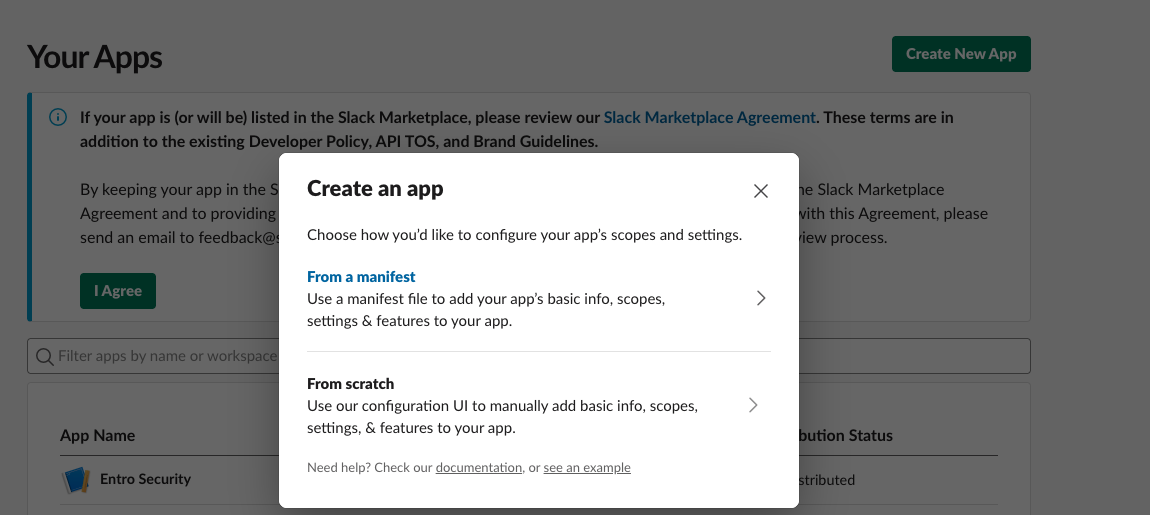
In the dialog, choose From a Manifest.
-
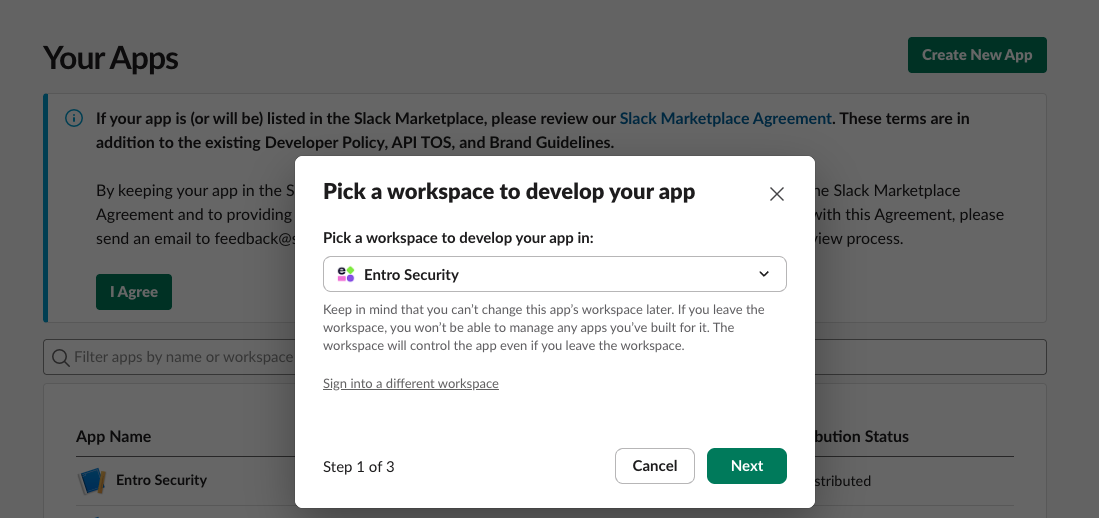
Pick the target workspace and select Next.
-
-
Paste the manifest
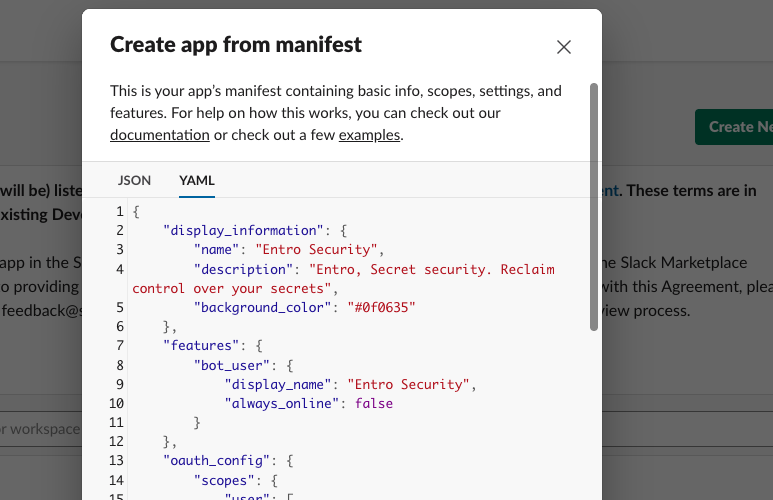
Select the YAML tab and paste the following manifest:
{
    "display_information": {
        "name": "Entro Security",
        "description": "Entro, Secret security. Reclaim control over your secrets",
        "background_color": "#0f0635"
    },
    "features": {
        "bot_user": {
            "display_name": "Entro Security",
            "always_online": false
        }
    },
    "oauth_config": {
        "scopes": {
            "user": [
                "channels:history",
                "channels:read",
                "channels:write",
                "chat:write",
                "groups:history",
                "groups:read",
                "im:history",
                "im:write",
                "team:read",
                "users:read",
                "groups:write",
                "search:read",
                "files:read"
            ],
            "bot": [
                "app_mentions:read",
                "channels:history",
                "channels:join",
                "channels:manage",
                "channels:read",
                "chat:write",
                "chat:write.customize",
                "chat:write.public",
                "conversations.connect:manage",
                "conversations.connect:read",
                "conversations.connect:write",
                "files:read",
                "groups:history",
                "groups:read",
                "groups:write",
                "im:history",
                "im:read",
                "im:write",
                "incoming-webhook",
                "metadata.message:read",
                "mpim:history",
                "team:read",
                "usergroups:read",
                "usergroups:write",
                "users.profile:read",
                "users:read",
                "users:read.email",
                "users:write"
            ]
        }
    },
    "settings": {
        "event_subscriptions": {
            "bot_events": [
                "channel_created",
                "file_created",
                "file_shared",
                "message.channels",
                "message.groups"
            ]
        },
        "interactivity": { "is_enabled": true },
        "org_deploy_enabled": false,
        "socket_mode_enabled": true,
        "token_rotation_enabled": false
    }
}
-
Review and create
-
Select Next, review the settings, then select Create.
-
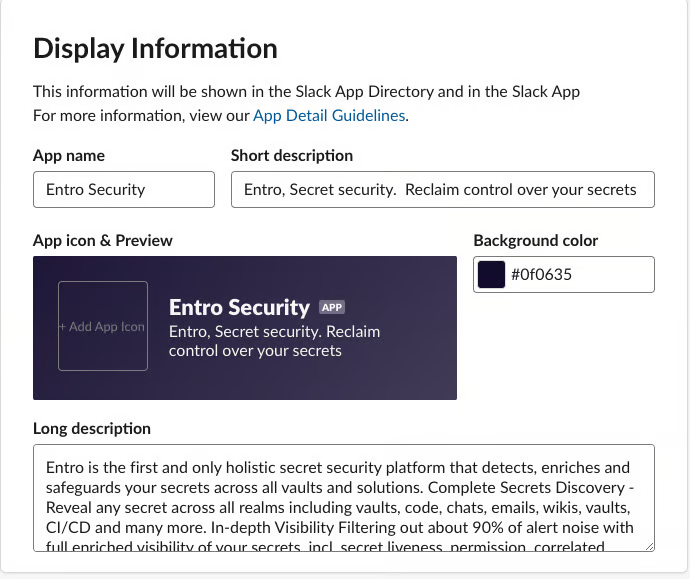
Under Basic Information > Display Information, upload Entro icon 512x512.png, to be shown in Slack interactions with the app.
-

Part 2: Generate and Collect API Tokens
With the app created, you will need to generate and collect three unique tokens required for the integration to connect to your workspace.
-
Enable Socket Mode and get the App-Level Token
-
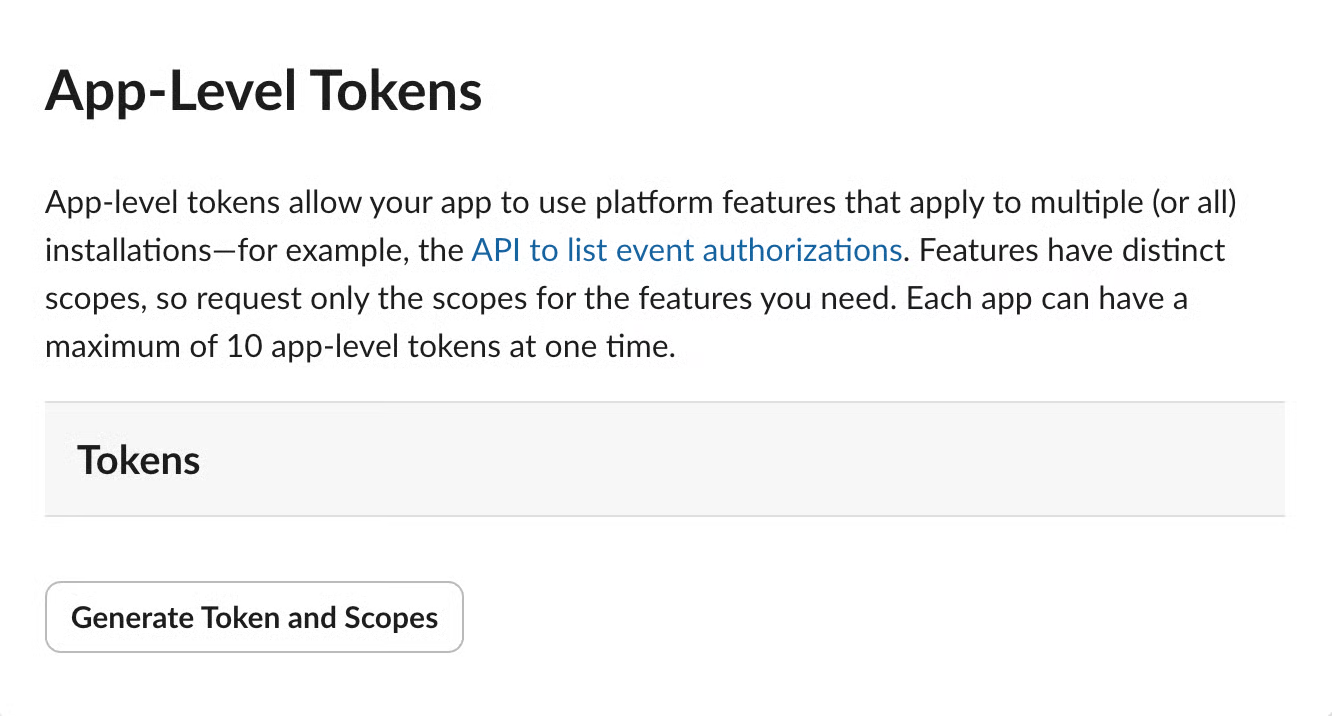
Go to Basic Information > App-Level Tokens.
-
Select Generate Token and Scopes.
-
Create a token named
socket-mode-tokenwith scopeconnections:write.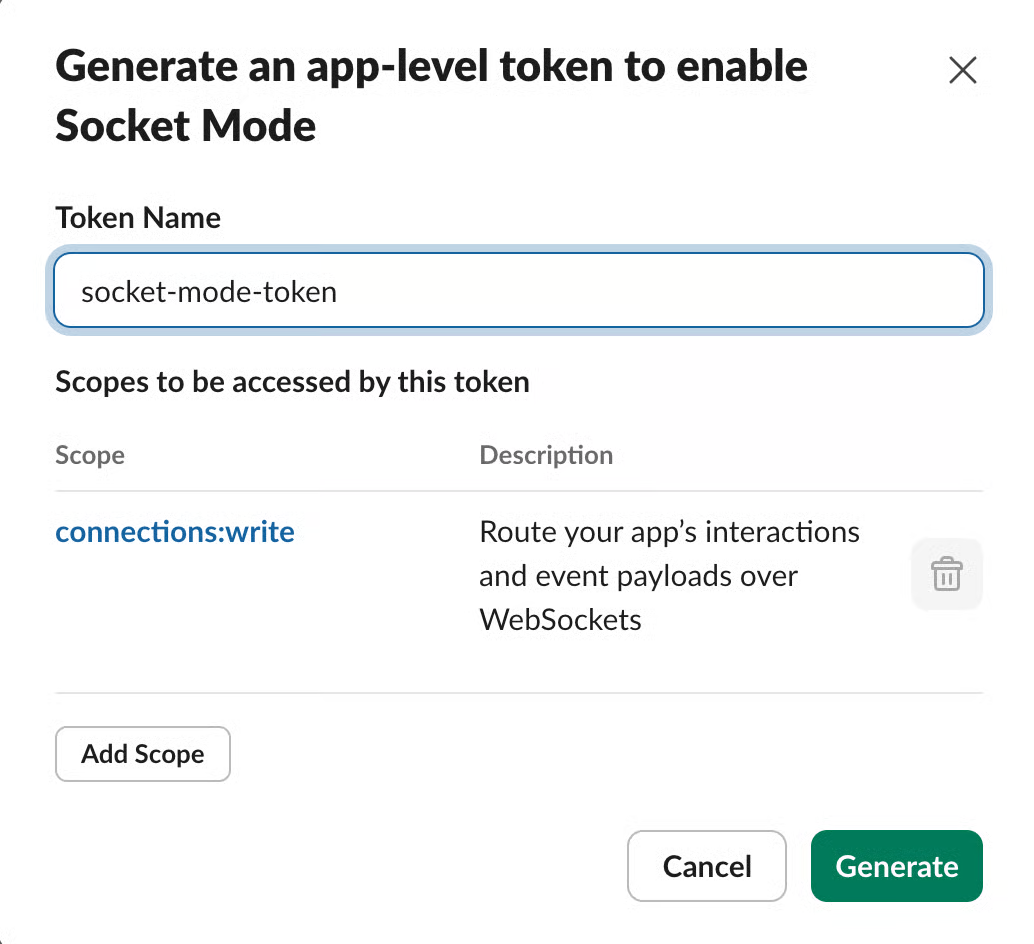
-
Copy the generated
xapp-...token immediately and store it securely.
-
-
Install the app and copy OAuth tokens
-
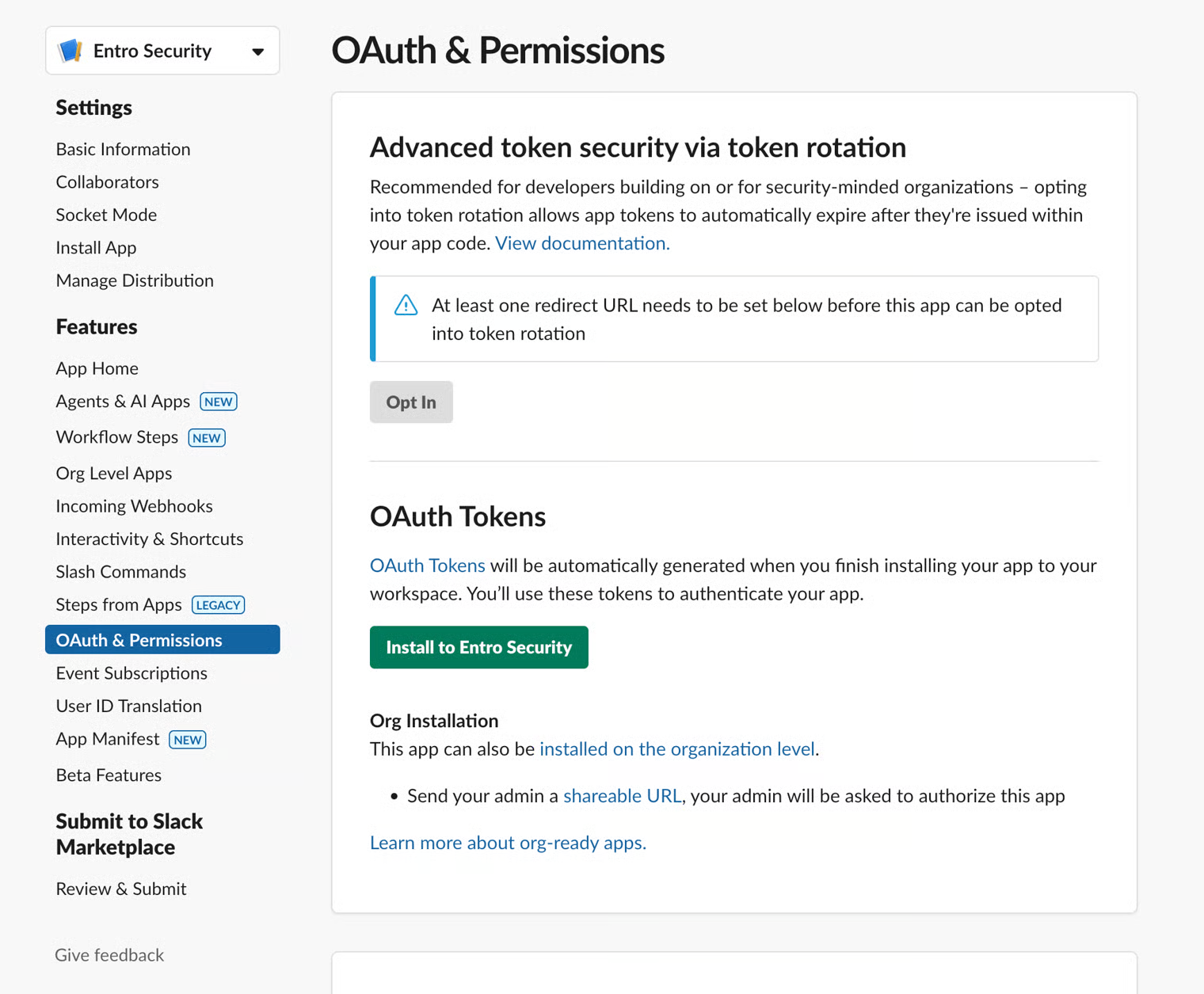
Go to Features > OAuth & Permissions.
-
Under OAuth Tokens, select Install to [Workspace Name].
-
Follow the prompts to authorize the application for your workspace. Choose a channel to be used for webhooks sent by SailPoint Entro.
-
After authorization, you will be sent back to the OAuth & Permissions page. Copy and save the following two tokens:
-
User OAuth Token (starts with
xoxp-) -
Bot User OAuth Token (starts with
xoxb-)
-
-
Part 3: Connect Slack to SailPoint Entro
-
Add a new integration
-
In SailPoint Entro, go to Management > Accounts & Integrations > Add New Account > Slack.
-
Select Slack Private App.
-
Complete the connection form using the following details:
-
Environment - Add a name for this account.
-
Company Nickname - Choose a display name to be used in the UI.
-
User OAuth Token - Paste the
xoxp-...token. -
Bot User OAuth Token - Paste the
xoxb-...token. -
App-Level Token - Paste the
xapp-...token. -
Worker Group (Connector) - Select the connector to be used for this integration.
-
-
-
Save the configuration
Select Save Configuration to activate the integration.
How It Works
-
Uses Socket Mode for a direct, secure connection - no public webhook.
-
The bot joins all public channels automatically.
-
To add it to private channels, run
/invite @YourBotName.