Groups-Roles Mapping
SAML Group-Based Authorization:
-
SAML allows you to define user groups within your IdP.
-
These groups can be mapped directly to specific roles within Descope.
-
When a user logs in via SAML, their group membership is sent in the SAML assertion.
-
Descope then maps these groups to roles within your application, allowing you to control access based on the user's group.
Configure Okta Groups Provisioning
- Login to Okta as Admin.
- In Applications search for SailPoint Entro's SAML application.
- Click on the app and in the General tab click Edit in SAML Settings.
-
Under Group Attribute Statements, enter the following:
-
Name: "groups"
-
Then specify the regex or naming convention you wish to be configured in the SAML. If there is no naming convention, and you wish all the groups to be configured, use
regex match .*.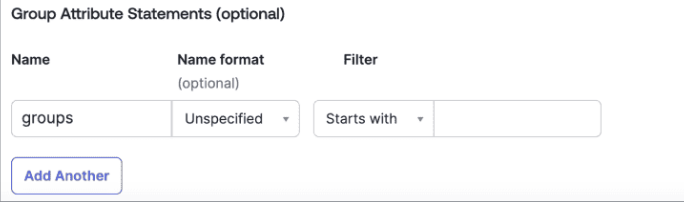
-
-
Click on Save.
- Go to "Push Groups" tab.
- Click on "Push Groups" button and choose rather you want to name specific groups to be added to the application or via a rule.
- Add the relevant groups.
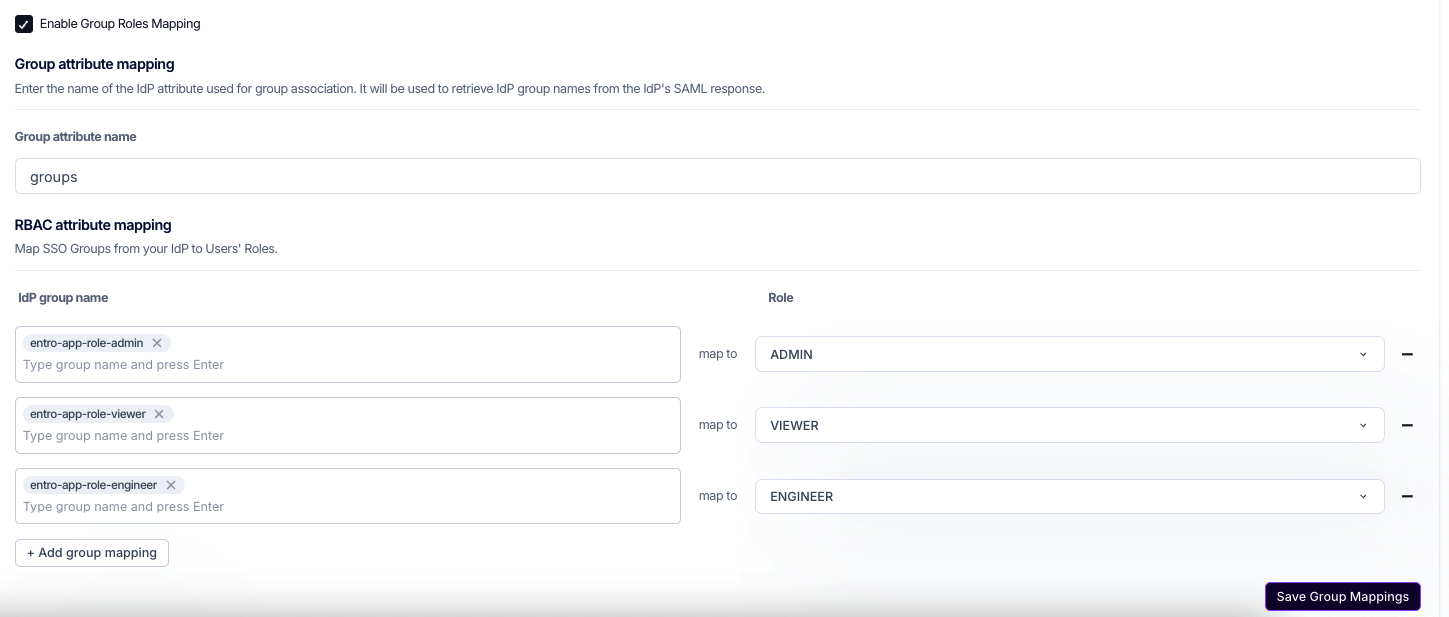
- In SailPoint Entro go to "Settings" > "User Management" and check the "Enable Groups Roles Mapping".
- In "Group Attribute Name" insert the given attribute name for groups in Okta, usually it is: "groups".
-
Write the exact names of the groups added to the SailPoint Entro application in Okta and map a role.
- For each role you wish to map a group, or several groups, it needs to be done on a separate line.
Configure Entra ID Groups Provisioning
- Login to Azure as Application Admin, or any other roles that allows you to change configuration of SaaS applications.
- In "Enterprise Applications" search for SailPoint Entro's application.
- Click on the app and on the side menu click on "Manage" > "Users and Groups".
-
Under "Users and Groups" select the groups you wish to add be mapped to roles in SailPoint Entro.
- Don't forget to Save your selection.
-
Go the "Overview" tab and click on "Start Provisioning".
- In SailPoint Entro go to "Settings" > "User Management" and check the "Enable Groups Roles Mapping".
- In "Group Attribute Name" insert the given attribute name for groups in Entra ID, it is usually: "
http://schemas.microsoft.com/ws/2008/06/identity/claims/groups". -
Write the exact names of the groups added to the SailPoint Entro application in Okta and map them to a role.
- For each role you wish to map a group, or several groups, it needs to be done on a separate line.