Azure Manual Onboarding
Entro Application Creation and Permissions
-
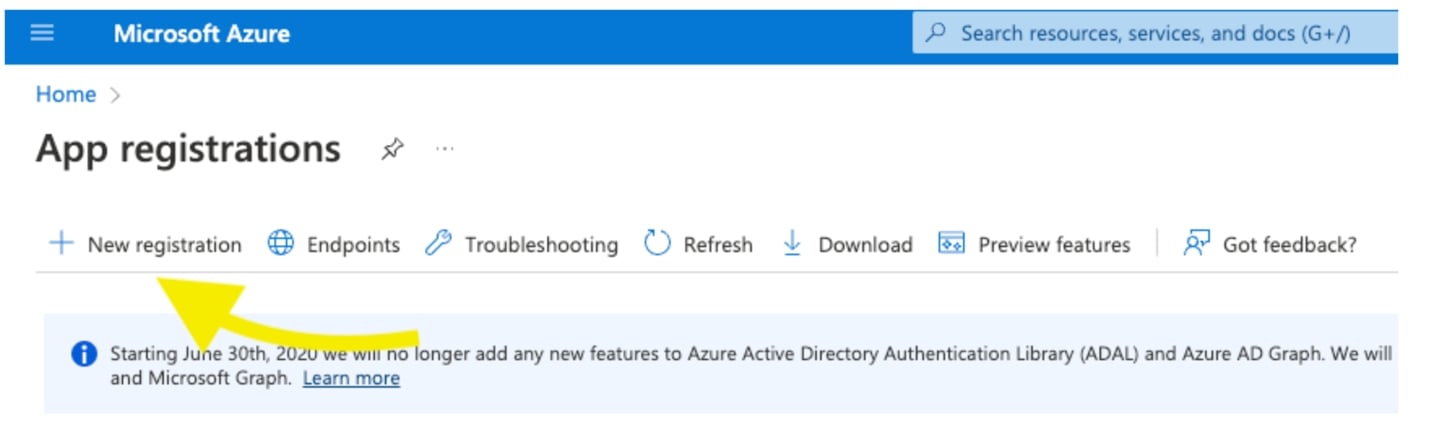
Login to Azure Portal App registrations
-
Select + New registration
-
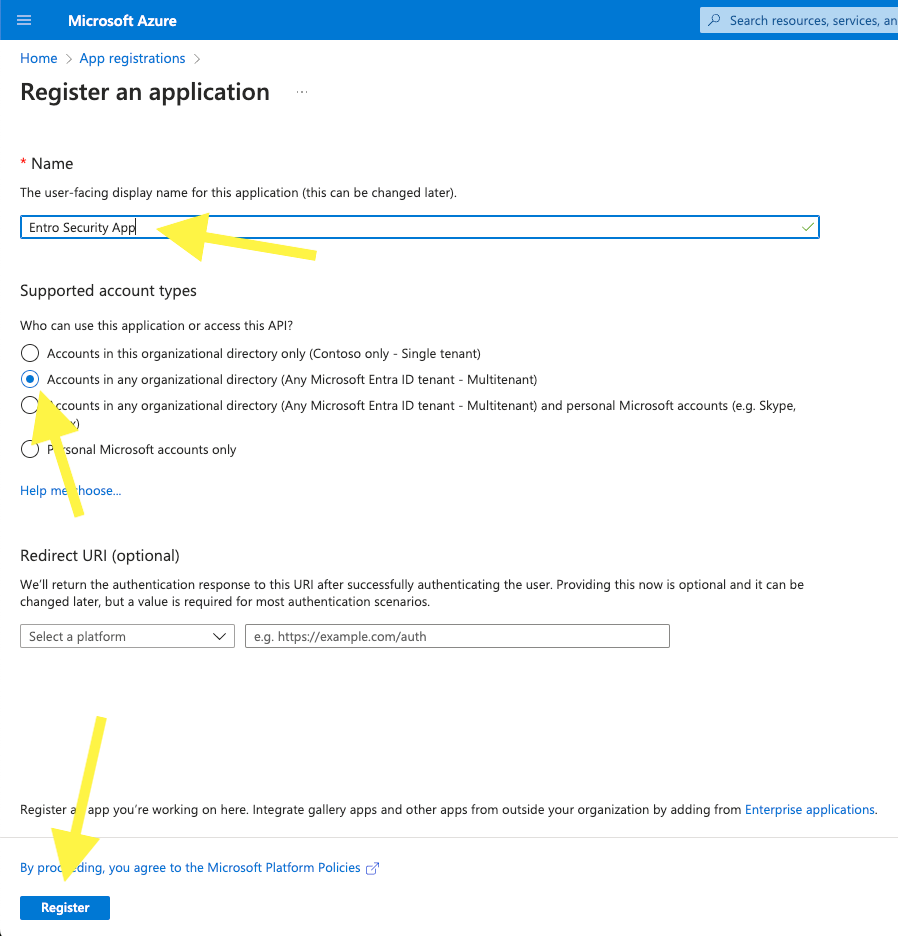
Register an application
-
Name: Entro App
-
Supported account types: Accounts in any organizational directory (Any Microsoft Entra AD tenant - Multitenant)
-
Select Register
-
-
After the App is registered, copy and save the following fields from Overview page:
-
Client ID
-
Tenant ID
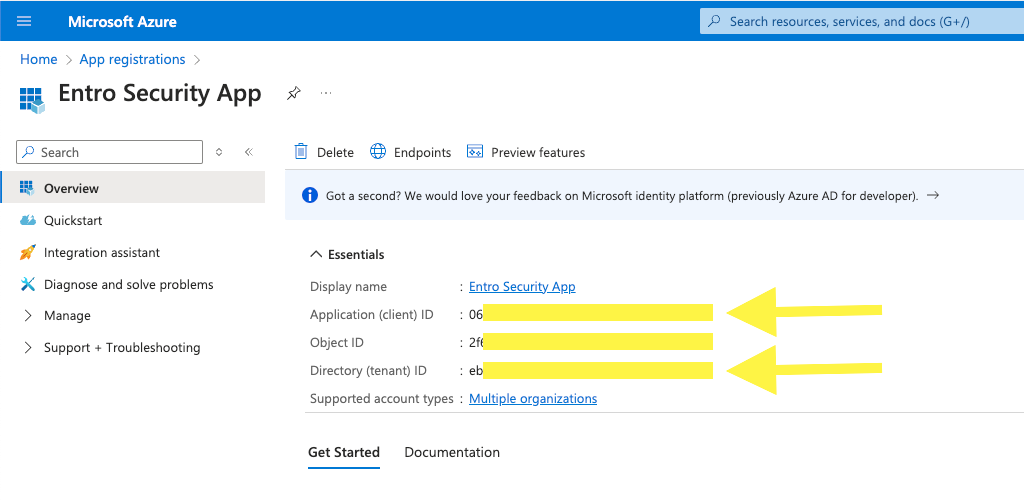
You will need these IDs to onboard to SailPoint Entro later.
-
-
Add Secret to the app
-
Select Certificates & Secrets.
-
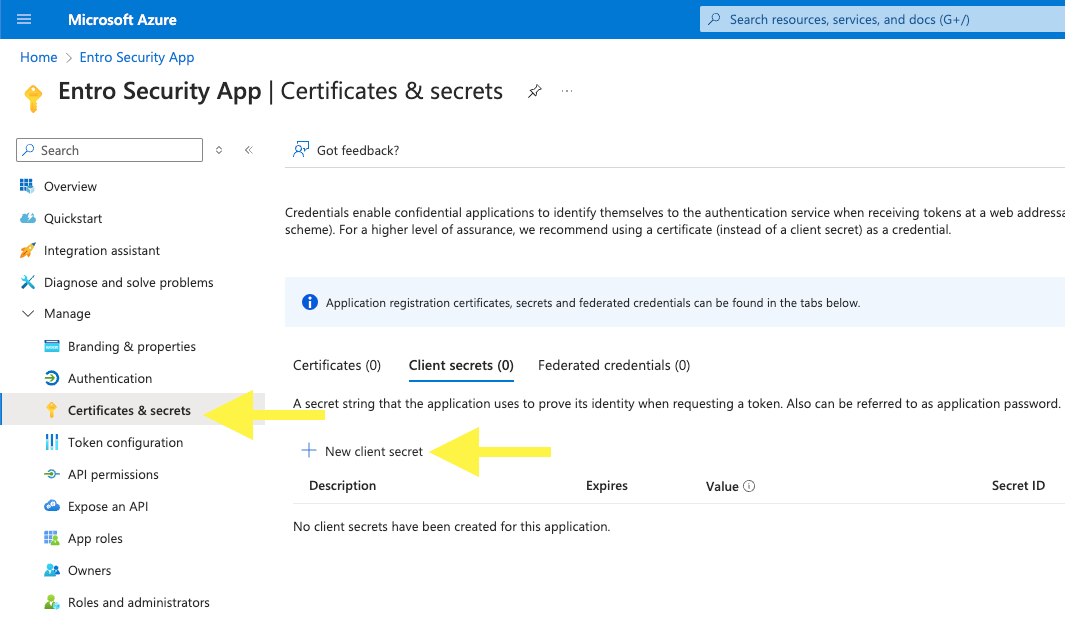
Select + New Client Secret.
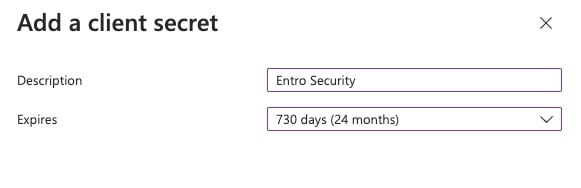
- Add SailPoint Entro as a description, adjust expiration date, and select Add.
- Copy the secret value and save it. You will need this to onboard to SailPoint Entro later.
-
-
Add API Permissions to the Entro Application
-
Under Manage, select API permissions.
-
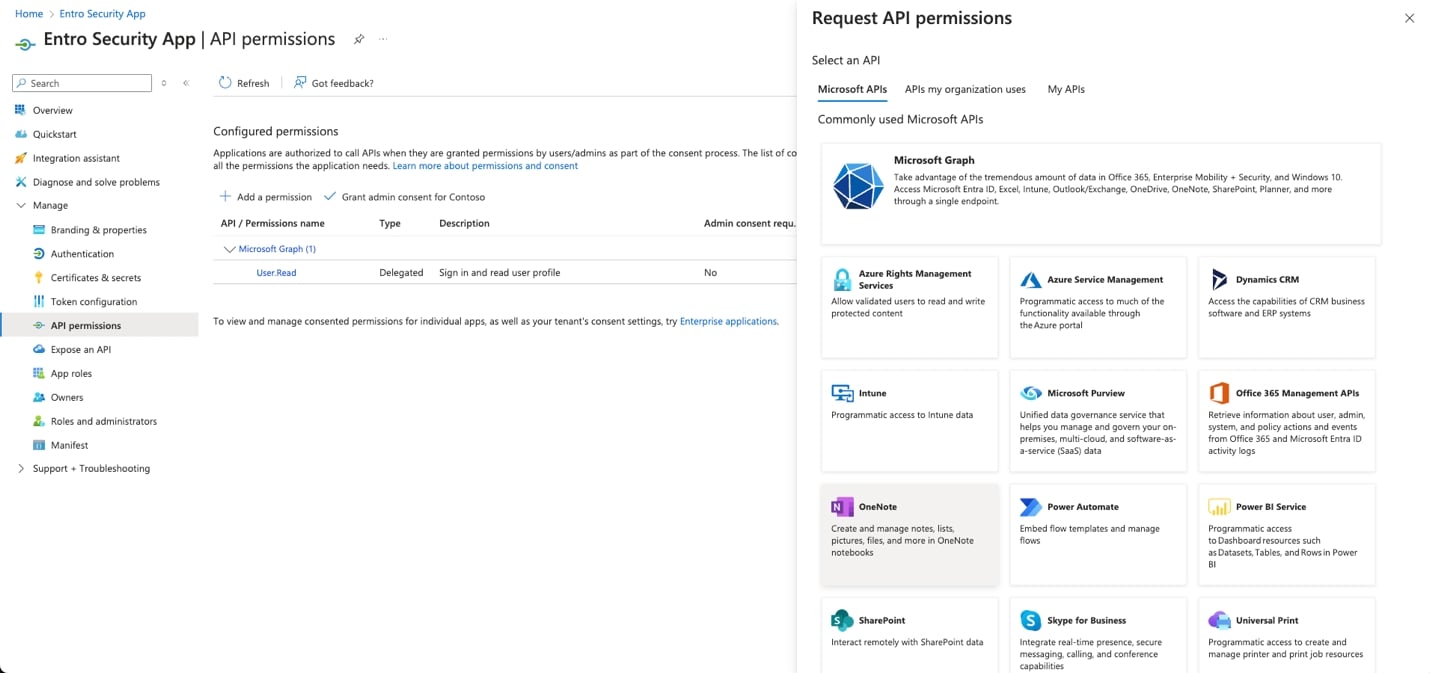
Select + Add a permission.
-
Select Microsoft Graph.
-
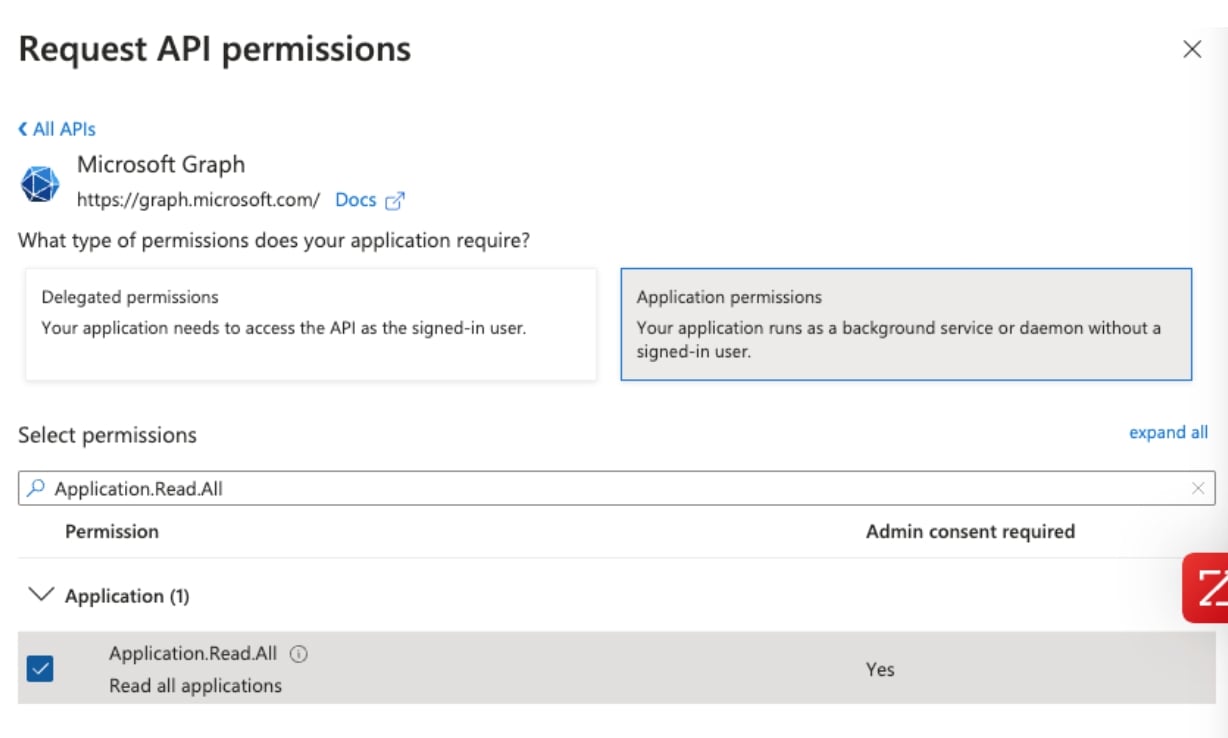
Select Application permissions.
-
Add the following permissions manually or via JS Console script (Developer Tools > Console)
-
Manually:
-
Mandatory permissions for any use case:
- User.Read.All
-
Azure Cloud support: {Analyze NHIs in Azure}
-
Application.Read.All
-
AuditLog.Read.All
-
Device.Read.All
-
Directory.Read.All
-
-
Microsoft Teams support: {Find secrets exposed in chats/channels}
-
Channel.ReadBasic.All
-
ChannelMember.Read.All
-
ChannelMessage.Read.All
-
ChannelSettings.Read.All
-
Chat.Read.All
-
TeamsActivity.Read.All
-
TeamsAppInstallation.ReadForChat.All
-
TeamsAppInstallation.ReadForTeam.All
-
TeamsAppInstallation.ReadForUser.All
-
TeamsTab.Read.All
-
TeamSettings.Read.All
-
-
Microsoft Teams – Messaging Functionality: {Send Teams messages from SailPoint Entro platform}
-
TeamsAppInstallation.ReadWriteForTeam.All
-
TeamsAppInstallation.ReadWriteForUser.All
-
TeamsAppInstallation.ReadWriteSelfForUser.All
-
-
SharePoint Online support: {Find secrets exposed in sites/OneDrive}
-
Files.Read.All
-
Sites.Read.All
-
-
Microsoft Copilot: {Discover and Analyze AI Agents}
-
AiEnterpriseInteraction.Read.All
-
Reports.Read.All
-
ExternalConnection.Read.All
-
AppCatalog.Read.All
-
-
MS Defender: {Discover and Analyze AI Agents on Local Machines}
-
Machine.Read.All (this is a WindowsDefenderATP API)
-
Machine.ReadWrite.All (this is a WindowsDefenderATP API) - Optional for Agents Config Files Scanning
-
Machine.LiveResponse (this is a WindowsDefenderATP API) - Optional for Agents Config Files Scanning
-
Library.Manage (this is a WindowsDefenderATP API) - Optional for Agents Config Files Scanning
-
ThreatHunting.Read.All
-
-
-
Add the MS Defender permissions manually. Then run the JS Console script (on the API permissions screen > Add a permission) to auto select all permissions.
/* ============================================================================
 * Entro - Azure API permissions auto-selector  (v4)
 * Microsoft Graph (26 perms) + WindowsDefenderATP (Machine.Read.All)
 * + optional tenant-wide admin consent.
 * Built from the ACTUAL Entra portal DOM (verified June 2026).
 * ----------------------------------------------------------------------------
 * ❶ CRITICAL — RUN IT IN THE RIGHT FRAME
 *   The permissions UI lives inside a CROSS-ORIGIN IFRAME
 *   (hosting.portal.azure.net). The DevTools Console runs in the "top" frame by
 *   default, where this UI does NOT exist — that's why a pasted script "finds
 *   nothing". Before pasting, open the Console's JS-context dropdown (top-left
 *   of the Console toolbar, shows "top") and switch it to the portal extension
 *   frame (URL contains "hosting.portal.azure.net" / "RegisteredApps").
 *
 * ❷ WHERE TO START
 *   Open: App registrations → your app → API permissions.
 *   • AUTO_NAVIGATE = true  (default): just be on the API permissions page.
 *     The script opens "Add a permission", picks each API + Application
 *     permissions, ticks everything, clicks "Add permissions" per API, then
 *     (optionally) grants admin consent. Best-effort: the API-navigation clicks
 *     are the most fragile part; watch the log.
 *   • AUTO_NAVIGATE = false: open ONE API's "Application permissions" panel
 *     yourself, then run — it only ticks that API's matching permissions.
 *
 * ❸ Re-running is safe: already-selected permissions are skipped, never unticked.
 *    Anything it can't handle is listed at the end so you can finish by hand.
 * ========================================================================== */

(() => {
  "use strict";

  // ---- WHAT TO SELECT, grouped by API -------------------------------------
  const API_TARGETS = [
    {
      key: "graph",
      displayName: "Microsoft Graph",
      tab: "Microsoft APIs",          // which tab on "Select an API"
      tile: "Microsoft Graph",        // commonly-used tile to click
      search: null,
      permissions: [
        "User.Read.All",
        "Application.Read.All", "AuditLog.Read.All", "Device.Read.All", "Directory.Read.All",
        "Channel.ReadBasic.All", "ChannelMember.Read.All", "ChannelMessage.Read.All",
        "ChannelSettings.Read.All", "Chat.Read.All", "TeamsActivity.Read.All",
        "TeamsAppInstallation.ReadForChat.All", "TeamsAppInstallation.ReadForTeam.All",
        "TeamsAppInstallation.ReadForUser.All", "TeamsTab.Read.All", "TeamSettings.Read.All",
        "TeamsAppInstallation.ReadWriteForTeam.All", "TeamsAppInstallation.ReadWriteForUser.All",
        "TeamsAppInstallation.ReadWriteSelfForUser.All",
        "Files.Read.All", "Sites.Read.All",
        "AiEnterpriseInteraction.Read.All", "Reports.Read.All",
        "ExternalConnection.Read.All", "AppCatalog.Read.All",
        "ThreatHunting.Read.All",
      ],
    },
    {
      key: "defenderatp",
      displayName: "WindowsDefenderATP",
      tab: "APIs my organization uses", // not a commonly-used tile
      tile: null,
      search: "WindowsDefenderATP",      // typed into the API-name search box
      permissions: ["Machine.Read.All"], // Microsoft Defender for Endpoint
    },
  ];

  // ---- Settings ------------------------------------------------------------
  const AUTO_NAVIGATE      = true;   // false = only select on the panel already open
  const GRANT_ADMIN_CONSENT = true;  // grant tenant-wide consent at the end (with confirm prompt)

  const SEARCH_SETTLE = 800;   // ms after typing in a filter box
  const NAV_WAIT      = 2500;  // ms after a navigation click (panel/list load)
  const STEP          = 350;   // ms between small UI actions

  // ---- Helpers -------------------------------------------------------------
  const sleep = (ms) => new Promise((r) => setTimeout(r, ms));
  const norm  = (s) => (s || "").replace(/\s+/g, " ").trim();
  const visible = (el) => el && el.offsetParent !== null;

  function setNativeValue(input, value) {
    const setter = Object.getOwnPropertyDescriptor(HTMLInputElement.prototype, "value").set;
    setter.call(input, value);
    input.dispatchEvent(new Event("input",  { bubbles: true }));
    input.dispatchEvent(new Event("change", { bubbles: true }));
    input.dispatchEvent(new KeyboardEvent("keyup", { bubbles: true, key: "a" }));
  }

  // click first visible element whose text/aria-label exactly matches one of `texts`
  function clickExact(texts, tags = 'button, a, [role="button"], [role="tab"], li, div, span') {
    const want = texts.map((t) => t.toLowerCase());
    const el = [...document.querySelectorAll(tags)].find((e) =>
      visible(e) && want.includes(norm(e.textContent || e.getAttribute("aria-label")).toLowerCase()));
    if (el) { el.click(); return true; }
    return false;
  }
  // click first visible element whose text STARTS WITH `prefix`
  function clickStartsWith(prefix, tags = 'li, div, button, [role="button"], [role="option"]') {
    const p = prefix.toLowerCase();
    const el = [...document.querySelectorAll(tags)].find((e) =>
      visible(e) && norm(e.textContent).toLowerCase().startsWith(p));
    if (el) { el.click(); return true; }
    return false;
  }

  const permFilterBox = () =>
    document.querySelector('input[placeholder="Start typing a permission to filter these results"]')
    || document.querySelector('input[placeholder*="filter these results" i]');
  const apiSearchBox = () =>
    document.querySelector('input[placeholder*="API name" i]')
    || document.querySelector('input[placeholder*="Application ID" i]');

  function expandGroups() {
    clickExact(["expand all"]);
    document.querySelectorAll('[aria-expanded="false"]').forEach((b) => {
      const t = norm((b.getAttribute("aria-label") || "") + " " + b.textContent).toLowerCase();
      if (/expand or collapse group|read|write|\.all/.test(t)) { try { b.click(); } catch (e) {} }
    });
  }

  // permission name is in a <label>; its grid row carries the selected state
  function findRow(name) {
    const label = [...document.querySelectorAll("label")].find((l) => norm(l.textContent) === name);
    return label ? { label, row: label.closest('[role="row"]') } : null;
  }
  function rowChecked(row) {
    if (!row) return null;
    const sel = row.getAttribute("aria-selected");
    if (sel === "true") return true;
    if (sel === "false") return false;
    for (const el of row.querySelectorAll('img, [role="img"], [aria-label]')) {
      const al = norm(el.getAttribute("aria-label")).toLowerCase();
      if (al === "selected") return true;
      if (al === "unselected" || al === "not selected") return false;
    }
    return null;
  }
  async function selectRow(found) {
    const cell = found.row && found.row.querySelector('[role="gridcell"]');
    for (const t of [cell, found.label, found.row].filter(Boolean)) {
      try { t.click(); } catch (e) {}
      await sleep(STEP);
      if (rowChecked(found.row) === true) return true;
    }
    return rowChecked(found.row) === true;
  }

  // tick every permission for the API whose panel is currently open
  async function selectPermissions(perms, report) {
    const box = permFilterBox();
    if (!box) { console.warn("  [!] permission filter box not visible — is the Application permissions panel open?");
                perms.forEach((p) => report.notFound.push(p)); return; }
    for (const perm of perms) {
      setNativeValue(box, perm);
      await sleep(SEARCH_SETTLE);
      expandGroups();
      await sleep(STEP);
      let found = findRow(perm);
      if (!found) { expandGroups(); await sleep(STEP); found = findRow(perm); }
      if (!found) { console.warn("  ✗ not found: " + perm); report.notFound.push(perm); continue; }
      if (rowChecked(found.row) === true) { console.log("  • already: " + perm); report.already++; continue; }
      if (await selectRow(found)) { console.log("  ✓ selected: " + perm); report.added++; }
      else { console.warn("  ? unconfirmed: " + perm); report.uncertain.push(perm); }
    }
    setNativeValue(box, "");
    await sleep(STEP);
  }

  // open "Add a permission" → pick API → Application permissions
  async function navigateToApi(target) {
    if (!clickExact(["Add a permission", "Add a permission "])) {
      console.warn("  [!] 'Add a permission' button not found."); return false;
    }
    await sleep(NAV_WAIT);
    clickExact([target.tab]);                 // tab: Microsoft APIs / APIs my organization uses
    await sleep(STEP);
    if (target.tile) {
      if (!clickExact([target.tile])) { console.warn("  [!] API tile not found: " + target.tile); return false; }
    } else if (target.search) {
      const sb = apiSearchBox();
      if (!sb) { console.warn("  [!] API search box not found."); return false; }
      setNativeValue(sb, target.search);
      await sleep(NAV_WAIT);
      if (!clickExact([target.displayName])) { console.warn("  [!] API result not found: " + target.displayName); return false; }
    }
    await sleep(NAV_WAIT);
    clickStartsWith("Application permissions"); // choose Application (not Delegated)
    await sleep(NAV_WAIT);
    return !!permFilterBox();
  }

  function clickAddPermissions() {
    return clickExact(["Add permissions", "Add permission"]);
  }

  // ---- Run -----------------------------------------------------------------
  (async () => {
    // frame guard
    if (!permFilterBox() && !document.querySelector('button, [role="button"]')) {
      console.error("%c[Entro] This frame looks empty. Switch the Console context dropdown to the " +
        "portal extension frame (hosting.portal.azure.net), then re-paste.", "color:#c00;font-weight:bold");
      return;
    }

    const report = { added: 0, already: 0, notFound: [], uncertain: [] };

    if (AUTO_NAVIGATE) {
      for (const target of API_TARGETS) {
        console.log("%c[Entro] === " + target.displayName + " ===", "color:#06c;font-weight:bold");
        const ok = await navigateToApi(target);
        if (!ok) {
          console.warn("  [!] Could not open " + target.displayName + " Application permissions panel — skipping. " +
            "Open it manually, set AUTO_NAVIGATE=false, and re-run for: " + target.permissions.join(", "));
          target.permissions.forEach((p) => report.notFound.push(target.displayName + ": " + p));
          continue;
        }
        await selectPermissions(target.permissions, report);
        await sleep(STEP);
        if (clickAddPermissions()) console.log("  ✓ Clicked 'Add permissions' for " + target.displayName);
        else console.warn("  [!] 'Add permissions' not found for " + target.displayName);
        await sleep(NAV_WAIT); // panel closes & list saves
      }
    } else {
      // single open panel: try every API's perms; non-matching ones report "not found"
      const all = API_TARGETS.flatMap((t) => t.permissions);
      console.log("%c[Entro] Selecting on the currently-open panel…", "color:#06c;font-weight:bold");
      await selectPermissions(all, report);
      await sleep(STEP);
      if (clickAddPermissions()) console.log("  ✓ Clicked 'Add permissions'");
      else console.warn("  [!] 'Add permissions' not found — click it manually.");
    }

    console.log("%c[Entro] Selection summary — %d added, %d already set, %d not found, %d uncertain.",
      "color:#0a7;font-weight:bold", report.added, report.already, report.notFound.length, report.uncertain.length);
    if (report.notFound.length)  console.warn("[Entro] Not found (tick by hand):\n" + report.notFound.join("\n"));
    if (report.uncertain.length) console.warn("[Entro] Verify (state unconfirmed):\n" + report.uncertain.join("\n"));

    // ---- Admin consent ----
    if (GRANT_ADMIN_CONSENT) {
      await sleep(NAV_WAIT);
      if (confirm("[Entro] Grant tenant-wide admin consent for ALL selected permissions now?\n" +
                  "This authorizes the app across your whole directory.")) {
        if (clickExact(["Grant admin consent for Default Directory"]) ||
            clickStartsWith("Grant admin consent")) {
          await sleep(900);
          if (clickExact(["Yes"])) console.log("%c[Entro] Admin consent confirmed.", "color:#0a7;font-weight:bold");
          else console.warn("[Entro] Consent 'Yes' button not found — confirm the dialog manually.");
        } else {
          console.warn("[Entro] 'Grant admin consent' button not found — click it manually on the API permissions page.");
        }
      } else {
        console.log("[Entro] Admin consent skipped (you declined the prompt).");
      }
    }

    console.log("%c[Entro] Finished.", "color:#0a7;font-weight:bold");
  })();
})();
-
-
-
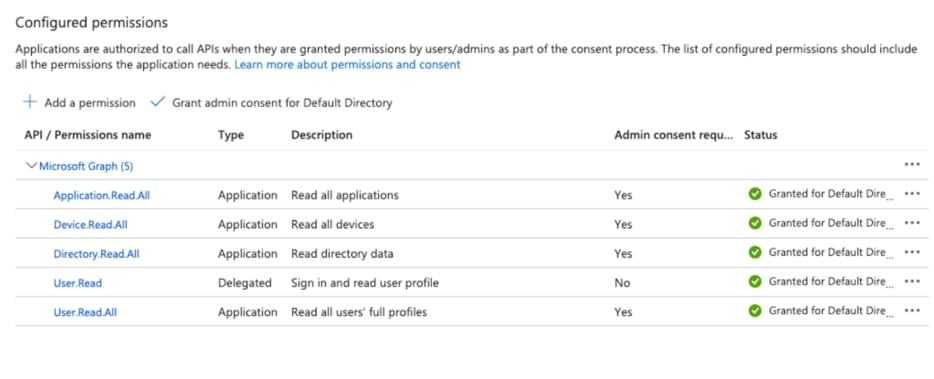
Grant Admin Consent for API Permissions
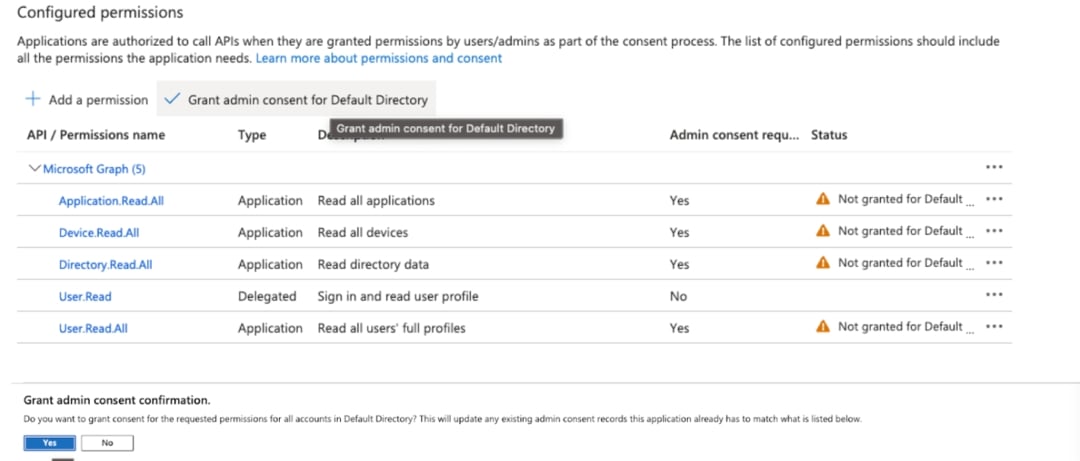
- Status should now be green/granted for the entire list
SailPoint Entro Role Creation and Assignment
-
Navigate to Management Groups (preferred) or to Subscriptions

-
Create custom role for SailPoint Entro
-
Choose a Management Group (preferred) or a Subscription.
-
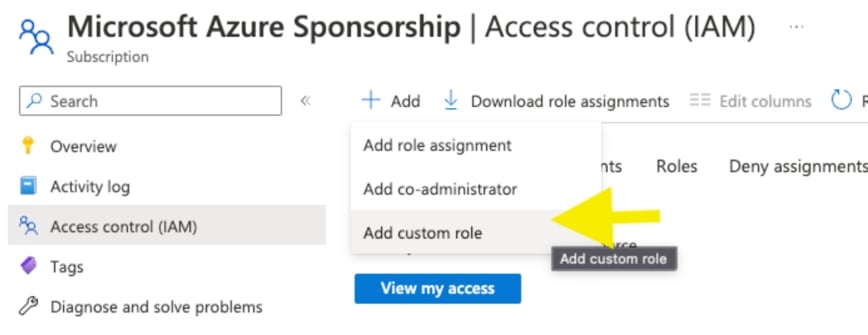
Select Access control IAM from the left menu pane.
-
Select + Add.
-
Select Add custom role.
-
-
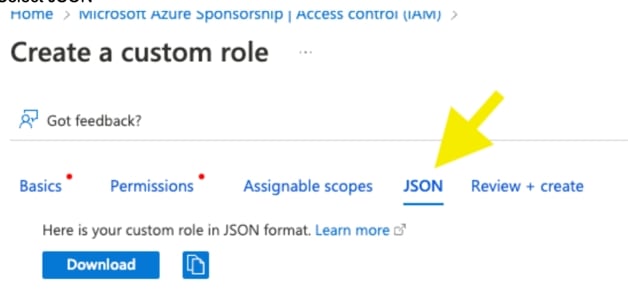
Select the JSON tab, then select Edit.

-
Replace the permissions JSON default with the following:
"permissions": [ { "actions": [ "*/read", "Microsoft.OperationalInsights/workspaces/analytics/query/action", "Microsoft.OperationalInsights/workspaces/search/action", "Microsoft.Insights/alertRules/*", "Microsoft.Support/*", "Microsoft.Web/sites/config/list/Action" ], "notActions": [ "Microsoft.OperationalInsights/workspaces/sharedKeys/read" ], "dataActions": [], "notDataActions": [] } ] -
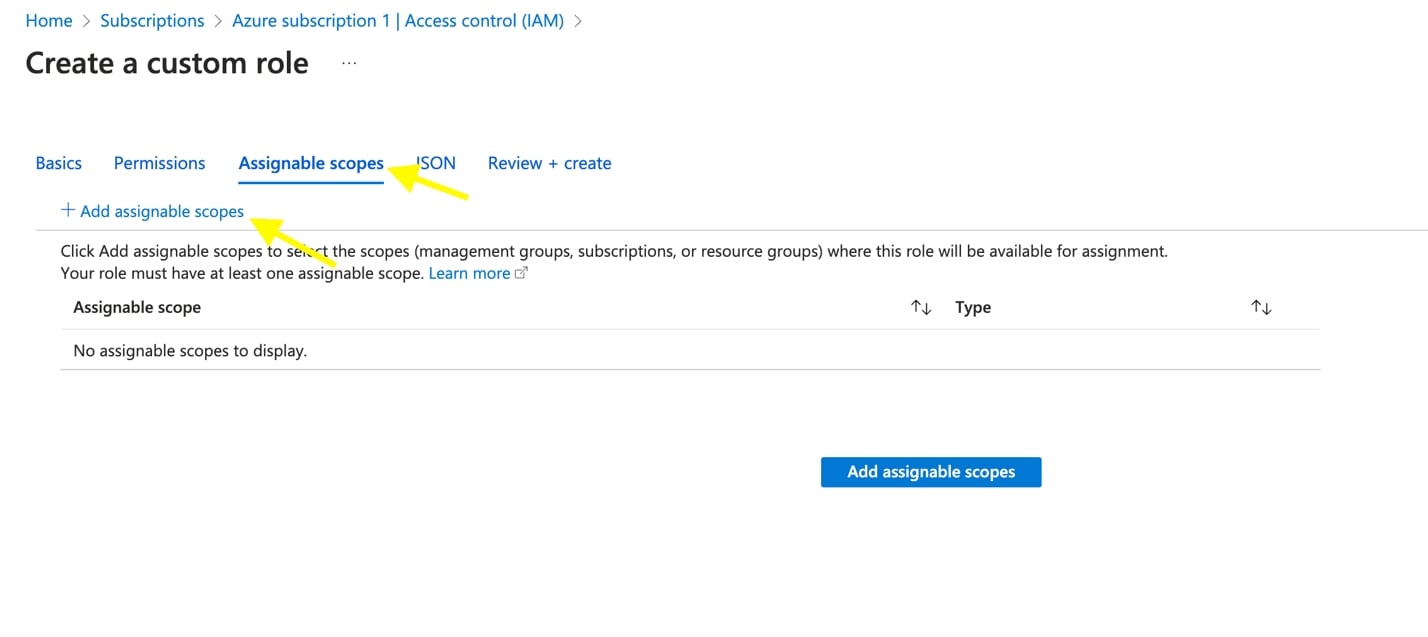
Select the Assignable Scopes tab.
-
Add scope assignments (Management Groups or Subscriptions) by selecting + Add assignable scope.
-
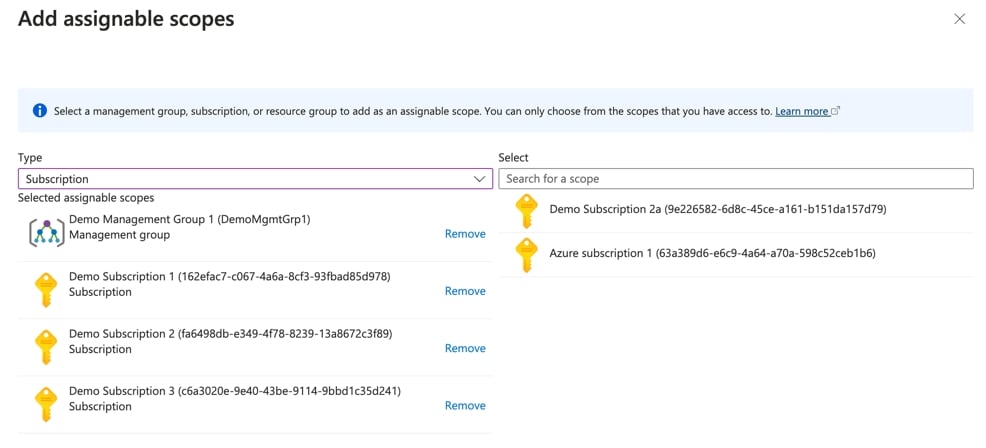
Change Type as needed to Management Group or Subscription and add scopes to the role. Select Select when finished.
-
To finalize custom role creation, select Review + create, then Create.
-
Add Entro App as an assignment to the new custom SailPoint Entro Role
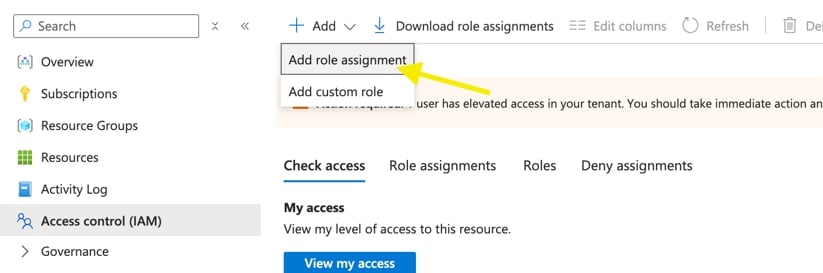
- While still in Access control (IAM), select + Add, then Add role assignment.
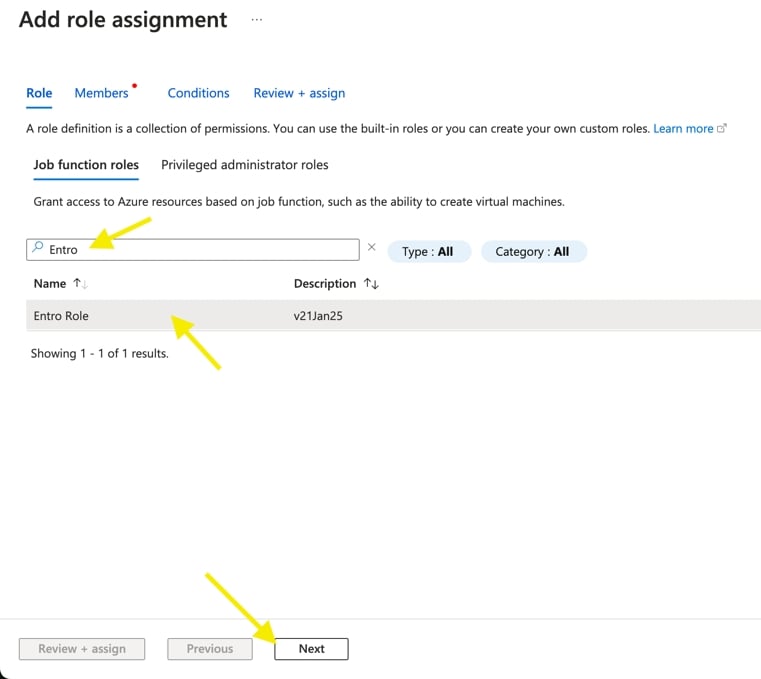
- In the Role tab, search for SailPoint Entro, select the SailPoint Entro custom role previously created, then select Next.
- In the Members tab, select + Select members, search for SailPoint Entro, select the SailPoint Entro application created previously (making sure it is listed under Selected members), then select Select.
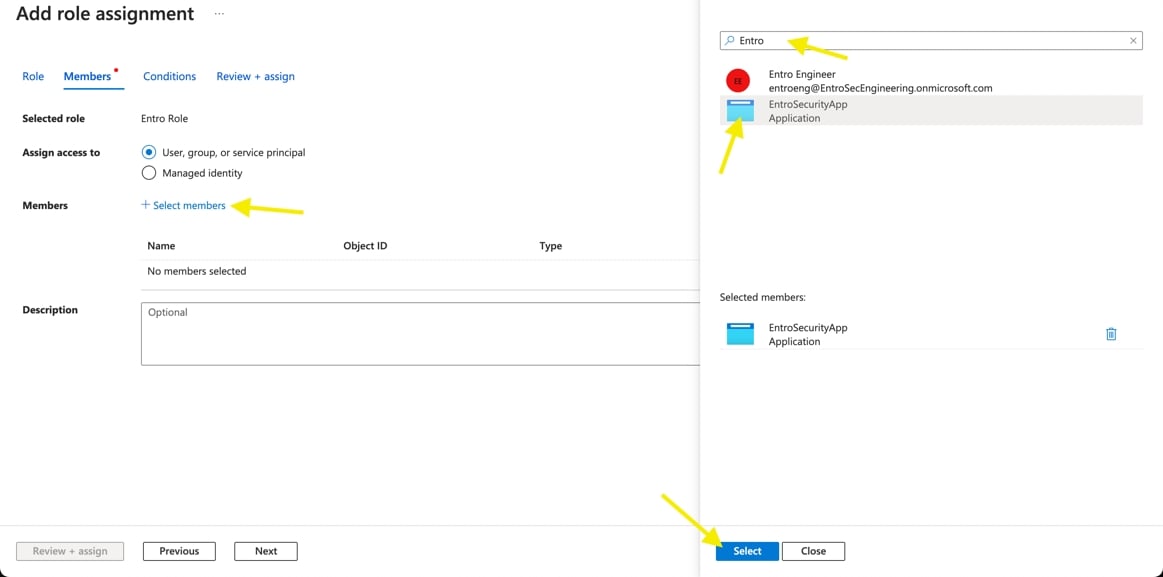
- Select Review + assign twice to finish role assignment.
-
Add additionally required Entra Built-in roles as role assignments to the SailPoint Entro application
Repeat role assignment steps from above for each of the following Entra built-in roles:
-
Key Vault Reader / Key Vault Secrets Officer - Optional for Credentials Correlation
-
App Configuration Data Reader
-
Cognitive Services Data Reader / Cognitive Services Data Contributor
-
-
When completed, the Role assignments tab should resemble the following:
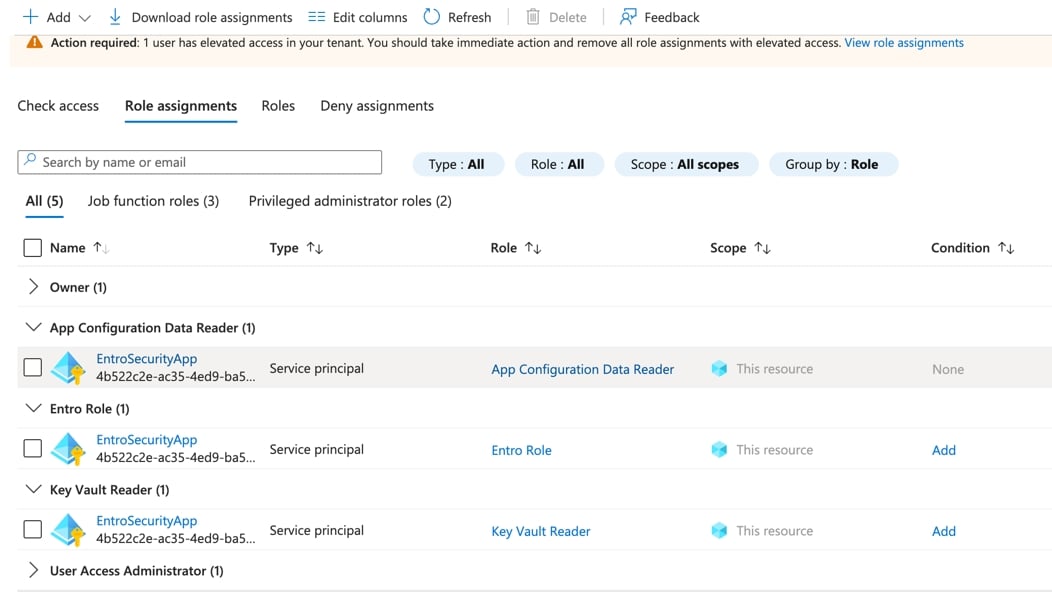
-
Repeat previous steps to add SailPoint Entro custom role and required role assignments for SailPoint Entro application to any other Management Groups and/or Subscriptions where SailPoint Entro will be inventorying and monitoring.
Create SailPoint Entro Log Analytics Workspace
-
Navigate to Log Analytics Workspaces, and then select + Create.
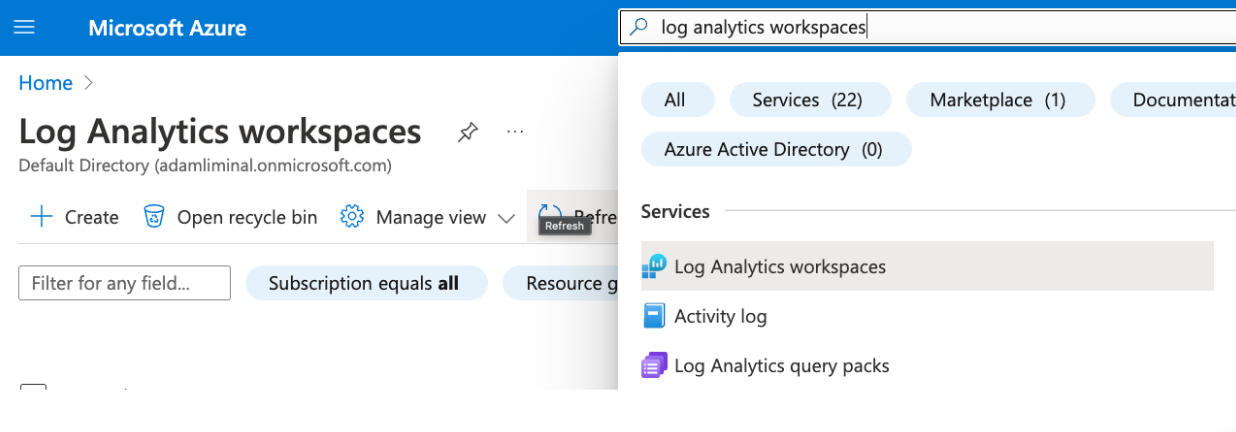
-
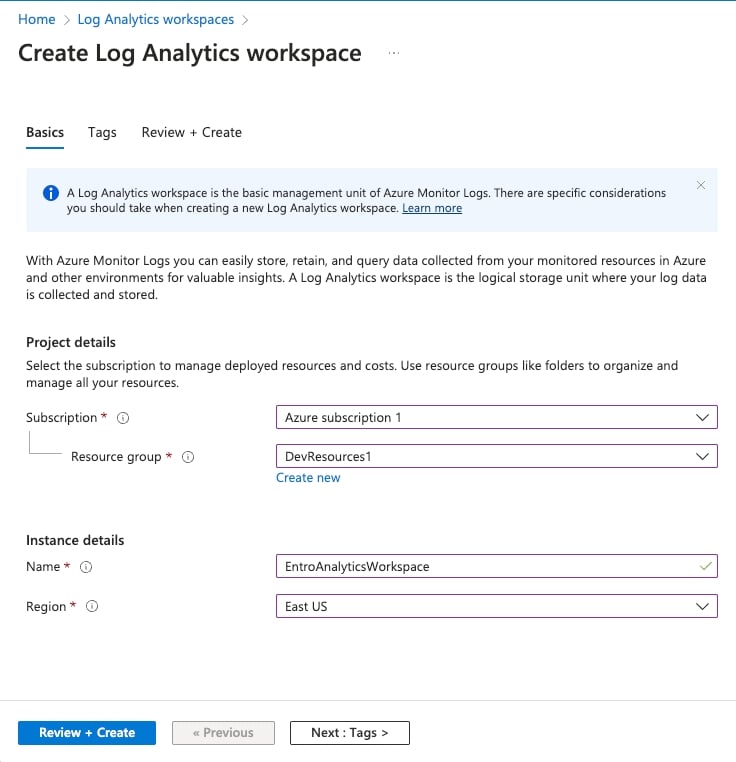
Choose the appropriate Subscription, Resource group, Name, and Region, then select Review + Create, and then Create again to complete the process.
Forward Service Principal Sign-In Logs
-
Navigate to Sign-in Logs.
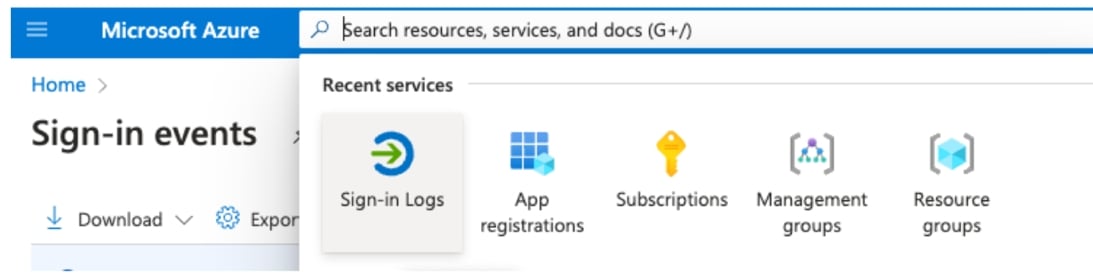
-
Select Export Data Settings.
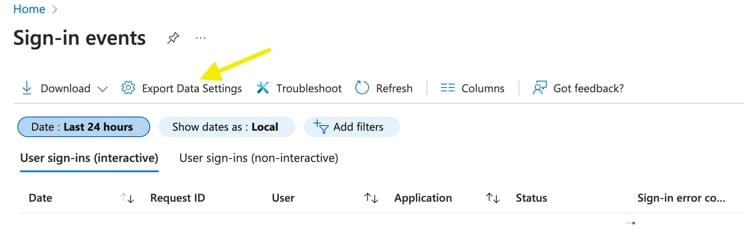
-
Under Logs Categories, check ServicePrincipalSignInLogs and AuditLogs.
-
Under Destination Details, check Send to Log Analytics workspace.
-
Choose the appropriate Subscription and Log Analytics workspace from the workspace created above.
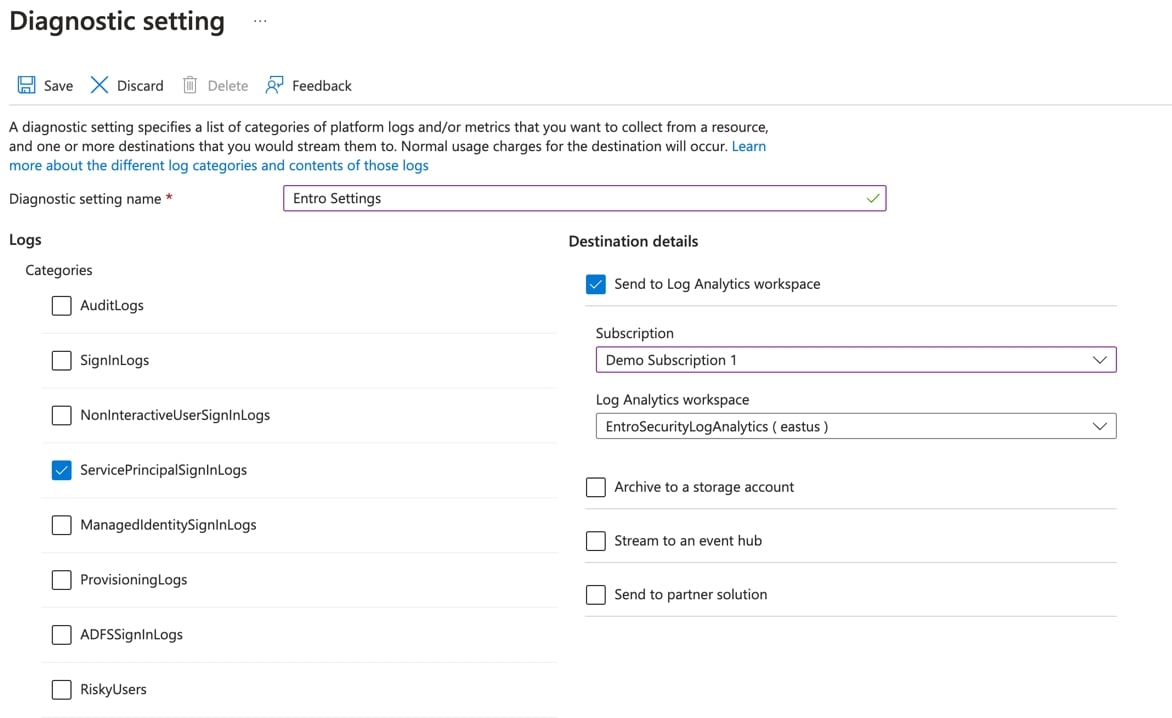
-
Select Save.
Give SailPoint Entro Permission to Analyze Key Vaults
-
Navigate to Key vaults.
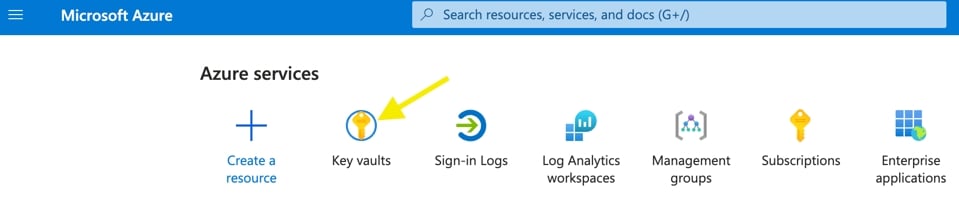
For each Key Vault you wish to have SailPoint Entro analyze:
-
Select a Key Vault from the list.
-
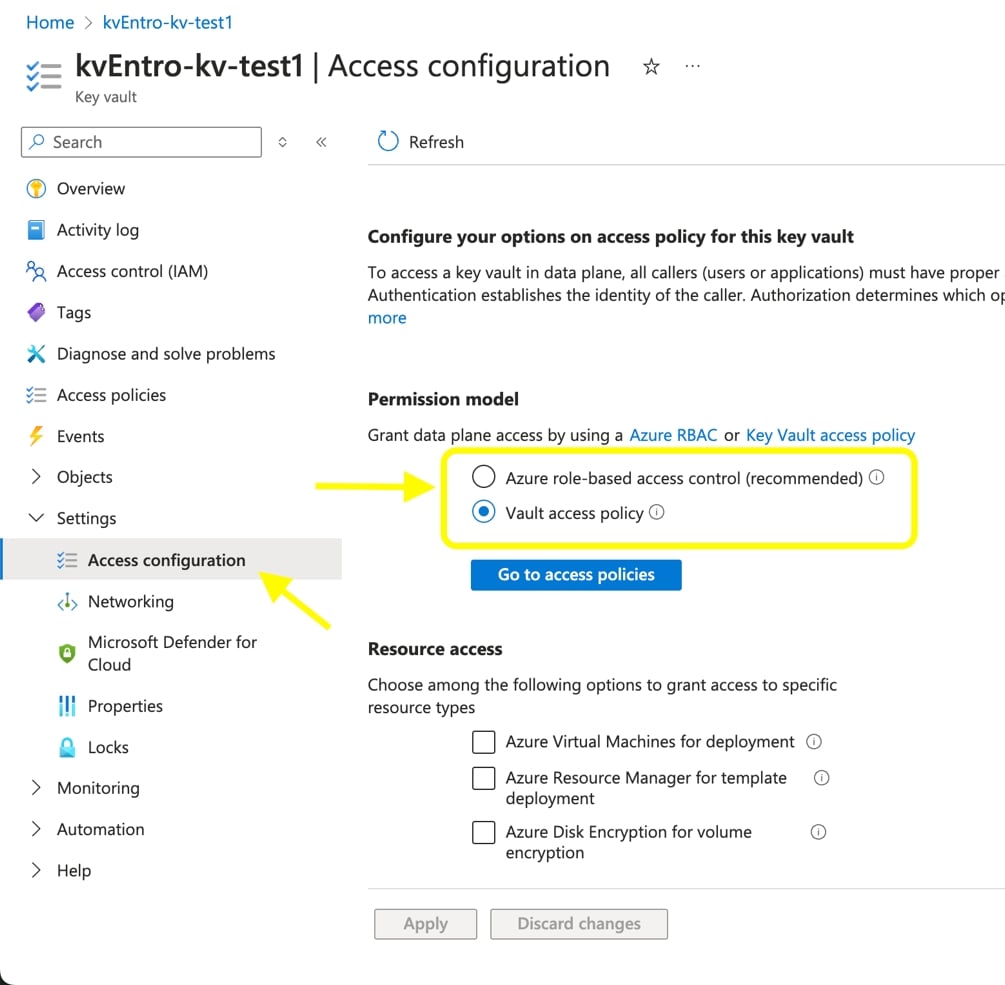
Review current access policy type by navigating to Access configuration in the Settings section.
-
If your Permission model selection for this vault is Azure role-based access control, you have already granted SailPoint Entro the ability to analyze the vault when assigning the built-in role Key vault reader to the Subscription or Management Group that the vault is contained in.
-
If your Permission model type is Vault access policy and not Azure role-based access control, see key benefits and best practices in Microsoft’s Documentation - Migrate from vault access policy to an Azure RBAC permission model
-
If you persist on staying with Vault Access Policy, continue to follow the next steps.
-
-
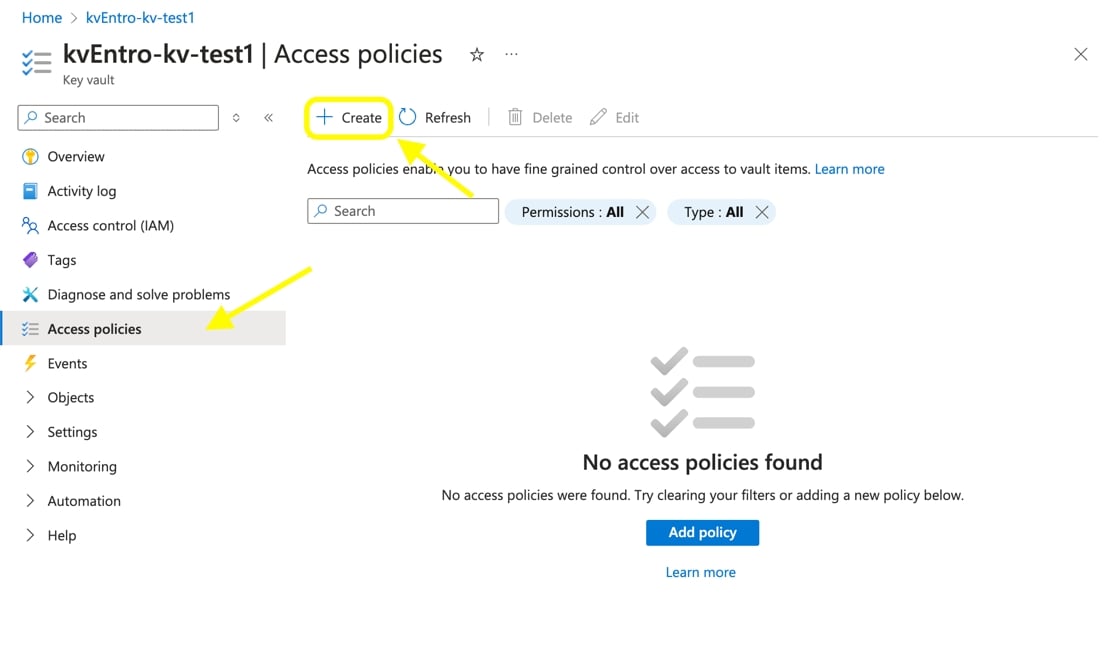
If Vault access policy is selected for this vault, select Access policies, then select + Create.
-
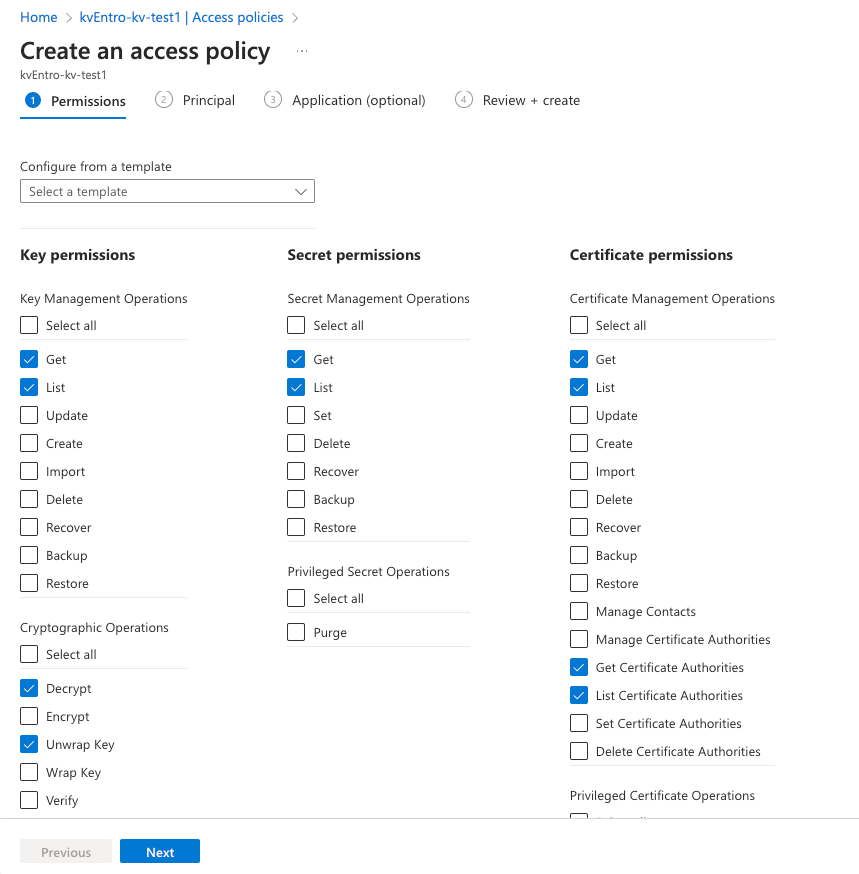
Select the following permissions to be added:
-
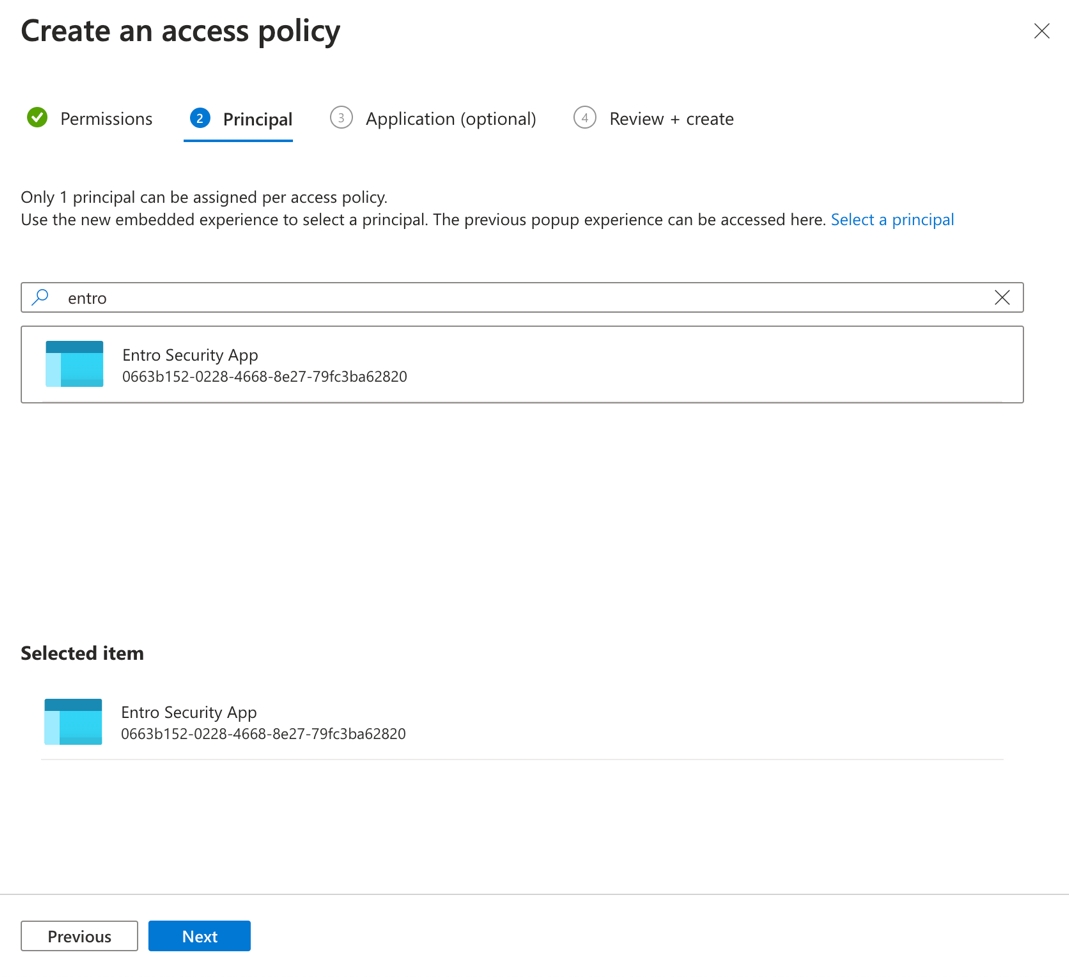
Select your created Entro App as Principal and then select Next, and Create.
Forward Key Vault Activity Logs to SailPoint Entro Workspace
-
While still in Key Vaults service page, select a Key Vault you wish to forward activity logs to the SailPoint Entro Log Analytics workspace for SailPoint Entro to analyze.
-
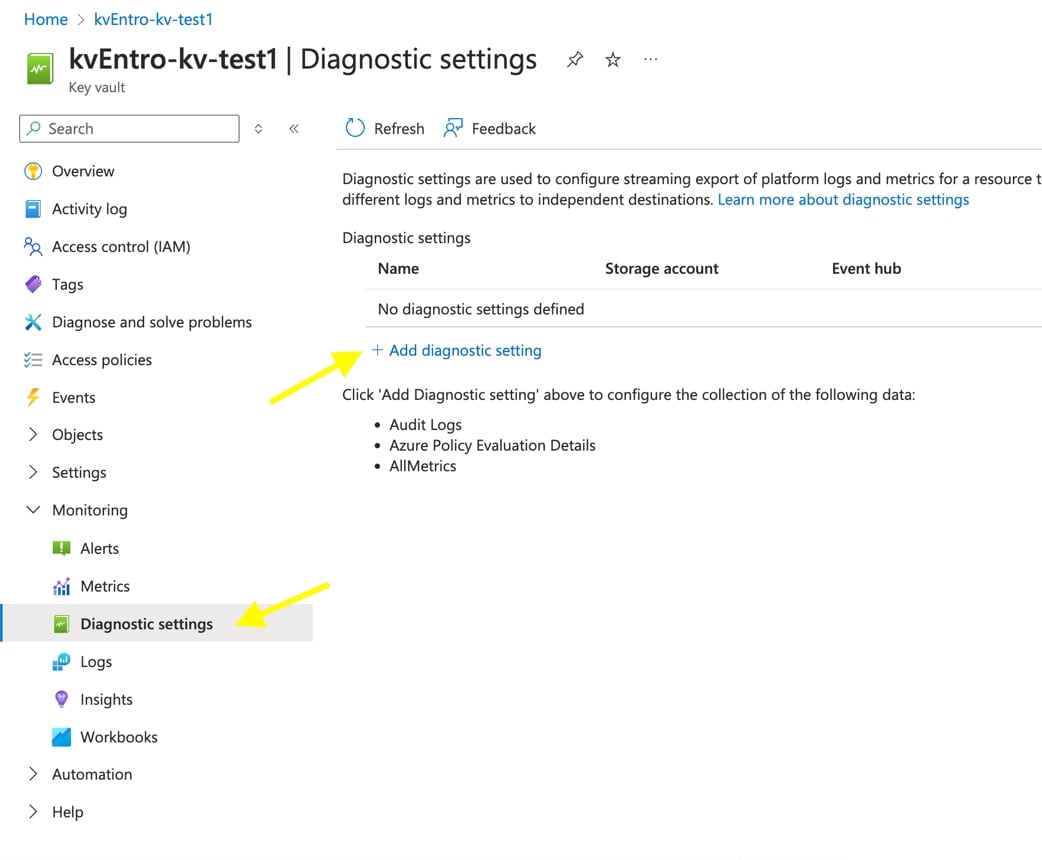
Select Diagnostic settings in the Monitoring section of the menu. Then select + Add diagnostic setting.
-
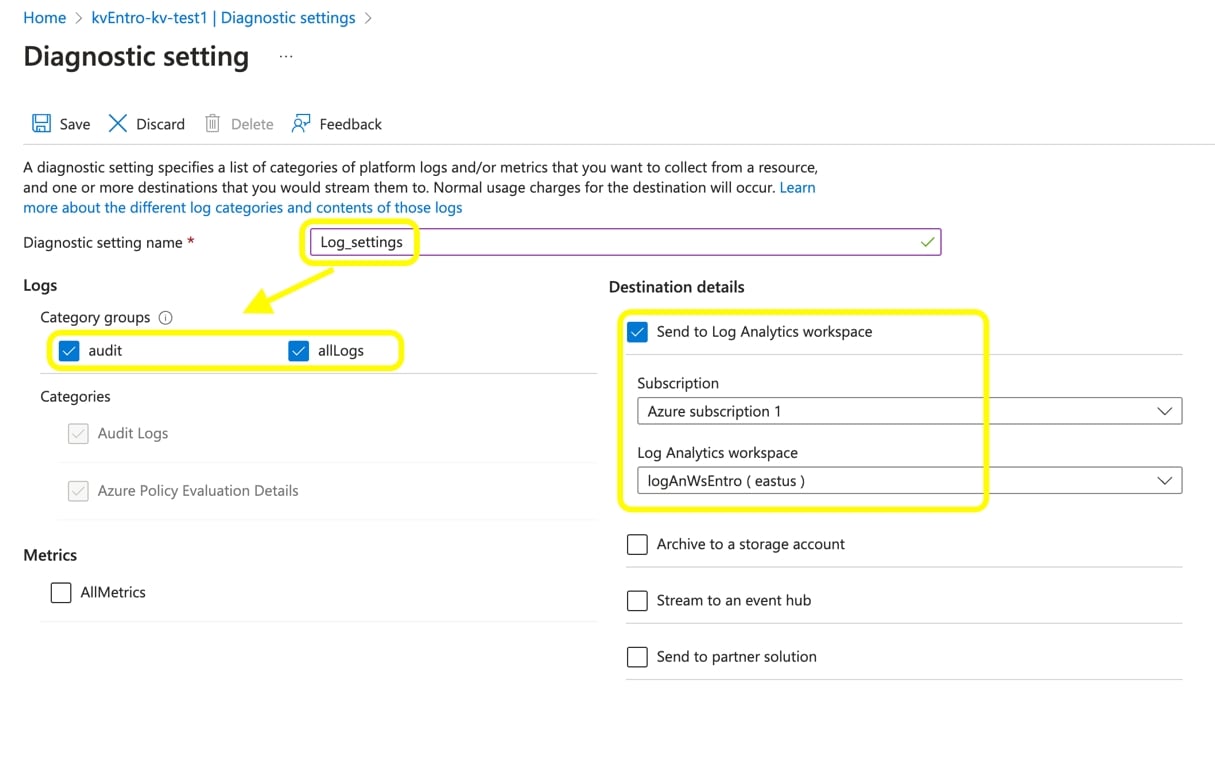
Check audit and allLogs in Logs Category groups. Check Send to Log Analytics workspace and enter appropriate Subscription and Log Analytics workspace details created in the previous section. Select Save.
-
Repeat these steps for remaining Key Vaults you wish for SailPoint Entro to analyze.
Register Azure in the SailPoint Entro Platform
-
Navigate to the Integrations page in the SailPoint Entro app portal, Management > Accounts & Integrations.
-
Select + Add new account, then select the Microsoft Ecosystem tile.
-
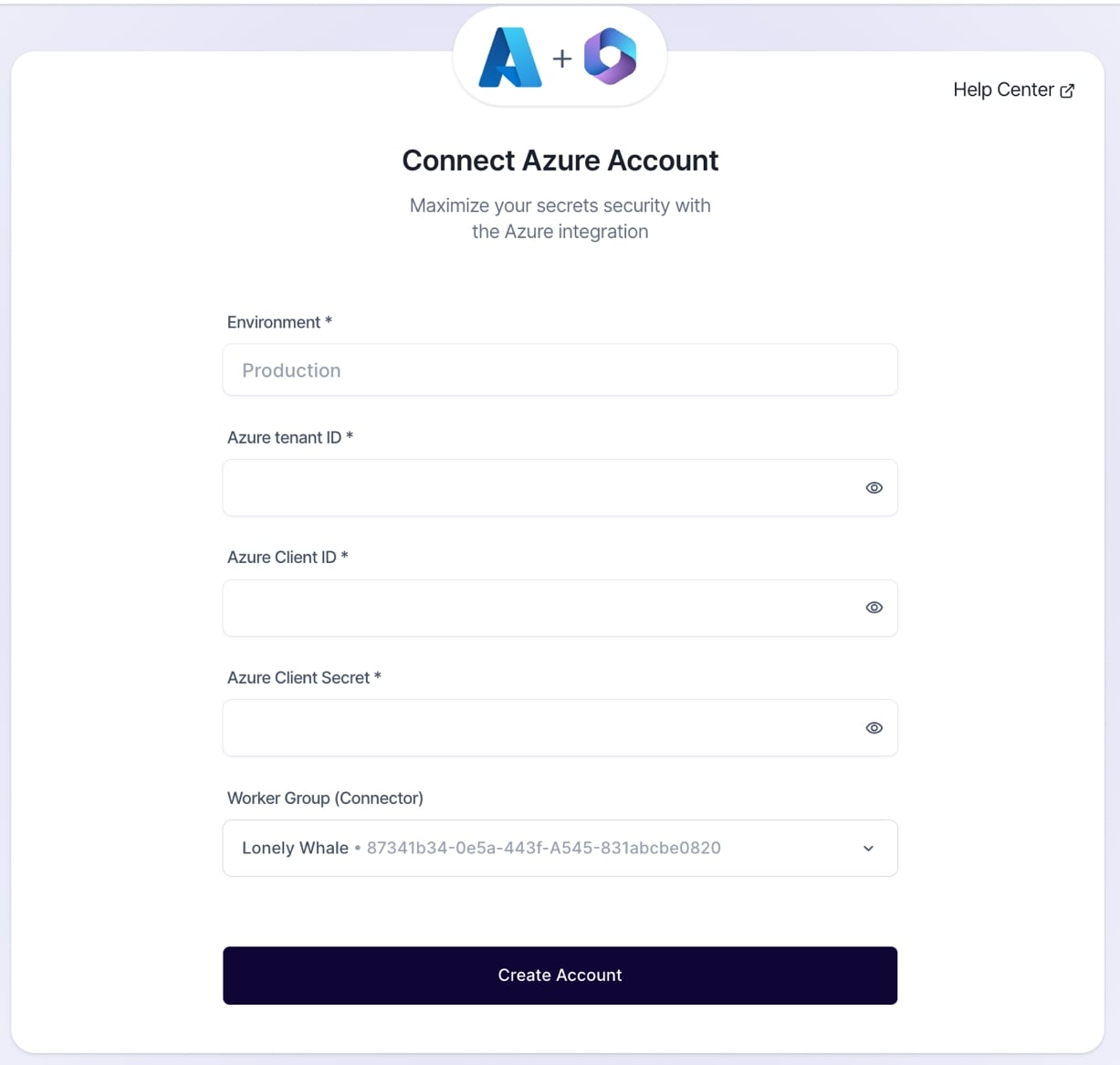
Give the Environment a name. Add the details of the Entro App (tenant ID and client ID) and secret from the application registration steps. Choose the appropriate Worker Group (Connector). Select Create Account.