GCP Console Onboarding (Manual)
-
Create a Service Account
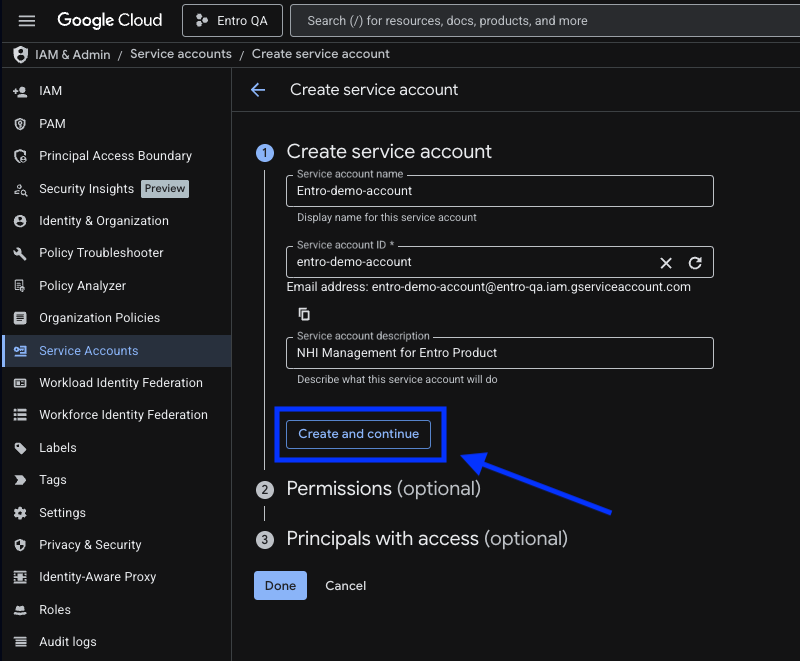
Create a service account in any project within your GCP organization.
-
Choose an Authorization Method
Choose one of the following authorization methods:
-
Create a Service Account Key for the created service account and select the JSON key type.
-
Allow SailPoint Entro's dedicated AWS role to impersonate this service account. Follow these steps to enable impersonation via GCP Workload Identity Federation.
-
-
Assign Roles for SailPoint Entro's Service Account
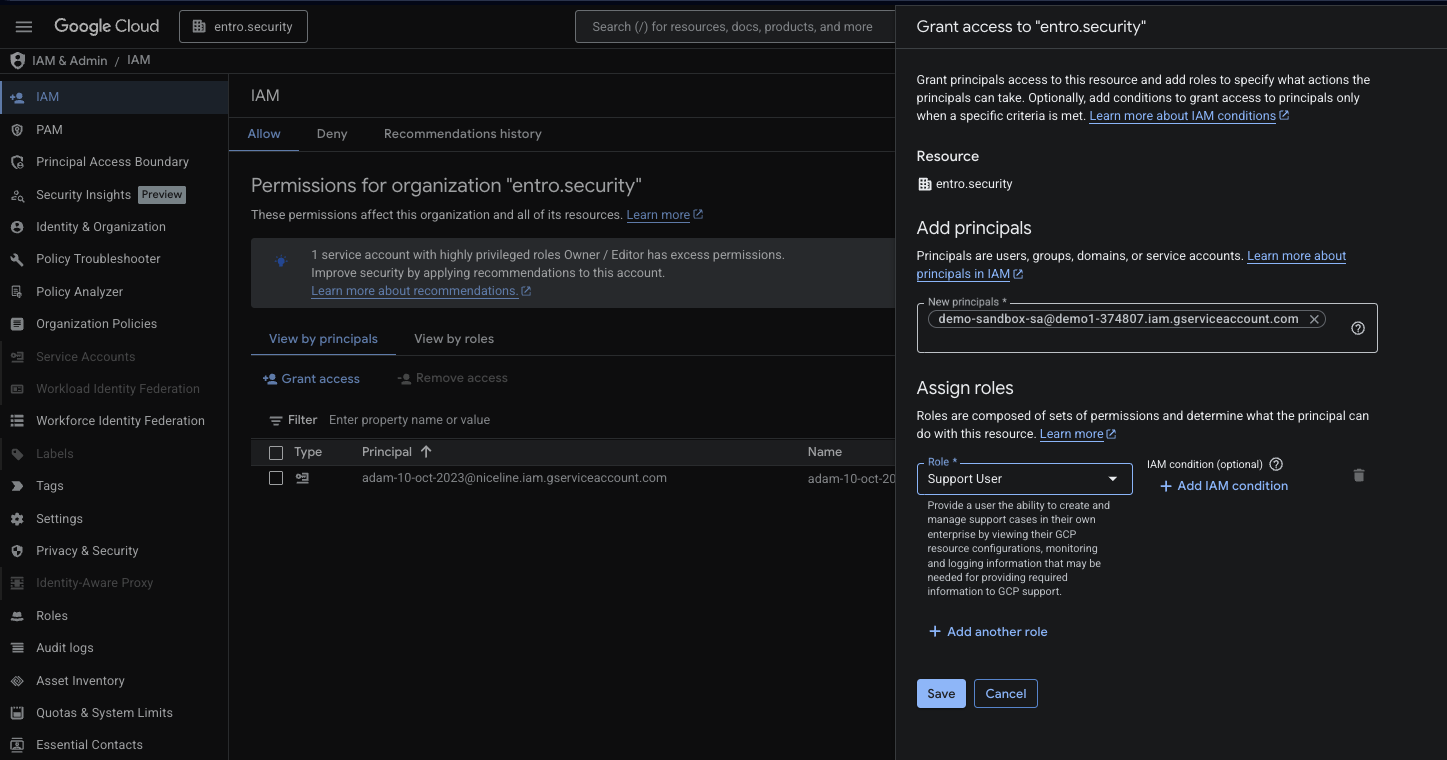
Assign roles for SailPoint Entro's Service Account.
Grant the SailPoint Entro Service Account in an organization, folder, or specific project scope.
-
Enable Required APIs
Enable APIs on all GCP projects or on the host project only.
To maintain SailPoint Entro reachability, certain APIs must be enabled on all projects in the organization. This can be done via CLI script or Terraform.
-
Enable Audit Logs and Complete Onboarding in SailPoint Entro
Enable audit logs, then complete onboarding in the SailPoint Entro portal.
Create a service account
Click on this link to create a service account in you GCP Portal. Permissions should be set later with your desired scope (project, folder or organization).
Create a Service Account Key
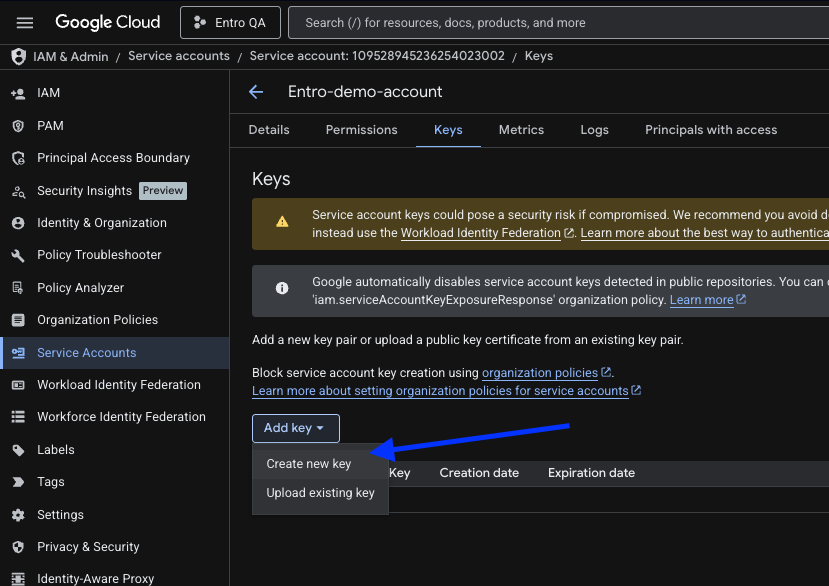
To create a new key for your service account:
-
Click on the service account to open its settings.
-
Navigate to the Keys tab.
-
Click Add Key and choose Create new key from the dropdown.
-
Ensure the JSON option is selected.
-
Click Create.
Enable Required APIs
Run the following commands in Cloud Shell to enable required APIs across all GCP projects.
Which APIs are enabled by default?
- Often already enabled in existing projects:
cloudresourcemanager.googleapis.com,iam.googleapis.com,logging.googleapis.com. You can try enabling only the others first, then enable these if you see permission or not-enabled errors. - Usually not enabled and typically needs to be turned on:
recommender.googleapis.com,cloudasset.googleapis.com,apikeys.googleapis.com. - Enabled when used and typically does not need to be turned on manually:
secretmanager.googleapis.com,cloudfunctions.googleapis.com.
Option 1 - All Projects, All Orgs
#!/usr/bin/env bash
set -u
NON_BILLING_SERVICES=(
  cloudresourcemanager.googleapis.com
  iam.googleapis.com
  apikeys.googleapis.com
  recommender.googleapis.com
)
BILLING_SERVICES=(
  discoveryengine.googleapis.com
  secretmanager.googleapis.com
  cloudfunctions.googleapis.com
)
for PROJECT_ID in $(gcloud projects list --format="value(projectId)"); do
  [[ -z "$PROJECT_ID" ]] && continue
  if [[ "$PROJECT_ID" == sys-* ]]; then
    continue
  fi
  echo "Enabling APIs for project: $PROJECT_ID"
  if [ ${#NON_BILLING_SERVICES[@]} -gt 0 ]; then
    ERROR_OUTPUT=""
    if ERROR_OUTPUT=$(gcloud services enable "${NON_BILLING_SERVICES[@]}" \
        --project="$PROJECT_ID" \
        2>&1); then
      echo "Enabled non-billing APIs for $PROJECT_ID"
    else
      RC=$?
      echo "Failed enabling non-billing APIs for $PROJECT_ID (exit code: $RC)"
      echo "$ERROR_OUTPUT" | head -n 200
    fi
  fi
  if [ ${#BILLING_SERVICES[@]} -gt 0 ]; then
    ERROR_OUTPUT=""
    if ERROR_OUTPUT=$(gcloud services enable "${BILLING_SERVICES[@]}" \
        --project="$PROJECT_ID" \
        2>&1); then
      echo "Enabled billing APIs for $PROJECT_ID"
    else
      RC=$?
      echo "Failed enabling billing APIs for $PROJECT_ID (exit code: $RC)"
      echo "$ERROR_OUTPUT" | head -n 200
    fi
  fi
done
echo "Done"
Option 2 - All Projects, Single Org
#!/usr/bin/env bash
set -u
ORG_ID="<your org id>"
NON_BILLING_SERVICES=(
  cloudresourcemanager.googleapis.com
  iam.googleapis.com
  apikeys.googleapis.com
  recommender.googleapis.com
)
BILLING_SERVICES=(
  discoveryengine.googleapis.com
  secretmanager.googleapis.com
  cloudfunctions.googleapis.com
)
gcloud asset search-all-resources \
  --scope="organizations/${ORG_ID}" \
  --asset-types="cloudresourcemanager.googleapis.com/Project" \
  --filter="state=ACTIVE" \
  --format="value(additionalAttributes.projectId)" |
while IFS= read -r PROJECT_ID; do
  [[ -z "$PROJECT_ID" ]] && continue
  if [[ "$PROJECT_ID" == sys-* ]]; then
    continue
  fi
  echo "Enabling APIs for project: $PROJECT_ID"
  if [ ${#NON_BILLING_SERVICES[@]} -gt 0 ]; then
    ERROR_OUTPUT=""
    if ERROR_OUTPUT=$(gcloud services enable "${NON_BILLING_SERVICES[@]}" \
        --project="$PROJECT_ID" \
        2>&1); then
      echo "Enabled non-billing APIs for $PROJECT_ID"
    else
      RC=$?
      echo "Failed enabling non-billing APIs for $PROJECT_ID (exit code: $RC)"
      echo "$ERROR_OUTPUT" | head -n 200
    fi
  fi
  if [ ${#BILLING_SERVICES[@]} -gt 0 ]; then
    ERROR_OUTPUT=""
    if ERROR_OUTPUT=$(gcloud services enable "${BILLING_SERVICES[@]}" \
        --project="$PROJECT_ID" \
        2>&1); then
      echo "Enabled billing APIs for $PROJECT_ID"
    else
      RC=$?
      echo "Failed enabling billing APIs for $PROJECT_ID (exit code: $RC)"
      echo "$ERROR_OUTPUT" | head -n 200
    fi
  fi
done
echo "Done"
After running the previous script according to the desired scope, make sure to also enable those APIs on SailPoint Entro's hosting project.
Replace the project ID with the ID of the hosting project <host project id> :
export PROJECT_ID="<host project id>"
gcloud services enable \
  cloudresourcemanager.googleapis.com \
  iam.googleapis.com \
  logging.googleapis.com \
  secretmanager.googleapis.com \
  cloudfunctions.googleapis.com \
  recommender.googleapis.com \
  policyanalyzer.googleapis.com \
  cloudasset.googleapis.com \
  pubsub.googleapis.com \
  apikeys.googleapis.com \
  admin.googleapis.com \
  drive.googleapis.com \
  --project="$PROJECT_ID"
Assign Roles for SailPoint Entro-S Service Account
-
Navigate to IAM within your project, folder, or organization and click Grant access.
-
Select the newly created SailPoint Entro service account from the previous step.
-
Assign the required role (details below).
-
Click Save to apply changes.
Assign This Read-Only Role at the Organization Level to the Service Account (Recommended for Future Compatibility)
Or Cherry-Pick These Roles (Least Privilege)
-
Logs Viewer
-
Logs View Accessor
-
Private Logs Viewer
-
Organization Viewer
-
Secret Manager Viewer
-
View Service Accounts
-
Cloud Functions Viewer
-
IAM Recommender Viewer
-
Cloud Asset Viewer
-
Activity Analysis Viewer
-
Organization Role Viewer
-
Security Reviewer
-
Folder Viewer
-
API Keys Viewer
-
Secret Manager Secret Accessor
-
Discovery Engine Viewer
Audit Logs
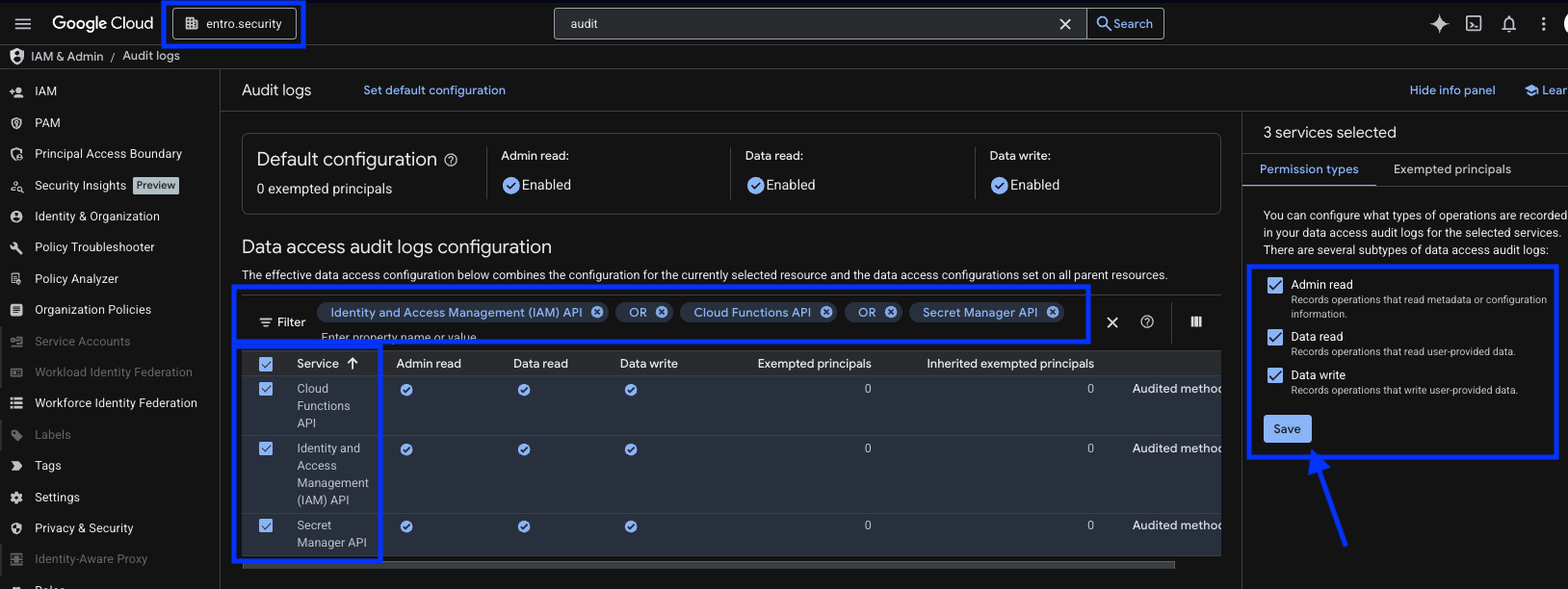
To ensure SailPoint Entro's validation and anomaly detection, follow these steps:
-
Navigate to the Audit Logs page in the GCP Portal, selecting your preferred scope (project, folder, or organization).
-
Filter for the following services using the OR condition:
-
Secret Manager API
-
Cloud Functions API
-
Identity and Access Management (IAM) API
-
-
Select the checkboxes for these services.
-
Set their Permission types to:
-
Admin read
-
Data read
-
Data write
-
-
Click Save.
Limited API Permissions (Appendix)
If you would like to restrict access for certain APIs, you can use limited manual onboarding: enable only the APIs on the project that hosts SailPoint Entro's service account (no org-wide API enablement). Some functionality will be lost.
What you get with limited onboarding
-
Project discovery (add child accounts), Secret Manager (metadata + values), Cloud Functions (exposed-secrets scan), logs (viewer), IAM (service account viewer, policy/recommender/asset for agents), and Activity Analysis.
-
All of this works with the minimal role set listed below, with APIs enabled only on the host project (the project where the SailPoint Entro service account is created).
What you'll miss
With Manual Onboarding, the following are not supported:
-
Google API Keys discovery, management, and correlation. This requires
apikeys.googleapis.comand API Keys Viewer (and optional org-wide API enablement) on every project where you want API key visibility. -
Project-level human ownership attribution for service accounts. Full ownership attribution uses agent-driven flows and additional data, so minimal setup does not provide project-level human ownership for service accounts.
If you need these features, use full onboarding (org-wide API enablement and the full organization roles list above).
APIs: enable on the host project only (limited onboarding)
Enable APIs only on the project that hosts SailPoint Entro's service account. Not all of these are required—only the core set is needed for the backend; the rest are for agent-driven features (IAM analysis, Recommender, Cloud Functions scan, etc.). When enabled only on the host project, those agent features only run for the host project.
| API | Used by | Required? |
|---|---|---|
| cloudresourcemanager.googleapis.com | project discovery, org resolution | Yes |
| iam.googleapis.com | NHI Enumeration (service account/key checks, archive flow) | Yes |
| logging.googleapis.com | Activity monitoring | Yes |
| secretmanager.googleapis.com | Backend (list/read secrets) | Yes if you use Secret Manager (Usually switches on automatically) |
| cloudfunctions.googleapis.com | Cloud Functions exposed-secrets scan | Only if you want CF scanning |
| recommender.googleapis.com | IAM Permissions Recommender insights | Only if you want permissions recommender data |
| cloudasset.googleapis.com | Resources, hierarchy | Yes |
| pubsub.googleapis.com | Alternative audit logs ingestion | No |
| admin.googleapis.com | Google Workspace users enumeration | No |
| drive.googleapis.com | Google Drive exposed secrets scanning | No |
Minimum (Project Scope)
export PROJECT_ID="<host project id>"
gcloud services enable \
  cloudresourcemanager.googleapis.com \
  iam.googleapis.com \
  logging.googleapis.com \
  secretmanager.googleapis.com \
  --project="$PROJECT_ID"
Full Set (Project Scope)
export PROJECT_ID="<host project id>"
gcloud services enable \
  cloudresourcemanager.googleapis.com \
  iam.googleapis.com \
  logging.googleapis.com \
  secretmanager.googleapis.com \
  cloudfunctions.googleapis.com \
  recommender.googleapis.com \
  cloudasset.googleapis.com \
  pubsub.googleapis.com \
  admin.googleapis.com \
  drive.googleapis.com \
  --project="$PROJECT_ID"