Google SecOps SOAR
In order to integrate SailPoint Entro with Google SecOps you will need to forward SailPoint Entro's risks to the platform by creating a webhook in Google SecOps' SOAR settings.
SailPoint Entro is an official Google SecOps technology partner.
Webhook Configuration
-
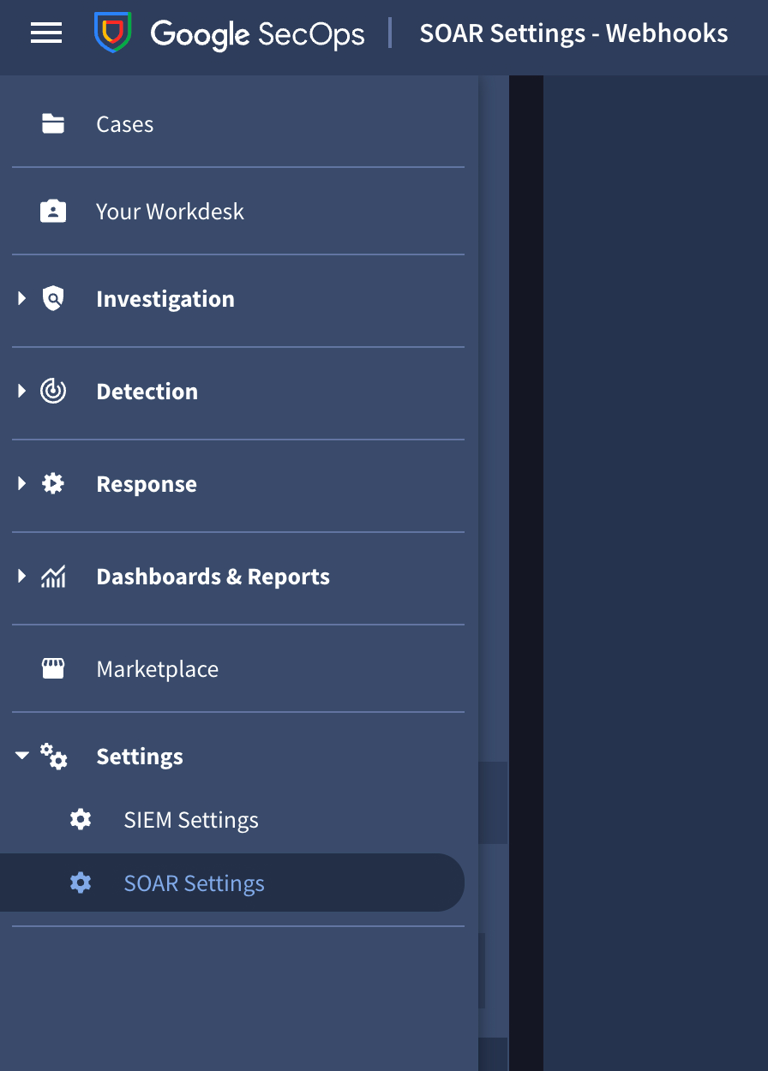
In your Google SecOps tenant, go to Settings > SOAR Settings
-
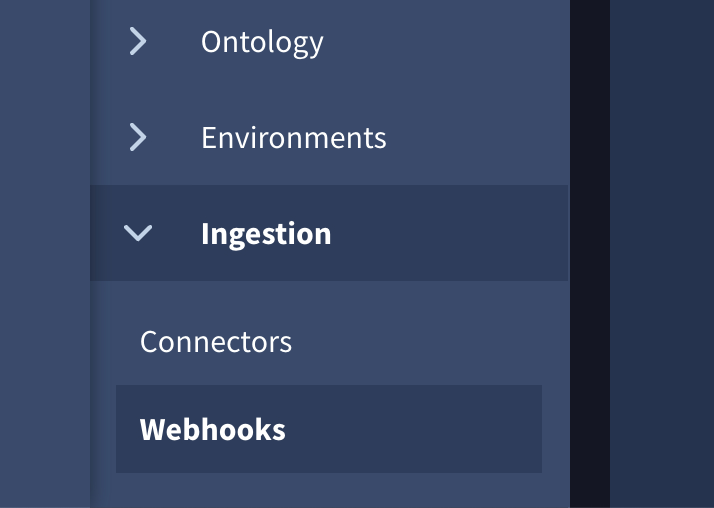
From the Settings panel, at the bottom of the screen, select Ingestion > Webhooks
-
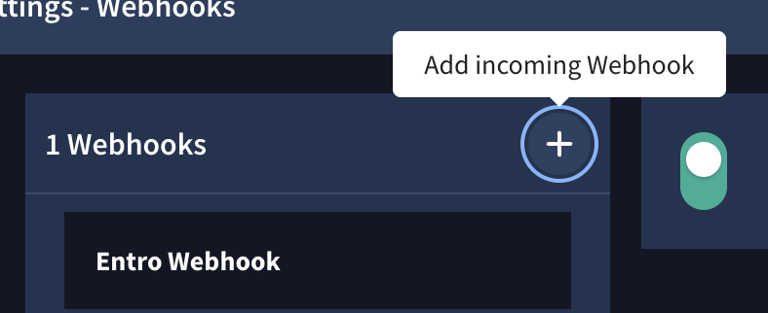
Create a new webhook by clicking on the + icon at the top of the screen
-
Give your webhook a name and select an environment if needed
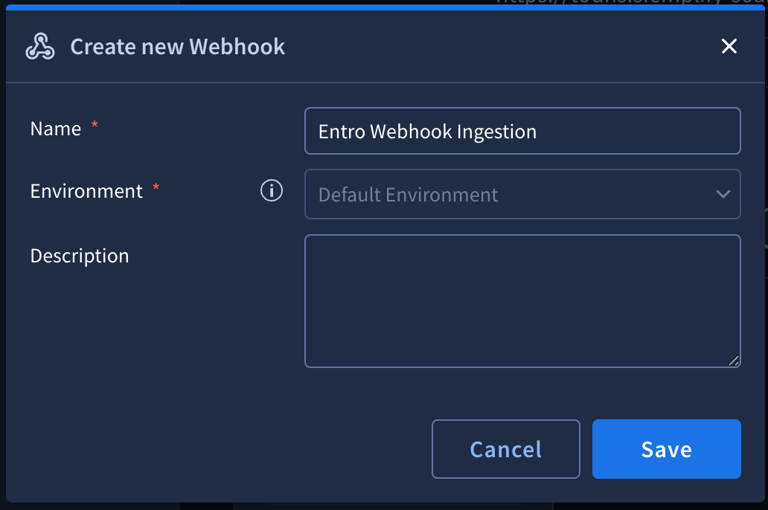
-
A webhook URL will be generated, copy it.
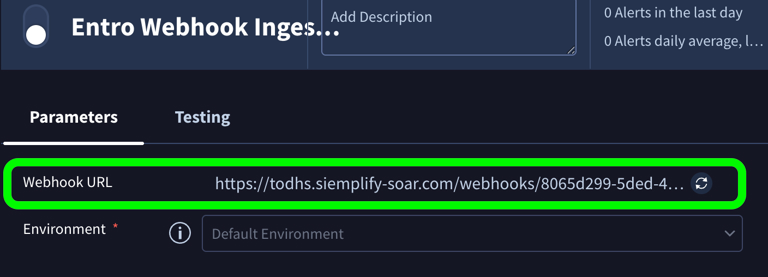
-
Go to the SailPoint Entro platform and select Settings > Webhooks. Add the webhook URL copied from the last step into SailPoint Entro as a custom webhook and select Save.
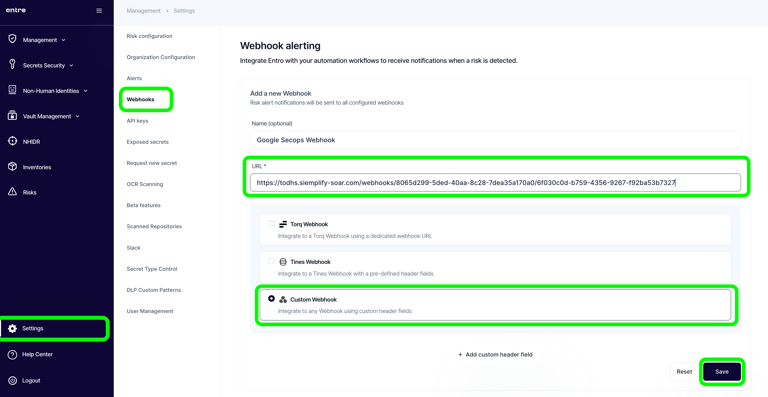
-
Make sure the Google SecOps webhook is turned on by flipping the switching and saving the configuration.

Now, SailPoint Entro risks will be forwarded to your Google SecOps and your Google SecOps will ingest the data.
Mapping
Google SecOps requires the webhook payload data to be mapped onto SecOps' fields.
To avoid duplicated cases and alerts - We recommend handling only newly created risks - identified by the createdRisk key in the webhook payload.
A webhook of the type updatedRisk will have the following structure
Recommended SailPoint Entro Mappings
- RuleGenerator to
createdRisk.name - Name to
createdRisk.guid - EventName to
createdRisk.category -
Description to
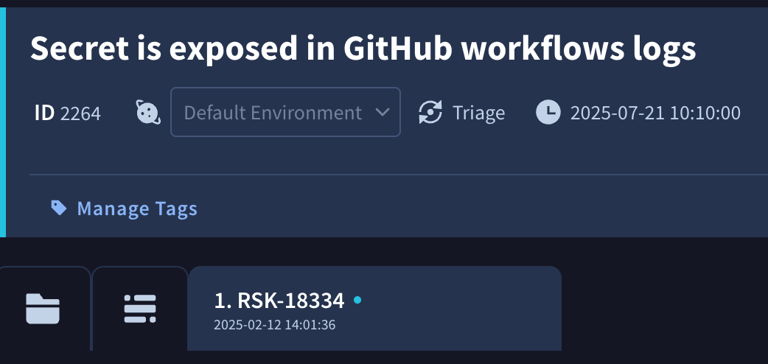
createdRiskThe benefit of this mapping is that the Case's name will have the name of the risk, and the alert's name will be the risk ID. Mapping the EventName to SailPoint Entro's category will allow creating category-based playbooks.
Having the description mapped to the whole createdRisk would allow you to deserialize the encoded JSON and to perform more actions on them.
Playbooks
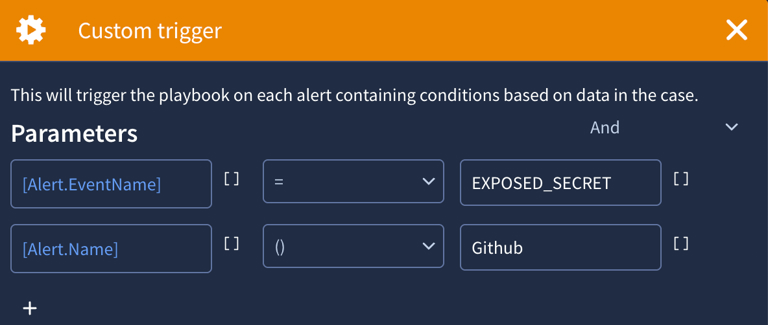
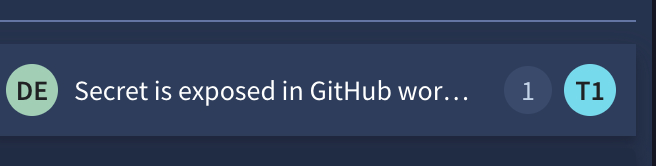
By utilizing the mapping mentioned above you will be able to trigger playbooks on filtered scenarios, for example - A playbook that will run when an exposed secret on GitHub risk was created, as can be seen below.
To expand the pool of alerts you can remove the Alert.Name condition, to reduce it, you can filter on a specific name, such as - "Enabled active token is exposed on GitHub Pull Request".