Wiz Onboarding
Follow these steps to integrate Wiz with SailPoint Entro and enable unified NHI and data visibility through DSPM insights.
Navigation Path
Management → Accounts & Integrations → Add New Account (top right) → Wiz
Step 1 - Create a Wiz Service Account
In Wiz, create a Service Account with the following permissions:
| Permission | Description |
|---|---|
| read:data_findings | Allows SailPoint Entro to retrieve sensitive data classification results |
| create:reports | Enables SailPoint Entro to generate DSPM findings reports |
| read:reports | Grants SailPoint Entro access to retrieve generated DSPM reports |
SailPoint Entro only retrieves DATA_SCAN report types for DSPM. No other Wiz data types are accessed or stored.
Step 2 - Retrieve Client ID and Client Secret
-
Navigate to Wiz → Service Accounts.
-
Copy the Client ID and Client Secret for the account created above.
-
Store them securely - these will be used to connect to SailPoint Entro.
Step 3 - Connect Wiz to SailPoint Entro
-
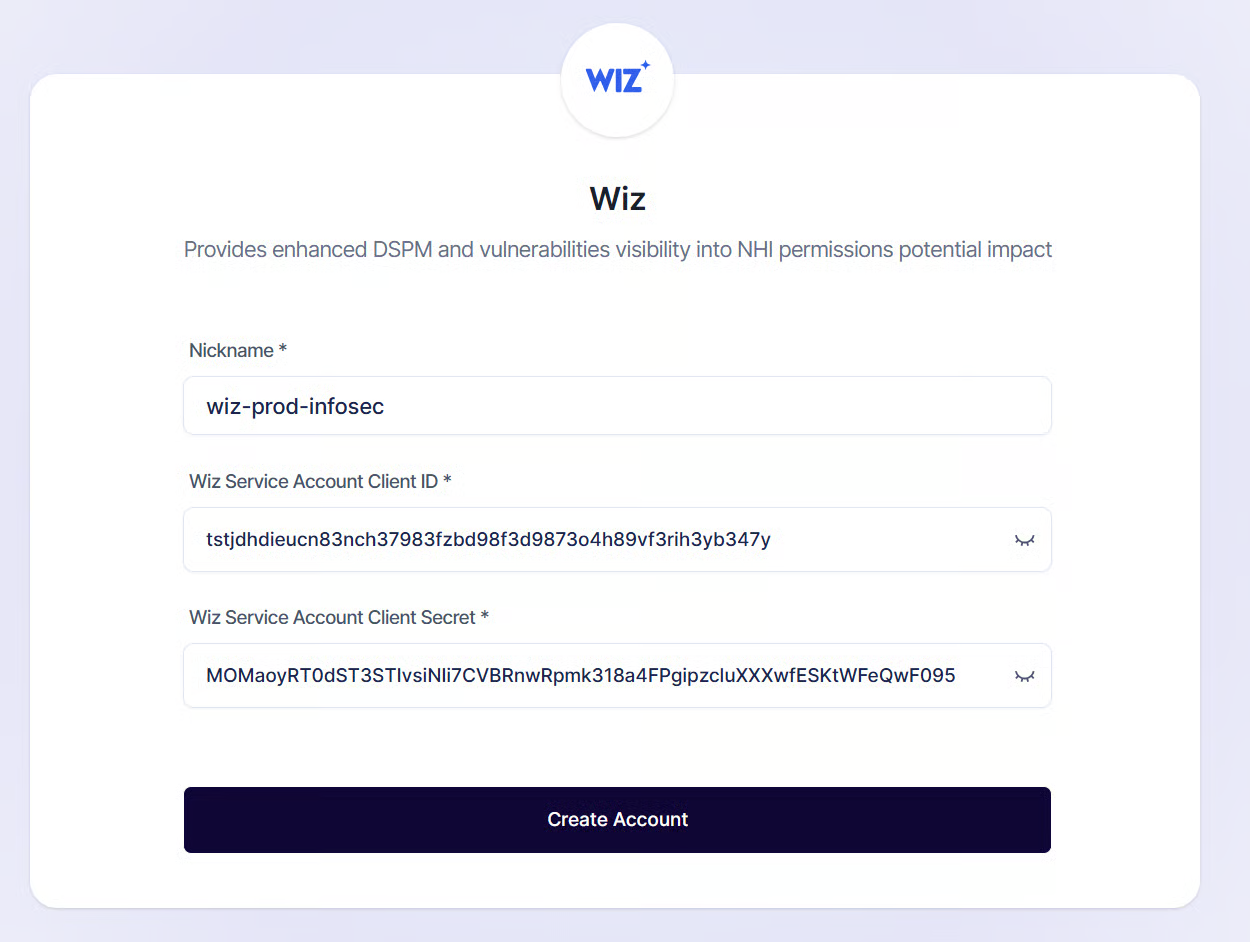
In the SailPoint Entro Dashboard, open Management → Accounts & Integrations → Add New Account → Wiz
-
Fill in the required fields:
Field Description Nickname Enter a descriptive name (e.g., my-wiz-project)Wiz Service Account Client ID Paste the Client ID copied from Wiz Wiz Service Account Client Secret Paste the Client Secret copied from Wiz -
Click Create Account.
-
SailPoint Entro will automatically validate the credentials and confirm connection status as Verified.
Validation and Scanning
Once connected:
-
SailPoint Entro authenticates via the Wiz API using the provided credentials
-
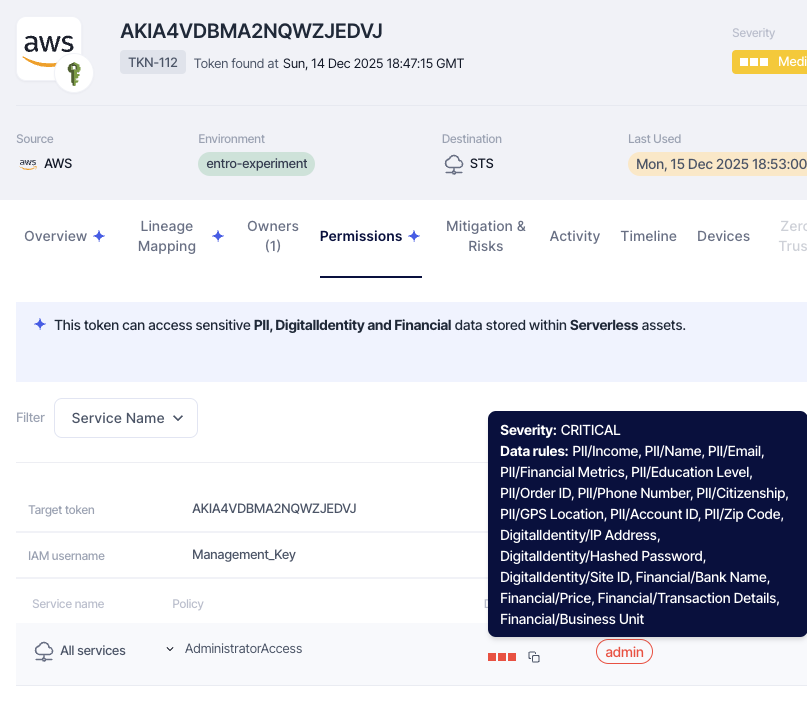
DSPM data findings are retrieved from Wiz and correlated with associated NHIs
-
New insights will appear in NHI Inventory → NHIs with DSPM Tags. The Permissions and Lineage map will be enriched with
Data Access severity, with the Wiz start icon.