GitHub Real-Time Scanning
SailPoint Entro's GitHub real-time scanning monitors every push to your repositories the moment it happens. When a commit is pushed to the repository, SailPoint Entro triggers a scan instantly via a GitHub webhook and detects any leaked secrets before the exposure window widens.
This integration complements SailPoint Entro's historical scanning (which scans your full commit history) by ensuring new secrets are caught near real time
How It Works
-
Through SailPoint Entro API, generate a unique webhook endpoint and authorization secret for your account.
-
Register that webhook in GitHub at either the repository or organization level.
-
On every
pushevent, GitHub sends the commit payload to SailPoint Entro. -
SailPoint Entro scans the diff for secrets and surfaces any findings in the dashboard in real time.
Setup
Step 1: Generate your webhook credentials in SailPoint Entro
-
Use following API to generate the webhook. (fill in an active, full access SailPoint Entro API key)
-
Copy the two values from the response:
-
Payload URL — the SailPoint Entro endpoint that will receive GitHub events
-
Secret — the authorization token used to validate requests
-
Note: This can also be done through SailPoint Entro's API docs using an active API token. Log in with an active API token, and navigate to /v1/entroKeys/{provider}/webhook.
Note
More info on SailPoint Entro API can be found here - https://docs.entro.security/api-reference
Step 2: Configure the webhook in GitHub
-
You can create the webhook at the repository level (monitors one repo) or at the organization level (monitors all repos in the org). The steps are the same for both.
-
Repository-level: Go to your repository → Settings → Webhooks → Add webhook
-
Organization-level: Go to your organization → Settings → Webhooks → Add webhook
-
-
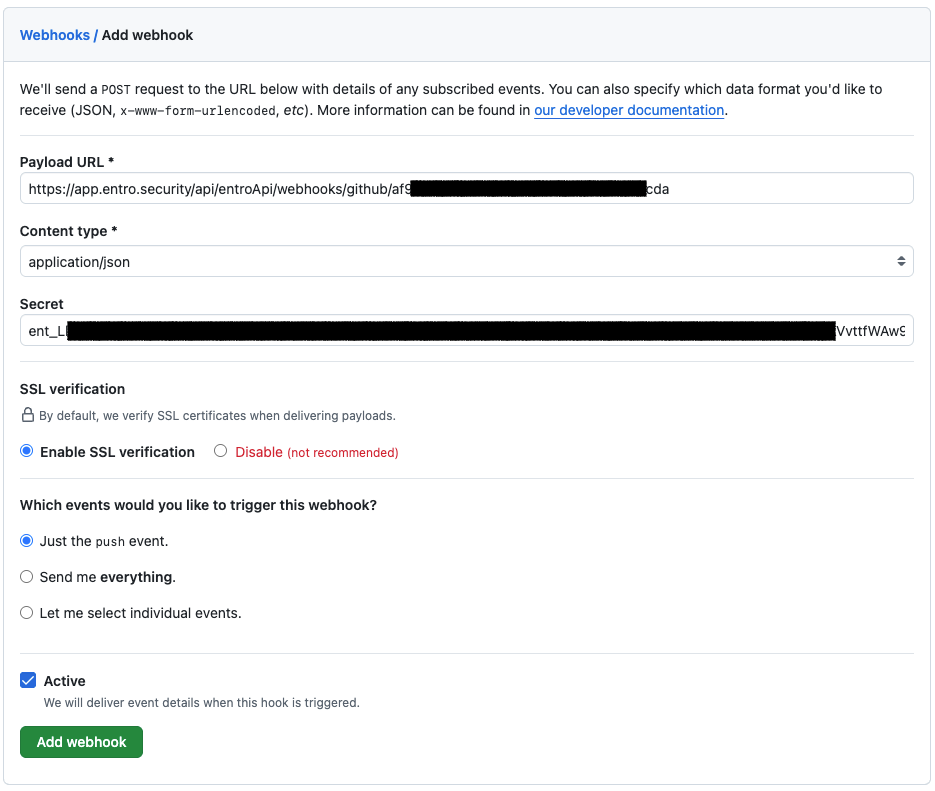
fill in the webhook form:
Field Value Payload URL Paste the Payload URL from SailPoint Entro Content type application/jsonSecret Paste the Secret from SailPoint Entro Which events would you like to trigger this webhook? select Just the pusheventActive Checked -
Click Add webhook to save
Verifying the Integration
After saving, GitHub sends a ping event to verify the endpoint is reachable. You can confirm the webhook is working from the Recent Deliveries tab on the webhook settings page in GitHub. A green checkmark indicates a successful delivery.
Once a push is made to a monitored repository, SailPoint Entro will scan the changed files in that commit. Any detected secrets will appear in the Secrets inventory and exposed secret risks will be generated.
Troubleshooting
-
Webhook returns 400 Bad Request: The most common cause is the wrong Content type. Ensure it is set to
application/jsonin GitHub's webhook settings. -
No findings appear after a push Check the following:
-
Confirm the webhook delivered successfully in GitHub (Settings → Webhooks → Recent Deliveries).
-
Make sure the repository is not excluded by any exclusion rules configured in SailPoint Entro.
-
Note that SailPoint Entro deduplicates commits — if the same commit SHA was already processed within the past month, it will not be re-scanned. This can happen if you trigger a redelivery for a commit that was already scanned successfully.
-
-
Push event is not triggering a scan: Ensure the webhook is set to listen to
pushevents. In GitHub's webhook settings, under Which events would you like to trigger this webhook?, select Just the push event or a custom set that includespush.
Scope and Coverage
| Scope | Setup location |
|---|---|
| Single repository | Repository → Settings → Webhooks |
| All repositories in an org | Organization → Settings → Webhooks |
Note
Organization-level webhooks apply to all current and future repositories in the organization and are the recommended approach for broad coverage.