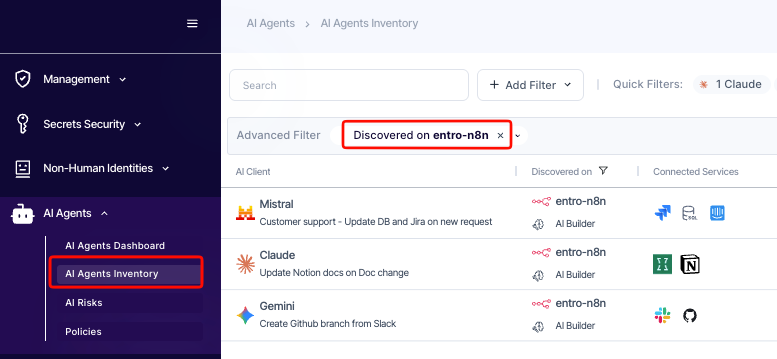
n8n Onboarding
Prerequisites
Generate an API Key in n8n
-
Log in to your n8n instance.
-
Navigate to Settings → n8n API.
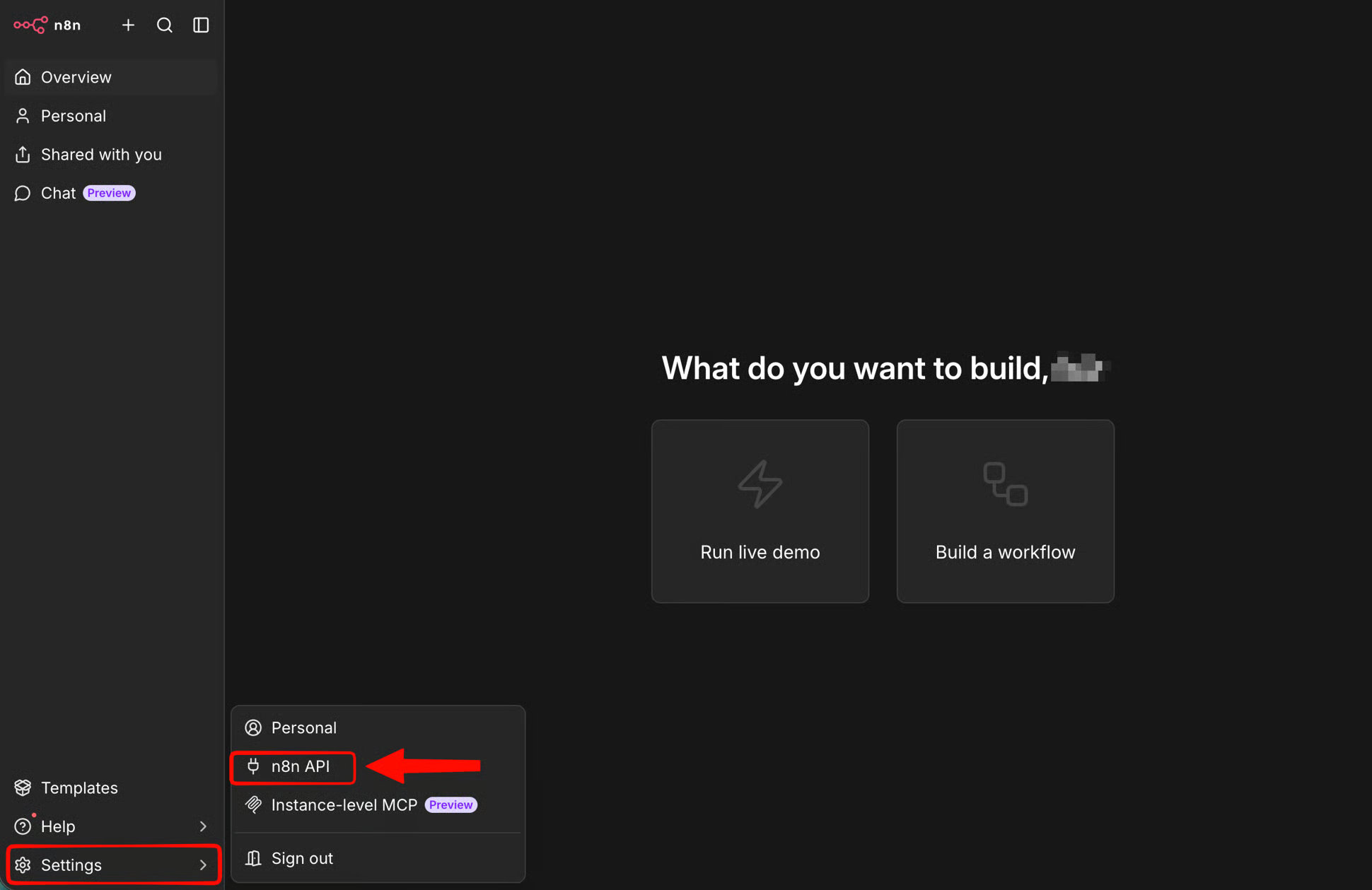
-
Click Create an API Key.
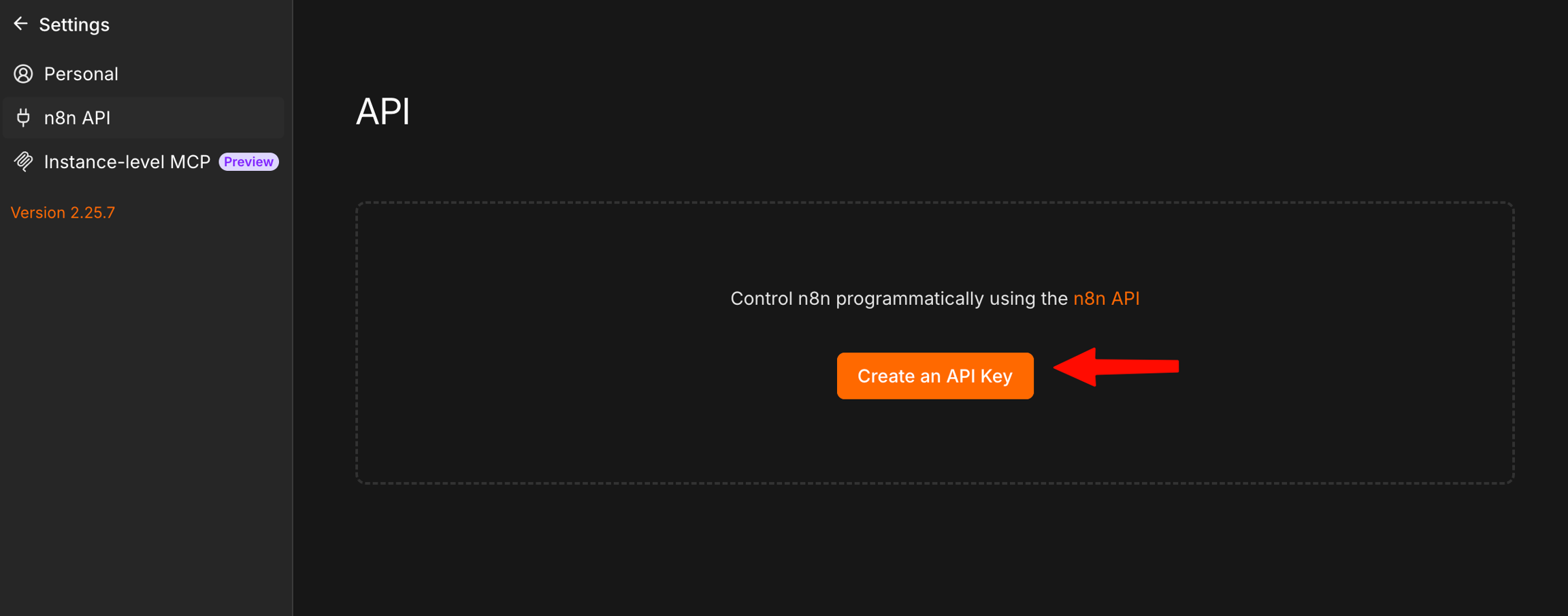
-
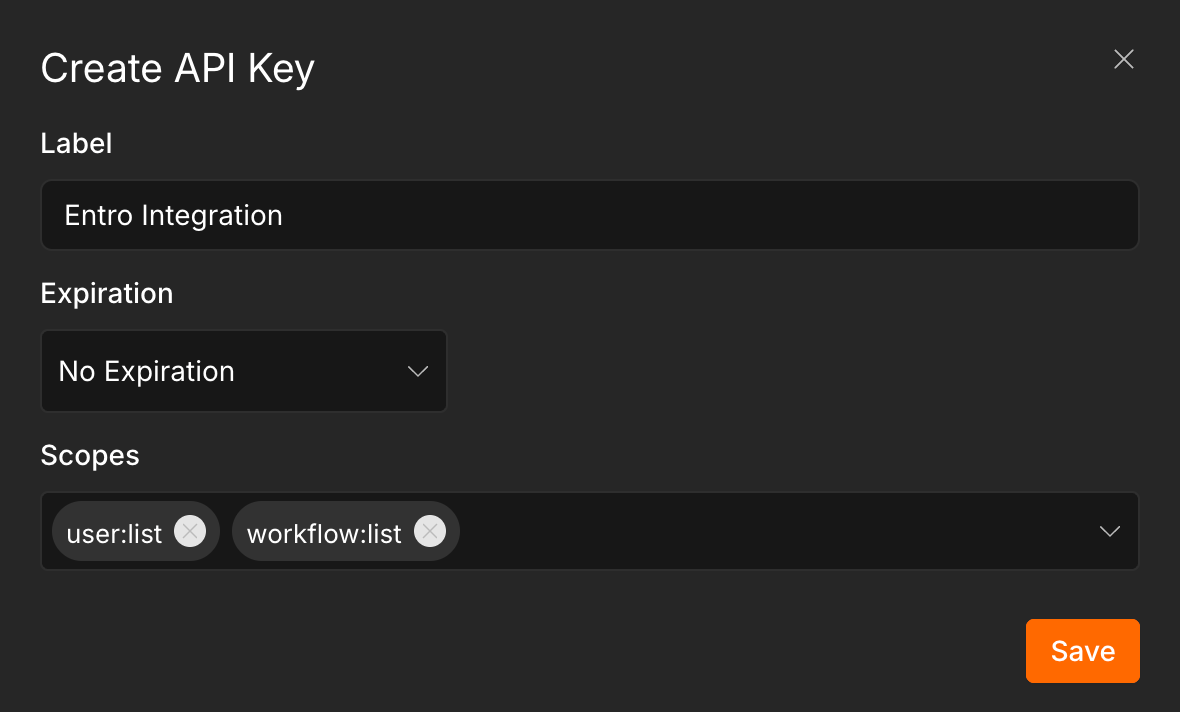
Set a Label (e.g., SailPoint Entro Integration)
-
Set Expiration to No Expiration to ensure uninterrupted discovery.
-
Under Scopes, select only the following:
-
user:list -
workflow:list
-
-
Click Save and copy the key - you will need it in the next step.
Identify your Base URL
-
n8n Cloud:
https://<instance>.app.n8n.cloud -
Self-hosted:
https://<your-domain>
Configure Integration in SailPoint Entro
-
In the SailPoint Entro Dashboard, navigate to Management → Accounts & Integrations → Add New Account (top right) → n8n.
-
Select your instance type - n8n Cloud or n8n Self-Hosted.
-
Fill in the following fields:
| Field | Description |
|---|---|
| Environment | A unique identifier for this instance (e.g., my-n8n-instance) |
| Display Name | A human-readable name (e.g., My n8n Account) |
| Instance URL | Your instance URL (e.g., https://<instance>.app.n8n.cloud) |
| API Key | The key generated in Step 1 |
| Worker Group (Connector) | Select the appropriate SailPoint Entro connector |
- Click Connect.
Verification
Once connected, the integration status displays Verified. SailPoint Entro will perform an initial discovery scan - navigate to AI Inventory and filter by n8n to review discovered AI agent workflows.