JIT Automation Policies
What Are Automation Policies?
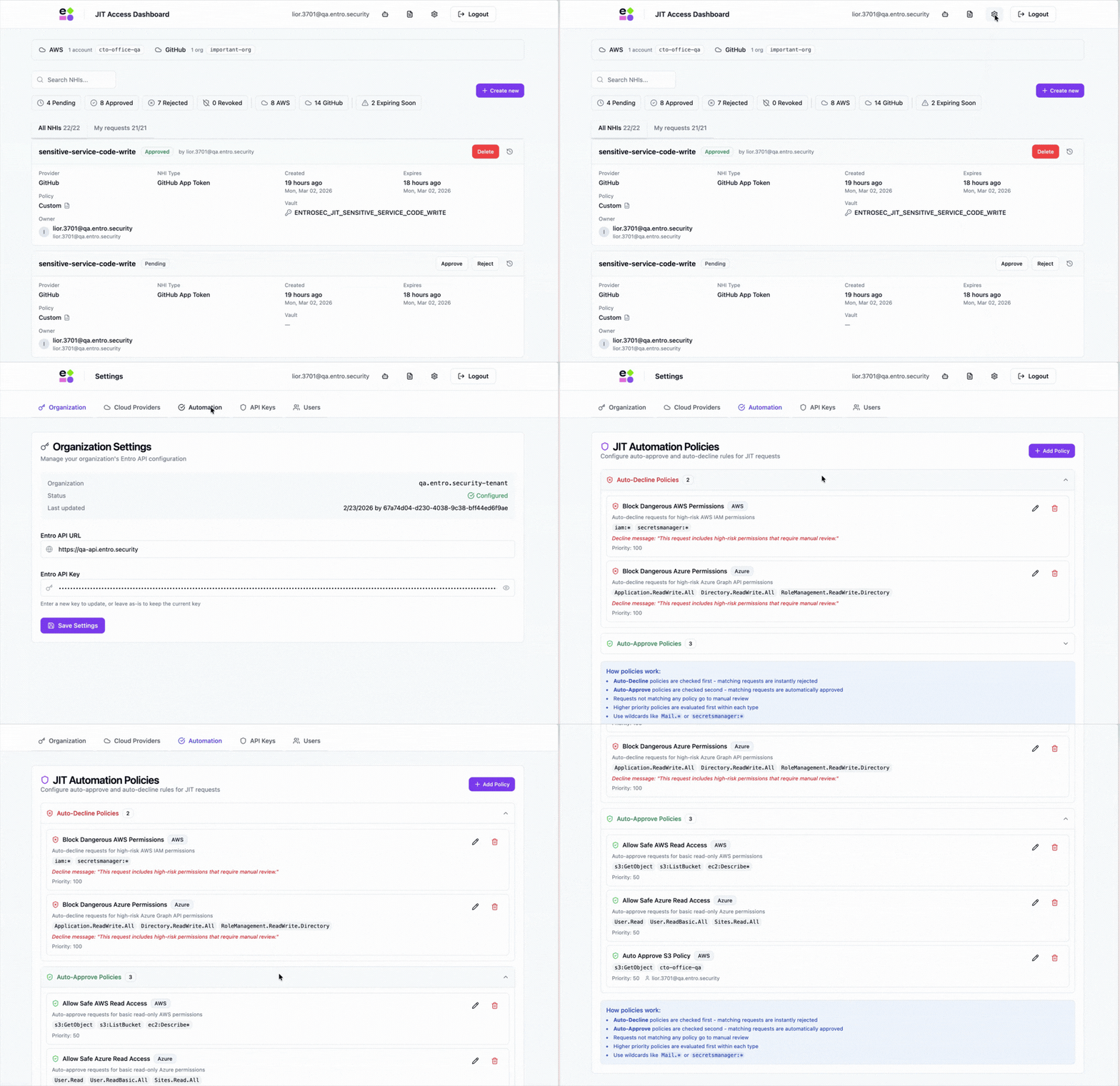
Automation Policies let you define rules that automatically approve or decline JIT access requests - without requiring manual admin review. They act as guardrails for your organization: blocking dangerous permission requests instantly, and fast-tracking safe, pre-approved access patterns.
Every JIT request - whether submitted through the Portal UI or by an AI agent via the MCP Server - is evaluated against your automation policies before reaching an admin.
There are two types of policies:
-
Auto-Decline: Instantly rejects requests that match dangerous or disallowed conditions. Use these to enforce security boundaries.
-
Auto-Approve: Automatically provisions credentials for requests that match safe, pre-approved conditions. Use these to eliminate approval bottlenecks for routine access.
How Policies Are Evaluated
When a JIT request is created, the platform evaluates it in this order:
- Auto-Decline policies are checked first (highest priority first). If any match, the request is instantly rejected with the configured decline message.
- Auto-Approve policies are checked next (highest priority first). If any match, credentials are provisioned automatically - no admin needed.
- If no policy matches, the request goes into Pending status and waits for manual admin approval.
This means auto-decline always wins over auto-approve. If a request matches both a decline and an auto-approval policy, it will be declined.
Creating a Policy
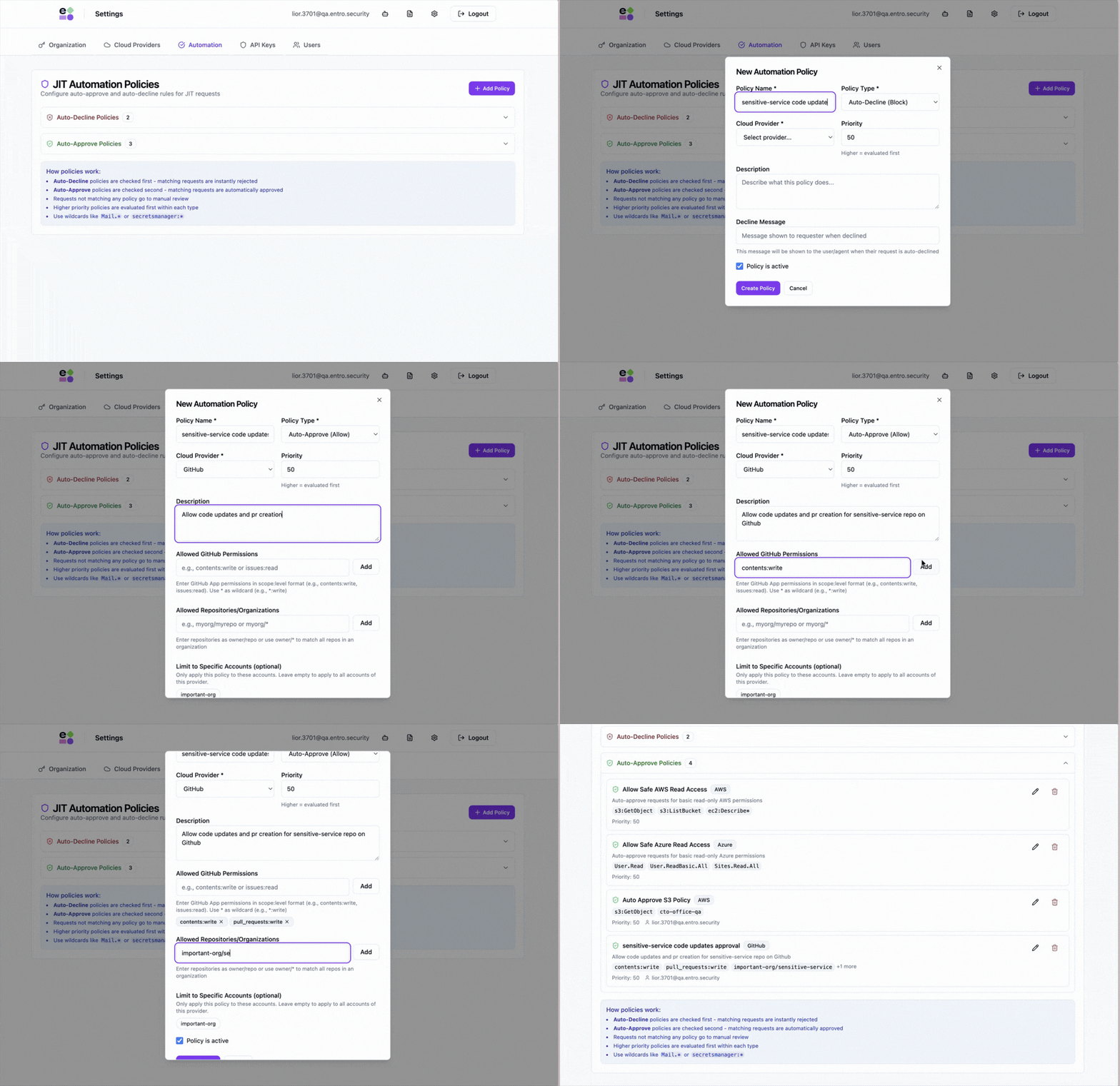
Go to Settings → Automation in the JIT Portal and click Add Policy.
Basic Configuration
Every policy requires:
-
Policy Name: A descriptive name (e.g., "Block wildcard admin access" or "Allow read-only S3 for data team")
-
Description: Explain the purpose of this policy for your team
-
Policy Type: Auto-Approve or Auto-Decline
-
Cloud Provider: Azure, AWS, or GitHub - each policy targets a single provider
-
Priority: A number from 1 to 1000. Higher priority policies are evaluated first within each type. Use this to control which policy takes precedence when multiple could match.
Conditions by Provider
Conditions by Provider
Each provider has its own set of conditions you can configure:
Azure Policies
-
Allowed or Blocked Graph API Permissions (e.g.,
User.Read.All,Mail.*) -
Allowed or Blocked RBAC Roles (e.g.,
Reader,Contributor)
AWS Policies
-
Allowed or Blocked IAM Permissions (e.g.,
s3:GetObject,secretsmanager:*) -
Allowed or Blocked Managed Policies (e.g.,
ReadOnlyAccess,SecurityAudit)
GitHub Policies
-
Allowed or Blocked Permissions (e.g.,
contents:write,issues:read) -
Allowed or Blocked Repositories or Organizations (e.g.,
my-org/backend-service,my-org/*)
Note
GitHub always includes metadata:read on installation tokens. This permission is excluded from policy matching.
You don’t need to add it to your allowed permissions list.
The policy form calls this out in the GitHub permissions section.
Wildcard Matching
All condition fields support wildcard matching with the * character:
-
s3:*matches any S3 permission -
Mail.*matches any Mail Graph API scope -
my-org/*matches any repository in the organization -
*:readmatches any GitHub permission with read level
Additional Options
-
Cloud Account Scope (optional): Limit the policy to specific cloud provider configurations (e.g., only apply to your staging AWS account, not production)
-
Employee Scope (optional): Apply the policy only to specific requesters (matched by email)
-
Max Expiry (auto-approve only, not available for GitHub): Enforce a maximum credential lifetime. Requests exceeding this will not be auto-approved.
-
Decline Message (auto-decline only): A custom message shown to the requester explaining why their request was blocked. Use this to guide users toward the correct way to request access.
Employee Scope (Optional)
By default, policies apply to all users.
Enable Apply policy only to specific employees to scope the policy.
When enabled, add employees in either of these ways:
-
Directory picker: search by name or email and select from your employee directory.
-
Manual email entry: type any email address (useful for users not in the directory).
Selected employees appear as removable chips.
Matching is based on the requester’s email address.
Emails must match exactly.
Matching is case-insensitive.
Policy Examples
Example 1: Block Wildcard Admin Access (Auto-Decline)
Block any AWS request that asks for full admin permissions:
-
Type: Auto-Decline
-
Provider: AWS
-
Blocked Managed Policies:
AdministratorAccess -
Blocked IAM Permissions:
*:* -
Decline Message: "Wildcard admin access is not allowed. Please request specific permissions for your use case."
Example 2: Allow Read-Only S3 Access for Data Team (Auto-Approve)
Auto-approve S3 read-only access for up to 7 days:
-
Type: Auto-Approve
-
Provider: AWS
-
Allowed Managed Policies:
AmazonS3ReadOnlyAccess -
Employee Scope:
data-team@company.com,alice@company.com -
Max Expiry: 7 days
Example 3: Allow GitHub Contents Read on Public Repos (Auto-Approve)
Auto-approve read access to repository contents for a specific org:
-
Type: Auto-Approve
-
Provider: GitHub
-
Allowed Permissions:
contents:read -
Allowed Repositories:
my-org/*
Example 4: Block Sensitive Graph API Scopes (Auto-Decline)
Block Azure requests for mail and directory write access:
-
Type: Auto-Decline
-
Provider: Azure
-
Blocked Graph API Permissions:
Mail.*,Directory.ReadWrite.All -
Decline Message: "Mail and Directory write access requires a security review. Contact the security team."
Example 5: Auto-Decline Dangerous Permissions for Everyone Except Senior Engineers
Block sensitive IAM permissions for most users.
Allow a small, trusted set of senior engineers to get auto-approved.
Create two policies:
-
Policy A (Auto-Approve, higher priority):
-
Provider: AWS
-
Allowed IAM Permissions:
iam:* -
Employee Scope: list your senior engineers
-
-
Policy B (Auto-Decline):
-
Provider: AWS
-
Blocked IAM Permissions:
iam:* -
Employee Scope: all other employees
-
Decline Message: "IAM admin permissions require senior engineer review."
-
Example 6: Limit Auto-Approval for MCP Workflows to Trusted Employees
Auto-approve a narrow GitHub permission set only for trusted employees.
Everyone else stays Pending for manual review.
-
Type: Auto-Approve
-
Provider: GitHub
-
Allowed Permissions:
contents:read -
Allowed Repositories:
my-org/* -
Employee Scope:
trusted-mcp-users@company.com,senior-eng@company.com
Accelerating AI Agent Workflows
Automation Policies are especially powerful when combined with the JIT MCP Server and AI agents.
The Problem Without Policies
When an AI agent creates a JIT request via the MCP Server, the request enters Pending status by default. The agent must then wait for a human admin to manually approve it before it can proceed. This creates a bottleneck - the agent is blocked, the developer is waiting, and the admin may not be immediately available.
The Solution: Auto-Approve Policies for AI Agent Access
By creating auto-approve policies for common, safe access patterns, you can let AI agents get credentials instantly - no human in the loop needed. The agent creates the request, the policy matches, and credentials are provisioned and returned to the caller in the same response.
This enables fully autonomous workflows like:
-
An AI coding agent requests read-only S3 access to fetch data, gets credentials instantly, and continues its task
-
A CI/CD agent requests a GitHub token to push a release tag, gets the token immediately, and completes the deployment
-
A monitoring agent requests Azure Reader access to check resource health, gets credentials on the spot, and reports back
Recommended Approach
- Start with auto-decline policies to establish your security boundaries. Block dangerous permissions that should never be auto-approved (e.g., admin access, wildcard permissions, sensitive API scopes).
- Add auto-approve policies for well-understood, safe access patterns. Start narrow - specific permissions, specific repositories, short expiry - and expand as you build confidence.
- Use cloud account scoping to limit auto-approve policies to non-production environments first. For example, auto-approve read access on your staging AWS account, but require manual approval for production.
- Set max expiry on auto-approve policies to ensure auto-approved credentials don't last longer than necessary. Even if a request asks for 30 days, the policy can cap it at 7.
- Review the audit trail regularly to see which requests are being auto-approved and ensure the policies match your security expectations.
The Result
With well-configured automation policies, your AI agents can operate autonomously for routine access - while your security guardrails ensure that sensitive or unusual requests always go through human review. This gives your team the speed of automation with the safety of manual oversight where it matters.