Microsoft Teams Onboarding
This page explains how to integrate Microsoft Teams with SailPoint Entro using either the automated onboarding process or manual configuration via Azure. It leverages the existing Microsoft Ecosystem Azure App Registration method.
Prerequisites
-
Azure administrator privileges
-
Existing SailPoint Entro Azure App Registration
-
Temporary Contributor role
Mandatory - Graph Permissions
-
Add Graph API Permissions
In Azure Portal, go to App registrations > Entro App > API Permissions and add the following:
-
Select + Add a permission > Microsoft Graph > Application permissions
-
Mandatory:
-
User.Read.All
-
Directory.Read.All
-
AuditLogs.Read.All
-
-
For Secret Detection:
-
TeamsActivity.Read.All
-
TeamSettings.Read.All
-
TeamsTab.Read.All
-
TeamsAppInstallation.ReadForChat.All
-
TeamsAppInstallation.ReadForTeam.All
-
TeamsAppInstallation.ReadForUser.All
-
Channel.ReadBasic.All
-
ChannelMember.Read.All
-
ChannelMessage.Read.All
-
ChannelSettings.Read.All
-
Chat.Read.All
-
-
For Messaging and Alerts (optional):
-
TeamsAppInstallation.ReadWriteForTeam.All
-
TeamsAppInstallation.ReadWriteForUser.All
-
TeamsAppInstallation.ReadWriteSelfForUser.All
-
After adding permissions, click "Grant admin consent" for all permissions.
If you'd like SailPoint Entro to solely scan for secrets in Teams, no need to continue to other steps.
-
Optional - Microsoft Teams Alerts and Messaging Setup
-
Add contributor role temporarily
To activate the messaging and alerting functionalities, a SailPoint Entro bot (application) must be downloaded and added to the Teams App Catalog.
For steps 1-5, assigning the contributor role to the SailPoint Entro service principal is temporary only for the downloading and installation of the SailPoint Entro Bot, once it is installed you can remove the permission.
-
Go to the subscription related to the SailPoint Entro integration.
-
Click on "Access control (IAM)" > "+Add" > "Add role assignment".
-
In the "Role" tab, search for the "Contributor" role and click "Next".
-
In the "Members" tab, choose the "User, group or service principal" option and search for the created SailPoint Entro app registration. Select the SailPoint Entro app registration and click on "Next".
-
In the "Review + assign" tab, make sure you granted the contributor role to the SailPoint Entro app registration and click on "Review + assign".
-
-
Download the bot app from SailPoint Entro
-
On SailPoint Entro application, go to "Management" > "Accounts & Integrations", click on "+ Add new account".
-
Click on the "Microsoft Teams" icon.
-
Choose the Azure account where the application with the Teams permissions is found and click on "Download App".
- Wait a few seconds until the application is ready and downloaded.
-
-
Setup in Teams
-
Go to the Microsoft Teams admin portal: https://admin.teams.microsoft.com/
-
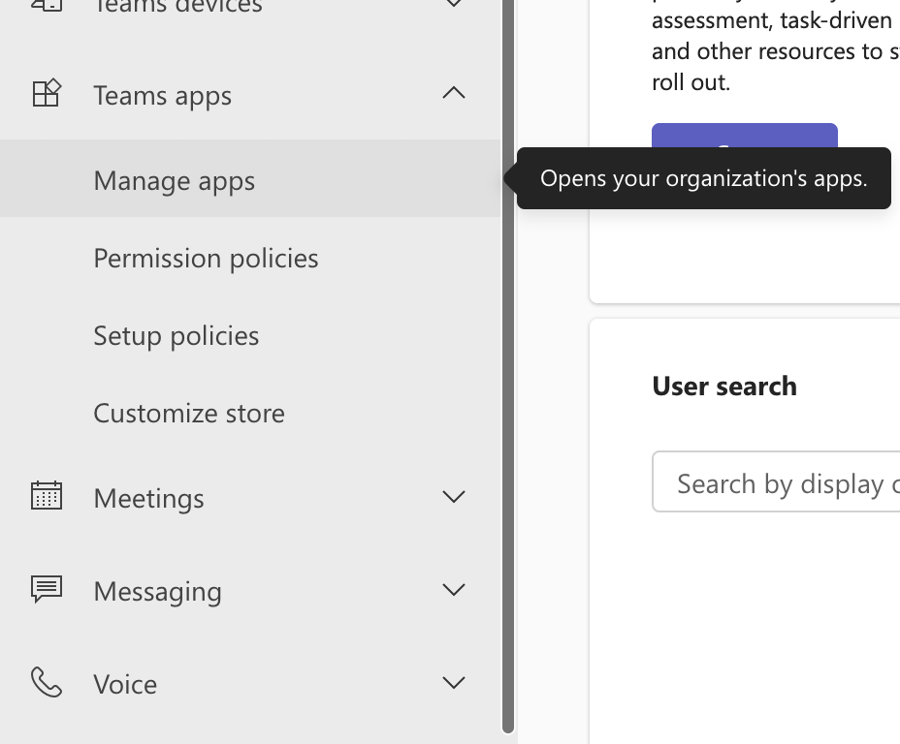
On the side menu, select Teams apps > Manage apps.
-
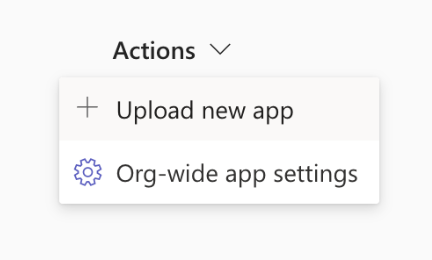
On the right side of the screen, select Actions > Upload new app.
-
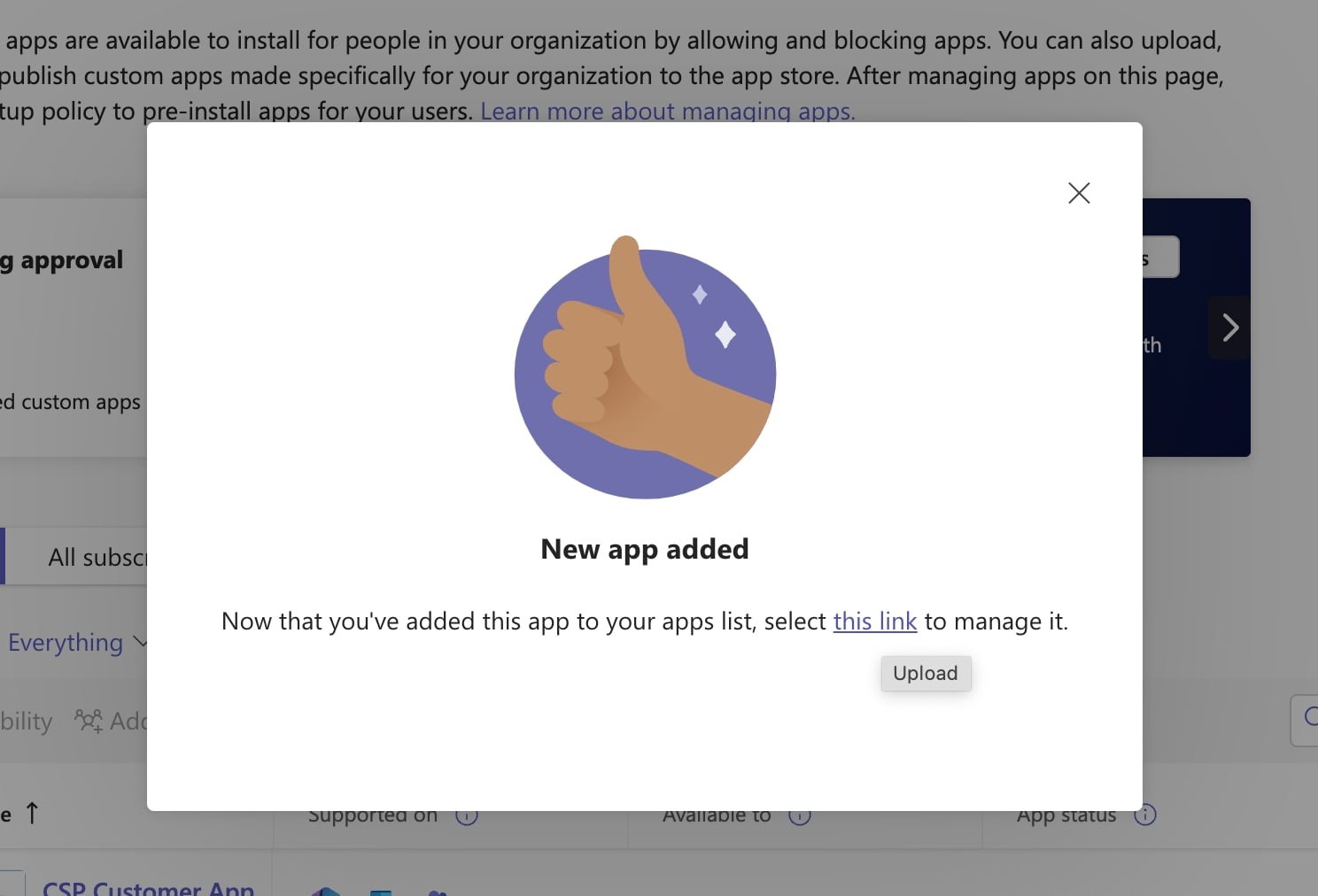
Once uploaded, you will see the following screen. Click on “this link” in the prompt.
-
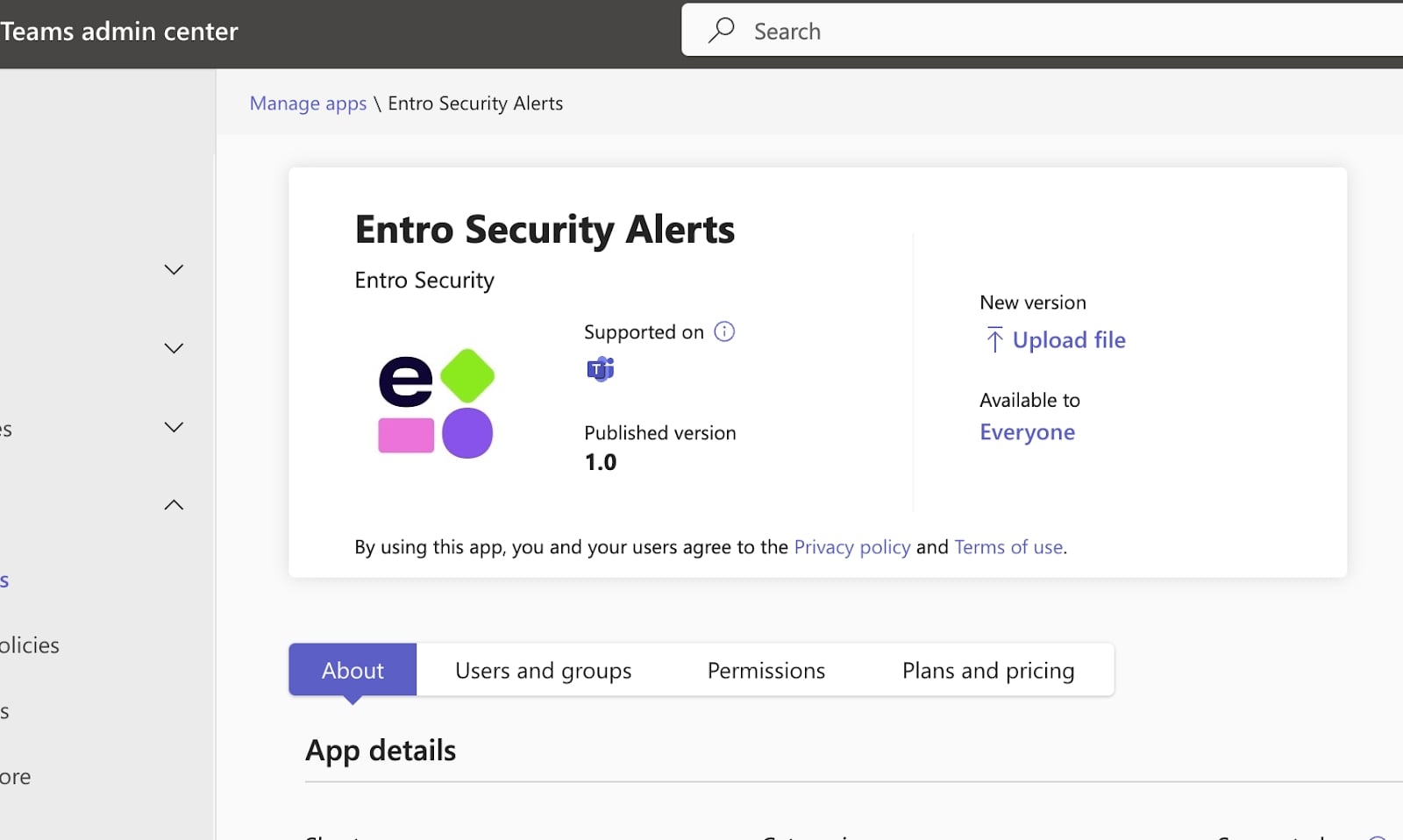
It will redirect you to this screen, copy the App ID and go back to the Teams onboarding form in SailPoint Entro.
-
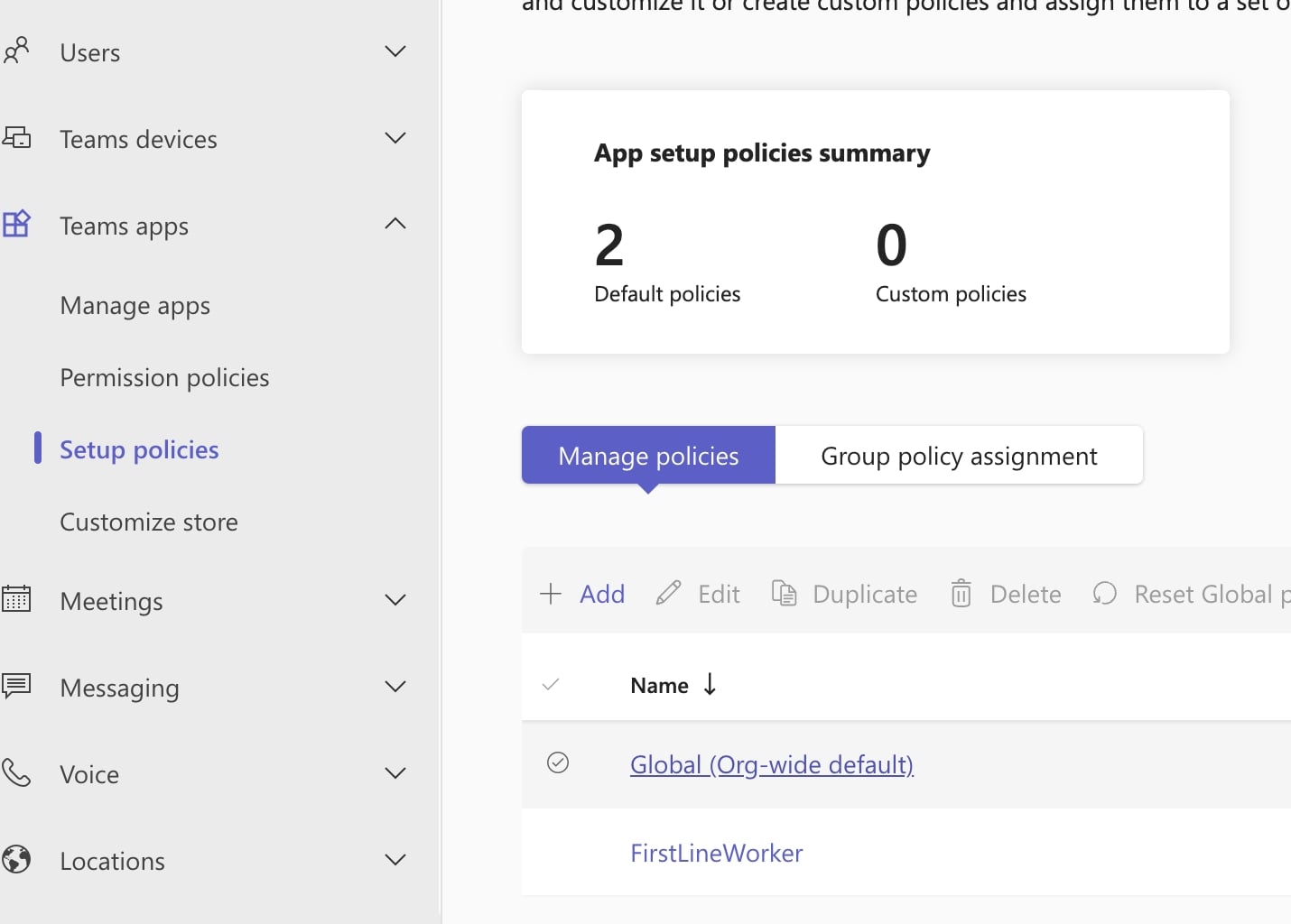
Now head over to “Setup policies” as seen below and click on “Global (Org-wide default)”.
-
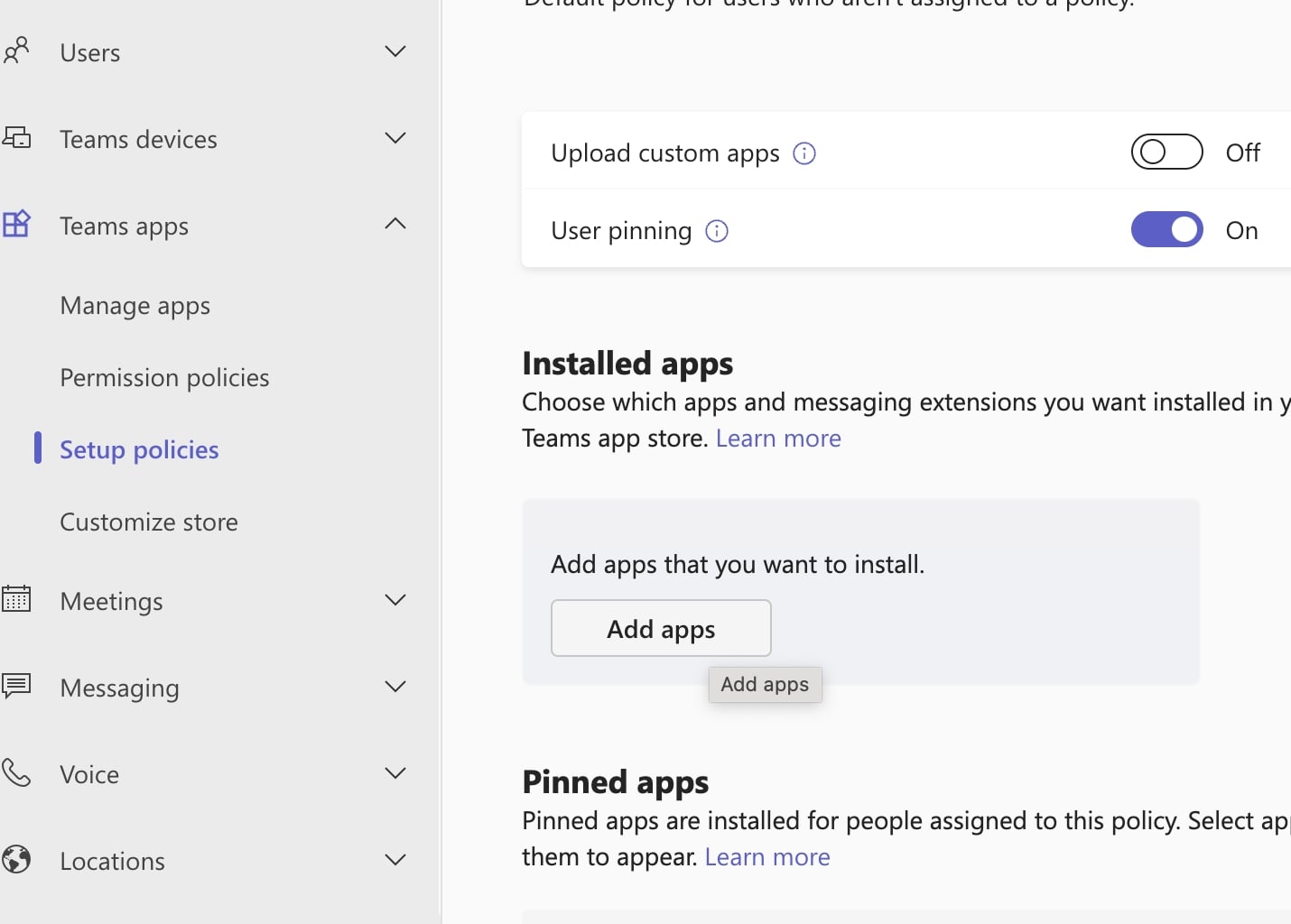
Click on "Add apps".
-
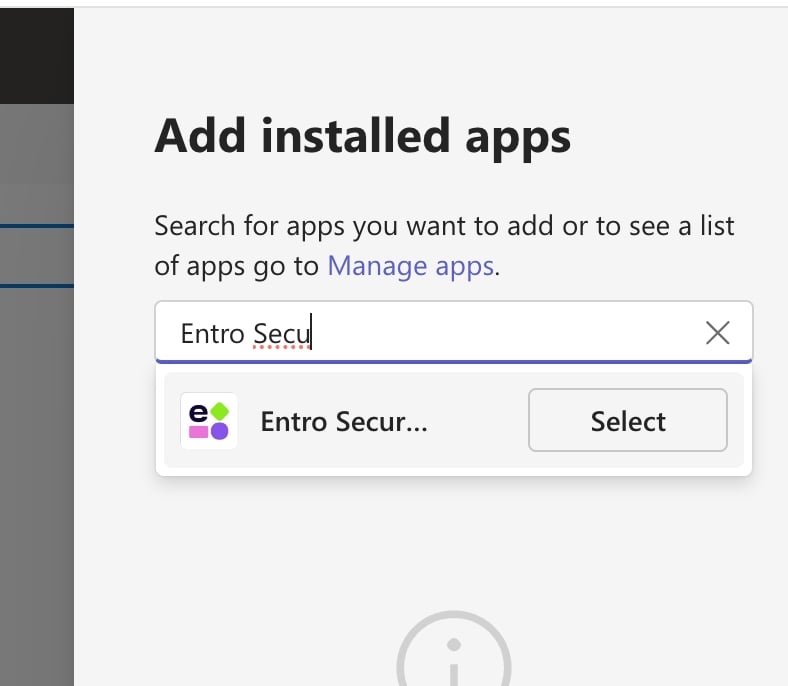
Select “SailPoint Entro” and save the changes.
-
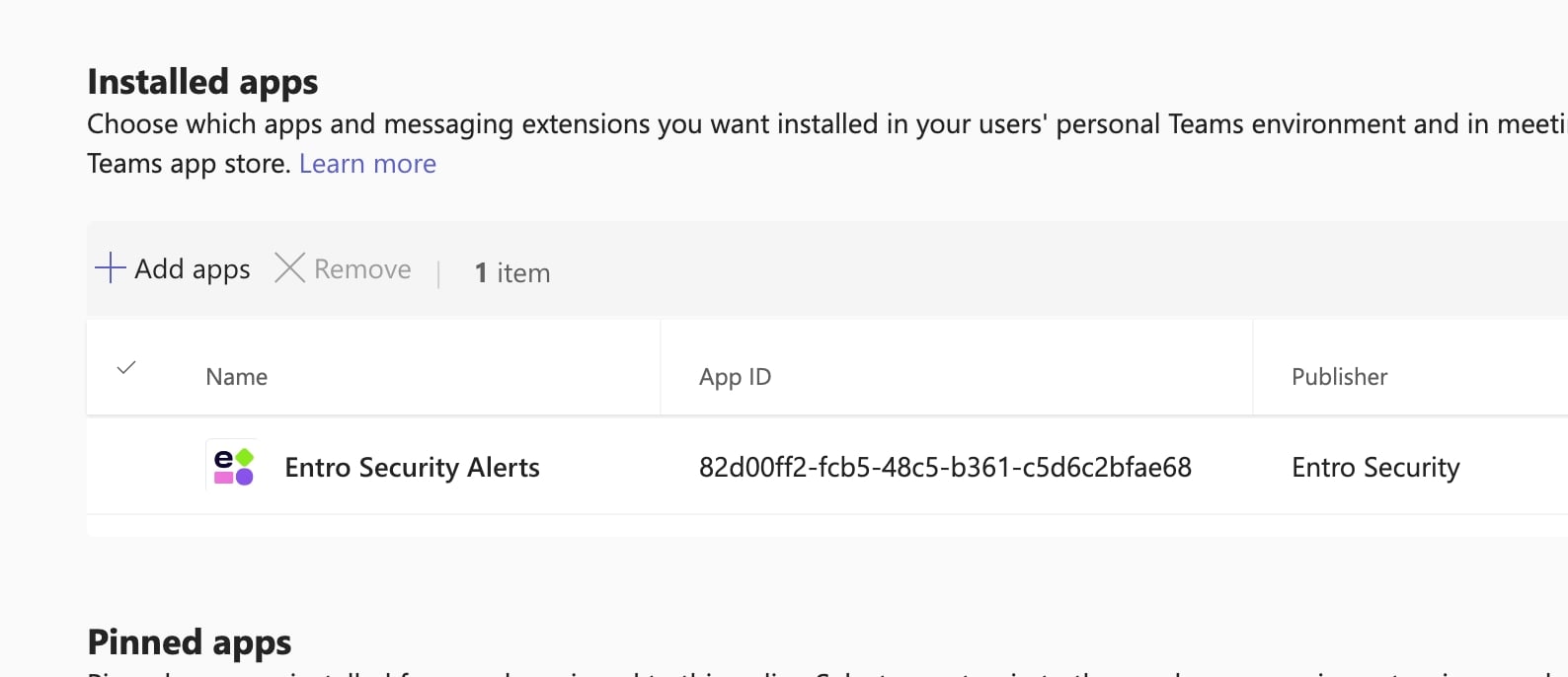
You should see the following screen.
-
Copy the App ID and paste it in SailPoint Entro's onboarding form. Click on "Connect Bot".
-
Note
Security & Compliance:
- TLS 1.2+ encryption
- AES-256 token protection
- Read-only access, no data persistence
- SOC 2 Type II, ISO 27001, GDPR-compliant