Splunk
SailPoint Entro integrates with Splunk Cloud by utilizing Splunk's HEC - HTTP Event Collector and SailPoint Entro's Webhooks Mechanism.
Creating the HEC
-
In your Splunk instance, click on the Settings and select Add Data
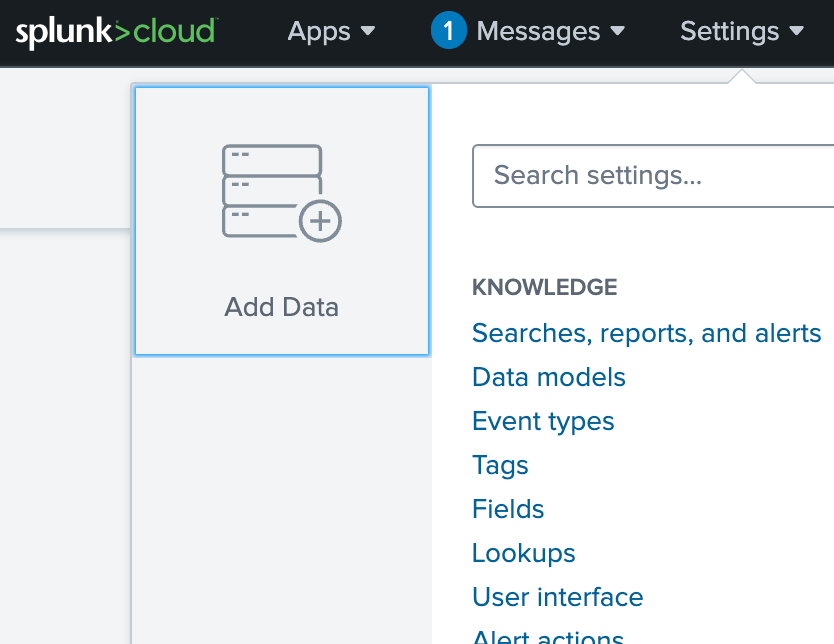
-
Select Monitor
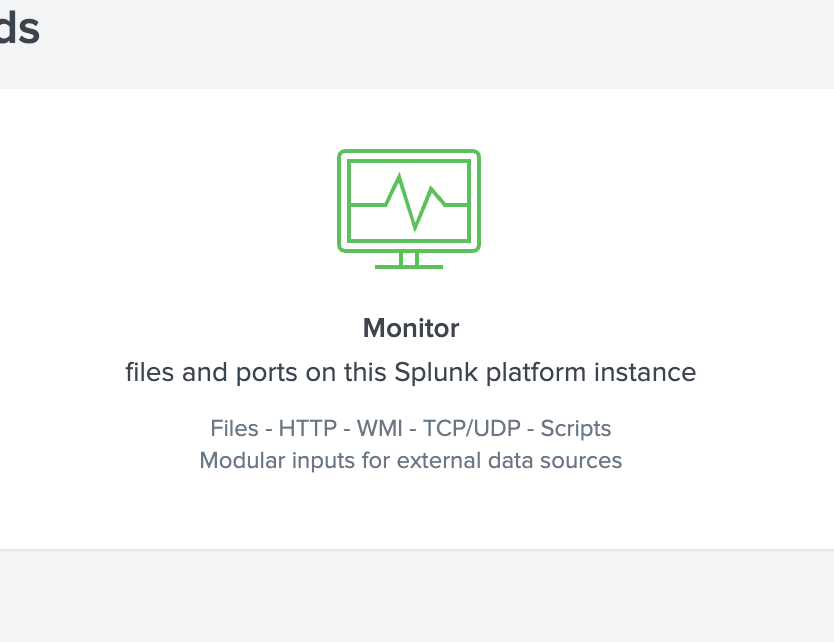
-
Select HTTP Event Collector
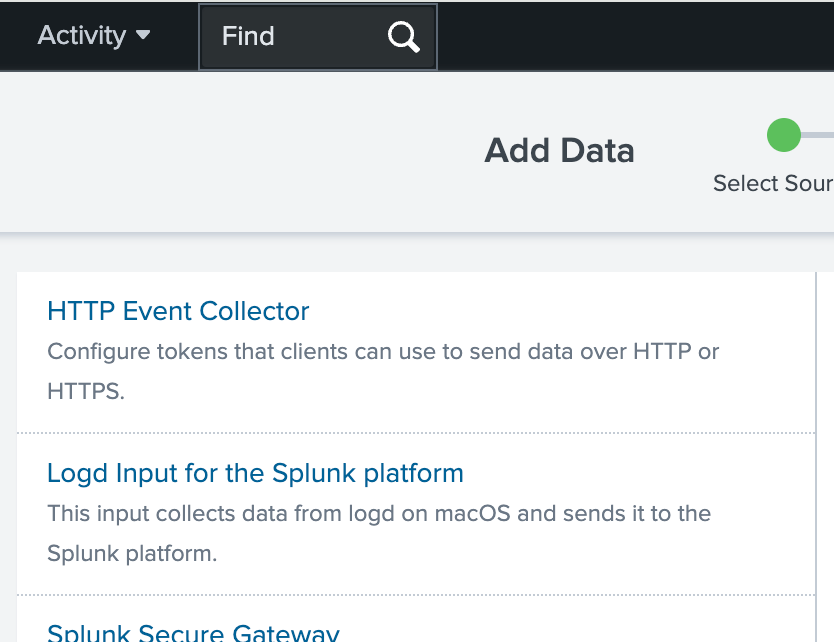
-
Fill in the details and click on Next
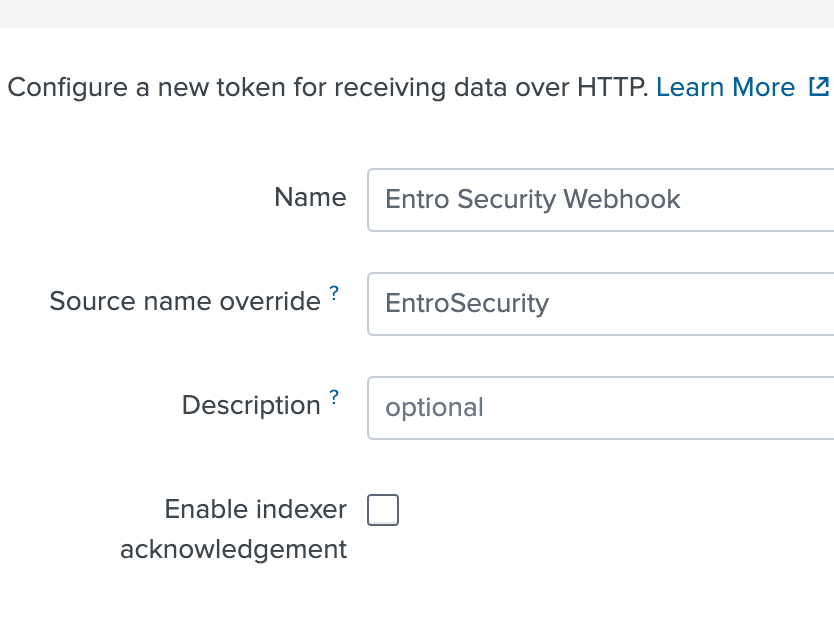
-
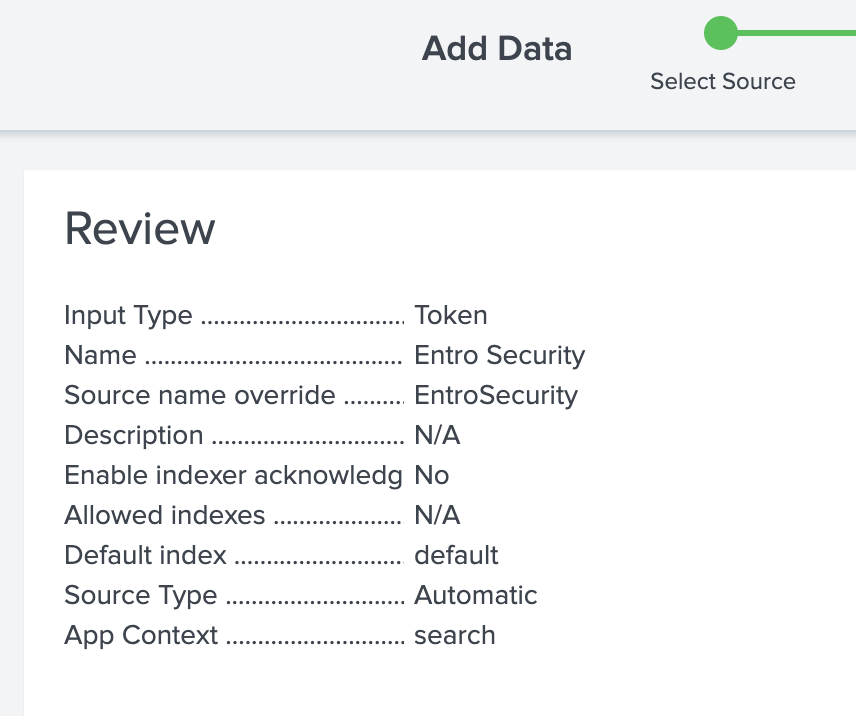
Leave the source type as Automatic, you can also configure the index where you would like your data to be stored. Click Review.
-
The final result should look roughly the same, click on Submit -
-
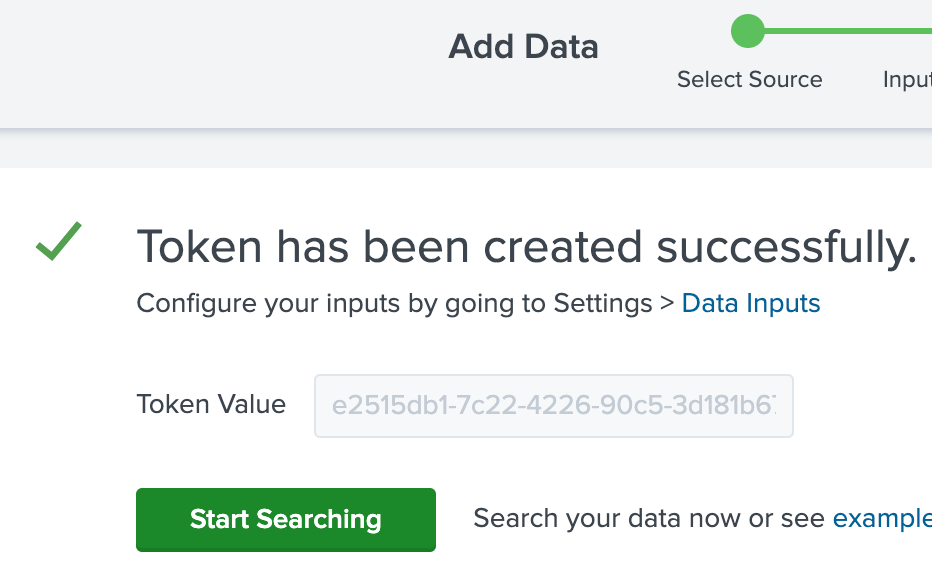
Copy the generated token
Sending Data
You must satisfy all the following conditions when you send data to HEC:
-
HEC must be enabled
-
You must use an active token to authenticate into HEC
-
Have a formatted Splunk HEC URL
Splunk Cloud Platform URL
You must send data using a specific URI for HEC.
The standard form for the HEC URI in Splunk Cloud Platform free trials is as follows:
The standard form for the HEC URI in Splunk Cloud Platform is as follows:
The standard form for the HEC URI in Splunk Cloud Platform on Google Cloud is as follows:
The standard form for the HEC URI in Splunk Cloud Fedramp Moderate on AWS Govcloud is as follows:
Where:
-
<protocol>is eitherhttporhttps -
You must add
http-inputs-before theon AWS. -
You must add
http-inputs.before theon GCP and AWS Govcloud. -
<host>is the Splunk Cloud Platform instance that runs HEC -
You must add the
.splunkcloud.comdomain after the<host> -
<port>is the HEC port number-
8088 on Splunk Cloud Platform free trials
-
443 by default on Splunk Cloud Platform instances
-
-
For the endpoint, in our case, you will use the
/services/collector/raw
Splunk Enterprise URL
The standard form for the HEC URI in Splunk Enterprise is as follows:
Where:
-
<protocol>is eitherhttporhttps -
<host>is the Splunk instance that runs HEC -
<port>is the HEC port number, which is 8088 by default, but you can change in the HEC Global Settings -
For the endpoint, in our case, you will use the
/services/collector/raw
Splunk authorization header structure
In SailPoint Entro
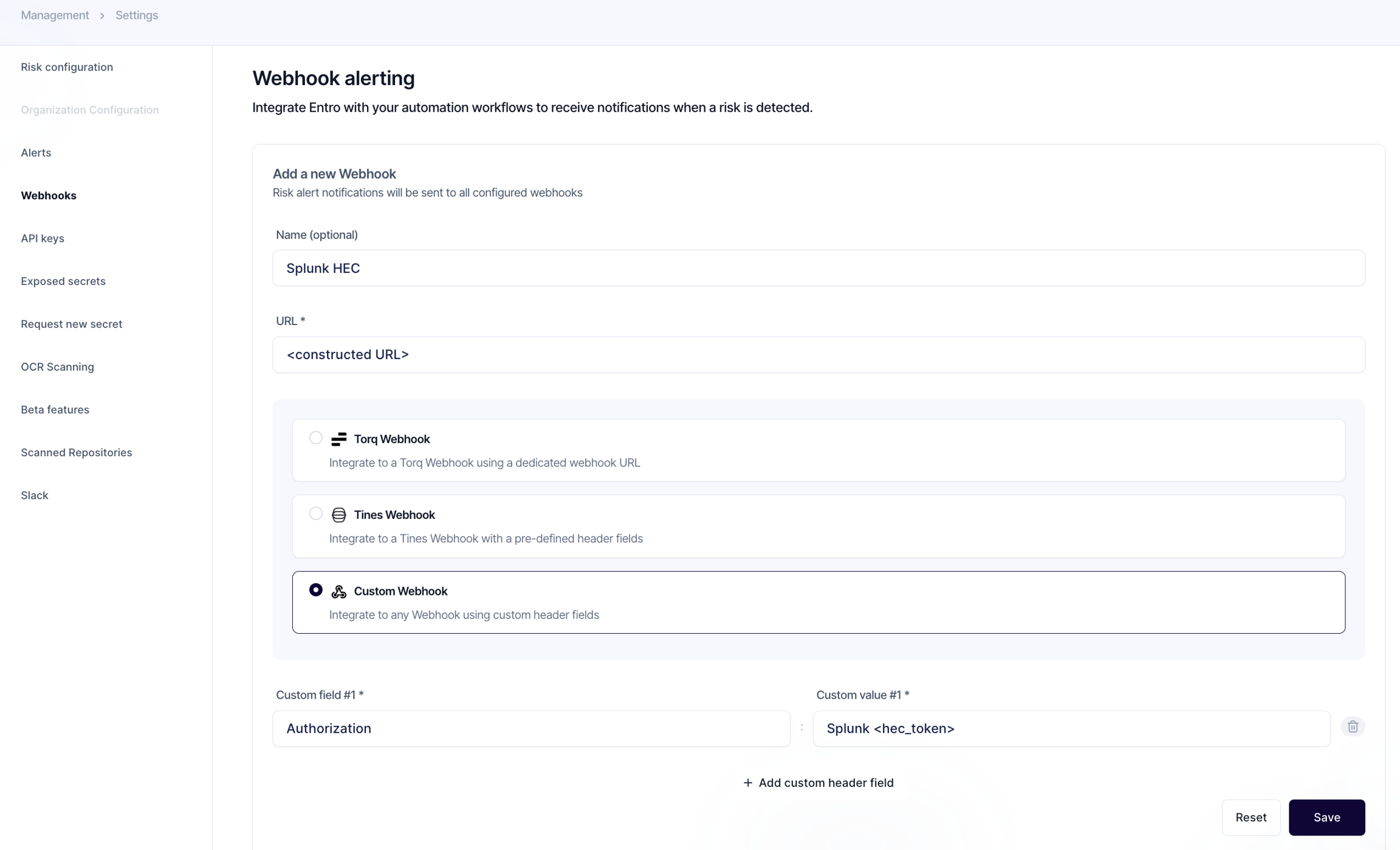
Head over to Settings → Webhooks
Create a custom webhook and fill in the form details as below.
More on Splunk HEC from Splunk's website-