GCP Workload Identity Federation (Manual)
Workload Identity Federation (WIF) lets SailPoint Entro's AWS role impersonate your GCP service account securely - no JSON key file required or stored.
This is the recommended authentication method for security-sensitive environments or organizations that enforce minimal credential storage.
Note
Before starting: Make sure you've already created a GCP service account for SailPoint Entro. If not, complete Steps 1 and 3 of the Console Onboarding guide first, then return here.
-
Navigate to Workload Identity Federation
-
In the GCP Console, search for "Workload Identity Federation" in the top search bar.
-
Select the result to open the Workload Identity Pools page.
-
-
Create a Pool
-
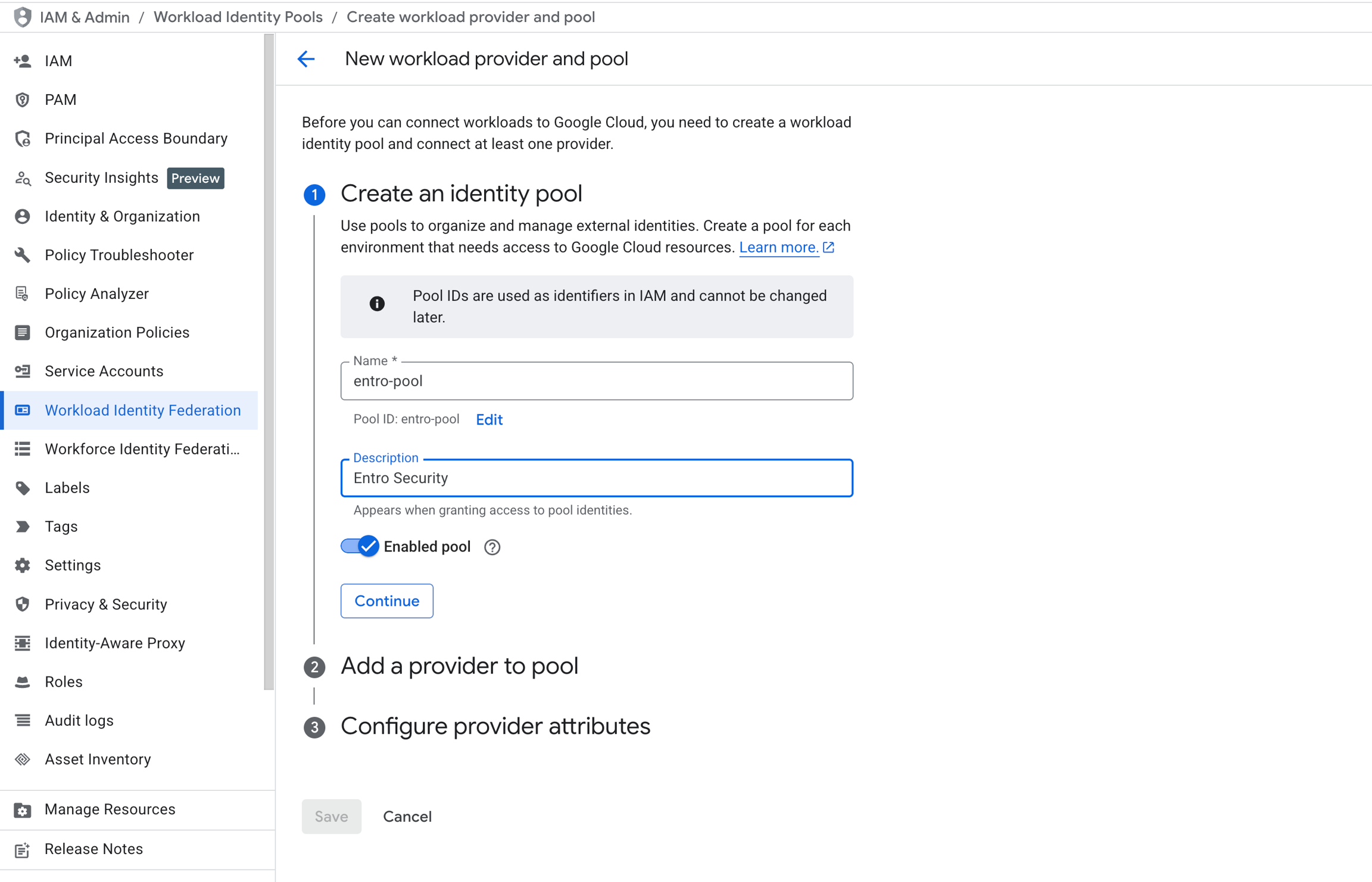
Click + CREATE POOL.
-
Enter a name (e.g.,
entro-pool) and an optional description. -
Leave the pool Enabled.
-
Click CONTINUE.
-
-
Configure the AWS Provider
-
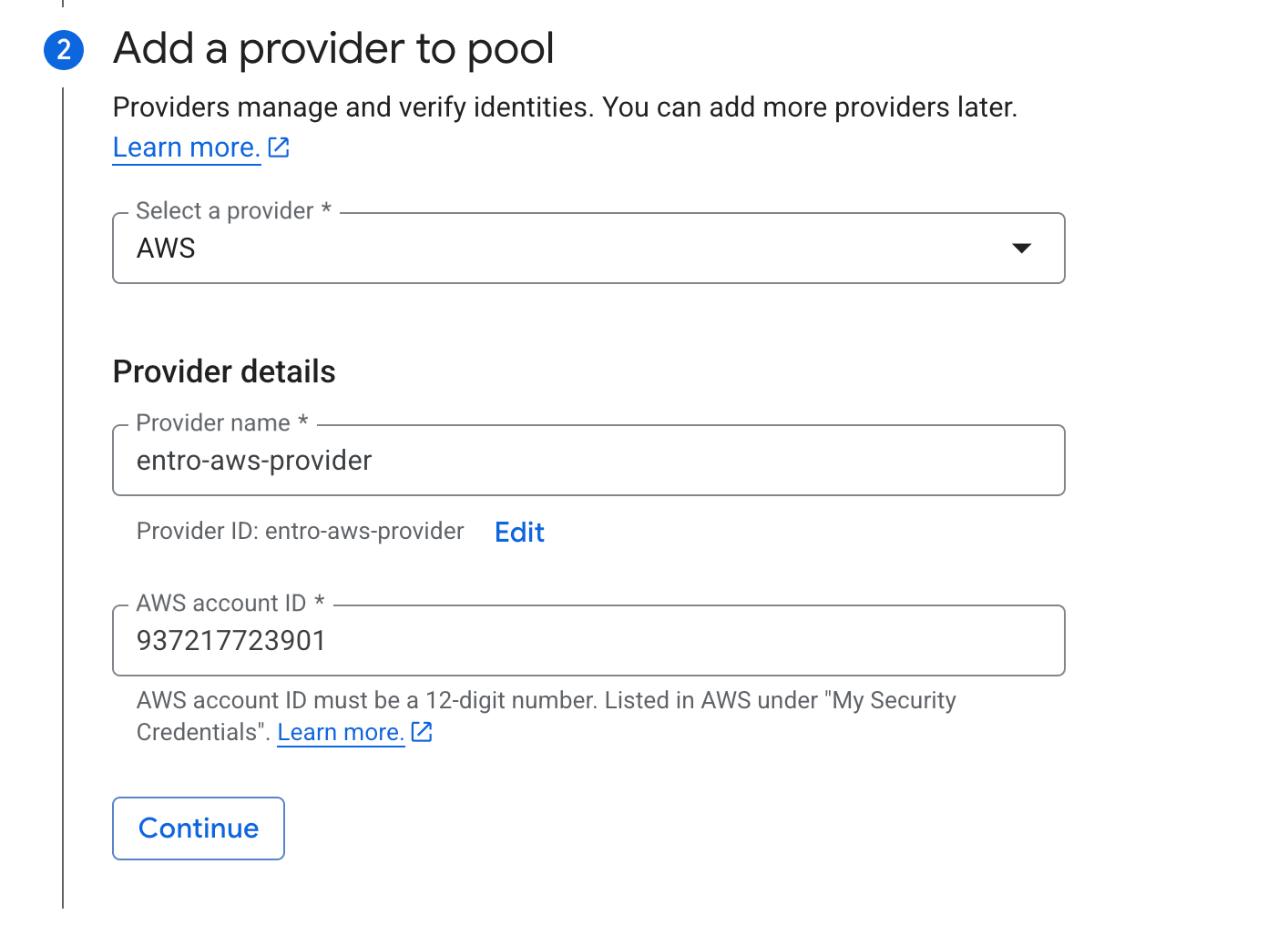
Under Select a provider, choose AWS.
-
Enter a provider name (e.g.,
entro-aws-provider). -
Under AWS Account ID, enter SailPoint Entro's AWS account ID:
937217723901 -
Click CONTINUE, then SAVE.
-
No need to configure attribute mapping.
Note
937217723901 is SailPoint Entro's AWS account ID - do not replace it with your own.
-
-
Grant Access
-
Once the pool is saved, click GRANT ACCESS.
-
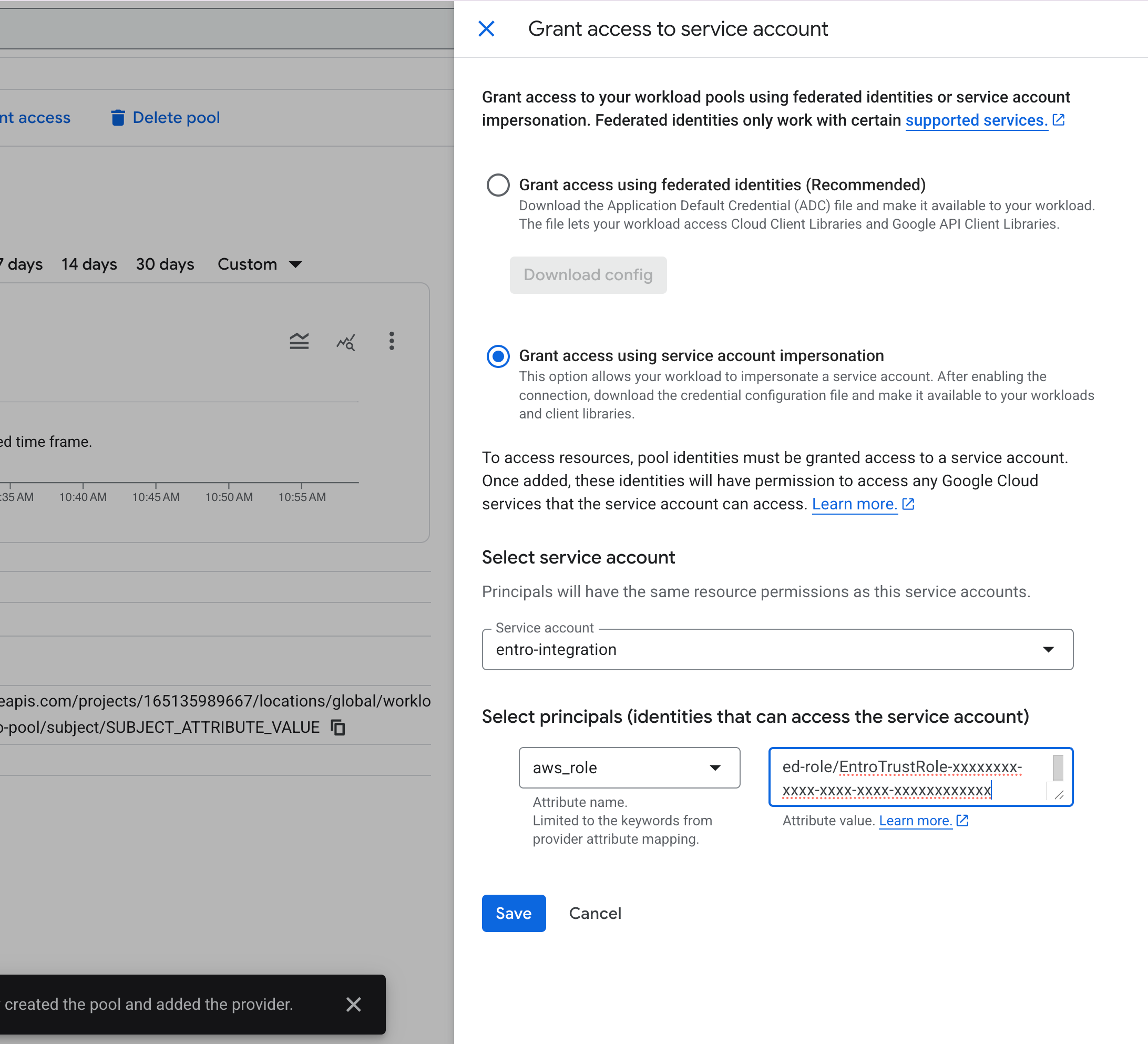
Select Grant access using Service Account impersonation.
-
-
Select the Service Account
Under Select service account, choose the service account you created for SailPoint Entro (e.g.,
entro-integration). -
Set the Attribute Condition
-
Under Attribute name, select
aws_role. -
Under Attribute value, enter the ARN of SailPoint Entro's dedicated AWS role.
Note
Where to find the SailPoint Entro ARN: In the SailPoint Entro portal, go to Management → Accounts & Integrations → Add New Account → Google Cloud Platform, then select Workload Identity Federation as the auth method. The ARN will be displayed on that screen. The format will be:
-
-
Complete and Save
-
Confirm the ARN format matches: arn:aws:sts::937217723901:assumed-role/EntroTrustRole-xxxxxxxx-xxxx-xxxx-xxxx-xxxxxxxxxxxx
-
Click SAVE.
-
-
Download the Configuration File
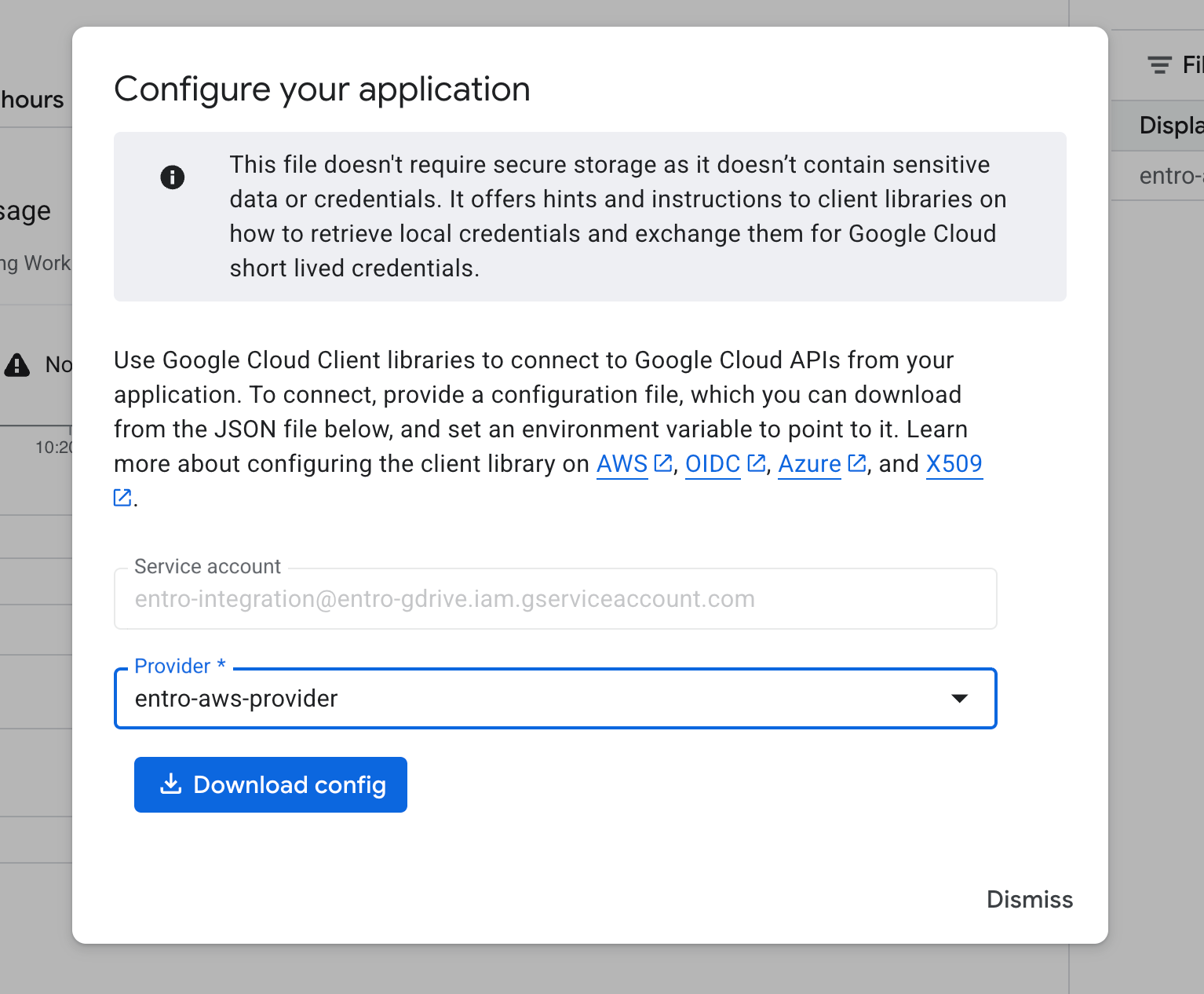
After saving in the previous step, a dialog will appear:
-
In the dialog, select the AWS provider you configured (
entro-aws-provider). -
Click DOWNLOAD CONFIG.
-
Save the downloaded JSON file — you will upload this to the SailPoint Entro portal during the final onboarding step.
-
-
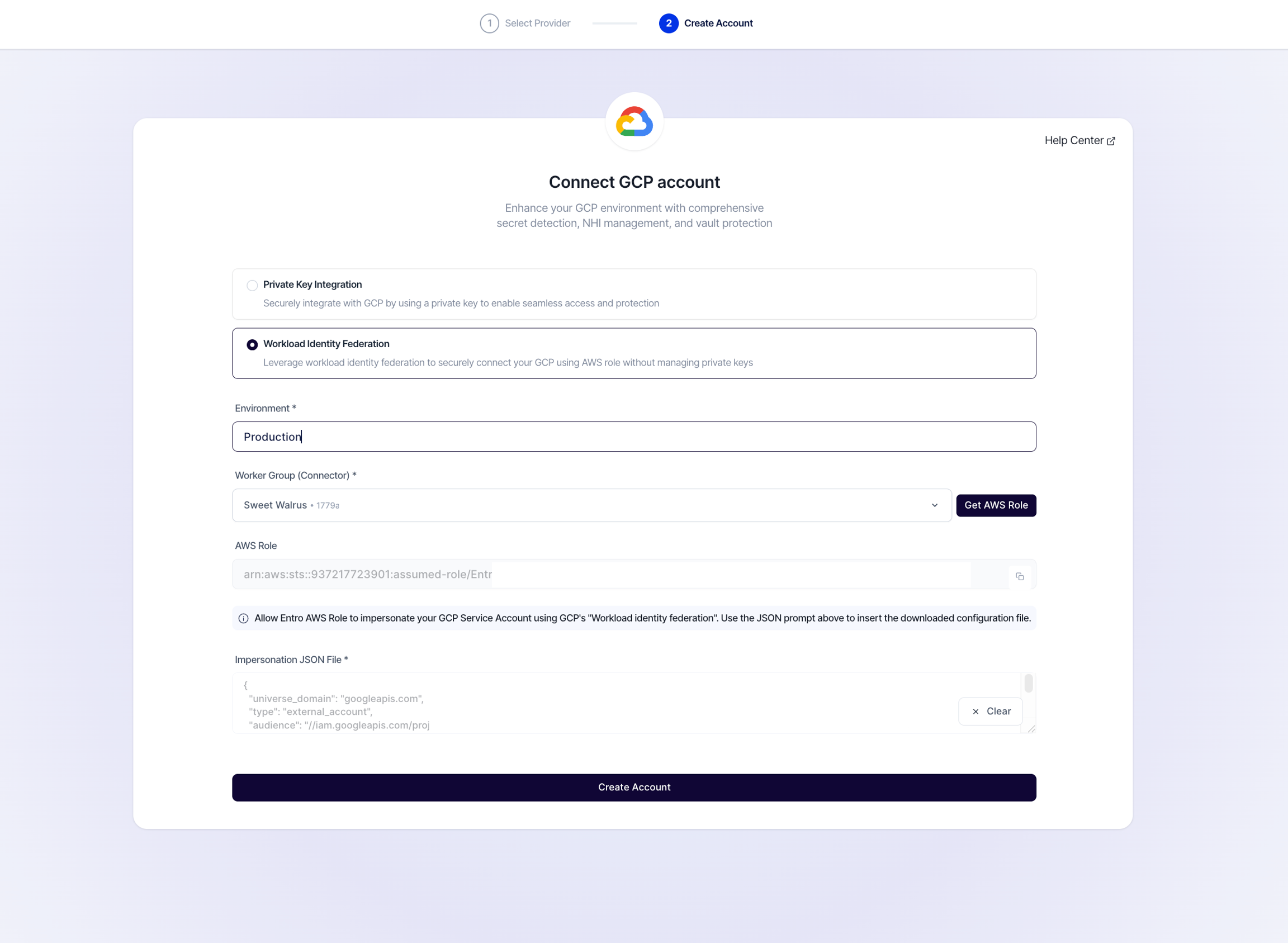
Complete Onboarding in SailPoint Entro
-
In the SailPoint Entro portal, go to Management → Accounts & Integrations → Add New Account → Google Cloud Platform.
-
Select Workload Identity Federation as the authentication method.
-
Enter your Environment name (i.e. Production)
-
Select your Worker Group (Connector)
-
Upload the configuration JSON file downloaded in the previous step.
-
Click Connect Account.
-
Once the status shows Verified, the integration is active.
-
Note
With WIF configured, SailPoint Entro will never store a static credential. The federation trust is scoped specifically to SailPoint Entro's designated AWS role and your service account - no broader access is granted.