JIT AWS Onboarding
At the moment, the SailPoint Entro JIT portal supports onboarding via IAM users only. Further down the line, IAM Role based onboarding will be supported.
Step 1: Create an IAM User
- AWS IAM Console → Users → Create user.
- Name example:
entrosec-jit-platform. - Do not enable console access.
This user should be programmatic only.
Step 2: Attach Required Permissions
Create and attach a custom IAM policy with the permissions below.
Copy the following AWS Policy or the one available in the portal as can be seen below.
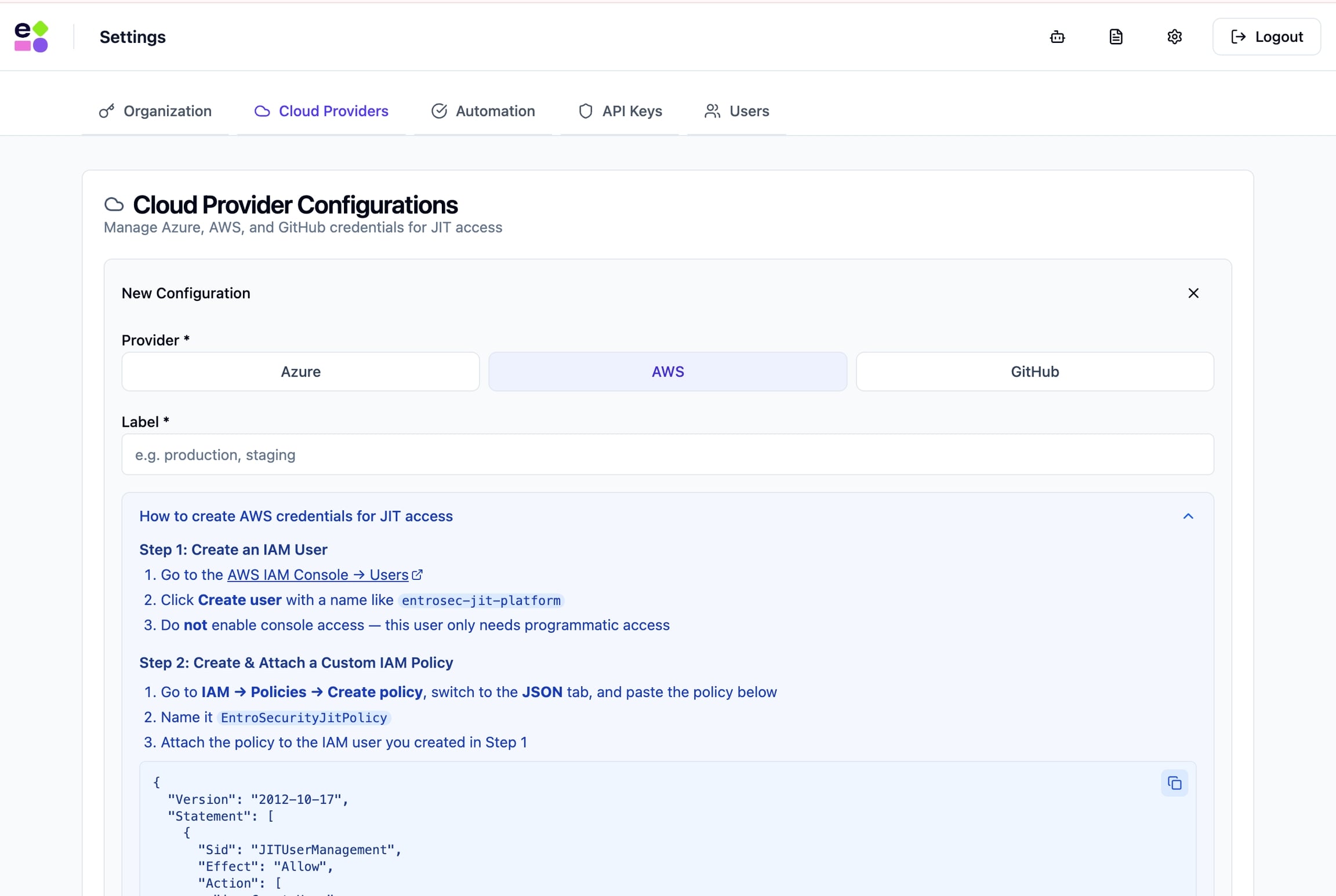
In the Portal's settings you will always find the updated required policy.
AWS SailPoint Entro JIT Policy
{
  "Version": "2012-10-17",
  "Statement": [
    {
      "Sid": "JITUserManagement",
      "Effect": "Allow",
      "Action": [
        "iam:CreateUser",
        "iam:DeleteUser",
        "iam:CreateAccessKey",
        "iam:DeleteAccessKey",
        "iam:AttachUserPolicy",
        "iam:DetachUserPolicy",
        "iam:PutUserPolicy",
        "iam:DeleteUserPolicy",
        "iam:TagUser",
        "iam:ListAttachedUserPolicies"
      ],
      "Resource": "*"
    },
    {
      "Sid": "JITRoleManagement",
      "Effect": "Allow",
      "Action": [
        "iam:CreateRole",
        "iam:DeleteRole",
        "iam:AttachRolePolicy",
        "iam:DetachRolePolicy",
        "iam:PutRolePolicy",
        "iam:DeleteRolePolicy",
        "iam:TagRole"
      ],
      "Resource": "*"
    },
    {
      "Sid": "STSAccess",
      "Effect": "Allow",
      "Action": [
        "sts:AssumeRole",
        "sts:GetCallerIdentity"
      ],
      "Resource": "*"
    },
    {
      "Sid": "Discovery",
      "Effect": "Allow",
      "Action": [
        "iam:ListPolicies",
        "iam:ListAccessKeys"
      ],
      "Resource": "*"
    },
    {
      "Sid": "SecretsManager",
      "Effect": "Allow",
      "Action": [
        "secretsmanager:CreateSecret",
        "secretsmanager:GetSecretValue",
        "secretsmanager:DeleteSecret",
        "secretsmanager:UpdateSecret",
        "secretsmanager:ListSecrets",
        "secretsmanager:TagResource"
      ],
      "Resource": "arn:aws:secretsmanager:*:*:secret:entrosec-jit*"
    }
  ]
}
Once an IAM user is created with the custom IAM policy above, create an AWS Secret Access Key and ID, head over into the portal and paste them in the form shown below.
Step 3: Create Access Keys
- Open the user → Security credentials.
- Click Create access key.
- Select Third-party service.
-
Copy:
-
Access key ID
-
Secret access key
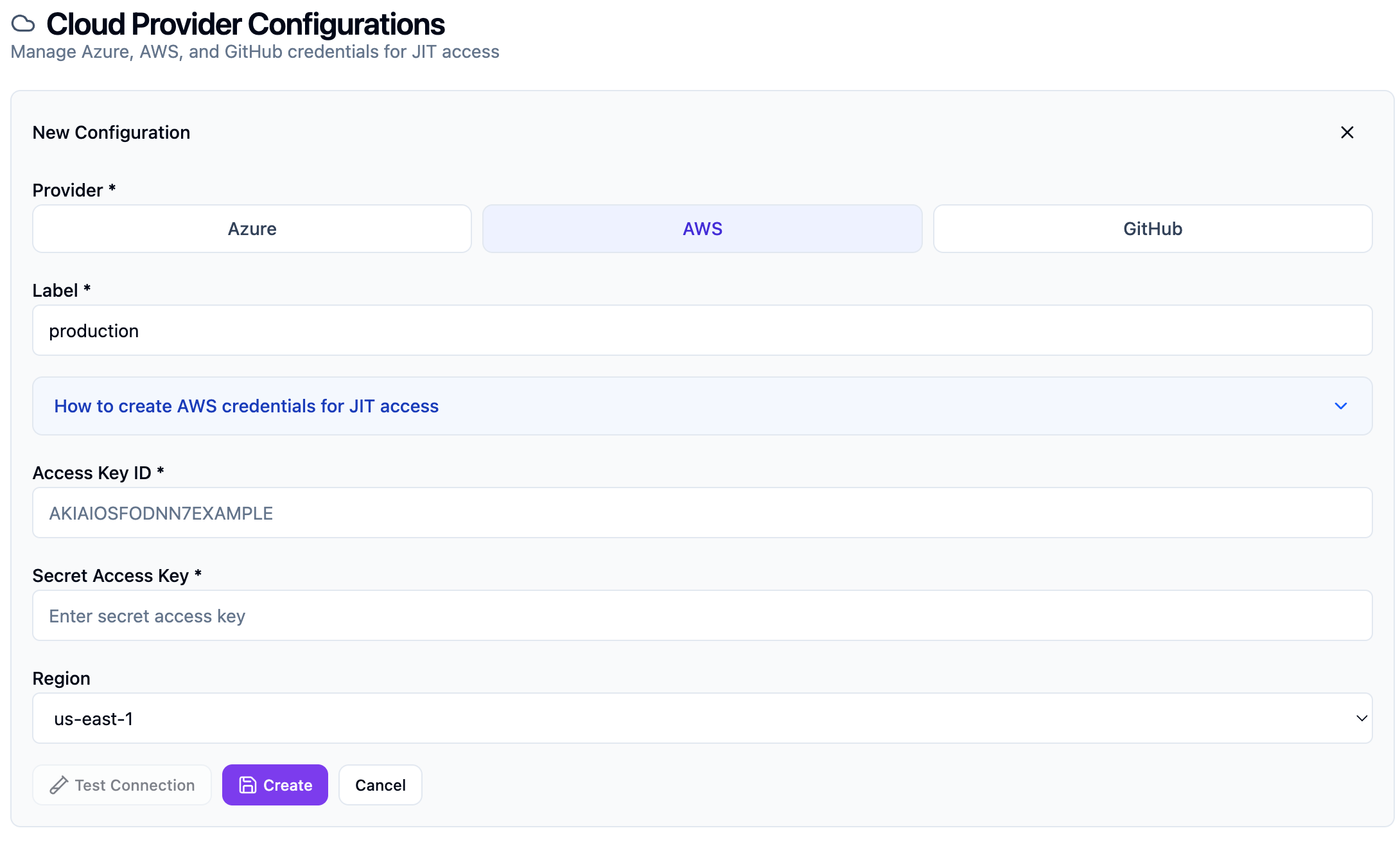
Before creating the configuration, an option to test these credentials will be available using the "Test Connection" button - Once confirm - click on Create and you will now be able to use SailPoint Entro's JIT for AWS.
-
Step 4: Enter Credentials in the Portal
- Settings → Cloud Providers → Add AWS.
-
Enter:
-
Label
-
Access key ID
-
Secret access key
-
Region
-
-
Click Test Connection.