Managing Non-Human Accounts
You can review and manage your organization’s non-human accounts on the Accounts page. Non-human accounts include machine, service, or bot accounts that relate to a program or service.
You can view a list of non-human accounts, their statuses, owners, and associated non-human identities by selecting Accounts from the Non-Human Identities section of the navigation menu.
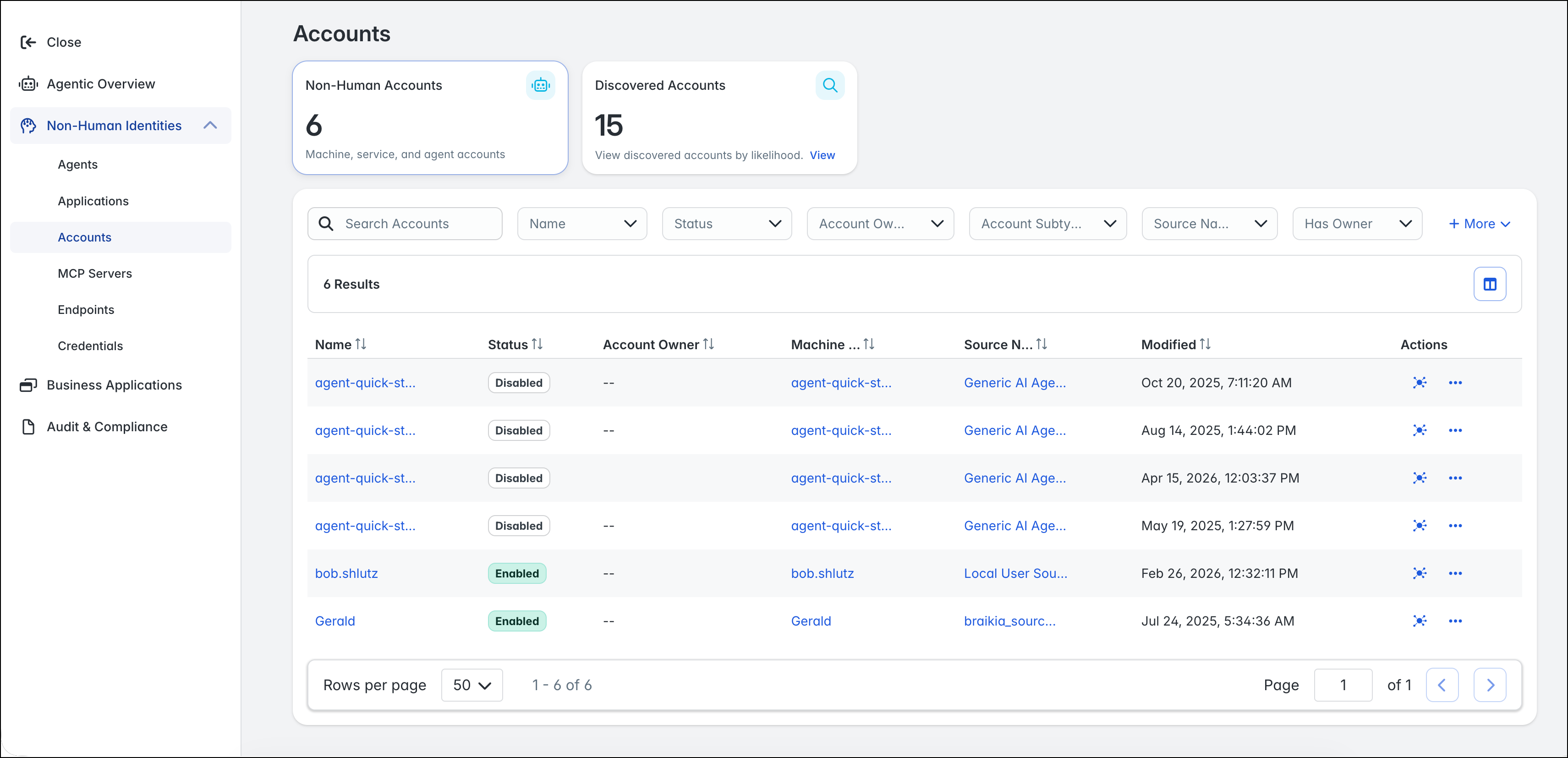
You can use the quick filter tiles to review all accounts or refine the account list to view discovered accounts. You can use more filters to further refine the accounts listed in the table. Select + More to view more filter options. To clear all filters, select Clear All Filters.
Viewing Account Details
You can select an account to view additional information about it and its attributes.
-
Go to Agentic Fabric.
-
From the navigation menu, go to the Non-Human Identities section and select Accounts.
-
Select an account.
On the account’s page, you can:
- View and copy the account’s attributes in the Details tab. You can update the display of this page by:
- Pinning
 important attributes to the Overview section. The attributes display in the order they were pinned. The default attributes cannot be unpinned.
 - Updating the display of the Attributes section to view attributes in a single column or multiple columns.
- Pinning
- Review the account’s correlated non-human identities in the Non-Human Identities tab.
- View the account’s identity graph, entitlement assignments, and direct permissions in the Access tab.
- View and copy the account’s attributes in the Details tab. You can update the display of this page by:
Disabling Non-Human Accounts
You might need to disable an account on a source.
-
Go to Agentic Fabric.
-
From the navigation menu, go to the Non-Human Identities section and select Accounts.
-
Find the account you want to disable and select Actions
 > Disable Account.
 -
In the confirmation window, select Disable.
You can reenable an account by selecting Actions > Enable Account.
Aggregating Non-Human Accounts
You can aggregate data for a single account rather than run a full aggregation.
-
Go to Agentic Fabric.
-
From the navigation menu, go to the Non-Human Identities section and select Accounts.
-
Find the account you want to aggregate and select Actions
> Aggregate Account.
If the account’s source is in a healthy state, the aggregation will begin.
Updating Non-Human Accounts
You can manually update a non-human account. For example, you might need to update the account owner for a non-human account if the previous owner moves to a different role or leaves your organization.
-
Go to Agentic Fabric.
-
From the navigation menu, go to the Non-Human Identities section and select Accounts.
-
Find the account you want to update and select Actions
> Update Account. -
Make changes as needed and select Apply.
Discovering Potential Non-Human Accounts
Agentic Fabric identifies possible non-human accounts based on common patterns of non-human account attributes. You can review these insights to see why the account was recommended as a non-human account and determine whether you should update its correlation.
To view a list of discovered accounts:
-
Go to Agentic Fabric.
-
From the navigation menu, go to the Non-Human Identities section and select Accounts.
-
Select the Discovered Accounts tile to view accounts identified as potential non-human accounts.
Note
SailPoint’s Machine Account Discovery reviews updated accounts daily to discover possible non-human accounts. When discovered, the Discovered as Machine or Discovered as Agent label is added to these accounts.
-
Select the Discovered as Machine filter to view a list of possible machine accounts that should be correlated to machine identities.
-
Select the Discovered as Agent filter to view a list of possible non-human accounts that should be correlated to agents.
-
Select the label in the Insights column to view the reasons why the account was discovered as a potential non-human account.
-
If the account is a non-human account, select the checkbox for the account and select Correlate to Machine Identity.
To update the correlation for multiple accounts, select the checkboxes next to the accounts and then select Correlate to Machine Identity.
-
If the account is a human account, select the checkbox for the account and select Dismiss Insights. The account is removed from the list of accounts.
To dismiss insights for multiple accounts, select the checkboxes next to the accounts and then select Dismiss Insights.
Updating Correlation
If a user classified a non-human account incorrectly, you can update the account’s correlation to update its classification.
-
Go to Agentic Fabric.
-
From the navigation menu, go to the Non-Human Identities section and select Accounts.
-
Find the account you want to update and select Actions
> Update Correlation. -
Under Account Type, select the type of account the account should be updated to.
-
In the Correlated Identity dropdown list, select the identity the account should be correlated to.
-
Select Save to save these changes.
Removing Non-Human Accounts
You might need to remove an account to fix data on the source.
-
Go to Agentic Fabric.
-
From the navigation menu, go to the Non-Human Identities section and select Accounts.
-
Find the account you want to remove and select Actions
> Remove Accounts. -
In the confirmation window, select Remove to remove the account. This action removes the account from SailPoint Human Fabric, not from the source system itself.
The account is removed and will be added again during your next full aggregation.
Note
If your source is configured for delta aggregation, you should disable it if you want to reaggregate the account.
Deleting Non-Human Accounts
If your organization has decommissioned an application, you may need to delete the non-human accounts associated with it. If approvals are required for the deletion, your request will be sent to a reviewer and will go through the configured approval process.
-
Go to Agentic Fabric.
-
From the navigation menu, go to the Non-Human Identities section and select Accounts.
-
Find the account you want to delete and select Actions
> Delete Account.Notes
- You can only delete accounts on direct connect sources that support account deletion. Refer to SailPoint Identity Security Connectors for a list connectors and their supported account operations.
- Account deletions are not supported on the IdentityNow source.
-
In the confirmation window, review the account and source information.
-
If your request requires approval, enter the business justification for deleting this account in the Comment field and select Request.
-
If your request does not require approval, select Delete to confirm the deletion.
You can track the status of your request on the Account Requests page in your Request Center. You’ll also receive email notifications about the request throughout its approval and provisioning process.
Note
For Service Desk Integration sources, a ticket will be created to track the account deletion request.
If your request is approved, the account is removed from the source. If your request is denied, no action is taken on the account.
Documentation Feedback
Feedback is provided as an informational resource only and does not form part of SailPoint’s official product documentation. SailPoint does not warrant or make any guarantees about the feedback (including without limitation as to its accuracy, relevance, or reliability). All feedback is subject to the terms set forth at https://developer.sailpoint.com/discuss/tos.