Creating and Managing Entitlement Types
Each source can have at least one entitlement type, and many support multiple entitlement types. Each entitlement type has a schema that defines its attributes - the enhanced information you want to aggregate about that type. Most direct connect sources come with an entitlement type and schema configured by default.
You can edit the default schema to fit the data in your source. If your direct connect source doesn't have an entitlement schema by default, you can create a new one.
Creating an Entitlement Type
For sources that have no predefined entitlement type or that support multiple entitlement types, you can create a new entitlement type and manage its schema through the user interface.
- Go to Admin > Connections > Sources.
- Select or edit the direct connect source you want to update.
-
In the Entitlement Management section, select Entitlement Types and Schemas.
If you already have one or more types of entitlements for this source, they are listed here.
Notes
- Some sources only support accounts and will not have an Entitlement Management section.
- Multiple attributes cannot be marked with the same entitlement type in an account schema.
-
Select Create Entitlement Type.
-
Enter a name and description for this entitlement type.
Important
- The name you give your entitlement type must exactly match the name of the entitlement type as it appears on the source. This is sometimes called the native object type.
- Do not create an entitlement type called
permissionwith any capitalization. Entitlements of the typepermissionconsidered direct permissions, and they are are aggregated and handled differently than other entitlements. Refer to Entitlement Permissions for more details.
-
To aggregate indirect permissions granted through this type of entitlement, select the Include permissions in aggregations checkbox. This information appears in certifications to aid decision-making about access to the entitlements.
-
If you use SailPoint CIEM and this entitlement type can grant access to a cloud resource, select the Cloud Enabled checkbox.

-
Select Save.
Your new entitlement type is added to the list. You can then define the entitlement type schema attributes.
Defining Entitlement Type Schema Attributes
-
Within the entitlement type on the Entitlement Types and Schemas page, select Add Attribute to add an attribute to this entitlement type's schema.
-
Enter a name and description for this attribute.
Important
- The attribute's name should exactly match the attribute name in the source system.
- Entitlement attribute names cannot include periods.
- Attributes cannot exceed 128 characters.
-
Under Type, choose the type of value this attribute will contain. You can choose string, long, int, or boolean, or you can link entitlement types by choosing another entitlement type.
-
To mark this attribute as an entitlement, select the Entitlement checkbox. This option should only be used if you selected another entitlement type from the Type dropdown list.
- To configure this attribute to support multiple values, select the Multi-Valued checkbox.
- If you want to add another attribute after saving this one, select the Add Another checkbox.
-
Select Save.
Important
- When you create the first attribute in an entitlement schema, it is automatically marked as both the Entitlement Name and Entitlement ID. This can be edited later.
- Be sure to select the correct entitlement name and ID before aggregating entitlements of this type. Changing these attributes later can cause duplicate entitlements to be aggregated.
-
Repeat the above steps for each attribute you want to include in this entitlement schema.
-
If necessary, edit which attributes are listed as the Entitlement Name and ID by editing the entitlement type.
Note
Populated entitlement schema attributes will appear in certifications as additional attributes within the entitlement's details page. Reviewers can use these attributes to help inform their decisions.
Linking Multiple Entitlement Types
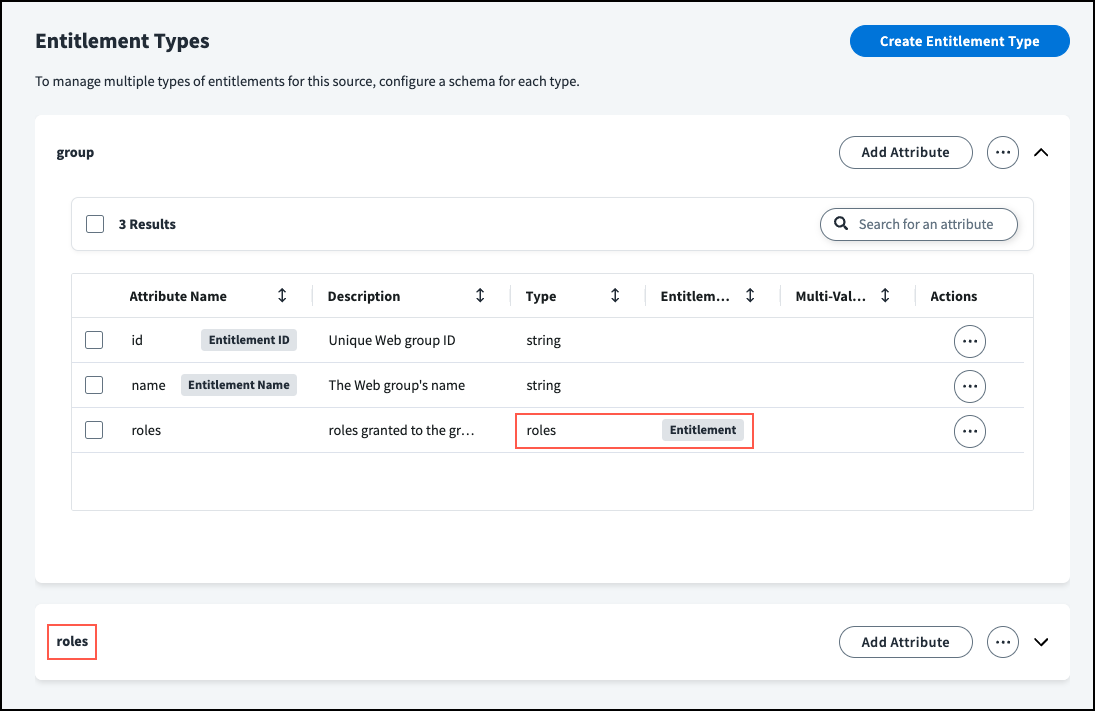
In systems with multiple types of entitlements, one entitlement type might contain and grant entitlements of another type. In that case, the Type of the attribute that connects them should be set to the other entitlement type.
For example, if a system has both group and role as entitlement types, and a group can grant role entitlements to its members, then the group schema will contain an entitlement attribute of type role, linking groups to the roles they grant.
Note
If you choose an entitlement type as an attribute's Type, Entitlement is automatically selected.
Connecting Account Data to Entitlement Types
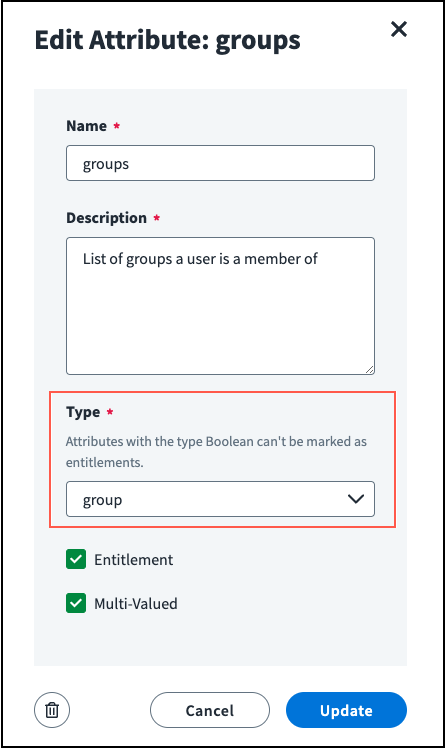
When you have an entitlement type and schema, your account schema's entitlement attribute needs to be connected to the entitlement data by setting the Type of that attribute to the entitlement type.
- Go to Admin > Connections > Sources.
- Select or edit the direct connect source with the account schema you want to update.
- In the Account Management section, select Account Schema.
- Select Actions
 > Edit on the attribute marked as an Entitlement.
 -
Set the Type to the entitlement type you want and select Update.
Editing an Entitlement Type
- Go to Admin > Connections > Sources.
- Select or edit the direct connect source with the entitlement schema you want to update.
- In the Entitlement Management section, select Entitlement Types and Schemas.
- On the entitlement type, select Actions > Edit Type.
- Make any necessary changes, such as adding the permissions in aggregations or changing which attributes are used as the Entitlement ID and the Entitlement Name.
-
If you use SailPoint CIEM and this entitlement type can grant access to a cloud resource, select the Cloud Enabled checkbox.
-
Select Update.
If you changed the attributes marked as the Entitlement ID and Name, you'll be asked to confirm your selections. Updating these attributes after aggregating your entitlements can cause duplicate entitlements to be aggregated.
-
To edit attributes within the entitlement type, select Actions
> Edit on the attribute row. - You can edit and add schema attributes as you did when creating the entitlement type.
- To mark multiple attributes as multi-valued, select the checkboxes on the rows and select Multi-Valued.
Deleting an Entitlement Type
To delete an entitlement type and its associated schema, select Actions > Delete Type.
You can delete schema attributes individually by selecting Actions > Delete on the attribute row or in bulk by selecting the checkboxes on the attribute rows you want to delete and choosing Delete Attributes.
Deleting an entitlement type does not delete the associated entitlements. Entitlements of that type will not be aggregated or updated until another type is created for them. Refer to Deleting Entitlements for more information.
Documentation Feedback
Feedback is provided as an informational resource only and does not form part of SailPoint’s official product documentation. SailPoint does not warrant or make any guarantees about the feedback (including without limitation as to its accuracy, relevance, or reliability). All feedback is subject to the terms set forth at https://developer.sailpoint.com/discuss/tos.