Viewing Identity Control Panels
You can view detailed information about an identity in its control panel.
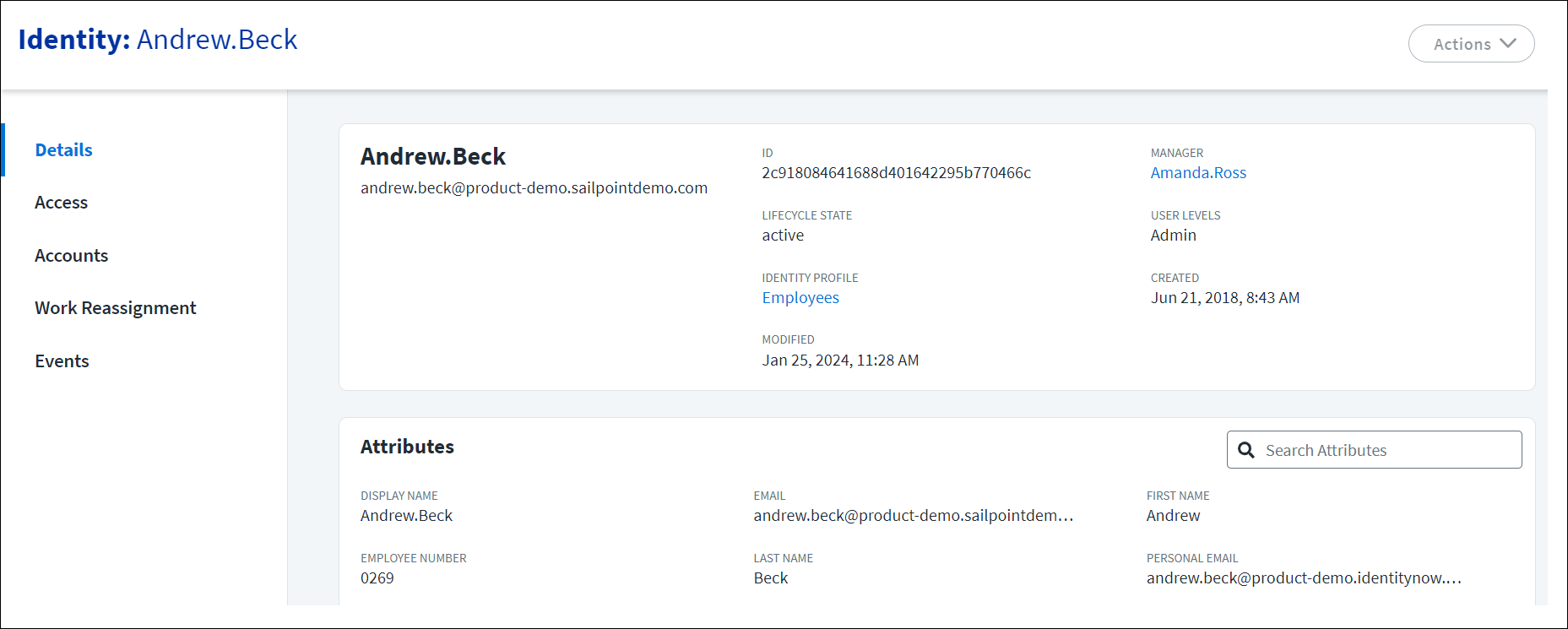
Accessing an Identity's Control Panel
- Go to Admin > Identity Management > Identities.
- Find and select an identity.
From the control panel, you can:
- View and edit an identity's lifecycle state and user level permissions.
- View the identity profile that the identity belongs to.
- View the dates the identity was created and last modified.
- View and copy the identity's attributes.
- View, add, or update the identity's work reassignment configurations.
You can also update the display of the control panel to better access the information you need by:
- Pinning
 attributes to the Overview section. The attributes display in the order they were pinned. The default attributes cannot be unpinned.
 - Updating the Attributes section to display attributes in a single or multiple columns.
Viewing an Identity's Access
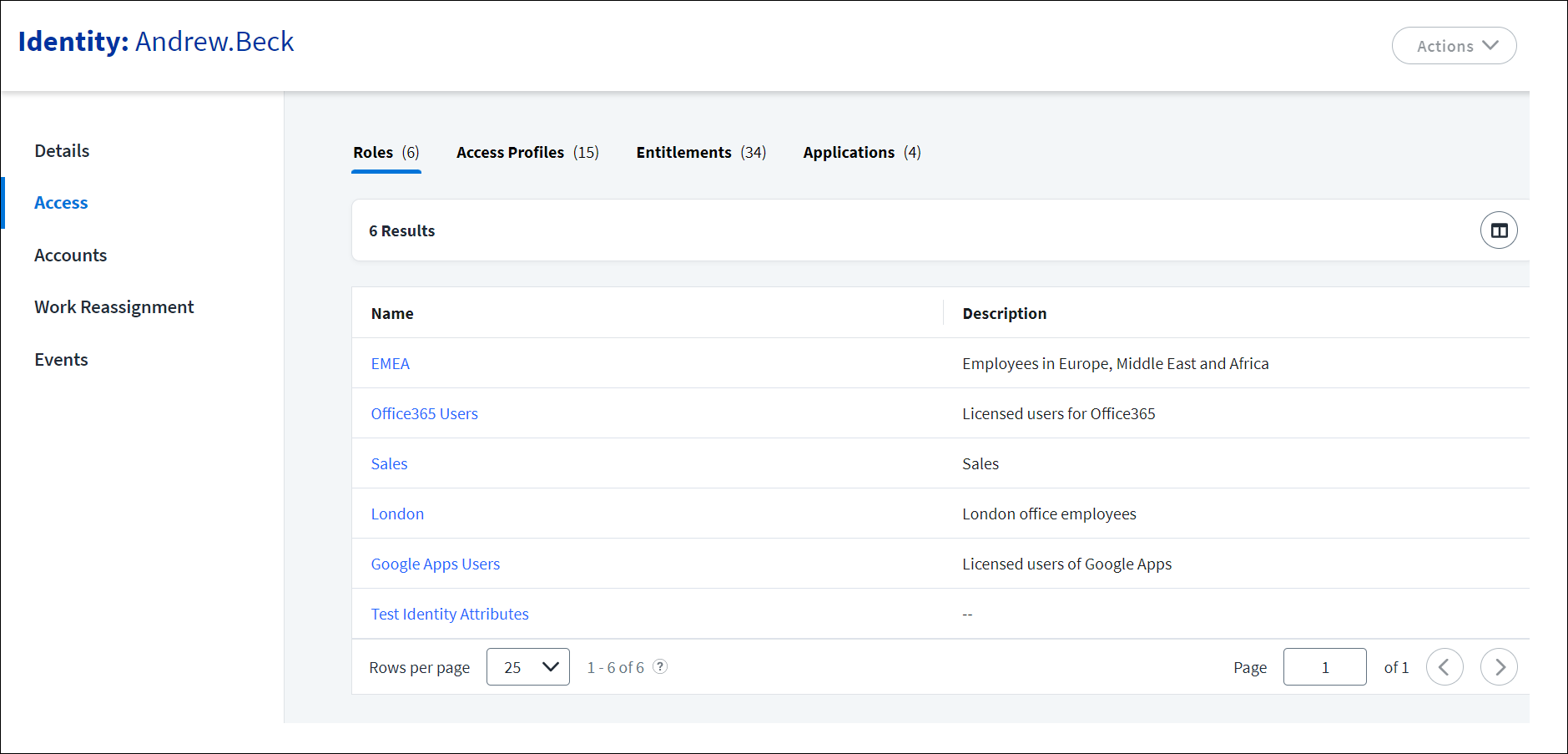
You can view the roles, access profiles, entitlements, and applications an identity has access to on the Access tab.
-
Go to Admin > Identity Management > Identities.
-
Find and select an identity.
-
Select the Access tab to display the access items the identity has access to.
You can switch between roles, access profiles, entitlements, and applications by selecting the tab for that type of access item.
Selecting an access item displays further information about the access. For roles, this includes the number of assignments and their associated accounts. You can also revoke role assignments from here.
Notes
A role can only be revoked if it was provisioned through an access request.
Viewing Identity Events
You can view an identity's system activity, including their logins and password changes, on the Events tab. This tab displays events where the identity is the actor or the target of an action. The same information can be found for all identities through Search within Events.
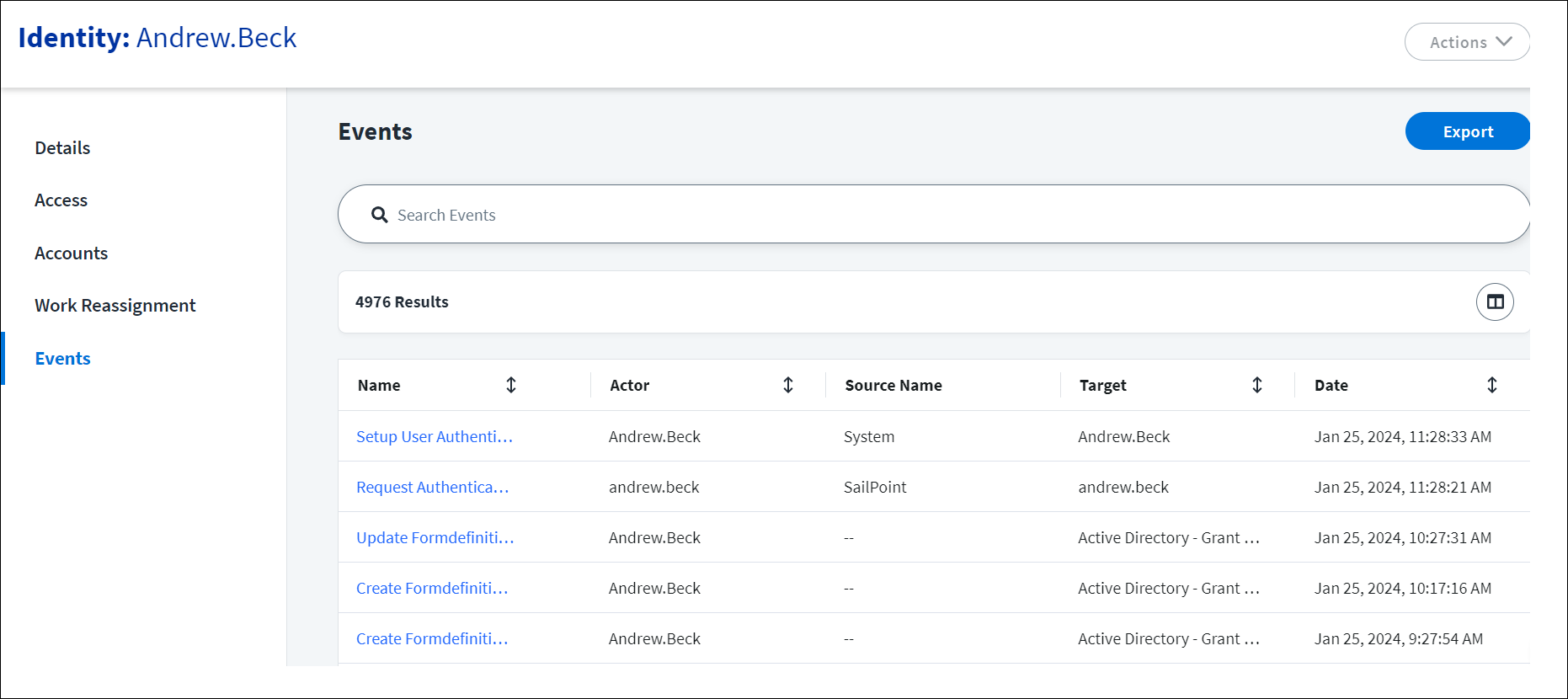
The Events tab displays successful and failed actions. If an action failed, you can select the Error icon  to view information about the error.
To view an identity’s events:
-
Go to Admin > Identity Management > Identities.
-
Find and select an identity.
-
Select the Events tab to display the identity’s events.
To export the identity’s event history to a .csv file, select the Export button.
Viewing an Identity's Ownership
If your organization has Machine Identity Security or Agent Identity Security, you can view the machine accounts, AI agents, or application identities that a human identity is responsible for in the Ownership tab. This information allows you to establish relationships between identities and accounts that might be distributed across different systems.
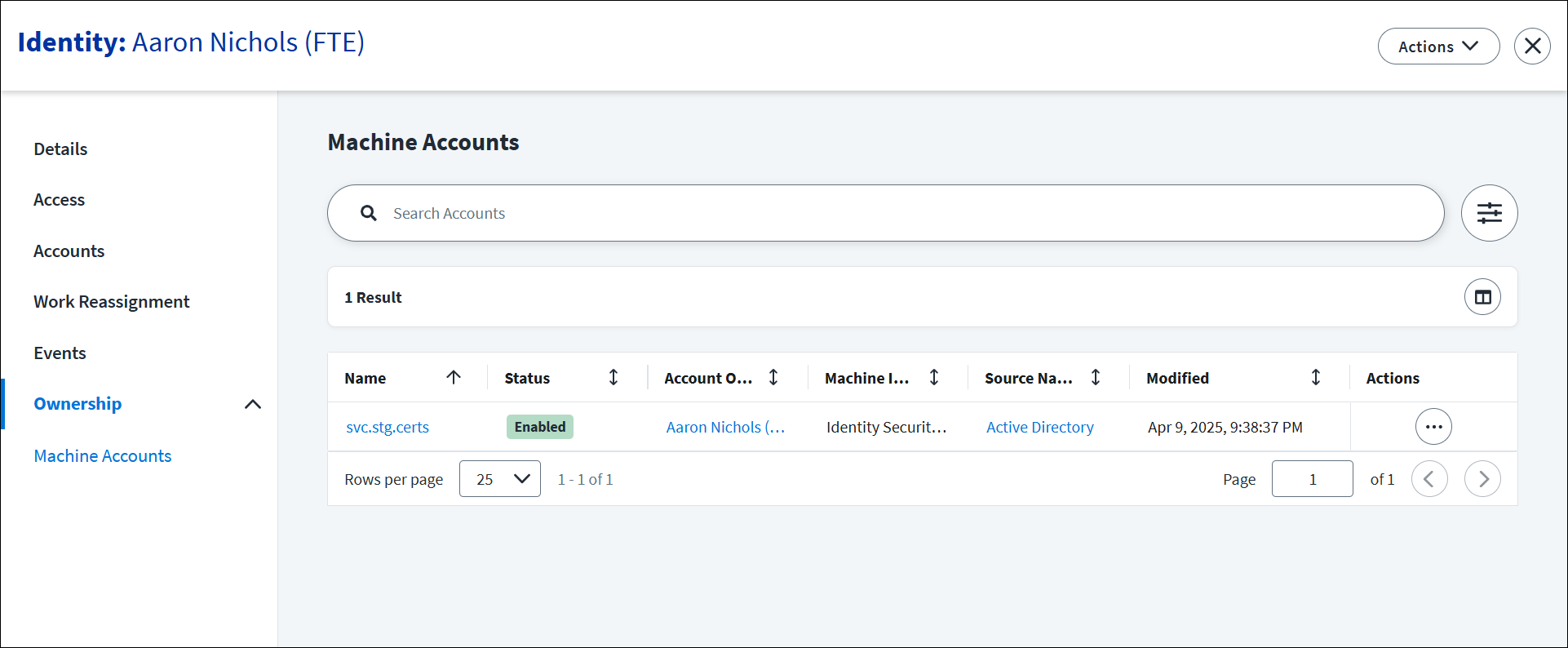
To view a human identity's ownership
-
Go to Admin > Identity Management > Identities.
-
Find and select an identity.
-
From the left panel, select the Ownership tab.
-
On the Ownership page, select the Machine Accounts, AI Agents, or Application Identities tile to display the items the human identity is responsible for.
You can update the owner of a machine account, agent, or application identity by selecting the item's Actions
 menu.
menu.
Documentation Feedback
Feedback is provided as an informational resource only and does not form part of SailPoint’s official product documentation. SailPoint does not warrant or make any guarantees about the feedback (including without limitation as to its accuracy, relevance, or reliability). All feedback is subject to the terms set forth at https://developer.sailpoint.com/discuss/tos.