Aggregating Entitlements
You can run an entitlement aggregation to collect information from a direct connect source just as you can aggregate accounts: manually or on a schedule. Flat file sources can only be manually aggregated.
Note
Aggregations can be performed for up to 2 million new or changed entitlements.
Aggregating Entitlements for a Direct Connect Source
-
Go to Admin > Connections > Sources.
-
Select or edit the direct connect source you want to aggregate entitlements on.
-
In the Entitlement Management section, select Entitlement Aggregation.
Note
Some sources only support accounts and will not have an Entitlement Management section.
-
In the Entitlement Aggregation section, you can choose to aggregate manually or schedule recurring aggregations.
Note
The summary information for a completed entitlement aggregation includes the number of entitlements discovered by the aggregation. This may vary from the total number of entitlements listed in the Entitlements tab, which includes all entitlements created through all entitlement aggregations or account aggregations.
Starting a Manual Aggregation
From the Entitlement Aggregation page, select Start Aggregation to start a manual aggregation. All entitlement types are aggregated by default. To change this, select Specific Types before choosing Start Aggregation.
Your aggregation begins immediately and occurs once. Information about the most recent entitlement aggregation is displayed under Latest Entitlement Aggregation. To view the list of all entitlement aggregations, go to the Aggregation History page.
Note
Quick Compliance sources can be manually aggregated once per day. This limit does not apply to Org Admins.
Scheduling Recurring Aggregations
-
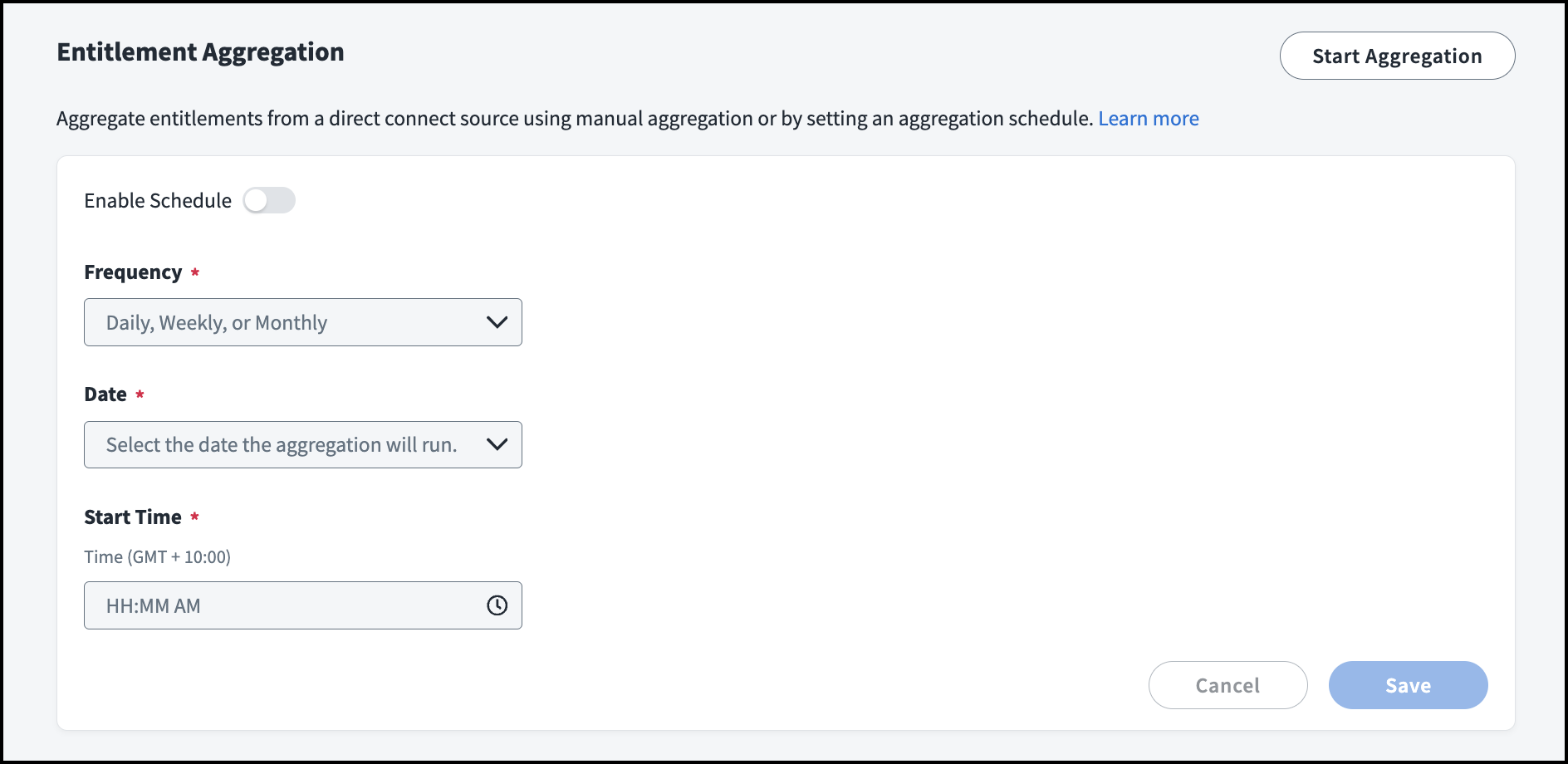
From the Entitlement Aggregation page, select Enable Schedule.

-
Choose whether to aggregate all entitlement types or only specific types. If you choose to aggregate specific entitlement types, select which entitlement types to include.
-
Choose how often the aggregation should run:
- Daily: choose starting time and frequency
- Weekly: choose day of week and time
- Monthly: choose day of month and time
Notes
- If you choose Daily, the time period selected in the Reoccurs Every field determines how often the aggregation occurs after the time selected. For example, if you schedule a daily aggregation for 5 PM to recur every 4 hours, the aggregation will run only at 5 PM and 9 PM, depending on the load.
- The time zone (GMT offset) for the entitlement aggregation schedule is determined by the time zone set for the connected virtual appliance cluster.
- Quick Compliance sources can be scheduled to aggregate entitlements up to 3 times per day, with a minimum frequency of 8 hours between aggregation. These limits do not apply to Org Admins.
-
Select Save.
The aggregation is added to the processing queue at the time you defined. Other queued or in-progress operations might delay the start of your aggregation.
Aggregating Entitlements for a Flat File Source
You can aggregate entitlements from a flat file source by uploading a flat file containing your entitlement data. It is not possible to schedule recurring entitlement aggregations or configure multiple entitlement types for a flat file source. The most common type of flat file source is a delimited file.
To upload entitlements from a flat file source:
- Go to Admin > Connections > Sources.
- Select or edit the flat file source you want to add entitlements to.
- In the Entitlement Management section, select Entitlement Aggregation.
-
(Optional) If you haven't created a .csv file with the entitlement data, select Download Entitlement Schema to download a .csv template that can be used for the file import. Fill out the columns in this template based on the required attributes on your source.
All default entitlement schemas will include at least these columns:
- id - the unique identifier for the entitlement
- name - the technical name for the entitlement
- displayName - the name for the entitlement that displays in the SailPoint Human Fabric UI
- description - the description of the entitlement visible in the UI and during certifications
The id column is required for each entitlement. This is the unique identifier for the entitlement and is matched to the values in the entitlement column of the account schema.
Note
The file you upload for a source must use the column headings included in the entitlements template for that source. Column headings differ based on the type of source you're downloading entitlements from.
-
Enter your entitlement information in the .csv file with the required columns or edit your existing entitlements file to include the template's column headings.
Important
- Names and descriptions should help users to make good decisions when reviewing access requests or certifications.
- You cannot change the columns by rearranging, adding, or omitting columns in this file. To change these fields, you must modify the entitlement schema.
- The file you upload for a source must not exceed 1 MB.
If you need help setting up this entitlement file, contact SailPoint Expert Services.
-
In the Entitlement Aggregation section of the flat file source, import the list of entitlements by selecting the Upload icon
 and choosing the .csv file, or select Aggregate Using Latest File to use a previously uploaded list.
While an aggregation is running, the Start Aggregation button will be disabled. You can view the progress of this aggregation in the Account Aggregation section on this page.
You can view aggregation activity on the Aggregation History page in the Aggregation History and Connections section.
After uploading this file, you can edit entitlements as described in Working with Entitlements. You can add or remove entitlements by importing a new file.
Note
- The summary information for a completed entitlement aggregation includes the number of entitlements discovered by the aggregation. This may vary from the total number of entitlements listed in the Entitlements tab, which includes all entitlements created through all entitlement aggregations or account aggregations.
- For both flat files and direct connection aggregations, SailPoint Human Fabric truncates entitlement descriptions longer than 2000 characters.
Troubleshooting Entitlement Aggregation Issues
The following list describes common aggregation issues that may occur and their typical causes:
Entitlements that contain emojis or the + character in their names are not aggregating.
Entitlement names do not support emojis or the + character. SailPoint Human Fabric supports the UTF8MB3 character set, which excludes emojis and some special characters. Review information about the Basic Multilingual Plane for details.
Aggregation stops because entitlement aggregation limit was reached.
When an aggregation stops because the 2 million entitlement limit was reached, restart the aggregation. The next 2 million entitlements provided by the connector will be processed. Continue to restart the aggregation until all entitlements have been processed.
Documentation Feedback
Feedback is provided as an informational resource only and does not form part of SailPoint’s official product documentation. SailPoint does not warrant or make any guarantees about the feedback (including without limitation as to its accuracy, relevance, or reliability). All feedback is subject to the terms set forth at https://developer.sailpoint.com/discuss/tos.