Application Level Configuration
The following topics are applicable to:
- Widgets-based pages
- The Manage_Access page
Configuring the Search Results Tab
ServiceNow admins can hide, show, and reorder the available tabs in the SailPoint service portal page in the order they prefer. The tabs display and order (Role, Access, Profiles and Entitlements) can be controlled.
- To get more information about widget options from v5.2 refer to SailPoint Widget Library
- 5.1 and prior the setting remains in setup page.
To Hide or Show the Search Results Tab for Manage Access
-
Go to SailPoint Identity Security Cloud for Service Catalog > Setup.
Screenshot

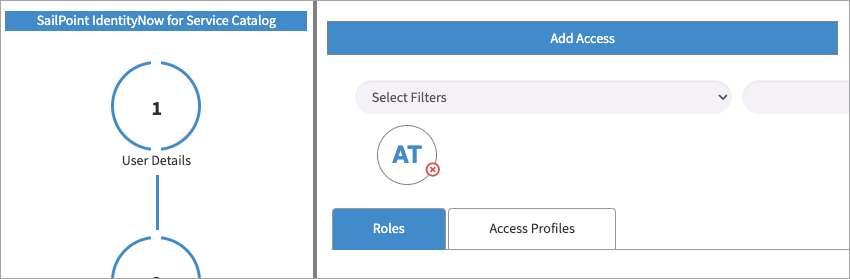
- Go to settings with the label. List and order of Search results tab. Exact text separated by comma to be used. Refer to documentation for examples (x_sap_intidn.x_sp_spnt_snow_int.specify_tab_order). By default, the value of the property is set to be "Roles, Access Profiles". You can hide or show the respective tabs if you add/remove those values. For example,
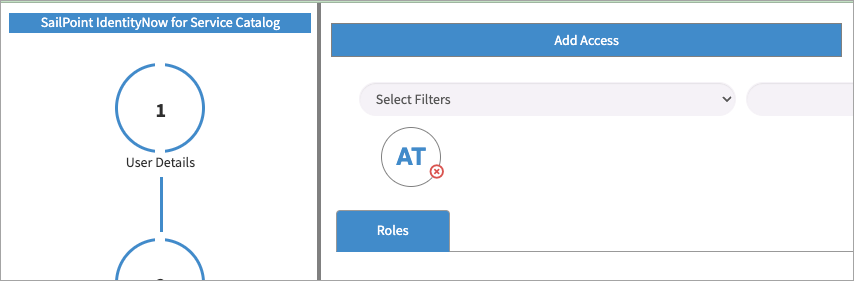
If you fill out the property only with "Roles", the only displayed tab will be the Roles tab, hiding the Access Profiles tab as a result. For example,
-
Filling the property with "Roles" only displays the Roles tab.
Screenshot
-
Filling the property with “Roles, Access Profiles” displays both tabs for Roles and Access Profiles.
Screenshot
Configuring Approval Flow
As an Admin, you may also be responsible for configuring approval flow for the requests generated via the ServiceNow Service Portal Integration for Identity Security Cloud. The way an approval is processed depends on it's configuration. The following three types of Approval Flow are available:
- None (default option): Select this option to use only ServiceNow for raising the request. The request is raised in SailPoint without any approval steps in ServiceNow. Approvals are then dependent on the SailPoint configuration.
- Manager Approval: Select this option to use only ServiceNow as a manager in ServiceNow.
-
Configurable Approvals: Select this option for native ServiceNow approvals. For more details refer to Approval Flexibility.
Note
- The
approvalsMustBeExternalflag on SailPoint disables creation of approvals in SailPoint. - For all approval types except
Identity Security Cloud WorkFlowit is recommended to set theapprovalsMustBeExternalflag totrue. Then, only the admin will be able to raise an access request using the SailPoint UI, therefore protecting the appropriate approval process. - For the
Identity Security Cloud WorkFlowapproval type it is mandatory to set theapprovalsMustBeExternalflag tofalse. The ServiceNow Service Catalog integration is dependent on SailPoint for approval details, and this will keep requests from getting auto approved.
- The
Approval Flexibility
Approval Flexibility functionality offers a set of capabilities to configure Approval Rules and arrange them in multiple levels (sequential and parallel). This feature enables the use of the Out Of The Box ServiceNow Approval module, which makes configuring emails, reports, and other required ServiceNow customizations easier.
SailPoint Administrators (users with role x_sap_intidn.sapadmin) can enable this functionality and configure it by performing the following steps:
- Go to SailPoint Identity Security Cloud for Service Catalog > Setup.
-
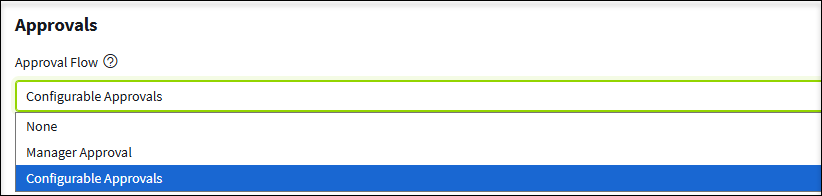
Select the Approval Flow dropdown, and then select Configurable Approvals.
Screenshot
There are two key components in order to configure an approval flow: Approval Rules and Approval Definitions.
Approval Rules
The Approval Rules define who should be assigned as an approver for the Access Request.
To configure Approval Rules, perform the following steps:
-
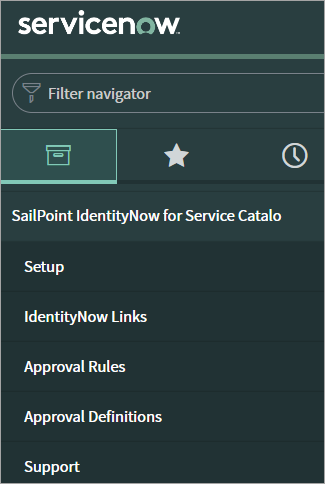
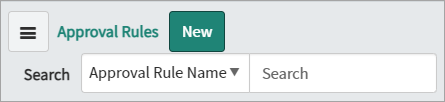
Go to SailPoint Identity Security Cloud for Service Catalog > Approval Rules.
Screenshot
- Select New. The window to create Approval Rules will appear.
Screenshot
Screenshot
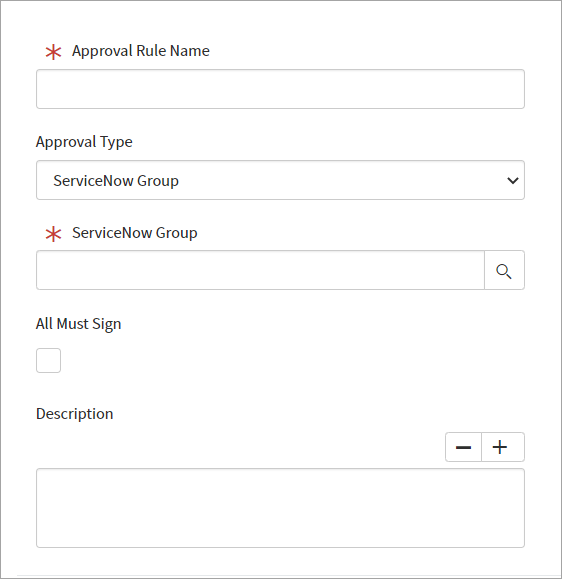
The following table lists each field name and description:
Approval Rules - Table
Field Name Description Approval Rule Name The name of the Approval Rule. Approval Type Control field for defining the type of approval for the Access Request. Additional fields are displayed based on the type selected. The following types are supported: - ServiceNow User - ServiceNow Group - ServiceNow Role - ServiceNow Manager - ServiceNow Script - Identity Security Cloud Workflow - Identity Security Cloud Governance Group - SailPoint Manager - SailPoint Owner - ServiceNow Workflow - ServiceNow Flow All approval rules are executed in real time when the request is initiated from ServiceNow to SailPoint. Validation is not performed during rule definitions. In case of any mismatch, the launched approval flow will reject the approval request. All Must Sign De-select the checkbox to allow approval flow to proceed when any one of the retrieved users approves. Select the checkbox to allow approval flow to proceed only when all the retrieved users approve. This option is available only for the following Approval Types: - ServiceNow Group - ServiceNow Role - ServiceNow Script - Identity Security Cloud Governance Group Description The description of the Approval Rule. -
Enter a unique name in the Approval Rule Name field.
-
Select the Approval Type dropdown to make a selection.
The following lists each approval type and description:
-
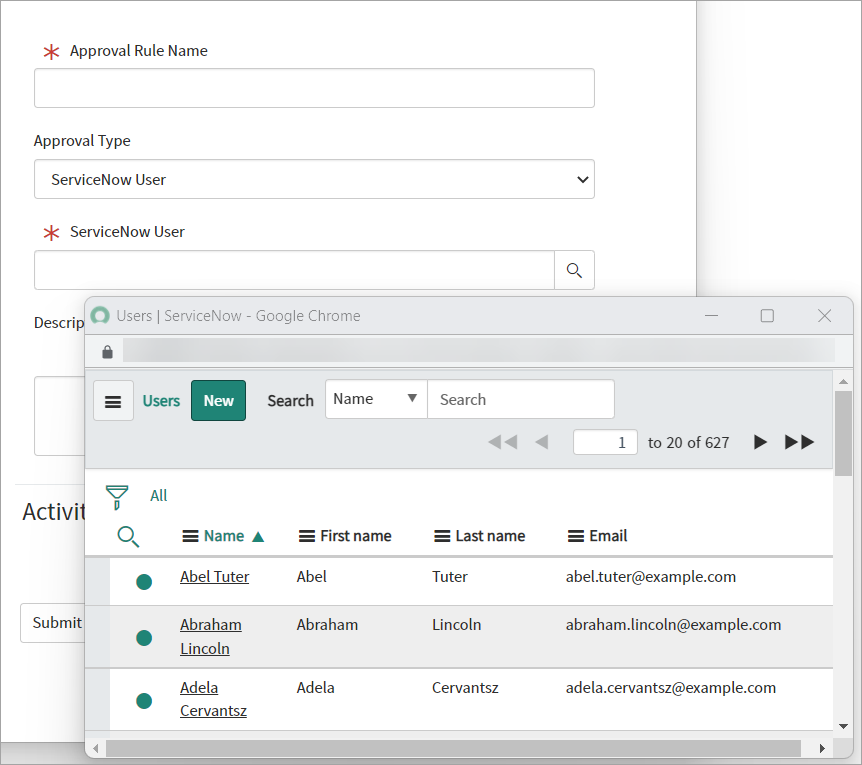
ServiceNow User
Gives the ability to select a ServiceNow User as the approver for the Access Request.
Screenshot
 - ServiceNow Group
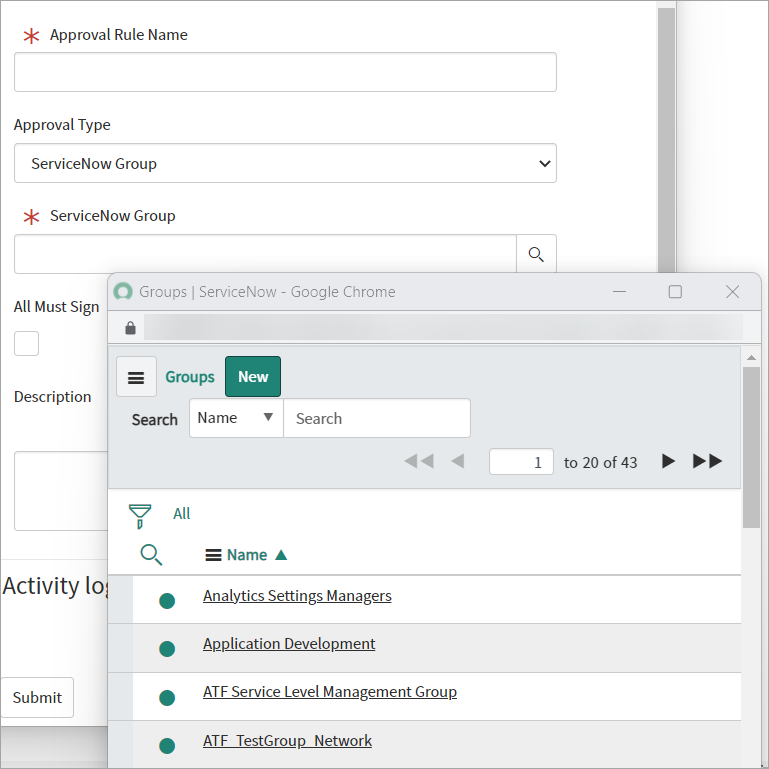
Gives the ability to select a ServiceNow Group. All ServiceNow Users who are members of this group will be assigned as approvers for the Access Request.
Leave the All Must Sign checkbox unchecked if any one user from the group can approve the request. Select the checkbox if all users from the group should approve the request.
Screenshot
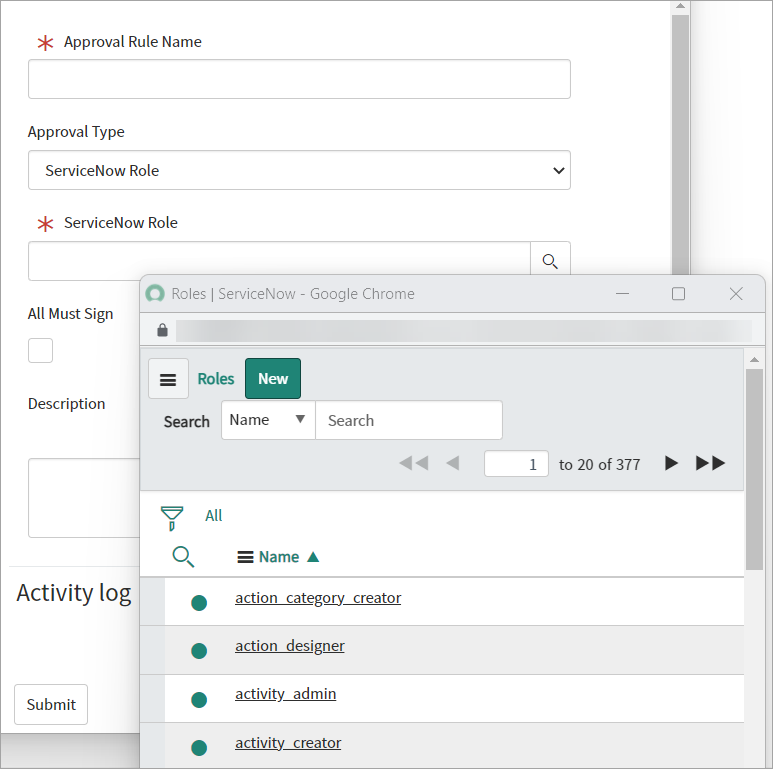
 - ServiceNow Role
Gives the ability to select a ServiceNow Role. All ServiceNow Users who are members of this role will be assigned as approvers for the Access Request.
Leave the All Must Sign checkbox unchecked if any one user in the role can approve the request. Select the checkbox if all users in the role should approve the request.
Screenshot
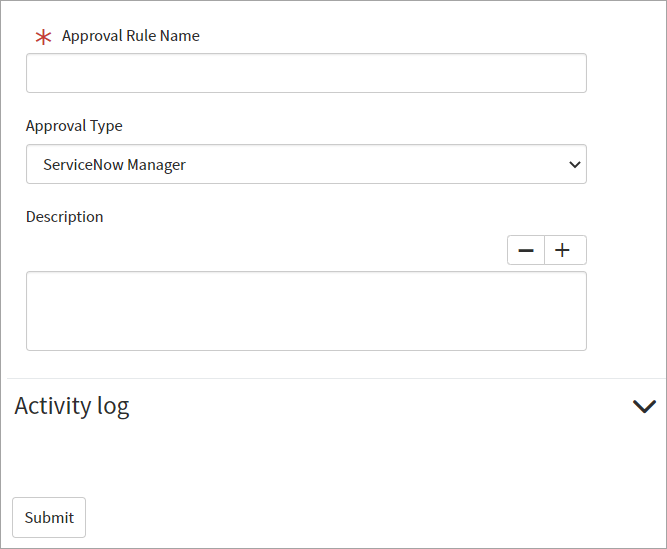
 - ServiceNow Manager
The Manger as per ServiceNow for whom the request is being raised would be the assigned approver in this access request.
Screenshot
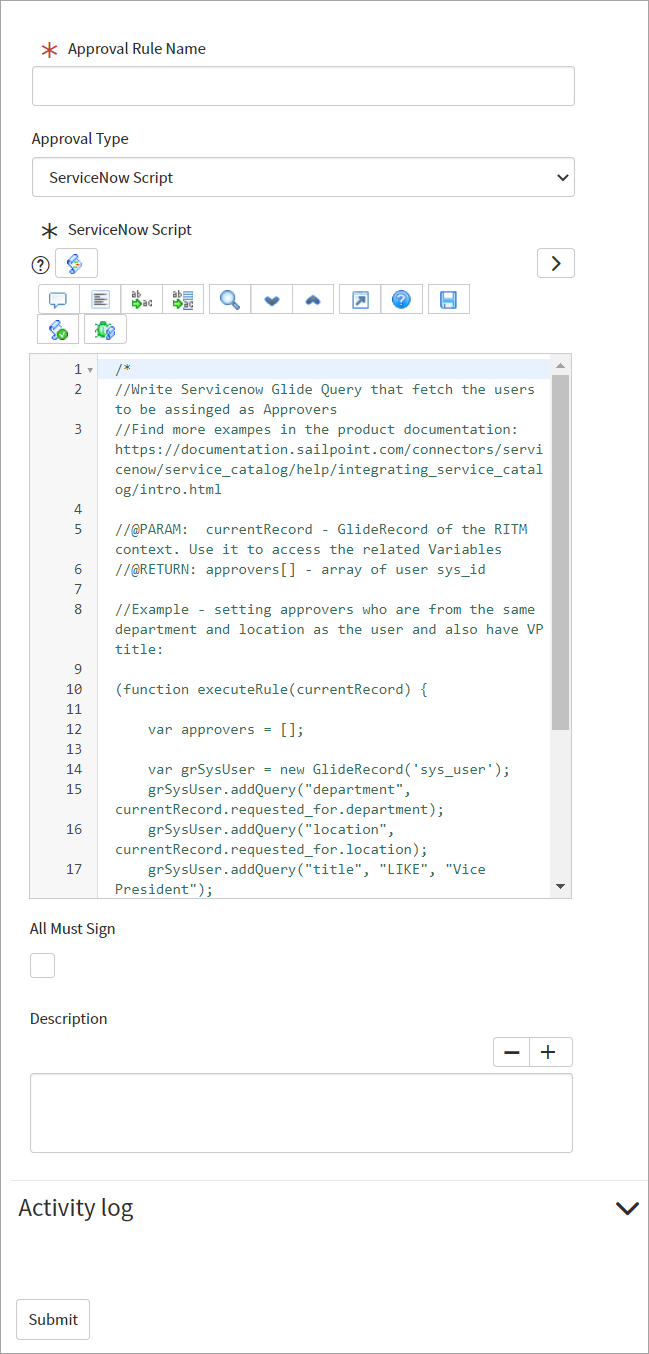
 - ServiceNow Script
Assigns all ServiceNow Users returned from the ServiceNow GlideRecord query as approvers for the access request.
Leave the All Must Sign checkbox unchecked if any one user can approve the request. Select the checkbox if all users should approve the request. The scripts receive a parameter
currentRecordwhich is the GlideRecord of the Requested Item (RITM). Dot-walk and access every Variable associated with it. For example:Access Name
| u_access_nameAccess Id
| u_access_idAccess Type
| u_access_typeStart Date
| u_start_dateEnd Date
| u_end_dateRequested For
| requested_forComments
| u_commentsThe expected output from the script should be an array of ServiceNow user sys_ids. If users are retrieved, they will be continued for approvals/rejections. This must be used with extreme caution so required approvals are not skipped. To bypass the approval, the code must return the string
Skip_Approval. The suggested code is shown in example 5.Note
- When an approval is skipped, a log entry will be added in the system log, but no comment will be recorded on the RITM.
- The ServiceNow admin role is needed to modify the ServiceNow Script Field
Screenshot
GlideRecord examples:
Example 1
// 1.- Get all users from groups IT Help Desk AND Service Desk

    /**
    * Description: Retrieves a list of user sys_ids that are members of the groups "IT Help Desk"
                    AND the group Service Desk. The users should be in BOTH groups to be included
                    in the list.
    * Returns: @relatedUsers | Array(sys_ids) : The list of user sys_ids that are members of both groups.
    */

(function executeRule(){
    var relatedUsers = [];

    var groupMemberGr = new GlideRecord('sys_user_grmember');
    groupMemberGr.addQuery('group.name', 'IT Help Desk');
    groupMemberGr.addQuery('group.name', 'Service Desk');
    groupMemberGr.query();
    while(groupMemberGr.next()){
        relatedUsers.push(groupMemberGr.getValue('user'));
    }
    return relatedUsers;

})();
Example 2
// 2.- Get all users that has roles x_sap_intidn.user OR x_sap_intidn.onbehalfof

    /**
    * Description: Retrieves a list user sys_ids that have the role x_sap_intidn.user OR
                    the role x_sap_intidn.onbehalfof.
    * Returns: @userIds | Array(sys_ids) : The list of user sys_ids that have the role
                x_sap_intidn.user OR the role x_sap_intidn.onbehalfof.
    */

(function executeRule(){
    var userIds = [];

    var userHasRoleGr = new GlideRecord('sys_user_has_role');
    userHasRoleGr.addQuery('role', 'x_sap_intidn.user').addOrCondition('role', 'x_sap_intidn.onbehalfof');
    userHasRoleGr.query();
    while(userHasRoleGr.next()){
        userIds.push(userHasRoleGr.getValue('user'));
    }
    return userIds;

})();
Example 3
// 3.-Get all users where manager is Abel Tuter

    /**
    * Description: Returns the list of user sys_ids that are managed by Abel Tuter.
    * Returns: @userIds | Array(sys_ids): the list of user sys_ids that are managed by Abel Tuter.
    */

(function executeRule(){
    var userIds = [];

    var sysUserGr = new GlideRecord('sys_user');
    sysUserGr.addQuery('manager.name', 'Abel Tuter');
    sysUserGr.query();
    while (sysUserGr.next()) {
        userIds.push(sysUserGr.getUniqueValue());
    }
    return userIds;

})();
Example 4
// 4.- Get all users who are managing Tomcat Servers ( cmdb_ci_app_server_tomcat  Managed By field)

    /**
    * Description: Returns the list of user sys_ids who are managing Tomcat Servers
    * Returns: @tomcatManagerUsers | Array(sys_ids) : The list of user sys_ids who are managing Tomcat Servers
    */

(function executeRule(){
    var tomcatManagerUsers = [];

    var cmdbServerTomcatGr = new GlideRecord('cmdb_ci_app_server_tomcat');
    cmdbServerTomcatGr.addEncodedQuery('managed_byISNOTEMPTY');
    cmdbServerTomcatGr.query();
    while(cmdbServerTomcatGr.next()){
        tomcatManagerUsers.push(cmdbServerTomcatGr.getUniqueValue());
    }
    return tomcatManagerUsers;

})();
Example 5
// 5.-Bypass approval in case 'melinda.carleto' user not found
(function executeRule(currentRecord) {

    var approvers = [];

    var grSysUser = new GlideRecordSecure('sys_user');
    grSysUser.addQuery('user_name', 'melinda.carleto');
    grSysUser.query();
    while (grSysUser.next()) {
        approvers.push(grSysUser.getValue('sys_id'));
    }

    if (approvers.length == 0) {
        return 'Skip_Approval';
    }
    return approvers;

})(currentRecord);
Additional Examples
/* Additional examples... As you already noticed, the previous examples are orienten to a specific information, now, How about bring information dinamically: i.e: I want to get a list of the requests that I opened on the last month. */ (function executeRule(){ var requestsOpenedByMe = []; var scRequestGr = new GlideRecord('sc_request'); scRequestGr.addEncodedQuery('sys_created_onONLast month@javascript:gs.beginningOfLastMonth()@javascript:gs.endOfLastMonth()'); scRequestGr.addEncodedQuery('opened_byDYNAMIC90d1921e5f510100a9ad2572f2b477fe'); //This hardcoded sys_id is a SNOW built-in sys_id that works dinamically: is(dynamic) Me. scRequestGr.addQuery() scRequestGr.query(); while(scRequestGr.next()){ requestsOpenedByMe.push(scRequestGr.getUniqueValue()); } return requestsOpenedByMe; })(); //Another way to accomplish the same scenario without the need of hardcoding the sys_id will be as follows: scRequestGr.addQuery('opened_by', gs.getUserID()); //With the "gs.getUserID()" method, you'll get the sys_id of the current user.- Identity Security Cloud Workflow
SailPoint approval is used to initiate the approvals. The Approval request is received by users in ServiceNow. This approval rule will be initiated by SailPoint workflow after the access request is sent to SailPoint.
Screenshot

Redirect SailPoint approval notifications:
Redirect the SailPoint Approval Notifications to ServiceNow
https://<servicenowinstance>/sp?id=approvalsby modification of the notification templatehttps://{tenant}.identitynow.com/ui/admin#admin:global:emailtmpls:AccessRequestReviewerScreenshot
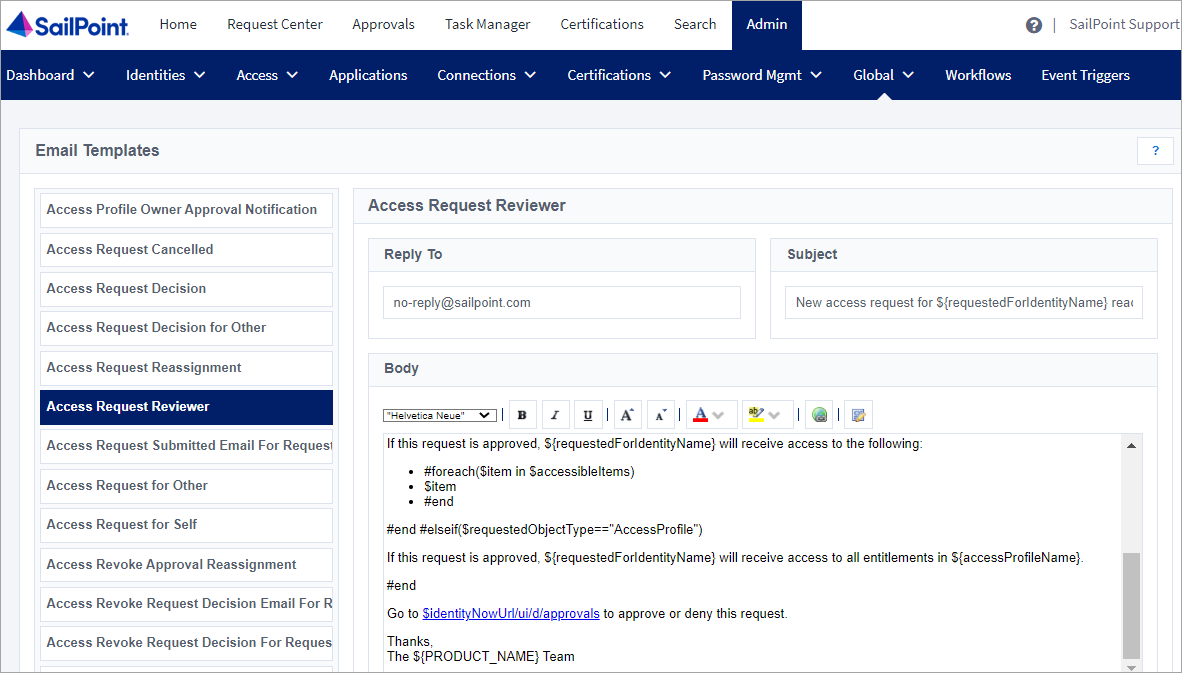
For more information about the SailPoint email templates, refer to Using Email Templates.
Notifications can also be customized in ServiceNow. For example, this is the notification that is sent every time an approval is generated:
Screenshot
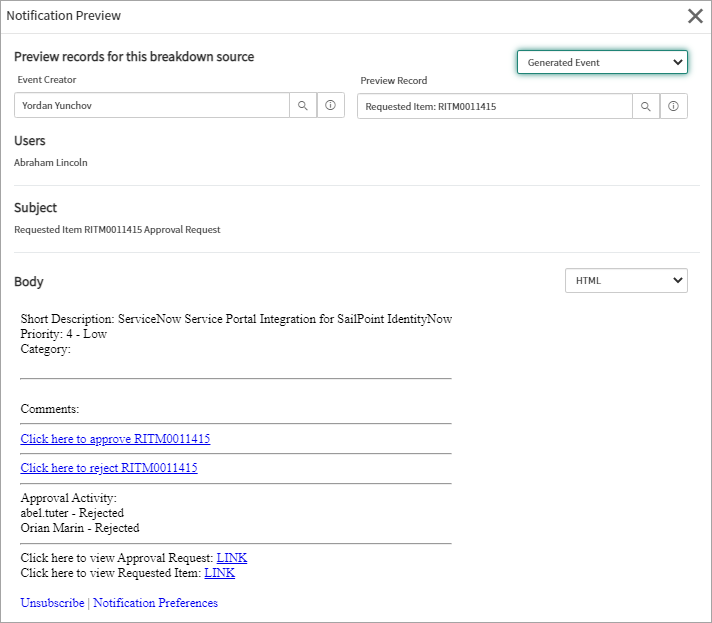
For more information, refer to the ServiceNow documentation for Notifications.
Note
If Auto Approval is enabled in SailPoint, an access request is automatically approved when the requester and the approver are the same identity. This works only with the User Account connection method (previously Authorization Code). It does not work with the Service Account connection method (previously Client Credentials).
Note
The "Identity Security Cloud Workflow" type for Approval Definition cannot be combined with other Approval Rules.
Important
Approvals should not be Approved or Rejected from SailPoint, as doing so will impact the consistency between the two systems when using "Configurable Approvals".
-
ServiceNow Workflow
Gives the ability to configure ServiceNow Workflow that will be executed as part of the approval flow. The aim is to give administrators the full flexibility to configure additional approval logic.
Screenshot
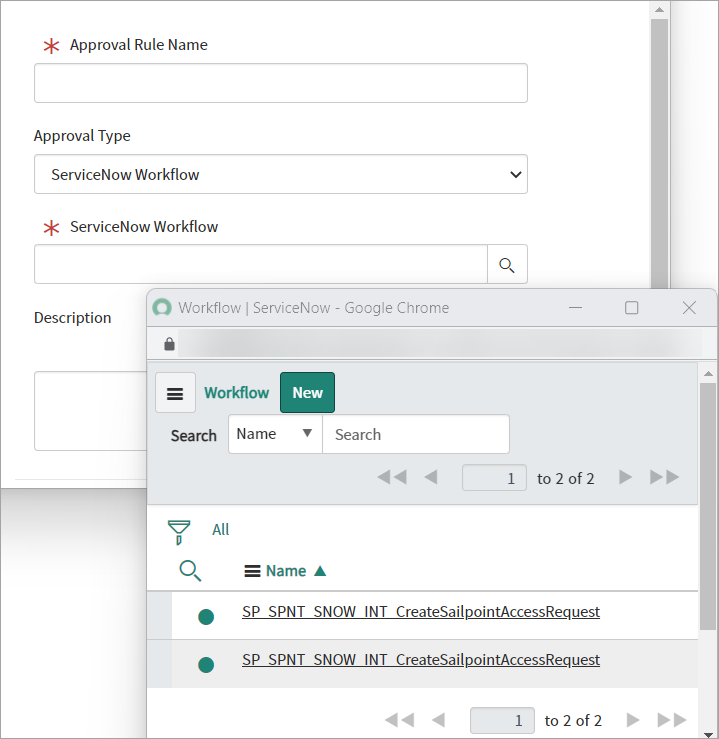
The ServiceNow Workflow should be built on the Requested Items table (sc_req_item). This way provides access to the
currentobject and it`s variables.There cannot be more than one approval rule of type
ServiceNow Workflowon a given order. The ServiceNow Workflow is a very flexible option to build really complex approval logic and also to add some custom activities as part of the overall flow.Note
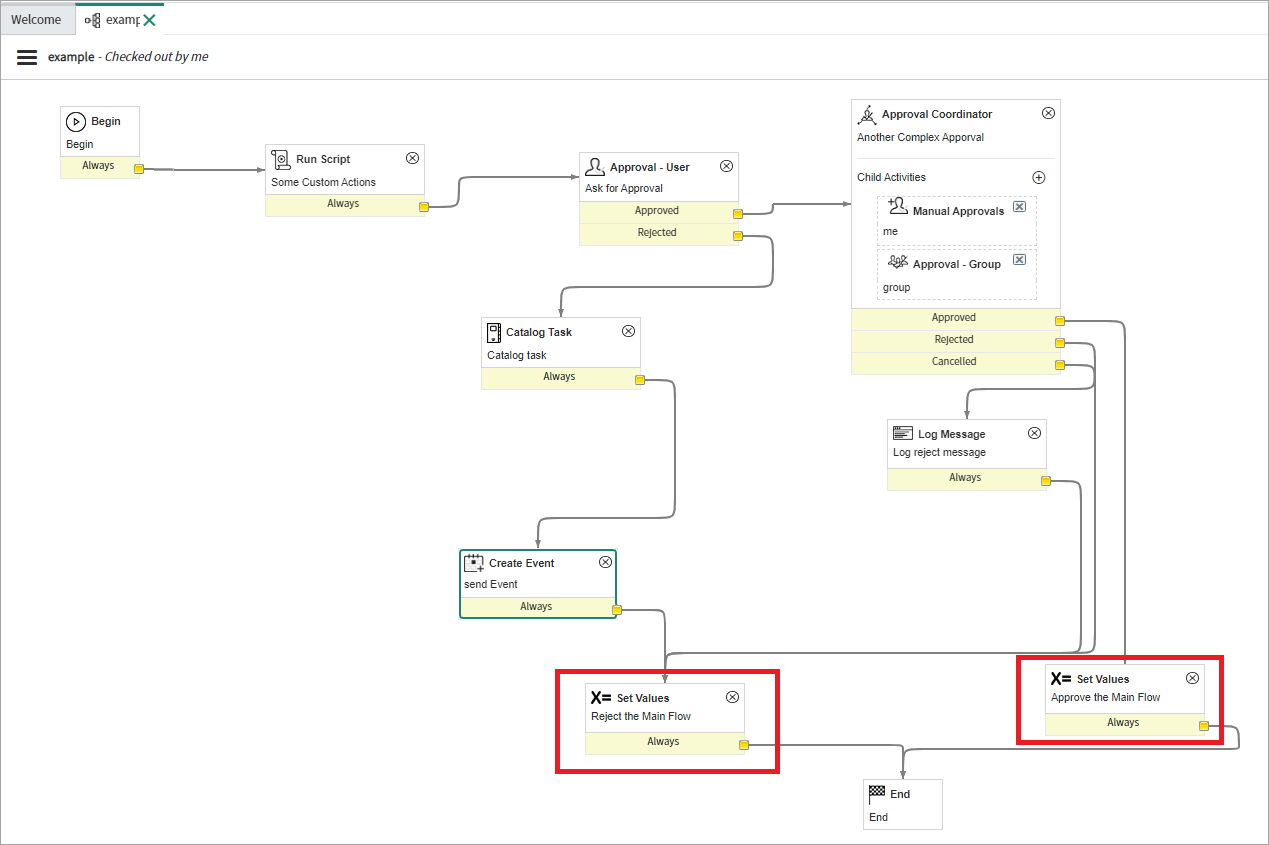
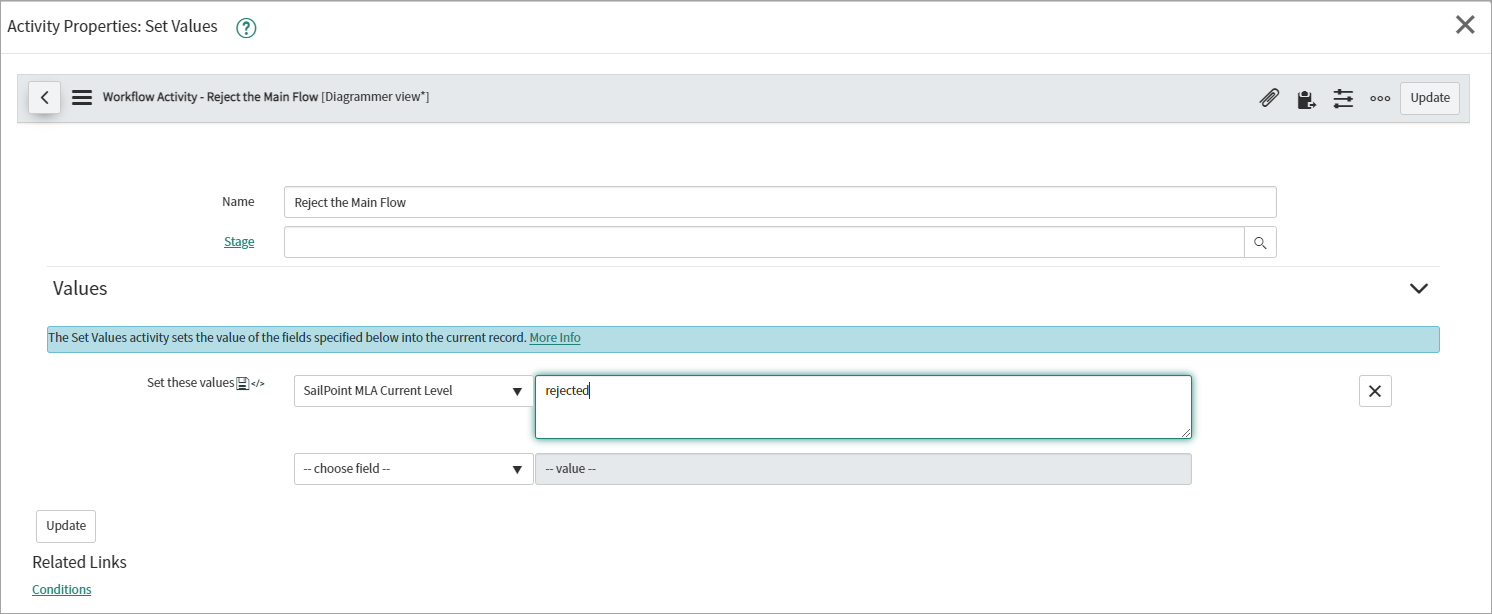
At the end of the Workflow, the SailPoint MLA Current Level (
x_sap_intidn_sailpoint_mla_current_level) field of the RITM must be set toapprovedorrejected. This will trigger the parent approval process to continue it’s flow.For example:
Screenshot
Screenshot
The Run Script Activity can also be used with this code snippet:
-
ServiceNow Flow
Gives the ability to configure ServiceNow Flow that will be executed as part of the approval flow. The aim is to give administrators the full flexibility to configure additional approval logic.
Screenshot
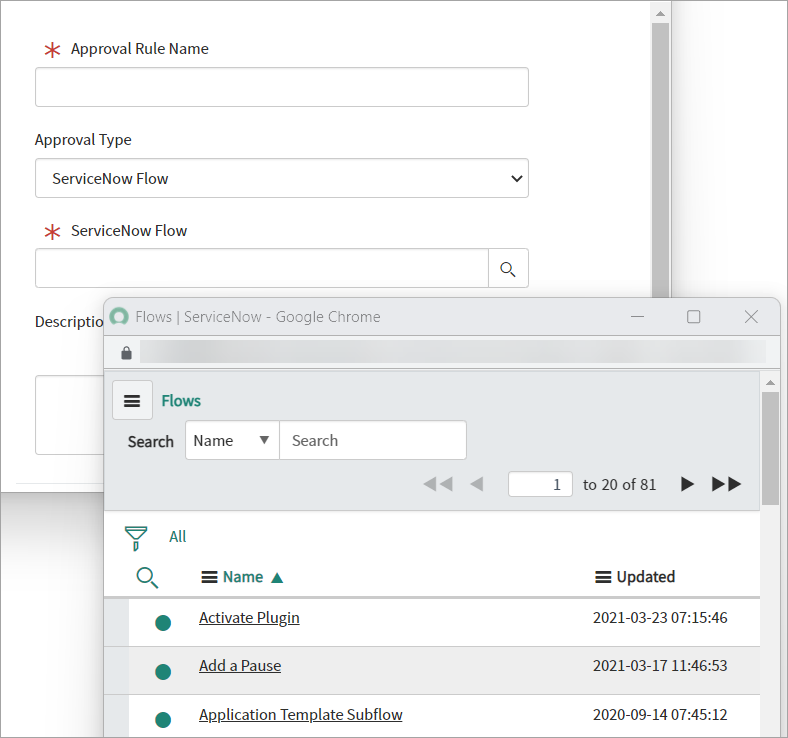
The ServiceNow Flow has access to the
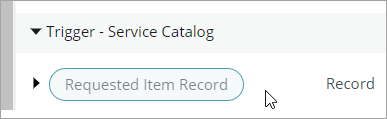
currentobject and it`s variables.There cannot be more than one approval rule of type
ServiceNow Flowon a given order. The ServiceNow Flow is a very flexible option to build complex approval logic and add custom activities as part of the overall flow. The ServiceNow Flow should have the trigger set to Service Catalog if the customer wants to get the sys_id of the RITM from the trigger. Other options should be viable as well, though they would require scripting in the Action input field.Screenshot
Note
At the end of the Flow, the SailPoint MLA Action must be used. This will signal the parent process whether to consider the request as approved or rejected.
For Example:
Screenshot
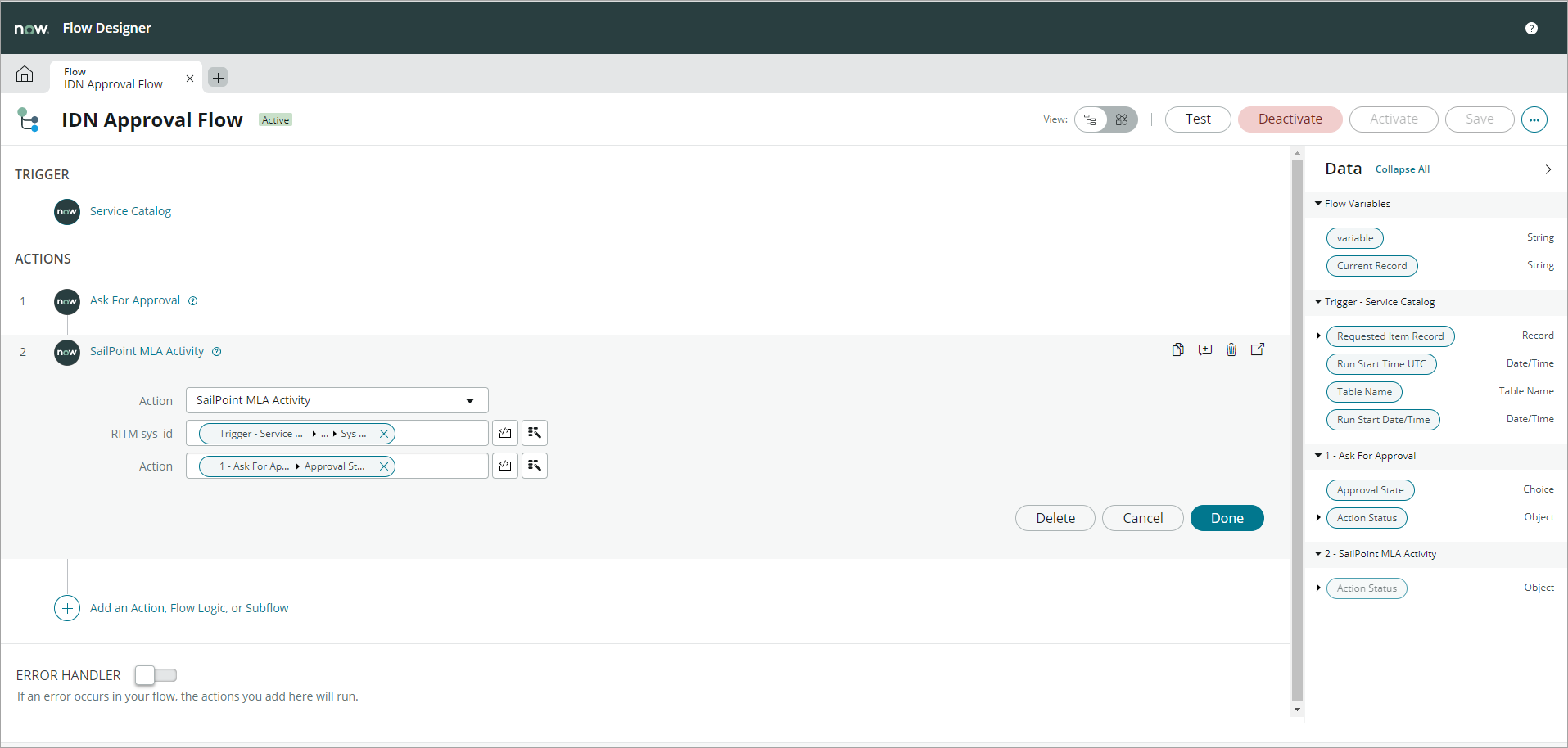
SailPoint MLA Action internally sets the SailPoint MLA Current Level field (
x_sap_intidn_sailpoint_mla_current_level) toapprovedorrejected.It has two input parameters:
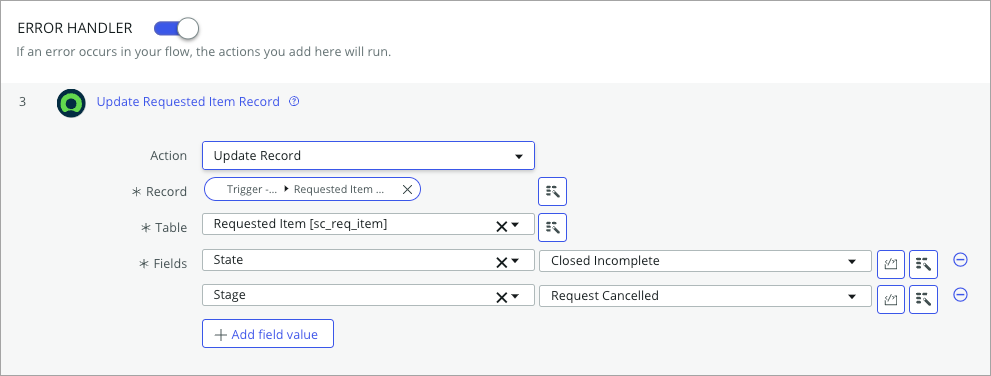
RITM sys_id: the sys_id of the Requested Item.Action:approvedorrejected. Typically, the output of the Ask For Approval Action should be used.It is a suggested practice to use appropriate error handlers. In the flow designer, select the Error Handler toggle to enable it. To cancel requested items, set the fields as shown in the screenshot. Additionally, you can add a comment to help users understand the reason of failure along with suggested next steps.
Screenshot
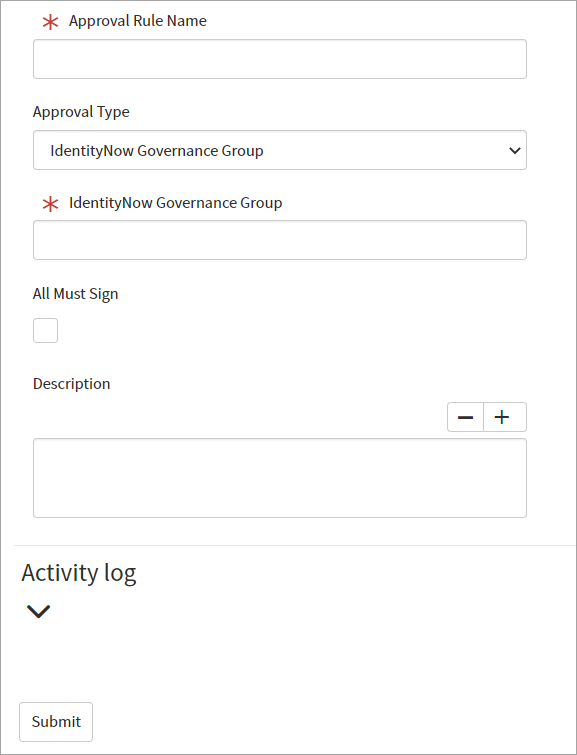
 - Identity Security Cloud Governance Group
Gives the ability to assign anyone or all members from the selected Identity Security Cloud Governance Group as approvers for the access request. The request to SailPoint will be made to fetch all members of the group and correlate them with the local ServiceNow users.
Leave the All Must Sign checkbox unchecked if any one user can approve the request. Select the checkbox if all users should approve the request.
Screenshot
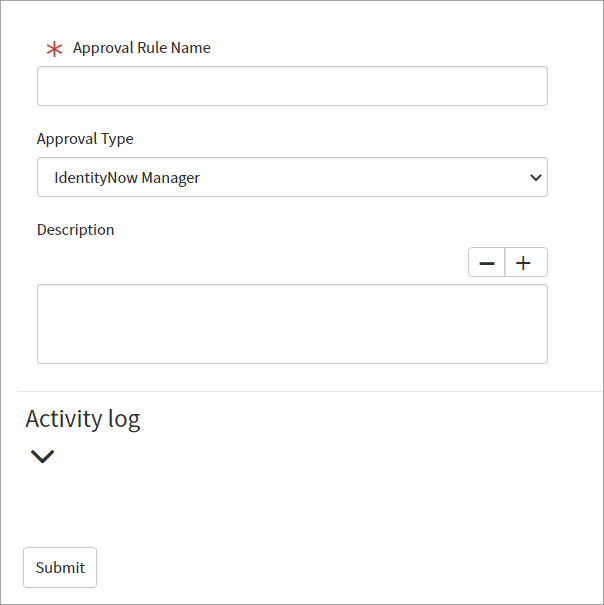
 - Identity Security Cloud
Manager
Gives the ability to assign the configured Manager in SailPoint of the Requested For User as approver for the access request. The request to SailPoint will be made to fetch the Manager and correlate it with the local ServiceNow user.
Screenshot
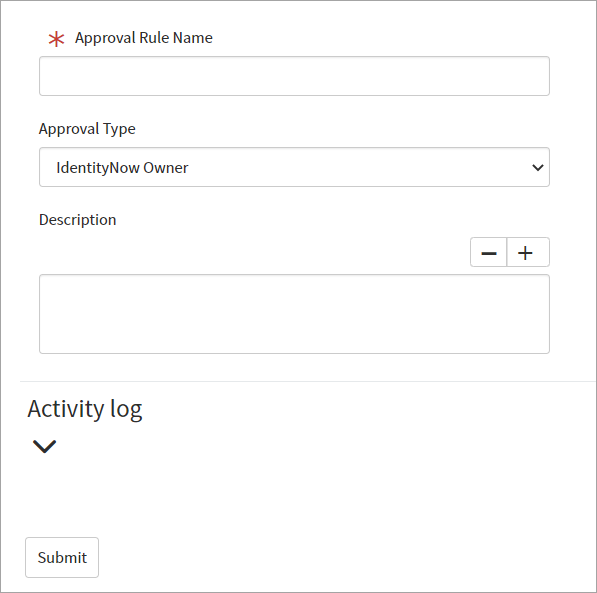
 - Identity Security Cloud
Primary Owner
Gives the ability to assign the configured Access Object Owner in SailPoint as approver for the access request. The request to SailPoint will be made to fetch the Primary Owner and correlate it with the local ServiceNow user.
Screenshot
 - Identity Security Cloud Additional Owners
Gives the ability to assign the configured Additional Owners of the requested Access Object as approver for the access request. A request will be made to SailPoint to fetch the Additional Owners and correlate it with the local ServiceNow user. If no valid approver is found, approval will be assigned to the default approval group For example,
SailPoint Access Governance Group. - Identity Security Cloud All OwnersGives the ability to assign the configured Additional Owners and Primary Owner of the requested Access Object as approver for the access request. A request will be made to SailPoint to fetch the Additional Owners and Primary Owner and correlate it with the local ServiceNow user. If no valid approver is found, approval will be assigned to the default approval group. For example,
SailPoint Access Governance Group.Note
The Identity Security Cloud All Owners approval type is mutually exclusive and cannot be combined with either Identity Security Cloud Additional Owners or Identity Security Cloud Primary Owner in an approval definition. - Identity Security Cloud Source Owner
Gives the ability to assign the configured Source Owner of the requested Access Object as approver for the access request. This approval type is only applicable for an access object of type
EntitlementorAccess Profiles. A request will be made to SailPoint to fetch the Source Owner and correlate it with the local ServiceNow user. If no valid approver is found, approval will be assigned to the default approval group. For example,SailPoint Access Governance Group. - Identity Security Cloud App OwnerGives the ability to assign the configured Application Owners of the requested Access Object as approvers for the access request. This approval type is only applicable for an access object of type
Access Profiles. A request will be made to SailPoint to fetch the Application Owner and correlate it with the local ServiceNow user.If there are multiple applications associated with the Access Profile, all the application owners will be fetched and an approval will be generated for each valid user. Leave the All Must Sign checkbox unchecked if any one user from the valid approver’s list can approve the request. Select the checkbox if all valid users should approve the request. If no valid approver is found, approval will be assigned to the default approval group. For example,
SailPoint Access Governance Group. 6. Enter a Description. 7. Example 3// 3.-Get all users where manager is Abel Tuter /** * Description: Returns the list of user sys_ids that are managed by Abel Tuter. * Returns: @userIds | Array(sys_ids): the list of user sys_ids that are managed by Abel Tuter. */ (function executeRule(){ var userIds = []; var sysUserGr = new GlideRecord('sys_user'); sysUserGr.addQuery('manager.name', 'Abel Tuter'); sysUserGr.query(); while (sysUserGr.next()) { userIds.push(sysUserGr.getUniqueValue()); } return userIds; })();
Example 3
```javascript
// 3.-Get all users where manager is Abel Tuter

    /**
    * Description: Returns the list of user sys_ids that are managed by Abel Tuter.
    * Returns: @userIds | Array(sys_ids): the list of user sys_ids that are managed by Abel Tuter.
    */

(function executeRule(){
    var userIds = [];

    var sysUserGr = new GlideRecord('sys_user');
    sysUserGr.addQuery('manager.name', 'Abel Tuter');
    sysUserGr.query();
    while (sysUserGr.next()) {
        userIds.push(sysUserGr.getUniqueValue());
    }
    return userIds;

})();
```
Example 3
```javascript
// 3.-Get all users where manager is Abel Tuter

    /**
    * Description: Returns the list of user sys_ids that are managed by Abel Tuter.
    * Returns: @userIds | Array(sys_ids): the list of user sys_ids that are managed by Abel Tuter.
    */

(function executeRule(){
    var userIds = [];

    var sysUserGr = new GlideRecord('sys_user');
    sysUserGr.addQuery('manager.name', 'Abel Tuter');
    sysUserGr.query();
    while (sysUserGr.next()) {
        userIds.push(sysUserGr.getUniqueValue());
    }
    return userIds;

})();
```
Example 5
// 5.- Bypass approval in case 'melinda.carleto' user not found (function executeRule(currentRecord) { var approvers = []; var grSysUser = new GlideRecordSecure('sys_user'); grSysUser.addQuery('user_name', 'melinda.carleto'); grSysUser.query(); while (grSysUser.next()) { approvers.push(grSysUser.getValue('sys_id')); } if (approvers.length == 0) { return 'Skip_Approval'; } return approvers; })(currentRecord); -
-
Select Submit.
Approval Definitions
The Approval Definitions are used to map SailPoint's Access Object (Role/ Access Profile/ Entitlement) with Approval Rules.
The implemented approval engine processes the approvals on levels in the following way:
-
The Approval Rules for the Access Request for a given Access Object are processed sequentially based on their order number. One waits for the other to complete.
- Order 100 is the first level of approval.
- Order 200 is the second level of approval.
- Order 300 is the third level of approval.
-
If there are multiple Approval Definitions for the same Access Object within the same Order, the Approval Rules will apply in parallel. The engine will wait for their completion before moving on to the next Order level.
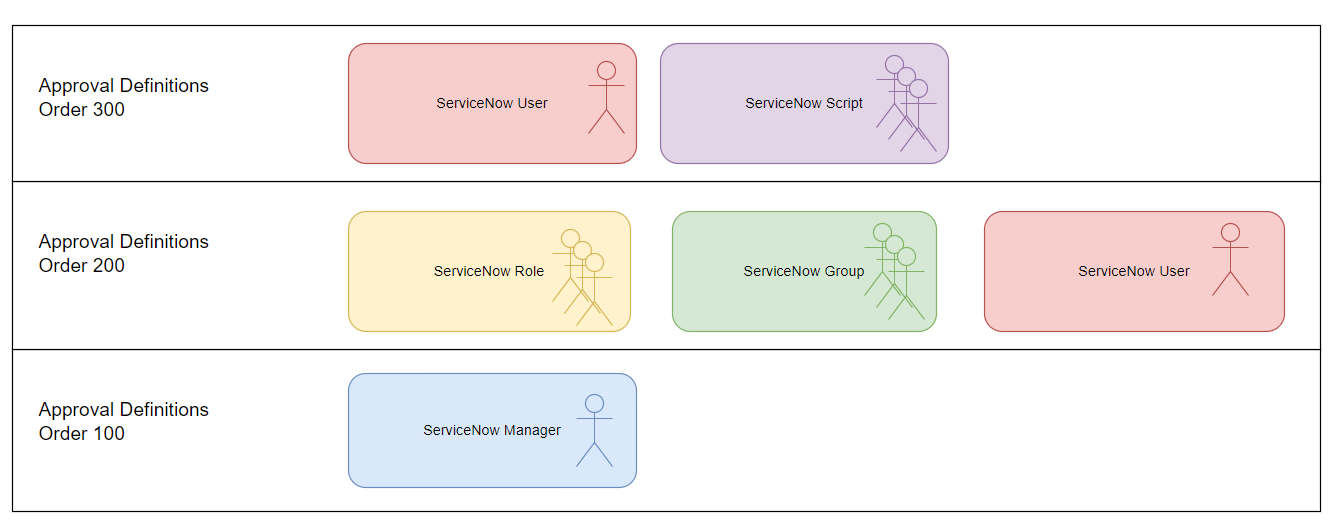
The following diagram shows an example of how multiple approval levels can be set going up the approval chain.
- The first level of approval (Order 100) is the ServiceNow Manager. One user is assigned as the approver. Once the approver approves the request, the second level of approval begins.
- The second level of approval (Order 200) defines the three rules in parallel; ServiceNow Role, ServiceNow Group, and ServiceNow User. When all three rules are approved, the third level of approval begins.
- The third level of approval (Order 300) defines the final approval level; ServiceNow User, and ServiceNow Script.
- If at any time an approver rejects the request then the process is ended, and the next level of approvers never receive the request.
Screenshot
To configure Approval Definitions, perform the following steps:
-
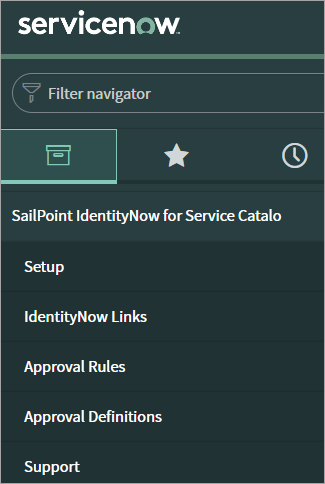
Go to SailPoint IdentityNow for Service Catalog > Approval Definitions.
Screenshot
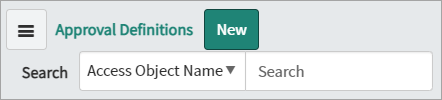
- Select New. The window to create Approval Definitions will then appear.
Screenshot
Screenshot
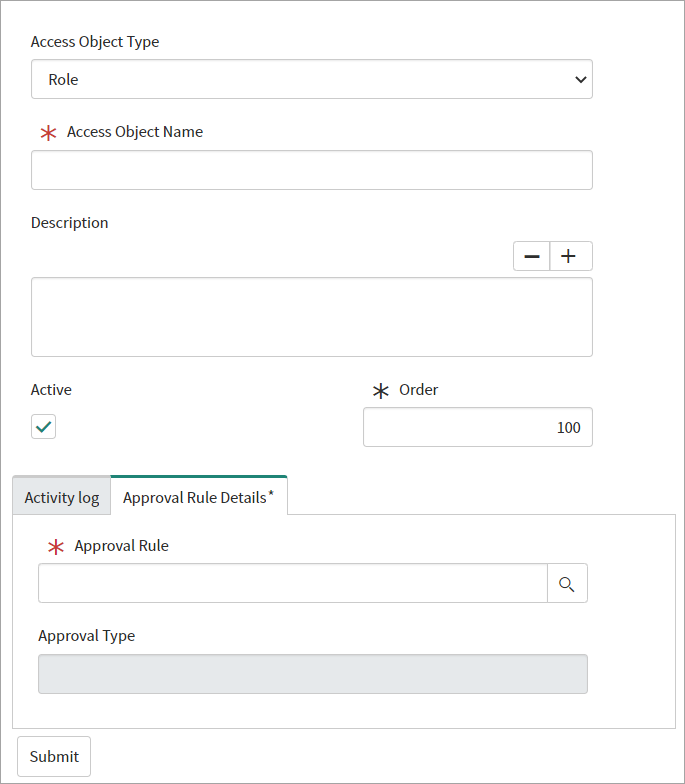
The following table lists each field name and description:
Approval Definitions - Table
Field Name Description Access Object Type The Access Object type as defined in SailPoint. - Role - Access Profile - Entitlement Access Object Name The Access Object name as defined in SailPoint. Note: Validation is performed during execution and not while editing the record in ServiceNow, therefore, caution needs to be maintained to ensure an exact match to the SailPoint value. Description The description of the Approval Definition. Order A number field defining the approval level. The Approval Rules for the Access Request for a given Access Object are processed sequentially based on their order number. One waits for the other to complete. If there are multiple Approval Definitions for the same Access Object with the same Order, the Approval Rules will apply in parallel. The engine will wait for their completion. Active Enable or disable the definition. Approval Rule The Approval Rule that will be applied. Note
- A mapping record must be created for each and every access object name. An easy way to configure in bulk is to create the records offline and import them using the standard ServiceNow Import Set. For more information, refer to Import Sets.
- Additionally, generic definitions can be assigned to each object type to avoid definition for each object. For more information, refer to Generic Approval Definition.
- Any object definition if defined will be executed ignoring the generic definition for that object.
-
Select the Access Object Type from the dropdown and specify an Access Object that is already configured in SailPoint.
- Use the copy/paste method to enter the Access Object Name exactly as it is in SailPoint.
- Enter a Description.
- Select the Active checkbox to enable the definition. Leave it unchecked to disable the definition.
- Enter the Order Levels with integers in increasing order for the desired chain of approval. Suggested 100, 200, 300 and so on, which gives flexibility and readability for future changes.
- Select Approval Rule Details and then select an Approval Rule that was previously defined.
- Select Submit.
Approvals, Flexibility, Considerations, and Limitations (applicable to versions 3.1.0 and earlier)
The following validation rules apply for the Approval Rules and Definitions:
- The Approval Rule Name should be unique.
- There can be only one unique combination of Access Object and Approval Rule (for the given type Access Profile/ Role /Entitlement).
- For Approval Rules of type
IdentityNow Workflow, there cannot be multiple Approval Definitions with different order (for given type Access Profile/ Role /Entitlement). - There cannot be more than 2,000 rules per Access Object (for given type Access Profile/ Role /Entitlement).
- There cannot be more than one Approval Rule of type
ServiceNow Workflowon a given order. - There cannot be more than one Approval Rule of type
ServiceNow Flowon a given order. - A signal to the parent process must be provided for Approval Rules of type
ServiceNow WorkfloworFlow. Set the SailPoint MLA Current Level at the end of it the field to signal the parent process whether the request should be considered approved or rejected. - For Approval Rules of type
ServiceNow Flow, flows should be created in theGlobalorSailPoint IdentityNow for Service Catalogscopes. Support for any application scope will be added in a future version. - Configuring Auto-Approval and behavior when
approverandrequester/requested forare the same. -
For
IdentityNow OwnerandIdentityNow Managertypes of approval under configurable approval:- If auto-approval is enabled on the SailPoint side and the
approverandrequester/requested foris the same user, then the request will be auto approved with the approval comment “Requester or Requested For is same as Approver, this request has been auto approved as per the SailPoint configuration”. - If auto-approval is disabled on the SailPoint side and the
approverandrequester/requested foris the same user, then the approval will be changed to the approver’s manager. The work note “Approver has been changed to approver's manager as per the SailPoint configuration” will be added on the request. If the approver does not have a manager, then the request will be canceled. - For all other approval types, the request is cancelled when the requestor and approver are the same user.
Note
Request cancellation when the "requester/requested for" and "approver" is the same user is not applicable for the ServiceNow Flow and Workflow rules.
In order to improve security, the solution rejects the Access Requests if it is unable to assign the correct user as an approver.
The following Auto-Rejection rules apply (applicable to versions 3.1.0 and earlier):
- The ServiceNow User set in an Approval Rule is inactive or was deleted.
- No manager is assigned to the ServiceNow User.
- No appropriate User exists in ServiceNow in the Approval Rule of type
IdentityNow Workflow. - The assigned approver is the same as the Requestor.
- The assigned approver is the same as the Requested For.
- There are Multiple Approval Definitions with the same order, however, one of them is improper (where it is impossible to identify the approver).
- The Approval Rule of type
ServiceNow Groupand the All Must Sign checkbox is selected, however, some group members are inactive (if users became inactive before the approval assignment they are not selected for review). - Approval Rule of type
ServiceNow Roleand the All Must Sign checkbox is selected, however, some role members are inactive (if users became inactive before the approval assignment they are not selected for review). - Approval Definitions are not set for Access Object.
- Approval Definitions set for Access Object are inactive.
- No rule is specified in Approval Definition (assigned rule was deleted).
Approvals, Flexibility, Considerations, and Limitations (applicable to versions 3.2.0 and later)
The following validation rules apply for the Approval Rules and Definitions:
- The Approval Rule Name should be unique.
- There can be only one unique combination of Access Object and Approval Rule (for the given type Access Profile/ Role /Entitlement).
- For Approval Rules of type
Identity Security Cloud Workflow, there cannot be multiple Approval Definitions with different order (for given type Access Profile/ Role /Entitlement). - There cannot be more than 2,000 rules per Access Object (for given type Access Profile/ Role /Entitlement).
- There cannot be more than one Approval Rule of type
ServiceNow Workflowon a given order. - There cannot be more than one Approval Rule of type
ServiceNow Flowon a given order. - A signal to the parent process must be provided for Approval Rules of type
ServiceNow WorkfloworFlow. Set the SailPoint MLA Current Level at the end of it the field to signal the parent process whether the request should be considered approved or rejected. - For Approval Rules of type
ServiceNow Flow, flows should be created in theGlobalorSailPoint Identity Security Cloud for Service Catalogscopes. Support for any application scope will be added in a future version. - The default group and auto approval settings are not applicable for rule types
ServiceNow Workflow,ServiceNow Flow, andIdentity Security Cloud Workflow. - There is no auto approval and no exclusion for
requester/requested forif the request is assigned to the default group. - Any member of the default group can mark the request as approved or rejected. At least one member must mark it.
-
For rule type
ServiceNow User,ServiceNow Manager,IdentityNow ManagerandIdentityNow Owner: -
Requests are auto-approved when the
approverandrequester/requested forare the same. -
If Auto Approve Enabled is set to
Yes- The request will be auto approved if the
approverandrequester/requested forare the same user.
- The request will be auto approved if the
-
If Auto Approve Enabled is set to
FalseServiceNow UserandServiceNow Manager: The approval will be reassigned to the ServiceNow manager of theapproverif theapproverandrequester/requested forare the same.Identity Security Cloud ManagerandIdentity Security Cloud Owner: The approval will be re-assigned to the SailPoint manager of theapproverif theapproverandrequester/requested forare the same.
-
The default Approval Group is
SailPoint Access Governance Group. This group is designated to approve requests if noapproverhas been identified during execution of the approval flexibility rules. Any one group member may mark requests as approved.
Use cases:
-
If the
approveris missing forServiceNow Manager,ServiceNow User,Identity Security Cloud Manager,Identity Security Cloud Owner,ServiceNow Group,ServiceNow Role,Identity Security Cloud Governance Group, orServiceNow Script:- The approval will assign to a default of
SailPoint Access Governance Group. - If
SailPoint Access Governance Groupis empty or there are no valid members in it, the requested item will be put in aClosed Incompletestate asRequest Cancelled, with the approval beingRejected.
Note
- For
ServiceNow Workflow,ServiceNow Flow, andIdentity Security Cloud Workflow, approvals will not be reassigned to theSailPoint Access Governance Groupeven if no approver is identified. - If a requested item(RITM) is marked as
Closed Incompleteat any time during its lifecycle, the approval field will be marked asRejectedeven if all approvals are successfully completed, as per ServiceNow's OOTB behavior.
- The approval will assign to a default of
- If auto-approval is enabled on the SailPoint side and the
In order to improve security, the solution rejects the Access Requests if it is unable to assign the correct user as an approver.
The following Auto-Rejection rules apply (applicable to versions 3.2.0 and earlier):
- No appropriate User exists in ServiceNow in the Approval Rule of type
IdentityNow Workflow. - There are Multiple Approval Definitions with the same order, however, one of them is improper (where it is impossible to identify the approver).
- Approval Definitions are not set for Access Object.
- Approval Definitions set for Access Object are inactive.
- No rule is specified in Approval Definition (assigned rule was deleted).
- If the approval is reassigned to the default group, and there is no active member found in the group.
Approval History
All current and historical data about the approvers is captured in the standard ServiceNow Approval (sysapproval_approver) table.
Screenshot

Additional guidance for Approval Flexibility Approvals
Known Issue During Approval Flexibility (Multi Level Approval) Implementation
Customers migrating to Approval Flexibility may face the following kinds of errors. This will be addressed in the upcoming release. ServiceNow admins may take the following action to resolve the issue.
For any further help, they may raise a SET ticket.
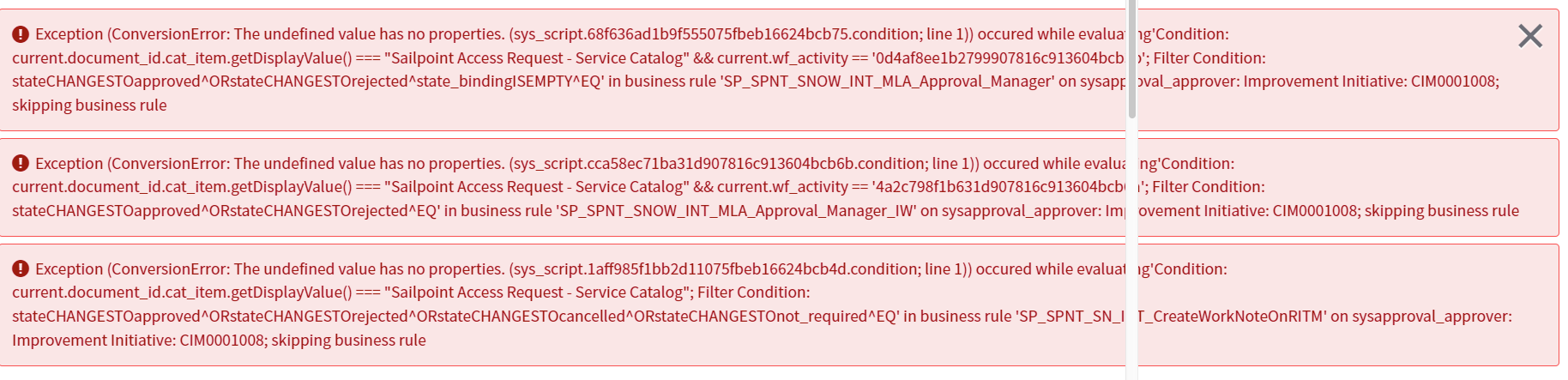
Issue: Exception (ConversionError): The undefined value has no properties in business rule; skipping business rule.
Screenshot
Screenshot
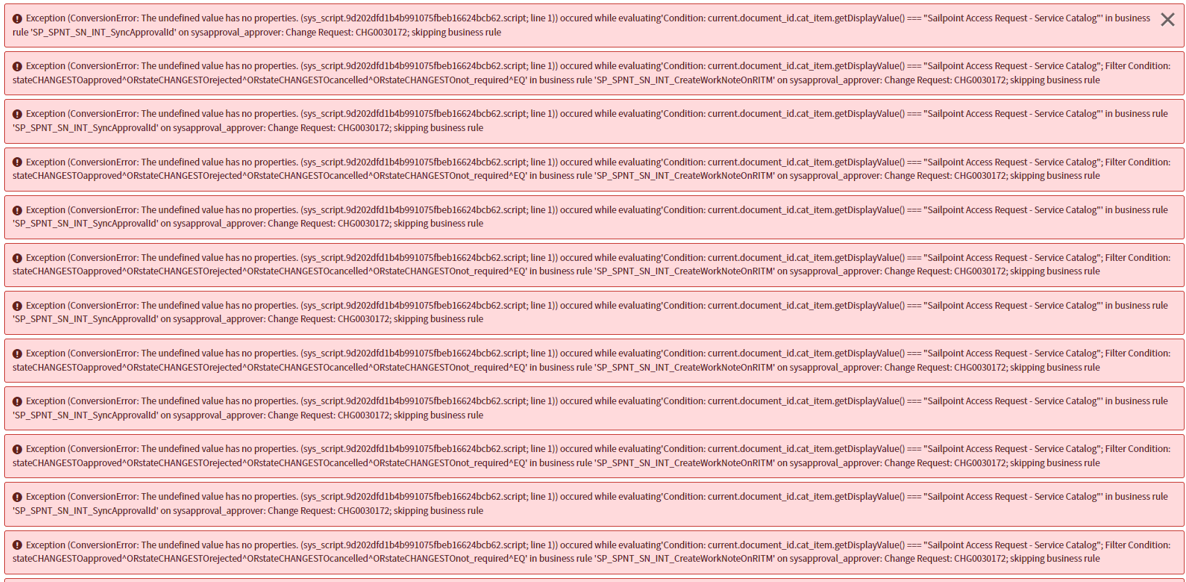
Screenshot
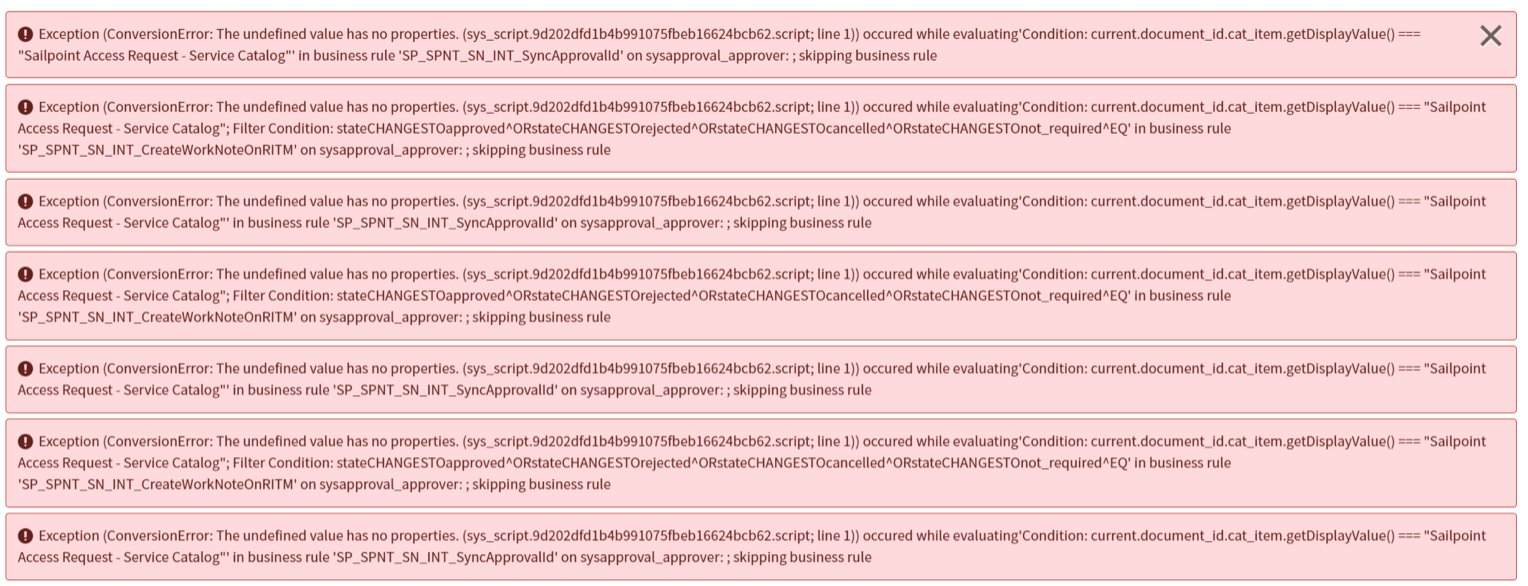
This error is observed in the following business rules:
- SP_SPNT_SNOW_INT_MLA_Approval_Manager
- SP_SPNT_SNOW_INT_MLA_Approval_Manager_IW
Add the following condition to both the business rules. In “When to run” for Approval for.Task type, the "is Requested" Item needs to be added.
Screenshot

Detailed steps:
- Add the AND Filter Condition under “When to run”
- Show related Fields, Approval for => Task Fields, select Task type.
- Condition “is”
- Requested Item
-
Select “Update”
-
OR -
Detailed steps:
- Open the
SP_SPNT_SNOW_INT_MLA_Approval_Managerbusiness rule. - Select the Advanced tab.
-
Remove the condition from the condition text box.
Screenshot
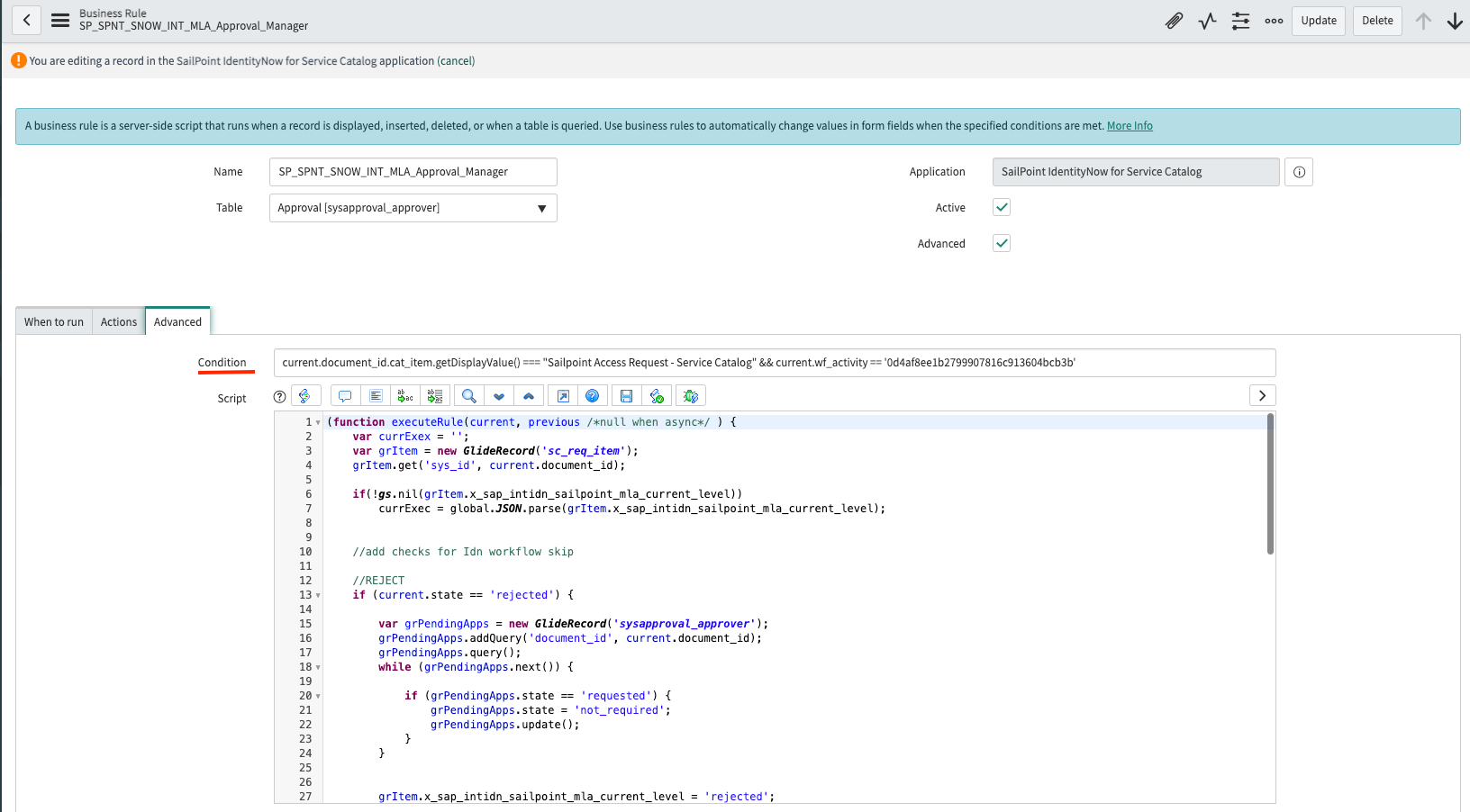
- Update the script contents with:
(function executeRule(current, previous /*null when async*/ ) { if (current.document_id.cat_item.getDisplayValue() === "Sailpoint Access Request - Service Catalog" && current.wf_activity == '0d4af8ee1b2799907816c913604bcb3b') { var currExex = ''; var grItem = new GlideRecord('sc_req_item'); if (grItem.get('sys_id', current.document_id)) { if (!gs.nil(grItem.x_sap_intidn_sailpoint_mla_current_level)) currExec = global.JSON.parse(grItem.x_sap_intidn_sailpoint_mla_current_level); //add checks for Idn workflow skip //REJECT if (current.state == 'rejected') { var grPendingApps = new GlideRecord('sysapproval_approver'); grPendingApps.addQuery('document_id', current.document_id); grPendingApps.query(); while (grPendingApps.next()) { if (grPendingApps.state == 'requested') { grPendingApps.state = 'not_required'; grPendingApps.update(); } } grItem.x_sap_intidn_sailpoint_mla_current_level = 'rejected'; grItem.update(); } else if (current.state == 'approved') { for (var i = 0; i < currExec.length; i++) { for (var j = 0; j < currExec[i].appList.length; j++) { if (current.sys_id == currExec[i].appList[j] && currExec[i].allSign == '0') { for (var k = 0; k < currExec[i].appList.length; k++) { var grApp = new GlideRecord('sysapproval_approver'); if (grApp.get('sys_id', currExec[i].appList[k])) { if (grApp.state == 'requested') { grApp.state = 'not_required'; grApp.update(); } } } currExec[i].appList = ''; grItem.x_sap_intidn_sailpoint_mla_current_level = global.JSON.stringify(currExec); grItem.update(); } else if (current.sys_id == currExec[i].appList[j] && currExec[i].allSign == '1') { currExec[i].appList.splice(j, 1); grItem.x_sap_intidn_sailpoint_mla_current_level = global.JSON.stringify(currExec); grItem.update(); } } } } } //validate approval var count = 0; if (grItem.get('sys_id', current.document_id)) { var currExec = global.JSON.parse(grItem.x_sap_intidn_sailpoint_mla_current_level); for (var i = 0; i < currExec.length; i++) { count += currExec[i].appList.length; } if (count == 0) { grItem.x_sap_intidn_sailpoint_mla_current_level = 'approved'; grItem.update(); } } } })(current, previous); -
Open the
SP_SPNT_SNOW_INT_MLA_Approval_Manager_IWbusiness rule. - Select the Advanced tab.
-
Remove the condition from the condition text box.
Screenshot
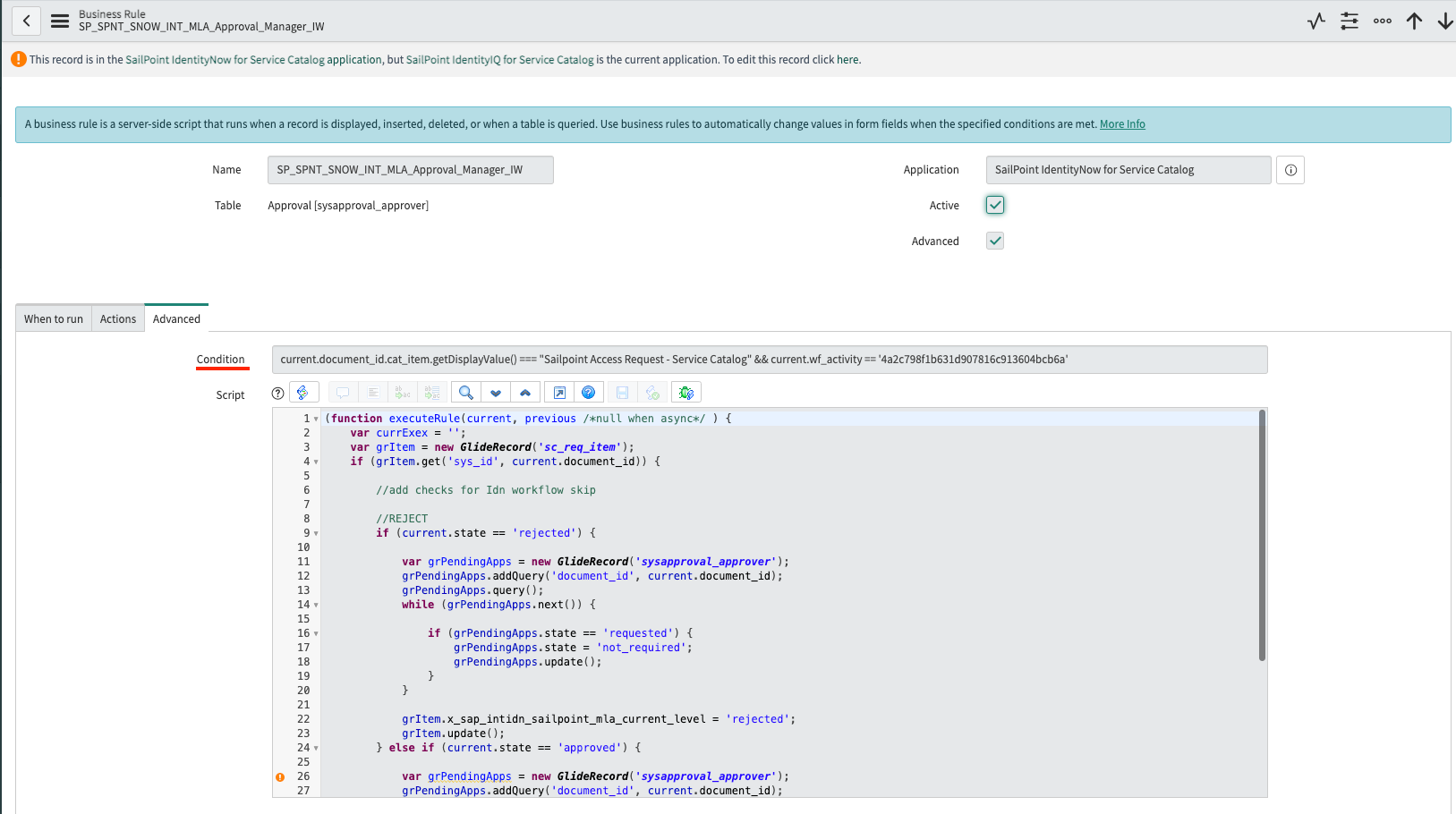
- Update the script contents with:
(function executeRule(current, previous /*null when async*/ ) {
    if (current.document_id.cat_item.getDisplayValue() === "Sailpoint Access Request - Service Catalog" && current.wf_activity == '4a2c798f1b631d907816c913604bcb6a') {
        var currExex = '';
        var grItem = new GlideRecord('sc_req_item');
        if (grItem.get('sys_id', current.document_id)) {

            //add checks for Idn workflow skip

            //REJECT
            if (current.state == 'rejected') {

                var grPendingApps = new GlideRecord('sysapproval_approver');
                grPendingApps.addQuery('document_id', current.document_id);
                grPendingApps.query();
                while (grPendingApps.next()) {

                    if (grPendingApps.state == 'requested') {
                        grPendingApps.state = 'not_required';
                        grPendingApps.update();
                    }
                }

                grItem.x_sap_intidn_sailpoint_mla_current_level = 'rejected';
                grItem.update();
            } else if (current.state == 'approved') {

                var grPendingApps = new GlideRecord('sysapproval_approver');
                grPendingApps.addQuery('document_id', current.document_id);
                grPendingApps.query();
                while (grPendingApps.next()) {

                    if (grPendingApps.state == 'requested') {
                        grPendingApps.state = 'not_required';
                        grPendingApps.update();
                    }
                }
                grItem.x_sap_intidn_sailpoint_mla_current_level = 'approved';
                grItem.update();
            }
        }
    }
})(current, previous);
Configure Status Pooling Timer
By default, the workflow is configured to pool statuses from SailPoint once every 24 hours. This can be changed as per your business requirement in the workflow.
Caution
Be aware that any change made here might need attention during upgrades.
- In the ServiceNow instance, open the
SP_SPNT_SNOW_INT_CreateSailpointAccessRequestworkflow. -
Select the timer activity named Fetching the status of Access Request, and set the duration.
Note
ServiceNow attempts 100 times before timing out with an error.
- Select Update, and then publish the workflow.
Generic Approval Definition
Approval flexibility requires a definition for each object to apply the approval rules. Often, organizations apply the same rule for an object type with a few exceptions. This section shows how Admins can create generic definitions that can be applied to all objects of a type.
Note
Any definition for an object, if defined, will be executed ignoring the generic definition for that object.
How to Set Up Generic Approval Definition
-
Go to SailPoint Identity Security Cloud for Service Catalog > Setup. To enable Generic Approvals, select Yes for the Generic Approval Definition Enabled (Applicable if Configurable Approvals selected for Approval Flow) option.
Screenshot

-
Create approval rules to be defined for generic definitions. For more information, refer to Approval Flexibility.
-
It is suggested to add text in the description to easily identify the purpose of these rules. For example,
Generic Rule provided by SailPoint.
-
-
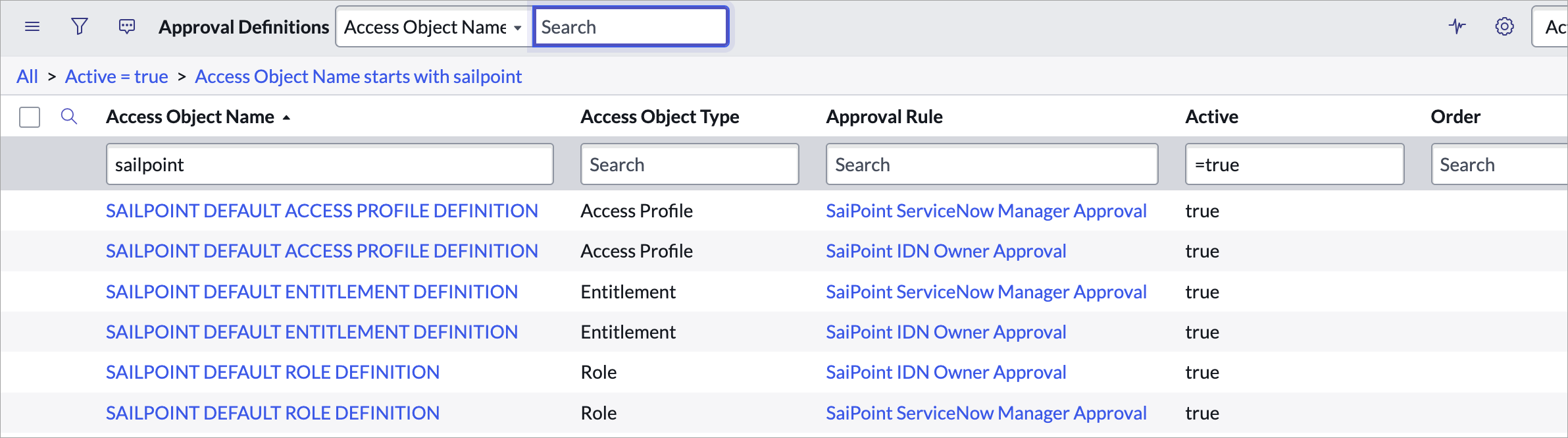
Create approval definitions. For more information, refer to Approval Flexibility. Regarding generic definitions, use only the following naming process. Generic approval definitions are recognized only by the exact match of the name.
- The generic ROLE definition should have the name SAILPOINT DEFAULT ROLE DEFINITION.
- The generic ACCESS PROFILES definition should have the name SAILPOINT DEFAULT ACCESS PROFILE DEFINITION.
- The generic ENTITLEMENT definition should have the name SAILPOINT DEFAULT ENTITLEMENT DEFINITION.
-
Create multiple definitions with the same name for serial and parallel definitions. The Order column must be used to define the sequence.
Screenshot
Limiting External Access Requests
SailPoint users typically request access through the SailPoint UI. Access requests can also be initiated from external systems using the access request REST APIs, which allow approvals to flow from the external system into SailPoint for provisioning without requiring additional approval.
Access requests initiated within the ServiceNow Service Portal communicate with SailPoint using the access request APIs. As long as access is requested via the ServiceNow Service Portal, the defined approval process will be followed, and access requests will flow to SailPoint for provisioning.
This means that users with access to the SailPoint UI could use it to request access and have their request immediately provisioned, bypassing your external approval process.
Preventing users who have access to SailPoint from directly submitting the access request can be accomplished in two ways:
-
Disable the SailPoint access request UI by changing the default setting for the
approvalsMustBeExternalaccess request configuration option fromfalsetotrue.Use the REST APIs to make the following REST call:
And include the following in the body of the request:
For more information on the use of this API, refer to Get Access Request Configuration in the Developer Community.
Important
Only users with OrgAdmin can raise requests when the flag
approvalsMustBeExternalis set toTrue. This option is not suggested when using the request catalog for a wider audience. -
Create a workflow in SailPoint, that uses the
Access Request Dynamic Approverevent trigger to evaluate the origin of an access request, assign an approver, and/or cancel the request if it did not originate from the ServiceNow Service Catalog connector.Suggested Approach:
-
Create a Workflow in SailPoint
- Setup an external event trigger in SailPoint, subscribing to trigger named
Access Request Dynamic Approver. - In the workflow, add an Approver Action to reflect the individual that would be assigned an approval task if a request is not assigned from ServiceNow. If applicable, configure the HTTP action to cancel the request.
Important
Do not leave access request via SailPoint accessible to users if approvals are configured in ServiceNow. Otherwise, access will be unguarded and vulnerable to misuse.
- Setup an external event trigger in SailPoint, subscribing to trigger named
-
Configuring Custom Questions
This functionality provides the ability to collect additional information before raising the requests. Users can provide additional information in a question-and-answer format when submitting access requests through the SailPoint Portal.
The collected responses are:
- Saved in ServiceNow under the Request Item (RITM)
- Sent to SailPoint as metadata when creating the access request
Questionnaire Rules and Questions
- In ServiceNow, open SailPoint Identity Security Cloud from the App Navigator.
-
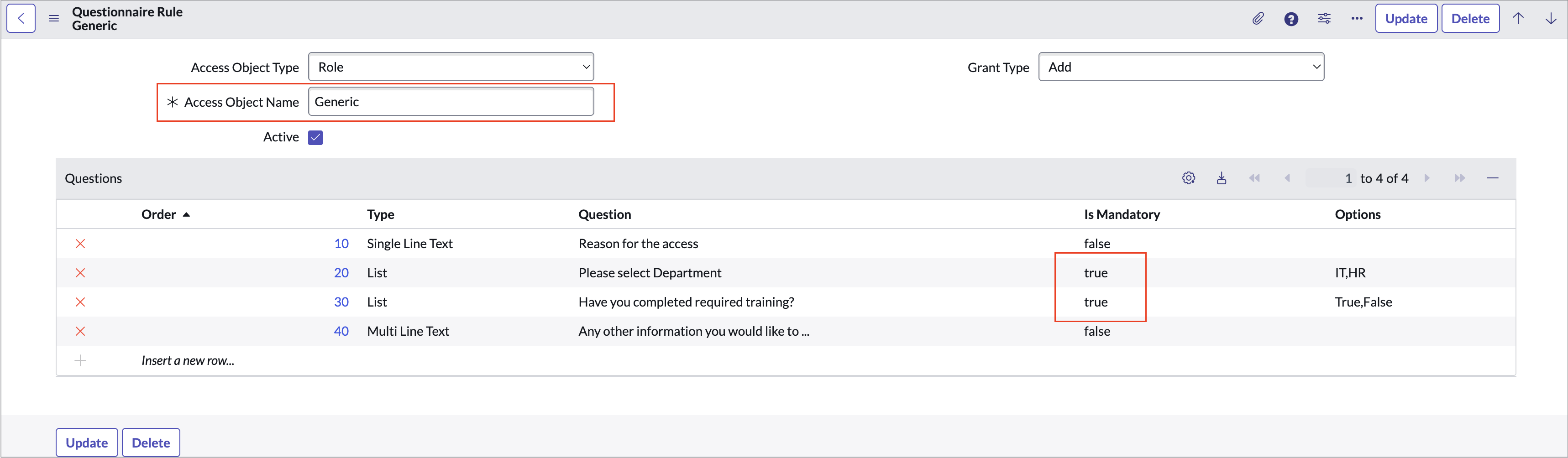
Open the Questionnaire Rules module, and create a rule for:
A specific access object, or
A general rule that applies to all access objects of a certain type. Access object name needs to be defined as 'Generic' 3. Add Questions to the Rule. Multiple questions with option “is mandatory” of the following types can be added.
- Single-Line Text
- Multi-Line Text
-
Dropdown Selection
Screenshot
Rule Mapping to Object
The following order is used to find the appropriate rule:
-
Exact match:
Access Object Name, Type, and Grant Type 2. Generic name match:
Access Object Name = "Generic", with matching Type and Grant Type 3. Fully generic match:
Access Object Name = "Generic", Type = "ALL", and matching Grant Type
Displaying the Questionnaire on the Request Page
-
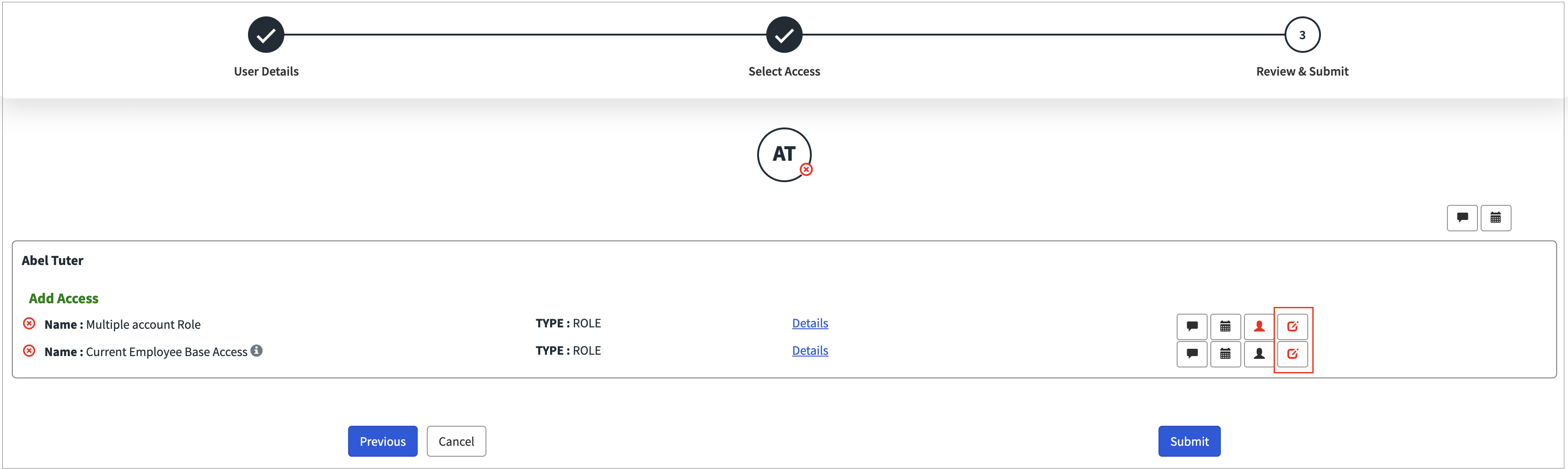
Enable the instance option. Select Show Additional Information to display the questionnaire.
Note
Applicable to the widgets for Review and Submit or Review and Submit 2.
Screenshot
Configuring Page Headers
Perform the following steps to offer guidance and instructions to users through customized page headers:
-
Go to SailPoint Identity Security Cloud for Service Catalog > Setup.
Screenshot

- To enable the customizable text box, select Yes on Show Header text box
- Enter instructional text in the desired fields: User Header text, Add Access Header text, Recommendations Header text, Remove Access Header text, and Review & Submit Header text. String and HTML formats are accepted.
- Select Save.
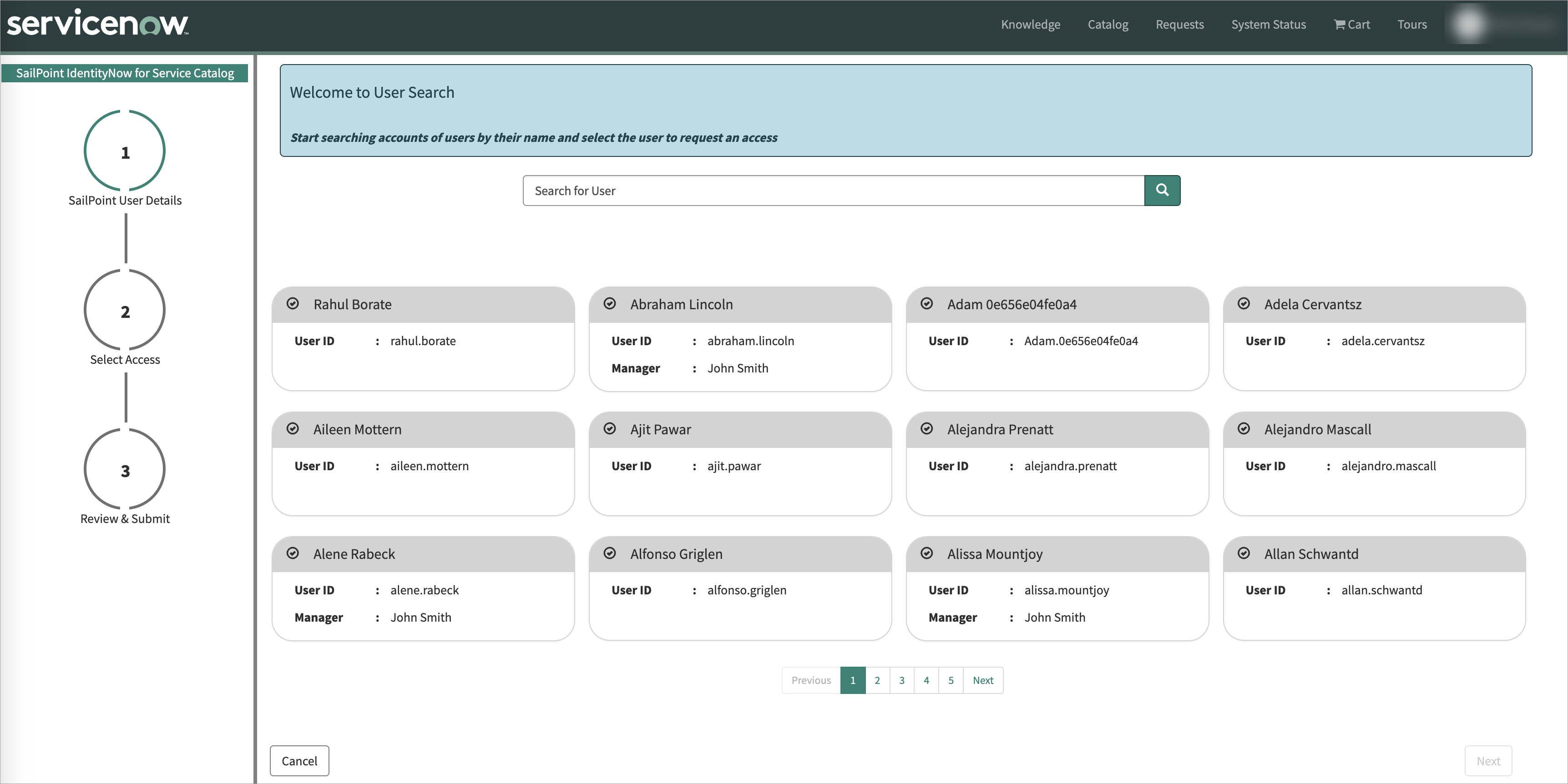
- Go to the Manage Access Service Portal page to view the configured headers (light blue text box). If the Show Header text box option is selected and no instruction text is supplied, the configured headers will be empty.
Screenshot
Screenshot
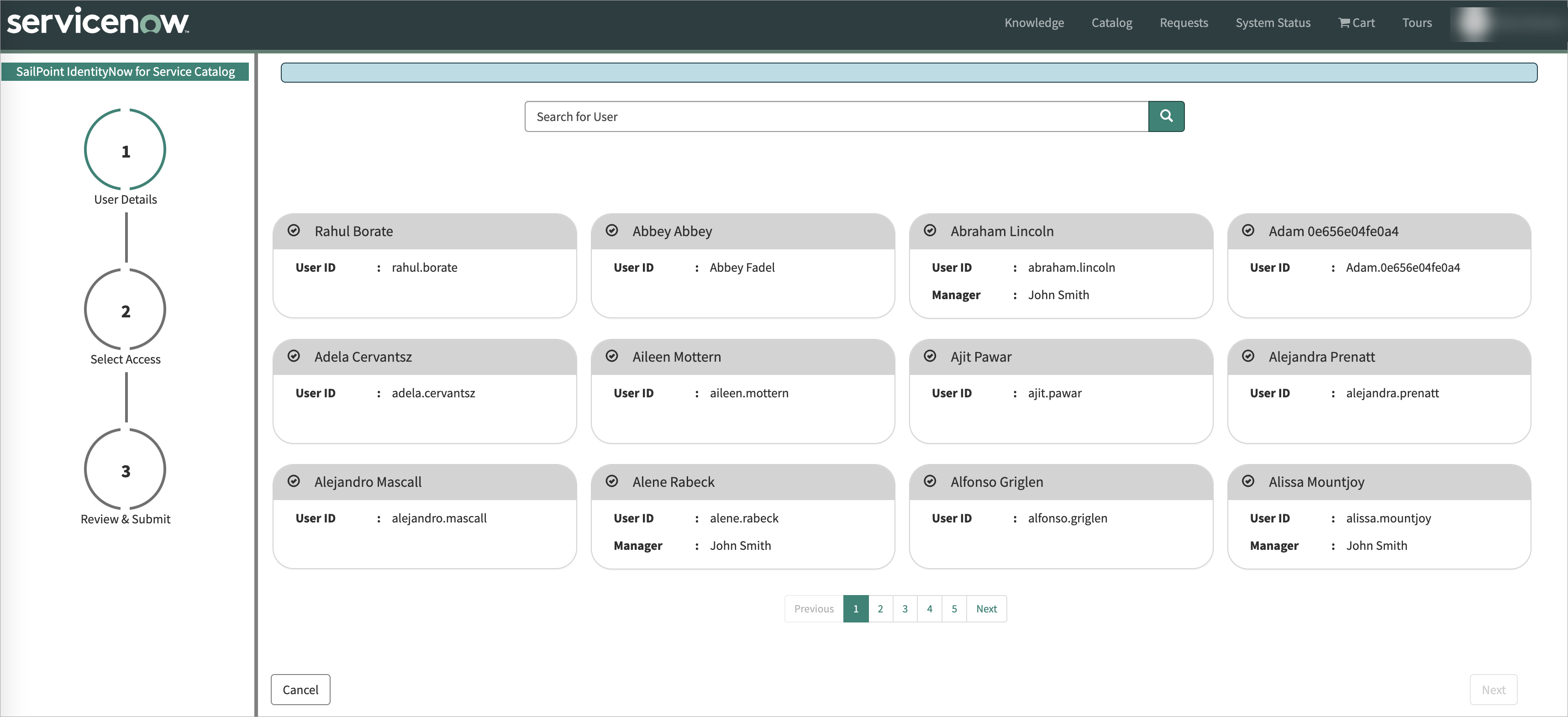
Configuring the Sunset Date
ServiceNow admins have the ability to configure the Sunset (Expiration) Date field in ServiceNow as mandatory or non-mandatory while requesting access. The Global Sunset Date field provides the ability to make changes in all requested line items.
Note
Prior to version 3.0, the Sunset Date field in ServiceNow was non-mandatory.
Color legend for the sunset date icon:
- Red - Mandatory and empty
- Grey - Non-mandatory and empty
- Primary Color of the ServiceNow instance - Sunset date field has a date value.
How to Enable Sunset Date Configuration
- Go to SailPoint Identity Security Cloud for Service Catalog > Setup.
-
Go to settings with the label, Is Sunset Date Mandatory for Access Requests?
-
The default is No. Select the option for Yes to impose this field as mandatory.
Screenshot
 - Users have the ability to copy the Sunset Date across all line items using the Global Sunset Date functionality.
- The calendar icon in the top right of the page is the Global Sunset Date field. A change made in this field will reflect the same text to the comment fields of all the line items on the page.
Screenshot
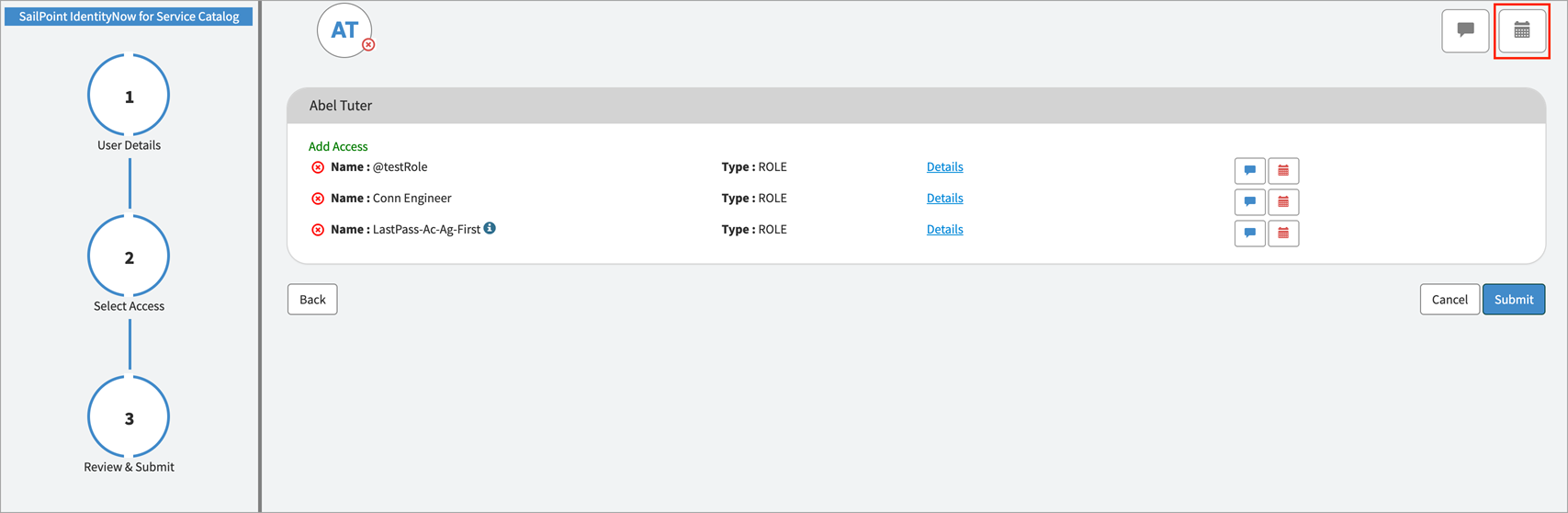
Screenshot
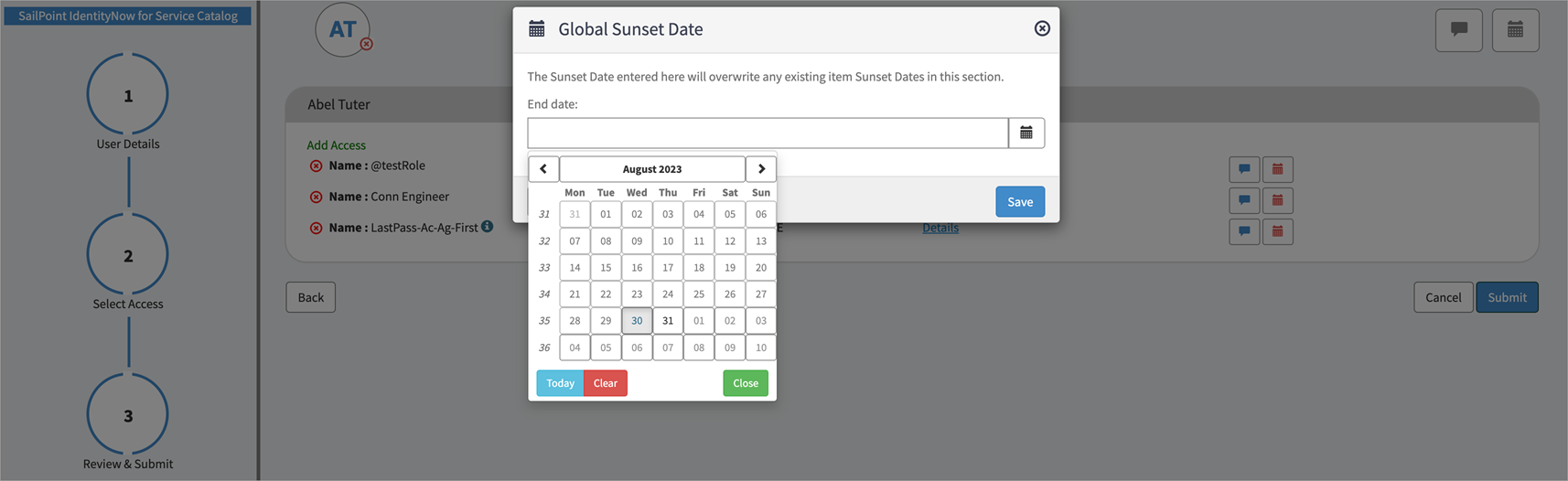
Screenshot
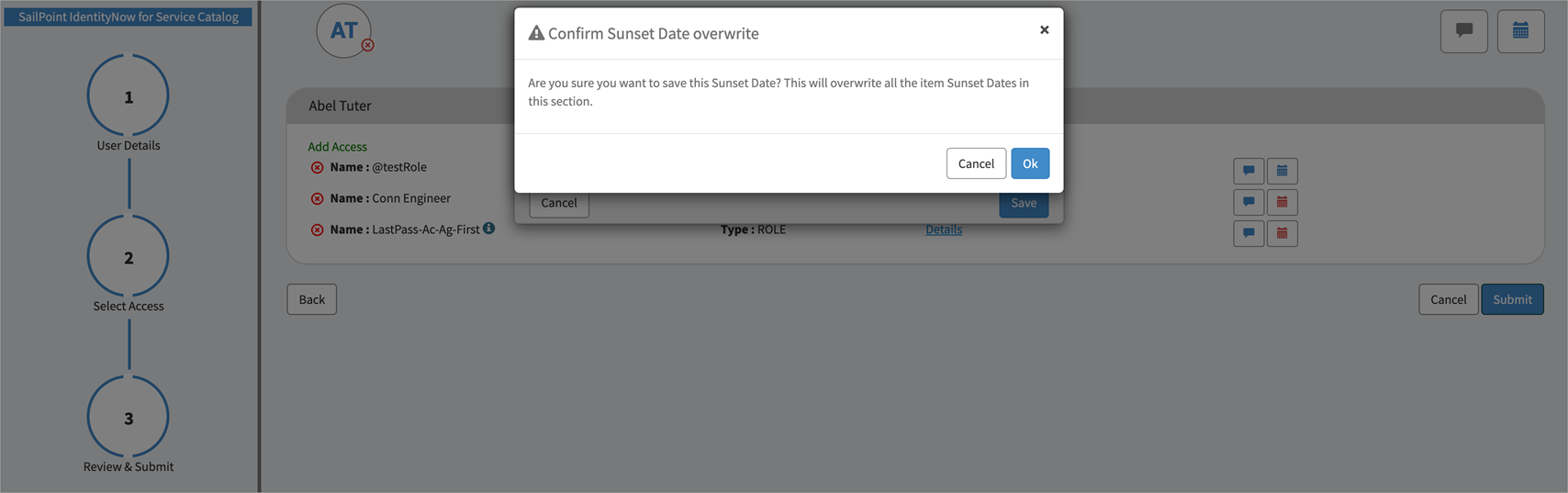
Note
Any changes made to individual line items will be overwritten by making edits in the Global Sunset Date field.
-
Configuring Native Search
ServiceNow search sources make it easier for users to search data on the portal. SailPoint's search source can be configured to help users in finding SailPoint’s access objects through portal search. For more information on searchable fields, refer to Searchable Fields - SailPoint Identity Services.
Admins in ServiceNow can configure the SailPoint Search Source by performing the following steps.
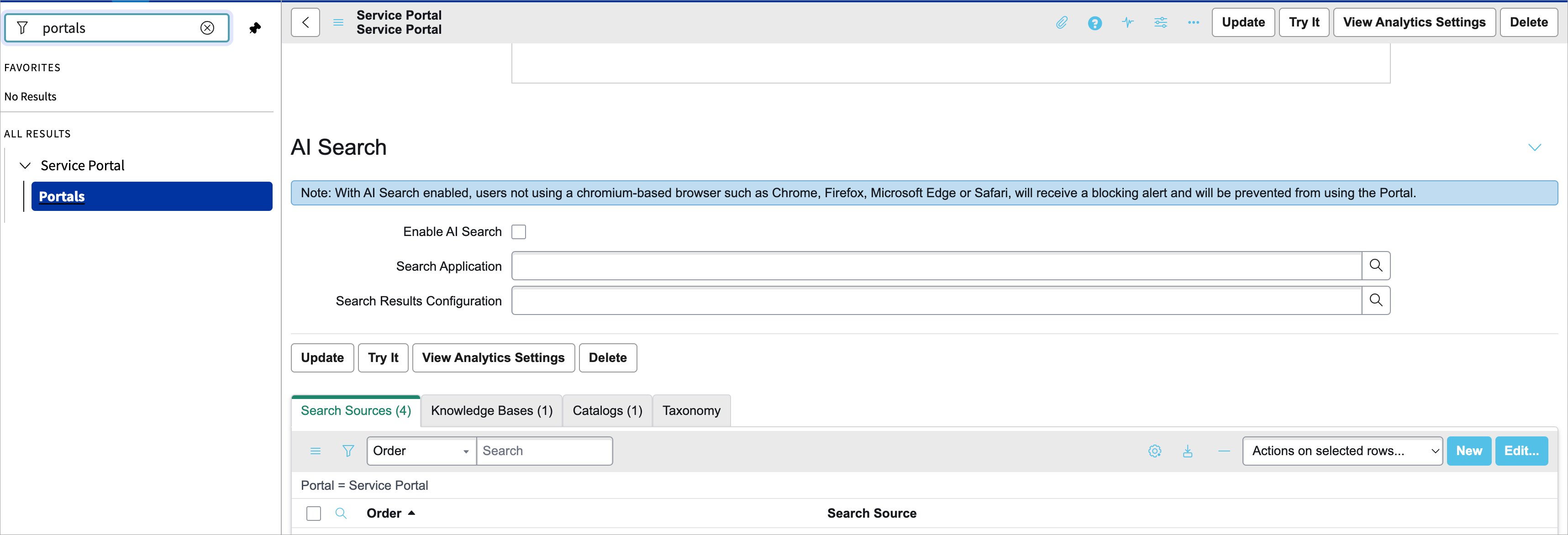
- Go to Service Portal > Portals and open the relevant portal record.
-
AI Search in ServiceNow doesn't support external sources. Ensure the Enable AI Search checkbox is unchecked, and that the scope has been set correctly.
Screenshot
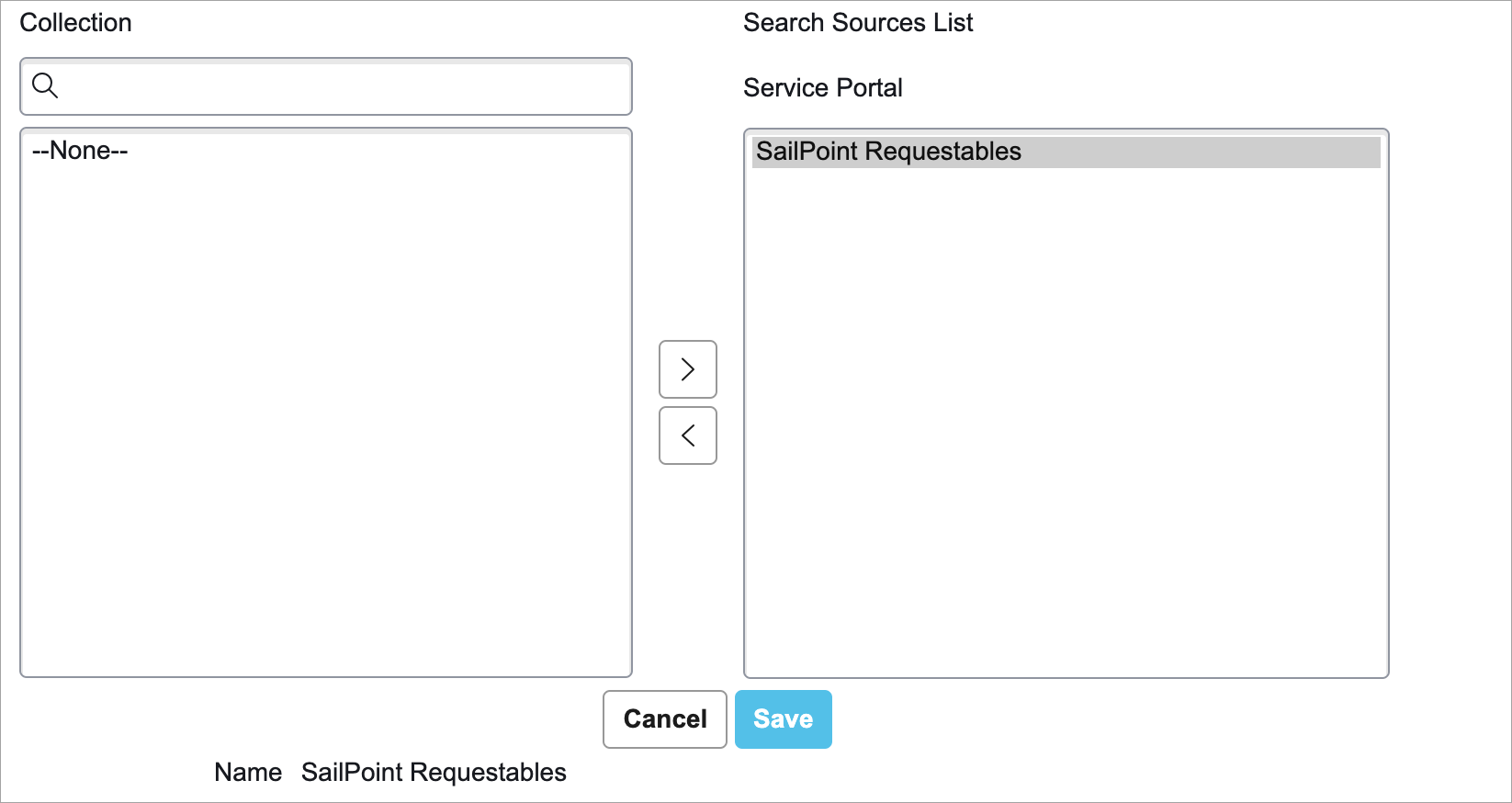
- Go to the Search Sources list and select Edit.
- Add SailPoint Requestables to the Search Source List and select Save.
Screenshot
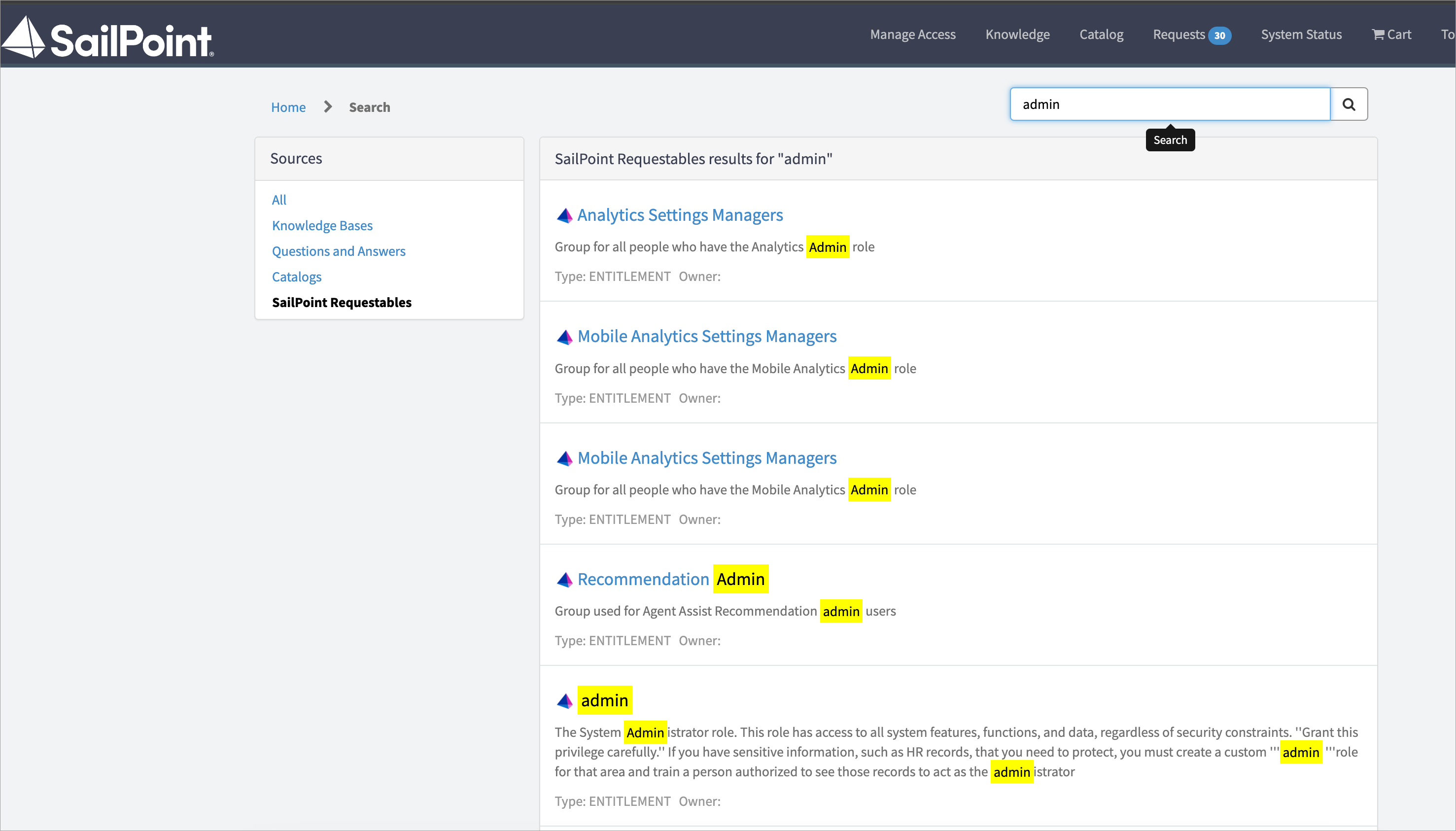
Note
ServiceNow does not support external sources when the AI search feature is enabled.
After completing the above mentioned configuration, users will be able to use the service portal search to look for SailPoint access objects.
Screenshot
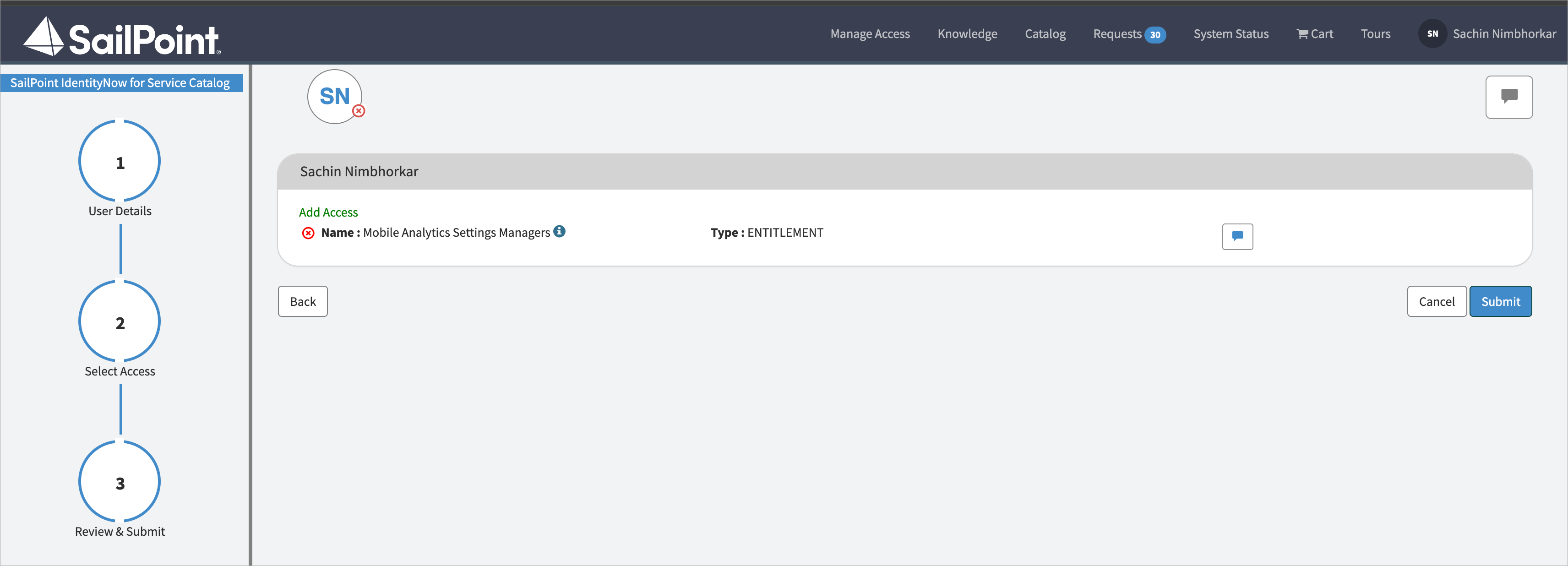
Upon selection of any result from the SailPoint requestable source, the signed in user will be redirected to the page that has been defined in the Native Search field on the setup page. For example, manage_access. The pages
Manage_AccessandISC_Requesthave been configured to access the values. If you use a custom page, the target page should include the widget for ISC Access Object Selection.Screenshot
Note
Search Source will work only for users that have
x_sap_integration.useroradminaccess in ServiceNow and a valid identity present in SailPoint.
Adding Paginated Result Support for the SailPoint Search Source
By default, the paginate results option is disabled for the SailPoint Search Source, however, ServiceNow admins can enable it.
Caution
Due to the data retrieval method of the SailPoint Search Source from the REST API, it is essential to utilize facets in conjunction with pagination when conducting searches. This approach guarantees accurate results.
To add paginated support for the SailPoint Requestables Search Source, refer to the Knowledge Base search source, Product Documentation | ServiceNow, as recommended by ServiceNow.
In the data retrieval script, ServiceNow uses undocumented objects like query, queryLocation, etc. Any changes made to these objects either by ServiceNow or any other customization may result in paginated search failure.
Enable the Paginated Result and Facets for the Search Source
Admins in ServiceNow can disable pagination for the SailPoint Search Source by performing the following steps:
- Go to Service Portal > Search > Search Sources and open the
SailPoint Requestablessearch source record. - Select the checkbox to enable Paginate Results.
-
Copy the following code, and paste it into the
Data Fetch Script.For v3.2 and earlier
var queryLocation = queryLocation || 0;
var count = count || 30;
(function(query, queryLocation, count) {
    var results = [];
    var snAccountAttributeValue = '';
    var identityAttributeName = gs.getProperty('x_sap_intidn.x_sp_spnt_snow_int.spnt_identity_attribute', '').trim();
    var snAccountAttribute = gs.getProperty('x_sap_intidn.x_sp_spnt_snow_int.servicenow_account_attribute', 'name').trim();
    var userID = gs.getUserName();

    var grUser = new GlideRecord('sys_user');
    if (grUser.get('user_name', userID)) {
        snAccountAttributeValue = grUser.getValue(snAccountAttribute);
    }
    var authScript = new x_sap_intidn.SP_SPNT_SNOW_INT_Auth();
    var accessToken = authScript.getServiceAccountAccessToken();

    var cmnObj = new x_sap_intidn.SP_SPNT_SNOW_INT_Common();
    var valid = false;
    valid = cmnObj.checkIfValidIdentity(accessToken, identityAttributeName, snAccountAttributeValue);

    if (valid) {
        var idn_extractRole_scriptIncludes = new x_sap_intidn.SP_SPNT_SNOW_INT_GetAccessListREST();
        idn_extractRole_scriptIncludes.setAuthScript(authScript);

        var accessObjectType = {
            'Access Profiles': 'ACCESS_PROFILE',
            'Roles': 'ROLE',
            'Entitlements': 'ENTITLEMENT'
        };

        var tabs = gs.getProperty("x_sap_intidn.x_sp_spnt_snow_int.specify_tab_order", "");
        tabs = tabs.trim().split(",");

        if (facets.AOType) {
            tabs = tabs.filter(function(objType) {
                return objType == facets.AOType;
            });
        }
        if (global.JSUtil.notNil(data.limit) && !isNaN(data.limit))
            count = data.limit + queryLocation;
        var resCount = 0;

        tabs.forEach(function(tab) {
            if (accessObjectType[tab]) {
                var accessList = idn_extractRole_scriptIncludes.getAccessEntitiesCombined(accessToken, query, accessObjectType[tab], '', '', true, queryLocation, count);
                if (accessList.count > 0) {
                    accessList.items.forEach(function(accessObject) {
                        results.push({
                            'name': accessObject.name,
                            'description': accessObject.description ? accessObject.description : '',
                            'type': accessObject.type,
                            'query_location': queryLocation + resCount,
                            'owner': accessObject.Owner,
                            'url': '?id=manage_access&itemId=' + accessObject.id
                        });
                        resCount++;
                    });
                }
            }
        });
    } else {
        gs.info(userID + ' is not a valid identity in SailPoint');
    }
    if (results.length == 0)
        return results;
    if (results.length < count) {
        var lastResult = results.pop();
        lastResult.isLastResult = true;
        results.push(lastResult);
    }
    return results;
})(query, queryLocation, count);
For v4.0
var queryLocation = queryLocation || 0; var count = count || 30; (function(query, queryLocation, count) { var results = []; var snAccountAttributeValue = ''; var identityAttributeName = gs.getProperty('x_sap_intidn.x_sp_spnt_snow_int.spnt_identity_attribute', '').trim(); var snAccountAttribute = gs.getProperty('x_sap_intidn.x_sp_spnt_snow_int.servicenow_account_attribute', 'name').trim(); var userID = gs.getUserName(); var page_id = gs.getProperty('x_sap_intidn.Native_Search_Redirect_Page_ID','manage_access'); var grUser = new GlideRecord('sys_user'); if (grUser.get('user_name', userID)) { snAccountAttributeValue = grUser.getValue(snAccountAttribute); } var authScript = new x_sap_intidn.SP_SPNT_SNOW_INT_Auth(); var accessToken = authScript.getServiceAccountAccessToken(); var cmnObj = new x_sap_intidn.SP_SPNT_SNOW_INT_Common(); var valid = false; valid = cmnObj.checkIfValidIdentity(accessToken, identityAttributeName, snAccountAttributeValue); if (valid) { var idn_extractRole_scriptIncludes = new x_sap_intidn.SP_SPNT_SNOW_INT_GetAccessListREST(); idn_extractRole_scriptIncludes.setAuthScript(authScript); var accessObjectType = { 'Access Profiles': 'ACCESS_PROFILE', 'Roles': 'ROLE', 'Entitlements': 'ENTITLEMENT' }; var tabs = gs.getProperty("x_sap_intidn.x_sp_spnt_snow_int.specify_tab_order", ""); tabs = tabs.trim().split(","); if (facets.AOType) { tabs = tabs.filter(function(objType) { return objType == facets.AOType; }); } if (global.JSUtil.notNil(data.limit) && !isNaN(data.limit)) count = data.limit + queryLocation; var resCount = 0; tabs.forEach(function(tab) { if (accessObjectType[tab]) { var accessList = idn_extractRole_scriptIncludes.getAccessEntitiesCombined(accessToken, query, accessObjectType[tab], '', '', true, queryLocation, count); if (accessList.count > 0) { accessList.items.forEach(function(accessObject) { results.push({ 'name': accessObject.name, 'description': accessObject.description ? accessObject.description : '', 'type': accessObject.type, 'query_location': queryLocation + resCount, 'owner': accessObject.Owner, 'url': '?id='+page_id+'&itemId=' + accessObject.id, }); resCount++; }); } } }); } else { gs.info(userID + ' is not a valid identity in SailPoint'); } if (results.length == 0) return results; if (results.length < count) { var lastResult = results.pop(); lastResult.isLastResult = true; results.push(lastResult); } return results; })(query, queryLocation, count);- Uncomment the code from the
Facet Generation Scriptand select Update.
Note
Any modifications to the internal ServiceNow object utilized in the data fetch script will cause the paginated search to fail.
- Select Update.
- Uncomment the code from the
Assigning Roles to the Portal Integration
Important
As an Administrator, you’ll need to assign the role associated with the application integration to every ServiceNow user who will use the ServiceNow Portal Integration for Identity Security Cloud to request access.
To do this as a bulk operation and add this role to all ServiceNow users at once, you can run the following script:
var gr = new GlideRecord("sys_user");
gr.query();
while(gr.next()) {
   if (gr.accumulated_roles.toString().indexOf(",x_sap_intidn.user,") == -1) {
    gr.roles = gr.roles + ", x_sap_intidn.user";
    gr.update();
   }
}
You can also modify this script to assign the role to a subset of ServiceNow users to better control their access to the Service Catalog app. For more information, refer to ServiceNow to search their help documents.
| Role | Description |
|---|---|
| x_sap_intidn.user | Users with this role can access the SailPoint Identity Security Cloud for Service Catalog Integration Manage Access page, where they can request access. |
| x_sap_intidn.sapadmin | Users with this role can access the SailPoint Identity Security Cloud for Service Catalog Integration application, to administer it and configure it for others to use. |
| x_sap_intidn.onbehalfof | Users with this role can access the SailPoint Identity Security Cloud for Service Catalog integration Manage Access page, where they can request access for themselves, or on behalf of another user. |
| x_sap_intidn.certificationuser | Users with this role can access SailPoint's ISC Certification page. |
Language Internationalization
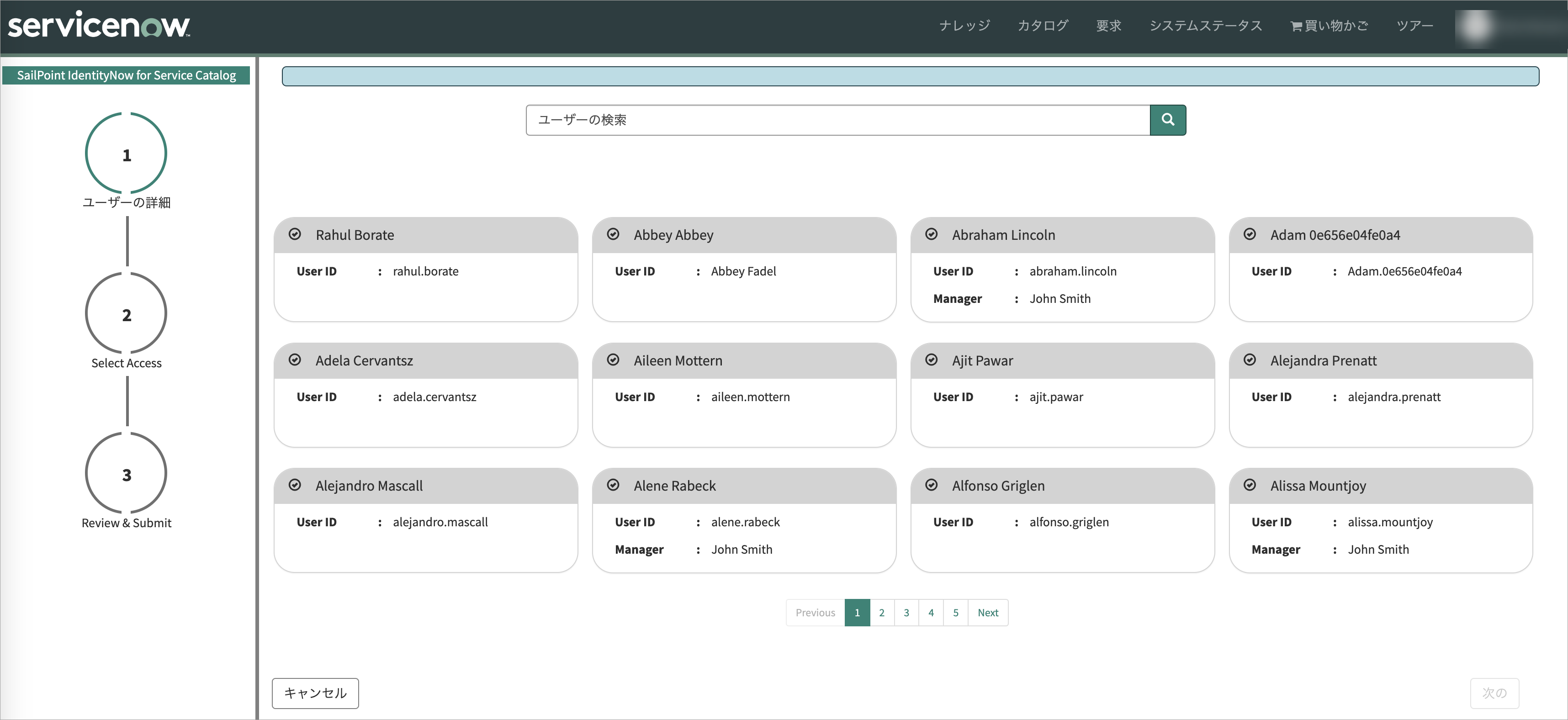
Activating Language Internationalization on the ServiceNow Platform
- Users with the ServiceNow admin role can activate language internationalization on the ServiceNow platform. Refer to Activate a language for more information.
Pre-Translated Messages for English and French
-
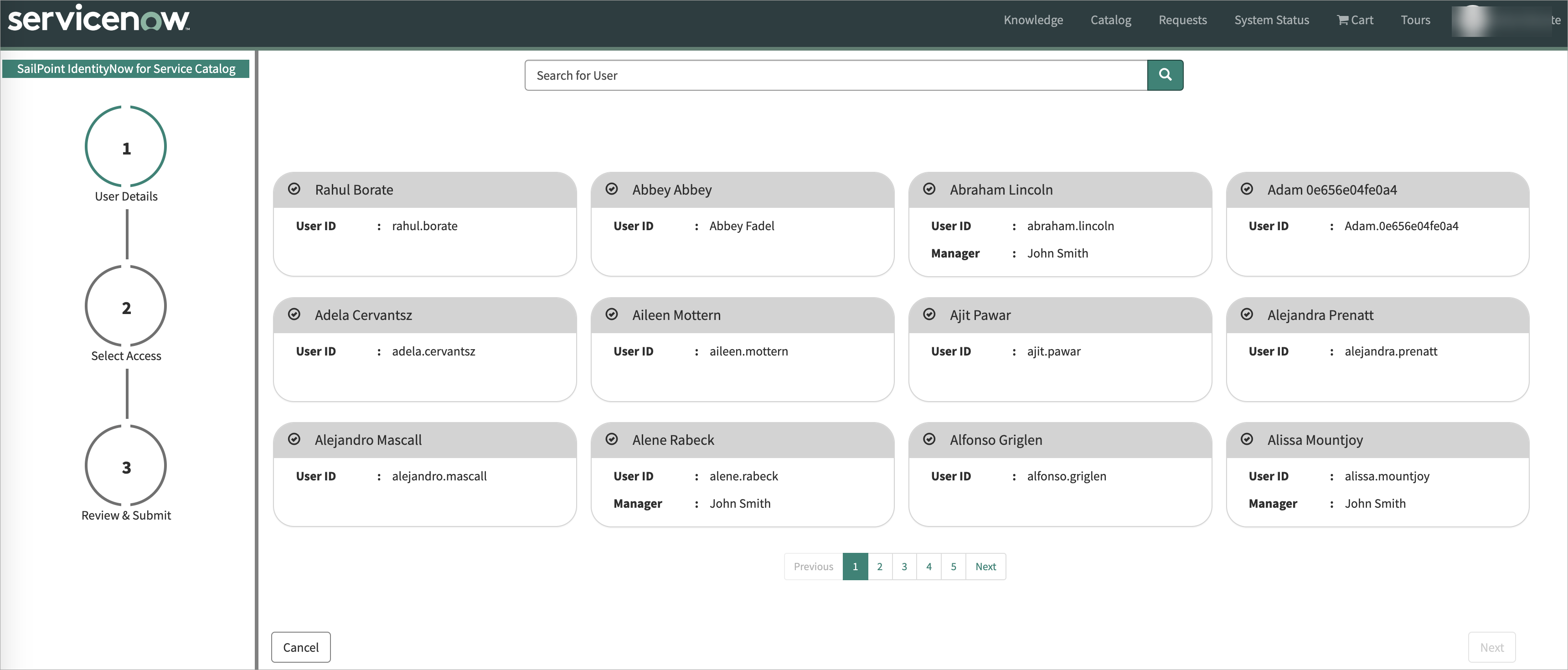
If the English language plugin is active on the ServiceNow platform, the SailPoint Manage Access portal shows UI labels in the English language.
Screenshot
-
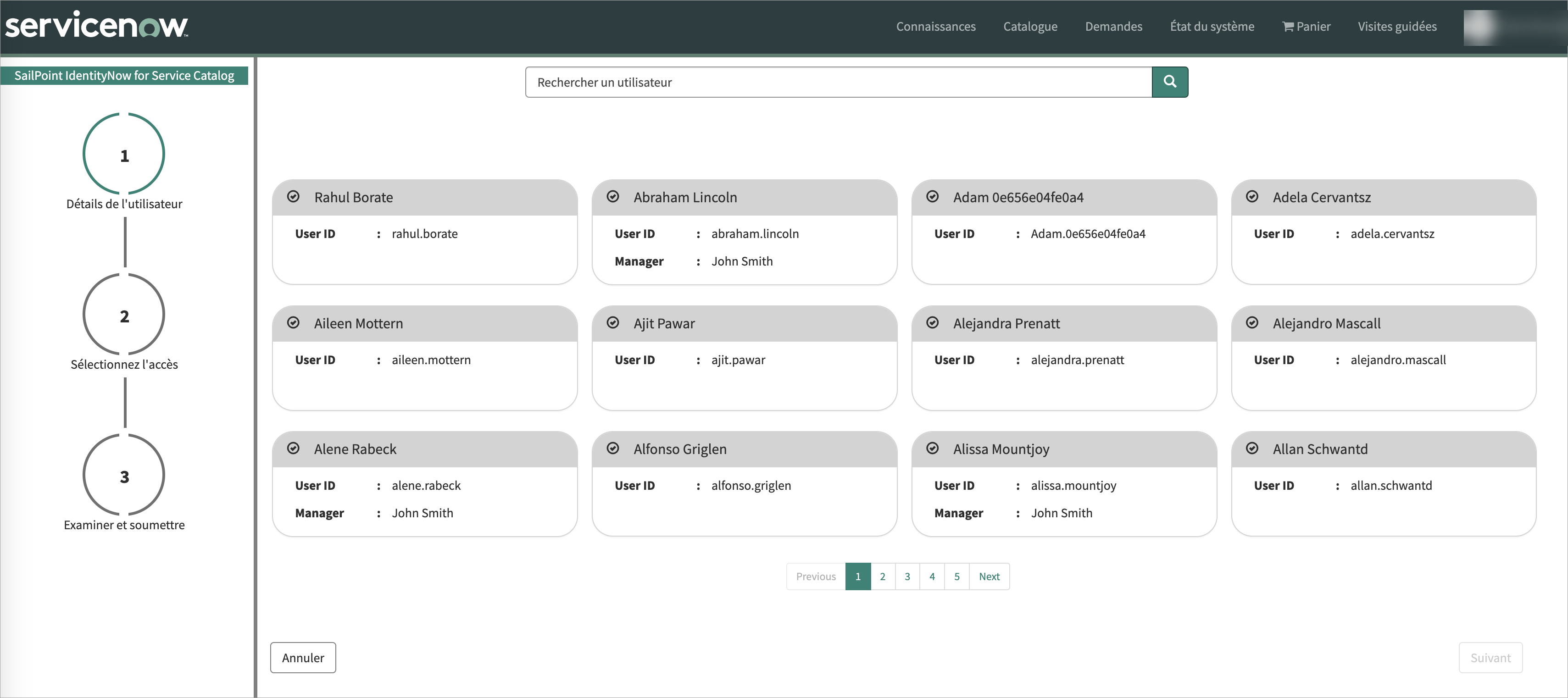
If the French language plugin is active on the ServiceNow platform, the SailPoint Manage Access portal shows UI labels in the French language.
Screenshot
Extending Language Internationalization
Perform the following steps to extend language internationalization support for other languages. For example, Japanese.
-
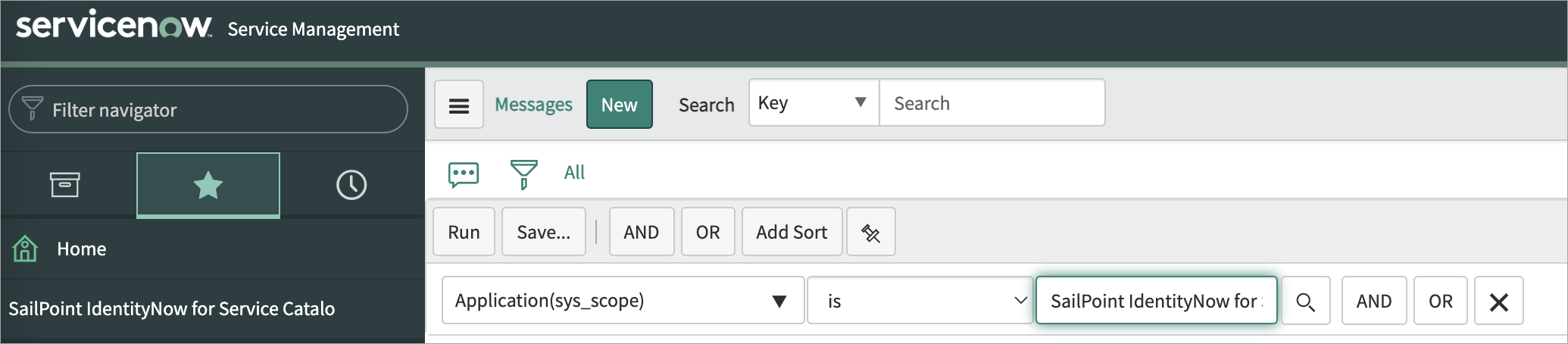
Open the
sys_ui_messagetable records (keys) by applying the application filter SailPoint Identity Security Cloud for Service Catalog.Screenshot
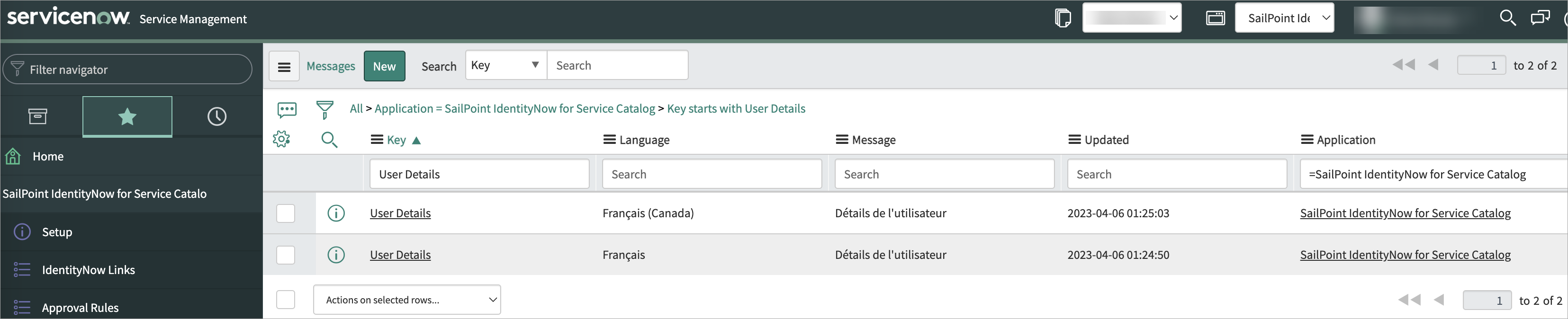
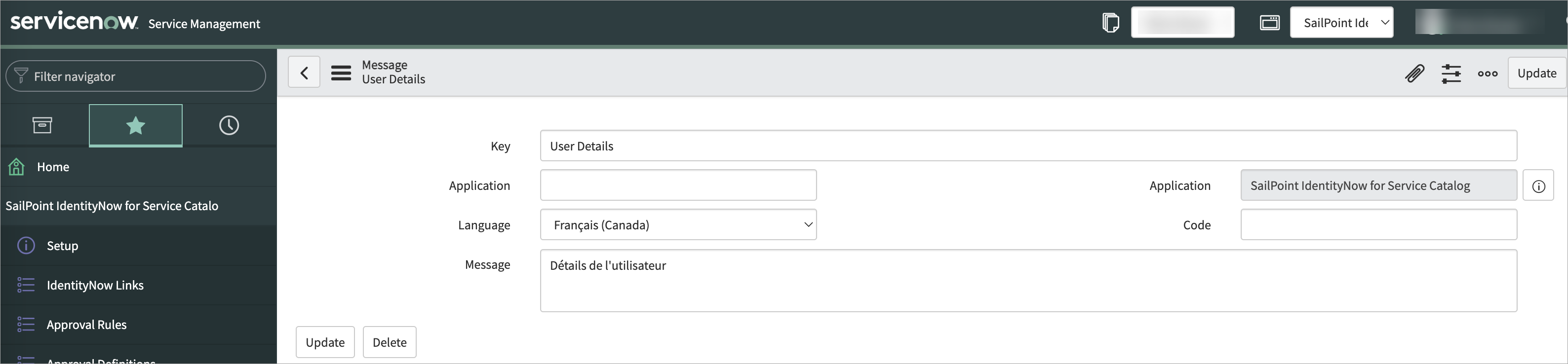
- Search for the User Details key and open one of the keys.
Screenshot
Screenshot
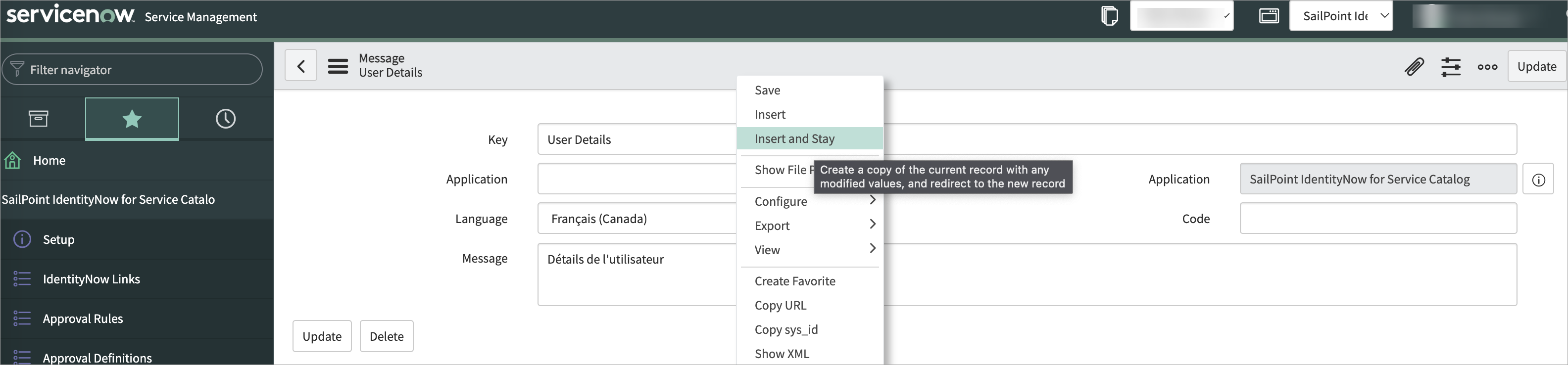
- Select the Insert and Stay option to create an additional (new) key with the name User Details.
Screenshot
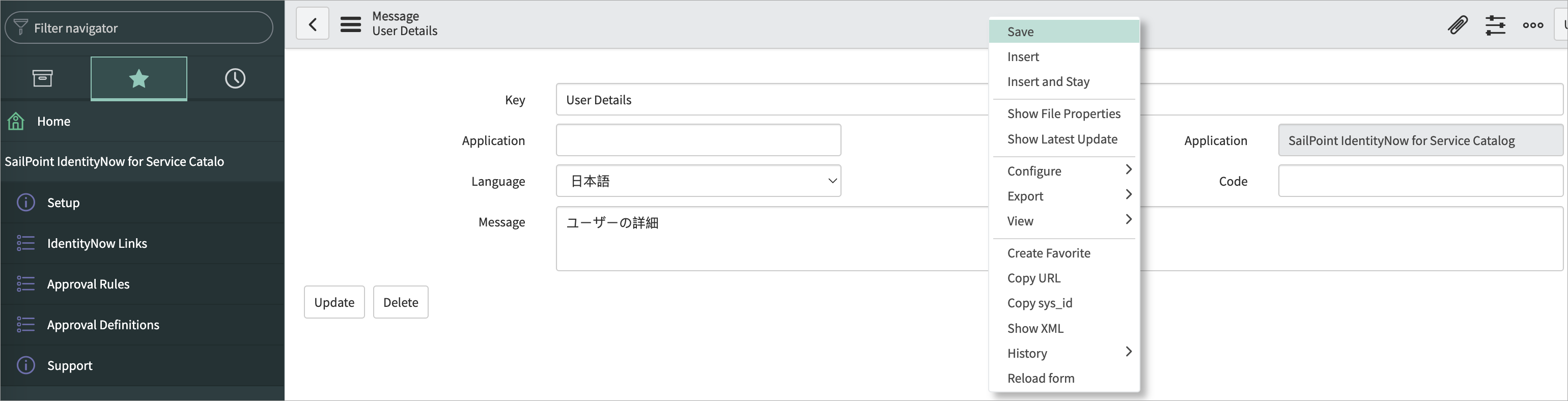
- In the new User Details key, select Japanese as the Language, update the Message to a Japanese message, and Save the new key.
Screenshot
Screenshot
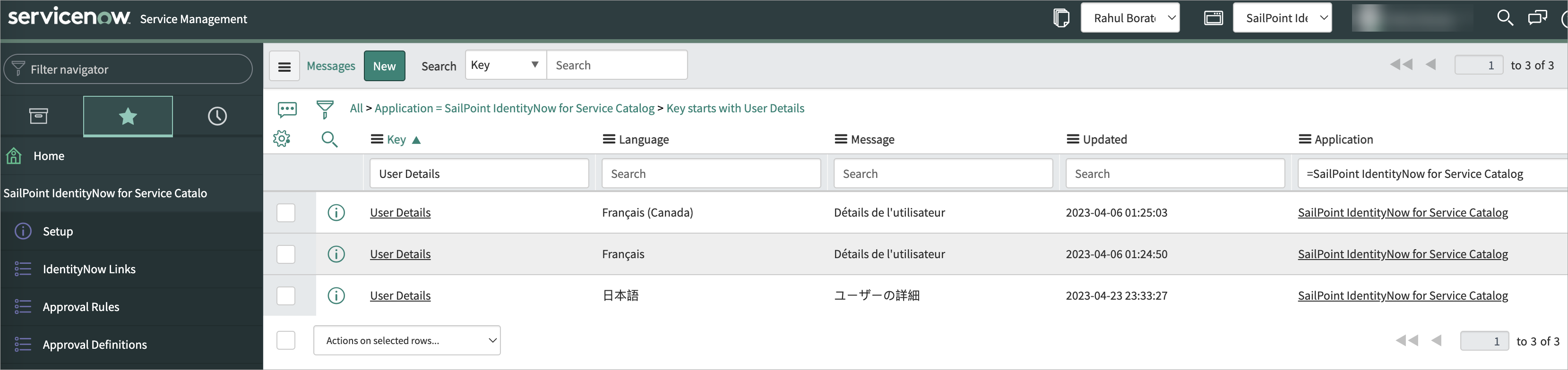
- If the Japanese language plugin is active on the ServiceNow platform, the SailPoint Manage Access portal will show UI labels in the Japanese language.
Screenshot
Configuring the Comments
ServiceNow admins have the ability to configure the comments field in ServiceNow while requesting access as mandatory or non-mandatory.This field is now configured based on the settings defined in SailPoint. The global comments field provides the ability to make changes in all requested/review line items.
Admins can now decide to either pre-fill the comments with standard text that can be customized via the SetUp page.
Note
Prior to version 3.0, the comments field in ServiceNow auto filled with a standard text while requesting access. Now, using the global comment field will write to all line items.
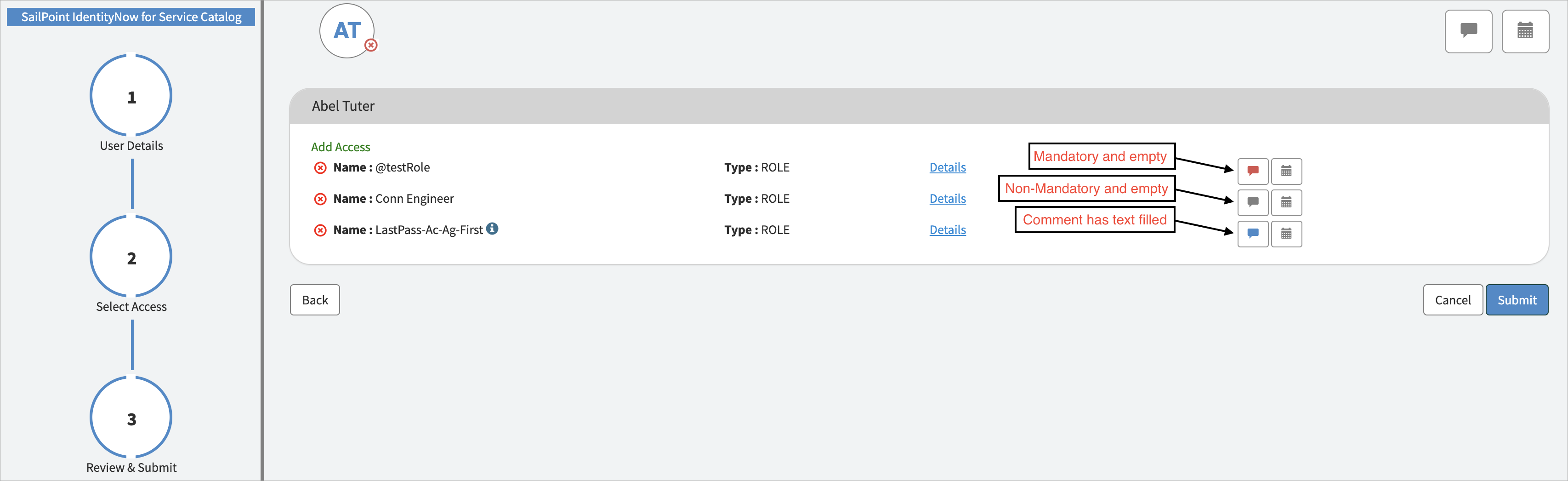
Color legend for the comment icon in the Request/Review Access UI:
- Red - Mandatory and empty
- Grey - Non-mandatory and empty
-
Primary Color of the ServiceNow instance - Comment field has text filled.
Screenshot
-
The comments field can be set with a default text value for each of the line items through the SetUp page, however, this can be changed by admins.
- Comment Configuration of the line item will reflect the behavior (mandatory or non-mandatory) based on the settings in SailPoint if the field is left empty in the setup page.
How to Enable Comment Configuration
- Go to SailPoint Identity Security Cloud for Service Catalog > Setup.
-
Go to settings with the label, Default comments for requested items. Keep it blank to impose comment configuration of IDN.
- The default text included is "ServiceNow SailPoint Catalog Integration – Default Comments" to enable compatibility for versions prior to v3.0. This text can be updated as per your organization standards.
- Leave it blank to impose comment configuration of SailPoint.
-
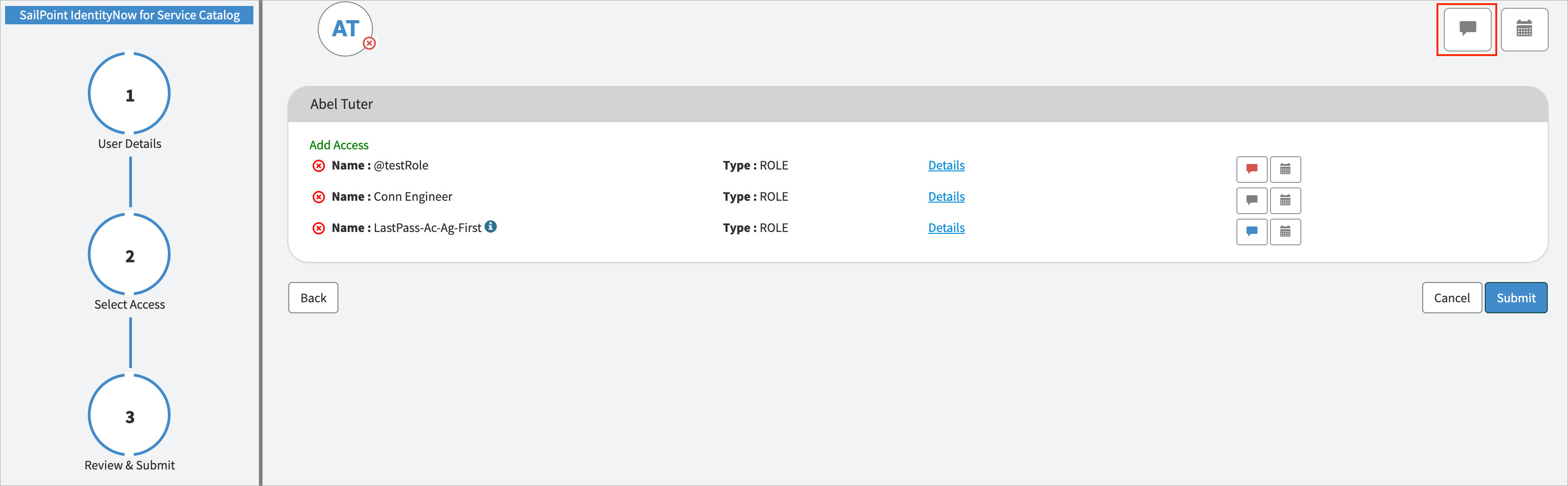
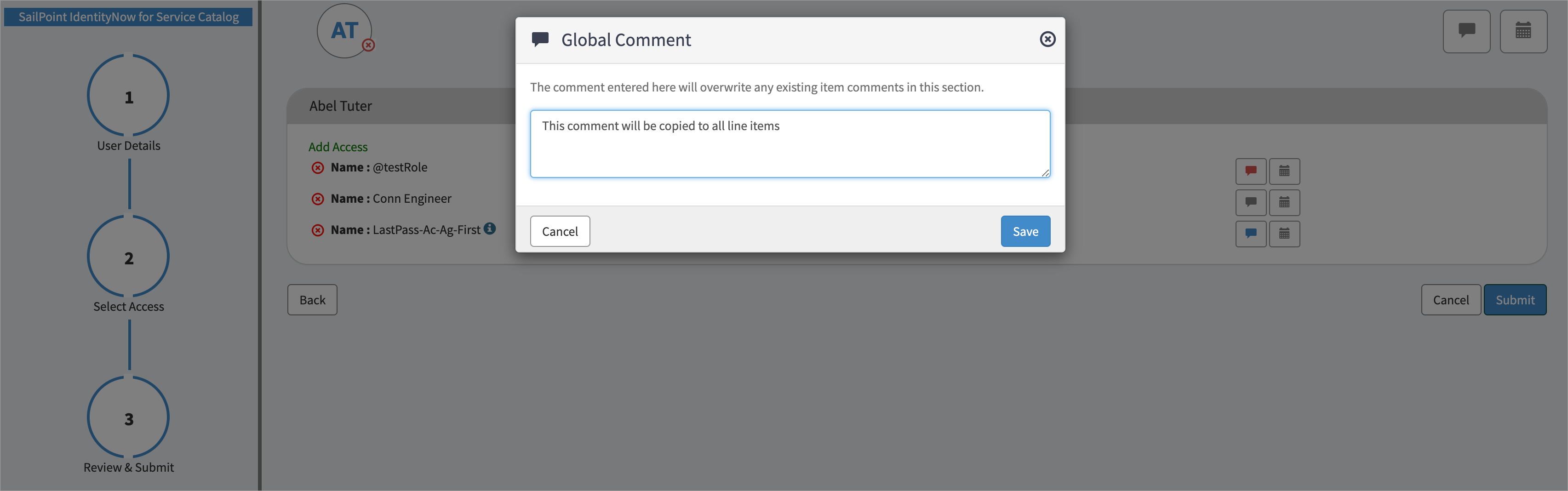
Users have the ability to copy comments across all line items during request/review using the Global Comments
functionality.
-
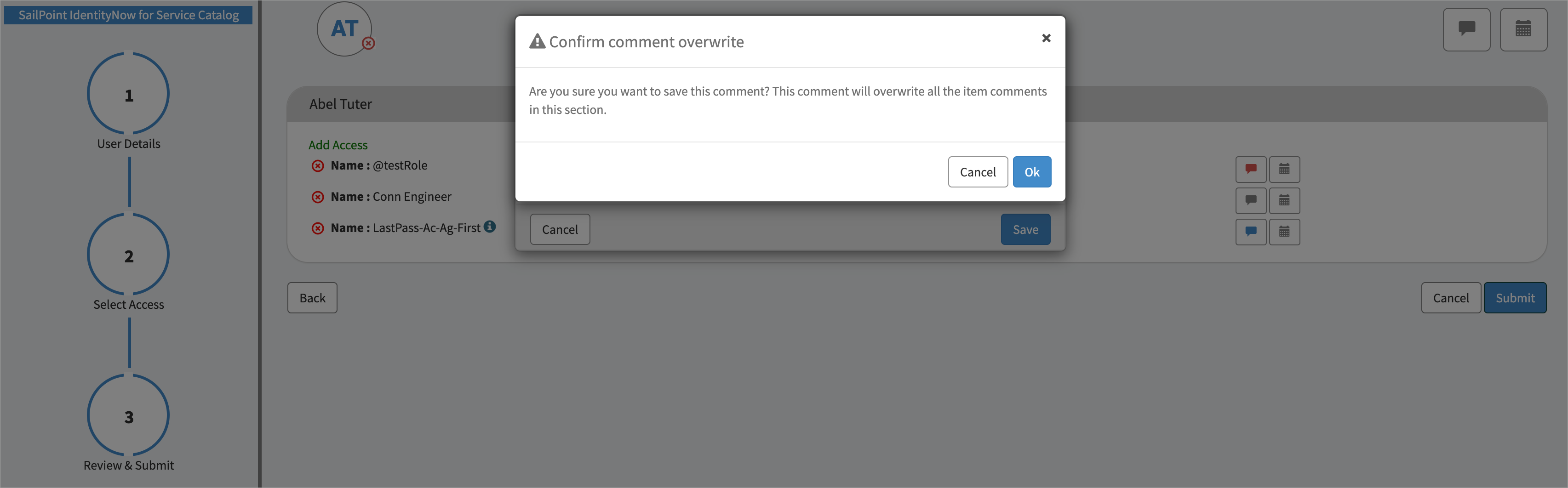
The comment icon in the top right of the page is the Global Comments field. A change made to this field will reflect the same text to the comment fields of all the line items on that page.
Screenshot
Screenshot
Screenshot
Note
Any changes made to individual line items will also be overwritten by making edits to the Global Comments field.
Configuring Multi Account
The Multi Account Support Enabled setting on the Setup page directly controls the account selection behavior within the "Request and Review Access" process.
When Multi Account Support Is Enabled
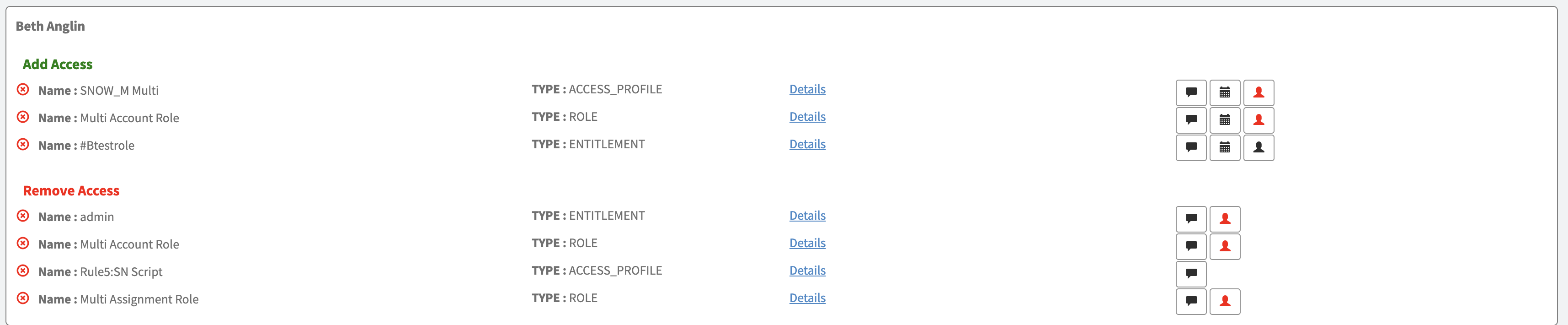
- Setting this property to Yes activates the account selection feature for widget-based requests, prompting the requester to choose a specific target account when a user has multiple accounts on a source.
-
During the "Review and Submit" step, the system requires the requester to select a target account for any line item with multiple account or revoke assignment options. A selection is mandatory before the request can be submitted.
Screenshot
-
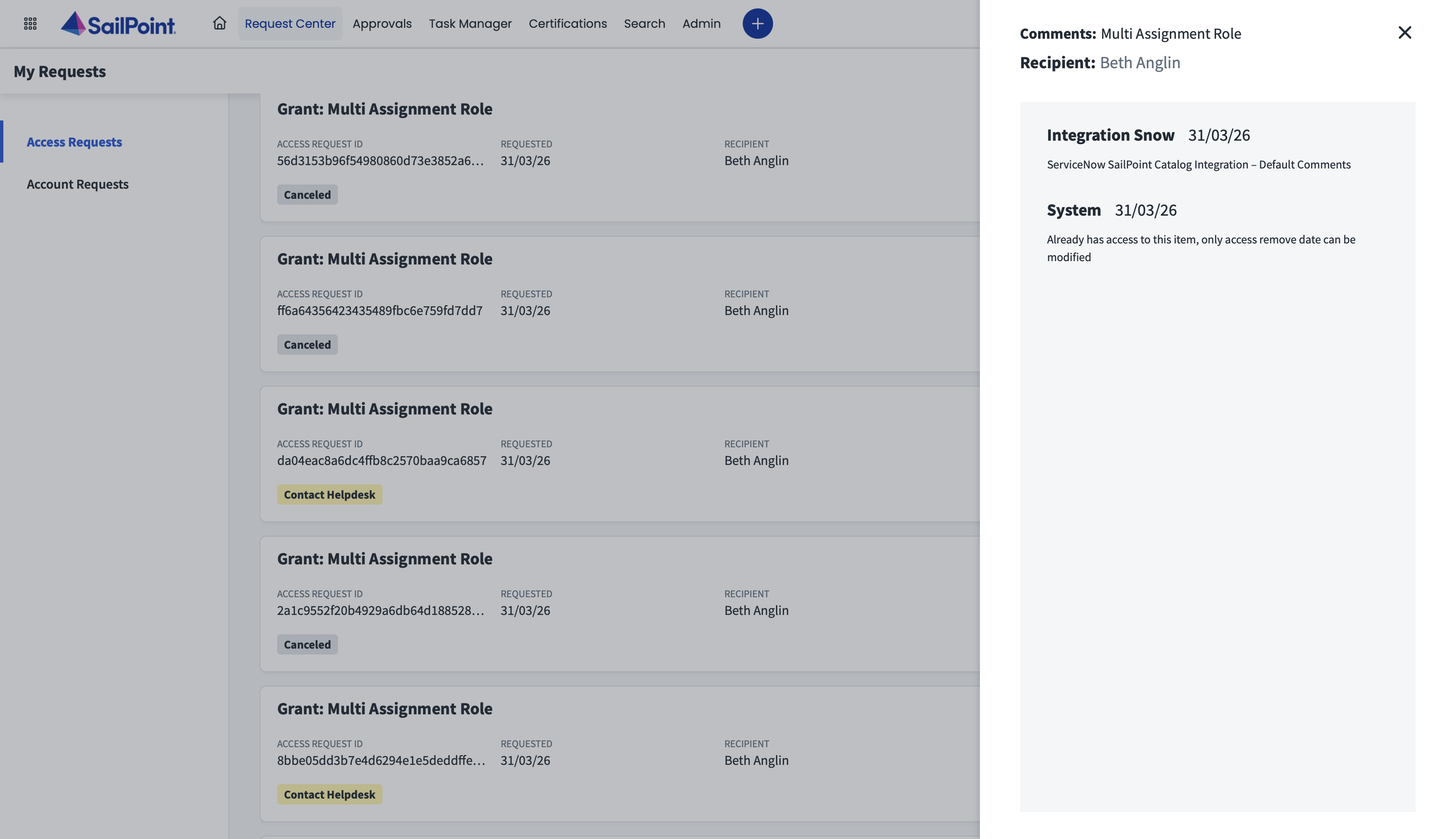
For already assigned access, request submission will be successful and the following automated actions occur:
-
The Access Request in SailPoint is immediately canceled.
-
SailPoint logs the reason with the message: “Already has access to this item, only access remove date can be modified.”
Screenshot
Note
The Identity Security Catalog Application currently does not support submitting a request to change the expiration date of access that is already assigned. 3. The original request (REQ) in ServiceNow is closed with an "Incomplete" status.
-
When Multi Account Support Is Disabled
Setting the Multi Account Support Enabled property to No deactivates the Multi Account functionality and reverts to the standard request behavior:
-
The system does not trigger the account selection feature. All requests follow the standard, single-account submission flow.
-
During the "Review and Submit" step, the system no longer prompts the requester to select an account or revoke assignment, even if multiple options are technically available. The request is being submitted for the main identity that you selected from the catalog. This is the central identity in SailPoint to which all of the user's other accounts are related.
Screenshot

-
If a user attempts to request access they already have, the submission will fail. The system actively blocks the request and displays a validation error message: “The selected access is already assigned.”
Screenshot

Linking with the SailPoint for Service Desk Application
If you have both the SailPoint Identity Security Cloud for Service Catalog and SailPoint for Service Desk store applications installed on the same ServiceNow instance, you can link the tickets created by both of these applications. The default set up links both of these tickets using the parent field on tickets created by SailPoint for Service Desk so you can use Out Of The Box (OOTB) related lists to show the linked records on requested items created by SailPoint Identity Security Cloud for Service Catalog.
Important
The minimum supported version for the SailPoint Service Desk Application is version 1.1.0.
Set-Up for the SailPoint Identity Security Cloud for Service Catalog Application
-
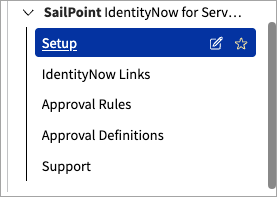
Sign in to your ServiceNow instance as an administrator, and go to SailPoint Identity Security Cloud for Service Catalog > Setup.
Screenshot
- Scroll on the page to find the Specify the field name that will be used to store access request ID from SailPoint property.
Screenshot

- The default value is set to
correlation_id. Update the value to a different field from the Requested Item table (sc_req_item), if you are usingcorrelation_idfor another integration.
Note
The value in this field will be overwritten by the integration, so you must ensure the value is not used by any OOTB or custom code.
- Select Save, and follow the steps for Linking with SailPoint Service Catalog.
ISC Event Processing Table Cleaner
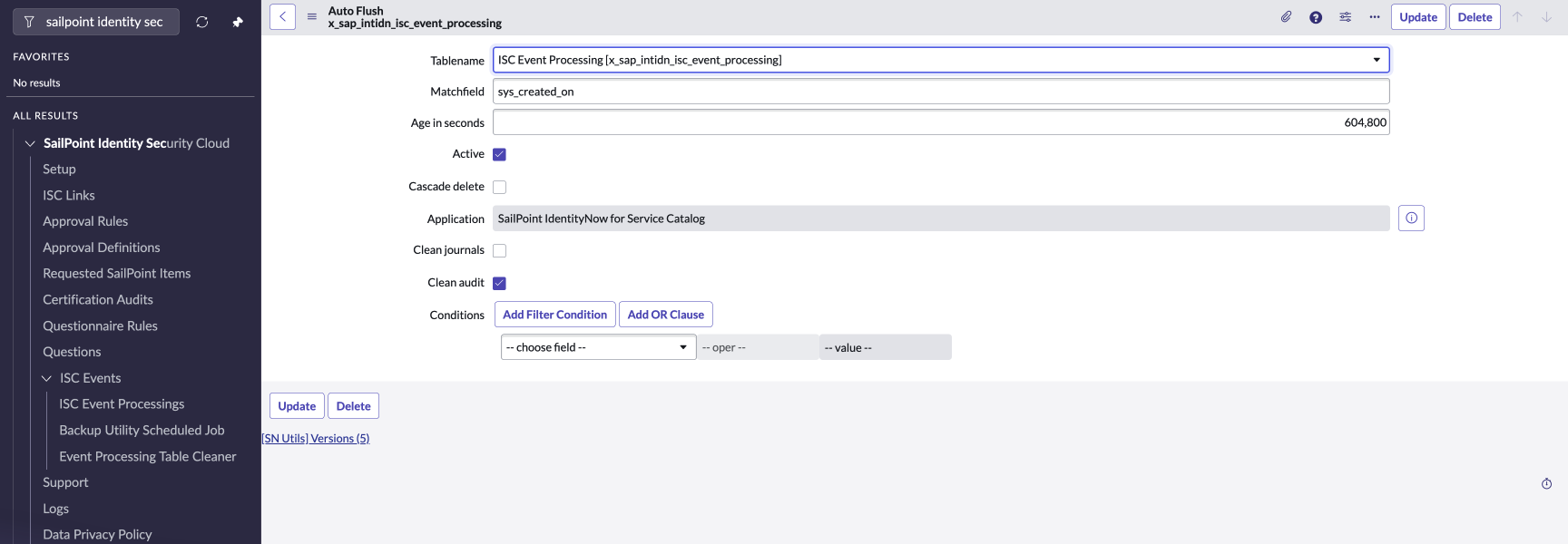
The ISC Event Processing Table Cleaner removes old records from the x_sap_intidn_isc_event_processing table. The default retention period is 7 days. Retention is stored in the Age in seconds field. For example, 604800 seconds equals 7 days. The Data Management Policy is inactive by default. Activate the policy and the table cleaner rule, then set the retention period to match your organization's policy.
Note
The ISC Event Processing table receives a large volume of events. SailPoint recommends an active Data Management Policy to reduce performance impact.
Configuring the ISC Event Processing Table Cleaner
- Go to SailPoint Identity Security Cloud > ISC Events > Event Processing Table Cleaner.
- Activate the Data Management Policy.
- Activate the table cleaner rule.
- Set Age in seconds to the retention period your organization requires.
Screenshot
ISC Backup Utility
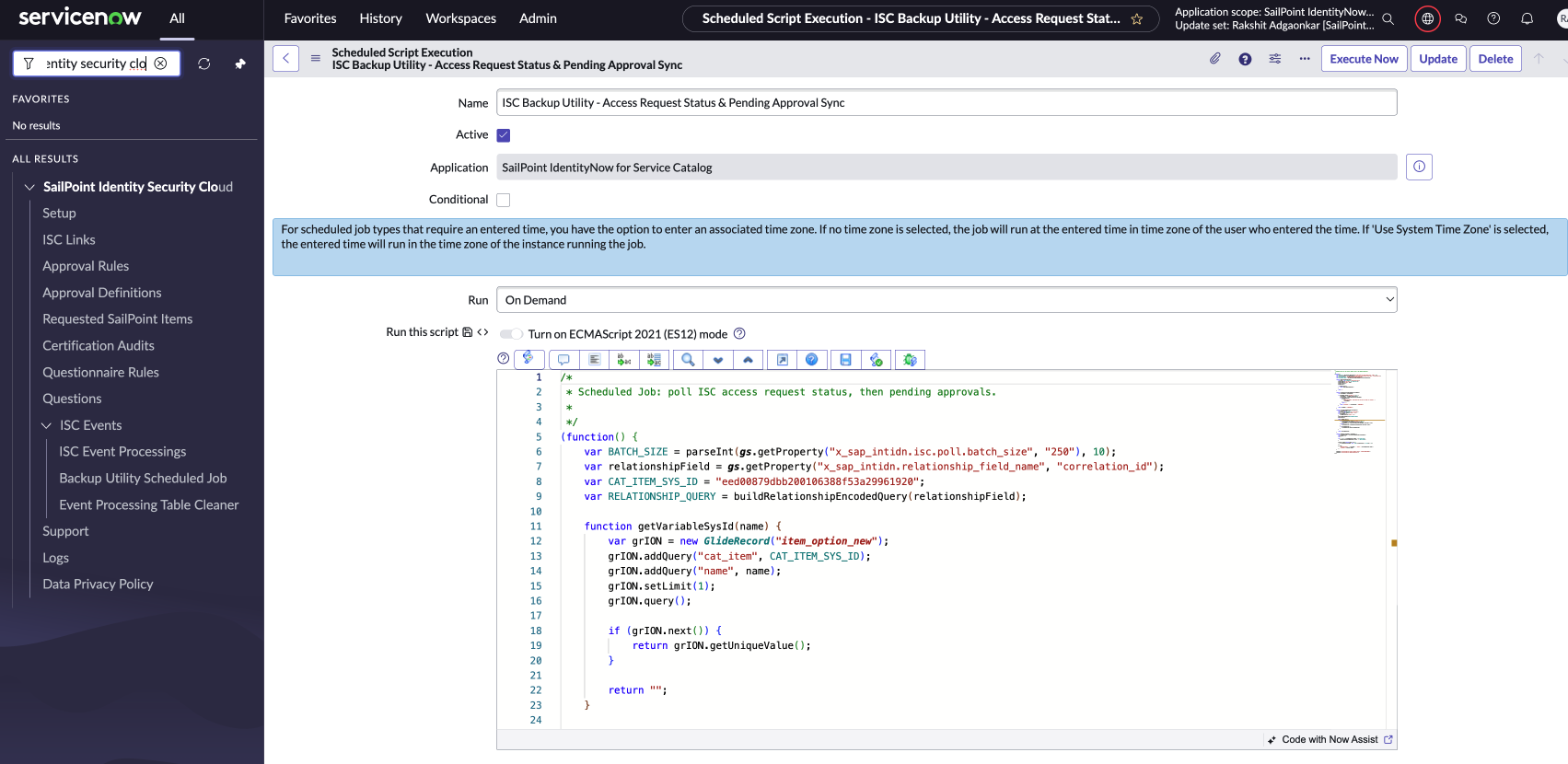
The ISC Backup Utility is a scheduled job. It polls SailPoint for access request status and pending approvals, then updates the corresponding ServiceNow records. Use this job to reconcile events that SailPoint did not deliver to ServiceNow, for example during a connectivity interruption or a failed event delivery. Without it, a catalog request that missed a real-time event can remain at its last known status even though the request has progressed in SailPoint. The job is inactive by default. Run it on demand when events are not in sync. Investigate why records are not synchronizing, and use this utility only until that issue is resolved.
How to Configure the ISC Backup Utility
- Go to SailPoint Identity Security Cloud > ISC Events > Backup Utility Scheduled Job.
- Open ISC Backup Utility - Access Request Status and Pending Approval Sync.
-
Run the job, or schedule it every 15 to 30 minute if events are not processing..
Screenshot
Documentation Feedback
Feedback is provided as an informational resource only and does not form part of SailPoint’s official product documentation. SailPoint does not warrant or make any guarantees about the feedback (including without limitation as to its accuracy, relevance, or reliability). All feedback is subject to the terms set forth at https://developer.sailpoint.com/discuss/tos.