Using the ServiceNow Portal Integration for Identity Security Cloud
Request and Review Access
After your System Administrator has successfully integrated SailPoint with the ServiceNow Portal, you’ll be able to use it to generate access requests.
Note
- Duplicate requests are blocked. A new request can't be submitted for a user if its identical to an existing request waiting to be processed. The same applies for a user with multiple accounts, respective of the source and account combination.
- Users who are managers can submit requests to revoke access for their directly managed employees, however, they cannot revoke access for themselves.
To request access profiles and roles for users:
-
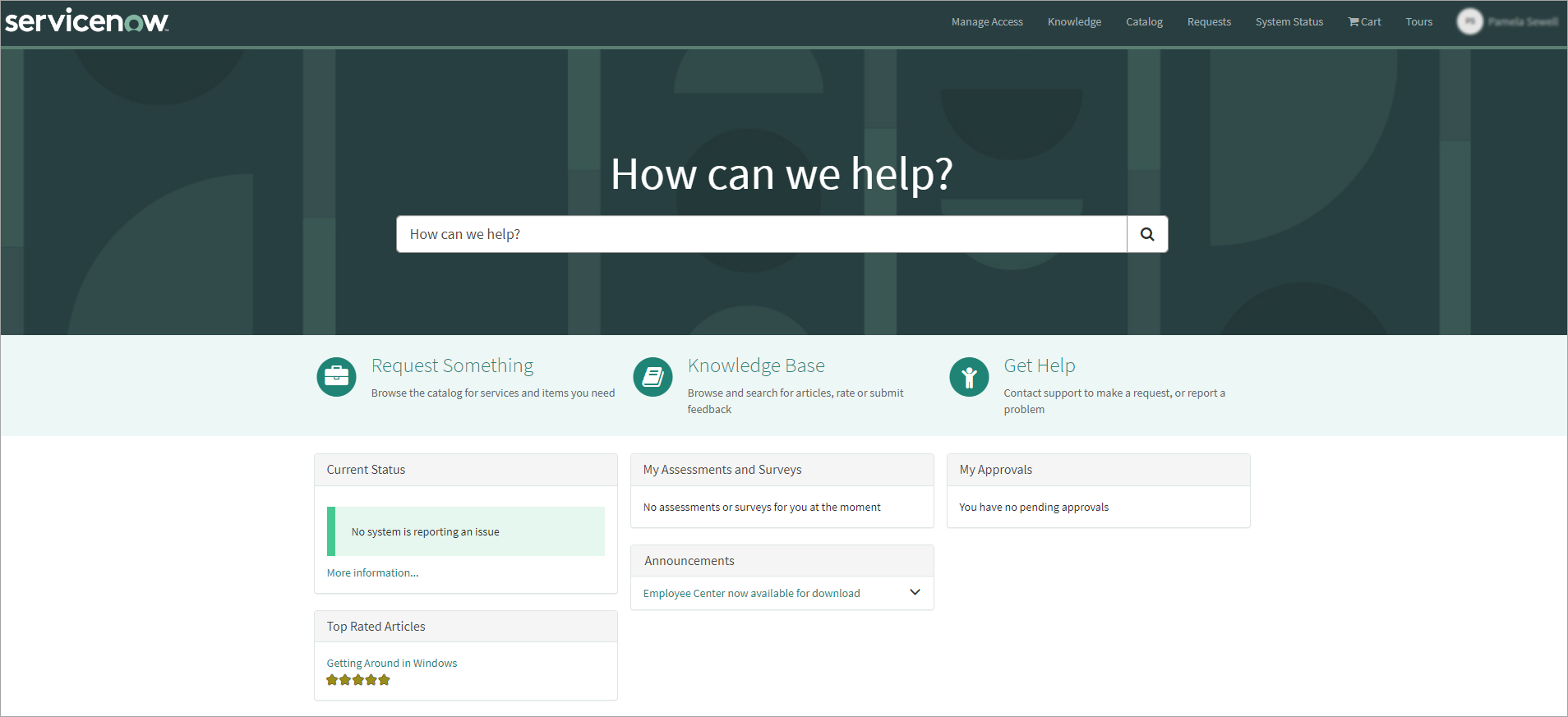
Sign in to the ServiceNow Portal with your credentials.
Screenshot
-
Select Manage Access to access the application.
Depending on the type of authorization used for your integration, you may receive a dialog to sign into SailPoint before continuing.
??? note "Screenshot"

!!! note
This is the default configuration. Your organization may use a different method to access the app from within your ServiceNow Service Portal.
User Details
- In stage 1 - User Details you can search for a specific user by entering their name in the search field. You can also use the controls below the set of cards to page through the users.

- To select a user, click the top section of their "card" that contains a check mark and their name, and then select Next.

Up to 10 users can be selected. The initials of each selected user are displayed at the top of the widget. Hover over a user's initials on the widget to reveal their full name on all pages.
User Retrieval and Synchronization:
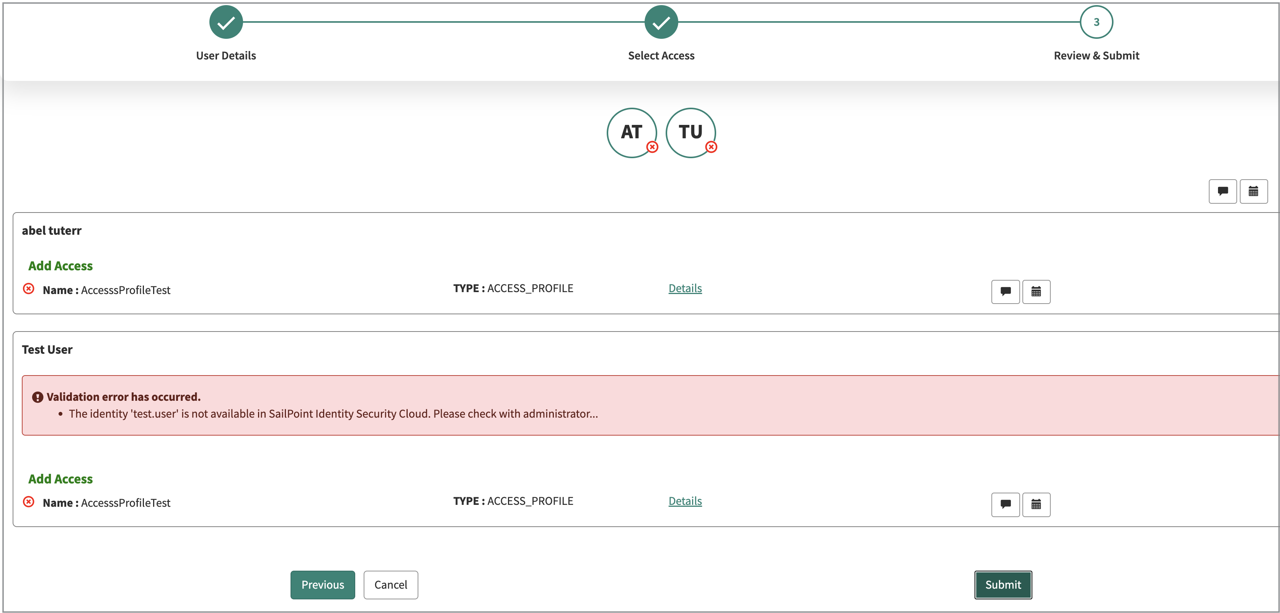
Users are retrieved from the users table in ServiceNow. As a prerequisite, SailPoint requires that user data be synchronized between ServiceNow and SailPoint. If a user mismatch is detected, a validation process occurs, and an error message (e.g., "User Mismatch") is displayed. This validation occurs:
- The system allows navigation to the next screen.
- The user that does not exist on SailPoint remains in the selection.
- Upon submission, the system displays: “You cannot submit an access request for a user who does not exist.”
Expected Behavior / Functionality:
- Requests for users that exist on SailPoint are processed correctly.
- Submissions for users that do not exist on SailPoint are blocked.
- This behavior is consistent with product design and expected functionality.
Select Access
- In stage 2 - Select Access you can use the Add Access tab to choose options to refine your search to a specific subset of roles and / or access profiles.

- Description
- Name
- Owner
- Source (searches for access profiles only, not roles)
For each filter option you select, the corresponding operator options are displayed beside it.
The Description and Name filters offer the following three options for the operator. Expand each one to learn more.
-
Contains ANY keywords
-
Ability to search for ANY keywords
- the default option
- case insensitive
- does not support searching for special characters
Example table:
Search Term Expected Results Excluded from Results Ep Epic Admin, Epic Admin123, Epic Admin Role Admin, Admin123, Admin Role, Admin Role Owner Epic Epic Admin, Epic Admin123, Epic Admin Role Admin, Admin123, Admin Role, Admin Role Owner Epic Ad Admin, Admin123, Admin Role, Admin Role Owner, Epic Admin, Epic Admin123, Epic Admin Role Epic Admin Admin, Admin123, Admin Role, Admin Role Owner, Epic Admin, Epic Admin123, Epic Admin Role Epic Admin R Admin, Admin123, Admin Role, Admin Role Owner, Epic Admin, Epic Admin123, Epic Admin Role Ad Admin, Admin123, Admin Role, Admin Role Owner, Epic Admin, Epic Admin123, Epic Admin Role Admin Admin, Admin123, Admin Role, Admin Role Owner, Epic Admin, Epic Admin123, Epic Admin Role Admin R Admin, Admin123, Admin Role, Admin Role Owner, Epic Admin, Epic Admin123, Epic Admin Role Admin Role Admin, Admin123, Admin Role, Admin Role Owner, Epic Admin, Epic Admin123, Epic Admin Role Admin Role O Admin, Admin123, Admin Role, Admin Role Owner, Epic Admin, Epic Admin123, Epic Admin Role
-
-
Contains ALL the keywords
-
Ability to search for ALL keywords
- case insensitive
- does not support searching for special characters
Example table:
Search Term Expected Results Excluded from Results Ep Epic Admin, Epic Admin123, Epic Admin Role Admin, Admin123, Admin Role, Admin Role Owner Epic Epic Admin, Epic Admin123, Epic Admin Role Admin, Admin123, Admin Role, Admin Role Owner Epic Ad Epic Admin, Epic Admin123, Epic Admin Role Admin, Admin123, Admin Role, Admin Role Owner Epic Admin Epic Admin, Epic Admin123, Epic Admin Role Admin, Admin123, Admin Role, Admin Role Owner Epic Admin R Epic Admin Role Admin, Admin123, Admin Role, Admin Role Owner Ad Admin, Admin123, Admin Role, Admin Role Owner, Epic Admin, Epic Admin123, Epic Admin Role Admin Admin, Admin123, Admin Role, Admin Role Owner, Epic Admin, Epic Admin123, Epic Admin Role Admin R Admin, Admin123, Admin Role, Admin Role Owner, Epic Admin, Epic Admin123, Epic Admin Role Epic Admin, Epic Admin123 Admin Role Admin Role, Admin Role Owner, Epic Admin Role Epic Admin, Epic Admin123, Epic Admin Role Admin Role O Admin Role Owner Admin, Admin123, Admin Role, Epic Admin, Epic Admin123, Epic Admin Role
-
-
Is exact match (case sensitive)
-
Ability to search for EXACT match
- case sensitive
- supports searching for special characters
Example table:
Search Term Expected Results Excluded from Results Ep Admin, Admin123, Admin Role, Admin Role Owner, Epic Admin, Epic Admin123, Epic Admin Role Epic Admin, Admin123, Admin Role, Admin Role Owner, Epic Admin, Epic Admin123, Epic Admin Role Epic Ad Admin, Admin123, Admin Role, Admin Role Owner, Epic Admin, Epic Admin123, Epic Admin Role Epic Admin Epic Admin Admin, Admin123, Admin Role, Admin Role Owner, Epic Admin123, Epic Admin Role Epic Admin R Admin, Admin123, Admin Role, Admin Role Owner, Epic Admin, Epic Admin123, Epic Admin Role Ad Admin, Admin123, Admin Role, Admin Role Owner, Epic Admin, Epic Admin123, Epic Admin Role Admin Admin Admin123, Admin Role, Admin Role Owner, Epic Admin, Epic Admin123, Epic Admin Role Admin R Admin, Admin123, Admin Role, Admin Role Owner, Epic Admin, Epic Admin123, Epic Admin Role Admin Role Admin Role Admin, Admin123, Admin Role Owner, Epic Admin, Epic Admin123, Epic Admin Role Admin Role O Admin, Admin123, Admin Role, Admin Role Owner, Epic Admin, Epic Admin123, Epic Admin Role
-
The Owner and Type filters offer one option for the operator; Equals. This operator is read-only and cannot be changed.
- For Description and Name, select one of the three provided operators, enter the keyword to search for, and then select the magnifying glass to add the filter.

- For Owner and Source, select a specific value from the corresponding dropdown list and select the magnifying glass icon to add the filter.

- Combine these filters as needed to refine the results returned.
!!! note
Unlike access profiles, roles are not associated with a specific source. If you use the Type filter and choose Role, you cannot combine that filter with the Source filter. If you attempt to combine these filters, a message is displayed to notify you that your Source filter will be effectively ignored.
- When you've finished building your search query, all the search results that match your criteria are displayed.
View information about the specific entitlements:
- To view information about the specific entitlements that comprise an access profile, select the Details link in its card.

- To select an access profile or role in the search results, click the top section of the card that contains a check mark and its name, and then select Next.

Recommendations Review
-
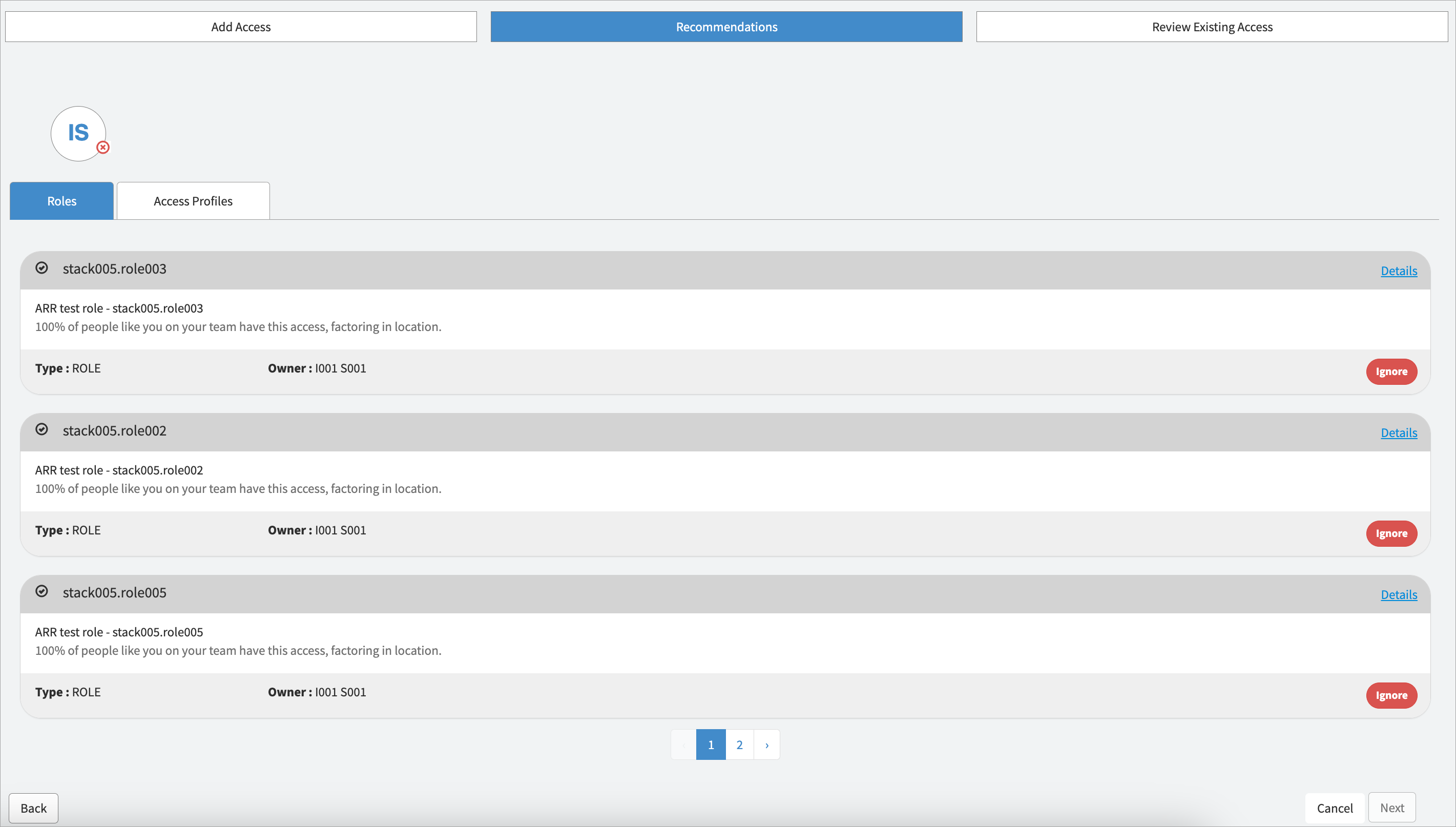
In stage 3 - Recommendations Review you can review recommended items in tabular form.
-
Tabbed and pagination helps the user to navigate between result sets. Tabs and their order will be the same as in the Add Access page configuration.
- The recommendations view is only visible when a single user is selected. It is not applicable for multi-user selections.
-
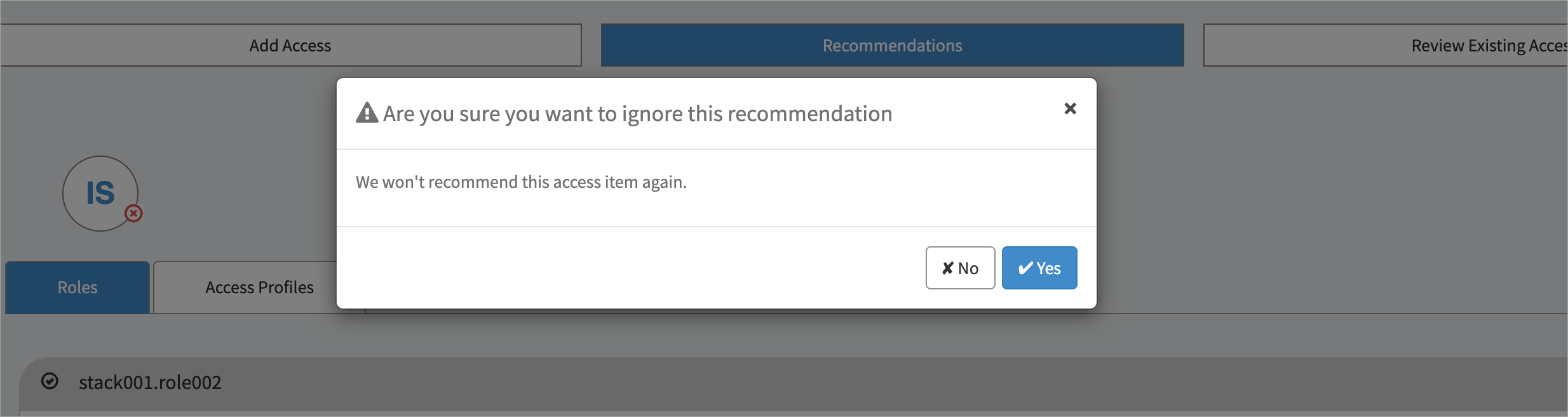
It's possible for users to ignore recommended items. Refer to the Access Recommendations feature documentation of SailPoint for details.
ServiceNow administrators have the ability to determine whether to display or conceal the recommendation tab by following the steps outlined below.
- Go to SailPoint Identity Security Cloud for Service Catalog > Setup.
- For Show Recommendations, applicable only if required license available? leave the default value of
Yesto show the recommendation tab. Change the value toNoto hide the tab.
Review & Submit
- In stage 4 - Review & Submit you can review the access you are requesting and add comments to help any reviewers make more informed decisions about the request.

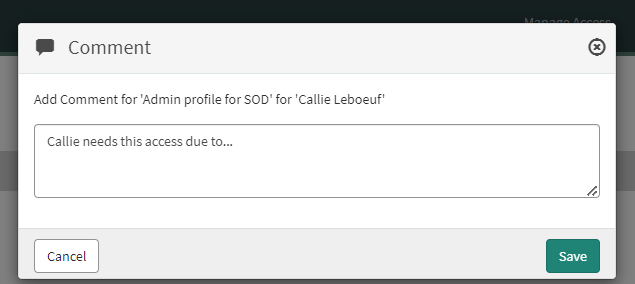
- When you’ve finished reviewing the access being requested and are confident that reviewers will have all of the information they’ll need to make an informed decision on whether or not to grant the access, select Submit.
Account Selection
When a user has more than one account on a source, the multi-account feature prompts the requester to choose which account to provision access to, and likewise, each record of a user’s access includes account data to support access revocation from the appropriate account.
Note
Support for the Multi-Account feature has been introduced using widget architecture only and is not supported in the Manage_Access page.
- Admins must define one source per system and configure their logic to correlate all of a user’s accounts from that source to their identity. At the end of the request submission flow, when applicable, the access requester is then prompted to select the appropriate account from the list of the target user’s correlated accounts.
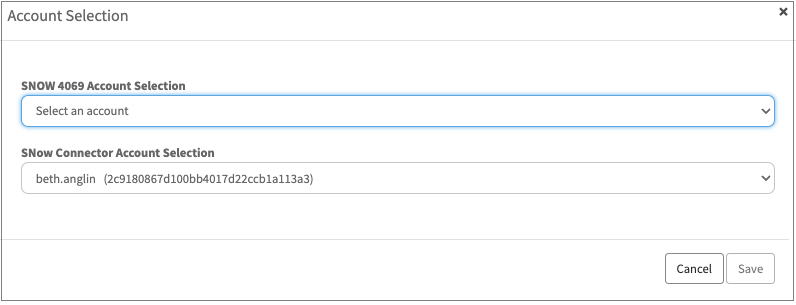
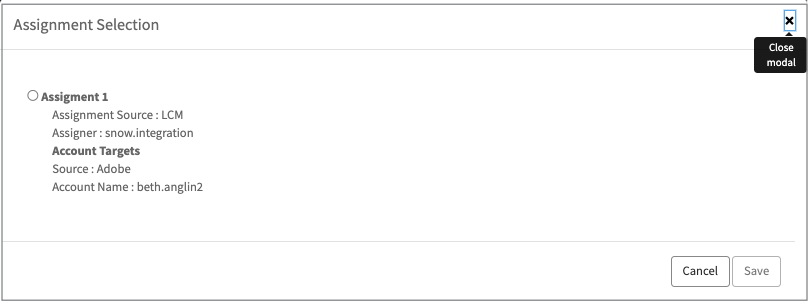
- Request line items, if associated with multiple accounts/assignments, will require a mandatory selection. A window will populate for the requester to make selections.
!!! note
When the Multi Account feature is disabled <img src="img/image_for_multi_account.png" class="icon" alt=""> This icon does not appear. To understand the functional differences Refer to [Configuring Multi Account](application_level_configuration.md#configuring-multi-account).
isc_request page - Review & Submit:

isc_request_2 page - Review & Submit:
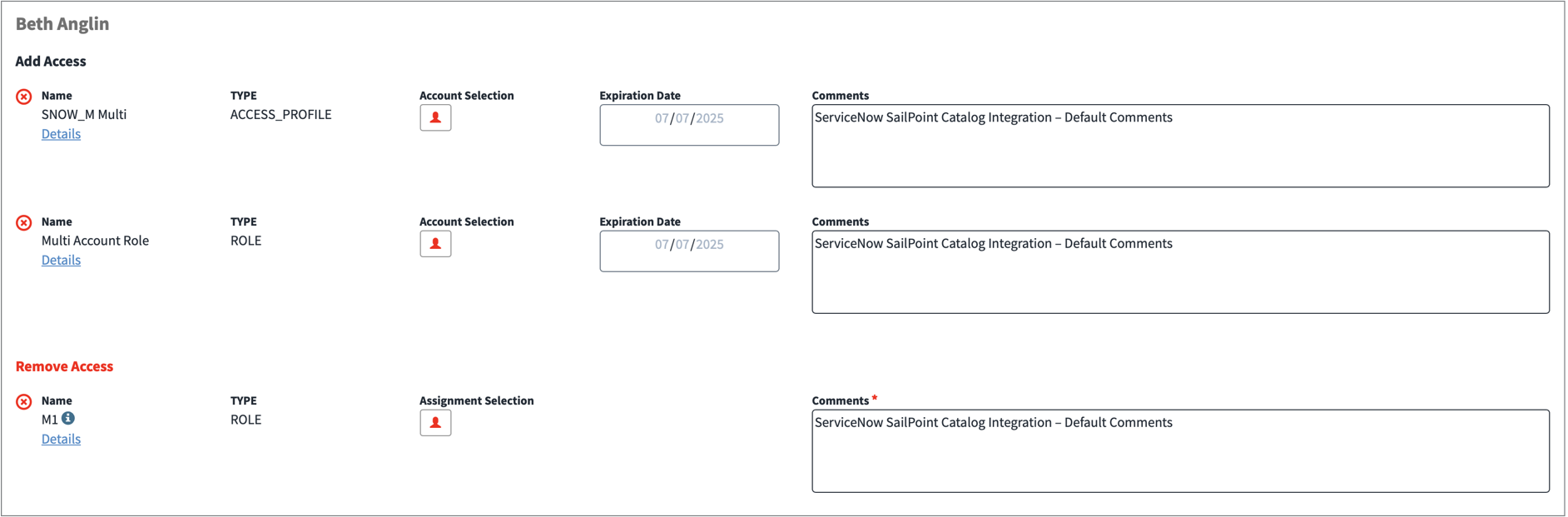
- While requesting access, the account name must be selected.
- While reviewing access, the assignment must be selected.
Note
The SailPoint architecture allows you to request Multi Account access for role, entitlement, and access profile. For revocations, it only supports for role and entitlement.
Behavioral Differences: OAuth 2.0 vs. Personal Access Token (PAT) Connections
The behavior of access removal (revocation) differs based on the type of connection established between ServiceNow and SailPoint.
OAuth 2.0 Connection
With OAuth 2.0, the ability to request access revocation is governed by the following rules:
-
Manager-Initiated Revocation: Managers can only request access revocation for their direct reports.
-
ORG_ADMIN: Users possessing theORG_ADMINrole in SailPoint can request access revocation for any user within the organization, irrespective of the reporting structure. -
Self-Revocation Restriction: Users are not permitted to request revocation of their own access.
-
ServiceNow User with
x_sap_intidn.onbehalfofRole: ServiceNow users with thex_sap_intidn.onbehalfofrole can initiate access requests on behalf of other users. However, if the ServiceNow user lacksORG_ADMINprivileges in SailPoint, they cannot initiate access revocation requests
Personal Access Token (PAT) Access
When a PAT is used for the catalog integration, it is automatically granted ORG_ADMIN privileges within SailPoint. This results in the following behavior:
-
Initiate access revocation requests without any restrictions.
-
The user can select any user visible to them and successfully initiate an access revocation request for that user.
Determining Other Users' Access as a Manager or Reviewer
- Sign in to the ServiceNow Portal with your credentials.
- Select Manage Access.
- To review the access for a user who also exists in SailPoint, search for the user and click the top section of the card that contains a check mark and their name, and then select Next.
!!! note
You can select multiple users and create a request to add the same access to them all at once. You cannot remove access this way, as each user has a unique combination of access.
At the top of the page, you’ll see options to Add Access, Recommendations, and Review Existing Access. Use these to request the level of access that’s appropriate for the user.
- Use the Add Access tab to search for roles, access profiles, and entitlements that are currently eligible to be added to the user’s access by selecting the appropriate tab component. For each filter option you select, the corresponding operation is displayed beside it.
To filter the search results by owner or source, select a filter from the Select Filters list, and then enter the owner or source in the Keyword Search. The Add Access pagination supports up to 10,000 search results.
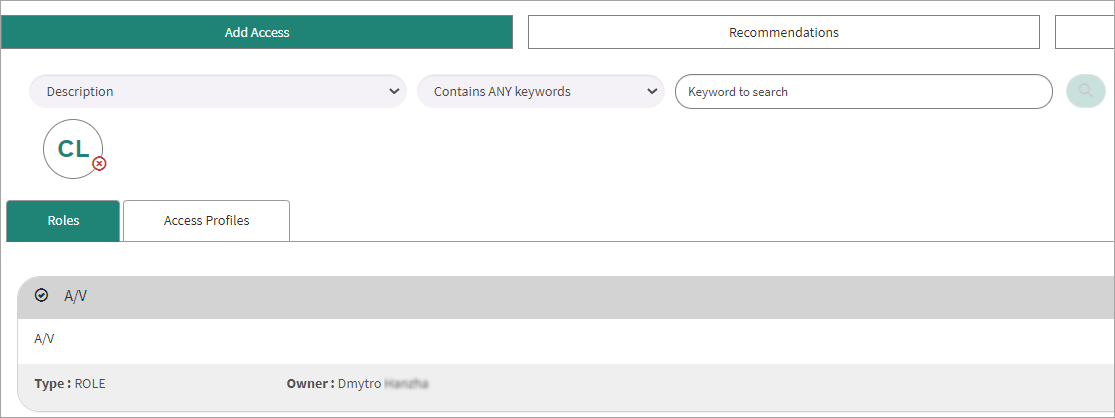
- Use the Recommendations tab to view recommended access profiles or roles.
!!! note
   - The **Recommendations** tab only displays if you enable the IdentityAI feature in SailPoint for the selected organization
   - The generation of available recommendations per user requires additional configuration of the SailPoint tenant. For more information about configuration, contact the support team.

- Use the Review Existing Access tab to see the access associated with the user's profile. You can select and remove any existing roles or access profiles that are revocable.
!!! note
A tab to view Entitlements may (or may not) exist. This is based on the setup in Admin settings.
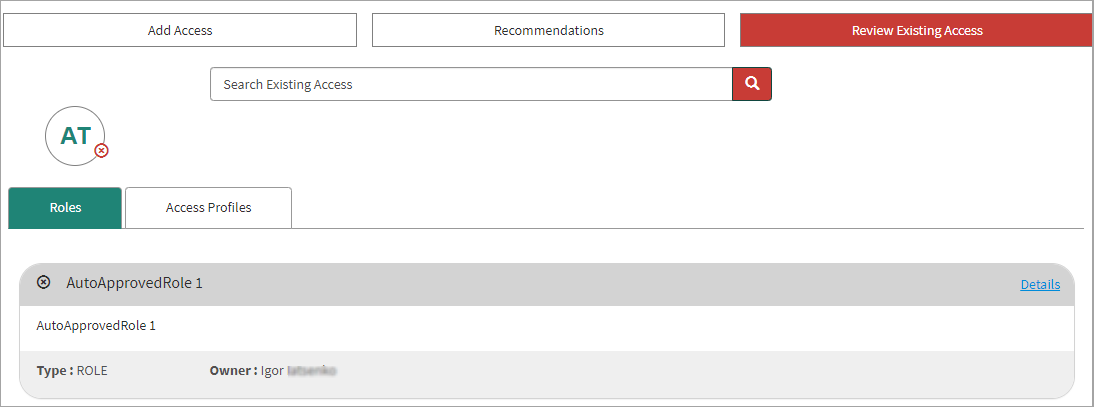
Whether you are adding or removing access, you can view information about the specific entitlements that comprise an access profile by selecting the Details link in the access profile’s card.
- When you are finished selecting access to be added or removed, select Next.
- In stage 3 - Review & Submit you can review the access you are adding or removing and add comments to help any reviewers make more informed decisions about the request.
-
When you're finished reviewing your request to add and / or remove access to determine the appropriate access for one or more users, select Submit.
-
A single request containing all related items is generated and assigned a unique number for tracking purposes.
- Depending on how Access Requests are configured for your site, the request will either be fulfilled automatically, or it will generate a request for manual approval.
- Administrators can view the current status of requests that have been generated by going to Account Requests in the main ServiceNow Service Catalog menu.

Note
Suitably entitled users can also view their own requests in the ServiceNow Portal.
To view details for a specific request in the list, select its name.

Certification Review
After your System Administrator has successfully integrated SailPoint with the ServiceNow Certification Portal, certifiers will be able to view and take appropriate actions related to Certification. For more information about the Certification process, refer to Certifications Overview.
Accessing Certifications
- Sign in to the ServiceNow Portal with certifier credentials.
- Select ISC Certification to access the application. The certifier will receive a dialog to sign into SailPoint or the equivalent based on the instance integration setup.
Reviewing Certifications
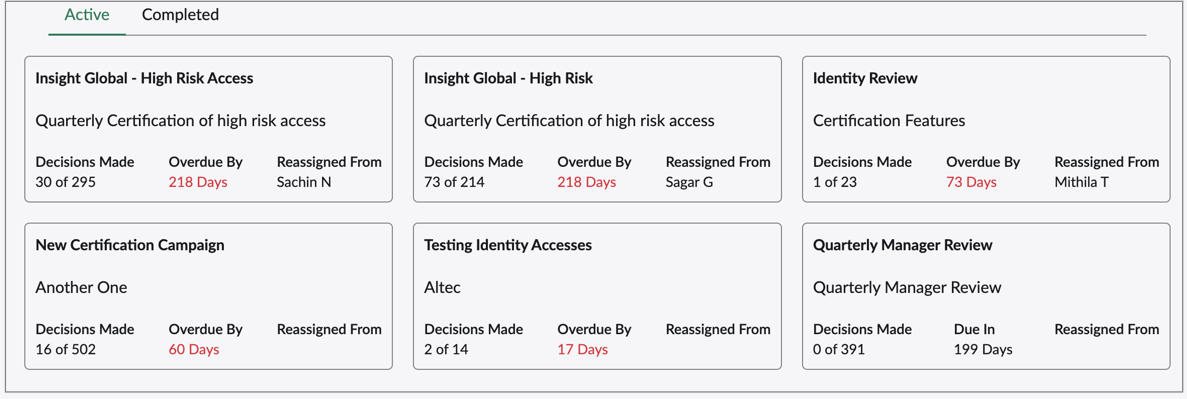
- Go to ISC Certification > Active tab, and select the certification you want to work on.
!!! note
The value for **Overdue By** may vary due to timezone differences between SailPoint and ServiceNow.
- Select Identities and choose an identity from the list. Review their list of access items within the Roles, Access Profiles, and Entitlements tabs. Select an access item to view its details.
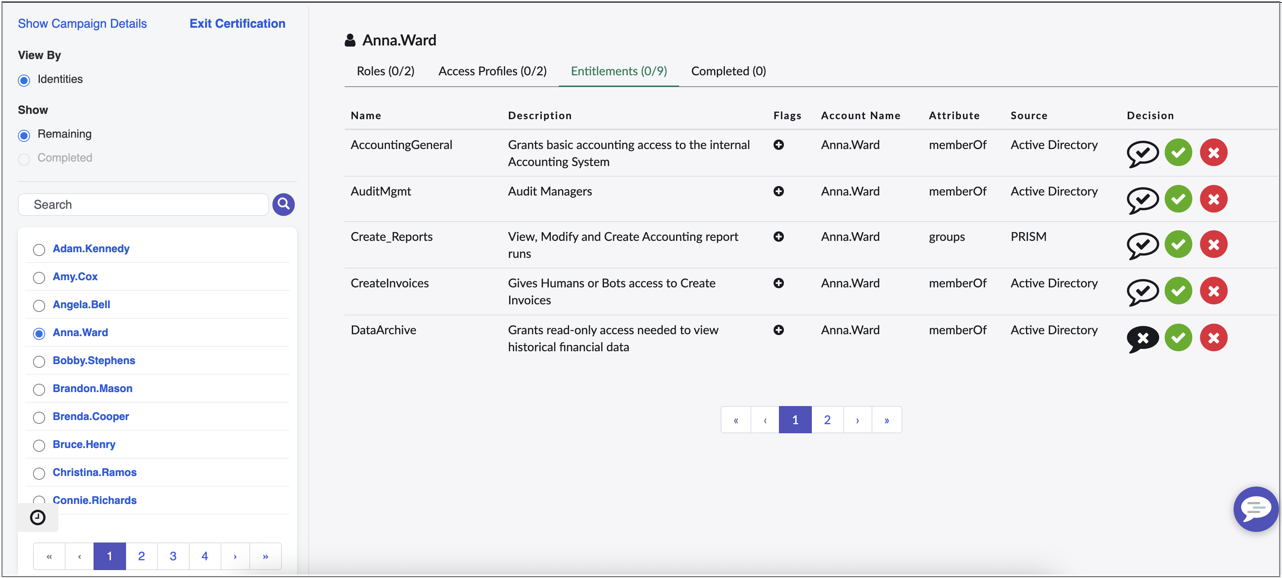
- In each section, beside each item, select
 to approve access or
 to revoke access. An item that requires a comment will populate a window for you to explain your decision. For example, if you choose to revoke an item in a role composition certification, you must enter a comment that explains why and how the role should be changed. The system will send a task with these comments to the role owner to update the associated role.
!!! note
   - Roles that were automatically assigned to identities through membership criteria may only be acknowledged. In these cases, select Acknowledge to review this access.
   - If you revoke an access profile that contains an entitlement that is also assigned to a user through another access profile, all entitlements within the access profile will be revoked, except for the common entitlement.
- Select Submit to submit your comment and complete your review for this access.
Viewing Recommendations
If your organization has the recommendations service enabled on your end, you can use this data to help guide your decision-making process.
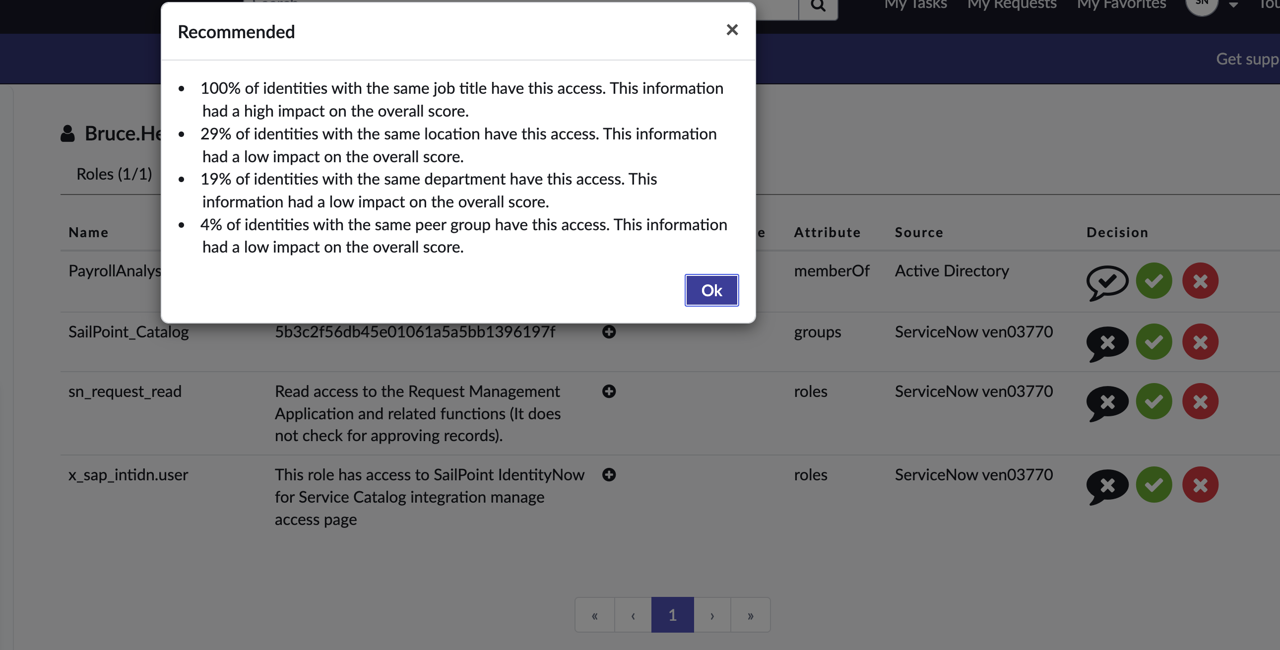
- Select
 for recommended or
 for not recommended in the Decision column to view the reasons for the recommendation.
Access Flags
When you review an access item for a certification, an icon may display in the Flags column. This icon alerts you of information you should consider when approving access. For more information about the icons and their meaning, reference Access Flags in the SailPoint documentation.
Completing Certifications
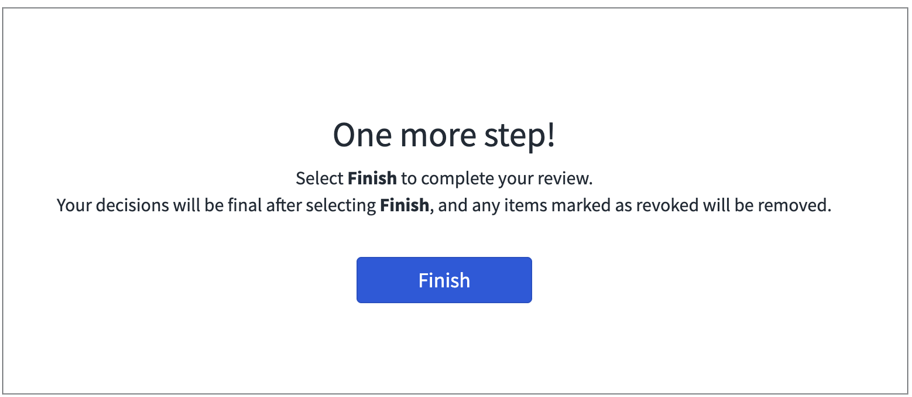
- After you've reviewed each item, you'll be taken to a page to complete your review.
!!! note
Ensure your decisions are correct and final. Once you've submitted them they cannot be changed, and any access marked as revoked will be removed.
- Select Finish. The certification will then move to the Completed tab.
Viewing Completed Certifications
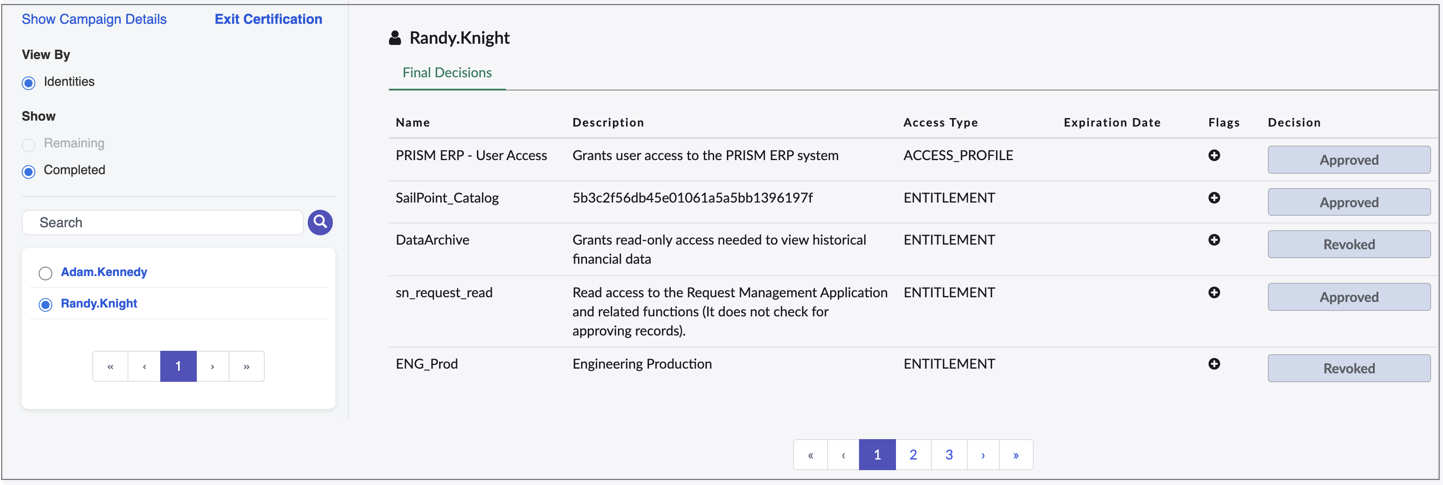
- Go to ISC Certification > Completed tab, and select the certification you want to see results for.
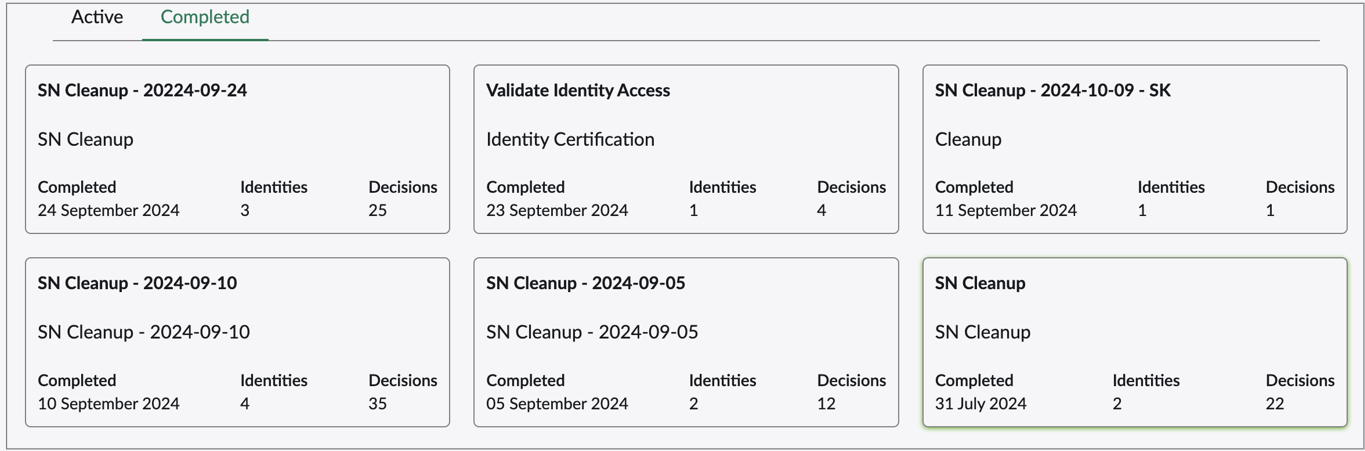
- Select Identities and choose an identity from the list. You'll see a list of access items for that user and the decision you made for each one.
Viewing Campaign Details
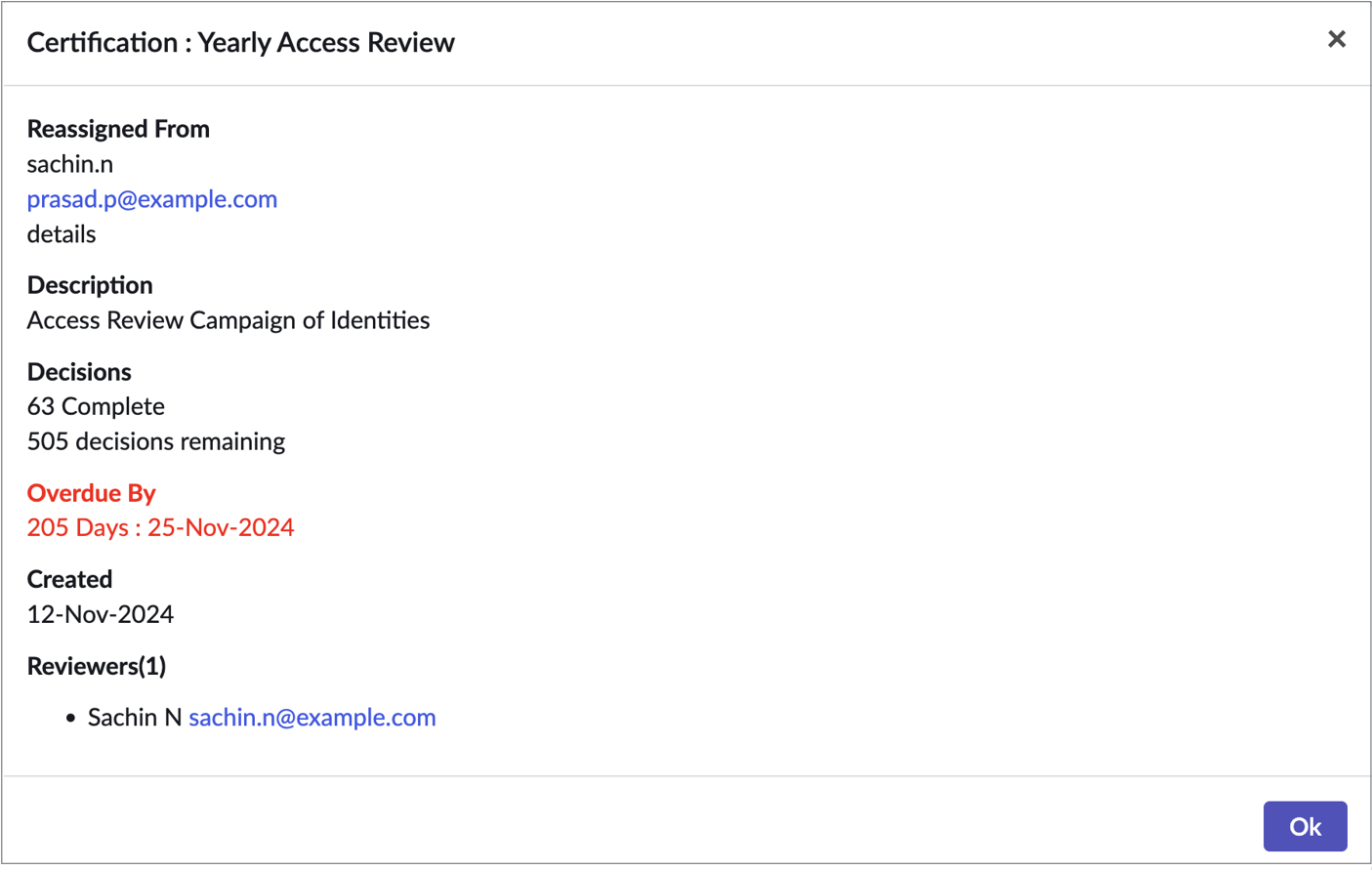
- Go to ISC Certification, and select the Active tab or Completed tab.
- Select the certification you want to see results for, then select Show Campaign Details.
Active:
Completed:
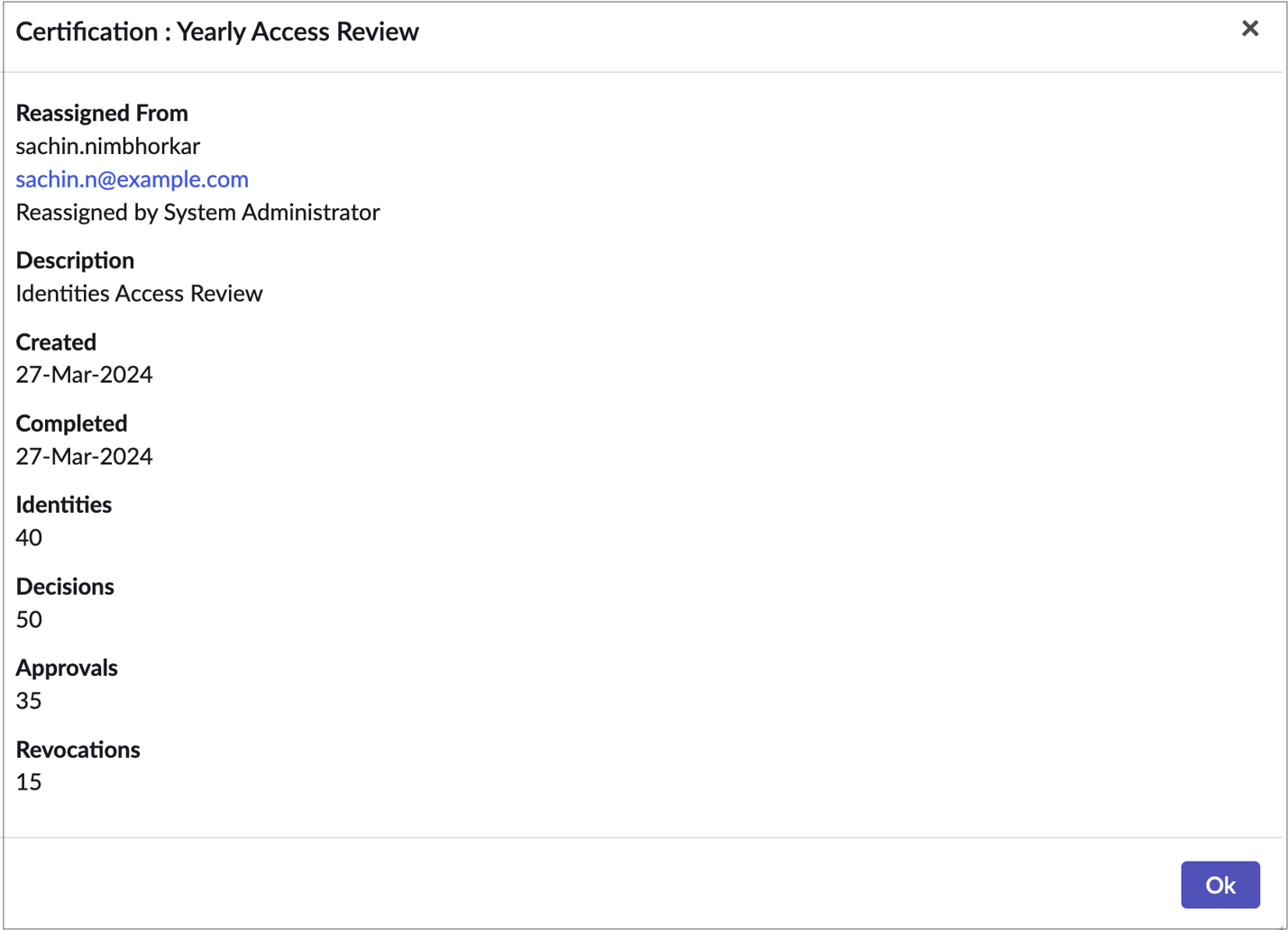
- Select Ok to close the campaign details window.
Documentation Feedback
Feedback is provided as an informational resource only and does not form part of SailPoint’s official product documentation. SailPoint does not warrant or make any guarantees about the feedback (including without limitation as to its accuracy, relevance, or reliability). All feedback is subject to the terms set forth at https://developer.sailpoint.com/discuss/tos.