Troubleshooting
If you encounter any of the following issues or errors, SailPoint recommends that you follow the guidance provided below to resolve the error before contacting SailPoint Support.
For issues or errors that are not addressed in this connector guide, refer to the following resources for troubleshooting information:
- SailPoint Identity Services Documentation
- SailPoint Support Knowledge Base
- SailPoint Developer Community
Pending approvals in the workflow are not populated
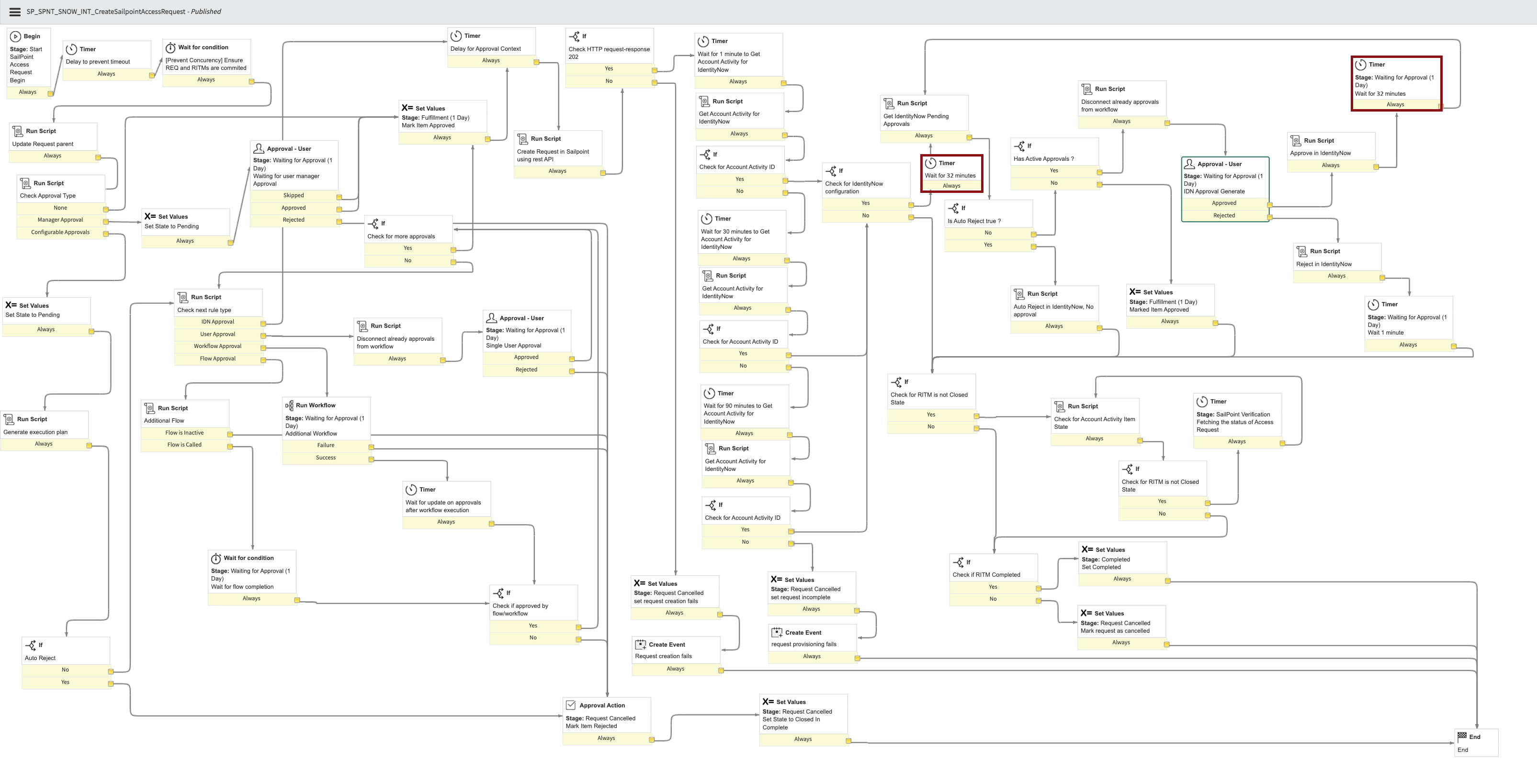
Issue: The approval rule configuration does not populate approvals in ServiceNow.
Resolution: Allow the timer to complete. A new 32 minute timer is present between the Check for IdentityNow configuration and Get IdentityNow Pending Approvals workflow of SP_SPNT_SNOW_INT_CreateSailpointAccessRequest. Additionally, the previous 1 minute timer after the approval request has been updated to 32 minutes for the second level approver and onwards.
Screenshot
Users are not loading on the Manage Access page
Screenshot
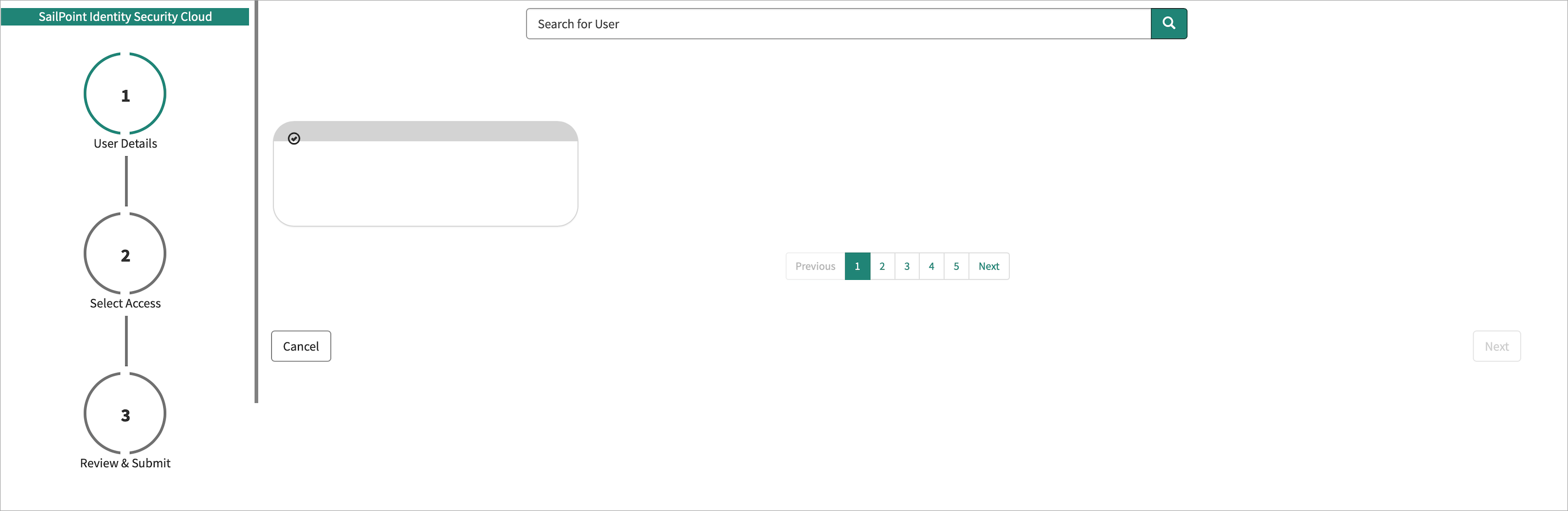
Resolution: Perform the following steps to remove the dependency.
- Sign in to ServiceNow using admin credentials.
- Change the Application Scope to SailPoint IdentityNow for Service Catalog.
- Search widgets in the application navigator, and open the widgets module under Service Portal.
-
Open the widget for Manage SailPoint Access, and scroll to the dependencies. Select the
ui-selectdependency, then select the Edit button.Screenshot

-
On the JS Includes tab, select the Edit button.
Screenshot

-
From the JS Includes List, highlight
angular-sanitizeand press the < button to move it back to the Collection. Select Save.Screenshot

-
On the widget page for Manage SailPoint Access, select the Update button.
Approval request fails with error message
Issue: The approval request fails with the following error: Failed creating access request. IDN user session is expired.
Resolution: Provide the x_sap_intidn.user role to the approvers.
Recommendations tab visibility issue (app version 3.1)
Issue: The recommendations tab is visible although you did not opt for an IAI license.
Resolution: Perform the following steps to update the script and insert a new API link.
Updating the Script
- Open ServiceNow as Admin and enter
Script Includesinto the search field. - Select Script Included under System Definition.
- Open the
SP_SPNT_SNOW_INT_GetOrgInfoscript include. - Copy and paste the following code into the script section, and then select Update.
var SP_SPNT_SNOW_INT_GetOrgInfo = Class.create();

SP_SPNT_SNOW_INT_GetOrgInfo.prototype = Object.extendsObject(
    SP_SPNT_SNOW_INT_Common, {
        /*_________________________________________________________________
        * Description: A method that is calls the API and check if access request recommendation is enabled in IDN
        * Parameters: void
        * Returns: boolean
        ________________________________________________________________*/
        isRecommendationEnabled: function() {
            if (!this.getRecommendationsProductFlag()) {
                return false;
            }
            if (!this.getRecommendationsFeatureFlag()) {
                return false;
            }
            return true;
        },

        /*_________________________________________________________________
        * Description: A method that calls the API associated with link 'getTenantInfo' and returns the response for further processing
        * Parameters: void
        * Returns: boolean
        ________________________________________________________________*/
        getRecommendationsProductFlag: function() {
            try {
                var recProductFlagEnabled = false;
                var action = 'getTenantInfo';
                var accessTokenServiceAccount = this.authScript.getServiceAccountAccessToken();
                var request = this.createHttpRequest('GET', action, {
                    headers: {
                        Authorization: 'Bearer ' + accessTokenServiceAccount
                    }
                });
                request.setEndpoint(this.getEndpointUrl(action));
                var response = request.execute();
                var statusCode = response.getStatusCode();
                if (statusCode === 200) {
                    var responseBody = response.getBody();
                    var res = JSON.parse(responseBody);
                    res.products.forEach(function(product) {
                        if (product.productName == 'iai') {
                            recProductFlagEnabled = product.licenses.some(function(feature) {
                                return feature.licenseId == 'iai:recommendations';
                            });
                        }
                    });
                    return recProductFlagEnabled;
                }
                return false;

            } catch (ex) {
                gs.error('Error when trying to get product flag info: ' + ex.message);
                return '';
            }
        },

        /*_________________________________________________________________
        * Description: A method that calls the API associated with link 'getOrgInfo' and returns the response for further processing
        * Parameters: void
        * Returns: Object
        ________________________________________________________________*/
        getRecommendationsFeatureFlag: function() {
            try {
                var action = 'getOrgInfo';
                var accessTokenServiceAccount = this.authScript.getServiceAccountAccessToken();
                var request = this.createHttpRequest('GET', action, {
                    headers: {
                        Authorization: 'Bearer ' + accessTokenServiceAccount
                    }
                });
                request.setEndpoint(this.getEndpointUrl(action));
                var response = request.execute();
                var statusCode = response.getStatusCode();
                if (statusCode === 200) {
                    var responseBody = response.getBody();
                    var orgInfo = JSON.parse(responseBody);
                    return orgInfo.iaiEnableAccessRequestRecommendations ? true : false;
                }
                return false;
            } catch (ex) {
                gs.error('Error when trying to get org info: ' + ex.message);
                return '';
            }
        },
        type: 'SP_SPNT_SNOW_INT_GetOrgInfo'
    }
);
Inserting a new SailPoint API link
- Open ServiceNow as Admin and enter
IdentityNow Linksinto the search field. - Select IdentityNow Links under SailPoint IdentityNow for Service Catalog.
-
Select the New button, and add the following:
Action:
getTenantInfoLink:
/beta/tenantScreenshot

-
Select Save.
ServiceNow approvals are skipped and requested items are canceled (all environments)
Issue: Inactive members in the SailPoint governance group cause ServiceNow approvals to be skipped and requested items to be canceled.
Resolution: When the Approval Flow is set to Configurable approval and the applicable approval definition for an item is set to be Identity Security Cloud Workflow, ServiceNow skips the approvals and cancels the requested item. This happens if any of the approvers in the SailPoint governance groups are missing or inactive in ServiceNow. This is the expected behavior as integration expects all of the approvers to be valid in ServiceNow. Perform the following to customize this behavior to allow the approvals to be requested even if only one member of the governance group is present and valid in ServiceNow:
-
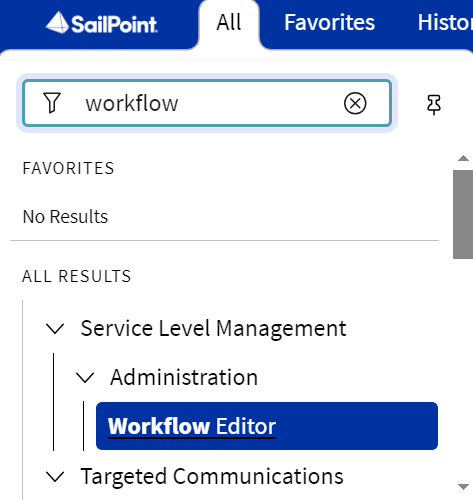
Sign in as admin in your ServiceNow instance, and go to Workflow Editor.
Screenshot
-
Open the
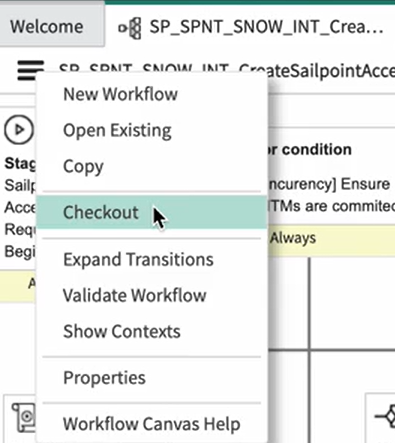
SP_SPNT_SNOW_INT_CreateSailpointAccessRequestworkflow, and checkout the workflow using the Checkout option.Screenshot
-
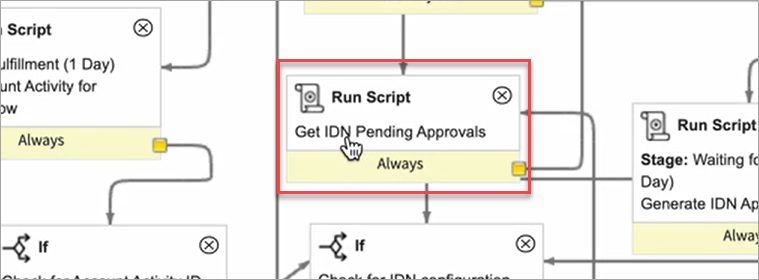
Double-click Get IDN Pending Approvals and run the script activity to edit it.
Screenshot
-
Replace the code in the script tag with the following code.
(function(current) { workflow.scratchpad.pendingApprovals = []; var approvalsService, action, accessToken, pendingApprovals, grUser, authScript, result, allApproversMissing; approvalsService = new x_sap_intidn.SP_SPNT_SNOW_INT_ApprovalsREST(); authScript = new x_sap_intidn.SP_SPNT_SNOW_INT_Auth(); accessToken = authScript.getServiceAccountAccessToken(); action = current.variables.u_access_action.toString() == 'Add' ? 'GRANT_ACCESS' : 'REVOKE_ACCESS'; pendingApprovals = approvalsService.getPendingApprovalsForRequestedObject(accessToken, current.variables.u_identity_external_id.toString(), current.variables.u_access_id.toString(), action); allApproversMissing = pendingApprovals.length > 0 ? true : false; workflow.scratchpad.autorRejectIdnId = ''; grUser = new GlideRecord('sys_user'); //Validate each individual pending approver record for (var i = 0; i < pendingApprovals.length; i++) { result = approvalsService.getOwnerIdentity(pendingApprovals[i].owner.id.toString()); grUser.initialize(); grUser.addQuery(gs.getProperty('x_sap_intidn.x_sp_spnt_snow_int.servicenow_account_attribute'), approvalsService._lookupV2object(result, gs.getProperty('x_sap_intidn.x_sp_spnt_snow_int.spnt_identity_attribute'))); grUser.addActiveQuery(); grUser.query(); if (grUser.hasNext()) { allApproversMissing = false; workflow.scratchpad.autorRejectIdnId = ''; workflow.scratchpad.pendingApprovals.push(pendingApprovals[i]); } else { workflow.scratchpad.autorRejectIdnId = pendingApprovals[i].id.toString(); } } if (allApproversMissing) { workflow.scratchpad.autoRejectIdn = 'true'; workflow.scratchpad.pendingApprovals = pendingApprovals; current.comments = "Approver is skipped from the approval execution plan. Possible reason: Inactive Users"; } })(current); -
Select Update.
Screenshot
-
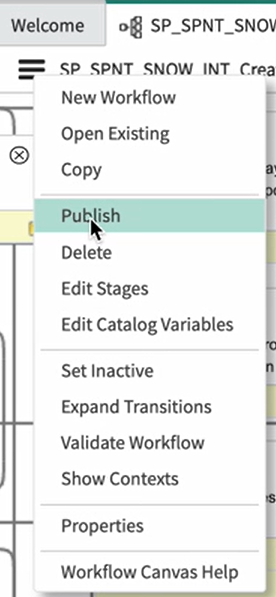
Select Publish from the menu options.
Screenshot
Points to remember
- This fix will apply to all the cases where the SailPoint set up has a group.
- This is a quick fix specific to your instance, therefore you must reapply the fix during upgrades.
Version 3.2.0 and Later
- Sign in as admin on your ServiceNow instance, go to Application Navigator and
type sys_extension_instance.LIST, then press Enter. - In the newly open tab search for Point is
x_sap_intidn.IDNWorkFlowGroupBehaviour. Two results will be available. - Make the row with class name
ProceedForAllasactive false. - Make the row with class name
ProceedForAnyoneasactive true. - To go backto the original behavior, revert the changes.
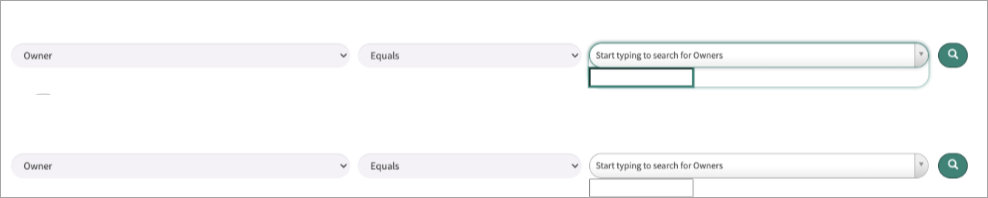
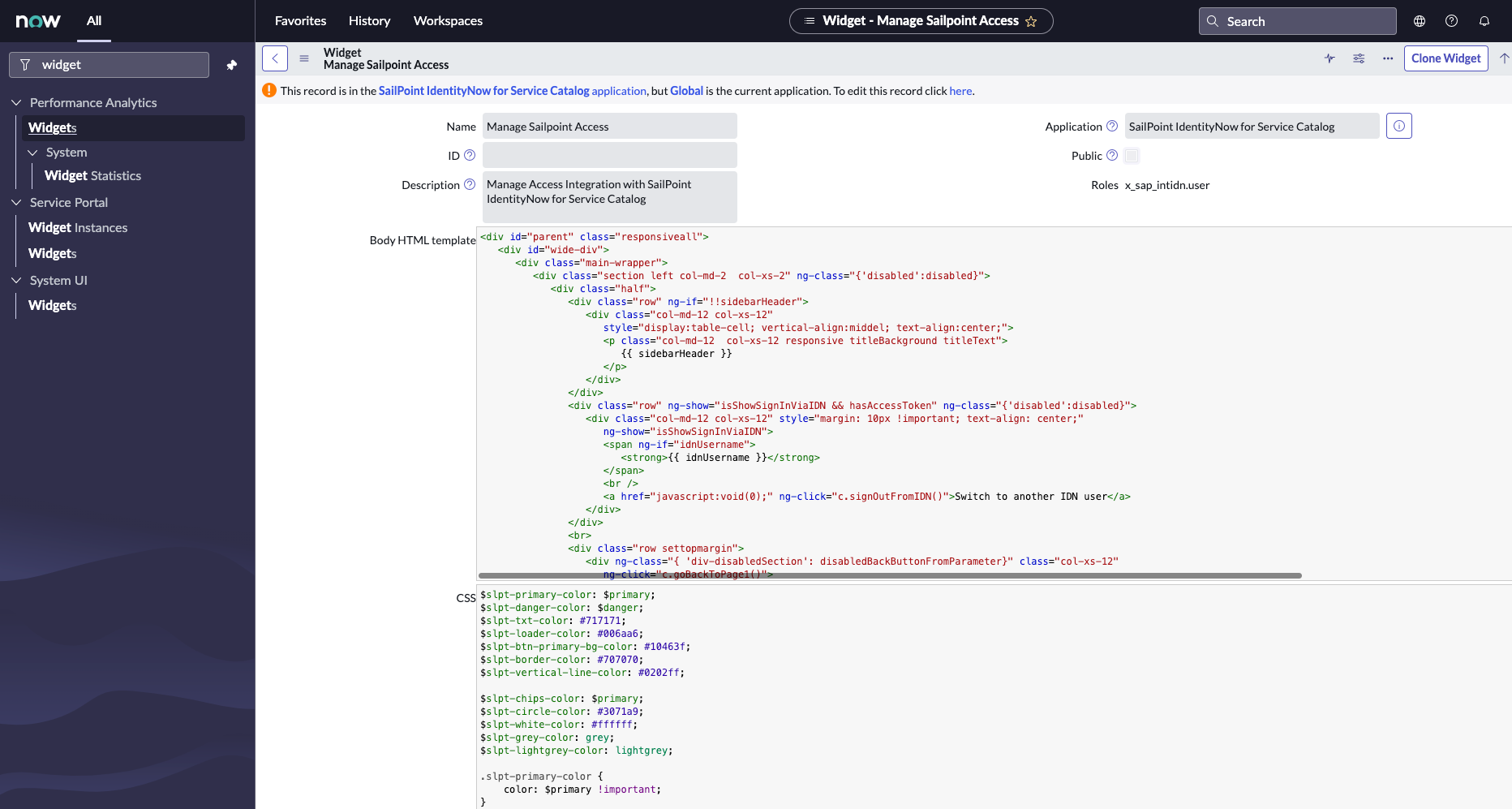
The style for Owner and Source filters is broken (Utah environment)
Screenshot
Resolution:
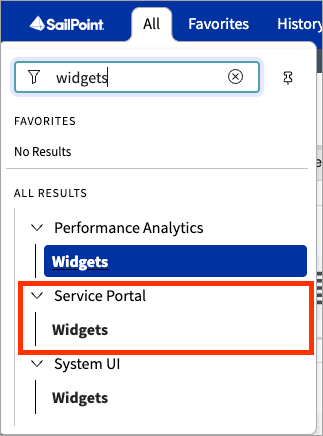
- Open ServiceNow as Admin and enter Widgets into the search field.
- Select Widgets under Service Portal.
- Open the Manage Sailpoint Access widget.
-
Change the Application scope to SailPoint IdentityNow for Service Catalog.
Screenshot
-
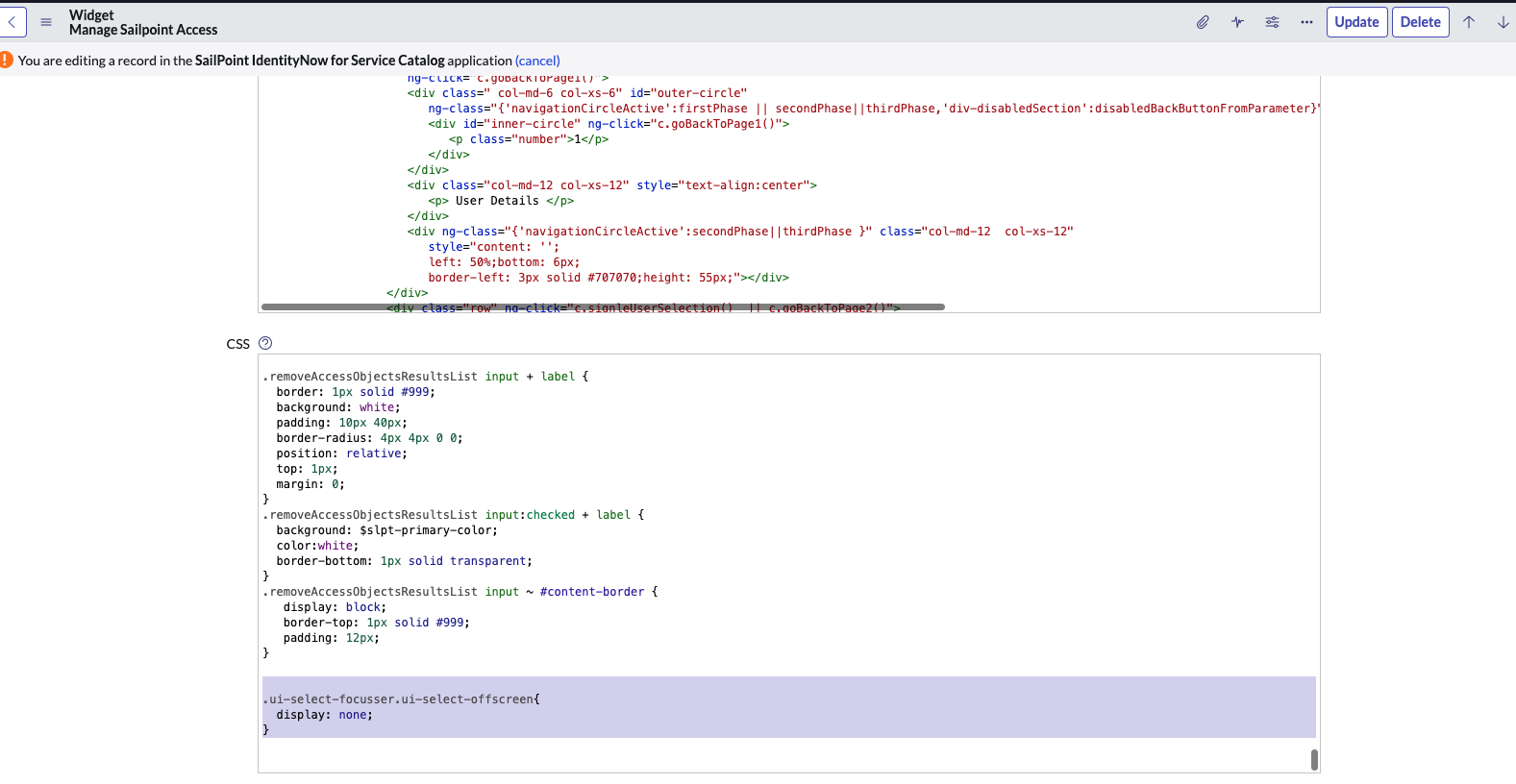
Add the following lines to the end of the CSS:
Screenshot
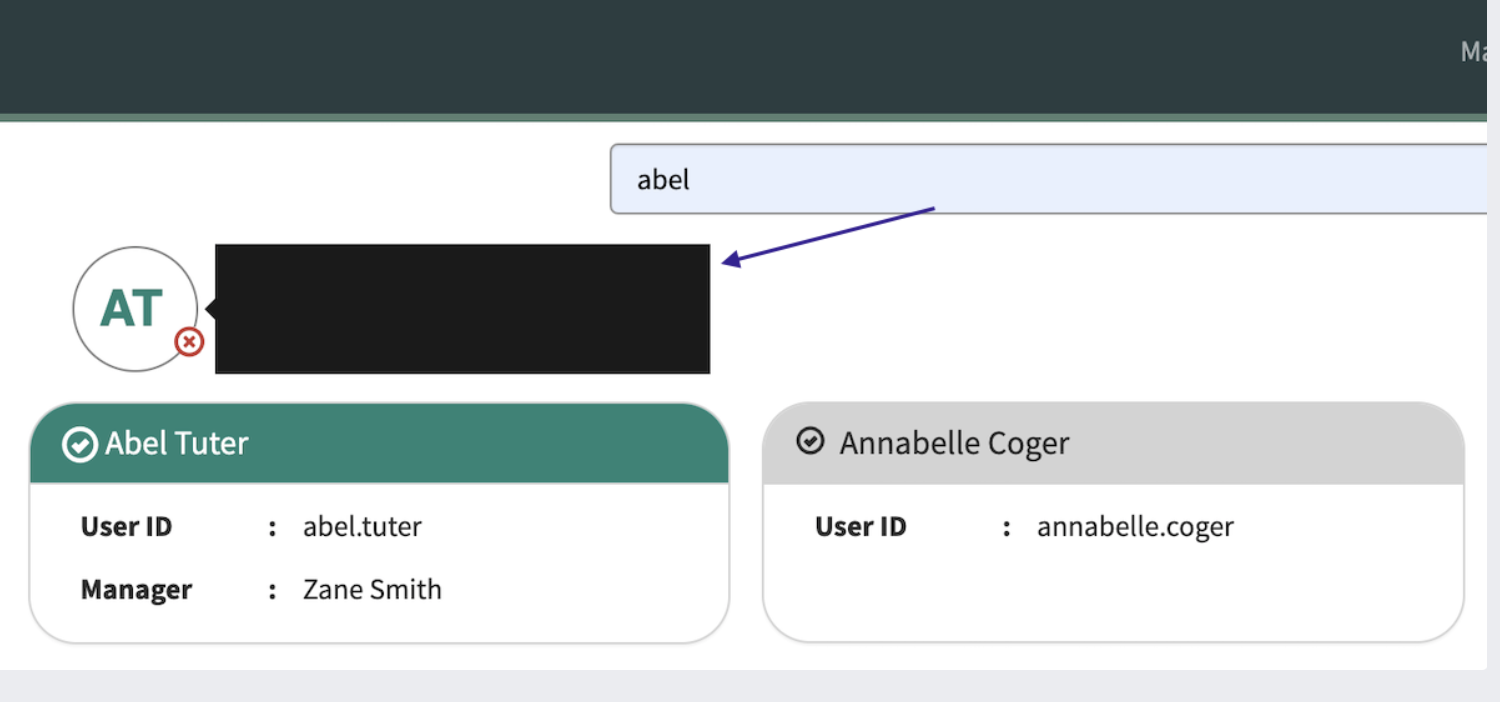
The user data hint is empty when hovering over the user circle (Utah environment)
Screenshot
Resolution:
- Open ServiceNow as Admin and enter Widgets into the search field.
- Select Widgets under Service Portal.
- Open the Manage Sailpoint Access widget.
-
Change the Application scope to SailPoint IdentityNow for Service Catalog.
Screenshot
-
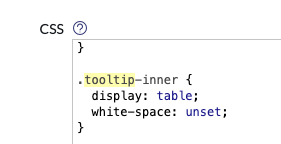
In CSS, search for
.tooltip-innerand add the following line to the CSS class:Screenshot
The Details window launched for Role style is broken (Tokyo and Utah environments)
Screenshot
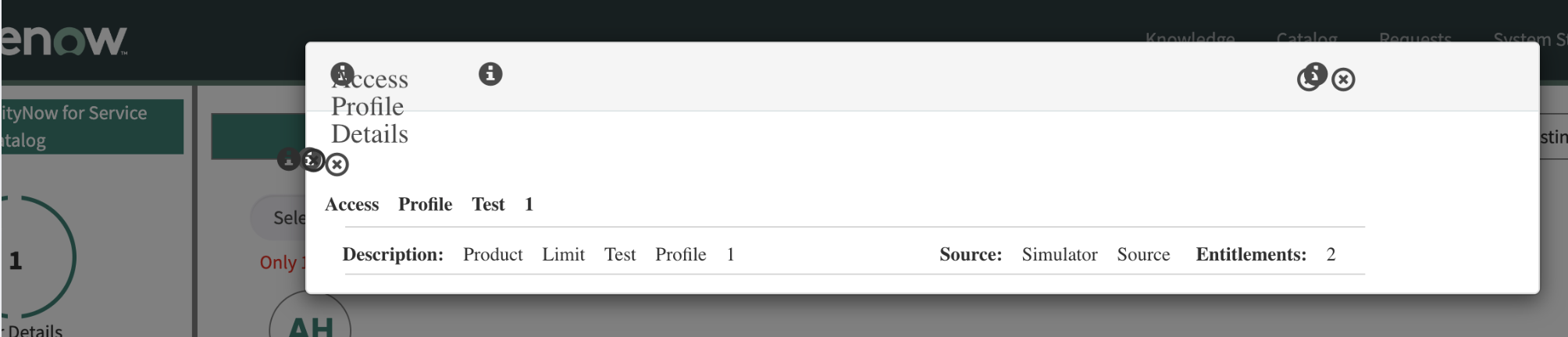
Resolution:
- Open ServiceNow as Admin and enter Widgets into the search field.
- Select Widgets under Service Portal.
- Open the Manage Sailpoint Access widget.
-
Change the Application scope to SailPoint IdentityNow for Service Catalog.
Screenshot
-
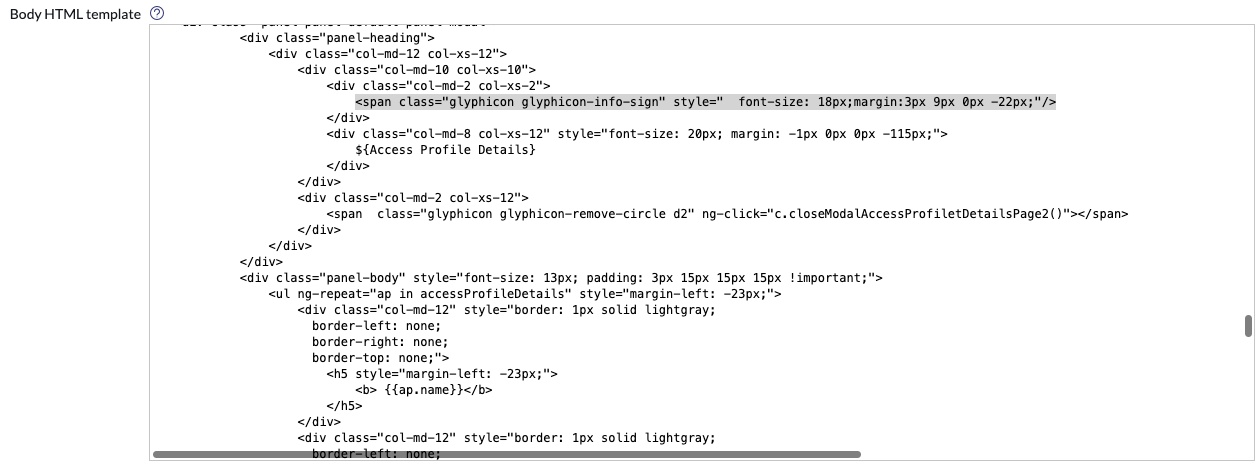
In Body HTML template, search for
modalTemplateAccessProfileDetailsPage2.html -
Change the tag to a span tag in the following two places:
-
<i class="glyphicon glyphicon-info-sign" style=" font-size: 18px;margin:3px 9px 0px -22px;"/><span class="glyphicon glyphicon-info-sign" style=" font-size: 18px;margin:3px 9px 0px -22px;"/> -
<i class="glyphicon glyphicon-remove-circle d2" ng-click="c.closeModalAccessProfiletDetailsPage2()"></span><span class="glyphicon glyphicon-remove-circle d2" ng-click="c.closeModalAccessProfiletDetailsPage2()"></span>
Screenshot
-
Selected user doesn't exist in SailPoint system error.
When trying to select a user in ServiceNow Catalog, the following error is displayed: Selected user doesn't exist in IdentityNow system
Resolution: Ensure that all of the links are available in the app, and that none of them are missing. Refer to Identity Security Cloud Links to ensure all links are present and correct for your installed application version.
Manager header in the user tooltip spans multiple lines in Employee Service Center
Issue: The tooltip shown while hovering over the selected user has the manager header spanning across two lines. This occurs due to the different CSS applied by ServiceNow in the Service Portal and Employee Service Center.
Screenshot
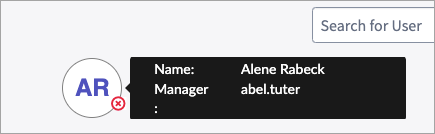
Resolution: Use the following steps to update the CSS in the widget.
-
Sign in as admin to the ServiceNow instance, and go Widgets under the Service Portal application.
Screenshot
-
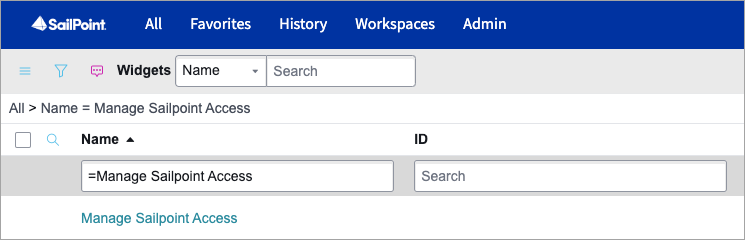
Search for the Widget named
Manage SailPoint Accessand open the record.Screenshot
-
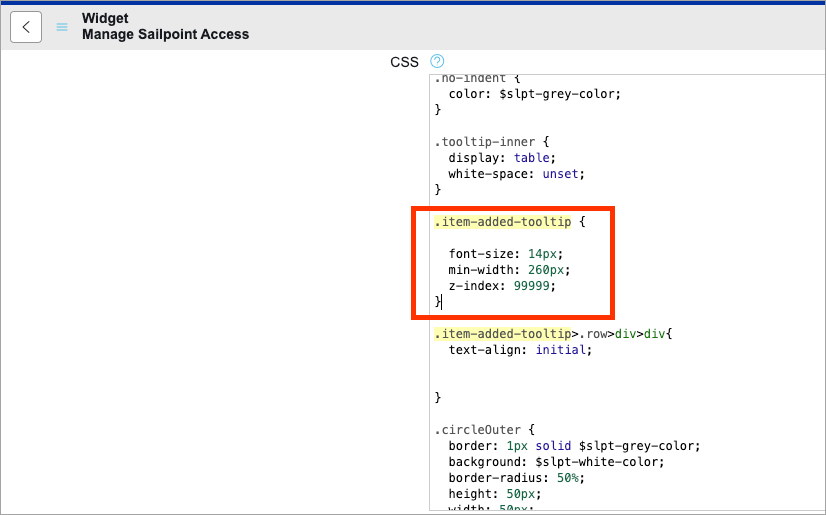
In the CSS section of the widget, search for
.item-added-tooltipScreenshot
-
Replace the block of 5 lines with the following:
-
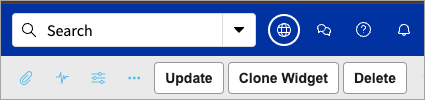
Select Update.
Screenshot
NOT_ALL_ITEMS_PROVISIONED error or PROVISIONING_FAILED when raising a second request for the same access profile
Error: Access profile user requested has already been in an access with state as NOT_ALL_ITEMS_PROVISIONED.Account Activity Id:xxx
Resolution: Incorporate the following changes:
- On the ServiceNow tenant, go to System Definition > Scripts Include and open the
SP_SPNT_SNOW_INT_AccessValidationRESTscript. - Take a back up of the script.
-
On line number 79 locate one if loop as below -
if (
accessRequestStatus[l].state != "REQUEST_COMPLETED" &&
accessRequestStatus[l].state != "REJECTED" &&
accessRequestStatus[l].state != "CANCELLED" &&
accessRequestStatus[l].state != "TERMINATED" &&
accessRequestStatus[l].state != "ERROR" )
-
Add two more conditions here for NOT_ALL_ITEMS_PROVISIONED and PROVISIONING_FAILED state as shown below:
if (
accessRequestStatus[l].state != "REQUEST_COMPLETED" &&
accessRequestStatus[l].state != "REJECTED" &&
accessRequestStatus[l].state != "CANCELLED" &&
accessRequestStatus[l].state != "TERMINATED" &&
accessRequestStatus[l].state != "ERROR" &&
accessRequestStatus[l].state != "NOT_ALL_ITEMS_PROVISIONED") &&
accessRequestStatus[l].state != "PROVISIONING_FAILED")
Note
Be aware that modifying the script will require manual updates for this change after each upgrade.
Issues post upgrade, check and fix skipped files during upgrade
Resolving conflicts during a ServiceNow upgrade is needed to ensure the upgraded instance functions correctly and as intended, preserving necessary customizations while adopting the new platform features and fixes. Conflicts arise when customization in your instance conflicts with the new, out-of-the-box (OOTB) version by SailPoint App. It skips these records and differences need to be reconciled by the administrator. SailPoint suggests reverting customizations to the base system to take advantage of new features and then re-applying your customizations accordingly. The following steps will check for conflicts and restore to the OOTB version.
Note
Related customizations will be lost and re-applied as necessary post these steps.
- Change the ServiceNow scope to SailPoint IdentityNow for Service Catalog.
-
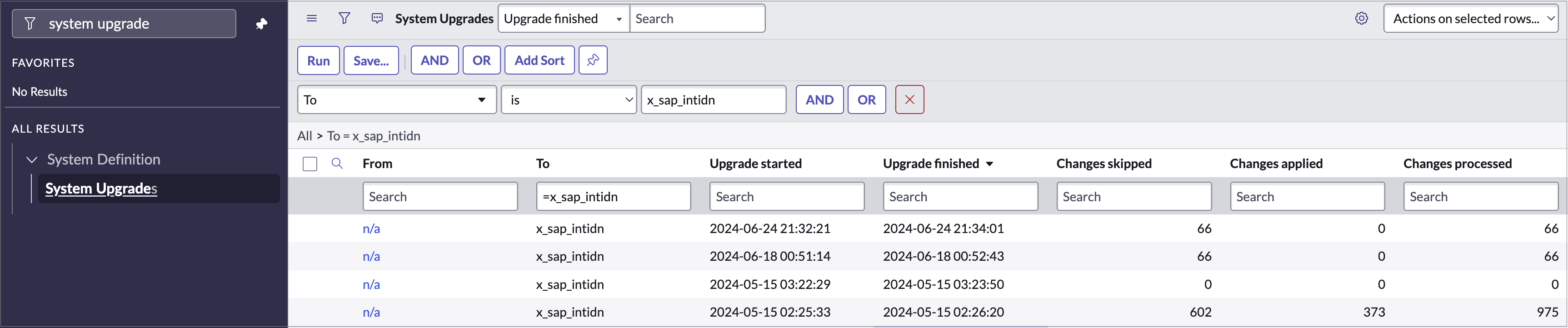
Go to System Diagnostics > Upgrades History and apply the filter with
to_version=x_sap_intidnScreenshot
-
Open the skipped records to review them. Select single or multiple records and then Revert to Base System to restore them to their original, out-of-the-box (OOB) state.
Screenshot

Decoupling ServiceNow Approvals from Provisioning to Reduce Processing Delays
Screenshot
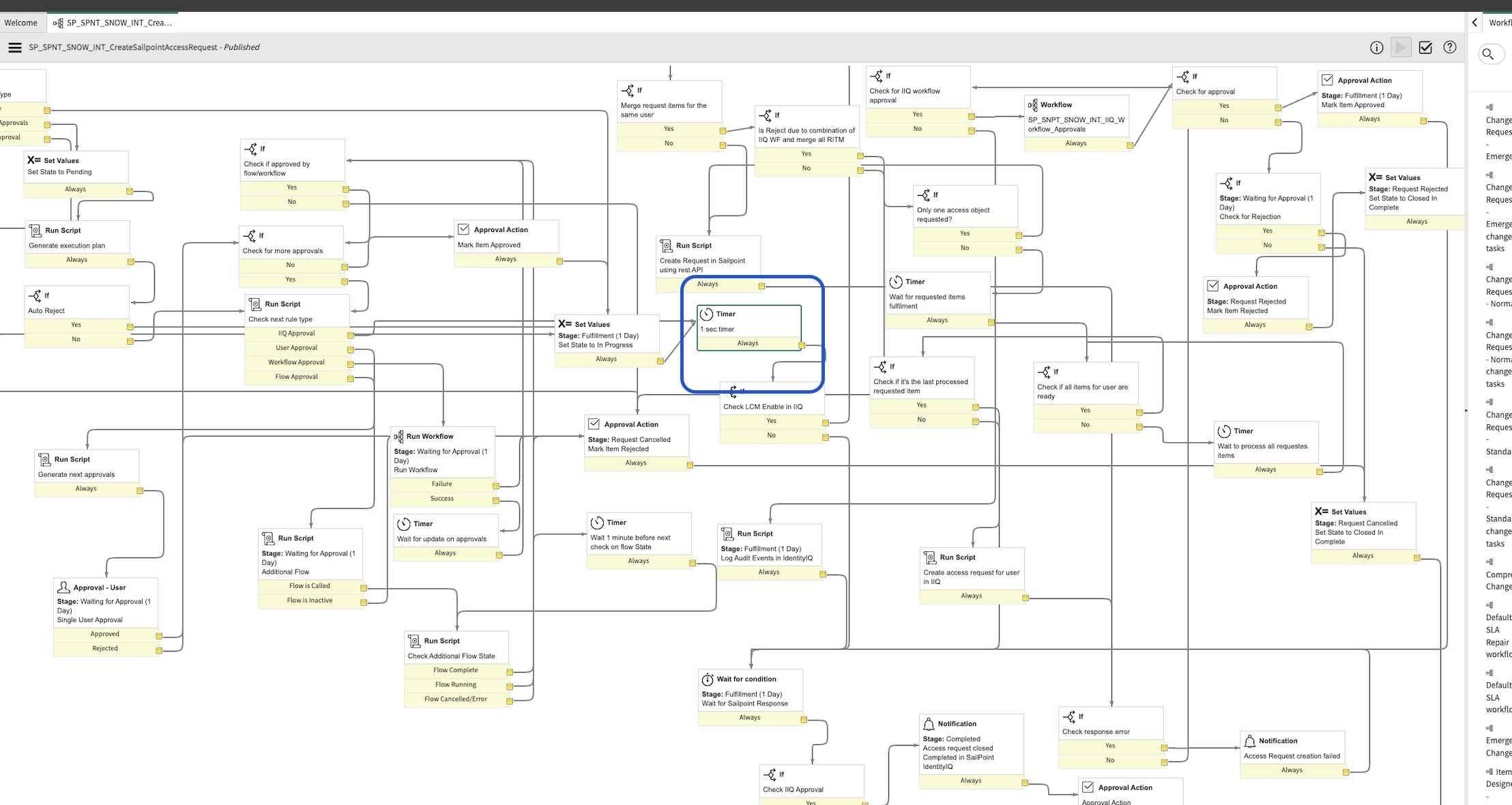
Issue: During multi-level approval in the ServiceNow catalog workflow (SP_SPNT_SNOW_INT_CreateSailpointAccessRequest), the last-level approval step was taking 20+ seconds.
This occurred because the createAccessRequest API call was synchronously blocking the approval acknowledgement until AD provisioning (including IQService operations) completed.
Resolution: Add a 1-second Timer step in the workflow to decouple the approval acknowledgement from provisioning execution. This block sits between the SailPoint access request creation and the Check LCM Enable in IIQ decision step. Adding the 1-second timer reduces approval response time from 20+ seconds to 3-5 seconds by preventing the provisioning process from holding the approval step.
Access request checkout fails with a CartException
Issue: ServiceNow administrators can submit SailPoint access requests. Other users cannot. The request stays in the cart, and ServiceNow returns the following error:
com.glideapp.servicecatalog.exceptions.CartException: Your cart has item(s) no longer available. Please remove SailPoint Access Request - Service Catalog from cart to continue with the checkout.
The application may also log ISC0004 or Method failed to complete -submitRequest().
Resolution: Open the SailPoint Access Request > Service Catalog > catalog item and review Not Available For. Remove user criteria that include the snc_internal role. ServiceNow assigns that role to internal users, so listing it there blocks checkout for those users. Administrators can still submit requests because they bypass catalog user criteria.
Additional FAQs and Troubleshooting
Documentation Feedback
Feedback is provided as an informational resource only and does not form part of SailPoint’s official product documentation. SailPoint does not warrant or make any guarantees about the feedback (including without limitation as to its accuracy, relevance, or reliability). All feedback is subject to the terms set forth at https://developer.sailpoint.com/discuss/tos.