User Reset
On the User Reset tab, configure your system to let users reset forgotten passwords or unlock accounts. Navigate to gear > Global Settings > Login Configuration and use the following options:
-
Enable Forgot Password – displays a Forgot Password link on the login page so users who have forgotten their password can reset it.
-
Enable Account Unlock – displays an Account Unlock link on the login page so users who have been locked out can unlock their account.
Selecting either or both of these options brings up two additional options:
-
Enable Security Questions – when enabled, security questions are used to confirm a user’s identity if they have forgotten their password or become locked out.
-
Enable SMS Verification – when enabled, a user is provided the option to have a reset code sent via SMS if they have forgotten their password or been locked out. When Forgot password/account unlock is enabled with Verify API or Programmable API, users can select Forgot password > Get Code on the login page to receive an SMS code and reset their password or unlock their account.
See Password Recovery--Account Unlock
Security Question Configuration
Note
Security questions and settings are associated with the password set on the pass through application. These are not associated with a direct logon to IdentityIQ.
Security questions display when you select the Forgot Password link on the login page during the authentication process. The questions list can contain tags from the properties file configured when your IdentityIQ instance was deployed, or when text is entered directly on this tab, or a combination of both. Mapping tags from a properties file is generally used for internationalization purposes.
Configure security questions as follows:
-
In the Questions section, select your desired questions using the + option to add new questions and the - option to remove options from the list.
-
In the Settings section, adjust the default parameters as needed.
-
Number of questions asked to authenticate an identity – specifies the number of questions that must be answered correctly in order to reset the password.
-
Number of questions a user must answer for authentication – specifies the number of questions for which the user must provide answers in advance so they can be authenticated using these questions. Questions without known answers cannot be used for authentication because there is no correct answer to be matched.
-
Prompt users for answers to unanswered security questions upon successful login – causes IdentityIQ to check during login whether the user has the required number of authentication answers provided already and, if not, prompt the user for those answers. The required number of questions is defined on the Edit Preferences page.
-
Maximum number of unsuccessful authentication attempts before IdentityIQ lockout – specifies the number of failed authentication attempts before the user is locked out of IdentityIQ.
-
Number of minutes a user will remain locked out due to unsuccessful authentication – set how long a user is locked out after the specified number of unsuccessful login attempts before they can try again to sign into IdentityIQ.
-
-
Select Save.
When a user clicks the Forgot Password link and then selects and answers the authentication questions, by default the user's answers are shown in plain text as they are typed in the user interface. If you want to obscure the user's answers with asterisks as they are typed, use the Debug page to add this entry key to IdentityIQ's SystemConfiguration object.
`<entry key="obscureAuthAnswers" value="true"/>`
Use the Settings section to configure behaviors for password attempts.
SMS Reset
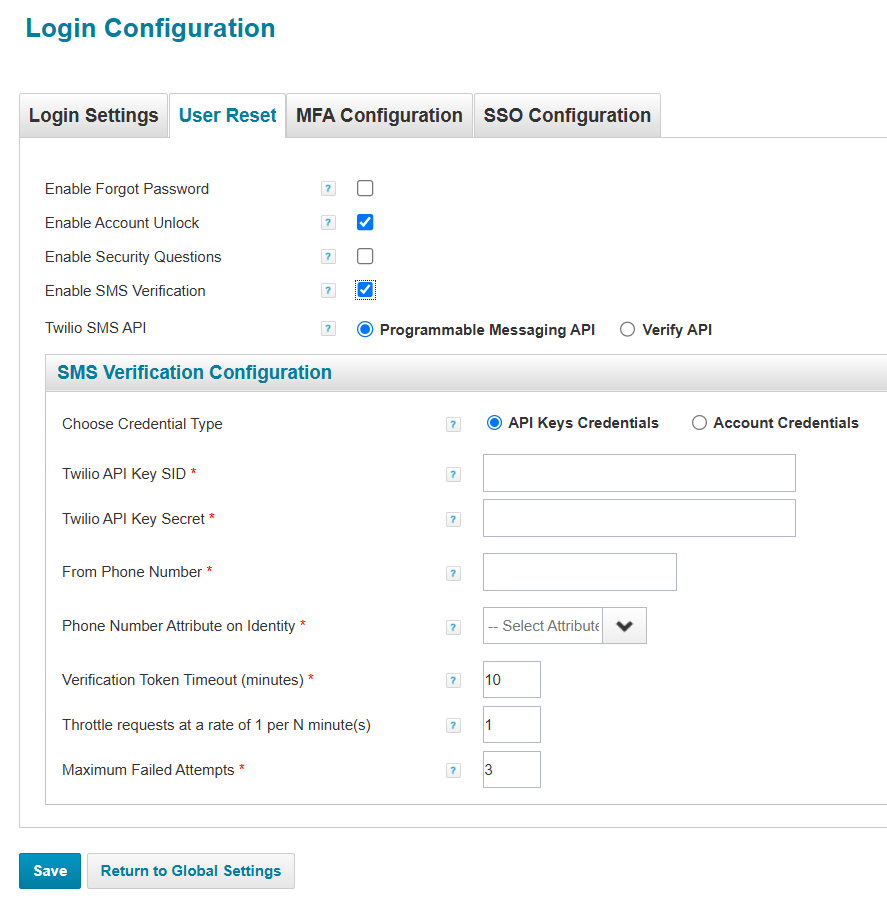
Select the Enable SMS Verification checkbox to enable the Twilio SMS API. This will display “Programmable Messaging API” and “Verify API” radio button options.
- Programmable Messaging API: A flexible set of tools that enable the delivery of messages through SMS. Commonly used for sending notifications, reminders, and executing secure workflow automations within IdentityIQ. This feature provides granular control over both the content and delivery of messages, allowing for tailored and reliable communication across various use cases.
- Verify API: A messaging option specifically designed for user verification and two-factor authentication (2FA) within IdentityIQ. It supports the delivery of messages through SMS, streamlines the authentication process, and enhances security. This feature includes pre-built functionality to ensure reliable delivery and verification of authentication codes.
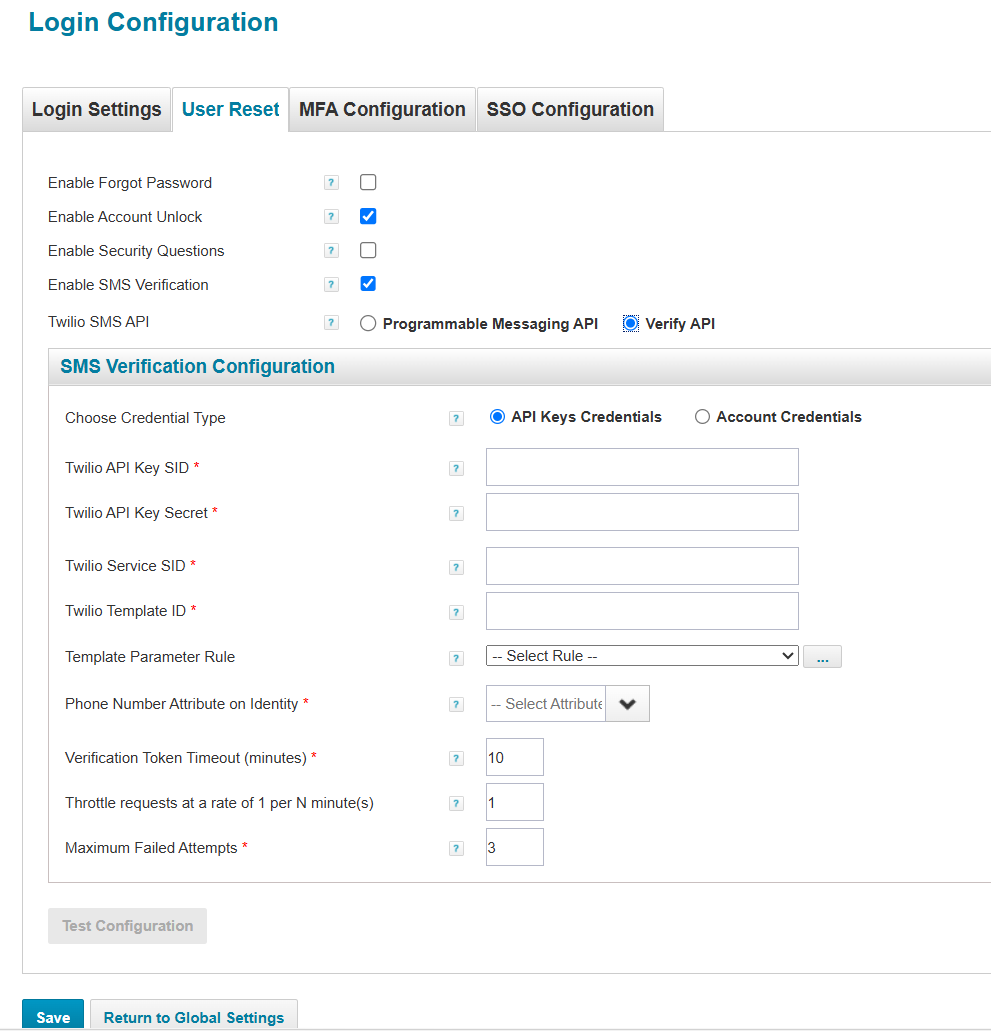
The Programmable API option is selected by default. The user can switch between the two radio button options and select any one API to configure the SMS verification process. Users can see the following sub-options are displayed as radio buttons under Choose Credential Type:
- API Key Credentials – This is the recommended option to use. Used to securely connect to Twilio services in IdentityIQ. They allow you to create, update, and remove API keys, helping reduce security risks if a key is ever compromised, especially when sending notifications.
- Account Credentials – used to authenticate and authorize API requests from IdentityIQ to Twilio. The Account SID identifies your Twilio account, while the Auth Token ensures secure communication when sending notifications.
Note
API Key Credentials are the default for both the Programmable Messaging API and the Verify API. It is recommended to use “API Key credentials” over Account credentials because it is a more secure option, easier to create, rotate, or revoke through the Twilio Console, whereas Account credentials grant full access and are difficult to rotate, and require support intervention to manage.
Additionally, before you set up SMS Reset, you need the following items from twilio.com:
- An active Twilio account
- Twilio ID
- Twilio credentials (authentication token)
- Twilio API Key SID
- Twilio API Key Secret
- Twilio Service ID
- Twilio Template ID
- "From" phone number configured on account
SMS Verification Configuration
Set up SMS verification for your system by completing the form as follows
Programmable Messaging API:
Account Credential
-
Twilio Account SID – enter the account ID you receive from Twilio when you set up your company Twilio account.
-
Twilio Authentication Token – enter the authentication token you receive from Twilio when you set up your company Twilio account.
-
From Phone Number – specify the phone number to be displayed in the From field on the SMS messages. This phone number must be configured as the From number on your Twilio account.
-
Phone Number Attribute on Identity – from a dropdown list, select the identity attribute that represents the mobile phone number. To define a new identity attribute, see Account Mappings.
Note
For a user to reset their password using the SMS Reset feature, the field associated with their mobile phone number must contain a complete number including the area code. Using E.164 number formatting for all phone numbers in the To and From fields is strongly encouraged. For more information, see SSO Configuration.
-
Verification Token Timeout (minutes) – you may adjust the default as needed to specify how many minutes the user's password reset token is valid before it expires.
-
Throttle requests at a rate of 1 per N minute(s) – specify the rate at which SMS requests can be made in a certain amount of time. For example, if you enter the number 5, your limit is 1 request every 5 minutes.
-
Maximum Failed Attempts – after reaching the maximum failed attempts, a user cannot verify a reset token until that token expires and a new token is requested.
Fields marked with an asterisk (*) are mandatory.
API Keys Credential
-
Twilio API Key SID – enter the API Key, which is created under the API & Keys section in the Twilio Console.
-
Twilio API Key Secret – enter the Secret Key associated with the API Key ID, which is used to securely authenticate the API.
-
Twilio Service SID – enter the Twilio Verify Instant Service, which is under the Verify section in the Twilio Console.
-
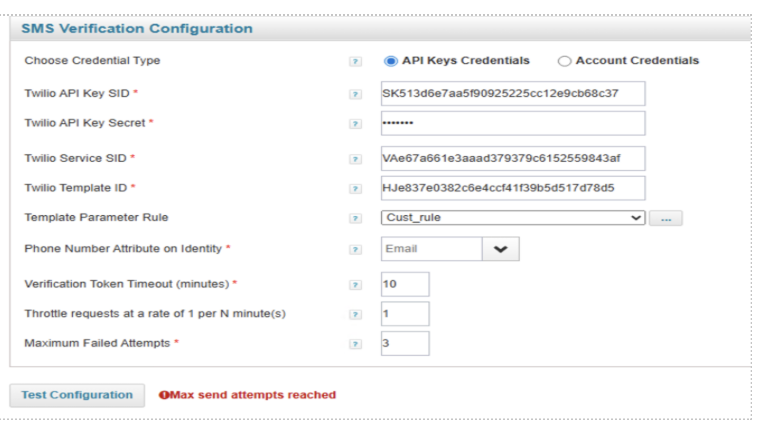
Twilio Template ID – enter the predefined Twilio’s default message template or custom message template.
-
Template Parameter Rule - a rule that dynamically creates message parameters for a custom Twilio template. Only required when using a custom template that includes variables. For more information see Using the Rule Editor.
-
Phone Number Attribute on Identity – from a dropdown list, select the identity attribute that represents the mobile phone number. To define a new identity attribute, see Account Mappings.
Note
For a user to reset their password using the SMS Reset feature, the field associated with their mobile phone number must contain a complete number including the area code. Using E.164 number formatting for all phone numbers in the To and From fields is strongly encouraged. For more information, see SSO Configuration.
-
Verification Token Timeout (minutes) – you may adjust the default as needed to specify how many minutes the user's password reset token is valid before it expires.
-
Throttle requests at a rate of 1 per N minute(s) – specify the rate at which SMS requests can be made in a certain amount of time. For example, if you enter the number 5, your limit is 1 request every 5 minutes.
-
Maximum Failed Attempts – after reaching the maximum failed attempts, a user cannot verify a reset token until that token expires, and a new token is requested.
Fields marked with an asterisk (*) are mandatory.
Verify API
Account Credential
-
Twilio Account SID – enter the account ID you receive from Twilio when you set up your company Twilio account.
-
Twilio Authentication Token – enter the authentication token you receive from Twilio when you set up your company Twilio account.
-
Twilio Service SID – enter the Twilio Verify Instant Service, which is under the Verify section in Twilio Console.
-
Twilio Template ID – enter the predefined Twilio’s default message template or custom message template.
-
Template Parameter Rule - a rule that dynamically creates message parameters for a custom Twilio template. Only required when using a custom template that includes variables. For more information see Using the Rule Editor.
-
Phone Number Attribute on Identity – from a dropdown list, select the identity attribute that represents the mobile phone number. To define a new identity attribute, see Account Mappings.
Note
For a user to reset their password using the SMS Reset feature, the field associated with their mobile phone number must contain a complete number including the area code. Using E.164 number formatting for all phone numbers in the To and From fields is strongly encouraged. For more information, see SSO Configuration.
-
Verification Token Timeout (minutes) – you may adjust the default as needed to specify how many minutes the user's password reset token is valid before it expires.
-
Throttle requests at a rate of 1 per N minute(s) – specify the rate at which SMS requests can be made in a certain amount of time. For example, if you enter the number 5, your limit is 1 request every 5 minutes.
-
Maximum Failed Attempts – after reaching the maximum failed attempts, a user cannot verify a reset token until that token expires and a new token is requested.
Fields marked with an asterisk (*) are mandatory.
API Keys Credential
-
Twilio API Key SID – enter the API Key, which is created under the API & Keys section in the Twilio Console.
-
Twilio API Key Secret – enter the Secret Key associated with the API Key ID, which is used to securely authenticate the API.
-
Twilio Service SID – enter the Twilio Verify Instant Service, which is under the Verify section in the Twilio Console.
-
Twilio Template ID – enter the predefined Twilio’s default message template or custom message template.
-
Template Parameter Rule - A rule that dynamically creates message parameters for a custom Twilio template. Only required when using a custom template that includes variables. IdentityIQ provides a Twilio Verify template parameter rule named twilioVerifyApiTemplateParameters and configure this rule on the Enable SMS Verification → Verify API screen.
- The rule builds the key–value parameters that are passed to a custom Twilio SMS template and the rule must be created or edited in the Rule Editor. Only attributes configured in IdentityIQ can be used in the rule.
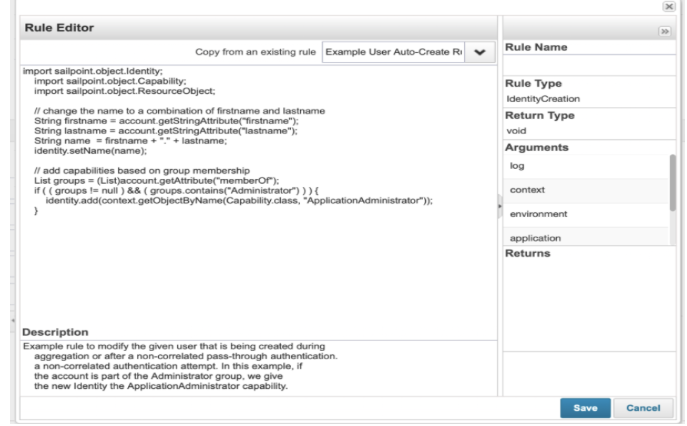
- If the rule references attributes that are not configured in IdentityIQ, a “Key-Value not found”–type error occurs.
- If a custom template is enabled in both Twilio and IdentityIQ but no rule or an invalid rule is selected:
- IdentityIQ allows the configuration to be saved.
- The system displays the message: “Template parameter rule is invalid. Please select a valid option.” The SMS/OTP is not sent.
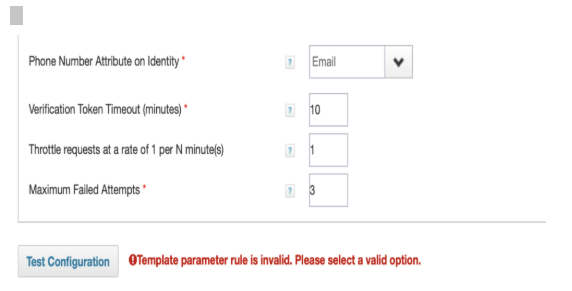
- To prevent message failures, ensure that all custom parameters in the Twilio template are mapped to mandatory Identity Cube attributes.
-
Phone Number Attribute on Identity – from a dropdown list, select the identity attribute that represents the mobile phone number. To define a new identity attribute, see Account Mappings.
Note
For a user to reset their password using the SMS Reset feature, the field associated with their mobile phone number must contain a complete number including the area code. Using E.164 number formatting for all phone numbers in the To and From fields is strongly encouraged. For more information, see SSO Configuration.
-
Verification Token Timeout (minutes) – you may adjust the default as needed to specify how many minutes the user's password reset token is valid before it expires.
-
Throttle requests at a rate of 1 per N minute(s) – specify the rate at which SMS requests can be made in a certain amount of time. For example, if you enter the number 5, your limit is 1 request every 5 minutes.
-
Maximum Failed Attempts – after reaching the maximum failed attempts, a user cannot verify a reset token until that token expires and a new token is requested.
Fields marked with an asterisk (*) are mandatory.
Test Configuration
The Test Connection button enables users to simulate and validate SMS message formatting and delivery within a controlled test environment. This feature provides an interactive way to confirm that configurations are set up correctly, and messages are sent as expected—without initiating the entire user workflow. It streamlines troubleshooting and ensures reliable communication setup. The Test Configuration button is visible but disabled by default on selecting Verify API.
To enable and validate the SMS setup for a specific Identity, complete the following steps:
-
On the SMS Verification Configuration screen, enable the Verify API and select either Account Credentials or API Key Credentials. Fill in all required fields.
-
The system checks that all mandatory fields are completed and correctly formatted.
-
Once verified, the Test Configuration button becomes enabled.
-
Clicking on Test Configuration button, a pop-up window will appear.
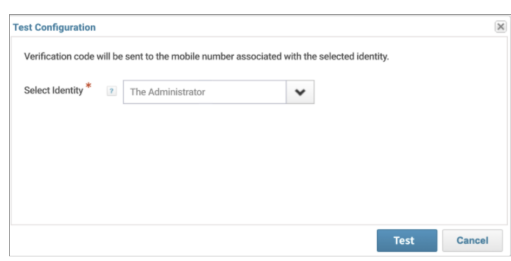
- The identity dropdown in the pop-up defaults to the currently logged-in user. You may optionally select a different identity from the list, by following the steps below:
- Enter Debug Mode in IdentityIQ to enable configuration changes.
- Open the
IdentitySelectorConfigurationfile, add additional usernames under theIdentitiesForTwilioTestConfigurationsection, then save the file. - Open the Test Configuration pop-up. In the Select Identity dropdown, the logged-in user’s name and email are shown by default in a rich dropdown format, and any additional identities you added will also appear. Select a different identity if needed.
Note
If the selected identity does not have a mobile phone number set in the corresponding attribute, the test will fail, and a Failure message will be displayed.
- Select Test in the Test Configuration pop-up; the pop-up will close automatically.
- The system displays “Establishing connection in progress..” next to the button, and when the text message is sent to the selected identity phone number, it shows “Test Successful” message.
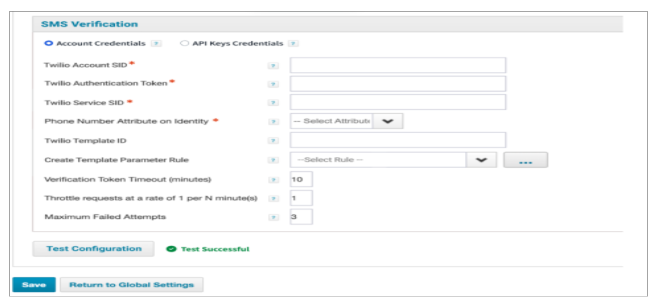
Error Messages for Test Configuration
When any mandatory fields are left blank or contain invalid inputs, clicking the Test Configuration button will trigger an error message explaining the specific issue. This helps the user identify and correct the errors before proceeding.
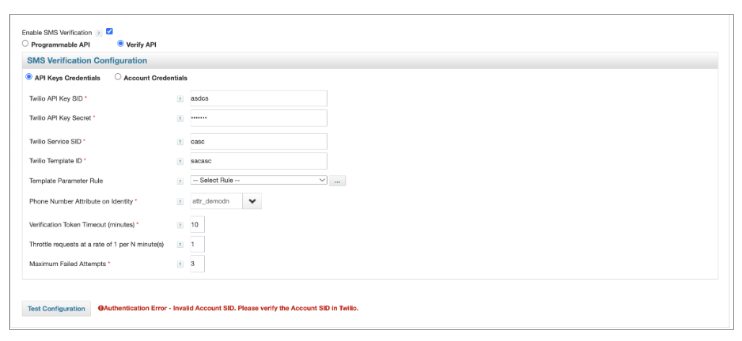
IdentityIQ evaluates the credentials and configuration values provided for both API Key Credentials and Account Credentials and returns a targeted message describing the exact problem, for example:
-
Invalid or incorrect API Key SID / Key Secret / Account SID / Auth Token
-
Invalid Twilio Service SID or Twilio Template ID
-
Invalid phone number format on the identity
-
Phone number not verified in Twilio (for accounts where Twilio enforces verification)
Improved Twilio test error visibility – When Twilio returns an error that is not covered by IdentityIQ’s custom Twilio error mappings, the default Twilio error message is now displayed instead of the generic “Test Execution Failed” text, making unexpected Twilio responses easier to diagnose during configuration testing.
For example, it was validated by repeatedly clicking Test Configuration within ~10–20 seconds to trigger multiple messages. In this case, Twilio returns a default (non-custom) error message, which is surfaced in the UI exactly as recorded in the error logs.