Account, Group, and Role Management
Account Management for User, User in Federated Domain, Guest User (B2B), and External Member (B2B)
This section describes the supported features for user, user in federated domain, guest user (B2B), and external member (B2B).
The following table lists various operations supported by connector for different Users:
| Operations | User | User in Federated Domain | Guest User (B2B) | External Member (B2B) |
|---|---|---|---|---|
| Aggregation | Yes | Yes | Yes | Yes |
| Delta Aggregation | Yes | Yes | Yes | Yes |
| Get Account | Yes | Yes | Yes | Yes |
| Pass-Through Authentication | Yes | No | Yes | Yes |
| Create | Yes | No | Yes | Yes |
| Update | Yes | No | Yes | Yes |
| Delete | Yes | No | Yes | Yes |
| Enable/Disable Users | Yes | No | Yes | Yes |
| Set Password | Yes | No | No | No |
Add/Remove Entitlements
|
Yes | Yes | Yes Note Not applicable to Add/Remove Shared Mailbox from users |
Yes Note Not applicable to Add/ Remove Shared Mailbox from users |
| Aggregate Exchange Mailbox Attribute | Yes | Yes | No | No |
| Aggregate Shared Mailbox as an Entitlement | Yes | Yes | No | No |
| Aggregate and Provision Sponsors | No | No | Yes | Yes |
Password Management
If Password Management is enabled for your organization, you can change the password for a user of the source. After enabling password management on the source, be aware of the following:
- The password policy defined in SailPoint applies to accounts on this source.
- If you change the password for an application connected to this source, the change will automatically be made to the source itself.
For more information on configuring password management, refer to Password Management Overview.
Account Management for Local User (B2C)
Azure Active Directory B2C is primarily for businesses and developers that create customer-facing applications. With Azure Active Directory B2C, users can use Microsoft Entra as the full-featured identity system for their application, while letting customers sign in with an identity they already have established (like Facebook or Gmail).
B2C is intended for inviting customers of your mobile and web applications, whether individuals, institutional or organizational customers into your Microsoft Entra.
Supported identities are Consumer users with local application accounts (any email address or user name) or any supported social identity with direct federation. A new/separate Microsoft Entra application must be created to manage B2C tenants.
| Operations | Manage B2C Tenant - Local User | Manage B2C Tenant - Social User |
| Aggregation | Yes | Yes |
| Create | No | |
| Update | Yes | |
| Delete | Yes | |
| Enable/Disable Users | Yes | |
| Add/Remove Entitlements Add/Remove Roles Add/Remove User's Group Membership |
Yes |
Revoke Session After Disabling User Account
Disabling a user account prevents future authentication attempts, but existing active sessions can remain valid until token expiration. With this feature enabled, the Microsoft Entra ID SaaS connector automatically revokes active sign-in sessions during the disable account workflow, cutting off access immediately.
Supported Operations
- Revoke active user sign-in sessions when their account is disabled.
Note
This feature applies to user accounts only. Service principals do not have sign-in sessions.
Administrator Permissions
To revoke sign-in sessions, assign the following Microsoft Graph API application permissions to your Entra ID app registration:
| Type | Permission | Purpose |
|---|---|---|
| Application | User.RevokeSessions.All |
Revoke a user's sign-in sessions |
| Application | User.ReadWrite.All |
Revoke a user's sign-in sessions |
Note
If your application registration already contains the required permissions to perform the standard account disable operation (User.ReadWrite.All), no additional permissions are required.
Configuring Account Disable Settings
Note
- For newly created sources, this is enabled by default to align with security best practices.
- For existing sources, this is disabled by default. When required, ensure to select this option.
To configure Account Disable Settings:
Screenshot

- Go to Feature Management.
- Under Account Disable Settings, select Revoke Session after Disabling User Account to sign the user out of all existing sessions when their account is disabled.
- Select Save.
Last Login for Accounts
The Microsoft Entra ID SaaS connector can retrieve the last login date and time for individual users. This information can enable governance workflows to certify access and remove long-standing access if it's no longer needed.
The connector uses the MS Graph API to retrieve the last login account data.
Prerequisites
You must have an Microsoft Entra P1/P2 license to use this feature.
Administrator Permissions
To retrieve the last login account data, the MS Graphs API requires you to assign it the AuditLog.Read.All API permission.
Supported Operations
The connector retrieves last login information during the following operations:
- Account aggregation
- Get account
Required Attributes
This feature requires the following login information:
Important
Important
These attributes are not present by default and you must add them explicitly to the account schema, if required.
To add these attributes to the account schema, use signInActivity.<attribute_name> format. For example, to use lastSuccessfulSignInDateTime from the managed system, add signInActivity.lastSuccessfulSignInDateTime to the account schema. For more information, refer to Account Attributes.
Attributes Related to Interactive Authentication Method
Note
If you have an existing connector with attributes in your account schema named lastSignInDateTime and lastNonInteractiveSignInDateTime, the connector will still aggregate the values assigned to those attributes.
signInActivity.lastSignInDateTime: To retrieve the last time a user logged into the directory with an interactive authentication method.signInActivity.lastSignInRequestId: To retrieve the request identifier of the last interactive sign-in performed by this user.
Attributes Related to Non-Interactive Authentication Method
signInActivity.lastNonInteractiveSignInDateTime: To retrieve the last time a client signed in to the directory on behalf of a user.signInActivity.lastNonInteractiveSignInRequestId: To retrieve the request identifier of the last non-interactive sign-in performed by this user.
Other Supported Attributes
The following attributes are also supported along with the above listed attributes:
signInActivity.lastSuccessfulSignInDateTime:To retrieve the date and time of the user’s most recent successful sign-in activity.signInActivity.lastSuccessfulSignInRequestId: To retrieve the request ID of the last successful sign-in.
Azure Mail Contact Management
Mail contacts (also known as organizational contacts) are managed by an organization's administrators. Additionally, mail contacts are generally synchronized from Exchange Online. With this feature, the connector supports managing mail contacts as accounts.
Supported Operations
The following operations are supported for Azure Mail Contact:
| Operations | Mail Contact |
| Aggregation | Yes |
| Delta Aggregation | |
| Get Account | |
| Create | |
| Modify | |
| Delete | |
Add/Remove Entitlements
|
Administrator Permissions
| Purpose | Permissions |
|---|---|
| Aggregate Mail Contacts | OrgContact.Read.All |
| Fetch Group Membership | GroupMember.Read.All |
| Create, Update, Delete, and Add/Remove Entitlements | The user account must have the Exchange Administrator Role and the prerequisites mentioned in the Exchange Online Management. |
Supported Schema Attributes
To aggregate mail contacts as accounts, ensure that the mail contact attributes are present in the account schema. For more information, refer to Mail Contacts as Accounts Attributes.
Supported Provisioning Attributes
To provision mail contacts related information, refer to Create/Modify/Delete Mail Contact Profile Attributes.
Configure Mail Contacts As Accounts
Screenshot
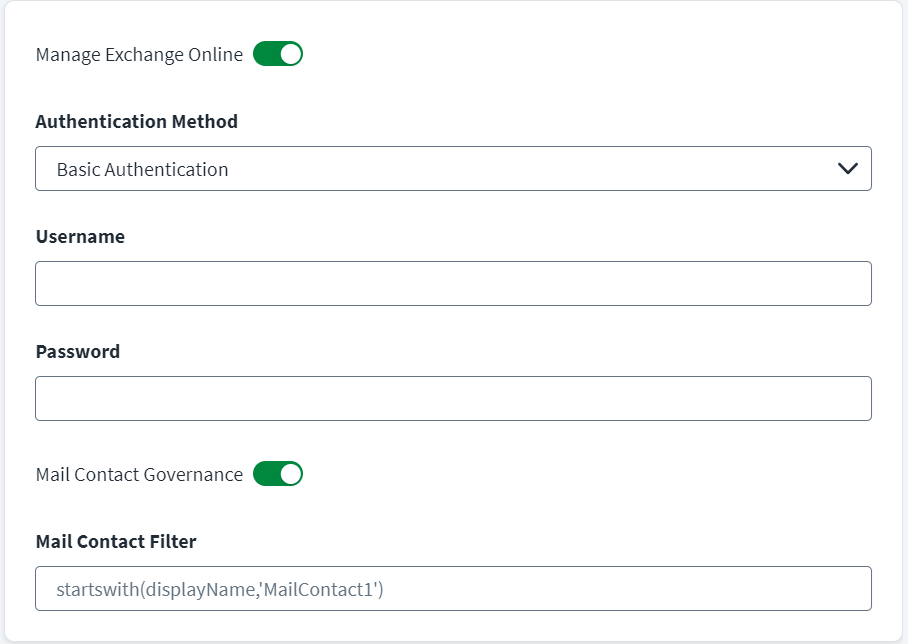
- Go to Feature Management.
- If it is not already selected, select Manage Exchange Online to view the rest of the fields.
- Select Mail Contact Governance to manage mail contacts as accounts.
- In the Mail Contact Filter field, enter any filter statements used to define the scope of mail contacts for aggregation. For example,
startswith(displayName,'MailContact1')
Service Plan Management (managing Licenses)
The Microsoft Entra ID SaaS connector supports assigning different Azure services licenses to the users. The connector uses individual plan to assign licenses. For the requirements and the group-based licensing considerations, refer to Service Plan Management (managing Licenses).
Service Plan now has separate group schema attributes. For a detailed list of the attributes, refer to Service Plan.
The following operations are supported for the Service Plan object type:
- Aggregation
- View details of Service Plan (like object properties, members, and so on)
- Assign and Revoke access request for Service Plan (entitlement attribute:
assignedPlans)
Custom (extension) Attributes
In addition to the schema attributes listed in Schema Attributes section, the connector supports managing the extended attributes that are registered on the client application on Azure.
Note
To update the custom attribute, the provisioning policy must be updated with the custom attribute name.
To aggregate custom attributes, you must update the schema for account or entitlement with the custom attribute names. The custom attribute name must match the custom attribute name on the managed Microsoft Entra ID system.
Use the following format for single-valued and multivalued string type custom attributes:
extension_<clientID>_<CustomAttributeName>
Managing Complex Extension Attributes
To manage complex extension attributes, as shown below:
"onPremisesExtensionAttributes": {
             "extensionAttribute1": "Value1",
             "extensionAttribute2": "Value2",
            "extensionAttribute3": "Value3",
            "extensionAttribute4": "Value4",
            "extensionAttribute5": "Value5",
            "extensionAttribute6": "Value6",
            "extensionAttribute7": "Value7",
            "extensionAttribute8": "Value8",
            "extensionAttribute9": "Value9",
            "extensionAttribute10": "Value10",
            "extensionAttribute11": "Value11",
            "extensionAttribute12": "Value12",
            "extensionAttribute13": "Value13",
            "extensionAttribute14": "Value14",
            "extensionAttribute15": "Value15"
Add these attributes in the Account Schema and Create Account sections in the SailPoint user interface. To add, use the following format:
Note
Attributes are case sensitive.
onPremisesExtensionAttributes_extensionAttribute1
onPremisesExtensionAttributes_extensionAttribute2
onPremisesExtensionAttributes_extensionAttribute3
onPremisesExtensionAttributes_extensionAttribute4
onPremisesExtensionAttributes_extensionAttribute5
onPremisesExtensionAttributes_extensionAttribute6
onPremisesExtensionAttributes_extensionAttribute7
onPremisesExtensionAttributes_extensionAttribute8
onPremisesExtensionAttributes_extensionAttribute9
onPremisesExtensionAttributes_extensionAttribute10
onPremisesExtensionAttributes_extensionAttribute11
onPremisesExtensionAttributes_extensionAttribute12
onPremisesExtensionAttributes_extensionAttribute13
onPremisesExtensionAttributes_extensionAttribute14
onPremisesExtensionAttributes_extensionAttribute15
Account - Group Management
The Microsoft Entra ID SaaS connector supports managing following group types as an entitlement and as separate group objects. These different types of groups are created for different purpose which are described as follows:
- Microsoft 365 groups (formerly Office 365 groups) are used for collaboration between internal and external users of the company.
- Distribution Lists (Distribution groups) are used for sending notifications to a group of people.
- Security groups are used for granting access to resources such as SharePoint sites.
- Mail-enabled security groups are used for granting access to resources such as SharePoint, and emailing notifications to those users.
The following table describes different conditions or configurations depending on which connector will aggregate different types of groups:
| Group Types | Default Aggregation | Manage Office 365 checkbox selected in Feature Management | Aggregate All Groups checkbox selected in Aggregation Settings |
| Security | Yes | Yes | Yes |
| Mail-Enabled Security | Yes | Yes | |
| Office 365 | No | Yes | |
| Distribution List | No | No |
For more information on enabling Aggregate All Groups, refer to Account - Group Management.
For more information on enabling provisioning for Distribution Lists and Mail-Enabled Security Groups, refer to Exchange Online Management.
For more information on enabling Office 365 Groups, refer to Feature Management.
Group Hierarchy Information
This feature shows read-only group hierarchy information. For more information on enabling this feature, refer to Aggregation Settings.
Note
The group hierarchy calculation requires additional MS Graph API calls, so you may see an increase in aggregation time depending on the number of groups and the associated number of parent-child relations between them.
Microsoft Entra Role Management
Microsoft Entra ID SaaS roles allow you to grant granular permissions to your admins, abiding by the principle of least privilege. Microsoft Entra roles control access to Microsoft Entra resources such as users, groups, and applications.
Microsoft Entra supports two types of roles definitions:
- Built-in roles - Built-in roles are out of box roles that have a fixed set of permissions. These role definitions cannot be modified.
- Custom roles - To round off the edges and meet your sophisticated requirements, Microsoft Entra also supports custom roles.
Microsoft Entra roles object type supports the following operations:
- Aggregation of built-in and custom roles as separate group object
- Aggregation of user membership to roles during account aggregation
- Add / Remove built-in and custom roles to Microsoft Entra users
Administrator Permissions
| Permission | Permission Type | Purpose |
| RoleManagement.ReadWrite.Directory | Application | Add/Remove Roles for Accounts |
| RoleManagement.Read.Directory, Directory.Read.All, RoleManagement.ReadWrite.Directory, Directory.ReadWrite.All | Aggregate Roles | |
| RoleManagement.ReadWrite.Directory | Provisioning | |
| RoleManagement.Read.Directory, Directory.Read.All, RoleManagement.ReadWrite.Directory, Directory.ReadWrite.All | Read Roles entitlement for Accounts |
Supported Schema Attributes
To manage the Microsoft Entra role objects, ensure that the attributes present in Roles Attributes are present in the group schema.
Administrative Units
An administrative unit is a Microsoft Entra resource that serves as a container for other Microsoft Entra resources. It can contain only users, groups, or devices. A user can be a member of multiple administrative units.
Supported Operations
This feature supports the following operations:
- Manage administrative units as entitlements.
- Create a user with a single or multiple administrative units.
- Add/Remove administrative units from users.
- Delete administrative units from users.
Administrator Permissions
To fetch administrative units details, the following API permissions must be assigned:
| Type | Permission | Purpose |
|---|---|---|
| Application | AdministrativeUnit.Read.All | Aggregate Administrative Units |
| Application | AdministrativeUnit.ReadWrite.All | Add Users to Administrative Units |
| Application | AdministrativeUnit.ReadWrite.All | Delete Users from Administrative Units |
Supported Schema Attributes
To manage the administrative units, ensure administrative units attributes are present in the group schema. For more information, refer to Administrative Units Attributes.
Configure Administrative Unit
Screenshot

- Go to Feature Management.
- Select Manage Administrative Units to manage administrative units.
Access Package Management
An access package is a bundle of all the resources with the access a user needs to work on a project or perform their task. Access packages are used to govern access for your internal employees, and also users outside your organization.
Microsoft Entra ID SaaS access package management can help you manage access to Groups & Teams, Applications, and SharePoint Online sites as a bundle.
Important
To use entitlement management and assign users to access packages, you must have one of the following licenses:
- Microsoft Entra ID P2 or Microsoft Entra ID Governance
- Enterprise Mobility + Security (EMS) E5 license
For more information, refer to Access Package in Entitlement Management.
The following operations are supported for the Microsoft Entra ID SaaS access packages object type:
- Aggregation of custom access package objects (a combination of access package and policy) as a separate group type.
- Aggregation of user membership to access packages during account aggregation.
- Add and Remove access packages entitlements to users.
Administrator Permissions
| Purpose | Permission Type | Permissions |
|---|---|---|
| Aggregate Access Packages | Application | EntitlementManagement.Read.All |
| Read Access Packages entitlements for Accounts | Application | |
| Add and Remove Access Packages for Accounts | Application | EntitlementManagement.ReadWrite.All |
For more information on the required permissions, refer to Required Permissions.
Supported Schema Attributes
To manage the Microsoft Entra ID SaaS access package objects, ensure that the attributes in Access Package Attributes are present in the group schema.
To aggregate access packages assigned to the user during account aggregation, ensure the accessPackages attribute is present in account schema. This attribute lists the access packages assigned to the user.
Note
The Microsoft Entra ID SaaS connector provisions accessPackage entitlements only through admin context. Therefore, the approval settings configured in the assignment policy does not get triggered.
Configure Access Packages in Source
Screenshot
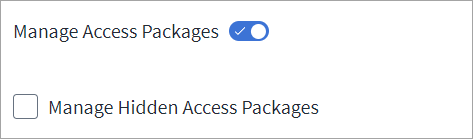
- Go to Feature Management.
- Select Manage Access Packages to turn this feature on or off. When this is turned off, you see a black X. If it is turned on, you see a blue ✔. The default is off.
- Select the Manage Hidden Access Packages checkbox to manage access packages hidden from end users in the My Access portal.
- Select Save.
Privilege Classification
SailPoint Privilege Classification helps organizations systematically categorize and manage the privilege levels of entitlements within their sources. By classifying entitlements as high, medium, or low, administrators can better understand the potential risk and impact associated with specific access rights. This allows automatic assignment of privilege levels based on system recommendations, custom-defined criteria, or a same level across all entitlements.
| Privilege Level | Description |
|---|---|
| High | Administrative level access to accounts |
| Medium | Administrative level access for a specific role or function |
| Low | Only basic access of data |
Note
To manage Privilege Classification, users must have administrative roles such as Org Admin, Source Admin or Source Sub-Admin.
For more information, refer to Managing Privilege Classification.
Documentation Feedback
Feedback is provided as an informational resource only and does not form part of SailPoint’s official product documentation. SailPoint does not warrant or make any guarantees about the feedback (including without limitation as to its accuracy, relevance, or reliability). All feedback is subject to the terms set forth at https://developer.sailpoint.com/discuss/tos.