Machine Identity Governance
SailPoint addresses Machine Identity Governance by integrating non-human identities such as service accounts and bots into its unified SailPoint platform. This approach eliminates security silos by managing human and machine identities under a single governance framework. This comprehensive approach ensures that machine identities maintain the principle of least privilege, reducing the attack surface and enhancing organizational compliance across complex hybrid and multi-cloud environments.
Important
Your organization must have SailPoint Agentic Fabric to use this feature. Contact your Customer Success team for more information. For more information, refer toSailPoint Agentic Fabric.
Microsoft Entra ID SaaS connector supports the following AI agents management:
Azure AI Foundry Agents Management
Important
Microsoft has deprecated Classic Azure AI Foundry agents. Because of this, the Microsoft Entra SaaS connector now supports discovery (aggregation) of New Azure AI Foundry agents only. It no longer aggregates Classic Azure AI Foundry agents.
Azure AI Foundry Agent Service enables you to create AI agents that automate tasks and workflows. This platform provides:
- A framework for building agents that reason, act, and learn
- Access to diverse models, knowledge sources, and tools
- Real-world interaction capabilities through search, action connectors, and code execution
Applications range from simple task automation to complex, multi-agent workflows. The platform offers a unified experience for developers and IT administrators through:
- A web portal
- Software Development Kit (SDK)
- Application Programming Interfaces (APIs)
- Use these tools to build, deploy, and manage your AI agents efficiently.
Important
Your organization must have SailPoint Agentic Fabric to use this feature. Contact your Customer Success team for more information. For more information, refer toSailPoint Agentic Fabric.
Supported Features
-
Aggregation of classic Azure AI Foundry agents
-
Aggregation of new Azure AI Foundry agents
For more information, refer to Azure AI Foundry Agents Attributes.
-
Activate and deactivate new Azure AI Foundry agents
Required Permissions
| API / Role | Permission / Role Name | Type | Description / Purpose |
|---|---|---|---|
| Microsoft Graph API | Application.Read.All OR Directory.Read.All |
Application | Read application data Read directory data |
| Azure Service Management API | user_impersonation | Delegated | Access Azure Resource Manager as organization users |
| Azure RBAC Role on your subscription | Reader | Role-based | View all resources, but does not allow you to make any changes. |
| Azure RBAC Role on your subscription | Cognitive Services Data Contributor (Preview) | Role-based | Allows to call data plane APIs, but not any control plane APIs for Microsoft Cognitive Services. This role is in preview and subject to change. |
Assigning Reader and Cognitive Services Data Contributor (preview) Role in Azure for Your Subscription:
Follow these steps to assign the Cognitive Services Data Contributor (Preview) Role in Azure for your subscription :
-
Go to Azure Portal.
-
Select your active Azure Subscription under Use option.
-
Go to Access Control (IAM) for the subscription.
-
Select + Add > Add role assignment.
-
Assign the Reader role:
- Under Role, select Reader.
- In the Members section, search for and select your Registered Application.
- Select Review + assign to apply the role.
-
Assign the Cognitive Services Data Contributor (Preview) role:
- Under Role, select Cognitive Services Data Contributor (Preview).
- In the Members section, find and select your Registered Application.
- Click on Review + assign to apply the role.
This grants the necessary permissions to your Registered Application for Cognitive Services data access.
Important
If you have multiple subscriptions in your Azure tenant, repeat the role assignment process for each subscription from which you want to manage resources (agents).
Enabling Machine Identity Governance
To enable Azure AI Foundry aggregation, follow these steps:
Screenshot

- Go to Microsoft Entra ID SaaS source configuration page within SailPoint.
- Select Machine Identity Governance Settings tab.
- Select Enable Azure AI Foundry Agents. This enables Agent Governance support for your environment.
- Select Save.
Supported Resources
For more information, refer to Microsoft Foundry Resources.
Microsoft Copilot Studio Agents Management
Microsoft Copilot Studio Agents are part of the Microsoft Power Platform ecosystem, rather than standalone Azure resources. They operate across three integrated layers:
- Experience Layer (Copilot Studio): Where the agent is designed and managed.
- Data Layer (Dataverse): Where the agent's configuration and metadata are stored.
- Identity Layer (Azure AD/Entra ID): Where the agent's identity is managed for secure authentication and service access.
Every Copilot belongs to a Power Platform environment. The environment determines where to store the agent and which Dataverse database belongs to that environment.
Important
Your organization must have SailPoint Agentic Fabric to use this feature. Contact your Customer Success team for more information. For more information, refer toSailPoint Agentic Fabric.
Supported Features
- Aggregation of Microsoft Copilot Studio agents
- Activate and deactivate Microsoft Copilot Studio agents
Prerequisites
Make sure the service principal configured on the SailPoint platform for Microsoft Entra ID SaaS connector is added as an application user in every Power Platform environment where you want to manage Microsoft Copilot Studio agents.
Steps to add the service principal as an application user Power Platform Admin Center:
- Sign in to the Power Platform Admin Center.
- Go to Manage.
- Select the environment.
- Go to Settings > Users + permissions > Application users.
- Select New app user > Add an app.
- Select the service principal used by the Entra ID SaaS connector, then select Add.
Required Permissions
Copilot agents reside within Power Platform environments, and their metadata is stored in Dataverse. Consequently, your user account must have specific permissions within the Power Platform Admin Center to view or manage these agents.
Required Security Roles
| PI / Role | Permission / Role Name | Type | Description / Purpose |
|---|---|---|---|
| Security Role | Global Discovery Service Role | Role-based | Lets the app call the Global Discovery API and get the list of instances. |
| Custom Security Role | BotReader (custom role: Read = Organization on bot + botcomponent) | Role-based | Lets the app call the bots API and read agent metadata and components. |
Required Dataverse Privileges
To activate or deactivate Copilot Studio agents, the SailPoint application user in Power Platform requires the Write privilege on the Bot (Agent) and Bot Component tables in Dataverse, in addition to the read privileges required for aggregation.
| Privilege | Dataverse Table | Level | Required For |
Read (prvReadbot) |
Bot / Agent | Organization | Aggregation (read agents) |
Write (prvWritebot) |
Bot / Agent | Activate and deactivate agents | |
Read (prvReadbotcomponent) |
Bot Component | Aggregation (read components) | |
Write (prvWritebotcomponent) |
Bot Component | Enable and disable agents |
Steps to configure these privileges in the Power Platform Admin Center:
- Sign in to the Power Platform Admin Center.
- Select your environment and go to Settings > Users + Permissions > Security Roles.
- Open the BotReader security role assigned to the SailPoint application user. If this role doesn't exist, create it.
- On the Custom Tables tab, find the Agent (
bot) and Agent Component (botcomponent) tables. - Set the Write column to Organization level for both tables.
- Select Save.
- Go to Application Users, select the SailPoint app, select Manage Security Roles, and confirm the updated role is assigned.
Enabling Machine Identity Governance
To enable Copilot Studio agents aggregation, follow these steps:
Screenshot

- Go to Microsoft Entra ID SaaS source configuration page within SailPoint.
- Select Machine Identity Governance Settings tab.
- Select Enable Microsoft Copilot Studio Agents. This enables Copilot agent aggregation in your environment.
- Select Save.
Supported Resources
For more information, refer to Microsoft Copilot Studio Resources.
Microsoft Agent 365 Catalog Management
Microsoft Agent 365 provides a unified catalog of Microsoft 365 Copilot agents across multiple platforms. The Microsoft Entra ID SaaS connector aggregates catalog packages from this catalog as machine identities through the Microsoft Agent 365 dataset.
Important
Your organization must have SailPoint Agentic Fabric to use this feature. Contact your Customer Success team for more information. For more information, refer toSailPoint Agentic Fabric.
Supported Features
-
Aggregation of Microsoft Agent 365 catalog packages
-
Activate and deactivate (enable and disable) catalog packages for Azure AI Foundry, Microsoft 365 Copilot Agent Builder platforms, and other platforms
Note
Copilot Studio agents appear in the Microsoft Agent 365 catalog for visibility, but block and unblock operations are not supported for Copilot Studio catalog packages. To manage Copilot Studio agents, select Enable Microsoft Copilot Studio Agents instead. For more information, refer to Microsoft Copilot Studio Agents Management.
Prerequisites
-
To enable Microsoft Agent 365 requires a Microsoft Agent 365 tenant license.
-
The Microsoft Agent 365 catalog configuration requires a refresh token grant type. Provide a refresh token with the required permissions to aggregate and manage Microsoft Agent 365 agents.
Note
Note Configure the refresh token based on your source Connection Settings:
- If source connection settings uses the Refresh Token grant type - No action needed. The connector automatically uses the refresh token from your main connection settings.
- If source connection settings uses the Client Credentials grant type - You must generate a separate refresh token and enter it in the Refresh Token field under Machine Identity Governance Settings.
For more information, refer to Generating a Refresh Token.
Required Permissions
The Microsoft Graph API requires delegated permissions and a refresh token to aggregate and manage Microsoft Agent 365 catalog packages. In your Microsoft Entra app registration, add the following delegated API permissions:
| API | Permission | Type | Description / Purpose |
|---|---|---|---|
| Microsoft Graph | CopilotPackages.ReadWrite.All | Delegated | Aggregate and manage (block and unblock) Microsoft Agent 365 catalog packages. Admin consent is required. |
| Microsoft Graph | offline_access | Delegated | Issues a refresh token for persistent access. |
| Microsoft Graph | User.Read | Delegated | Required for the sign-in flow to obtain the initial refresh token. |
Important
Grant admin consent for CopilotPackages.ReadWrite.All before configuring Microsoft Agent 365 in the source.
Enabling Machine Identity Governance
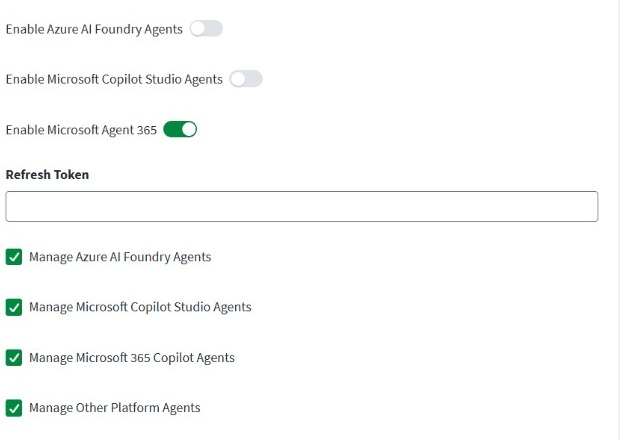
Screenshot
-
In SailPoint, go to your Microsoft Entra ID SaaS source configuration page.
-
Select the Machine Identity Governance Settings tab.
-
Select Enable Microsoft Agent 365 if your tenant is licensed for Microsoft Agent 365. When enabled, all platform checkboxes below are checked by default, and the connector aggregates packages from every platform:
- Manage Azure AI Foundry Agents
- Manage Microsoft Copilot Studio Agents
- Manage Microsoft 365 Copilot Agents
- Manage Other Platform Agents
Clear any checkbox to stop aggregating packages from that platform.
-
(Optional) If your source uses the Client Credentials grant type, enter a separately generated refresh token in the Refresh Token field.
-
Select Save.
Note
-
If the platform checkboxes appear unchecked on an existing source, follow these steps to reset them:
- Turn off Enable Microsoft Agent 365 and select Save.
- Turn it back on and select Save again.
This resets all platform checkboxes to their default (checked) state.
-
If you do not have an Microsoft Agent 365 tenant license, choose one of these options based on what you use:
- Enable Azure AI Foundry Agents. For more information, refer to Azure AI Foundry Agents Management
- Enable Microsoft Copilot Studio Agents. For more information, refer to Azure AI Foundry Agents Management and Microsoft Copilot Studio Agents Management.
Supported Resources
For more information, refer to Microsoft Agent 365 Catalog Resources.
Documentation Feedback
Feedback is provided as an informational resource only and does not form part of SailPoint’s official product documentation. SailPoint does not warrant or make any guarantees about the feedback (including without limitation as to its accuracy, relevance, or reliability). All feedback is subject to the terms set forth at https://developer.sailpoint.com/discuss/tos.