Connecting SailPoint and AWS SaaS
To connect SailPoint with AWS, perform the following tasks:
Adding the Source in SailPoint
To connect to SailPoint, perform the following steps. Once the connection is made, you can configure it to meet your company's needs.
Important
By default, the provisioning feature is disabled, and the connector only supports read-only operations. To support provisioning operations, you must manually enable the feature in the source configuration.
To configure a new source:
- Sign in to SailPoint.
- Go to Admin > Connections > Sources.
- Select Create New.
- Search for the connector by entering the name in the search box, and then select Configure.
- In the Source Name field, enter a unique and descriptive name for your source. Source names cannot exceed 128 characters.
- In the Description field, provide additional details about the source to help distinguish it from similar sources. This field allows a maximum of 2,000 characters.
- In the Source Owner field, begin typing the name of an owner. Matches appear after you type two or more letters. For more information, refer to Assigning a Source Owner.
- (Optional) Select a governance group to grant its members source or role sub-admin level oversight of the source and its access. For more information, refer to Creating and Managing Governance Groups.
- If this source represents a primary system containing your organization's personnel records, select the Authoritative Source checkbox. For more information, refer to Creating Identity Profiles.
- Select Continue. The source is created, and you are navigated to the Source Setup > Base Configuration page. Continue to configure your connected source there.
Base Configuration
Provide the base configuration parameters. Information you entered in the Create New Source dialog is automatically entered into the fields in the Base Configuration page. You can edit this information if necessary.
- Enter a unique name and description for the source.
-
In the Source Owner dropdown list, select the identity that owns this source.
- To find a source owner, begin entering their name.
-
(Optional) If enabled for your organization, select the Use a Credential Provider checkbox to manage the source's authentication using a credential provider.
Note
To add a credential provider, go to Admin > Connections > Credential Providers. For more information about credential providers, refer to Credential Providers.
-
Configure the authentication to allow SailPoint to connect to the source. Refer to Connection Settings for more information.
-
(Optional) In the Governance Group for Source Management dropdown list, select a governance group to associate with this source. For more information about governance groups, refer to Associating Governance Groups with a Source.
-
(Optional) Choose whether to enable or disable provisioning for the source. Provisioning is disabled by default.
-
Enable Provisioning - Set the toggle to Enabled to allow the source to create, update, and deactivate accounts in the connected source system.
-
Disable Provisioning - Set the toggle to Disabled to disable provisioning for the source. Disabling provisioning will prevent the creation, updating, or deactivating of accounts on this source.
-
-
Select Save.
Connection Settings
Securely connect SailPoint and to the Amazon Web Services SaaS source. The Amazon Web Services SaaS connector supports the IAM Role Authentication Method.
Permissions for the role must be configured in the management AWS account and a trust relationship must be established.
Important
To manage organizational entities like service control policies, organization units, or AWS accounts, you must provide the Management Account ID and role permissions must be configured in the management AWS account.
Screenshot
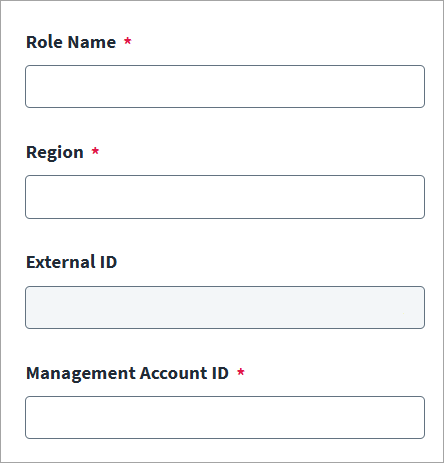
- Enter the IAM Role Name that has authorization to call all the AWS accounts to be aggregated. This role must have the permissions specified in Prerequisites and IAM Role Authentication Method.
- Enter the Region name for the AWS data center. The default region is
us-east-1. - The External ID is auto populated. You must copy the external ID provided by SailPoint, then paste it when configuring AWS.
- Enter the Management Account ID for the organization. This is required to manage all AWS accounts as well as organization entities like service control policies, organization units.
- Select Save.
Aggregation Settings
-
Enter the number of records per page in Page Size.
Screenshot
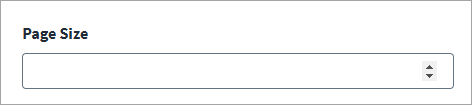
- Default: 10
- Minimum: 1
- Maximum: 1000
Switch Role
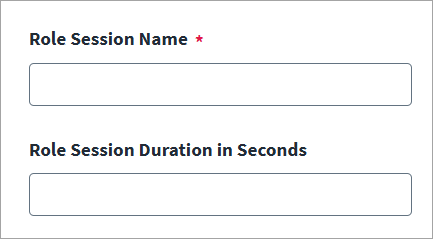
You can change the role session name to a user friendly name that appears in the CloudTrail logs. You can specify the role and the duration of the session for that role to be used. For more information about how AWS handles this feature, refer to Switching to a role (console) in the AWS documentation.
Note
This configuration has been moved from the API to the user interface.
Screenshot
-
Enter the role name to be used in Role Session Name.
-
Specify the length of the session in Role Session Duration in Seconds.
- Default: 3600 (1 hour)
- Maximum: 43200 (12 hours)
- Minimum: 3600 (1 hour)
-
Select Save.
Machine Identity Governance Settings
Note
Your organization must have SailPoint Agentic Fabric to discover agents. AWS IAM Credentials and AWS Secrets Manager credential discovery require SAF Datasets. Contact your Customer Success team for more information. For more information, refer to SailPoint Agentic Fabric.
Enable and configure aggregation settings for machine identities in AWS Bedrock, AWS Bedrock AgentCore, AWS IAM, AWS Secrets Manager, Amazon Connect Customer, and Amazon Quick, and AWS Agent Registry.
Prerequisites
Before you can configure agent governance in the connector, you must set the agent governance policies to configure how the connector handles these accounts. For more information, refer to Machine Identity Governance Policies.
Screenshot
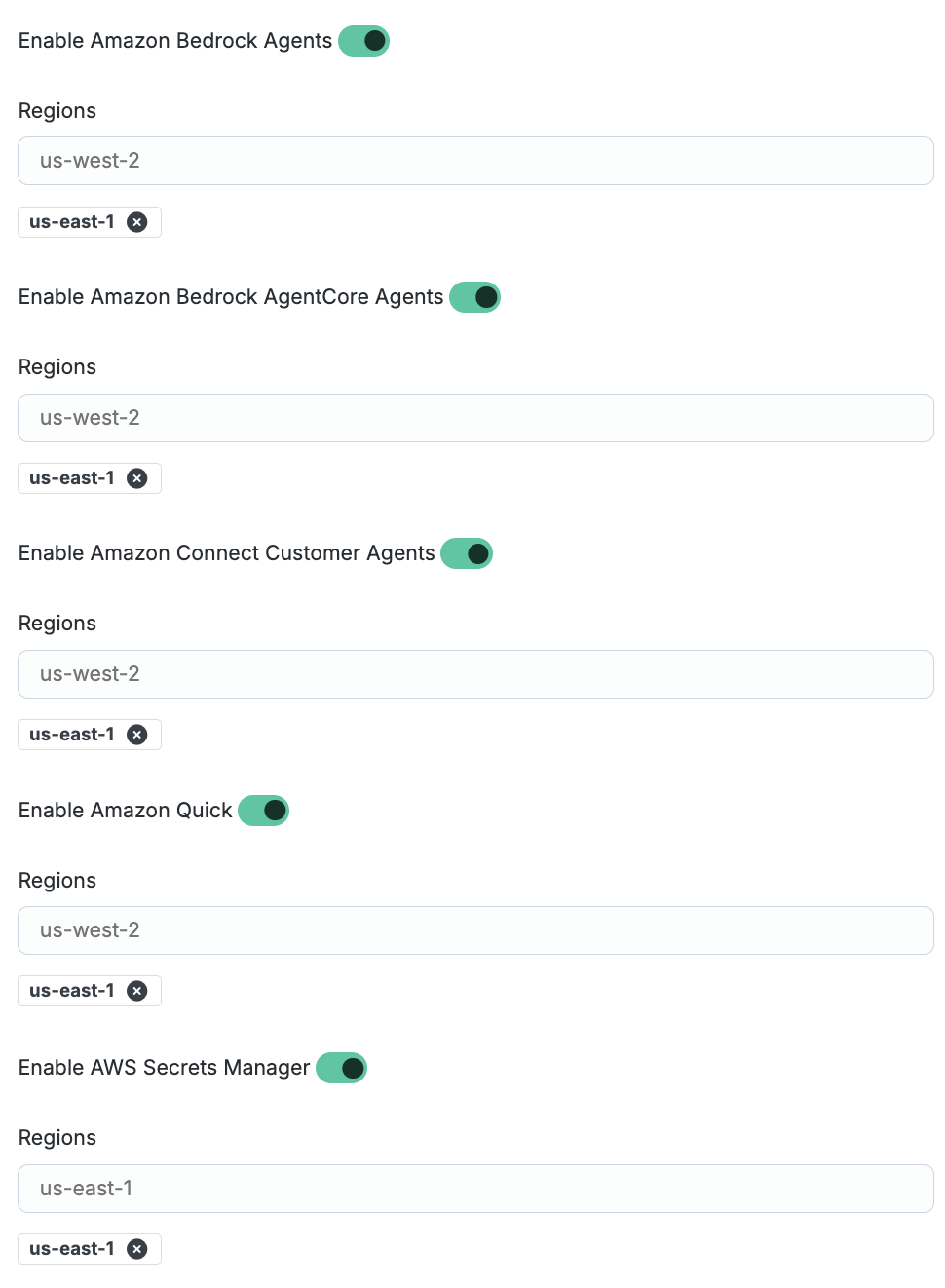
- Select Enable Amazon Bedrock Agents to include AWS Bedrock AI agents in governance.
- Enter the Regions code (e.g. us-east-1) to look for AWS Bedrock AI agents. Press Enter to add the region name into a growing list. For more information about the support of this regional service, refer to AWS Regions in the AWS documentation.
- Select Enable Amazon Bedrock AgentCore Agents to include AWS Bedrock AgentCore AI agents in governance.
- Enter the Regions code (e.g. us-east-1) to look for AWS Bedrock AgentCore AI agents. Press Enter to add the region name into a growing list. For more information about the support of this regional service, refer to AWS Regions in the AWS documentation.
- Select Enable AWS Secrets Manager to include AWS Secrets Manager in governance.
- Enter the Regions code (e.g. us-east-1) to look for AWS Secrets Manager secrets. Press Enter to add the region name into a growing list. For more information about the support of this regional service, refer to AWS Regions in the AWS documentation.
- Select the Enable Amazon Connect Customer Agents toggle to discover Amazon Connect Customer AI agents.
-
Enter a region code in Regions (for example,
us-east-1). Refer to Amazon Connect endpoints and quotas for regional availability. The connector discovers Amazon Connect Customer AI agents only in regions where Amazon Q in Connect is enabled for the instance.Note
The linked document is not maintained by SailPoint and is subject to change without notice.
-
Select the Enable Amazon Quick toggle to discover Amazon Quick agents and action connectors.
-
Enter a region code in Regions (for example,
us-east-1). The connector discovers Amazon Quick resources in the following regions:us-east-1us-west-2ap-southeast-2ap-northeast-1eu-central-1eu-west-1eu-west-2
Refer to Amazon QuickSight endpoints and quotas for regional availability.
Note
The linked document is not maintained by SailPoint and is subject to change without notice.
-
Select the Enable AWS Agent Registry toggle to discover Agent Registry catalog records.
Note
The AWS Agent Registry dataset (
aws:agent-registry) is aggregated by the AWS SaaS connector through resource listing. It is not routed to Cloud Infrastructure Entitlement Management (CIEM). -
Enter a region code in Regions (for example,
us-east-1). The connector discovers AWS Agent Registry records in the following regions:us-east-1us-west-2eu-west-1ap-northeast-1ap-southeast-2
Refer to Supported AWS Regions for regional availability.
Note
The linked document is not maintained by SailPoint and is subject to change without notice.
Configuring IAM Credential Discovery
Enable and configure aggregation of durable IAM user credentials as non-human identities (NHIs).
Note
IAM credential discovery supports aggregation only. Enabling, disabling, and deleting credential resources are not supported.
Screenshot
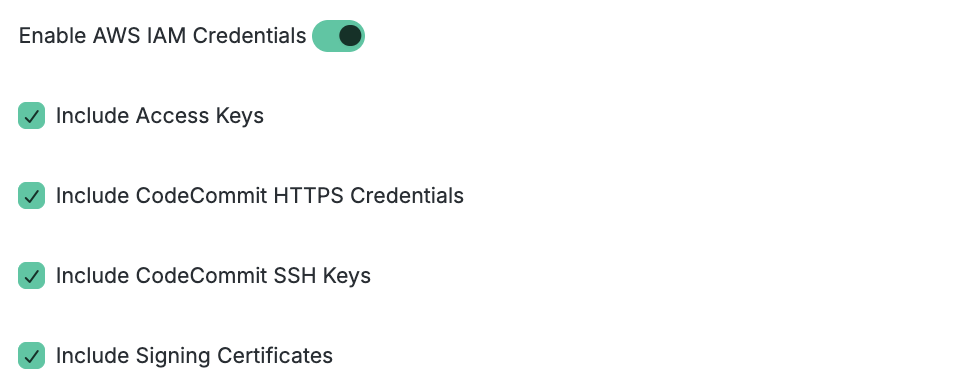
-
Select the Enable AWS IAM Credentials toggle to discover IAM user credentials.
-
Select the credential types to aggregate:
- Include Access Keys
- Include CodeCommit HTTPS Credentials
- Include CodeCommit SSH Keys
- Include Signing Certificates
During source onboarding, all four credential types are selected by default. IAM access keys are enabled during source creation.
-
Select Save.
-
Run aggregation for the AWS IAM Credentials dataset.
Additional Settings
Configure the settings for retry attempts when a timeout error occurs. For detailed information about AWS recommendations, refer to Retries and backoff in the Amazon Builder's Library.
Note
The linked document is not maintained by SailPoint and is subject to change without notice.
Screenshot
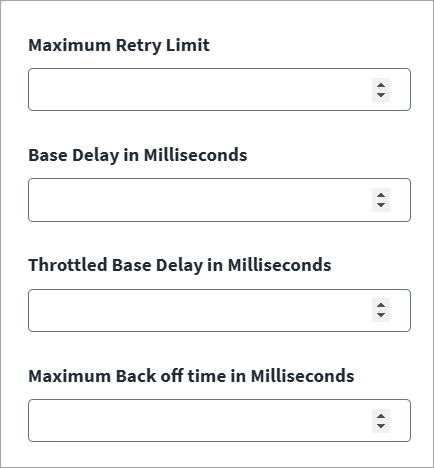
- In Maximum Retry Limit, specify the number of retries to attempt before the connection terminates with an error log message.
- In Base Delay in Milliseconds, specify the amount of time to wait before retrying the connection. The base delay exponentially increases after every retry attempt. For example, if the default base delay is 10 seconds, subsequent retry attempts will be 20 seconds, then 40 seconds, and so on. Default: 500
- In Throttled Base Delay in Milliseconds, specify the amount of time to wait if the initial retry fails. This time duration increases after every retry attempt. The value automatically increases exponentially with each failed attempt. Default: 1000
- In Maximum Backoff Time in Milliseconds, specify the amount of time to wait between attempts. After the delay reaches this maximum limit, the time between retries will stop increasing. Default: 20000
Provisioning Configuration
Screenshot
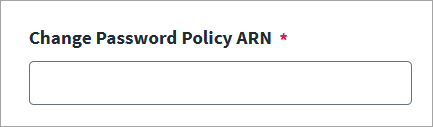
- In Change Password Policy ARN, provide the Amazon Resource Name (ARN) used to create AWS accounts or to handle password changes.
- Select Save.
Activity Data Insights
SailPoint pulls in activity data in the form of events like user logins, password changes, and content updates within the application. You can view an identity’s activity data within an application to discover trends for that user. Activity Insights supports activity of IAM Users from the respective AWS Accounts. This allows you to gather account information and activity data from Amazon Web Services
Important
Contact your SailPoint Customer Success Manager (CSM) for more information on Activity Insights. For more information on utilizing activity data, refer to Activity Insights.
The AWS SaaS connector requires AWSCloudTrail_ReadOnlyAccess permissions to pull activity data for AWS sources. For more information, refer to AWSCloudTrail_ReadOnlyAccess in Required Permissions.
Note
Activity Data Insights (ADI) is only supported for Commercial accounts that are not supported by GovCloud accounts.
To configure Activity Insights, complete the following:
Screenshot

- To opt-in to the ADI feature and receive activity data, enable the Enable Activity Insights option. To opt-out, leave the option disabled.
- Select Save.
IAM role trust policy requirement for Activity Insights
Activity Insights collects data using SailPoint's ciem_universal role, which passes session tags when assuming your AWS source role. To allow this, the trust policy of the role you created for the AWS SaaS source must permit sts:TagSession in addition to sts:AssumeRole.
Update your AWS source role's trust policy like given below:
Cloud Infrastructure Entitlement Management (CIEM) Settings
Important
You must have a CIEM license to enable cloud governance features. Contact your SailPoint Customer Success Manager to request access. For more information, refer to the SailPoint CIEM Overview.
Note
For additional information on CIEM settings, refer to Configuring Amazon Web Services.
-
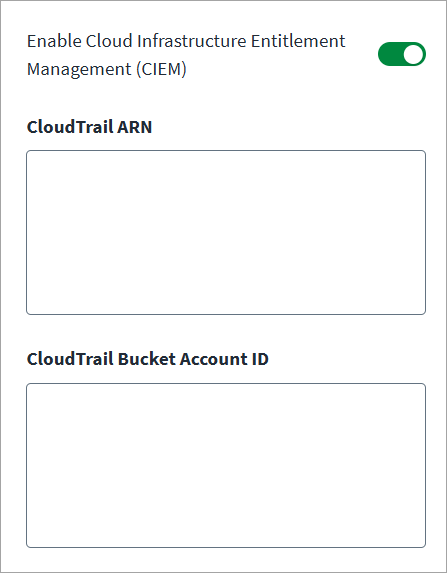
Select Enable Cloud Infrastructure Entitlement Management (CIEM) to view access to cloud resources and infrastructure granted through entitlements.
Screenshot
-
Enter the CloudTrail ARN for an organization or individual member account. You can add up to 150 CloudTrail ARNs, separated by commas.
-
Enter the AWS CloudTrail Bucket Account ID where the CloudTrail bucket is hosted.
-
Select Save.
AWS Account Settings
-
In the AWS Accounts field, use the drop-down list to select the accounts you want to include in aggregation.
Screenshot
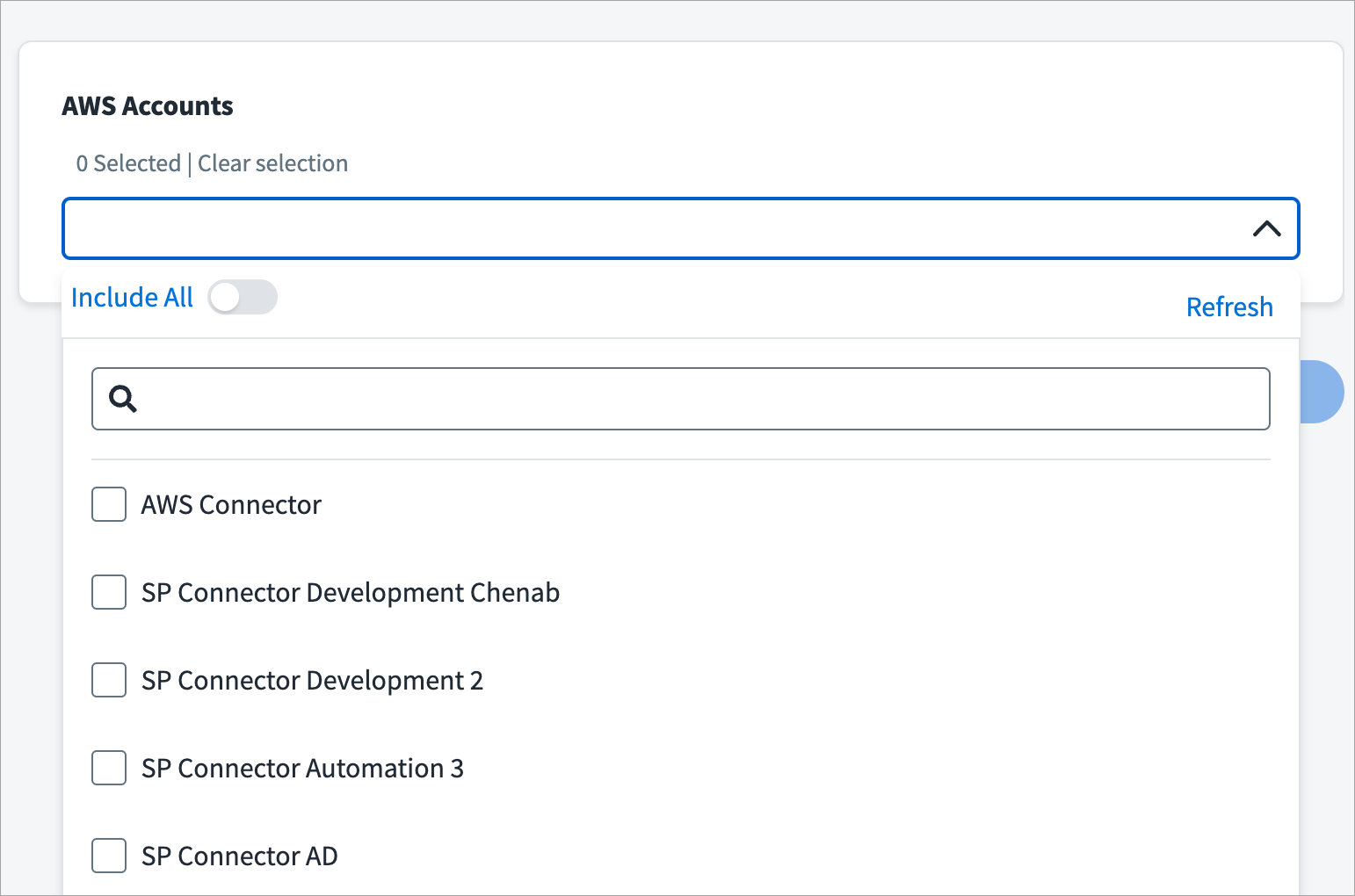
-
Select Save.
Review and Test
Perform a test to confirm the connection to SailPoint.
- Go to Review and Test.
-
Confirm that the entries in each field are correct.
If you note any mistakes, return to the section and make corrections.
-
Select Test Connection.
SailPoint Application Onboarding
SailPoint application onboarding enables you to easily onboard new applications and create sources following the successful onboarding of a discovery source. To use this feature, continue to Discovered Applications in the SailPoint user interface.
For more information, refer to Application Onboarding in the SailPoint SaaS documentation.
Documentation Feedback
Feedback is provided as an informational resource only and does not form part of SailPoint’s official product documentation. SailPoint does not warrant or make any guarantees about the feedback (including without limitation as to its accuracy, relevance, or reliability). All feedback is subject to the terms set forth at https://developer.sailpoint.com/discuss/tos.