IQService Settings
IQService, also referred to as the Integration Service, is a native Windows service that enables SailPoint to participate in a Windows environment and access information only available through Windows APIs.
Operations supported through IQService: Before and After Scripts for IQService
IQService Installation
Screenshot

Download IQService
To download the IQService installation complete the following:
-
Select the Download IQService button.
Note
IQService has the built-in capability to auto update (this is the default). To enable the auto update capability, UpdateService must be configured alongside the IQService installation. Refer to Configuring IQService Auto Update.
Download, install, and configure IQService by following the steps mentioned in the Identity Security Cloud IQService Administrator's Guide for Installing and Registering IQService.
Note
You are only entitled to download components for which you have an active license with SailPoint and the availability of a component for download does not grant you a license to use a component or entitle you to use a component for which you do not have an active license. Contact your Account Representative or CSM for more information.
IQService Settings
Screenshot
-
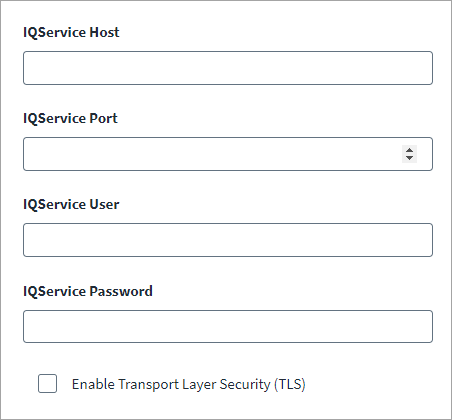
Provide the following connection settings for IQService:
Note
To enable native before/after script execution for provisioning requests, configure the IQService Host and IQService Port fields.
- IQService Host - FQDN/IP of the system where IQService is installed.
- IQService Port - It is the port number used by the IQService; the default port is 5050.
- IQService User - The user for client authentication.
- IQService Password - The password of the user for client authentication.
-
Select the Enable Transport Layer Security (TLS) checkbox for TLS communication for IQService.
For more information on TLS communication, refer to Configuring TLS and Client Authentication for IQService.
-
Select Save.
Documentation Feedback
Feedback is provided as an informational resource only and does not form part of SailPoint’s official product documentation. SailPoint does not warrant or make any guarantees about the feedback (including without limitation as to its accuracy, relevance, or reliability). All feedback is subject to the terms set forth at https://developer.sailpoint.com/discuss/tos.