Installing and Registering IQService
Warning
To enhance security, it is mandatory to configure the TLS for IQService. If you continue using non-TLS configuration, any before and after script execution will be disabled to safeguard your environment. Remove non-TLS configuration for IQService to execute any rules and scripts.
You can download IQService from the configuration page of a source that requires it.
- Alternative Names: Look for "IQService," "Integration Service," or "Server Host".
- Network Protocol: IQService is compatible with both IPv4 and IPv6.
Download the Integration Service
Install this service only if you use one of the following sources:
- Azure Active Directory
- Active Directory
- HCL Domino (IBM Lotus Domino)
- Microsoft SharePoint Online
- Microsoft SharePoint Server
- Windows Local
Note
No need to install IQService if you do not already have one of these sources configured.
To download the service:
- Go to Connections > Sources.
- Select one of the sources that needs IQService.
-
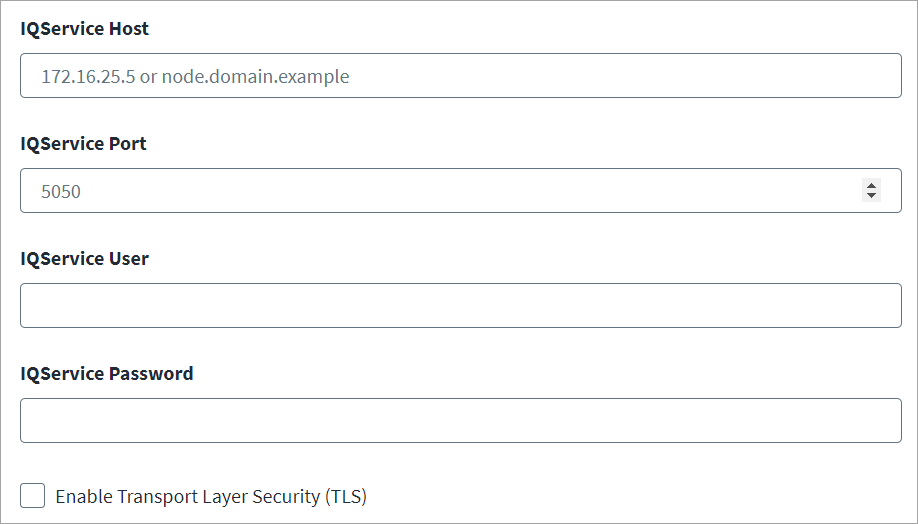
On the source configuration page, find the panel labeled IQService or Integration Service.
-
Select Download.
Installation and Service Start-Up
-
Prepare the Installation Files
Before you start, use the downloaded components in compliance with the active SailPoint license. Use the files only for their intended purpose and do not share or redistribute them. If you have questions about usage rights, contact your Account Representative or CSM.
-
Unzip the archive - Extract the downloaded
IQService.ziparchive into your desired location. For example: -
Verify DLLs - After extracting, right-click the DLL files and check the properties to confirm they are from a trusted source.
-
-
Install the Windows Service
To improve security, the IQService installation enforces a TLS configuration by default. Complete the necessary TLS prerequisites before running the installation command. For detailed requirements and setup procedures, refer to Configuring TLS and Client Authentication for IQService.
When you are ready, open a command prompt and run one of the following commands:
Option A - Default installation:
This command installs the service as
IQService-Instance1on the default port 5050, if available.Option B - TLS-only installation:
This command installs the service as
IQService-Instance1on the TLS port number that you provide.Security Notice During a Fresh Install
When you run a fresh install of IQService, the installer displays a security notice in the command prompt. The notice states that selected services are disabled by default and must be explicitly enabled after TLS is configured.
The notice is similar to the following:
╔══════════════════════════════════════════════════════════════════════════════╗
║  SECURITY NOTICE - Services Disabled by Default                              ║
╠══════════════════════════════════════════════════════════════════════════════╣
║  Starting this release, the following services are DISABLED                  ║
║  by default and must be explicitly enabled before use:                       ║
║                                                                              ║
║      GMSAPassword  - Using gMSA as a Service Account                         ║
║      ScriptExecutor - Script execution (before and after script)             ║
║                                                                              ║
║  To enable a service, run (TLS must be configured first):                    ║
║    IQService.exe -g --enable <ServiceName>                                   ║
║                                                                              ║
║  Example:  IQService.exe -g --enable GMSAPassword                            ║
╚══════════════════════════════════════════════════════════════════════════════╝
Note
Use the exact service name shown by
IQService.exe -gwhen you run--enable. The gMSA service is calledGMSAPasswordData. Confirm the name in your build before you enable the service. Refer to Option to Enable/Disable Services.Service and Port Details
- Service name: The service is installed with the name
IQService-Instance1. In the Windows Services console, its display name begins withSailPoint. - Default port: By default, IQService uses port 5050 for the primary instance and 5051 for the secondary instance.
For Existing Installations (If Updating)
Disable the old non-TLS port if you are updating an existing IQService instance to use a TLS port. This is crucial to close security gaps and maintain a secure connection.
- For detailed instructions, refer to Disabling Non-TLS Communication for an Existing IQService Instance.
- For complete details on the requirements and procedures for a secure setup, refer to the Configuring TLS and Client Authentication for IQService guide.
Start the Service
Select one of the following methods to start the service:
- From the Windows Services console - Open the Services console, locate the service name beginning with
SailPoint, and select Start. -
From the command line - Run the following command:
Grant Service Account Access to the Certificate Private Key
Note
If you run IQService under a service account context, that service account must be granted access to the private key of the valid certificate on your VA machine.
To grant access to the certificate private key:
-
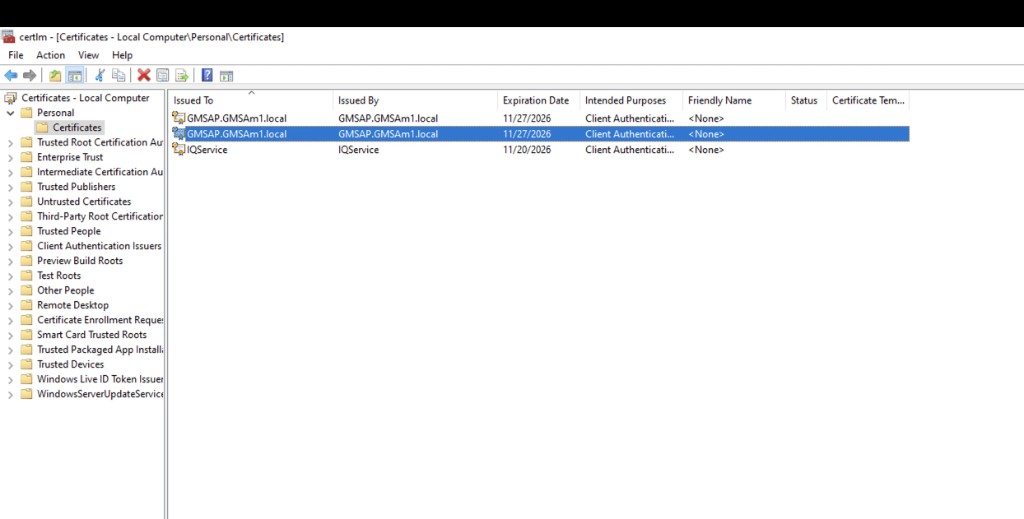
Go to Certificate Manager on your VA.
-
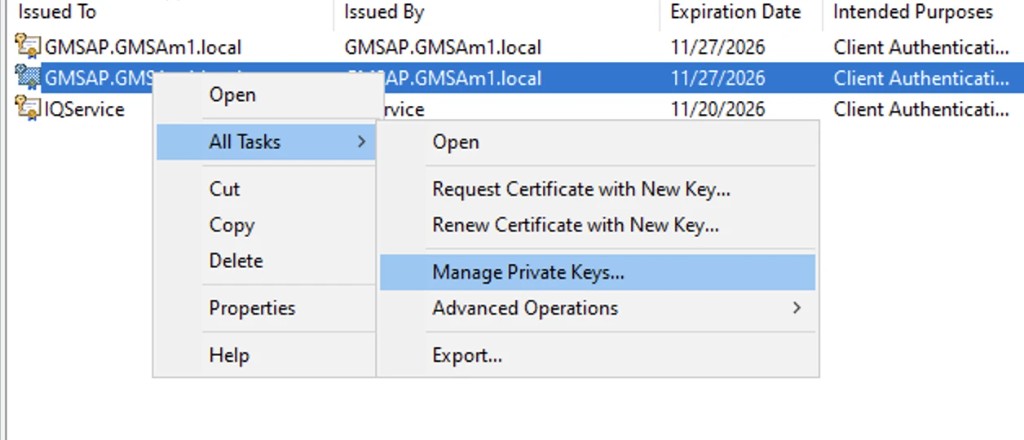
Right-click the valid certificate and select All tasks > Manage private keys.
-
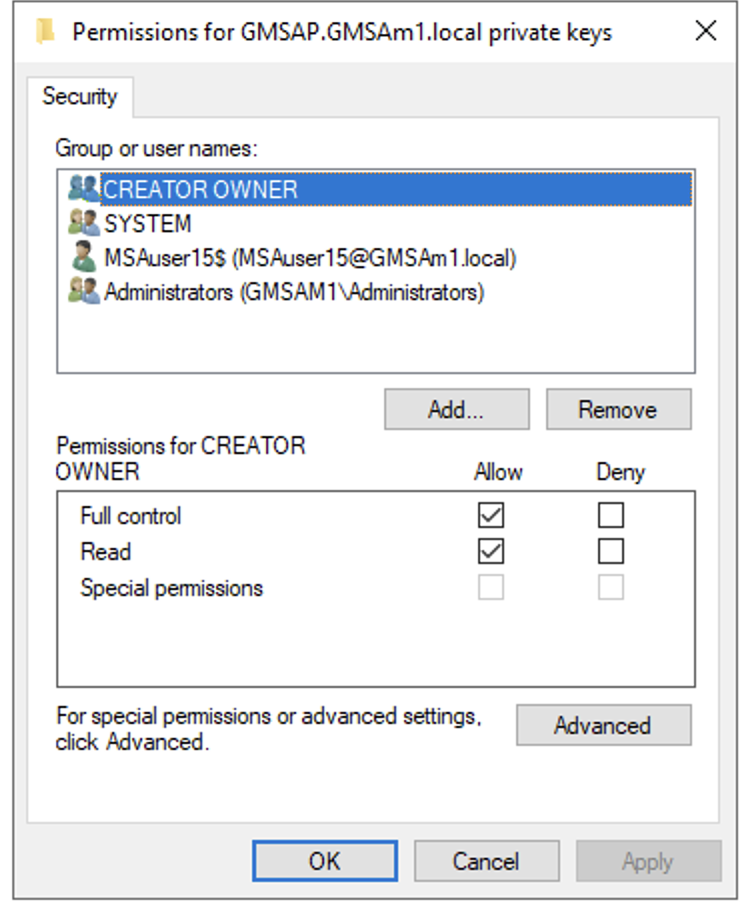
Add the service account user that is used when configuring IQService.
-
Select Apply.
- Restart IQService.
- Service name: The service is installed with the name
Documentation Feedback
Feedback is provided as an informational resource only and does not form part of SailPoint’s official product documentation. SailPoint does not warrant or make any guarantees about the feedback (including without limitation as to its accuracy, relevance, or reliability). All feedback is subject to the terms set forth at https://developer.sailpoint.com/discuss/tos.