IQService Settings
Install IQService to support execution of provisioning operations and native rules. IQService is required by the Active Directory connector for all provisioning, and for reading certain fields from a user's entry, including Terminal Services and Lync attributes.
Important
This instance of IQService is configured to listen on a TLS port by default to improve security and safeguard your environment. To establish a secure connection, ensure to follow the following steps:
- Enable the TLS configuration flag in your source application.
- Refer to the Configuring TLS and Client Authentication for IQService page for detailed instructions on configuring TLS for IQService, including client authentication.
Ensuring proper TLS configuration is crucial for maintaining the security of your IQService deployment.
Before you start using the connector, install and register IQService on any Windows system with any of the supported Operating Systems. For more information on installing and registering IQService, refer to the IQService Administrator's Guide.
You must install IQService to support the following SailPoint features:
-
Provisioning:
- Active Directory Accounts
- Exchange Mailboxes
-
Loading and Provisioning Skype for Business Accounts
-
Certification of Active Directory Entitlements (if you want to automatically revoke disapproved items)
Note
If you want to create manual tasks for revoked items, you'll need to use Expert Services to edit your Active Directory source settings. For more information, refer to Certifications Overview.
-
Password management for Active Directory accounts
If you don't need this functionality, IQService does not need to be running, and you can leave the IQService Host and IQService Port fields blank. Entering incorrect values for these fields causes the test connection process to erroneously report a failure to connect to the application.
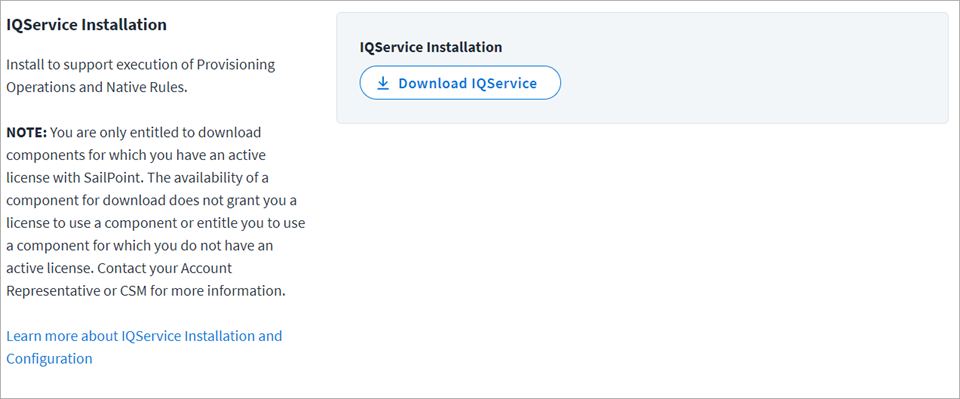
IQService Installation
Screenshot
Note
IQService has the built-in capability to auto update (this is the default). To enable the auto update capability, UpdateService must be configured alongside the IQService installation. Refer to Configuring IQService Auto Update.
Download IQService
To download the IQService installation, complete the following:
-
Download and install IQService using one of the following methods:
- Select the Download IQService button.
- Download, install, and configure IQService by following the steps mentioned in the IQService Administrator's Guide for Installing and Registering IQService.
Note
You are only entitled to download components for which you have an active license with SailPoint and the availability of a component for download does not grant you a license to use a component or entitle you to use a component for which you do not have an active license. Contact your Account Representative or CSM for more information.
-
Unzip the downloaded
IQService.ziparchive into the desired location. For example,C:\SailPoint\IQService\.Verify the DLLs are trusted by checking the properties of the DLL files.
-
Run one of the following commands to install IQService and specify the TLS port information:
-
Run the following command to install IQService without specifying the TLS port:
This command installs IQService with a name of
IQService-Instance1and connects to port 5050 (if available). -
Run the following command to install IQService with the TLS port:
This command installs IQService with a name of
IQService-Instance1and connects to the specified port number. For more information on requirements and procedures to set up TLS communication and client authentication, refer to Configuring TLS and Client Authentication for IQService. -
Run the following command to install IQService to communicate on TLS and non-TLS ports:
This command installs IQService with a name of
IQService-Instance1and the specified TLS and non-TLS ports.
-
-
Start the service from the services applet or from the command line, using the following command:
IQService.exe -s
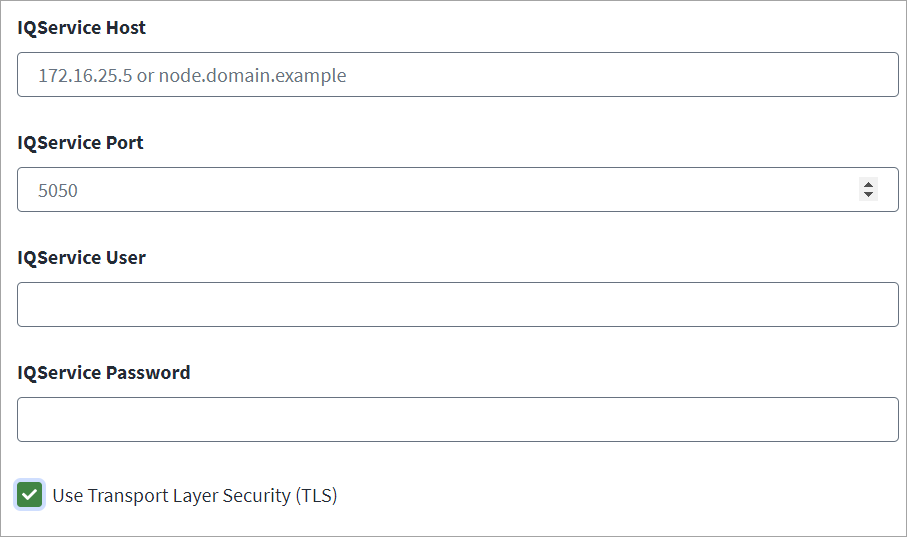
Configure IQService Settings
Screenshot
To configure the IQService settings, complete the following:
- (Optional) In the IQService Host field, enter the FQDN/IP of the system where IQService is installed.
- (Optional) Enter the IQService Port number used to connect. If you enable TLS, configure the corresponding IQService TLS port.
- (Optional) Enter the IQService User for client authentication.
- (Optional) Enter the IQService Password for the IQService user.
- (Optional) By default, the Use Transport Layer Security (TLS) checkbox is selected. When selected, the IQService User and IQService Password fields are mandatory. For more information, refer to Configuring TLS and Client Authentication for IQService.
- Select Save.
Documentation Feedback
Feedback is provided as an informational resource only and does not form part of SailPoint’s official product documentation. SailPoint does not warrant or make any guarantees about the feedback (including without limitation as to its accuracy, relevance, or reliability). All feedback is subject to the terms set forth at https://developer.sailpoint.com/discuss/tos.