Configuring Additional Microsoft Active Directory Settings
Configure optional aggregation, authentication, provisioning, and Microsoft workload settings for the source.
Aggregation and Aggregation Partitioning Settings
In the Additional Settings > Aggregation Settings section, you can configure the aggregation settings.
Screenshot
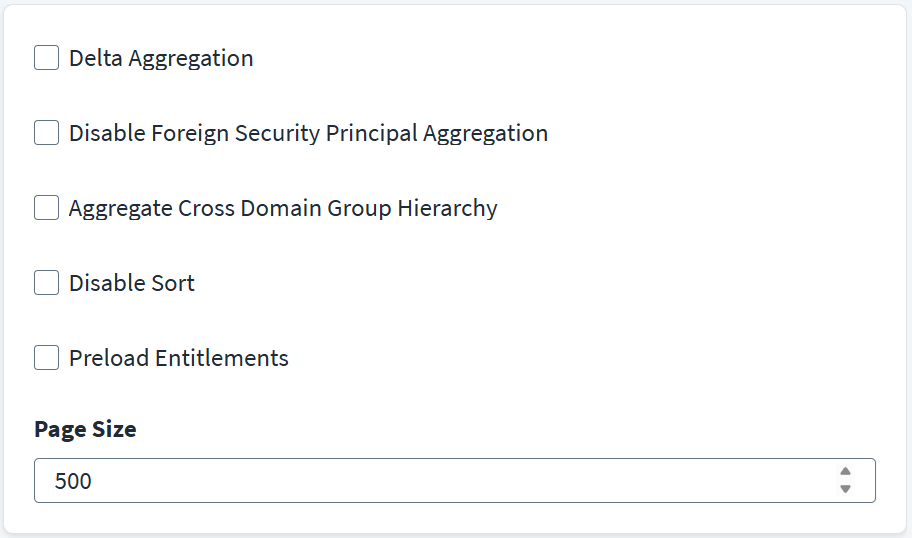
To configure aggregation settings, complete the following:
-
(Optional) Select the Delta Aggregation checkbox to aggregate delta changes in the following:
- Create linked mailbox and update linked mailbox properties.
- Mail enabled distribution list membership changes for the shadow account.
For more information on testing delta aggregation, refer to Delta Aggregation.
-
(Optional) Select the Disable Foreign Security Principal Aggregation checkbox to disable aggregating foreign memberships of any user.
Note
This is applicable for multi-forest source configurations.
-
(Optional) Select the Aggregate Cross-Domain Group Hierarchy checkbox to retrieve cross-domain group memberships for group objects during entitlement aggregation.
- (Optional) Select the Disable Sort checkbox to disable sorting of the aggregation results.
- (Optional) Select the Preload Entitlements checkbox to load entitlements before aggregation.
- (Optional) Enter the Page Size to control the number of results that display on a single page. The default is
1000. - Select Save.
Aggregation Partitioning
In the Additional Settings > Partitioning Settings section, you can configure the partitioning account aggregation settings. Partitioning aggregation processes the data in parallel, across multiple threads to help increase the performance of aggregation tasks.
Screenshot
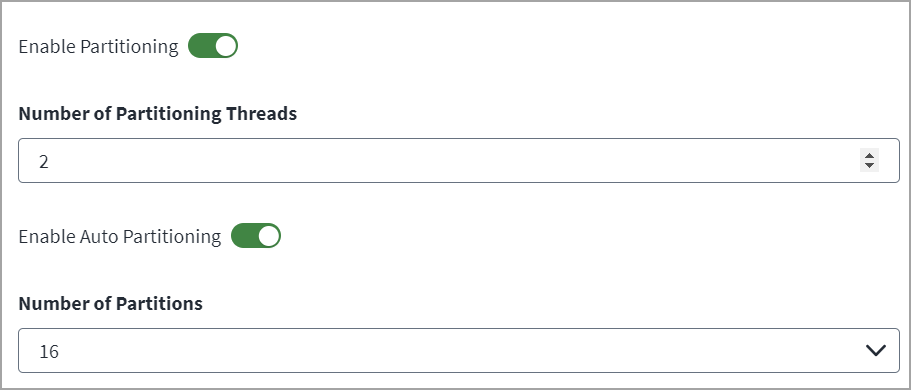
- Select Enable Partitioning if you want to process data in parallel across multiple threads.
-
Enter the Number of Partitioning Threads the connector uses to concurrently execute the aggregation partitions. By default, it is set to 2 partitioning threads. If the VA is configured for multiple CPU cores, you can configure a higher number of partition threads to increase the performance.
Note
The Number of Partitioning Threads should equal the number of CPU cores on the VA multiplied by 2.
-
Select Enable Auto Partitioning to automatically define partitions for account aggregation.
- From the Number of Partitions dropdown, select the number of partitions. This helps improve the performance of auto partitioning and can be tuned by selecting the appropriate partition count. For higher user populations, a higher partition count is preferred.
- Select Save.
Delta Aggregation
Note
This includes changes such as when a user or group has been added, updated, or deleted on the managed system. This version supports aggregation of delta changes for the Move and Rename operations. In SailPoint, the Active Directory source uses the distinguishedName as the Account ID (unique identifier). As such, moving users in Active Directory looks like a delete and add of separate accounts. In addition, SailPoint cannot simply update the distinguishedName since it is an Active Directory identifier. For more information, refer to Identity Attributes Account ID.
By default, Active Directory supports the DirSync mode of delta aggregation which is based on the DirSync feature of Active Directory.
Testing Delta Aggregation
For delta aggregation to work properly, a start point is required from where the system detects changes. To retrieve changes from the last iteration, a full aggregation must be performed first during which the reference point is maintained. Once the full aggregation completes, select the Delta Aggregation checkbox in the user interface to create a separate delta aggregation task to retrieve delta changes that occurred post the full aggregation. For more information, refer to Aggregation and Aggregation Partitioning Settings.
Perform the following steps to test delta aggregation:
- Execute the Account and Account - Group Aggregation task.
- Select the Delta Aggregation checkbox from the Active Directory source configuration page. Create a task with the delta aggregation flag set for Account Aggregation.
- Perform Create/Update/Delete/Revoke operations for Accounts/Groups on the directory server.
- Execute the account aggregation task again to bring delta changes, which will now be executed in delta mode.
- Confirm the changes have been retrieved into SailPoint.
Pass Through Authentication (PTA) Settings
In the Additional Settings > Pass Through Authentication Settings section, you can configure the PTA settings.
Screenshot
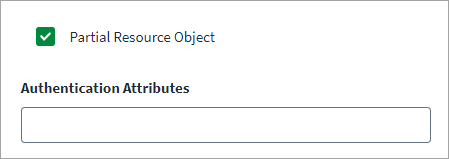
To configure additional settings to customize the PTA operation, complete the following:
-
(Optional) Select the Partial Resource Object checkbox to build user objects with a limited set of attributes for Active Directory users who are getting authenticated using pass through authentication. This can improve performance on pass through authentication.
For the Active Directory source, the pass through authentication sets up all the available attributes instead of setting the identity attribute and display attribute only, while building the partial resource object.
-
(Optional) Enter Authentication Attributes to specify attributes that are used during resource object authentication. To add multiple entries, specify an attribute and then press the Enter key.
- Select Save.
Provisioning Settings
In the Additional Settings > Provisioning Settings section, you can configure the provisioning settings.
Screenshot
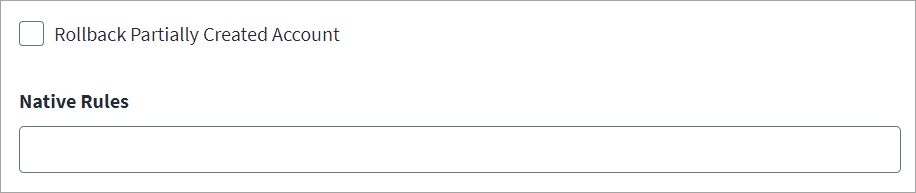
To configure additional settings to customize the provisioning connector operation, complete the following:
- (Optional) Select the Rollback Partially Created Account checkbox to rollback a created account in case one or more required attributes for that account fails during provisioning.
- (Optional) Enter the Native Rules to configure before or after scripts to be run during provisioning. To add multiple entries, specify a rule and then press the Enter key.
- Select Save.
Password Policy, Shared Mailbox Management, and Skype for Business Settings
In the Additional Settings > Additional Settings section, you can configure password policy, shared mailbox management, and Skype for Business settings.
Screenshot
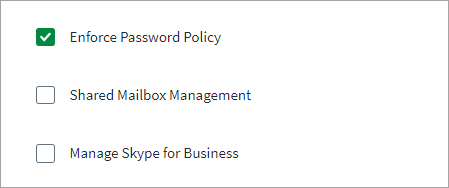
To configure additional settings to customize behavior, complete the following:
-
(Optional) Select the Enforce Password Policy checkbox to enable Active Directory to enforce its password policy. After enabling password management on the source, be aware of the following:
- The password policy defined in SailPoint applies to accounts on this source.
- If you change the password for apps connected to this source, the change will automatically be made to the source itself.
- Ensure that the IQService Host and IQService Port fields are configured on the IQService Settings page.
Note
The Active Directory source will not respect the Enforce Password Policy when the Admin password reset feature is used.
-
(Optional) Select the Shared Mailbox Management checkbox to enable shared mailboxes. Shared mailboxes are a special type of mailbox where multiple users can read and send email from a common email address. A shared mailbox is a type of user mailbox that does not have its own username and password. As a result, users cannot log into them directly. To access a shared mailbox, users must first be granted Send As or Full Access permissions to the mailbox after which, user signs into their own mailboxes and then can access the shared mailbox by adding it to their Outlook profile.
- (Optional) Select the Manage Skype for Business checkbox to enable management of Skype for Business.
- Select Save.
Documentation Feedback
Feedback is provided as an informational resource only and does not form part of SailPoint’s official product documentation. SailPoint does not warrant or make any guarantees about the feedback (including without limitation as to its accuracy, relevance, or reliability). All feedback is subject to the terms set forth at https://developer.sailpoint.com/discuss/tos.