Connecting SailPoint and Oracle ERP Cloud
To connect SailPoint with Oracle ERP Cloud, perform the following tasks:
Adding the Source in SailPoint
To connect to SailPoint, perform the following steps. Once the connection is made, you can configure it to meet your company's needs.
Important
By default, the provisioning feature is disabled, and the connector only supports read-only operations. To support provisioning operations, you must manually enable the feature in the source configuration.
To configure a new source:
- Sign in to SailPoint.
- Go to Admin > Connections > Sources.
- Select Create New.
- Search for the connector by entering the name in the search box, and then select Actions.
-
In the Actions dropdown list, select the setup method:
-
Express Setup - Quickly create a read-only connection to your target system by providing minimal configurations and authentication. On completion, aggregation is automatically started.
Note
Express Setup supports Credential Providers. For information on supported credential providers and configuration, refer to Credential Providers. For more information, contact your SailPoint Customer Service Manager.
-
Standard Setup - Provide detailed basic configuration to create the source. Once the source is created, continue with source setup.
-
Configuring a Source Using Express Setup
Express Setup minimizes the initial configuration process so you can quickly connect the application and immediately begin aggregating user account and entitlement data.
- Review the directions and select Start Express Setup.
-
Review the pre-populated Source Name, Source Owner, and Description. To update, select Edit.
Note
The source name must be unique. You can change these settings later in the source configuration.
-
Select Virtual Appliance. A virtual appliance is a Linux-based virtual machine that connects to your sources and apps using SailPoint APIs, connectors, and integrations. For more information about configuring and deploying virtual appliances, refer to SailPoint Virtual Appliances.
-
(Optional) If enabled for your organization, select the Use a Credential Provider checkbox to manage the source's authentication using a credential provider.
Note
To add a Credential Provider in SailPoint, go to Admin > Connections > Credential Providers. For more information about credential providers, refer to Credential Providers.
-
Configure the authentication to allow SailPoint to connect to the source. For more information, refer to the Connection Settings section.
-
Select Finish.
After a successful test connection, the system creates your source and prompts you to run an aggregation.
-
If you want to aggregate now, select Aggregate.
- To see the latest account aggregation history, go to Account Management > Account Aggregation.
- To see the list of aggregated source accounts, go to Account Management > Accounts.
-
If you want to aggregate later, select Exit. This returns you to the Sources page. Your new source is listed, but contains no accounts or aggregation history yet.
-
Configuring a Source Using Standard Setup
Use Standard Setup to configure the connector for full feature support.
- In the Source Name field, enter a unique and descriptive name for your source. Source names cannot exceed 128 characters.
- In the Description field, provide additional details about the source to help distinguish it from similar sources. This field allows a maximum of 2,000 characters.
- In the Source Owner field, begin typing the name of an owner. Matches appear after you type two or more letters. For more information, refer to Assigning a Source Owner.
-
Under Connection Type, select Direct Connection or Flat File.
- Direct Connection - A direct connection fetches data from the Virtual Appliance Cluster you choose as the application connector for the source. A direct connection configuration allows for real-time updates. For more information about configuring and deploying virtual appliances, refer to the Virtual Appliance Reference Guide.
- Flat File - Select the flat file if no connector is available, or if another system restricts the connection. This option allows only reading and aggregating data as a generic/delimited application. Provisioning activity is unsupported, and additional configuration pages like connection settings and aggregation settings are unavailable.
-
If you selected Direct Connection, in Virtual Appliance Cluster, select the virtual appliance cluster that will be used as the application connector for the source.
- (Optional) Select a governance group to grant its members source or role sub-admin level oversight of the source and its access. For more information, refer to Creating and Managing Governance Groups.
- If this source represents a primary system containing your organization's personnel records, select the Authoritative Source checkbox. For more information, refer to Creating Identity Profiles.
- Select Continue. The source is created, and you are navigated to the Source Setup > Base Configuration page. Continue to configure your connected source there.
Base Configuration
Provide the base configuration parameters. Information you entered in the Create New Source dialog is automatically entered into the fields in the Base Configuration page. You can edit this information if necessary.
- Enter a unique name and description for the source.
-
In the Source Owner dropdown list, select the identity that owns this source.
- To find a source owner, begin entering their name.
-
In the Virtual Appliance Cluster dropdown list, select the virtual appliance to use when communicating with your organization's systems. For more information, refer to SailPoint Virtual Appliances.
-
(Optional) If enabled for your organization, select the Use a Credential Provider checkbox to manage the source's authentication using a credential provider.
Note
To add a credential provider, go to Admin > Connections > Credential Providers. For more information about credential providers, refer to Credential Providers.
-
Configure the authentication to allow SailPoint to connect to the source. Refer to Connection Settings for more information.
-
(Optional) In the Governance Group for Source Management dropdown list, select a governance group to associate with this source. For more information about governance groups, refer to Associating Governance Groups with a Source.
-
(Optional) Choose whether to enable or disable provisioning for the source. Provisioning is disabled by default.
-
Enable Provisioning - Set the toggle to Enabled to allow the source to create, update, and deactivate accounts in the connected source system.
-
Disable Provisioning - Set the toggle to Disabled to disable provisioning for the source. Disabling provisioning will prevent the creation, updating, or deactivating of accounts on this source.
-
-
Select Save.
Connection Settings
The following information is required for SailPoint to connect and interact with Oracle ERP Cloud.
Screenshot
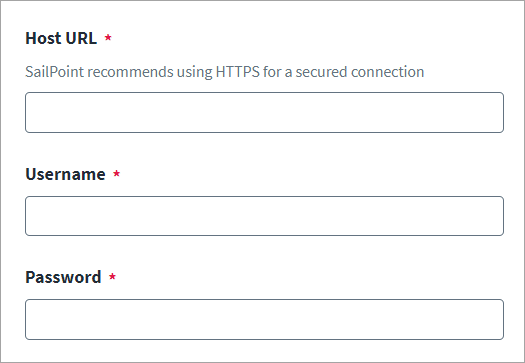
- Select Connection Settings from the menu.
- Enter the unique end point URL in Host URL.
- Enter the Username and Password of the service account.
- Select Save.
Aggregation Settings
Set the aggregation settings for the Oracle ERP Cloud connector.
For more information about aggregation, refer to Loading Account Data.
Screenshot
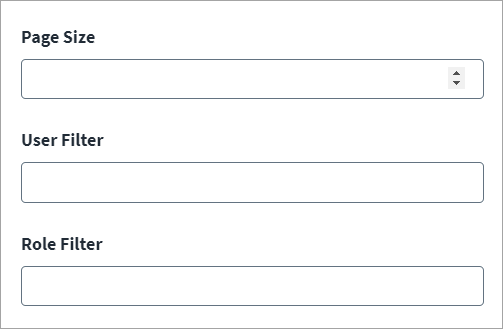
- Select Aggregation Settings from the menu.
- Enter the Page Size as the number of records to fetch per page. The default is 100 records per page.
-
Enter the User Filter. The User Filter is a query used to filter accounts during account aggregation. For example, you can use the username
sw "A"query to retrieve only those accounts whose names start with A.By default, the filter is
Active eq true, which aggregates only the active users. -
Enter the Role Filter. The Role Filter is a query used to filter roles during entitlement aggregation. For example, you can use the
Category eq "JOB" query. This filter aggregates roles of only the Job category.By default, the Oracle ERP Cloud source aggregates roles of the following types:
- Job
- Data
- Abstract
-
Select Save.
Additional Settings
Set additional settings for the Oracle ERP Cloud server:
- Connection timeout
- Data access delimiter config attribute
- Retry count
- Retry after duration
Screenshot
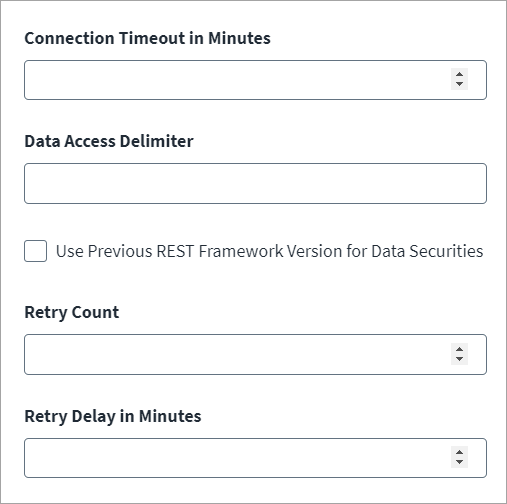
- Select Additional Settings from the menu.
- Enter the Connection Timeout in minutes. This is the allowed duration within which the connection to the Oracle ERP Cloud system must be established. The default is 1 minute.
-
Set the Data Access Delimiter character. By default, the character is
$.In the following example, the Data Access entitlement is aggregated as:
Accounts Payable Manager:Business unit:Account_BU- Use
connector_data_access_delimiterkey with the value as ":"
In the following example, the Data Access entitlement is aggregated as:
Value Accounts Payable Manager|Business unit|Account_BU- Use the
connector_data_access_delimiterkey with the value as "|"
- Use
-
Enable Use previous REST framework version's for Data Securities if you may experience issues with security data access due to special characters. It is enabled by default.
- Enter the Retry Count. This configures the number of times your system tries to connect to the Oracle ERP Cloud server if it encounters a Service Unavailable error (
Error Code: 503). By default, your system retries three (3) times. - Enter the duration of time (in minutes) that your system should wait between retry attempts if it encounters a Service Unavailable error (
Error Code: 503) into the Retry After (Minute) field. By default, the system waits for one (1) minute between retry attempts. - Select Save.
Review and Test
Perform a test to confirm the connection to SailPoint.
- Go to Review and Test.
-
Confirm that the entries in each field are correct.
If you note any mistakes, return to the section and make corrections.
-
Select Test Connection.
SailPoint Application Onboarding
SailPoint application onboarding enables you to easily onboard new applications and create sources following the successful onboarding of a discovery source. To use this feature, continue to Discovered Applications in the SailPoint user interface.
For more information, refer to Application Onboarding in the SailPoint SaaS documentation.
Documentation Feedback
Feedback is provided as an informational resource only and does not form part of SailPoint’s official product documentation. SailPoint does not warrant or make any guarantees about the feedback (including without limitation as to its accuracy, relevance, or reliability). All feedback is subject to the terms set forth at https://developer.sailpoint.com/discuss/tos.