Secure Communication Between VA and IQService
TLS Communication and Client Authentication between IQService and VA must be configured to completely secure this solution.
Caution
If you have IdentityIQ and SailPoint Human Fabric in your environment, install a separate instance of IQService for each system.
- TLS Communication - TLS Communication between IQService and the VA is supported and must be configured to secure this solution.
- Client Authentication - IQService can authenticate a client while connecting to it. IQService-based sources support Client Authentication, a feature which authenticates every incoming request from SailPoint before executing them. To ensure the authentication works correctly, IQService expects the client to send the credentials of a registered user with every request. Before processing a request, IQService first confirms that the user is registered with it and then authenticates the credentials with Windows.
Note
Client Authentication is mandatory for operations that use the IQService when the TLS communication is enabled for IQService.
SailPoint recommends using a privileged access user as the registered user for client authentication. You can also use the IQService Service Log On user for this purpose.
Prerequisites
For TLS Communication between the VA and IQService
- The IQService host's X.509 certificate with Extended Key Usage (EKU) used as Server Authentication must be available in the Personal Certificate Store of the host. The subject of the certificate should match the FQDN of the IQService host. An example subject is
iqservice.test.com. - The matching private key must be present in the host's RSA key directory.
- If the IQService host's X.509 certificate is not available, create a CSR (Certificate Signing Request) from the IQService host.
- Submit the CSR to a trusted (internal or third party) certificate authority (CA) for signing. Ensure that the CA is on trusted root CA in the host.
- The configuration of Client Authentication is mandatory when TLS communication is enabled for IQService.
For Client Authentication
- To configure client authentication when the IQService host is added to any domain, you need to have a domain user whose credentials can be used to authenticate a connection between SailPoint and IQService.
- If the IQService host is not added to any domain, the Windows local user from the IQService host can be used authenticate a connection between SailPoint and IQService instead of the domain user.
Note
No specific additional user permissions are required.
Important
If you are updating your IQService instance to use a TLS port, ensure that you disable the existing non-TLS port. This is crucial to maintain secure communication and prevent potential security vulnerabilities arising from the simultaneous use of both TLS and non-TLS ports. For more information, refer to Disabling Non-TLS Communication for an Existing IQService Instance.
TLS Configuration Between VA and IQService
-
Download IQService from SailPoint via a source that requires it.
- Select Download IQService.
- Unzip the downloaded IQService.zip archive into the desired location. For example,
C:\SailPoint\IQService\
-
Install IQService to communicate with SailPoint on the TLS port only.
This command installs IQService with the name IQService-Instance1 and the provided TLS port number.
-
On the managed source configuration, in the Integration Service panel, enable the Enable Transport Layer Security (TLS) checkbox.
TLS Configuration Check List
IQService Host
- The X.509 certificate is located in the Local Computer's Personal certificate store.
-
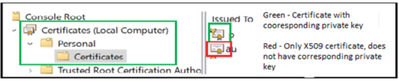
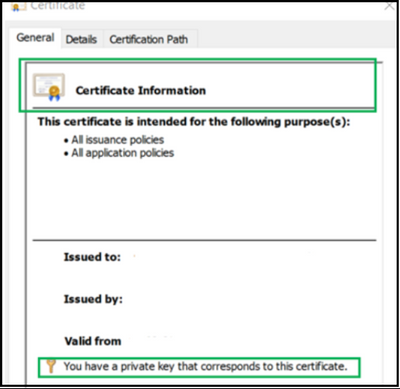
A private key that matches the certificate is present in the Local Computer's store and is correctly associated with the certificate.
For example, as displayed in the following screenshot, you can confirm if the certificate has a private key. A certificate with a private key (on the right, highlighted in green) has a different icon than a certificate without one (highlighted in red).
-
The Enhanced Key Usage extension includes the Server Authentication (1.3.6.1.5.5.7.3.1) object identifier.
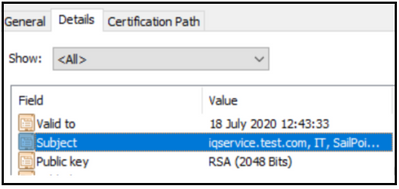
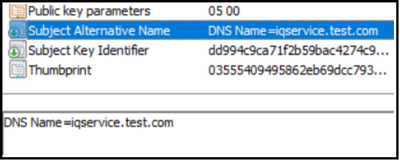
- The IQService host's fully qualified domain name (FQDN) must be in the common name (CN) in the Subject field in the X.509 certificate, and it must be a DNS entry in the Subject Alternative Name extension in the X.509 certificate.
An example of IQService's FQDN is iqservice.test.com. Refer to the following examples.
Common Name (CN) in the Subject field in X.509 certificate
DNS entry in the Subject Alternative Name extension in the X.509 certificate
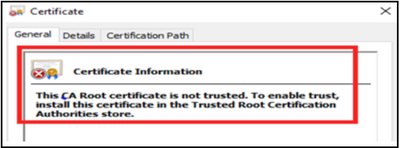
- The X.509 certificate must be trusted by the IQService host. Trust is established by configuring the IQService host to trust the root CA to which the issuing CA chains. Refer to the following examples:
X.509 certificate (Non trusted)
X.509 certificate (Trusted)
Virtual Appliance Configuration
The virtual appliance (VA) must trust the IQService X.509 certificate. Trust is established by configuring the VA to trust the root CA to which the issuing CA chains. To establish trust between the VA and the root CA:
- Add the root CA cert in the
/home/sailpoint/certificatesdirectory of the VA. - Restart the CCG service.

Note
Ensure to export the full certificate chain and convert it into a single PEM / Base64 formatted file.
Steps to Export and Convert the Certificate Chain
- Using the Microsoft Management Console (MMC), export the certificate chain as a
.p7bfile in DER/Binary format. -
Use the following OpenSSL command to convert the
.p7bfile to a.pemfile: -
Place the output
.pemfile onto the VA. The CCG will then load the certificates from this file.
Handling Multiple Certificate Chains
If you have multiple certificate chains (For example, one for VA to IQService communication and another for VA to AD communication), each chain must be placed in a separate PEM file.
Configuration of IQService Client Authentication
-
On the IQService host, run the following command:
For example:
IQService.exe -a "Corp\John.Doe"-
The domain user must be in the
msDS-PrincipalNameformat: -
If you are using a local user, it must be in the following format:
-
You must use the user name as an IQService User name in the same format.
-
-
Configure the IQService User and IQService Password on the IQService-based source.
Ensure that the IQService user value set here is the same that you registered on earlier on IQService.
Securing Communication Between IQService and AD Domain Controller or Target System
Note
For IQService to connect using TLS and self-signed certificates, you must install the certificate in Trusted Root Certification Authorities on the IQService host. The configured IQService User must have all access/permissions to read all the installed Certificates.
- Export the server certificate and copy the exported .cer file to the IQService host.
- Double-click the .cer file and select Install Certificate.
- Select Next.
- Choose Place all certificates in the following store and select Browse...
- Select Show physical stores.
- Expand Trusted Root Certification Authorities and select Local Computer.
- Select OK.
- Select Next, then Finish.
Disabling Non-TLS Communication for an Existing IQService Instance
If you are enabling TLS communication for an existing IQService instance that previously used non-TLS communication, you must ensure that non-TLS communication is disabled for that same instance. You can achieve this using one of the following methods:
Method 1
-
Set the existing non-TLS port to zero (0) or any negative number (such as -1, -2, -3 ) using the command line:
For example,
Note
Ensure to disable the non-TLS port for both the primary service and the secondary service (if configured).
-
After setting the port, restart the IQService.
Method 2
Optionally, you can delete the non-TLS port entry from the IQService instance registry configuration.
Warning
Directly editing the registry can cause serious, potentially unrecoverable errors if done incorrectly. Only modify fields that are specifically intended for modification.
Following are the steps to delete non-TLS port entry from IQService instance:
-
Locate the registry configuration for your IQService instance.
You can find the registry path for the primary service at:
You can find the registry path for the secondary service at:
Replace
<IQService-Instance>with the name of your IQService instance. -
Look for the port attribute.
- Delete the port attribute entry.
After completing one of these methods, the IQService will only communicate using TLS, ensuring secure communication between the IQService and other components. To verify that the non-TLS port has been successfully disabled for your IQService instance, run the following command:
After running this command, the output should display only the Configured TLS Port information along with the corresponding TLS port number, such as Configured TLS Port : <TLS Port Number>
Troubleshooting
TLS Communication
Failed to connect to IQService. Please check TLS configuration for IQService.
Resolution:
- Ensure that the certificate is placed at correct path in VA:
/home/sailpoint/certificates - This error message might come if IQService is an older version or a non-TLS port is provided. Ensure your IQService is upgraded to latest IQService and TLS port is provided.
java.security.cert.CertificateException: No subject alternative names present
Resolution:
- Ensure that the certificate is properly placed in VA:
/home/sailpoint/certificates. - Check communication between IQService host and VA.
-
Ensure that the DNS settings are correct. Alternatively add the appropriate mapping entry for IQService host in
hosts.yamlfile in the/home/sailpointdirectory.Note
For information on creating a hosts.yaml file, refer to Configuring a Hosts.yaml File.
Connection Reset
Resolution: Verify the following:
- This could be because IQService TLS is disabled and you have provided TLS port. Ensure that the Enable Transport Layer Security (TLS) checkbox is selected.
-
This could be because the hostname of the IQService server does not match the FQDN of the TLS certificate. Verify that the hostname matches the FQDN or the SubjectAlternateName DN is the same as the FQDN of the TLS certificate. If they are not the same, use the following commands to specify the certificate FQDN for IQService and then restart IQService:
Connection refused
Resolution - Ensure your IQService service is running.
Failed to connect to IQService. Please check TLS configuration for IQService.
Resolution - This could be because the IQService version is older. Ensure your IQService service is upgraded to latest version. Deselect the Enable Transport Layer Security (TLS) checkbox for non-TLS communication.
Line: 1 Column:1: Content is not allowed in prolog.
Resolution - If you want to use the IQService TLS functionality, use the latest CCG version and IQService version. If you are not using the latest CCG version and IQService version, ensure that the Enable Transport Layer Security (TLS) checkbox is unchecked on source configuration.
Unrecognized SSL message, plaintext connection?
Resolution - If you want to use the IQService TLS functionality, ensure that latest CCG version and IQService is deployed. If you are not using the latest CCG version and IQService version, ensure that the Enable Transport Layer Security (TLS) checkbox is unchecked on source configuration.
Client Authentication
The following errors may be returned from IQService.
No such user registered with IQService.
Resolution:
-
Ensure that you have registered and configured the IQService user and password on IQService host using the following command:
-
Ensure that you have provided the correct IQService user or password. Use the latest CCG version and IQService version.
Client authentication failed with error - The user's password must be changed before signing in
Resolution - The IQService user's password could be expired. To resolve the issue, change the password for the IQService user.
Client authentication failed with error - The user's account has expired
Resolution - Password could be expired for IQService user. To resolve the issue, change the password for IQService user.
Client authentication failed with error - The referenced account is currently locked out and may not be logged on to.
Resolution - Ensure that the IQService user is not locked.
Client authentication failed with error - This user can't sign in because this account is currently disabled
Resolution: Ensure that the IQService user is not disabled.
Client authentication failed with error - Your account has time restrictions that keep you from signing in right now
Resolution - The reason could be IQService user has enabled logon hours and you are trying to perform an operation outside of their defined logon hours. Ensure that logon hours are correctly configured.
The input is not a valid Base-64 string as it contains a non-base 64 character, more than two padding characters, or an illegal character among the padding characters.
Resolution - This is the error that displays if you are trying to perform client authentication with an old CCG version but the latest IQService version. You need to remove the user details from IQService using the command: IQService -x username. Also remove IQService user and password from source config.
Documentation Feedback
Feedback is provided as an informational resource only and does not form part of SailPoint’s official product documentation. SailPoint does not warrant or make any guarantees about the feedback (including without limitation as to its accuracy, relevance, or reliability). All feedback is subject to the terms set forth at https://developer.sailpoint.com/discuss/tos.