Configuring Additional Google Workspace SaaS Settings
Advanced Settings
Provide the settings for your aggregation. After you select Advanced Settings, the following page displays.
Screenshot
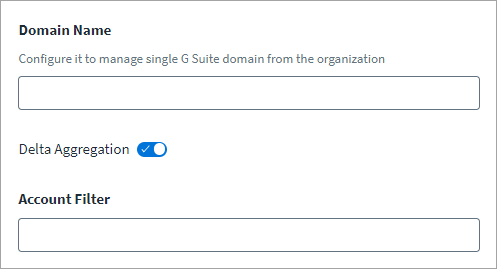
- (Optional) Enter a Domain Name to aggregate from only a single Google Workspace domain in your organization. The connector supports and manages multi-domain environments. If you want to aggregate from all domains, leave this field empty or remove the domain name that was previously entered.
-
(Optional) Select Delta Aggregation to toggle enable or disable this feature. If you enable delta aggregation, the aggregation only includes changes since the last aggregation.
Refer to Configuring Delta Aggregation for more information.
-
(Optional) Use the Account Filter field to configure the scope of user records during full and delta account aggregation. This filter is only applicable for user accounts and not for service accounts or domains. For example, to filter out suspended users, enter
isSuspended=falseas an Account Filter entry.For more information about the filter syntax, refer to Search for users in the Google documentation.
Note
The Google documentation is not maintained by SailPoint, and is subject to change without notice.
-
Select Save.
Improving Aggregation Performance
You can configure the following optional attributes to improve aggregation performance when using the Google Workspace SaaS connector:
Note
Refer to Best Practices: REST API Authentication and REST API - Update Source (Partial) in the SailPoint Developer Community for more information on SailPoint REST APIs.
Configuring isSkipAlias
The number of API calls can be reduced during account aggregation by setting the isSkipAlias attribute to true. By default, this attribute value is false, which means one API call per user is required to fetch aliases. This has a greater risk of exhausting the daily limit of API calls and adversely affects account aggregation performance. When isSkipAlias is set to true, it saves one API call per user, improving account aggregation performance and reducing the number of API calls.
Set the attribute value using:
- Key -
connector_isSkipAlias - Value -
true
Configuring skipPreloadingMemberships
You can turn off group membership preloading if the number of group memberships is greater than or equal to the total number of users in your environment. Preloading group memberships means the connector performs account and entitlement aggregation to build a map of group memberships for each account.
By default, the value of skipPreloadingMemberships is false, so the connector preloads group membership.
Set the attribute value using:
- Key -
connector_skipPreloadingMemberships - Value -
false
Note
If set to true, the connector skips membership preloading and instead executes many APIs during account aggregation, reducing performance and risking exhaustion of the API call limit. SailPoint recommends only setting this attribute to true when the number of groups is greater than or equal to the number of users in your environment.
Configuring Delta Aggregation
Important
The Google Workspace documentation lists the events that can be configured and fetched during delta aggregation. However, some attributes, such as isEnrolledIn2Sv, which corresponds to the event USER_ENROLLED_IN_TWO_STEP_VERIFICATION, are not fetched by the Google Workspace API.
To define the scope for delta account and group aggregations, refer to Generating OAuth 2.0 Credentials. Use Advanced Settings to enable or disable delta aggregation.
The Google Workspace SaaS connector retrieves accounts based on Activity Events for delta aggregation. By default, the following events are supported for account delta aggregation:
ADD_NICKNAME, CHANGE_USER_RELATION, CHANGE_USER_ORGANIZATION, CHANGE_USER_IM, CHANGE_LAST_NAME, CHANGE_FIRST_NAME, CHANGE_PASSWORD_ON_NEXT_LOGIN, MOVE_USER_TO_ORG_UNIT, REMOVE_NICKNAME, RENAME_USER, SUSPEND_USER, UPDATE_BIRTHDATE, CHANGE_PASSWORD, UNDELETE_USER, UNSUSPEND_USER, CHANGE_USER_CUSTOM_FIELD
Refer to Admin Audit Activity Events - User Settings in the Google Workspace documentation for more information on events.
Note
Refer to Best Practices: REST API Authentication and REST API - Update Source (Partial) in the SailPoint Developer Community for more information on SailPoint REST APIs.
Configuring Additional REST Parameters
Note
Refer to Best Practices: REST API Authentication and REST API - Update Source (Partial) in the SailPoint Developer Community for more information on SailPoint REST APIs.
The connector supports a configurable page size for Group and Role by adding the following entries through the REST API:
groupPageSize
Number of records per page for Group Aggregation. The default value is the value provided in the Page Size field. Refer to Advanced Settings for more information. The maximum value is 200.
rolePageSize
Number of records per page for Role Aggregation. The default value is the value provided in the Page Size field. Refer to Advanced Settings for more information. The maximum value is 100.
The connector supports account type configuration using the accountTypes attribute, which creates a list of account types you want to manage. If provided, Account Aggregation aggregates according to the configured list. By default, the connector aggregates all three account types (users, serviceAccount, and domain).
fetchCustomIamRolesOnly- Boolean/String. Fetches only custom roles during aggregation when set totrue. It skips predefined roles. Requires a SailPoint CIEM license.aggregateGARolesOnly- Boolean/String. Fetches generally available roles during aggregation when set totrue. It skips roles in stages such as alpha and beta. Requires a SailPoint CIEM license.iamRoleView- String. Possible values areFULLorBASIC.FULLis the default, which brings all permissions along with roles.BASICskips theincludedPermissionattribute. Requires a SailPoint CIEM license.iamRolePageSize- Page size for the role API. The default is 300. The maximum is 1,000. Requires a SailPoint CIEM license.serviceAccountPageSize- Page size for the Service Account API. The default is 100. The maximum is 500.assetSearchPageSize- Page size for the Cloud Asset API. The default and maximum are 500.
When GCP support is enabled, the connector fetches both searchable resource types, cloudresourcemanager and iam, by default. To limit the number of entitlements, configure the connector to fetch one or the other by setting searchableResourceTypes to iam (Service Accounts) or cloudresourcemanager (Organization, Folders, and Projects) through the REST API.
To fetch iamResourcePermission for only the iam resource type, which consists of Service Accounts, use the following PATCH body:
To fetch iamResourcePermission for only the cloudresourcemanager resource type, which consists of Organizations, Folders, and Projects, use the following PATCH body:
[
    {
        "op": "add",
        "path": "/connectorAttributes/searchableResourceTypes",
        "value": "cloudresourcemanager"
    }
]
Activity Insights Settings
Ensure the Google Workspace application has the scopes required for Activity Insights. Refer to Additional SaaS Requirements for the required scopes.
SailPoint pulls in activity data in the form of events like user logins, password changes, and content updates within the application. You can view an identity’s activity data within an application to discover trends for that user.
Important
Contact your SailPoint Customer Success Manager (CSM) for more information on Activity Insights. For more information on utilizing activity data, refer to Activity Insights.
Activity Insights Settings allows you to gather account information and activity data from Google Workspace. To enable Activity Insights for the Google Workspace application, refer to Prerequisites for more information.
To configure Activity Insights, complete the following:
Screenshot

- Go to Activity Insights Settings.
- Select Enable Activity Insights to view access to data insights on source and application activity such as logins and other app-specific events.
- Select Save.
CIEM Settings
SailPoint's Cloud Infrastructure Entitlement Management (CIEM) enhances identity governance by providing a deeper view into the effective access of entitlements to resources and your users' entitlement activity in your cloud infrastructure.
Important
You must have a CIEM license to enable cloud governance features. Contact your SailPoint Customer Success Manager to request access. Refer to CIEM Overview for more information.
SailPoint CIEM settings allow you to collect cloud resource data and display the total access an identity has to your cloud systems.
Note
SailPoint's CIEM only supports Service Account as a grant type. Refer to Service Account Authentication Settings for more information.
To configure CIEM:
- Go to CIEM Settings.
- Select Enable Cloud Infrastructure Entitlement Management (CIEM) to view access to cloud resources and infrastructure granted through entitlements.
- Enter the Google Organization ID to govern your cloud environments within Google Workspace. You can find this ID in Google's Business Profile Manager. Refer to View organization ID and other details in the Google documentation.
- Enter the Instance IDs used to resolve Google Workspace accounts with federated IAM roles within AWS. Separate multiple entries with a comma.
- Select Save.
Machine Identity Governance Settings
Note
Datasets are also available in SailPoint Agentic Fabric. Contact your Customer Success team and refer to SailPoint Agentic Fabric for more information.
Vertex AI is a unified machine learning (ML) platform on Google Cloud that streamlines the development, training, and deployment of ML models and AI applications. It provides a comprehensive set of tools for the entire ML lifecycle, from data preparation to model deployment and management, enabling data scientists and engineers to collaborate and scale their AI solutions.
Vertex AI Agent is a platform within Google Cloud's Vertex AI that enables developers to build and deploy AI-powered agents, specifically for conversational experiences and complex tasks. It provides tools and services for the entire agent lifecycle, from design and development to deployment and management.
Agent Registry is the Google Cloud inventory of registered agents. It includes Vertex AI agents, Gemini Enterprise agents, and manually registered agents.
Prerequisites
Before you configure agent governance in the connector, set the agent governance policies that control how the connector handles these accounts.
At the project level, enable the following APIs:
- Cloud Asset API
- Vertex AI API
- Agent Registry API
Aggregation Settings
- Enter the Google Organization ID, which is the unique numeric identifier for your organization resource.
-
In Regions, enter each GCP location the connector should search for agents, such as
us-central1. Press Enter after each location.Note
Gemini Enterprise agents are registered in the
us,eu, orgloballocations. To discover these agents, include the matching locations. -
(Optional) Choose which agent sources to include:
- Enable GCP Vertex AI Agents: Adds GCP Vertex AI agents to the GCP Vertex dataset. This option is selected by default.
- Enable GCP Agent Registry: Adds Agent Registry agents and their skills to the GCP Agent Registry dataset. This option is selected by default.
-
(Optional) If Enable GCP Agent Registry is selected, choose which Agent Registry agents to manage:
- Manage Gemini Enterprise Agents: Selected by default.
- Manage Vertex AI Agents: Select this to also include Vertex AI agents from Agent Registry. It's cleared by default because the GCP Vertex dataset already aggregates these agents. Selecting it may create duplicates.
Note
Manually registered agents are always included, whatever you select here.
-
Select Save.
The connector discovers agents in the organization and regions you entered, and adds them to the datasets you selected.
Refer to Google Workspace Datasets and Resources for supported resources and datasets.
Refer to GCP Agent Registry Agent for more information about Agent Registry agents.
Refer to GCP Agent Registry Skill for more information about Agent Registry skills.
Documentation Feedback
Feedback is provided as an informational resource only and does not form part of SailPoint’s official product documentation. SailPoint does not warrant or make any guarantees about the feedback (including without limitation as to its accuracy, relevance, or reliability). All feedback is subject to the terms set forth at https://developer.sailpoint.com/discuss/tos.