Administrator Permissions
Note
When the connector is configured using client credentials, the refresh token holds the scopes and permissions.
The service account and impersonated user require Google Workspace roles and OAuth scopes appropriate to the operations you want the connector to perform (account, group, and role aggregation, creation, update, and deletion). At a minimum:
Important
The impersonated user must be the IAM user, not the service account.
Assigning Roles to an Impersonated User
Manage G-Suite Users/Groups/Roles
To assign the Roles (Built-in/Custom) to an Impersonated User for managing G-Suite Users/Groups/Roles, complete the following:
Screenshot
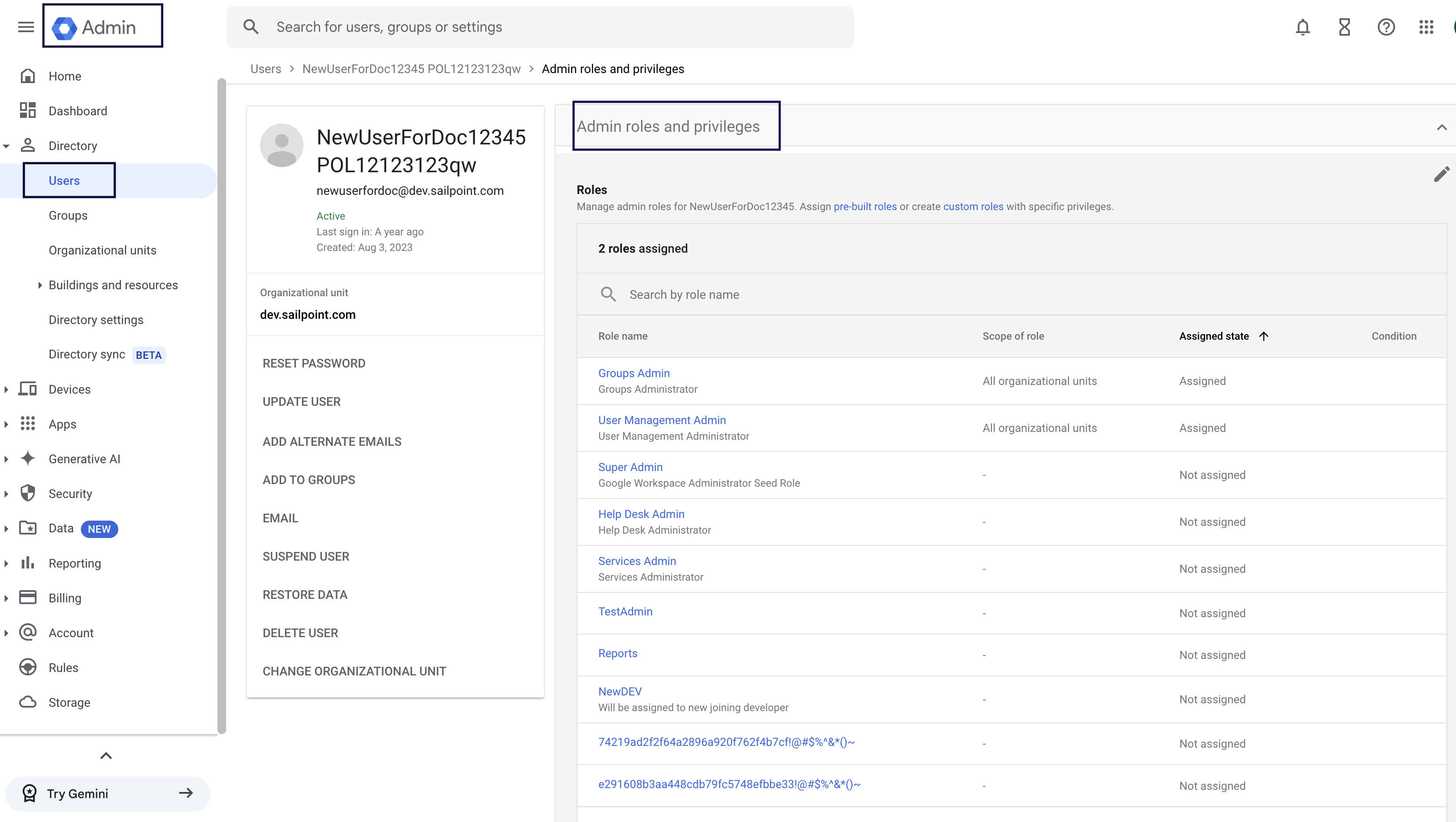
- Go to the Google Admin page.
- In the left pane, go to Directory and select Users.
- Select the configured Impersonated user used as the
jwt subject. - Expand the Admin roles and privileges section for that user.
- Assign the required roles documented in the G-Suite section to this user.
Manage Google Cloud Resources
To assign the Roles (Built-in/Custom) to an Impersonated User for managing cloud resources when Manage Cloud Resources is enabled in SailPoint, complete the following:
Screenshot
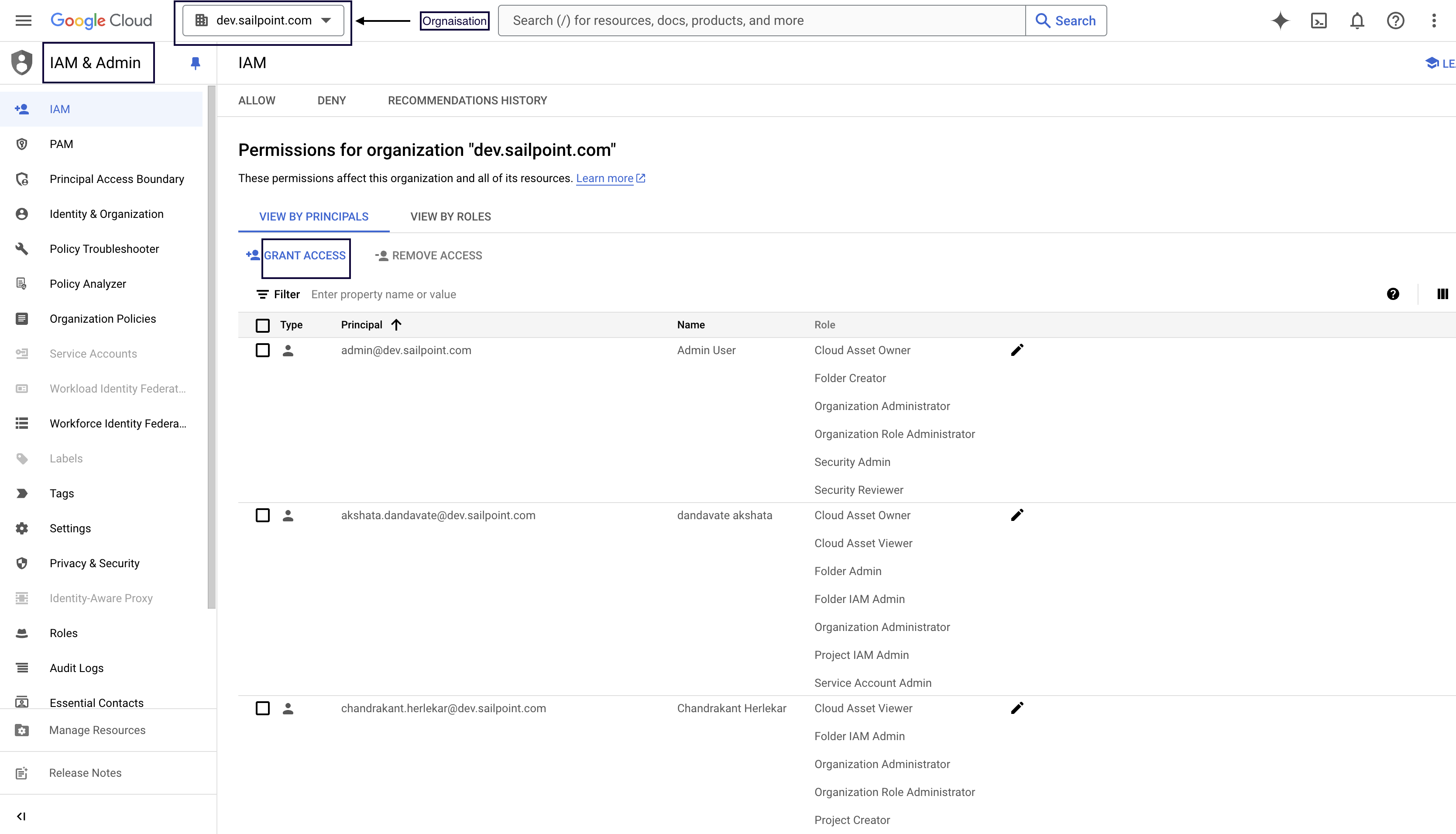
- Go to the Google Cloud Console.
- Select IAM & Admin and verify that you are viewing the Organization configured as the organization ID, such as
dev.sailpoint.com. - Select Grant Access.
- Under Add Principal, select the Impersonated User configured as the
jwt subjectduring source configuration.
Documentation Feedback
Feedback is provided as an informational resource only and does not form part of SailPoint’s official product documentation. SailPoint does not warrant or make any guarantees about the feedback (including without limitation as to its accuracy, relevance, or reliability). All feedback is subject to the terms set forth at https://developer.sailpoint.com/discuss/tos.