Using SailPoint Desktop Password Reset
Select the appropriate option for step-by-step instructions to access DPR on your system:
Accessing Desktop Password Reset on Windows
The Desktop Password Reset is invoked from the Windows logon screen, but before you are logged on to the computer.
For security reasons and to limit access only to the internet and not to the system, pop-ups and shortcut keys are disabled (for example, right-click, Ctrl+O, Ctrl+S, Shift+left-click, and so on).
To invoke the Desktop Password Reset, select the Forgot Password? link located below the password field on the default Windows login screen as follows:
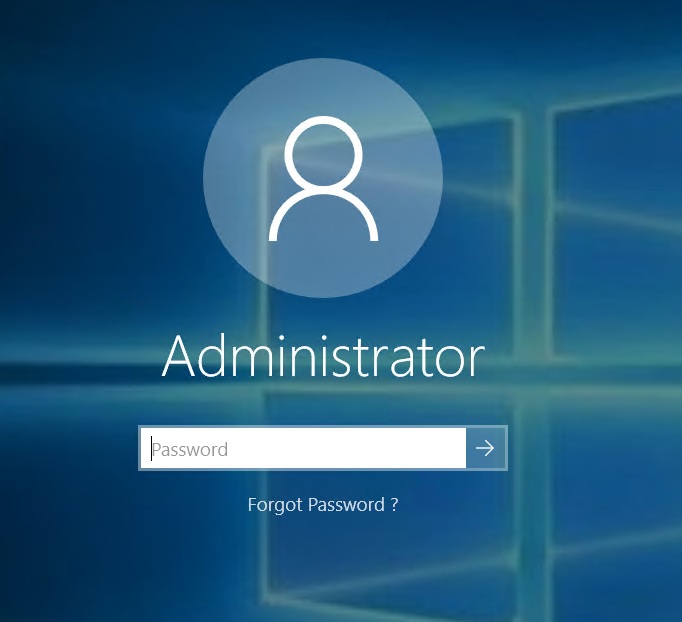
Depending on the parameters that are configured in the Configuration Utility, the Forgot Password? option will launch the Desktop Password Reset browser application.
Accessing Desktop Password Reset on macOS
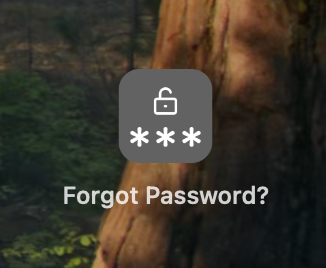
Desktop Password Reset (DPR) is invoked from the macOS login screen before you are logged in to the device. To access DPR, follow these steps:
-
On the macOS login screen, select the Forgot Password? link.
-
Depending on the parameters configured in the Configuration Utility, the Forgot Password? option launches the DPR browser application.
For security reasons, the DPR browser application is restricted to limit access only to domains allowed by the Desktop Password Administrator. The browser also cannot be used to access the system files.
After the user has authenticated with their identity provider account and changed their password, they can log in immediately, even if not connected to the company's corporate network.
DPR Compatibility with macOS Login Experience
DPR is designed to work with the macOS login experience. The availability of the password reset option depends on whether FileVault disk encryption for macOS is enabled or disabled.
When FileVault is OFF:
- You can reset your password directly from the login screen that appears after the Mac starts up (pre-boot login).
- You can also reset your password from the login screen shown after a user logs off.
When FileVault is ON:
At start up, macOS shows the FileVault unlock screen before the operating system fully loads. This screen is controlled by Apple's security layer and does not allow third-party integrations. Due to this limitation, password reset option is not available at the startup login screen when FileVault is enabled.
However, you can still reset your password from the login screen that appears after a user logs off, once macOS has fully started.
Lock Screen:
DPR is not available from the lock screen (when a user locks the Mac without logging off)
The table below provides a quick overview of DPR's compatibility with the macOS login experience:
| Setup | Startup Login Screen | Lock Screen | Post-Logoff Login |
|---|---|---|---|
| With FileVault OFF | Supported | Not Supported | Supported |
| With FileVault ON | Not Supported | Not Supported | Supported |
This behavior is by design and aligns with Apple's security framework.
Documentation Feedback
Feedback is provided as an informational resource only and does not form part of SailPoint’s official product documentation. SailPoint does not warrant or make any guarantees about the feedback (including without limitation as to its accuracy, relevance, or reliability). All feedback is subject to the terms set forth at https://developer.sailpoint.com/discuss/tos.