Managing Desktop Password Reset on macOS
Desktop Password Reset (DPR) for macOS includes a simple built-in configuration utility called DPRConfigurator.app that facilitates configuration updates.
To change the value of the configuration parameters for DPR, follow these steps:
-
Go to the master system or the system where the Configuration Utility is deployed.
-
Update the desired attributes and select Save to store your changes.
-
Ensure that the file name for deployment is
config.json.
Configuration Options
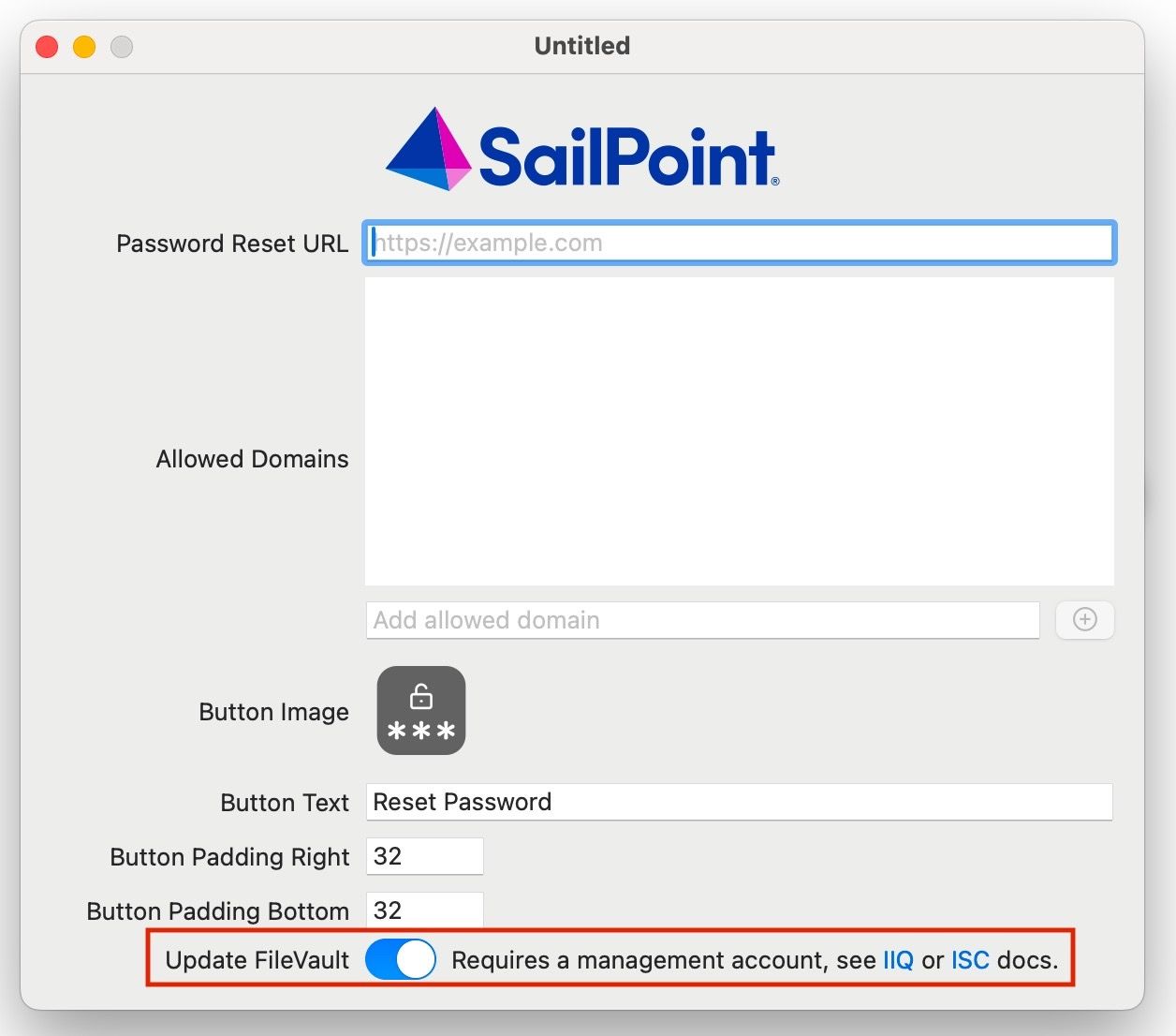
The following options can be set using DPRConfigurator.app:
| Name | Description |
|---|---|
| Password Reset URL | The URL of the identity provider that is opened in the restricted browser when a user clicks on the Desktop Password Reset icon on the login screen. If using SailPoint as the identity provider, the password reset URL should be [ISC_TENANT].identitynow.com/passwordreset. |
| Allowed Domains | Domain names, other than domain of the base URL, which should be allowed for navigation from the restricted browser. If not specified, only pages from the base URL domain are accessible. - If your Password Management solution is configured to use Duo for multi-factor authentication, you must add duosecurity.com as an Allowed Domain for DPR to work appropriately.- If you are using SailPoint as the identity provider, you must add the following mandatory domains as an Allowed Domain for DPR: [ISC_TENANT].identitynow.com[ISC_TENANT].api.identitynow.com |
| Button Image | The image shown for the Desktop Password Reset icon on the login screen. |
| Button Text | The text shown to the user next to the Desktop Password Reset icon on the login screen. |
| Button Padding Right | The horizontal adjustment (in points) for the position of the Desktop Password Reset icon on the login screen. By default, the icon is shown in the bottom-right corner. |
| Button Padding Bottom | The vertical adjustment (in points) for the position of the Desktop Password Reset icon on the login screen. By default, the icon is shown in the bottom-right corner. |
| Update FileVault | When a user resets their account password using DPR, the FileVault password is also updated. This setting is enabled by default. |
FileVault Support
When Desktop Password Reset (DPR) is configured, it automatically updates the user's FileVault password whenever their account password is reset. This ensures that the FileVault password stays in sync with the user's account password, maintaining seamless access to their encrypted files and directories after a password change.
Prerequisites
For DPR to update the FileVault password during a user password reset, ensure the following conditions are met:
Screenshot
-
In the DPR configuration, ensure the Update FileVault option is enabled. This setting is enabled by default.
-
Configure a management account's credentials for DPR to use. For more information, refer to Creating a Management Account.
-
Ensure FileVault is enabled on the user's device.
-
The user account performing the password reset must have a Secure Token.
FileVault Management Account
DPR requires a management account on each local device to automatically update the FileVault password when a user resets their account password. The credentials for this account must be stored in the system keychain.
Creating a Management Account
To minimize password rotations and avoid updating stored credentials in the system keychain, SailPoint recommends creating a dedicated management account for DPR. However, you can skip this step and share an existing suitable account's credentials with DPR.
To create the _sailpointdpr management account, run the following script:
Expected output:
This user is prevented from logging in and remains hidden from the login screen. However, the user is visible on the FileVault unlock screen.
Sharing Credentials with DPR
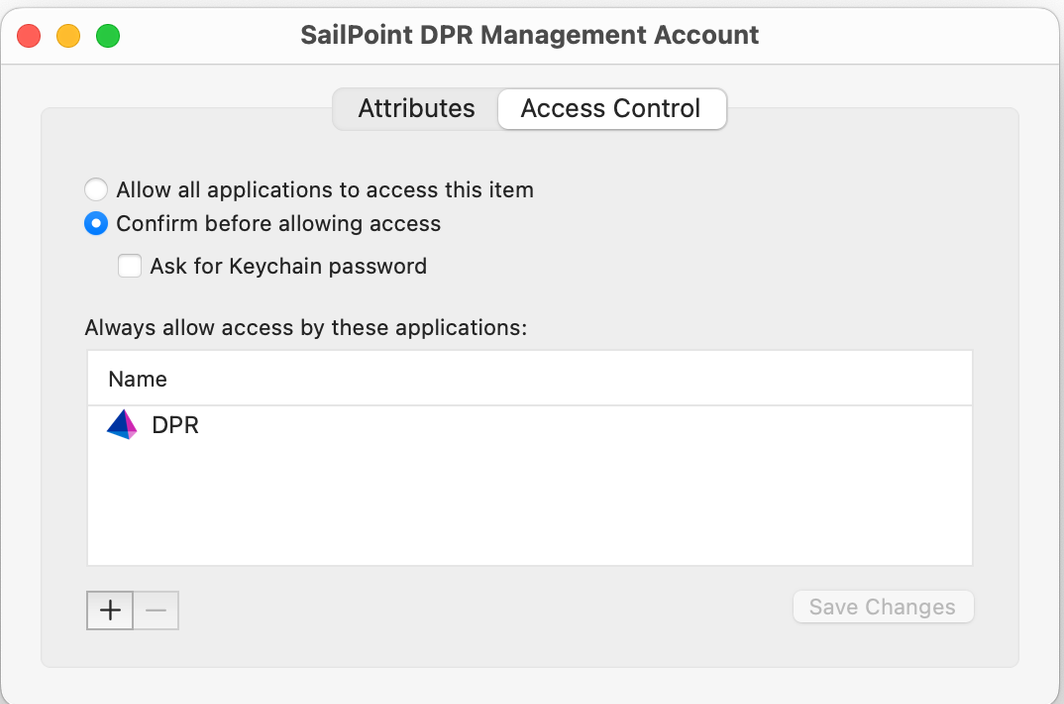
To store the management account's credentials in the system keychain and grant DPR access to the keychain item, run the following script:
If you're using an existing management account, specify the correct username instead of _sailpointdpr.
Note
The same management account credentials can be used for every device. In this case, a user with root access on any device can access the DPR management account on all devices.
Deleting the Management Account
To delete the _sailpointdpr management account, run the following script:
Verifying Your Setup
While an end-to-end test will reveal configuration errors, you can also check that the requirements are met by following these steps:
-
Verify that FileVault is enabled:
Run the following script:
Expected output:
-
Check that the management account:
-
Is an admin:
Run the following script:
Expected output:
-
Has a secure token:
Run the following script:
Expected output:
-
Is prevented from logging in:
Run the following script:
Expected output:
-
-
Verify that the credentials are in the keychain:
Note
Attempting to print the password fails due to limited access controls.
Run the following script:
Expected output:
keychain: "/Library/Keychains/System.keychain"
version: 256
class: "genp"
attributes:
0x00000007 <blob>="SailPoint DPR Management Account"
...
To see the access control, view the item through Keychain Access.
Screenshot
Exporting Configuration to Remote Systems
To update the DPR configuration on all remote systems, perform the following steps:
-
Run the configuration application, set the desired configuration values, and save the configuration file to a known location. The name of the file must be
config.json. -
Copy the configuration file to all remote systems, using an existing solution such as a Mobile Device Management (MDM) product. The required location for the config file on the remote devices is
/Library/Application Support/SailPoint/DPR/config.json.
Note
The access permissions set on the configuration file location ensure that only administrators can modify the file. Additionally, the contents of the configuration file are verified when the Desktop Password Reset (DPR) utility is launched.
Enabling Logs
By default, DPR writes log messages to the macOS unified system log, using the subsystem com.sailpoint.dpr. These logs can be viewed in one of two ways:
- Using
console.app, by searching forsubsystem:com.sailpoint.dpr -
Using the log command line as root. For example,
log show --predicate "subsystem == 'com.sailpoint.dpr'"
Documentation Feedback
Feedback is provided as an informational resource only and does not form part of SailPoint’s official product documentation. SailPoint does not warrant or make any guarantees about the feedback (including without limitation as to its accuracy, relevance, or reliability). All feedback is subject to the terms set forth at https://developer.sailpoint.com/discuss/tos.