Connecting SailPoint and Ivanti Cherwell Service Desk
The Ivanti Cherwell Service Desk Integration Module (SDIM) helps to perform effective and efficient service management for SailPoint services offered to the organization. It enables customers to create and manage tickets reported from other sources.
Note
Ivanti Cherwell Service Desk SDIM supports Incident and Service Request ticket types.
You can integrate a SailPoint source with the Ivanti Cherwell Management System for access request and monitoring.
Screenshot
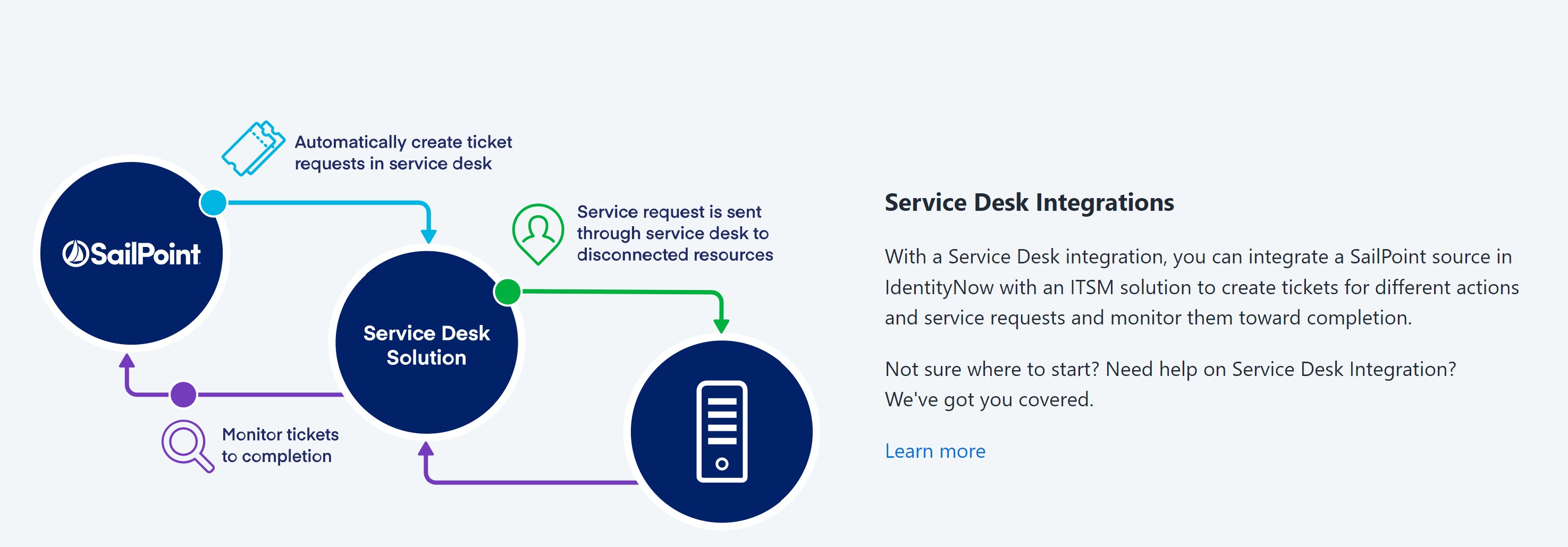
To create the connection:
- Sign in to SailPoint > Admin interface.
- Go to Connections > Service Desk. The Service Desk connections page displays.
- Select Create. The Create Integration page displays.
- Provide the required information on the General Settings page.
- Select Continue. The Configure page appears.
- Provide the Connectivity and Authentication information on the Configure page.
- Provide the Ticket Creation information on the Configure page.
- Provide the Status Mapping information on the Configure page.
- Provide the Requester Source information on the Configure page.
- Select Continue to save the configuration and review the Summary of the configuration.
General Settings
Screenshot
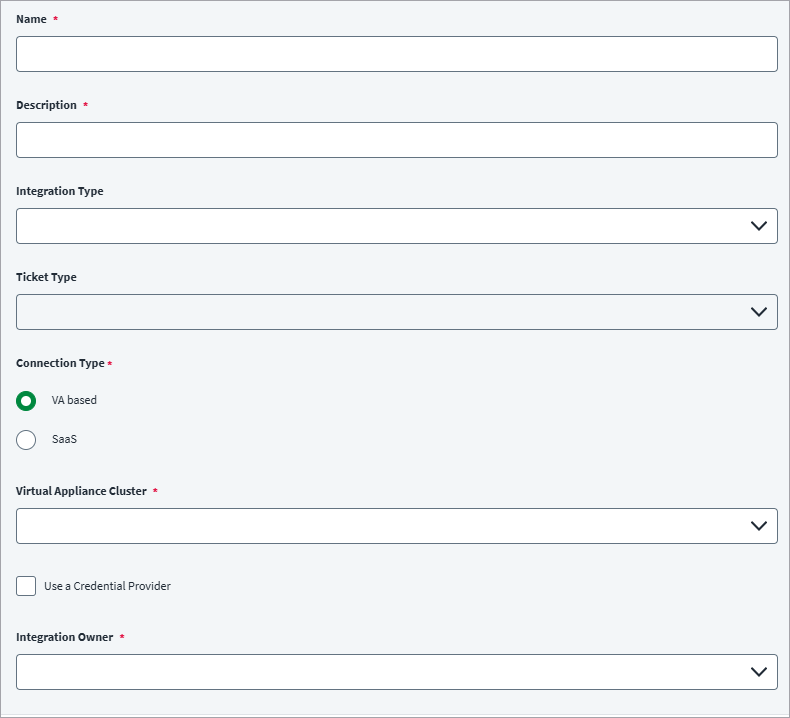
Note
Ensure that the name and description of each connection are unique. Because you can configure multiple source types to use this connection, you should specify the sources in the description. The tickets for those sources will be processed on the managed system while the status of the tickets are synchronized in SailPoint.
- Enter a descriptive Name for the connection.
- Enter the Description of the connection.
- Select Integration Type Ivanti Cherwell ITSM SDIM from the drop-down list.
-
Select Incident in the Ticket Type dropdown list.
-
Select the Connection Type:
- VA-Based Connection Type - Select the VA-Based connection type if you want to use a Virtual Appliance Cluster.
- SaaS Connection Type - Select the SaaS connection type if you want to create a SaaS application without using a Virtual Appliance Cluster.
Notes
- SaaS Connection types don't support Credential Providers.
- Once you create an integration, you cannot edit the connection type.
-
(Optional) If Credential Providers are supported for this integration, you can select Use a Credential Provider to use a credential provider configured in your tenant.
- Enter the name of the Integration Owner.
VA-Based Connection Type
Screenshot
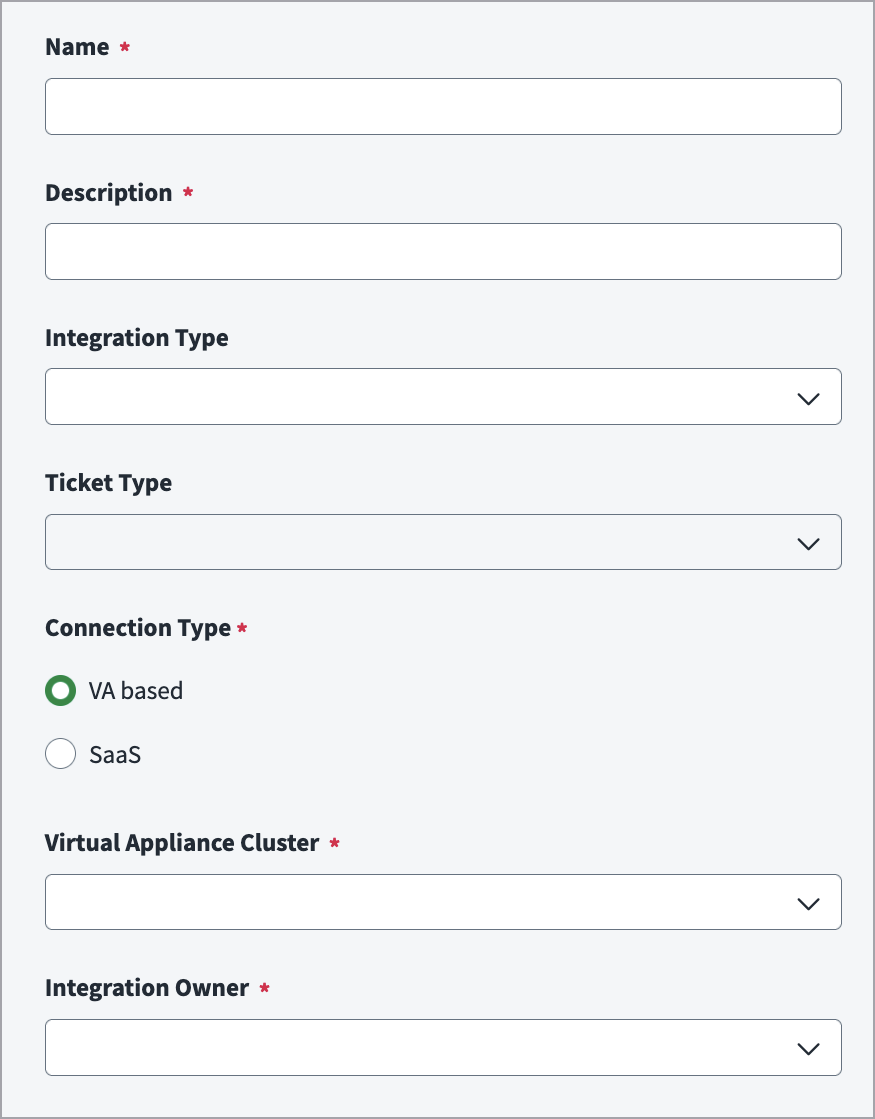
- Select VA-Based connection type if you want to use a Virtual Appliance Cluster.
- Select Save.
SaaS Connection Type
Screenshot

- Select SaaS connection type if you want to create a SaaS application without using a Virtual Appliance Cluster.
Note
When you select the SaaS connection type, the Enable Debug Logging feature is available. It is only supported for Service Desk SaaS integration.
Administrator Settings
Screenshot
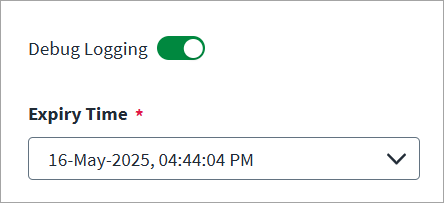
- Select the Enable Debug Logging checkbox to enable the integration to create and send debug log files to SailPoint Support to help troubleshoot issues.
-
If the Enable Debug Logging feature is needed, please contact SailPoint.
Note
Enable Debug Logging should not be enabled without SailPoint guidance.
Sources
Screenshot

In the Sources dropdown list, select sources to configure from the available sources. For each source you want to integrate with the Ivanti Cherwell Service Desk system, verify that it is configured for provisioning.
Tip
Edit the Description field for these sources to indicate they are used in the Ivanti Cherwell Service Desk integration.
Connectivity and Authentication
In the Configure > Connectivity and Authentication sub-panel, complete all the details required to integrate your Ivanti Cherwell instance with Ivanti Cherwell Service Desk.
- Enter the URL of the Ivanti Cherwell instance that you are integrating with. For example,
https://CSMSiteName.cherwell.com. - Select the Authentication Type as OAuth2.
- Select your Grant Type:
Password Grant Type
Screenshot

- Select the Grant Type as PASSWORD.
- Enter the Token URL for generating an access token. For example,
https://CSMSiteName.cherwell.com/CherwellAPI/token. - Enter the Username with the Service Account username.
- Enter the Password with the Service Account user's password.
- Enter the Client ID for OAuth2 authentication.
- Enter the Client Secret for OAuth2 authentication.
Refresh Token Grant Type
Screenshot
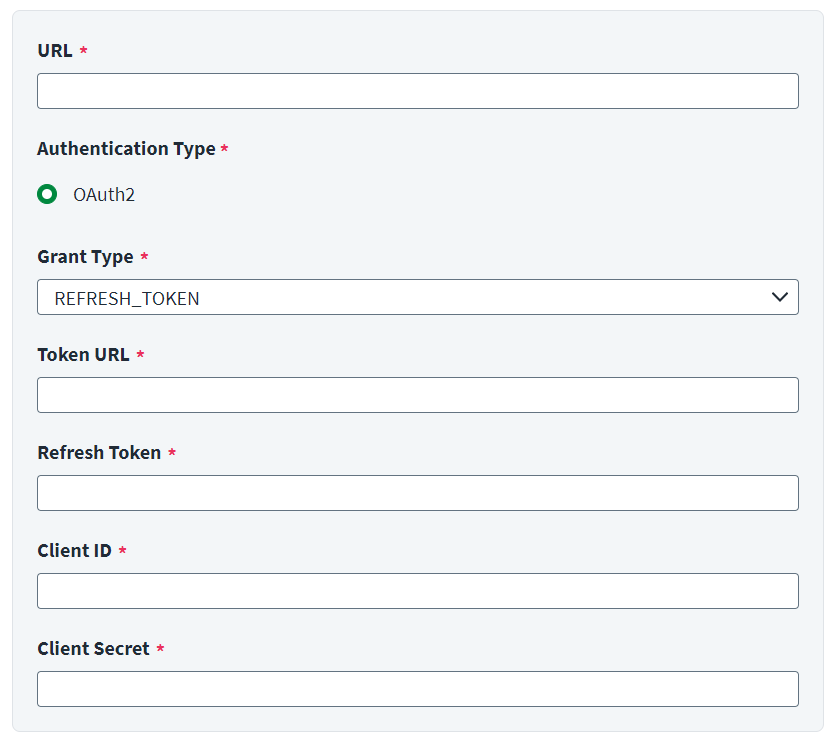
- Select the Grant Type as REFRESH_TOKEN.
- Enter the Token URL for generating an access token. For example,
https://CSMSiteName.cherwell.com/CherwellAPI/token. - Enter a valid Refresh Token.
- Enter the Client ID for OAuth2 authentication.
- Enter the Client Secret for OAuth2 authentication.
Documentation Feedback
Feedback is provided as an informational resource only and does not form part of SailPoint’s official product documentation. SailPoint does not warrant or make any guarantees about the feedback (including without limitation as to its accuracy, relevance, or reliability). All feedback is subject to the terms set forth at https://developer.sailpoint.com/discuss/tos.