Connecting SailPoint and Sybase (SAP ASE)
To connect SailPoint with Sybase (SAP ASE), perform the following tasks:
Adding the Source in SailPoint
To connect to SailPoint, perform the following steps. Once the connection is made, you can configure it to meet your company's needs.
Important
By default, the provisioning feature is disabled, and the connector only supports read-only operations. To support provisioning operations, you must manually enable the feature in the source configuration.
To configure a new source:
- Sign in to SailPoint.
- Go to Admin > Connections > Sources.
- Select Create New.
- Search for the connector by entering the name in the search box, and then select Configure.
- In the Source Name field, enter a unique and descriptive name for your source. Source names cannot exceed 128 characters.
- In the Description field, provide additional details about the source to help distinguish it from similar sources. This field allows a maximum of 2,000 characters.
- In the Source Owner field, begin typing the name of an owner. Matches appear after you type two or more letters. For more information, refer to Assigning a Source Owner.
-
Under Connection Type, select Direct Connection or Flat File.
- Direct Connection - A direct connection fetches data from the Virtual Appliance Cluster you choose as the application connector for the source. A direct connection configuration allows for real-time updates. For more information about configuring and deploying virtual appliances, refer to the Virtual Appliance Reference Guide.
- Flat File - Select the flat file if no connector is available, or if another system restricts the connection. This option allows only reading and aggregating data as a generic/delimited application. Provisioning activity is unsupported, and additional configuration pages like connection settings and aggregation settings are unavailable.
-
If you selected Direct Connection, in Virtual Appliance Cluster, select the virtual appliance cluster that will be used as the application connector for the source.
- (Optional) Select a governance group to grant its members source or role sub-admin level oversight of the source and its access. For more information, refer to Creating and Managing Governance Groups.
- If this source represents a primary system containing your organization's personnel records, select the Authoritative Source checkbox. For more information, refer to Creating Identity Profiles.
- Select Continue. The source is created, and you are navigated to the Source Setup > Base Configuration page. Continue to configure your connected source there.
Base Configuration
Provide the base configuration parameters. Information you entered in the Create New Source dialog is automatically entered into the fields in the Base Configuration page. You can edit this information if necessary.
- Enter a unique name and description for the source.
-
In the Source Owner dropdown list, select the identity that owns this source.
- To find a source owner, begin entering their name.
-
In the Virtual Appliance Cluster dropdown list, select the virtual appliance to use when communicating with your organization's systems. For more information, refer to SailPoint Virtual Appliances.
-
(Optional) If enabled for your organization, select the Use a Credential Provider checkbox to manage the source's authentication using a credential provider.
Note
To add a credential provider, go to Admin > Connections > Credential Providers. For more information about credential providers, refer to Credential Providers.
-
Configure the authentication to allow SailPoint to connect to the source. Refer to Connection Settings for more information.
-
(Optional) In the Governance Group for Source Management dropdown list, select a governance group to associate with this source. For more information about governance groups, refer to Associating Governance Groups with a Source.
-
(Optional) Choose whether to enable or disable provisioning for the source. Provisioning is disabled by default.
-
Enable Provisioning - Set the toggle to Enabled to allow the source to create, update, and deactivate accounts in the connected source system.
-
Disable Provisioning - Set the toggle to Disabled to disable provisioning for the source. Disabling provisioning will prevent the creation, updating, or deactivating of accounts on this source.
-
-
Drag and drop the required files into the Upload Files box, or upload them from your computer.
Warning
Ensure that the file you upload is not vulnerable or malicious.
Upload the
jconn4.jarfile. The current file and upload history are listed below the box. Refer to Prerequisites for information on acquiring thejconn4.jarfile.Note
You must download the library from a trusted source and validate the authenticity of the download location by inspecting valid SSL/TLS certificates. You must also validate the authenticity of the library by inspecting digital signatures or validating checksums when that information is available.
-
Select Save.
Connection Settings
Configure the connection between SailPoint and your Sybase (SAP ASE) source.
Screenshot
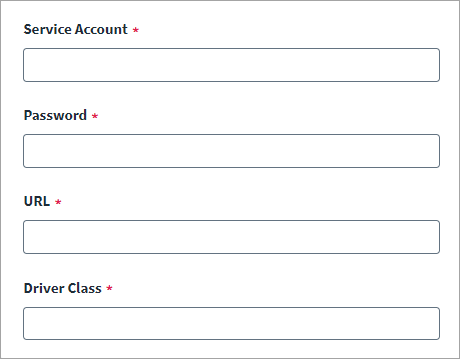
- Enter the Sybase (SAP ASE) administrator's user ID into the Service Account field.
- Enter the Sybase (SAP ASE) administrator's password into the Password field.
- Enter the Sybase SAP ASE server address into the URL field.
-
Enter the name of the driver class supported by JDBC Type 4 into the Driver Class field.
For example, in the case of
jconn2.jar, use the following driver class:com.sybase.jdbc2.jdbc.SybDataSource -
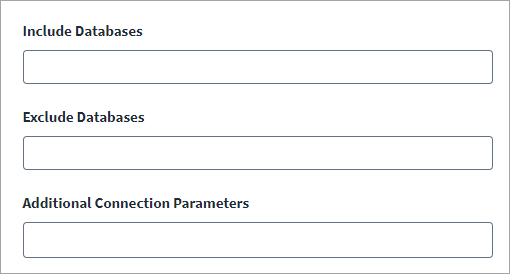
Enter the list of databases you want SailPoint to include during aggregation as a comma-separated list into the Include Databases field.
- Enter the list of databases you want SailPoint to ignore during aggregation as a comma-separated list into the Exclude Databases field.
-
In the Additional Connection Parameters field, enter the parameters to be passed in the form of key value pair.
If you need to specify multiple parameters, press Enter after adding each value.
For example:
<truststorefileparameter>=<pathoftruststore><truststoretypeparameter>=<truststoretype> -
Select Save.
Additional Settings
Additional settings contain options to set the Page Size and enable Is Minimum Permission User for aggregation.
Screenshot
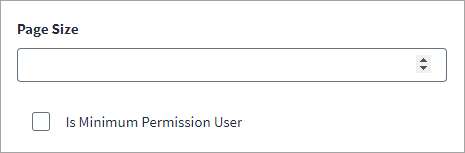
- Set the number of rows ResultSet should display in the Page Size field. The source's Page Size limits the maximum number of results that the ResultSet displays
-
Check the box to enable Is Minimum Permission User.
- Enable the feature to confirm that the Sybase (SAP ASE) administrator has at least the minimum required permissions. For more information, see Granular Permissions Not Installed on SAP ASE.
-
If you leave it disabled, the Sybase (SAP ASE) administrator user must have the
mon_roleto complete the aggregation successfully.To optimize performance, the administrator user you configure should have higher permissions. By default, performance optimization is enabled.
-
Select Save.
SSL Connection
The Sybase (SAP ASE) source supports SSL encyption.
To enable SSL encryption in the Sybase (SAP ASE) connector:
- Import the SSL certificates from the Sybase SAP ASE server to
/home/sailpoint/certificatesdirectory on the source VA. -
Restart the CCG with the following command:
sudo systemctl restart ccg -
In configuration of Sybase SAP ASE source config for the URL field, use the following URL:
jdbc:sybase:Tds:<HOST>:<PORT>/?ENABLE_SSL=true
Review and Test
Perform a test to confirm the connection to SailPoint.
- Go to Review and Test.
-
Confirm that the entries in each field are correct.
If you note any mistakes, return to the section and make corrections.
-
Select Test Connection.
SailPoint Application Onboarding
SailPoint application onboarding enables you to easily onboard new applications and create sources following the successful onboarding of a discovery source. To use this feature, continue to Discovered Applications in the SailPoint user interface.
For more information, refer to Application Onboarding in the SailPoint SaaS documentation.
Documentation Feedback
Feedback is provided as an informational resource only and does not form part of SailPoint’s official product documentation. SailPoint does not warrant or make any guarantees about the feedback (including without limitation as to its accuracy, relevance, or reliability). All feedback is subject to the terms set forth at https://developer.sailpoint.com/discuss/tos.