Additional Information
This section describes the additional information related to the SAP HR/HCM source.
Support for Central Person ID As Default Identity Attribute
The SAP HR source aggregation is improved when the Central Person ID is set as the default identity attribute for the SAP HR source. The SAP HR source supports the Central Person ID as the default Identity Attribute for new sources. For existing and new sources, the Central Person ID attribute can be used as an Account ID and can be added in the schema (Type as String).
Additionally, multiple assignment for a single employee can be managed effectively with the Central Person ID attribute. For example, if there is global assignment for an employee and there are multiple countries implemented in the system, then the employee needs to be reassigned to a country other than their home country. You can manage this with the Central Person ID attribute.
Schema Attributes
Add a new Schema attribute "Central Person ID" with the description as Central Person ID associated with an employee. For more information, refer to Editing an Account Schema.
Support for Person External ID
The SAP HR/HCM source supports the Person External ID being associated with the employee. By default, the Person External ID attribute is not present in the schema. To aggregate the Person External ID, complete the following:
-
Add the Person External ID attribute in the schema and type it as string with the description as follows:
PersonIDExternalassociated with employee. -
Update the service account permission as follows:
Authorization Objects Field Name Field Description Field Value S_TABU_NAM TABLE TABLE name PA0709
Custom BAPI Invocation
The SAP HR/HCM connector can invoke custom BAPIs which are used for the following purposes:
- To filter the employees.
- To aggregate the additional attributes.
Note
The custom BAPI code for the BAPI filter should filter out the accounts, as required, for both full and delta aggregation. The delta logic should be managed in the BAPI itself when delta mode is selected.
Prerequisites
Based on your requirements, write a custom BAPI code which follows the Input and Output parameters standard specified by SailPoint.
For more information on the input and output parameters, refer to Input and Output Parameters for BAPI.
Add the required entry key in the application.xml file as follows:
To apply a filter:
Use the entry key as follows:
The Aggregate Filter BAPI has the following input attributes, whose values will be determined from the values specified in the SAP HR/HCM connector:
- Status
- Termination offset
- Future offset
- Mode of aggregation
In addition to the attributes already mentioned, additional input parameters can be specified using the following entry key:
<entry key="customParameterForAggregationFilterBAPI">
  <value>
   <Map>
    <entry key="<name of attribute> " value ="<value of attribute>"/>
   </Map>
  </value>
</entry>
For example, if you need to filter data by KOSTL (Cost Center) from the CSKS table (Cost Center Master Data), include KOSTL as a key and specify the corresponding value in a key-value pair, as shown below:
Note
Ensure that KOSTL is defined as a component within the input structure of the custom BAPI. Additionally, the BAPI should contain logic to filter accounts based on the provided key and value.
For the BAPI which will be used for the aggregating additional attributes:
Use the entry key as <entry key="additionalAttrBAPI" value="name of the BAPI"/>
All additional attributes must be added manually in the SAP HR/HCM application schema. These additional attributes must have the same name as that of the fields returned from BAPI.
To add additional input parameters to additionalAttrBAPI:
Use the customParameterForAdditionalAttrBAPI entry key as follows:
<entry key="customParameterForAdditionalAttrBAPI">
  <value>
     <Map>
      <entry key="CustAttrName" value ="<value of custom attribute>"/>
     </Map>
  </value>
</entry>
For example,
<entry key="customParameterForAdditionalAttrBAPI">
  <value>
   <Map>
    <entry key="Manager" value ="John"/>
   </Map>
  </value>
</entry>
In this example, Manager must be a field of the EMPLOYEE_DETAILS structure within additionalAttrBAPI.
To pass additional input parameters to the Custom BAPI from the schema:
Use the following entry key:
<entry key="customParameterForAdditionalAttrBAPI">
  <value>
   <Map>
    <entry key="schema.AttrName" value ="<value>"/>
   </Map>
  </value>
</entry>
For example:
<entry key="customParameterForAdditionalAttrBAPI">
  <value>
   <Map>
    <entry key="schema.Title" value ="Name"/>
   </Map>
  </value>
</entry>
In this example, Title is a default schema attribute, and the value is the Name of the field in the EMPLOYEE_DETAILS structure of additionalAttrBAPI. Here, the Name is mapped with the value of the Title at run time and passed as the input parameter of additionalAttrBAPI.
Note
If any attribute returned from this BAPI matches with the out of the box schema attribute, then the value of the attribute returned from BAPI is overwritten.
Input and Output Parameters for BAPI
This section describes the parameters required to configure the BAPIs used for aggregation filtering and to fetch additional attributes.
BAPI for Aggregation Filters
This section describes the input and output of the aggregation filter BAPI.
Input of the Aggregation Filter BAPI
The input of this BAPI must be a structure.
The name of the structure is AGGREGATION_FILTER.
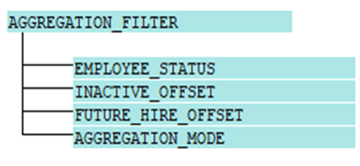
This structure must have the components listed below. The connector provides the input values for the BAPI input structure, and they are based on the values specified in the source.
EMPLOYEE_STATUS
This aggregation is based on the various statuses of the employee.
Possible values:
- ACTIVE
- FUTURE
- INACTIVE
- RETIREE
- WITHDRAWN
Note
- If the Aggregate Inactive Employees on the Aggregation Settings page is not disabled, then the EMPLOYEE_STATUS value is set as ACTIVE and FUTURE.
- If the Aggregate Inactive Employees on the Aggregation Settings page is enabled, then the EMPLOYEE_STATUS value is set as ACTIVE, FUTURE, INACTIVE, RETIREE, and WITHDRAWN.
INACTIVE_OFFSET
Indicates the number of past days to aggregate inactive (INACTIVE, RETIREE, and WITHDRAWN) employees. The inactive offset value is referred to from the terminationOffset attribute and is effective only if the Aggregate Inactive Employees is enabled.
The following table gives an example of this offset:
| Value from configuration | Description | Value passed on to BAPI |
|---|---|---|
| 0 | No Inactive employees are aggregated. | 0 |
| Positive Value | The number of days past from when the inactive employees must be aggregated. | For example, 30 |
| No input provided (BLANK) | Aggregation of all the employees based on status: INACTIVE, RETIREE, WITHDRAWN | -1 |
FUTURE_HIRE_OFFSET
Indicates the number of days to aggregate the future hires. The future offset values are referred to from the attribute Future Dated Hires Offset.
The following table gives an example of this offset:
| Value from configuration | Description | Value passed on to BAPI |
|---|---|---|
| 0 | No future hires are aggregated. | 0 |
| Positive Value | Aggregates future hires within the specified number of days. | For example, 30 |
| No input provided (BLANK) | Aggregates all future hires until 9999-12-31 | -1 |
Note
With every EMPLOYEE_STATUS, offset values will be passed as specified in the configuration attributes.
AGGREGATION_MODE
The values for AGGREGATION_MODE can be FULL or DELTA.
Note
By default, AGGREGATION_MODE is FULL. If the Delta Aggregation checkbox is selected on the Source UI, the mode is DELTA.
Output of the Aggregation Filter BAPI
The output of this value must be in the form of a JCOTable.
A JCOTable is an interface that describes internal tables used in the parameter lists of function modules. It is a data container, which can have multiple rows of the same fields.
The table name is AGGREGATION_FILTERED_LIST. The Output table must be a structure as described in the following figure:

The table must have the following components:
- PERNR
- BEGDA
- ENDDA
- STAT2
For example:
| PERNR | BEGDA | ENDDA | STAT2 |
|---|---|---|---|
| 00000001 | 20170505 | 99991231 | 3 |
| 00000002 | 2017050'6 | 99991231 | 2 |
| 00000003 | 20170508 | 20181231 | 1 |
Note
- PERNR - Personnel Number, BEGDA - Beginning Date, ENDDA - End Date, STAT2 - Employment Status
- The SAP-HR connector expects only one PERNR for one employee. If multiple person IDs are returned, the connector creates two separate identities for the person IDs as the default native identity is Employee Number.
Return Table
BAPIs used for aggregation filtering and fetching additional attributes must return an additional JCOTable.
- Table Name: RETURN
-
The table must have the following components:
-
TYPE: Possible values are as follows:
- S (success)
- E (error)
- W (warning)
-
MESSAGE
-
Custom BAPI for Additional Attributes
You must write the code based on your requirement for the Custom BAPI, and the SAP HR Source invokes that code accordingly. The Custom BAPI input and output parameters must be based on the guidelines as specified in this section.
Note
This is the second custom BAPI for additional attributes. The first custom BAPI is for aggregation filters.
Prerequisite
All the additional attributes returned from the Custom BAPI must be added to the schema manually.
Input of the BAPI to Fetching Additional Attributes
The input of this BAPI must be a structure.
The name of the structure is EMPLOYEE_DETAILS.
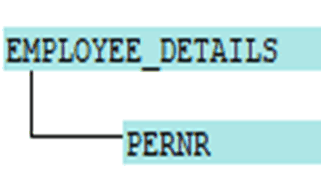
This structure must have the PERNR field.
Output of the BAPI to Fetch Additional Attributes
The output for the custom BAPI should be a JCOTable with a name of ADDITIONAL_ATTRIBUTE_LIST.
Note
- All attributes returned by the BAPI are treated as additional attributes. The attributes returned from the custom BAPI must be manually added to the schema to manage them.
- The connector processes all returned additional attributes as single-valued. It does not support multiple values for additional attributes.
- If the attribute names returned by the ADDITIONAL_ATTRIBUTE_LIST match those in the default schema, the default values are overwritten by the values returned from the custom BAPI.
The table must have all the additional attributes based on your requirements.
Example:
| MANAGER | REGION | LAST_DAY_WORK | GLOBAL_ID |
|---|---|---|---|
| John | Pune | 2018-5-1 | 11111 |
In this example, MANAGER, REGION, LAST_DAY_WORK, and GLOBAL_ID are additional attributes.
Documentation Feedback
Feedback is provided as an informational resource only and does not form part of SailPoint’s official product documentation. SailPoint does not warrant or make any guarantees about the feedback (including without limitation as to its accuracy, relevance, or reliability). All feedback is subject to the terms set forth at https://developer.sailpoint.com/discuss/tos.