Integrating SailPoint with SAP BTP Cockpit Cloud Foundry SaaS
Integration
This is an integration and requires additional licensing or subscriptions to utilize it. For more information, contact your customer success manager.
The SailPoint integration for the SAP BTP Cockpit Cloud Foundry SaaS connector enhances security and compliance for SAP BTP applications and services. It achieves this by effectively managing user access and entitlements across BTP Global Account, Directories, and Subaccounts.
It also provides the ability to view and manage platform users and their associated entitlements across various levels of the platform hierarchy, including subaccounts, organizations, and spaces.
This document is designed to give specific information about the requirements and field definitions needed to get a working instance of a SAP BTP Cockpit Cloud Foundry SaaS connector.
Note
To view the latest features, enhancements, and fixes for all SaaS connectors, refer to the SaaS Release Notes page.
Supported Features
In SAP BTP Cloud Foundry environment, an organization user must be created with a single org role only. If additional org roles needs to be assigned then this can be achieved using the update operation.
Note
The Organisation_user role is mandatory to provision Cloud Foundry spaces.
The SAP BTP Cockpit Cloud Foundry SaaS connector supports the following features:
Aggregation
- Account
-
Groups (Role Collections, Cloud Foundry Entitlements(Org & Spaces Roles))
Important
The connector aggregates only platform users (Cloud Foundry Orgs and Spaces) who are members of both the SAP BTP Subaccount and the corresponding Cloud Foundry Org/Space.
Account Provisioning
- Create User
- Update User (Attributes & Entitlements)
-
Enable/Disable User
Important
During entitlement updates of Cloud Foundry Orgs and Spaces, the connector uses the latest Org/Space data to prevent unintentional user deletions. User deletions are blocked unless explicitly allowed by you in the provisioning settings. For more information, refer to Provisioning Settings.
-
Delete User
Note
- Updates for
tenant ID&originare not supported by SAP. - In aggregated Role Collections, the indirectly or dynamically mapped entitlements from the SAP Indentity Directory with
'ondemand.com'or'sap.com'domains are displayed as'<entitlement>/SAP Identity Directory (<IddS_host>)'.
Privilege Classification
SailPoint Privilege Classification helps organizations systematically categorize and manage the privilege levels of entitlements within their sources. By classifying entitlements as high, medium, or low, administrators can better understand the potential risk and impact associated with specific access rights. This allows automatic assignment of privilege levels based on system recommendations, custom-defined criteria, or a same level across all entitlements.
| Privilege Level | Description |
|---|---|
| High | Administrative level access to accounts |
| Medium | Administrative level access for a specific role or function |
| Low | Only basic access of data |
Note
To manage Privilege Classification, users must have administrative roles such as Org Admin, Source Admin or Source Sub-Admin.
For more information, refer to Managing Privilege Classification.
Supported Managed Systems
The SAP BTP Cockpit Cloud Foundry SaaS connector facilitates governance of platform and business (application) accounts across the following layers:
- Global Account
- Directory
-
Subaccount
- Cloud Foundry Organization (Platform Users only)
- Cloud Foundry Spaces (Platform Users only)
Prerequisites
The following are the prerequisites to use the SailPoint SAP BTP Cockpit Cloud Foundry SaaS connector for the desired BTP license types:
Note
The S-User associated with the SAP BTP Global account (with required permissions) should create credentials for individual target layers (Global account/ Directory/ Subaccounts) for further governance operations. For more information, refer to Required Permissions.
SailPoint supports identity governance for SAP BTP Cockpit using the XSUAA service of Cloud Foundry.
To access the XSUAA API service, you can choose one of the following methods:
- Using BTP command line interface (CLI) (applicable for Global account/ Directories/ Subaccounts)
- Using BTP user-interface (UI) (applicable for Subaccounts only)
Steps for creating credentials using BTP CLI for the targeted BTP account
- Download BTP CLI from here, and extract the client file from the downloaded archive.
-
Copy the client executable from the unpacked folder to the designated directory as shown below:
- For Linux:
/usr/local/bin - For macOS:
/usr/local/bin - For Windows:
C:/Users/<your-user>
- For Linux:
-
Log in to the global account from a browser with S-User, who has Global Account Administrator Role collection entitlement.
Important
Ensure you clear the browser cache before logging in to avoid incorrect SSO login issues caused by a previous session with another user.
-
Run the command in the terminal using the sequence below:
-
Log in to BTP CLI via SSO using:
btp login --sso -
The above command prompts for the following inputs:
CLI server URL [https://cli.btp.cloud.sap]>Make sure to enter
https://cli.btp.cloud.sapstring as a CLI server URL input. This should open a new browser tab for SSO approval.Select Yes to log in to SAP BTP.
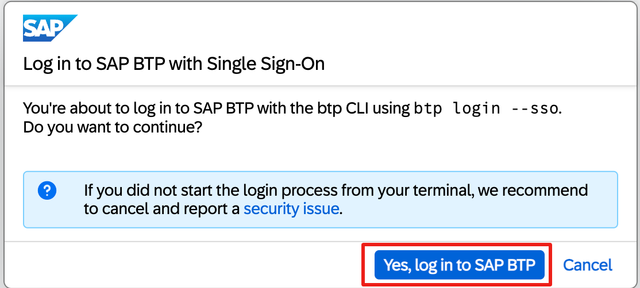
After approval, you may be prompted to select a global account from multiple options. Select the appropriate global account.
-
Create credentials using the following command:
btp create security/api-credential --name <desired_name>Use a name
<desired_name>that can serve as user-friendly identifier to store the credentials -Client ID,Client Secret,Token URL, andAPI URL. These credentials are necessary for configuring the SailPoint source with the targeted BTP layer.
-
Steps for creating credentials for any targeted layer (Global account/ Directory/ Subaccount) within the BTP Cockpit is as follows:
- Open CLI.
-
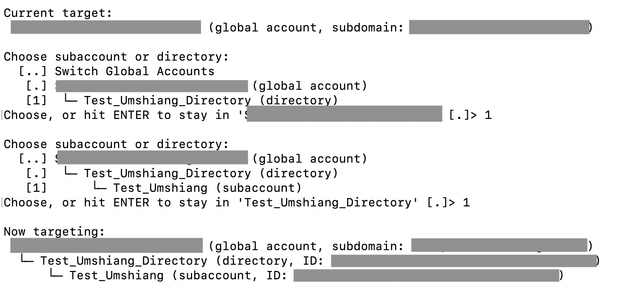
Use the following command to change the target layer:
btp target- Select the appropriate options to choose your desired target layer. For example, you can select '…' to switch to the global account.
-
Once the target is changed, create new credentials using the command mentioned in previous step.
Steps for creating credentials using BTP subaccount UI for the targeted BTP account
-
Log in to BTP Cockpit and go to the desired subaccount:
- Log in to the SAP Business Technology Platform (BTP) Cockpit.
- Go to the subaccount (with 'Subaccount Administrator' rights) for which you want to manage identities.
-
Create the authorization and trust management service:
- In the left navigation pane, go to Services and search for Authorization and Trust Management Service.
-
Select Create to create a service with the following settings:
- Plan:
apiaccess - Runtime Environment:
Cloud Foundry - Space:
ABAP_space (or your desired space) - Instance Name:
<desired_Instance_name>
- Plan:
-
Select Next.
-
Configure Service Parameters. On the Parameters screen, select Next.
-
Review and Confirm page:
-
On the Review screen, select Create.
Note
Ensure that under the Instances & Subscriptions tab, the Authorization and Trust Management Service is listed.
-
-
Create a Service Key:
- Select the ellipses(...) next to the listed service.
- Select Create Service Key.
- Enter an appropriate Service Key Name and select Create to create a new service key.
-
Retrieve Credentials:
- Once the service key is created, select the ellipses (...) again.
-
Select either View or Download to retrieve the following credentials:
- Client ID
- Client Secret
- Token URL
- API URL
These credentials are necessary for configuring the SailPoint source with the targeted BTP layer.
Note
Here, the
urlcorresponds to theToken URL, andapiurlcorresponds to theAPI URL.
Important
The individual set of credentials generated using either of the methods mentioned above applies to each SailPoint BTP Cockpit Cloud Foundry connector. The mapping of these credentials for setting up the connection is as follows:
Token URLcorresponds to theToken URL.API URLcorresponds to theHost URL.Client IDcorresponds to theClient ID.Client Secretcorresponds to theClient Secret.
Required Permissions
To use the SAP BTP command line interface (CLI) or user-interface (UI) to create credentials for the SAP BTP Cockpit Cloud Foundry SaaS, the S-user account must have the following permissions:
- The S-user account must be associated with the SAP BTP global account.
- The S-user must be entitled with the "Global Account Administrator" role collection.
To manage Cloud Foundry organizations and spaces using the Cloud Foundry V3 APIs, the S-user account must have the following roles in addition to the permissions mentioned earlier:
- Subaccount Administrator
- Organization Manager
- Space Manager
Documentation Feedback
Feedback is provided as an informational resource only and does not form part of SailPoint’s official product documentation. SailPoint does not warrant or make any guarantees about the feedback (including without limitation as to its accuracy, relevance, or reliability). All feedback is subject to the terms set forth at https://developer.sailpoint.com/discuss/tos.