Connecting SailPoint Multi-Host with Linux
Adding a New Multi-Host Source in SailPoint
To add a Multi-Host source in SailPoint, perform the following tasks:
- Go to Admin > Connections > Multi-Host Sources.
- Select Create New.
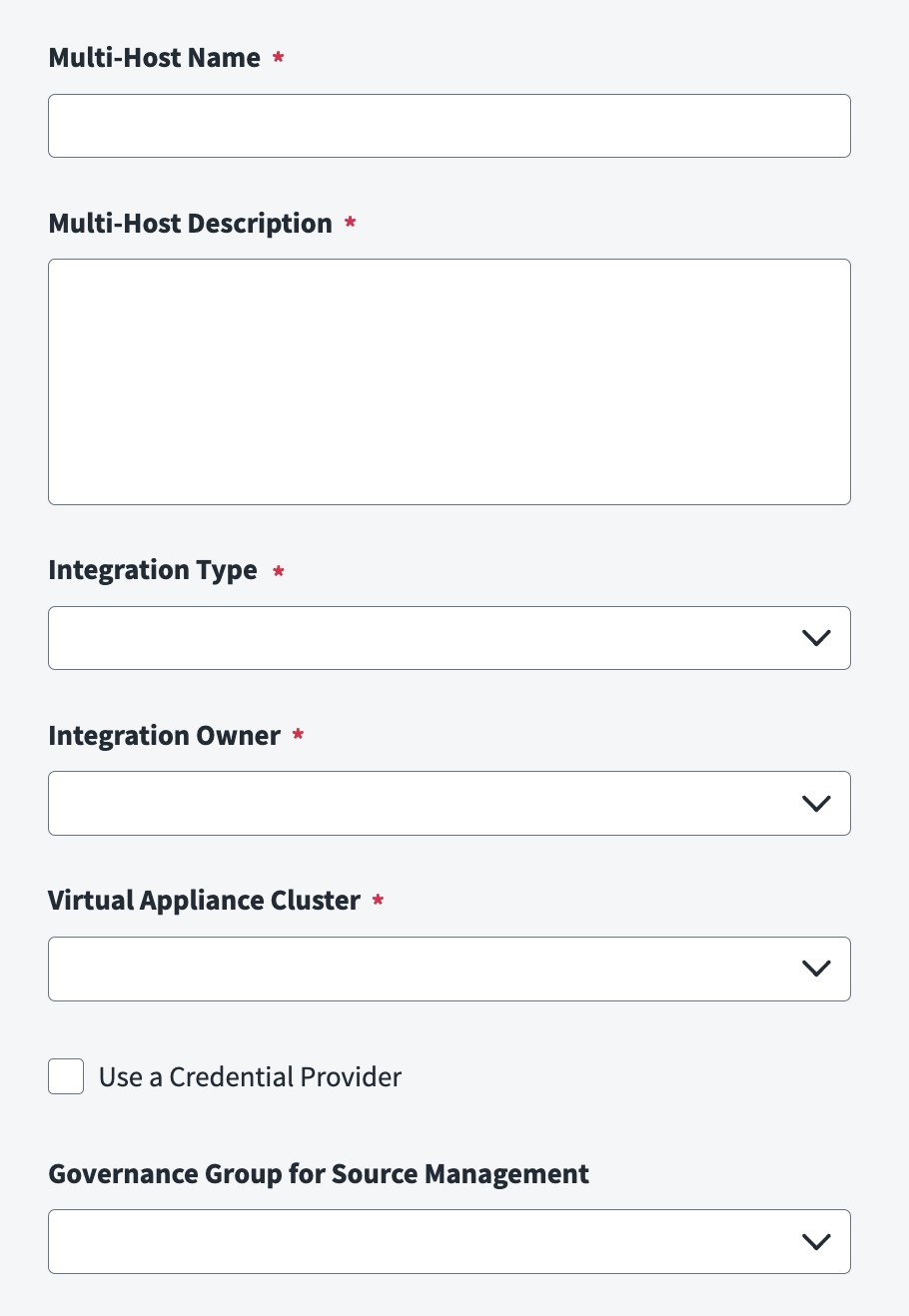
- Enter the Multi-Host Name of the group of sources that you are setting up.
- Enter the Multi-Host Description of the source. Ensure that the name and description of your source are unique. This description will help you identify the associated sources and tasks associated with a multi-host source.
- From the Integration Type dropdown list, select a source type.
-
Enter the name of the Integration Owner of the multi-host source or select one.
Note
You must select an Integration Owner at this time.
-
Select the Virtual Appliance Cluster that you want to assign for your integration.
Important
Once a Virtual Appliance Cluster is selected and saved, it cannot be updated later.
-
(Optional) Select Use a Credential Provider, if you have a credential provider configured in your tenant and want to use it.
- (Optional) Select the appropriate Governance Group for source management from the dropdown list. For more information about governance groups, refer to Associating Governance Groups with a Source.
- Select Create to create a source with your selections.
Base Configuration
Provide the base configuration parameters. Information you entered in the Create New dialog is automatically entered into the fields in the base configuration page. You can edit this information if necessary.
Screenshot
Note
Ensure that the name and description of each source is unique.
- Enter the Multi-Host Name of the group of sources that you are setting up.
- Enter the Multi-Host Description of the integration. Ensure that the name and description of your integration are unique. This description will help you identify the associated sources and tasks associated with an integration.
- From the Integration Type dropdown list, select a source type.
-
Enter the name of the Integration Owner of the Multi-Host source or select one.
Note
You must select an Integration Owner at this time, while creating the Multi-Host.
-
Select the Virtual Appliance Cluster that you want to assign for your integration.
Important
Once a Virtual Appliance Cluster is selected and saved, it cannot be updated later.
-
(Optional) Select Use a Credential Provider.
- (Optional) Select the appropriate Governance Group for Source Management from the dropdown list. For more information about governance groups, refer to Associating Governance Groups with a Source on the SailPoint Compass site.
- Select Continue.
Bulk Upload Settings
Screenshot

-
Select Bulk Upload to upload your CSV file with all of the sources. Each source name should be unique in the CSV file.
Warning
Do not provide any sensitive data in the CSV file. For example, password.
-
Select Continue.
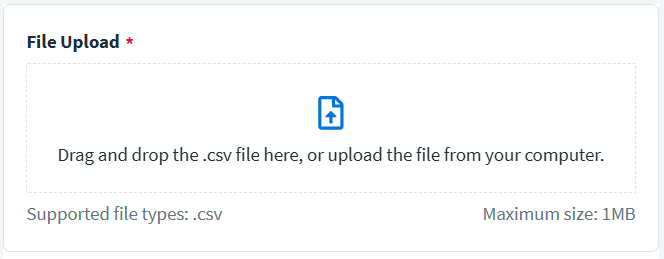
File Upload
Screenshot
-
Select the CSV file containing metadata required to create the Linux sources. Refer to the CSV template provided by SailPoint.
Note
Each source name should be unique in the CSV file.
-
Select Continue.
The Multi-Host source starts creating the Linux sources for the uploaded data. After saving it, it redirects you to the Multi-Host landing page. From here you can select your configured Multi-Host source, select Edit, and then manage the individual sources. This includes account and entitlement aggregation. For more information, refer to Managing Multi-Host Groups.
Documentation Feedback
Feedback is provided as an informational resource only and does not form part of SailPoint’s official product documentation. SailPoint does not warrant or make any guarantees about the feedback (including without limitation as to its accuracy, relevance, or reliability). All feedback is subject to the terms set forth at https://developer.sailpoint.com/discuss/tos.