Configuring Source Settings
Aggregation Settings
Configure connector settings related to delta aggregation and partitioning in aggregation processes. Refer to Partitioning Settings for the partitioning settings.
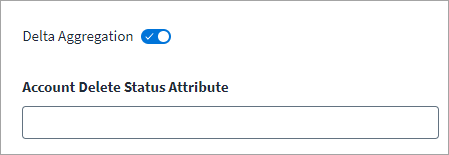
Delta Aggregation
Enable delta aggregation to configure the connector to only aggregate accounts which have had changes since the last aggregation process. This feature can help streamline aggregation processes.
Screenshot
-
Enable Delta Aggregation to aggregate accounts that have changed since the last execution.
Note
Delta aggregation based on
account object typeis only applicable for managed systems that support the delta aggregation operation. -
Enter the Date Format to use for the date and time data sent for delta aggregation.
- In the Server Timezone field, specify the timezone for the source's server.
- Select Save.
Common Configuration
- In the Connection Timeout (in seconds) field, enter the connection timeout value in seconds.
-
The Web Services source supports client certificate authentication for the API endpoints with SSL. Enter the valid details in the Client Certificate and Client Private Key fields, respectively. Refer to Converting a Private Key to RSA PEM Format for more information.
-
In the Account Enable Status Attribute field, enter the attribute name and value to set the account status while loading accounts. The status of accounts with the specified attribute and value is marked as enabled; the status for all other accounts is disabled. For example, if you enter
status=Active, the status of all accounts with thestatusattribute set toActiveis enabled.Notes
- The Account Enable Status Attribute field supports both single-value and multi-value status attributes. If you need to enter multiple values for the Account Enable Status Attribute, separate them by using a comma as displayed in the following example:
status=Active,Pending - The connector doesn't support the ability to select the n-th element (including the first element) from a list. This feature's supported types are string, integer, and Boolean. For example, the expression
values[?(@.name=="accountDisabled")].values[0]evaluates the expression value in a list format and is therefore not supported. You need to implement the Web Services After Operation Rule to configure enable/disable account for such a scenario. Refer to Web Services After Operation Rule for more information. -
Conditional operators are not supported. Examples of unsupported operators are as follows:
- The Account Enable Status Attribute field supports both single-value and multi-value status attributes. If you need to enter multiple values for the Account Enable Status Attribute, separate them by using a comma as displayed in the following example:
-
In the Account Lock Status Attribute field, provide the value required to check the account lock status. For example, if you enter
status=inactive, the account schemastatusattribute determines whether the account is locked or not. In this case, all accounts with theirstatusattribute set to inactive are considered locked by the connector, and therefore they are not included in provisioning.Note
The Account Lock Status Attribute field supports multiple values for the status attribute. If you need to enter multiple values for Account Lock Status Attribute, separate them by using a comma as displayed in the following example:
status=Locked,Inactive -
Enable Use hasMore Attribute for Aggregation Termination to enable the connector to terminate an aggregation process based on the setting for the
hasMoreattribute. If thehasMoreattribute is set tofalse, the aggregation is terminated if the number of accounts returned is zero. If Use hasMore Attribute for Aggregation Termination is disabled, aggregation processes are not terminated based on thehasMoreattribute.Note
The
hasMoreattribute is the Boolean attribute set in thetransientValuesmap in the Before/After Operation rule. -
Select Save.
Converting a Private Key to RSA PEM Format
The connector only supports the PEM format for the Client Certificate and the private key. Additionally, the Web Services connector expects the PEM private key to be an RSA PEM private key. The following process enables you to convert the private key to an RSA private key on a Windows computer:
- Download and extract the latest version of openSSL.
- Open cmd to the OpenSSL path.
- Copy the Private_ADP_Key.key file to the extracted OpenSSL path.
-
Run the following command:
This prompts for a pass phrase and must be decrypted as per the following steps.
Conversion to a combined PEM file:
To convert a PFX file to a PEM file that contains both the certificate and private key, use the following command:
Conversion to separate PEM files:
-
Extract the private key from PFX to a PEM file with this command:
-
Export the certificate with this command:
-
Remove the password from the extracted private key with this command:
Note
When using openSSL on the VA, the command works without the additional steps. However, the generated key signature is not accepted. It is suggested not to use openSSL on the VA.
-
-
Use this rsa_private_key.pem file in the connector.
Provisioning Settings
Screenshot
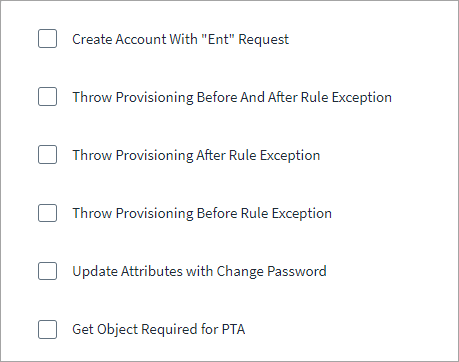
The Web Services connector supports the following provisioning features:
-
Create Account With "Ent" Request - The Create Account operation executes with entitlement attributes. If the Create Account operation response contains the required attributes, including the identity attribute, the account object is created and the account link displays under the identity from whom the account creation was triggered.
-
Throw Provisioning Rules - Configure the connector to set the exception flag and display any exceptions encountered during provisioning. There are three options available:
- Throw Provisioning Before And After Rule Exception - Set the exception flag during both the WebServicesBeforeOperationRule and the WebServicesAfterOperationRule.
- Throw Provisioning After Rule Exception - Set the exception flag during the WebServicesAfterOperationRule.
- Throw Provisioning Before Rule Exception - Set the exception flag during the WebServicesBeforeOperationRule.
Note
The connector does not retry these errors based on the errors configured in the
possibleHttpErrorsattribute. -
Update Attributes with Change Password - Include a password change and an attribute change in a single request. The Change Password operation is used for changing the password on the managed target system. If the provisioning plan contains no attribute request with the name "password", the update operation type endpoint is invoked. Enabling this attribute does not include requests for add or remove entitlement operations. Those requests are executed independently.
- Get Object Required for PTA - Refer to Pass-Through Authentication for more information.
Common Configurations for Errors
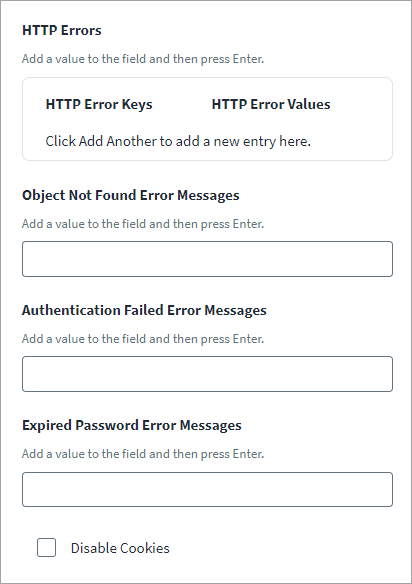
Configure HTTP errors that the connector may encounter during configured HTTP operations. You can configure these HTTP errors using the configuration UI or create an API call to define them.
Screenshot
HTTP Errors
When the connector encounters an error during an HTTP operation, it typically fails the operation and retries it. You must manually configure any possible HTTP error codes or messages that the API endpoint may return. Enter the HTTP Error Keys and their respective HTTP Error Values.
You can manually configure HTTP error codes and messages for times when an API endpoint in the Web Services source sends unexpected error codes to flag failure conditions. Manually configuring these codes enables the connector to properly handle them. Configure the source with all possible HTTP error codes and messages that the API endpoint may return. Enter the HTTP Error Keys and their respective HTTP Error Values.
Note
This is not applicable to the child endpoints.
For example:
- The Web Services source returns the HTTP status code
200, but the response payload contains an error. Without the manually entered HTTP error, the source won't know that it must fail the request and retry the operation. - During OAuth token generation, the source needs to regenerate a token to replace an invalid or expired token. You can configure an HTTP error code or message to specify an invalid/expiry token error in this event. The source regenerates and saves the token for OAuth2 authentication, then retries the operation with the newly generated access token.
Object Not Found Error Messages
Enter the error message that the connector displays when it can't find objects or fails to make connections. For example:
Authentication Failed Error Messages
Enter the error message that the connector displays when authorization fails. For example:
Expired Password Error Messages
Enter the message that the connector displays when passwords expire. For example:
Disable Cookies
The Web Services source can disable cookies while executing HTTP requests. You can disable cookies for all the operations performed except for the authentication API.
Refer to Support for Cookies for more information.
Note
If you use OAuth 2.0 authentication and you have the error messages for expired password correctly set, the connector tries to refresh the access token after the first failed connection attempt if the authentication endpoint supports it.
Retryable Errors Definition API Call
Add the following API call to the SailPoint REST API to define possible HTTP errors:
[
    {
        "op": "add",
        "path": "connectorAttributes/retryableErrors",
        "value": [
            "<Error 1>",
            "<Error 2>"
        ]
    }
]
Note
Refer to Best Practices: REST API Authentication and REST API - Update Source (Partial) in the SailPoint Developer Community for more information on SailPoint's REST APIs.
Documentation Feedback
Feedback is provided as an informational resource only and does not form part of SailPoint’s official product documentation. SailPoint does not warrant or make any guarantees about the feedback (including without limitation as to its accuracy, relevance, or reliability). All feedback is subject to the terms set forth at https://developer.sailpoint.com/discuss/tos.